Every AI photo watermark remover struggles with the same difficult situations. No tool consistently removes watermarks covering the entire image, crossing faces, or sitting on highly detailed backgrounds without visible artifacts. The real difference lies in how well each tool handles simpler edits. That depends on selection control, free-tier limits, processing quality, and whether your photos stay on your device or are uploaded online.
This guide explains how AI watermark removal works, which images are most likely to produce clean results, and compares 10 popular tools using six practical evaluation points to help you choose the right option.
In this article
-
- Tool 1. Repairit Photo Eraser
- Tool 2. WatermarkRemover.io
- Tool 3. Pixelcut AI Watermark Remover
- Tool 4. Cleanup.pictures
- Tool 5. Fotor AI Watermark Remover
- Tool 6. Picsart AI Remove Object
- Tool 7. Canva Magic Eraser
- Tool 8. Photoroom AI
- Tool 9. Adobe Express AI Remove Object
- Tool 10. insMind AI Magic Eraser
Part 1. What Is an AI Photo Watermark Remover?
The best AI watermark remover covers the mark and creates new pixels to rebuild the image. It does not just blur or copy the background. This creation process sets a hard limit on what any tool can fix.
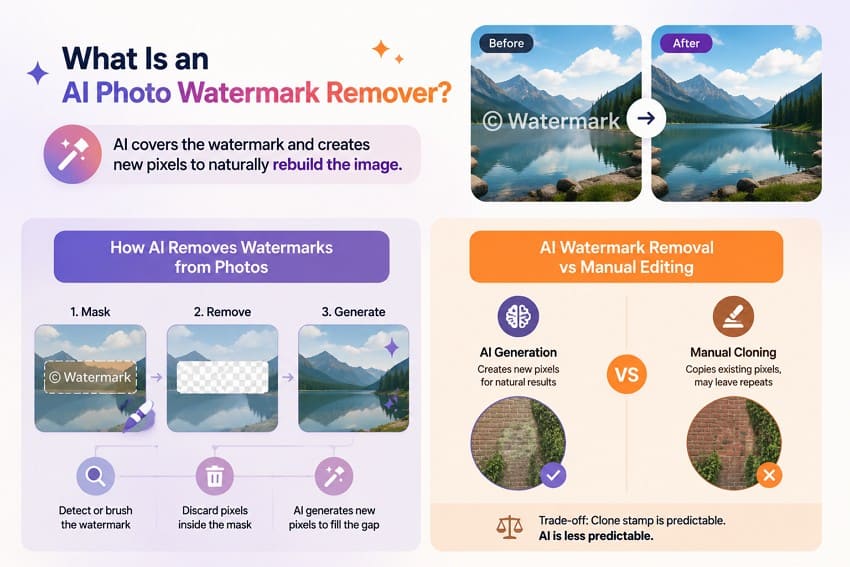
How AI Removes Watermarks from Photos
Removal runs in two stages: mask, then generate. The tool marks the watermark through automatic detection or a brush, discards everything inside that mask, and synthesizes new pixels for the gap. Adobe's generative fill documentation describes the same process, where an empty prompt directs the model to fill a selection from surrounding pixels alone. Nothing beneath the mark is recovered, because that data was never captured.
AI Watermark Removal vs Manual Editing
Cloning copies existing pixels while generation creates new ones, which determines which method works on patterned surfaces. A clone stamp duplicating brickwork or foliage leaves a visible repeat, while a diffusion model builds fresh texture. The trade-off is predictability: a clone stamp does exactly what you tell it, and a model does not.
Types of Watermarks AI Can Remove
When choosing the best free AI watermark remover, learn what types of watermarks you have to deal with via the mentioned table:
| Watermark Type | Difficulty | Limiting Factor |
| Corner Logo or Text | Easy | Small footprint with abundant surrounding reference for reconstruction. |
| Camera Date Stamp | Easy | Thin characters usually appear over simple areas such as sky or ground. |
| Semi-Transparent Overlay | Moderate | Partial underlying detail remains visible, helping AI generate a realistic fill. |
| Solid Banner | Moderate | Large, covered area, though straight edges provide useful structural guidance. |
| Full-Frame Diagonal Tiling | Hard | Little or no uncontaminated reference remains for accurate reconstruction. |
| Watermark Across a Face | Hard | Facial features are highly recognizable, making AI-generated errors immediately noticeable. |
When AI Watermark Removal Works Best
4 conditions predict success, and each describes the photograph rather than the software.
- Simple Backgrounds: Smooth areas like sky, water, or plain walls give the AI an easy pattern to fill in.
- Small Mark Size: Watermarks that cover less than 5% of the image leave plenty of details for the AI to copy.
- High Image Quality: Original photo files keep sharp details, whereas re-downloaded images lose important textures.
- No Key Features Covered: Watermarks stay away from faces and text, which humans inspect closely for small errors.
Common Limitations of AI Watermark Removers
5 constraints apply to every AI remove watermark from photo tool listed here, and no paid tier removes them.
- Full-frame repeating patterns leave little or no uncontaminated reference for accurate reconstruction.
- Text and logos beneath opaque watermarks are synthesized rather than recovered, which may produce inaccurate or distorted content.
- Semi-transparent watermarks over detailed textures can leave faint blending artifacts after removal.
- Free tiers often reduce output quality through lower resolution, compression, or re-encoding, depending on the service.
- AI-generated results can vary between attempts because generative models produce non-deterministic outputs.
When Is It Legal to Remove Watermarks?
The answer depends on who owns the image. Circular 1 from the U.S. Copyright Office gives the copyright owner exclusive rights over reproduction and derivative works, plus the right to authorize others. You have the legal right to edit your own photos, family pictures with date stamps, or stock images you licensed. Work owned by others cannot be edited, as watermarks often hold protected copyright data.
Part 2. Things to Consider Before Choosing an AI Watermark Remover
Before you choose the best AI photo watermark remover, go through these 6 considerations to pick the right option:
- Selection Control: Automatic detection speeds up watermark selection but may offer limited manual adjustment. Brush tools take more time per image while allowing users to refine or retry difficult areas.
- Reconstruction Quality at the Mask Boundary: Weak AI models often reveal artifacts around the edges, including softness, banding, or abrupt texture transitions. Test on detailed areas such as foliage or fabric rather than plain skies.
- Supported Watermark Types: Performance on small corner logos does not necessarily reflect results on large tiled or diagonal watermarks. Test the watermark type you remove most often.
- Batch Capacity and Export Ceiling: Batch support and export limits vary by tool. Check file limits, output resolution, and whether batch processing is available in your chosen plan.
- Processing Location: Many browser tools upload images to cloud servers, while some desktop applications process files locally. Review each tool's privacy policy and data retention practices before handling confidential images.
- Free-Tier Restrictions: Free plans commonly limit usage through credits, resolution caps, export watermarks, or processing quotas. Identify the restriction before building your workflow.
Part 3. 10 Best AI Watermark Removers to Choose From
To dive into the details of the 10 best AI watermark remover tools, review this section in detail:
Tool 1. Repairit Photo Eraser (Recommended)
-
Precise brush selection. Adjustable brush sizes and zoom controls help target small or complex watermark areas.
-
Local desktop workflow. Process private images on desktop when cloud upload is not suitable.
-
AI reconstruction. Remove watermarks, glare, reflections, shadows, wires, and unwanted text from photos.
Platforms: Windows, macOS, iOS, Android, and Web
Best For: Complex watermark removal with maximum editing control.
Repairit Photo Eraser stands out by combining precise brush-based selection, AI-powered reconstruction, and optional local desktop processing. You decide exactly what to remove, giving you greater control over complex watermarks than fully automatic tools. Beyond watermark removal, it also erases glare, moire, reflections, shadows, wires, and unwanted text from photos.
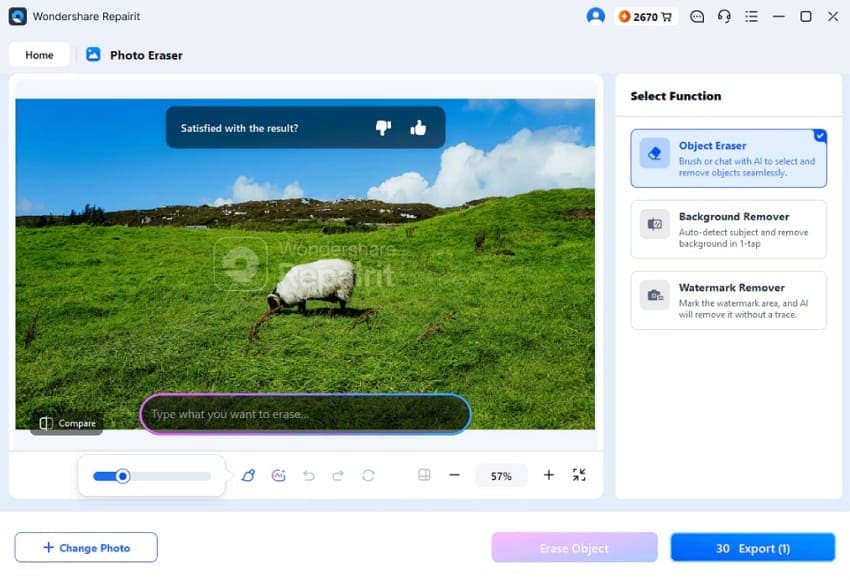
It supports JPG, JPEG, PNG, BMP, and WebP without conversion. The desktop version processes images locally, while the online version encrypts uploaded files and automatically deletes them after processing. You can preview the results before saving the final image. The same editing workflow is available across desktop and online versions for a consistent experience.
Pros
- Keeps the original photo unchanged while saving edits as a separate output.
- Online uploads are encrypted and automatically deleted after processing.
- Supports removing multiple unwanted elements from a single photo in one editing session.
Cons
- The browser version caps uploads at 300 images monthly.
How to Use the Repairit Photo Eraser Watermark Tool
To know how this best AI watermark remover works, follow the 3 simple steps mentioned below:
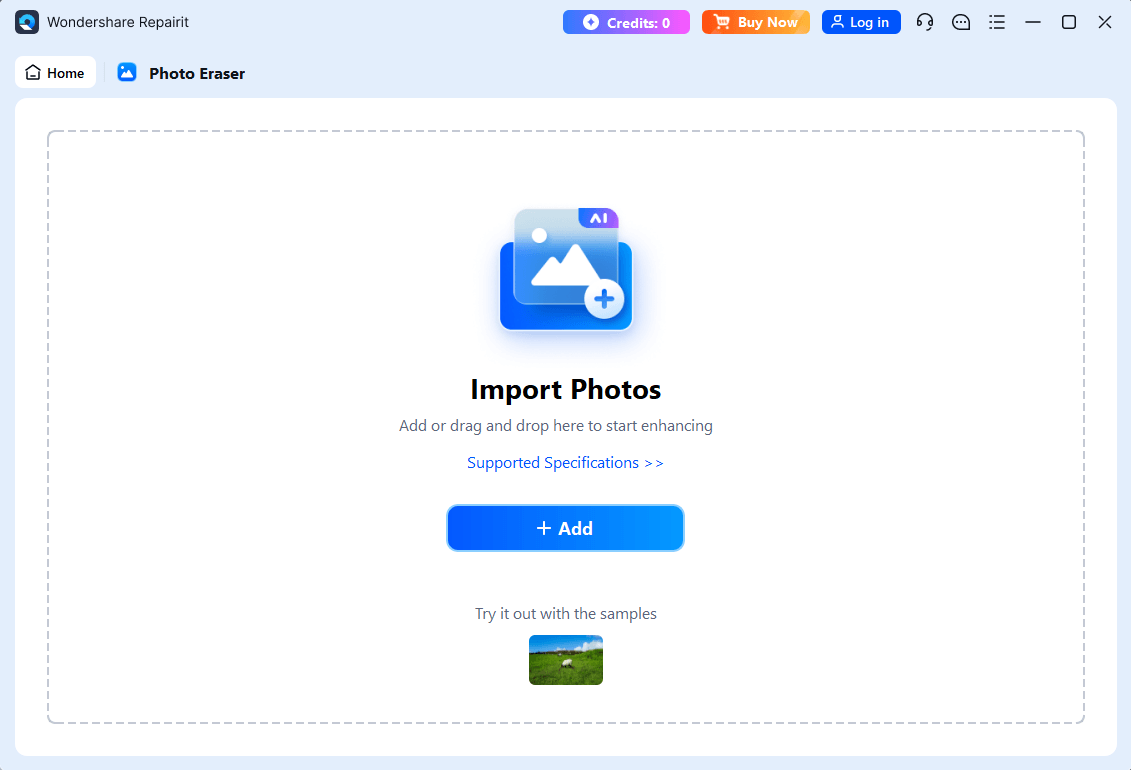
Step 1. Load the AI Watermark Remover
Open the Photo Eraser tool, select the Watermark Remover function, and press +Add to import the image.
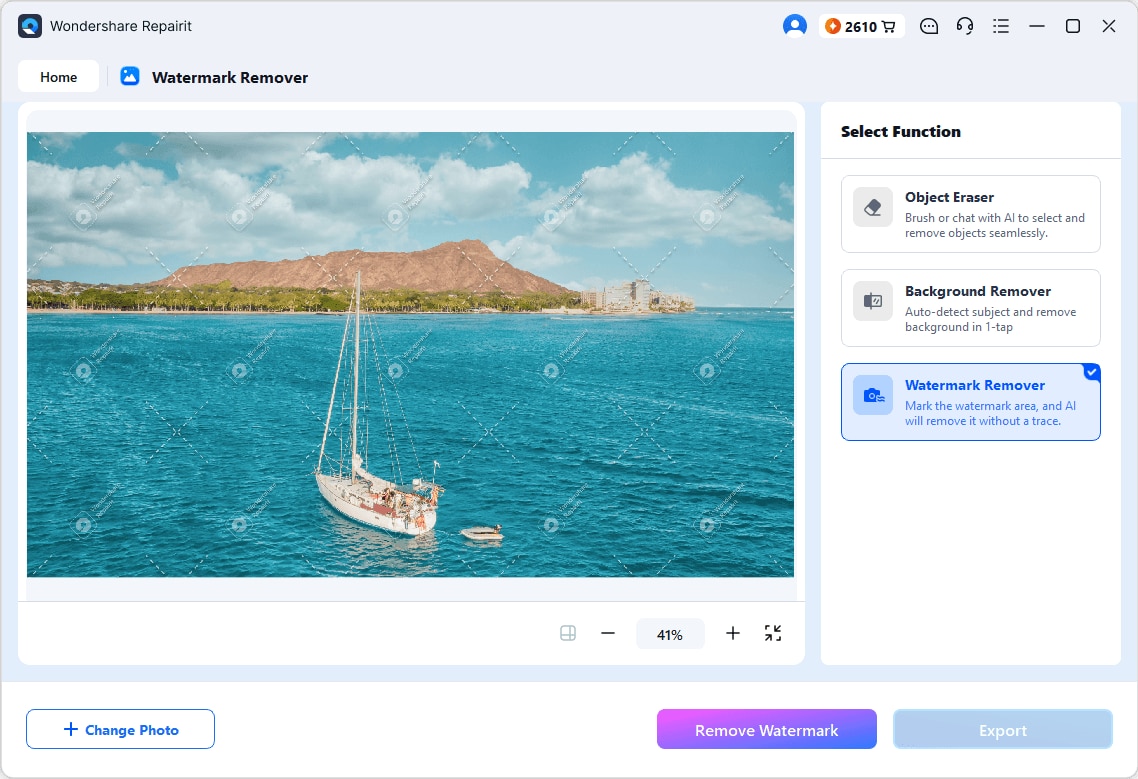
Step 2. Brush the Watermark
Paint over the mark and zoom in to catch thin strokes and the soft edges around many overlays.
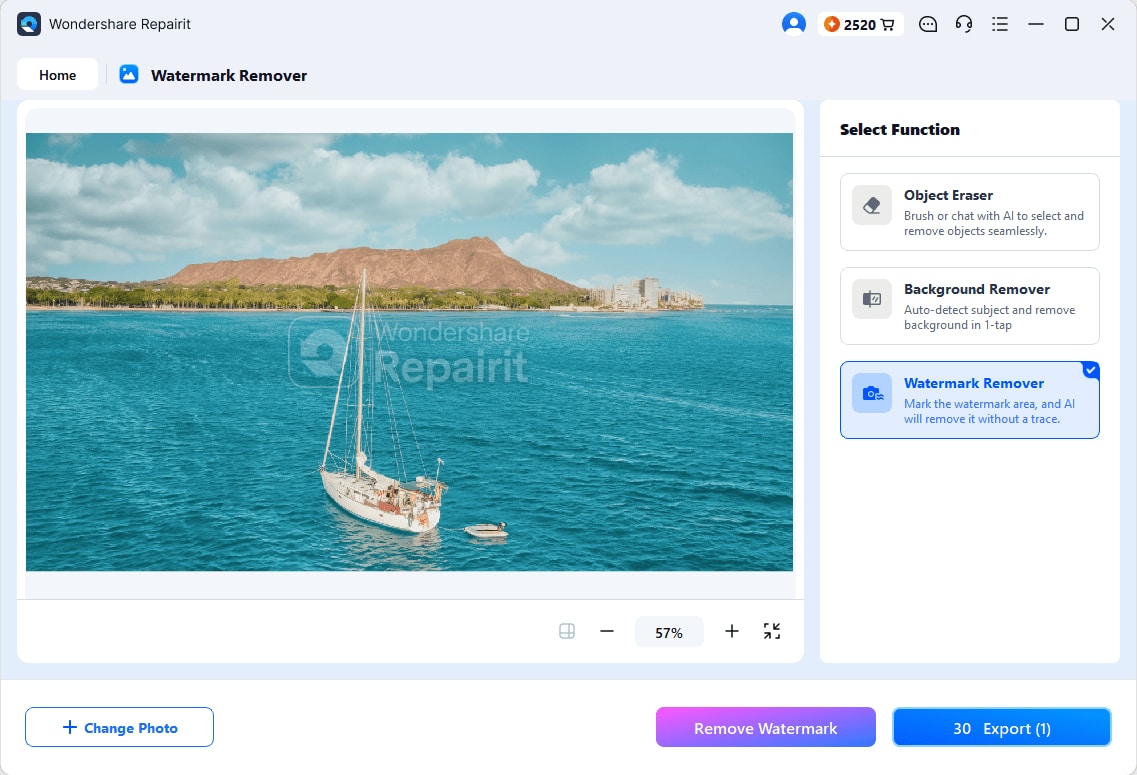
Step 3. Remove the Watermark and Export
Check the rebuilt area at full magnification, then press the Export button to save once the fill matches the texture around it.
Tool 2. WatermarkRemover.io
Platforms: Web
Best For: Single corner logos needing no intervention.
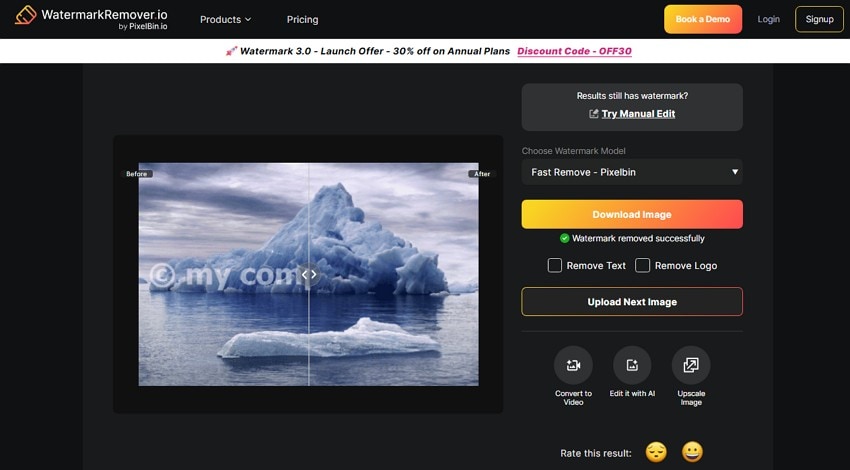
For anyone who wants no manual work at all, this AI remove watermark from photo tool detects the overlay automatically and returns a cleaned image from a single upload. It accepts JPG, JPEG, PNG, WEBP, and HEIC, so iPhone photos need no conversion. Uploads are deleted after 24 hours, and free access runs on a monthly credit allowance.
Pros
- A split before-and-after view appears before any download.
- API access supports programmatic use at commercial tiers.
Cons
- No manual override exists when an image carries multiple marks.
- Batch processing is restricted to commercial pricing tiers.
Tool 3. Pixelcut AI Watermark Remover
Platforms: Web, iOS, and Android
Best For: Marketplace listings needing cleanup and resizing together.
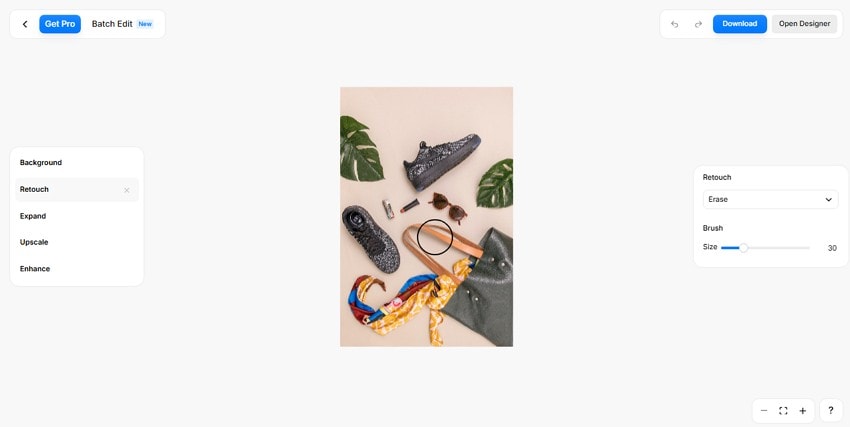
Sellers working through catalog images will get the most from Pixelcut, whose model is trained on product photography. This AI photo watermark remover performs best on studio backdrops and flat surfaces. Background removal, marketplace resizing, and mockup generation run in the same workspace. The batch tools process multi-image uploads without repeating the workflow per file.
Pros
Presets resize output to common marketplace listing dimensions.
Generated shadows preserve realism after background replacement.
Cons
- Detailed outdoor scenes reconstruct less convincingly than studio shots.
- Higher-resolution export is reserved for the Pro tier.
Tool 4. Cleanup.pictures
Platforms: Web
Best For: Quick cleanups where 720-pixel output suffices.
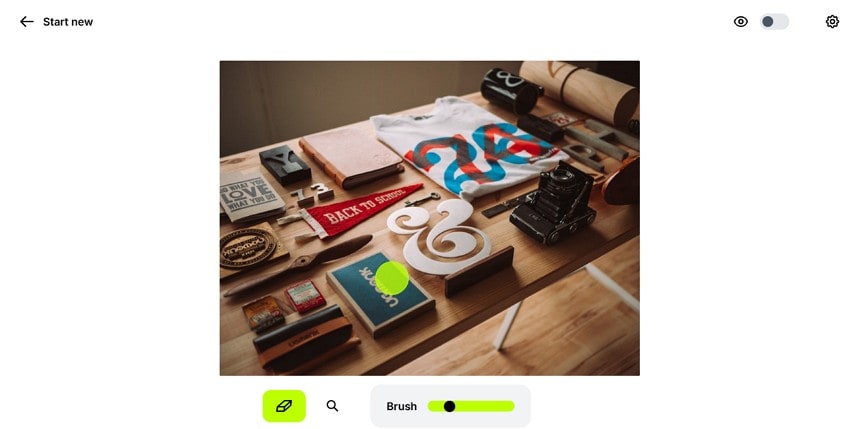
Cleanup.pictures keeps the interface simple with a brush and adjustable size slider for quick edits. Free downloads are limited to 720-pixel resolution on the longest edge, and the tool performs best on watermarks placed over plain or less detailed backgrounds. It works well for quick cleanup tasks that do not require high-resolution exports.
Pros
- No signup required in this best AI watermark remover.
- Undo history lets you repeat attempts on the same region.
- Brush size adjusts continuously rather than in fixed steps.
Cons
- Free downloads cap at 720 pixels on the longest edge.
- No batch mode exists at any pricing level.
Tool 5. Fotor AI Watermark Remover
Platforms: Web, iOS, and Android
Best For: Comparing automatic against manual output on identical files.
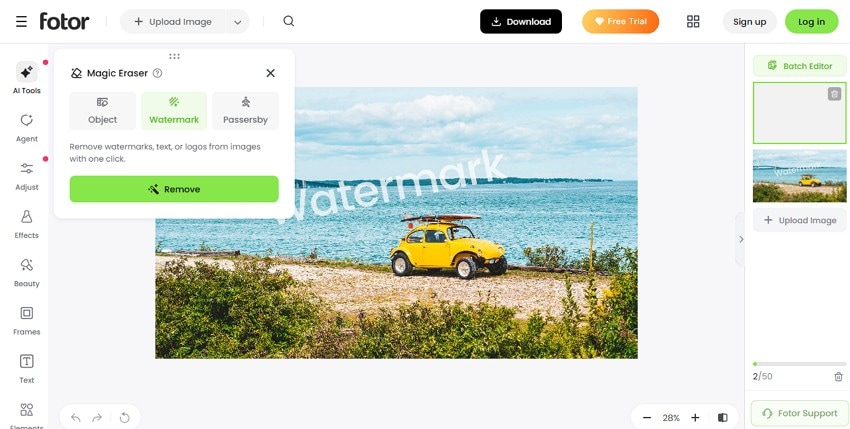
This AI photo watermark remover offers both automatic detection and manual brush selection, giving you flexibility for different images. Retouching, background replacement, and enhancement tools help refine results after watermark removal. The brush mode often handles difficult or semi-transparent watermarks more accurately than automatic detection.
Pros
- Automatic and manual modes are both available before payment.
- Cloud projects remain accessible across signed-in devices.
Cons
- Free downloads carry Fotor branding, replacing one mark with another.
- Advertising interrupts the free web interface repeatedly.
Tool 6. Picsart AI Remove Object
Platforms: Web, iOS, and Android
Best For: Removing unwanted objects on phones and tablets.
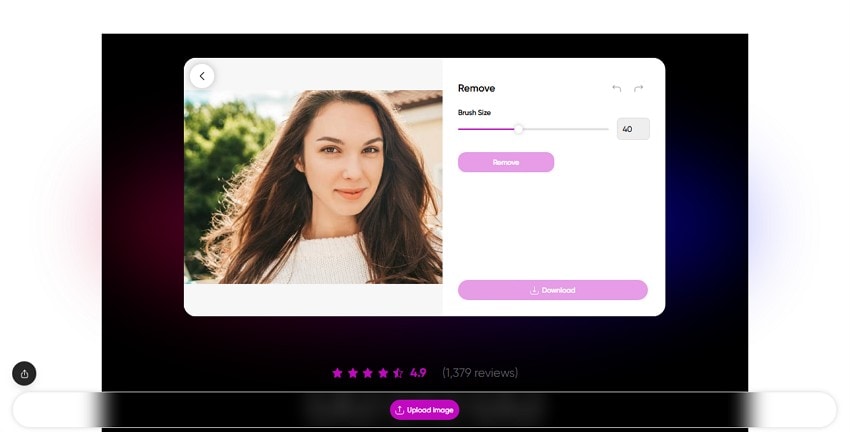
Mobile editors will find Picsart built around touch input, with a brush calibrated for finger accuracy rather than a mouse. Collage, text, effects sit in the same app, covering everything from cleanup to publication. Layer support lets the cleaned image sit beneath added graphics, and removal works on imported artwork as well as photos.
Pros
- Pinch-zoom brushing achieves usable accuracy on a phone screen.
- Edits sync between the mobile app and web version.
Cons
- Free export resolution drops below the source dimensions.
- Upgrade prompts appear throughout the free editing flow.
Tool 7. Canva Magic Eraser
Platforms: Web, iOS, and Android
Best For: Removing unwanted objects without leaving Canva projects.
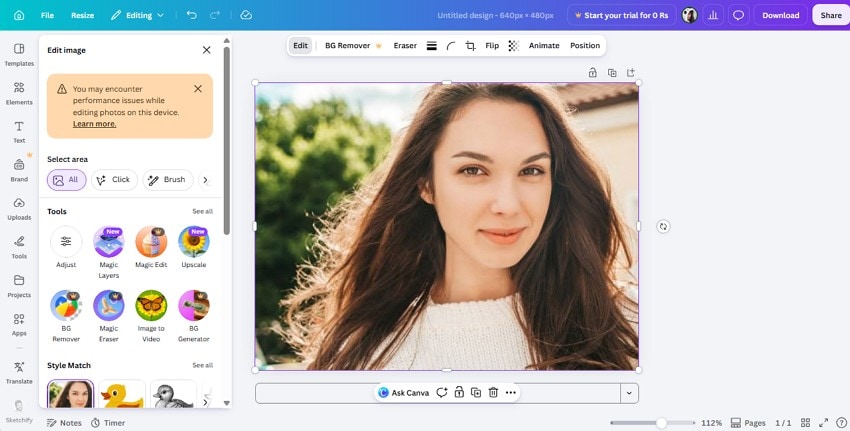
Canva Magic Eraser lets you use AI to remove watermarks from photo projects without leaving your Canva design. The edited image stays in the same workspace, so you can continue designing immediately. Access requires Canva Pro, and the tool is available alongside Canva's built-in image editing features.
Pros
- Brand kit colors and fonts persist across the edited asset.
- Document history keeps every removal reversible after saving.
Cons
- Magic Eraser requires a paid Canva Pro subscription.
- Reconstruction trails dedicated tools on high-detail backgrounds.
Tool 8. Photoroom AI
Platforms: Web, iOS, and Android
Best For: Product catalogs needing consistent output across many files.
Anyone shooting products will notice that this best AI watermark remover handles edges around hair, packaging, and irregular outlines. Background removal, shadow generation, and object removal run through one engine, so output stays consistent across a listing set. Templates cover marketplace and social dimensions for the finished cutout.

Pros
- Automatically reconstructs missing backgrounds naturally without any blur.
- Creates consistent results across multiple product images in one workflow.
Cons
- Landscape and interior scenes reconstruct less reliably than products.
- The free tier limits both resolution and daily volume.
Tool 9. Adobe Express AI Remove Object
Platforms: Web, iOS, and Android
Best For: High-detail backgrounds where reconstruction quality decides output.
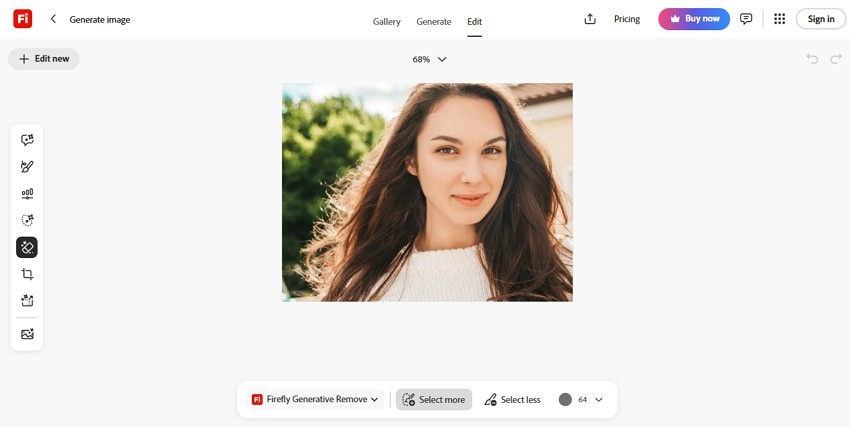
The same Firefly model that runs inside Photoshop also powers Adobe Express. With this best free AI watermark remover, you can upload JPG, JPEG, PNG, and WebP files up to 100 MB. It is trained on licensed Adobe Stock and public domain content, making outputs legal for business and marketing use.
Pros
- Includes free daily generative credits upon creating an Adobe account.
- Analyzes surrounding lighting, patterns, and shadows to fill missing areas.
Cons
- Requires generative credits, which run out fast on free tiers.
- Full unlimited access requires an expensive Adobe paid subscription plan.
Tool 10. insMind AI Magic Eraser
Platforms: Web
Best For: Full-resolution output without payment or registration.
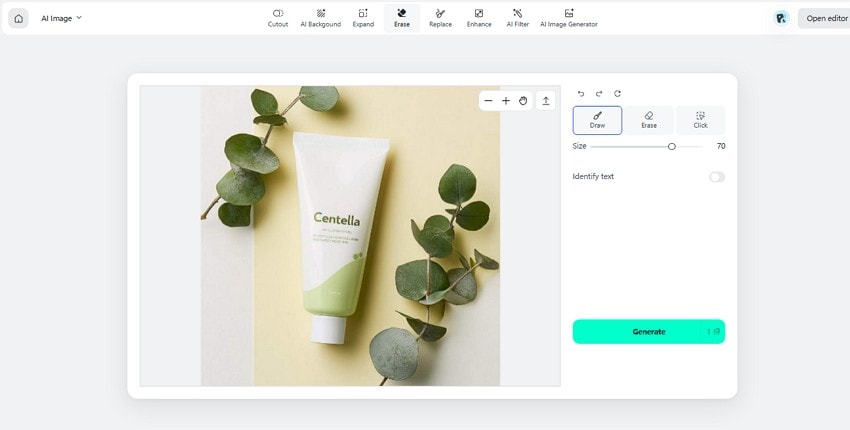
Free plan users get full-resolution downloads from insMind, with no account required and no watermark applied to the output. Watermark removal, object removal, and background replacement share one brush interface. Processing queues lengthen during peak hours because free capacity is shared in this AI photo watermark remover.
Pros
- Requires no prior photo editing skills or complex manual masking setup.
- Works seamlessly with common image types like JPG, PNG, and WebP.
Cons
- Queue times lengthen noticeably during peak usage hours.
- Intricate textures reconstruct less cleanly than paid alternatives.
Of all the best AI watermark remover options, if you want to choose the best one, compare all in the mentioned table:
| Tool | Best For | Privacy | Key Limitation |
| Repairit Photo Eraser | Precise watermark removal | Local or cloud | Free trial before export |
| WatermarkRemover.io | One-click automatic removal | Cloud | Limited manual control |
| Pixelcut | Product and marketplace images | Cloud | Premium export features |
| Cleanup.pictures | Quick object cleanup | Cloud | 720px free output |
| Fotor | General photo editing | Cloud | Free exports include branding |
| Picsart | Mobile editing workflows | Cloud | Premium features locked |
| Canva Magic Eraser | Canva design projects | Cloud | Requires Canva Pro |
| Photoroom | Product photography | Cloud | Advanced features require Pro |
| Adobe Express | Creative Cloud users | Cloud | Generative credits apply |
| insMind | Quick browser-based editing | Cloud | Feature limitations on free plan |
Verdict. For professional-grade results and complete data privacy, Repairit Photo Eraser is recommended. Its local processing engine and precision brush let you erase watermarks and photo flaws seamlessly without uploading sensitive files to the cloud.
Conclusion
Choosing the right AI photo watermark remover depends on the level of control, privacy, and image quality you need. Automatic tools work well for simple edits, while complex watermarks benefit from manual selection. If you want accurate results with local processing, Repairit Photo Eraser offers the best balance of precision, privacy, and ease of use.
Frequently Asked Questions
-
What is the best free AI watermark remover?
Repairit Photo Eraser is the best choice for accurate watermark removal, offering precise brush selection, AI reconstruction, and a free trial before export. -
Can AI remove a watermark without any trace?
On uniform backgrounds, it usually can. Marks over faces, legible text, or repeating patterns leave visible artifacts, because reconstruction invents plausible content rather than recovering the original. -
Does removing a watermark reduce image quality?
Only inside the masked region, since pixels elsewhere are untouched. Measurable loss usually comes from the export, where free tiers downscale or re-encode the finished file. -
Is it safe to upload private photos to online watermark removers?
It depends on the tool's privacy policy. For confidential or NDA-protected images, use Repairit Photo Eraser Desktop, which processes files locally instead of uploading them to the cloud.