
TL; DR
- Main Function: PhotoRoom is an AI-powered tool that automatically removes image backgrounds.
- Key Features: The tool allows users to create or add image-based or colored backdrops. Users can also edit the picture or princess multiple images, but batch processing and AI backdrop generation are paid.
- Pricing Details: The free version is limited to basic backdrop changes and edits. The Pro version is needed for AI-powered edits, batch processing, or a SOC 2 Type 2 certified API for enterprise-grade security.
- Drawbacks: Beyond paid AI features, too many editing options can confuse beginners. Furthermore, the cluttered interface can confuse beginners who need simple editing options. So, despite too many options, the tool only offers 3 image export options, and the weekly plan is limited to Pro.
- Alternate Advanced Cleanup Option: When PhotoRoom fails to fill in surrounding pixels, use Repairit Online Photo Eraser. The tool auto-fills the image, preserves the quality of surrounding pixels, and analyzes images more deeply.
- Verdict: PhotoRoom struggles to process fur or hair-like scene images and leaves a hollow white place. Since its AI features are paid for as well, Repairit Online Photo Eraser fills in pixels better and offers precise backdrop removal.
Quick Answer Box: The PhotoRoom remove background tool is best for one-click backdrop removal from high-quality, clean portraits. For AI generative fill, precise backdrop removal at a low cost, Repairit Online Photo Eraser meets the needs.
Imagine you are trying to list a new product on eBay or refreshing your Instagram profile. Regardless of the need, you find that your perfect shot is ruined by the cluttered living room or an unwanted object in the backdrop. When you think of removing them manually, it feels like an hour's hassle. However, if you search for "AI Background Remover," you come across the PhotoRoom remove background tool.
On the main site, the tool claims to be the fastest solution with no waiting time. If this claim raises questions, this guide covers everything clearly. Here, this BG remover is tested, and its claims are evaluated to help you make the right choice.
In this article
Part 1. What Is PhotoRoom Background Remover?
PhotoRoom background remover is an AI-powered tool that allows users to have a clean backdrop with a one-tap automated process. Unlike traditional editors, this tool uses high-precision AI models to instantly distinguish between the subject and background. This is why the tool is famous among e-commerce sellers, social media influencers, small business owners, and product photographers in 2026.

Part 2. How PhotoRoom AI Automatically Removes Backgrounds
If you want to know how the PhotoRoom background removal technique functions, review this section in detail. Here, you will learn about its key aspects, usage, and common problems associated with backdrop removal to make the right choice.
Key Features of PhotoRoom Background Eraser
Here are some of the key features offered by this background remover:
- Batch Processing: The tool allows users to remove the background from multiple images at once. However, this feature is limited to Pro plans, and each plan offers different batch options, ranging from 500 to 1500.
- Change Background Color: When the tool automatically removes the background when adding an image, users can add a colored backdrop. They can either choose a plain backdrop or pick colored ones by selecting settings like "HSL, RGB, or HEX."
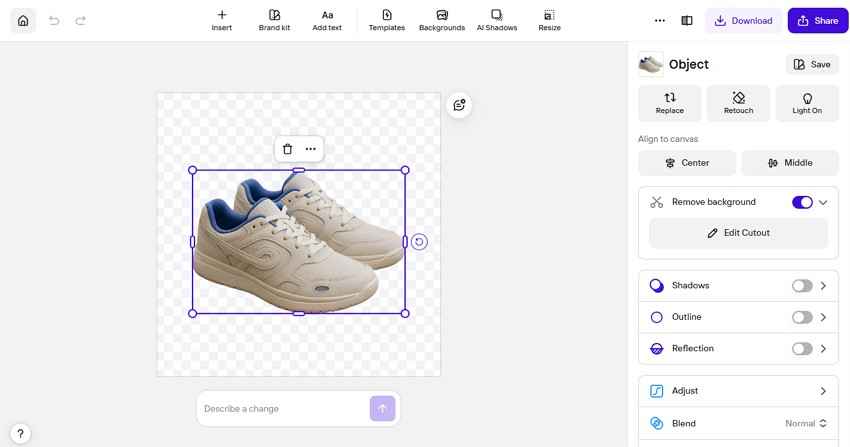
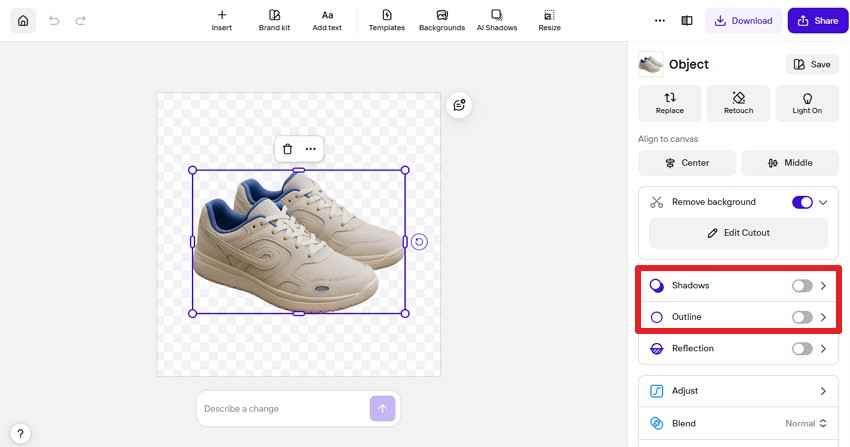
- Edit Features: This tool gives an "Edit for Free" option to personalize the image further. In reality, these editing options, such as templates, shadow, outline, or cutout, require a detailed sign-in. There, users can either duplicate the image, replace it, or retouch it, making it suitable only for professional editors.
Users can also use the AI to make edits, but the process comes with hefty charges that might not be cost-effective for beginners. In comparison, the Edit Cutout feature allows users to manually or guidedly remove unwanted objects. In case of an issue, they can use Eraser or restore the original version.
- Add Background Option: When editing with the PhotoRoom BG remove tool, you can add an image as the background. Using this, you can choose from 100s of templates or add a custom image for a personalized effect. Otherwise, users can add solid-colored backdrops and choose from neutral tones and soft pastels. You can also create a new palette and save it to the library for later access.
- Comparison & Review Option: The tool includes a detailed slider to preview the before-and-after. If there are any changes, you can add reviews in a collaborative environment.
- Download Options: When the changes are made, users can save the image in PNG, JPEG, and WEBP format only. Although the format options are limited, you can rename the file and get size details. Furthermore, you can share the link or add the recipient's email address, which is best for collaborative work.
How to Remove Backgrounds with PhotoRoom?
It's evident that the AI features for the remove background PhotoRoom tool are paid. So, if you want to perform basic functions for free, here is how this tool functions:
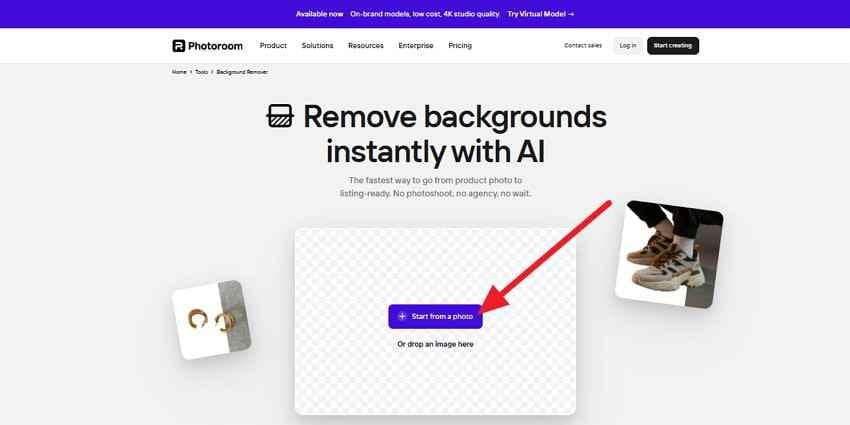
Step 1. Choose the "+Start from a Photo" option, then upload the image from your device.
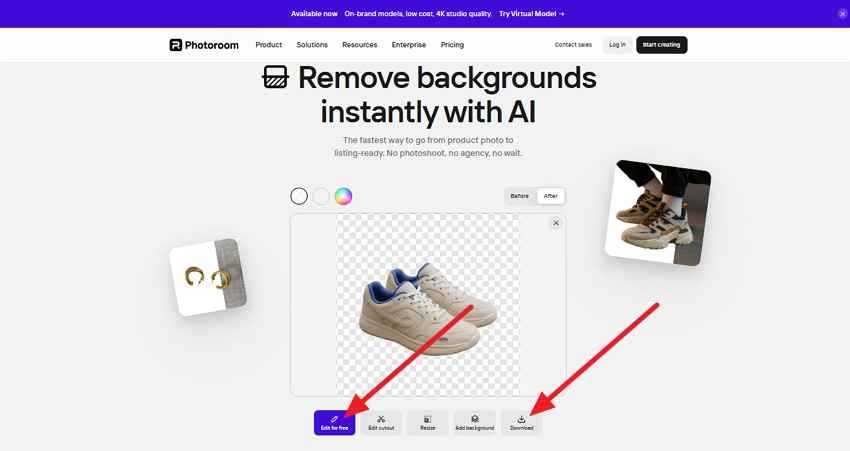
Step 2. When the AI removes the backdrop, preview the results, then choose the "Download" or "Edit for Free" option.
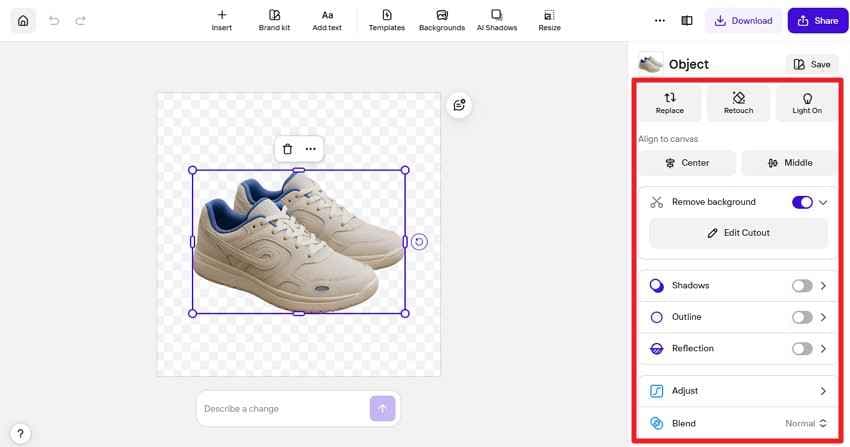
Step 3. If you want to edit the image, click "Edit for Free" and use the features listed on the new interface. There, you can add a shadow, edit the cutout, or add outlines when manually adding a new backdrop.
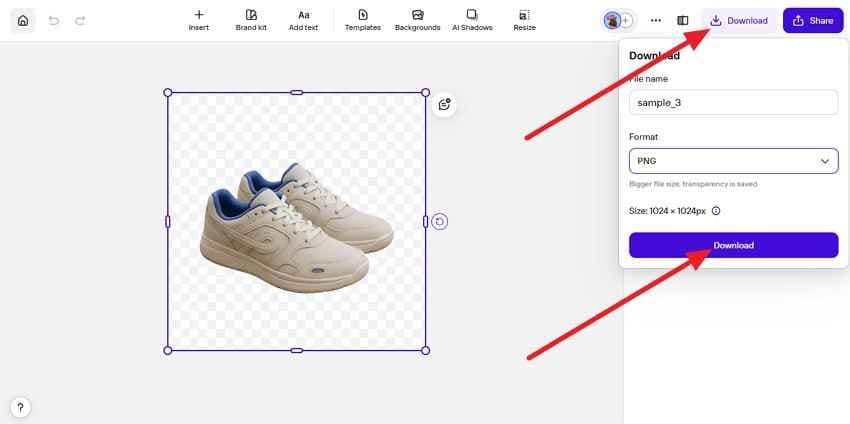
Step 4. Once all the edits are made, press the "Download" button at the top right corner. On the popup menu, rename the image, choose format, and click on "Download."
What Types of Photos Work Best in PhotoRoom?
In the Remove BG PhotoRoom tool, high-resolution and sharp images that are separated from the main objects work best. In addition, it can process portraits and complex background images using AI models. You can also use multiple subject pictures, but if they are low in quality, you will have a blurred effect around the edges.
Common PhotoRoom Background Removal Problems
Other than the image type, here are some other issues associated with this background remover:
| Issue | Cause |
|---|---|
| Hairy or Jagged Edges | Complex textures like fur, frizzy hair, or loose threads confuse edge detection. |
| Halo/White Glow | Harsh lighting or light reflecting off the background bleeds onto the subject. |
| Subject Eaten (Over-trimming) | Low contrast between the subject and background (e.g., a white shirt on a white wall). |
| Background Color Bleed | Colors from the original background reflect onto the edges of your product. |
| Artifacts/Leftovers | Busy backgrounds with text or crowded objects can leave behind ghost pixels. |
Pros and Cons of PhotoRoom Background Remover
To decide whether you should choose the background remove PhotoRoom tool, review its perks and pitfalls.
Pros
- AI removes the background from high-quality images immediately.
- Offers integrated backdrop templates and editing features.
- It is ideal for high-level editing for professional users.
Cons
- Batch processing of 500-1500 is only available in the paid plans.
- Users can only save the image in 3 format options.
- Causes blurred effects on low-quality or overly crowded backdrops.
- The AI background generation is limited to the Pro version.
- Too many editing features are not suitable for beginners.
- The edit interface is cluttered with too many options.
Part 3. Is PhotoRoom Background Remover Free?
Besides pros and cons, go through the pricing of the background remover PhotoRoom tool. Through this, you can know what can and cannot be done in the Free version. Nonetheless, review the basic pricing table first, as mentioned below:
| Plans | Price | Details |
|---|---|---|
| Weekly | Pro: \$5.99 Max: - Ultra: - |
- Advanced AI tools - 5x AI image credit allowance - 500 Batch exports per month - 1000+ templates - High resolution exports |
| Monthly | Pro: \$12.99 Max: \$34.99 Ultra: \$99 |
- Everything in the Pro plan - Access to better AI models - 5x-3x Pro AI image credit allowance - 500-1500 Batch exports per month |
| Yearly | Pro: \$7.50 Max: \$20.99 Ultra: \$82.50 |
- Everything in the Max plan - Access to better AI models - AI credits increase with each Ultra tier - Advanced AI workflows |
What Can You Do with the Free Version?
With the free version of the PhotoRoom background eraser, you perform all the basic edits. Additionally, the number of downloads is not limited, but you only get 3 format options.
What Features Require PhotoRoom Pro?
In the Pro version, you can access AI tools such as Product Staging, Virtual Model, Ghost Mannequin, etc. Moreover, you can get a 500-1500 batch image-processing option, with a 5x-3x Pro AI image/video credit allowance. In its enterprise offering, you get a SOC 2 Type 2-certified API for enterprise-grade security, and tailored plans starting at 200K+ images per year.
Can You Edit Images After Removing the Background?
Yes, after using the PhotoRoom remove background online tool, users can edit the image. However, the claim "Edit for Free" is not true, as the AI background generation is paid. Nonetheless, you can edit the cutout, add shadows or outline, or replace or retouch the image.
Pro Tip. Use Repairit Photo Eraser for Advanced Photo Cleanup
Though PhotoRoom is designed to remove the backdrop in one click, it fails when you need to keep key details in the existing background. Additionally, when using the low-quality images with bearded subjects or lace textures, the tool added blurred edges. So, instead of using a tool that only works with high-quality portraits and requires paid AI features, use Repairit's Online Photo Eraser as a better alternative.
With support for JPG/JPEG/PNG/BMP/WEBP, it can remove a selective backdrop from portraits, landscapes, social media posts, and product displays. Users can also use it to remove watermarks, texts, glare, or Moiré with better control options. In this case, you can either use the adjustable brush up to 160px or zoom the image for precise background removal.
[Key Features] Why Repairit Photo Eraser Is Recommended for Image Cleanup
To know what aspects make this tool better than PhotoRoom remove background, review the given key features:
- Intelligent Context-Aware AI Fill: Instead of leaving a white cast, the AI tool focuses on constructing the background. Its Generative Fill technology analyses the surrounding pixels and rebuilds the missing area.
- Lossless Processing: Whether you are working with high or low-quality images in complex scenes, Repairit Online ensures that the surrounding pixels are unaffected. In fact, the tool does not compress the image and allows users to preview it before export.
- Privacy & Security: Users can batch-process images on both paid and free plans, and it is an affordable part of the Wondershare ecosystem. As a result, the tool uses high-level encryption for uploading files, which was previously limited to Enterprise in PhotoRoom.
- 10+ Patents Secured (AI-Driven Restoration): Repairit's technology is not just another generic eraser; it's built on Patent logic. This implies that the technology identifies the underlying data of the photo and handles corruption, not just at the surface level.
How to Remove Unwanted Objects Using Repairit Photo Eraser
Let's perform a real-world test using a low-quality, crowded landscape image to evaluate Repairit Online Photo Eraser's claims.
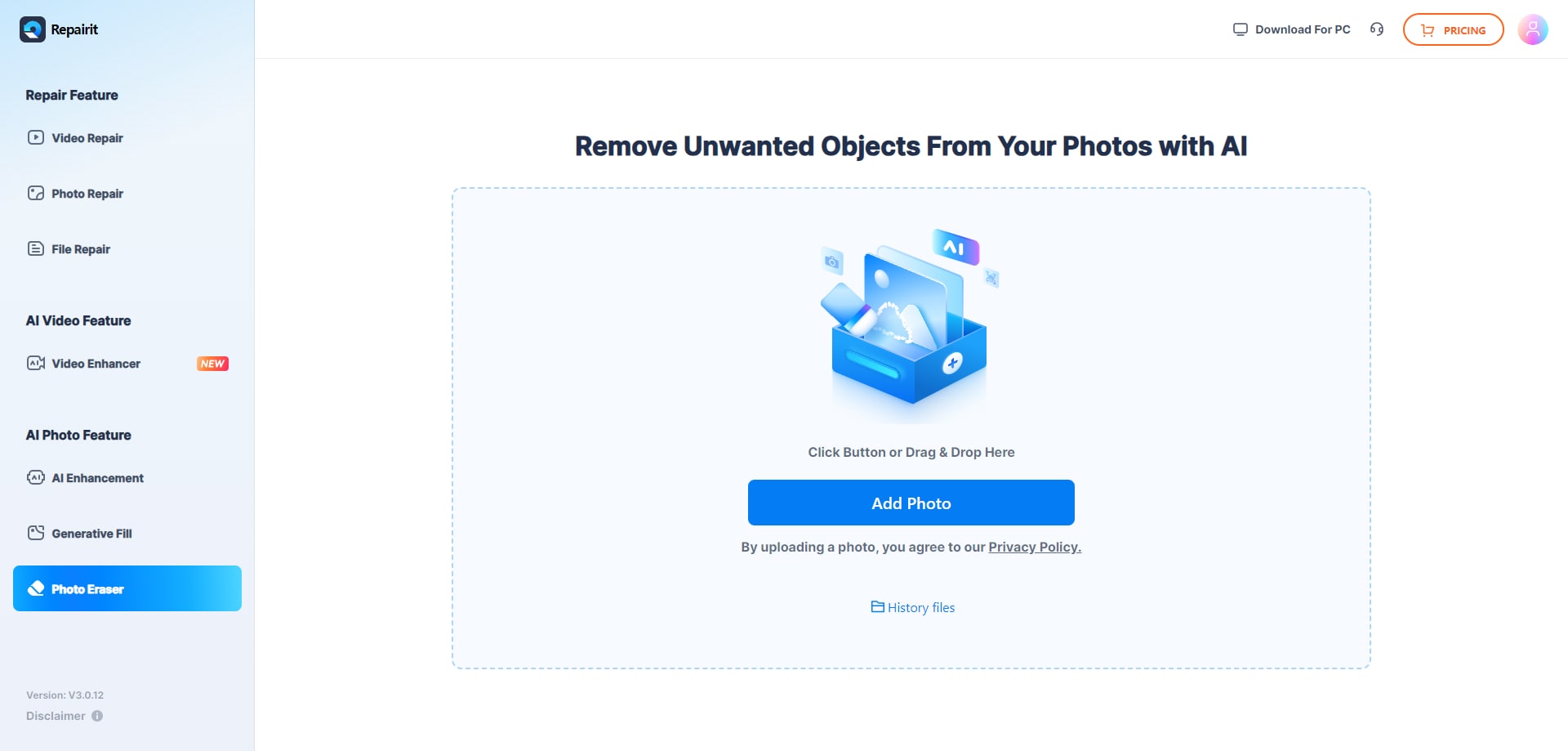
Step 1. Launch Repairit Online Photo Eraser
Rather than relying on PhotoRoom background remover, add the image to the tool by pressing the "Add Photo" button.
Step 2. Add Image and Mark Objects with Brush
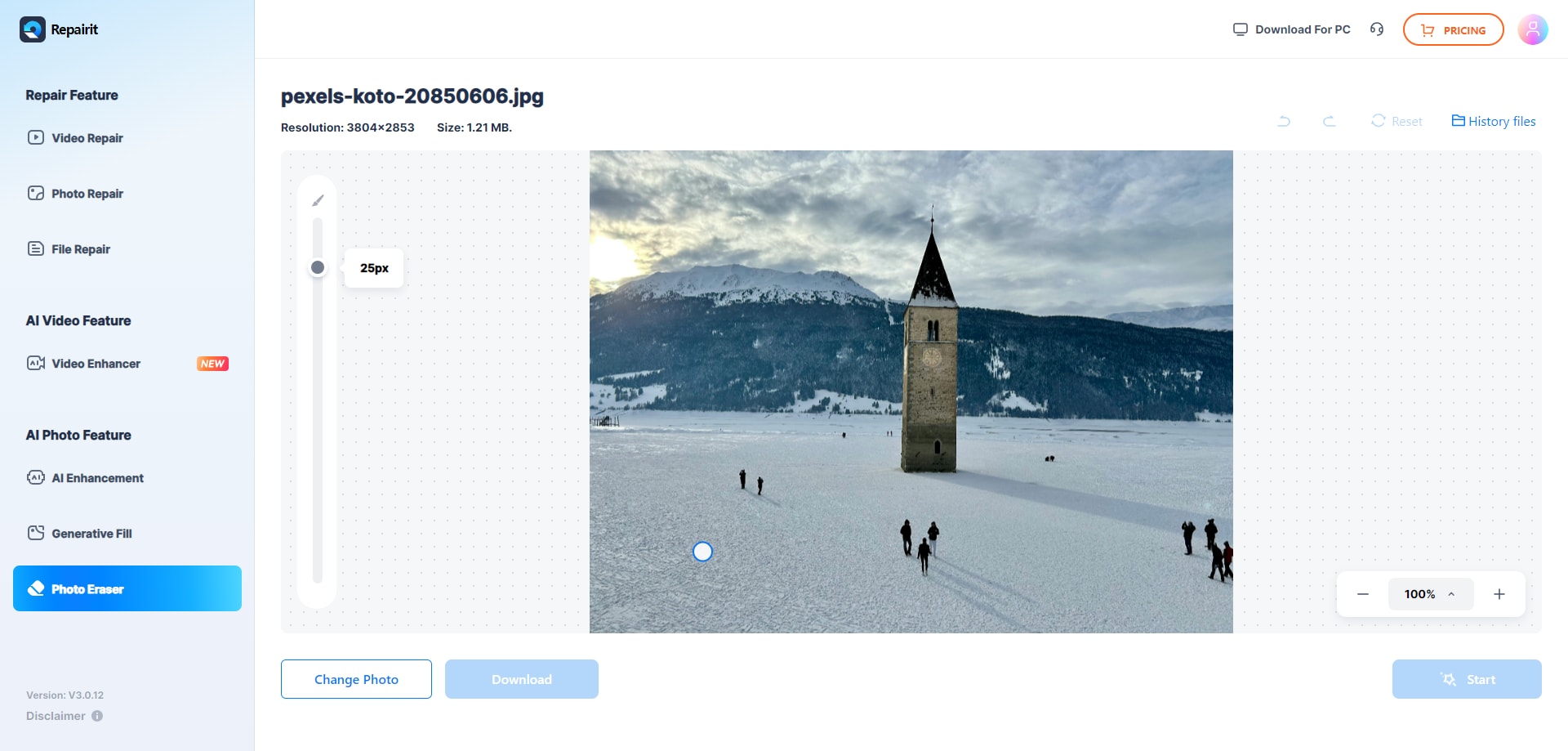
Now, adjust the "Brush" size and highlight the objects you want to remove with Repairit Photo Eraser.
Step 3. Download Image When AI Removes and Auto Fills
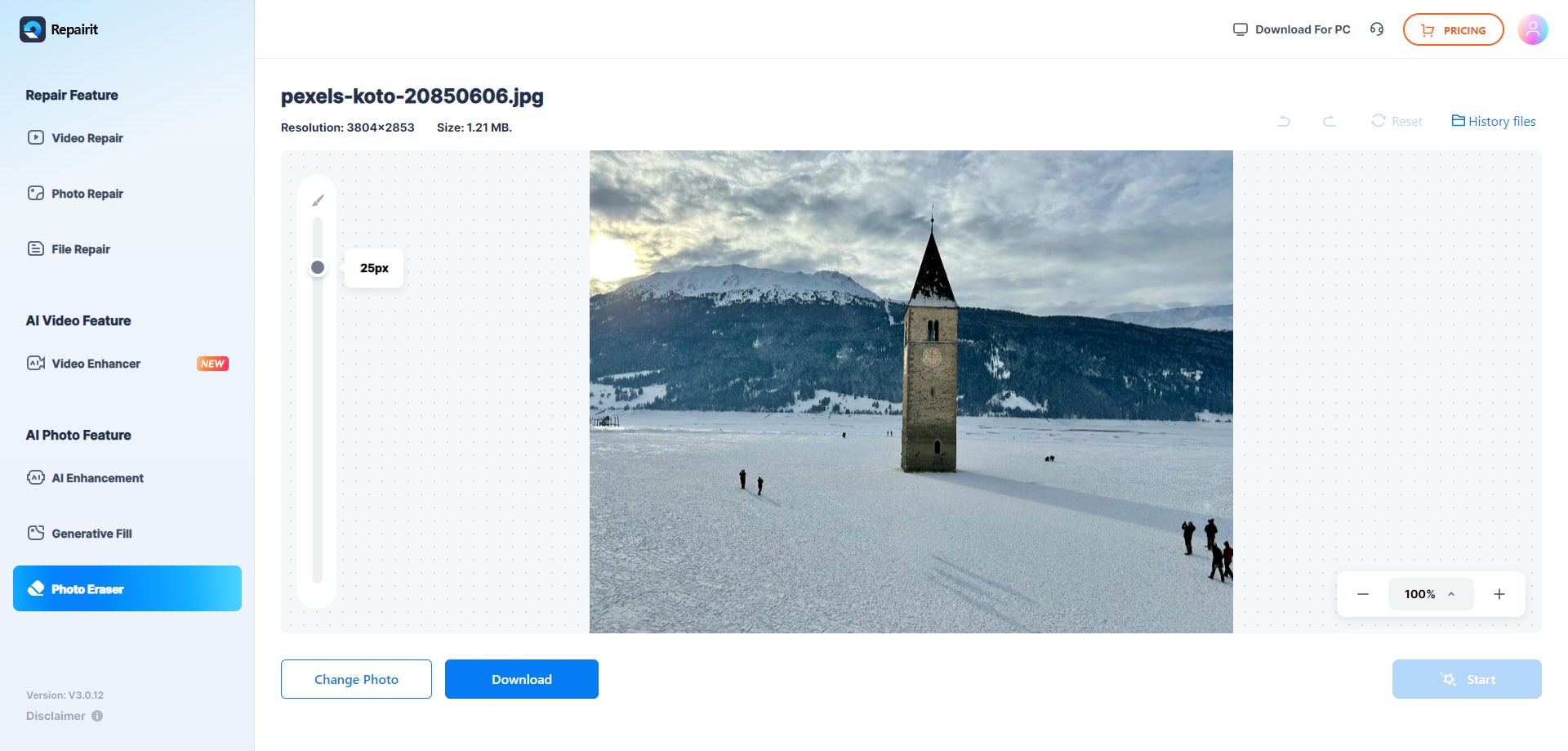
When the AI extracts objects and auto-fills the pixels, review the results. Zoom in and out for precise removal, then click the "Download" button to export the image.
Why Repairit Photo Eraser Helps Content Creators and Sellers
Beyond the precise AI removal, this tool outshines the PhotoRoom BG removal tool, as content creators or e-commerce sellers can access the history. Hence, the History File options enable them to track images that were batch-processed previously.
Additionally, you can use individual plans or bundles for \$8.75/month, where you can access all AI features. If you compare it with PhotoRoom, the Repairit bundle that comes with Repair and Recovery features is much more advantageous than PhotoRoom's.
Part 4. 7 Tips for Better Background Removal Results in PhotoRoom
Repairit Online meets the needs of both professionals and beginners who need selective, batch background removal. However, if you still want to use the PhotoRoom background remove tool to remove all backgrounds at once, follow the mentioned tips:
| Tips | What To Do |
|---|---|
| Start with Quality | Use sharp, well-lit photos with minimal motion blur. Avoid busy or cluttered backgrounds with patterns similar to your subject to prevent halos or missing parts. |
| Magic Retouch | Swipe over unwanted photobombers, price tags, or dust spots with the Retouch tool. This cleans up the fine details without re-shooting the entire product. |
| Refine with Cutout Tools | Zoom in on fine details, such as hair or hands. Use the AI-assisted brush for large areas, and the Manual brush for precise edges, such as thin straps or labels. |
| Layer Your Original BG | If you like your original setting, let the AI remove it first, then apply the background template. This separates the subject and background into two editable layers. |
| Match Style & Color | Choose a replacement background that contrasts with your subject. Use solid colors for catalogs and save busy AI scenes for creative social media shots. |
| Prompt AI Intelligently | For Instant Backgrounds, use short, clear prompts such as light wood tabletop in daylight, as a Pro user. Vague prompts often create distracting, unrealistic environments. |
| Optimize Your Export | Use PNG for transparency and JPG for solid/AI backgrounds. Export at high resolution to avoid exaggerating jagged edges on different platforms. |
Part 5. Common PhotoRoom Background Remover Issues and Fixes
When trying the given expert tips, if you face any issues using PhotoRoom to remove background online, this section has some solutions.
Missing Parts (Over-Scanning)
The AI mistakenly identifies parts of the subject, such as white lace on a white rug, as the background.
Fix: Use the Edit Cutout tool and press the "Restore" option to revert the changes. Then, use the "Guided" or "Manual" options to remove the backdrop.

Leftover Clutter (Under-Scanning)
Small bits of the original images remain, or ghost pixels are scattered around the main subject.
Fix: On the Edit Cutout tool, highlight the unwanted pixels by using the "Eraser and then manually remove the backdrop.

Jagged or Hairy Edges
The cutout looks rough around complex textures like fur, frizzy hair, and loose fabric.
Fix: Select your subject and apply a subtle outline or shadows from the "Edit for Free" options. This will soften the edges and hide the minor AI imperfections.
AI Generation Limits
You receive a message that you've reached your limit for AI backgrounds or removals.
Fix: Check whether you have a paid plan activated and ensure you have enough credits remaining on the Pro, Max, or Ultra plan.
Loading Images Batch Freeze
A common 2026 bug where Batch Mode stays stuck and never uploads photos.
Fix: On the web, make sure you have enough 500-1500 batch import limits according to the plan. If you have a limit, remove the web page, then try uploading again.
Conclusion
When searching for the AI background remover, PhotoRoom's background remover comes as one of the options. Based on the detailed review, this guide has concluded that the tool's AI features are paid and best for one-click removal only. However, users who want to keep certain details, even on low-quality backdrops, can leverage Repairit Online Photo Eraser's generative fill, patent technology.
Frequently Asked Questions
-
Is the PhotoRoom API secure for my business?
Yes, the tool offers a SOC 2 Type 2 certified API in the Enterprise plan to ensure high-grade security. -
Can I use PhotoRoom offline?
No, because the semantic understanding and background eraser happen on the cloud-based AI servers. -
How does the Magic Retouch differ from Background Removal?
Background removal deletes everything except the subject, but Magic retouch keeps the original background and erases specific distractions.