
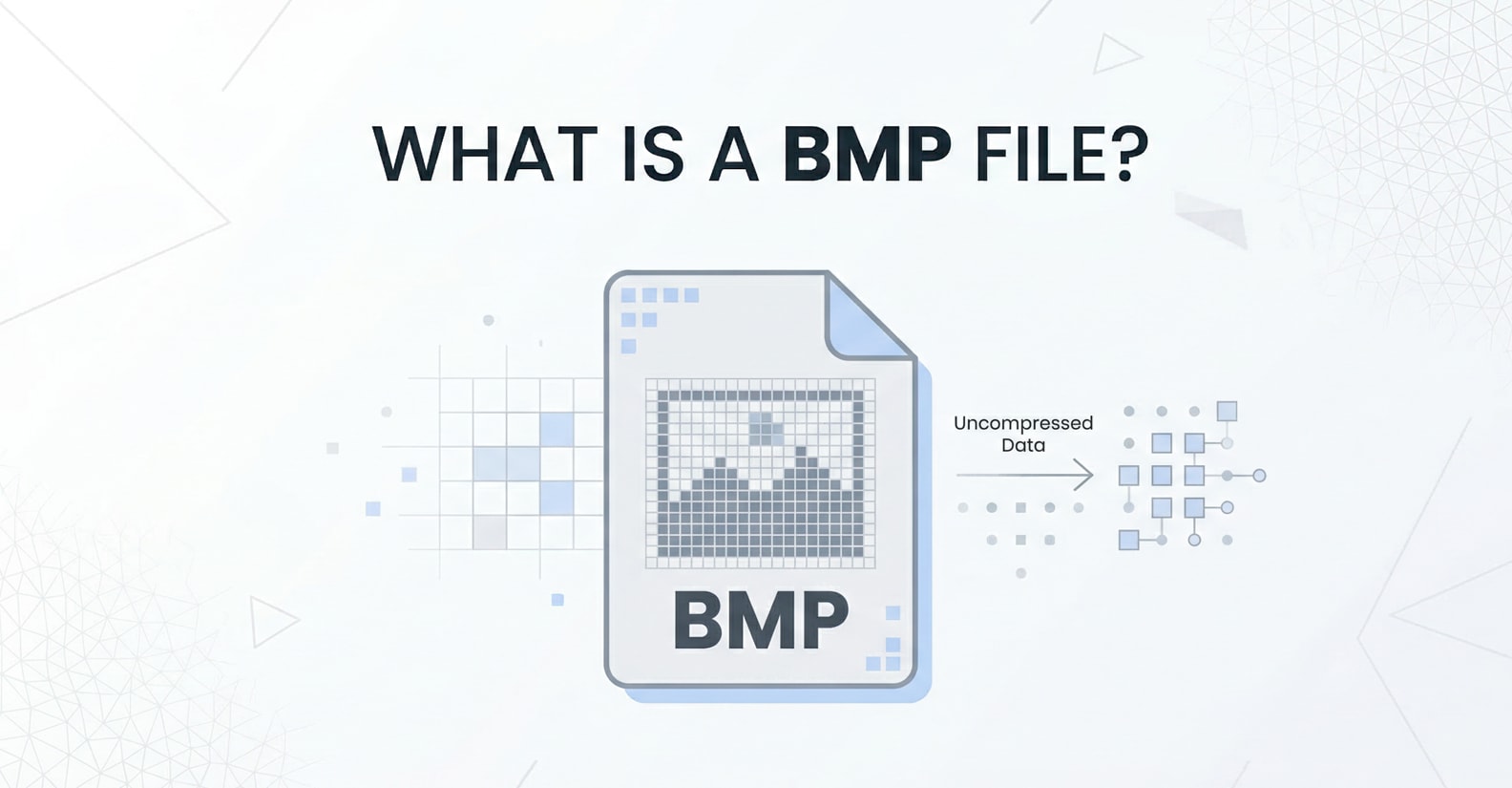
A What is BMP File question usually comes up when you run into old Windows images, raw screenshots, or simple graphics. BMP (Bitmap) is an uncompressed format that stores every pixel exactly, which makes it easy for computers to read but heavy on storage. This guide explains what a BMP file is, how it works, how to open and convert it to formats like JPG, and how to repair BMP images when they get corrupted.
Repair Corrupted Files To Save Your Data
 Security Verified. Over 7,302,189 people have downloaded it.
In this article
What Is BMP File
A BMP file (Bitmap Image File) is a raster image format introduced by Microsoft for storing digital pictures in a device-independent way. It records every pixel in a grid, often without any compression, which is why BMP images tend to be much larger than formats like JPG or PNG.
Because the data is stored in a simple, straightforward structure, BMP images are quick to load and easy for software to process. They are frequently used for:
- Raw screenshots and screen captures
- Simple graphics, icons, and UI elements
- Images that require precise pixel-level control
- Legacy Windows applications and games
Technically, a bitmap image format like BMP may include:
- A file header that describes the type and size of the file
- A DIB header defining width, height, bit depth, and color format
- A color table (palette) for indexed color images
- The bitmap pixel data itself, often stored bottom-up
Unlike JPG, which applies lossy compression, BMP can be entirely uncompressed or lightly compressed using methods such as RLE. This makes it better for editing and archiving image data in a pristine state, but less efficient for sharing online.
| Format | Main characteristics |
|---|---|
| BMP format | Uncompressed or lightly compressed bitmap; large file sizes; excellent for pixel-accurate images. |
| BMP vs JPG | BMP is heavier but lossless; JPG is smaller with lossy compression, better for photos and web. |
| BMP image use cases | Screenshots, technical diagrams, icons, legacy Windows graphics. |
How to Open BMP Files
Because BMP is a long-standing Windows-native format, it is supported by almost every image viewer and editor. Below are common ways to open BMP file images on different platforms.
Open BMP on Windows
On Windows, BMP support is built in, so you normally do not need extra software.
- Locate the BMP image in File Explorer, then double-click it. By default, it opens in the Photos app or Windows Photo Viewer.
- To open it in Microsoft Paint, right-click the file, choose "Open with," and select "Paint."
- For advanced editing, use a program like Adobe Photoshop or GIMP. Right-click, pick "Open with," and choose your preferred editor.
If double-clicking does not work, ensure the file association for .bmp is set correctly by going to Settings > Apps > Default apps, and assigning your preferred viewer to BMP.
Open BMP on Mac and other platforms
Mac, Linux, and many other systems can open BMP format files without issue.
- On macOS, double-click the BMP file to open it in Preview. You can zoom, rotate, crop, or export from there.
- For more editing options, open the file in apps like Affinity Photo, Pixelmator, or cross-platform tools such as GIMP.
- In most modern web browsers (Chrome, Edge, Firefox), you can also drag and drop a BMP file into a new tab to view it.
If a BMP image will not open, the file may be partially downloaded, corrupted, or using an unsupported variant. In that case, try different apps, re-download the file, or consider repairing it.
How to Convert BMP to JPG
Because BMP images are large, many users convert them to JPG to save space and make them easier to share. The following methods help you convert a BMP file to JPG without confusion.
Convert BMP to JPG with desktop tools
Desktop viewers and editors offer reliable control over quality and output size. Here is how to convert a BMP image to JPG using common tools.
- Using Microsoft Paint (Windows)
- Right-click your BMP file and choose "Open with" > "Paint."
- Click "File" > "Save As" and select "JPEG picture."
- Choose a destination folder, type a new file name, and click "Save."
- Using Preview (Mac)
- Double-click the BMP to open it in Preview.
- Go to "File" > "Export."
- Choose "JPEG" from the Format dropdown, adjust the quality slider, and click "Save."
- Using advanced editors (Photoshop, GIMP, etc.)
- Open the BMP in your editor.
- Select "File" > "Save As" or "Export As."
- Pick JPG/JPEG as the output format and set your desired quality level.
- Save the image to your chosen location.
Remember that JPG is lossy, meaning fine detail can be discarded to reduce the file size. If you want a balance between size and quality, choose a medium-to-high JPG quality setting.
Convert BMP to JPG with online services
If you prefer not to install software, you can convert BMP vs JPG formats using browser-based tools.
- Open a reputable image conversion website such as an online converter or cloud-based image tool. Make sure it uses HTTPS and has clear privacy terms.
- Upload your BMP format file from your computer, cloud storage, or by dragging it into the upload area.
- Select "JPG" or "JPEG" as the output format and adjust optional settings like quality or output size.
- Start the conversion and then download the finished JPG to your device.
For sensitive or private images, be cautious when using online converters and prefer trusted platforms or offline tools to keep your data secure.
How to Use Repairit to Fix a Corrupted BMP File
When a corrupted BMP file refuses to open, shows partial images, or displays error messages, you need a reliable repair tool. Wondershare Repairit is a professional file repair solution that can help bring damaged photos, videos, and documents back to life. You can learn more and download it from the Repairit official website.
Key features of Repairit
- Repairs damaged photos, videos, and documents from your computer, external drives, SD cards, and other storage devices.
- Uses an intelligent, guided scan-and-repair process that works automatically on corrupted or unreadable files.
- Lets you preview repairable items before saving them so you keep only the fixed BMP image or other files you really need.
Step-by-step: Repair corrupted BMP files
Follow this practical workflow to repair a repair BMP file issue and recover usable images.
- Choose a Location to Repair Data
- On the main screen, select the drive, folder, memory card, or external device where your problem BMP image files are stored.

- Deep Scan the Location
- The program automatically looks for broken, unreadable, or incomplete files, including any corrupted BMP file entries.
- Wait while the progress bar fills and Repairit compiles a list of items it can repair, without changing the original source data.

- Preview and Repair Your Desired Data
- When the scan completes, browse through the results and preview supported files, especially your affected BMP file images.
- Choose a safe output folder on a different drive if possible, ensuring your fixed BMP image and other repaired files are stored securely for future use.

Conclusion
Understanding the BMP format helps you decide when it is a good choice and when to switch to something lighter like JPG. BMP keeps every pixel intact, which is ideal for precise graphics but creates large files that are not always practical for web or everyday sharing.
Once you know how to open BMP file images, convert BMP to JPG, and deal with corruption, you can keep old graphics accessible and avoid losing valuable visuals. If a corrupted BMP file still refuses to open after basic troubleshooting, Wondershare Repairit provides a straightforward way to scan, repair, and rescue damaged images and other file types.
Next: What Is Webp File
FAQ
-
1. What is a BMP file used for?
A BMP file is used to store bitmap images with minimal or no compression. It is common in older Windows programs for screenshots, icons, logos, and simple graphics where exact pixel detail matters more than file size. -
2. Is BMP better than JPG?
Neither format is universally better. BMP preserves every pixel, making it suitable for editing and technical images but resulting in very large files. JPG uses lossy compression to create much smaller files, which is ideal for photos and web use, but some detail is lost in the process. -
3. How can I open a BMP file?
You can open a BMP file on Windows with Photos, Paint, or most third-party editors. On Mac, Preview and many editing apps support BMP. You can also drag a BMP into modern browsers like Chrome or Firefox to view it directly. -
4. How do I convert a BMP file to JPG?
Open the BMP image in an editor such as Microsoft Paint, Preview, Photoshop, or GIMP. Then choose "Save As" or "Export," select JPG/JPEG as the format, adjust the quality if desired, and save the new file. -
5. Can a corrupted BMP file be repaired?
Often, yes. Try opening the file in different viewers, copying it to another drive, or converting it to another format. If it still does not open, a dedicated repair tool like Wondershare Repairit can scan the file and attempt to restore a viewable BMP or other supported output.




