When you only need to remove unwanted objects from photos, choosing between a focused AI eraser like Repairit Photo Eraser and a full professional editor like Adobe Photoshop can be confusing. Both can erase objects from photos and clean up images, but they differ in control, learning curve, speed, and cost. This guide compares them side by side so you can pick the tool that fits your workflow, skill level, and budget for everyday object removal tasks.
Remove Unwanted Objects with Repairit Photo Eraser
 Security Verified. Over 7,302,189 people have downloaded it.
In this article
- Repairit Photo Eraser vs Adobe Photoshop: Quick Verdict
- Repairit Photo Eraser vs Adobe Photoshop: Key Differences
- Repairit Photo Eraser vs Adobe Photoshop: Comparison Table
- What Repairit Photo Eraser and Adobe Photoshop Are Best For
- Repairit Photo Eraser vs Adobe Photoshop: Object Removal Capabilities
- Repairit Photo Eraser vs Adobe Photoshop: Background Fill and Realism
- Repairit Photo Eraser vs Adobe Photoshop: Workflow and Ease of Use
- Repairit Photo Eraser vs Adobe Photoshop: Pricing and Trial Options
- Who Should Choose Repairit Photo Eraser
- Who Should Choose Adobe Photoshop
- Pros and Cons of Repairit Photo Eraser and Adobe Photoshop
- How to Remove Unwanted Objects After Choosing the Right Tool
Object removal, watermark cleanup, and erasing background distractions used to require manual cloning and precise masking. Today, AI-driven web tools and desktop suites both promise to remove people, signs, logos, and text while keeping backgrounds realistic. Repairit Photo Eraser focuses on fast, guided object removal, while Adobe Photoshop offers advanced manual and content-aware tools inside a full editing environment. Understanding how they differ in workflow, control, and cost helps you decide which tool fits your daily editing habits.
Repairit Photo Eraser vs Adobe Photoshop: Quick Verdict
In most cases, the choice comes down to how often you edit and how much control you need over each pixel.
Choose Repairit Photo Eraser if: you mainly want to erase objects from photos, remove background distractions, or delete simple watermarks with minimal setup. It focuses on a short, AI-driven flow that is easier for beginners and casual editors.
Choose Adobe Photoshop if: you already work in a professional editing environment, need precise control over selections, layers, and masks, or plan to combine object removal with more complex retouching and design work. Its content-aware and generative tools can handle challenging, detailed scenes when you are willing to refine results manually.
Repairit Photo Eraser vs Adobe Photoshop: Key Differences
Both tools can remove unwanted elements, but they approach the task differently.
- Workflow focus: Repairit Photo Eraser is built around a single, streamlined task: select an object and let AI erase it. Adobe Photoshop offers an entire toolbox of brushes, masks, and fills, so object removal is one step in a larger creative workflow.
- Removal logic: Repairit uses AI to detect and fill around the selected region automatically, aiming for quick, clean results in typical photos. Photoshop combines AI-assisted content-aware fills and generative features with manual tools, such as clone and healing brushes, for detailed control.
- Manual control: Repairit keeps controls simple, with basic brush or selection options and automatic background fill. Photoshop expects users to refine selections, adjust edges, paint with brushes, and work in layers when needed.
- Natural-looking results: Repairit is tuned for everyday scenes, such as tourists in the background, small objects, and simple text, where the background is not extremely complex. Photoshop may achieve more consistent realism in complicated scenes because you can guide every step and manually fix artifacts.
- Learning curve: Repairit is designed to be understandable in minutes, even for users new to editing. Photoshop typically requires time, tutorials, and practice before you can confidently perform advanced object removal.
Repairit Photo Eraser vs Adobe Photoshop: Comparison Table
| Criteria | Repairit Photo Eraser | Adobe Photoshop |
|---|---|---|
| Best for | Users who want fast AI object removal with minimal setup and no complex tools | Professionals needing precise manual or AI-assisted removal within a full editing suite |
| Ease of use | Very simple, focused on upload, erase, and export | Steep learning curve due to many tools and advanced options |
| Object removal | AI-driven removal for people, objects, and basic background distractions | Detailed object removal using generative fills, content-aware tools, and manual refinements |
| Workflow | Streamlined, guided flow for quick clean up images tasks | Structured workflow: import image, select object, fill or remove, refine, export |
| Strengths | Speed, simplicity, and automatic background fill for common scenarios | Generative fill, powerful content-aware tools, and full layer-based control |
| Weaknesses | Less granular control and fewer non-removal editing options | Steep learning curve and ongoing subscription costs for object-only use cases |
What Repairit Photo Eraser and Adobe Photoshop Are Best For
At a high level, both tools can remove unwanted objects, delete watermarks, and clean up images, but they are optimized for different scenarios.
Repairit Photo Eraser is best for:
- Quickly removing background pedestrians, small objects, and simple text from everyday photos.
- Cleaning up product shots by erasing dust, logos, or distracting reflections without complex editing steps.
- Batch-style or frequent, lightweight cleanup when you do not need full retouching or design features.
Adobe Photoshop is best for:
- Complex object removal where the subject overlaps detailed textures, such as foliage, architecture, or patterned fabrics.
- Scenes that require layered edits, such as combining cloning, masks, and content-aware fills.
- Professional workflows where object removal needs to fit beside color grading, compositing, and layout work.
Repairit Photo Eraser vs Adobe Photoshop: Object Removal Capabilities
From small distractions to larger subjects, both tools aim to erase content while keeping the scene believable. The key differences lie in how wide a range of situations they handle and how much effort is required.
Range of objects and distractions
- Repairit Photo Eraser: Well suited for removing people in the background, stray objects on the ground, road signs, logos, and relatively simple watermarks or text. Its AI tries to understand the context and fill the gap quickly.
- Adobe Photoshop: Handles the same types of objects but is often more adaptable to edge cases. With content-aware and generative tools, combined with manual brushes, it can manage complex overlaps, such as hair against a detailed background, when you spend time refining the result.
Watermark and text cleanup
- Repairit Photo Eraser: Designed for straightforward watermark and text removal on uncluttered backgrounds. Depending on size and placement, you may be able to clean line-based watermarks or simple logos in a few passes.
- Adobe Photoshop: Offers additional methods when watermarks cross gradients, textures, or faces. Clone and healing tools, combined with partial selections, can help rebuild tricky areas when AI alone struggles.
People and large subject removal
- Repairit Photo Eraser: Works effectively when removing isolated people or objects that do not dominate the frame. For very large subjects that cover much of the scene, the AI may need more than one attempt or still leave subtle inconsistencies, depending on the image.
- Adobe Photoshop: Better equipped for extensive removals because you can mix multiple passes, manual painting, and layer-based corrections. This can be valuable when replacing entire crowds or big foreground elements.
Repairit Photo Eraser vs Adobe Photoshop: Background Fill and Realism
Removing an object is only half the task. The area behind it must look natural and seamless so that viewers do not notice the edit.
Automatic background fill
- Repairit Photo Eraser: Uses AI to automatically fill the removed region with surrounding colors and patterns. In most everyday photos with simple skies, walls, or ground textures, this can produce realistic results without extra steps.
- Adobe Photoshop: Relies on content-aware fills and generative approaches, guided by the user. These tools can synthesize new details and patterns that integrate with the scene, especially when you tweak the selection and run multiple passes.
Handling artifacts and seams
- Repairit Photo Eraser: Aims to keep artifacts to a minimum, but subtle blur or pattern mismatches may appear when backgrounds are very detailed or repetitive, such as brickwork or dense foliage. For many users, the result is still acceptable for social media or casual sharing.
- Adobe Photoshop: When artifacts remain, you can use healing and clone tools to fix them by hand, extending textures or straightening lines. This extra control can be important for professional work where close inspection matters.
Consistency across a series of images
- Repairit Photo Eraser: Provides consistent, automated fills for similar images, which helps when you repeat the same type of cleanup (for example, product shots against a plain studio backdrop).
- Adobe Photoshop: Enables highly consistent looks if you establish a repeatable process, but maintaining that consistency depends on user skill and careful use of layers and adjustment tools.
Repairit Photo Eraser vs Adobe Photoshop: Workflow and Ease of Use
The way you interact with a tool often matters more than any single feature. Ease of use determines how quickly you can erase objects without breaking your creative flow.
Repairit Photo Eraser workflow
Repairit Photo Eraser centers on a short, guided workflow: upload, select, erase, and download. The interface highlights only the options you need to remove objects, distractions, or watermarks, so you are not confronted with dozens of panels and tools.
- Simple brush or selection tools to mark unwanted areas.
- Automatic AI pass that handles the fill in one click.
- Direct export once you are satisfied with the result.
Adobe Photoshop workflow
Adobe Photoshop follows a more involved professional workflow: open the image, choose from multiple selection tools, apply content-aware or generative fills, then refine with brushes, masks, and layers as needed before exporting.
- Multiple selection methods (lasso, marquee, object selection, and more).
- Several removal techniques, including content-aware fills and clone or healing tools.
- Layer-based editing for non-destructive changes and fine control.
Learning curve and editing effort
- Repairit Photo Eraser: Designed for users who want results quickly, even if they have no prior editing experience. Most of the complexity is hidden behind AI-driven decisions.
- Adobe Photoshop: Offers deep control but expects you to understand selections, layers, and brush behavior. Learning to get consistently clean object removals may take time, tutorials, and practice.
Repairit Photo Eraser vs Adobe Photoshop: Pricing and Trial Options
Cost considerations often influence which tool is more practical for ongoing use, especially if your main goal is simply to remove objects and distractions.
Repairit Photo Eraser pricing approach
Repairit Photo Eraser is generally positioned as a focused tool. You are primarily paying for object removal and related cleanup workflows, rather than a full creative suite. For users who only need to erase objects, this often translates into a more streamlined, task-specific investment.
Adobe Photoshop pricing approach
Adobe Photoshop is typically sold as part of a broader creative ecosystem. The investment covers a complete professional editor with extensive capabilities beyond object removal, such as compositing, typography, and illustration. This can be cost-effective for frequent professional use but may feel heavy if you only need occasional cleanup.
Trial expectations
Both tools may offer some form of trial or limited access, but specifics can change over time. It is sensible to check their current websites to see whether you can test object removal on your own images before committing, especially if you are comparing how natural the background fill looks on your typical photos.
Who Should Choose Repairit Photo Eraser
Repairit Photo Eraser is a better fit when you value speed, simplicity, and an AI-first workflow over detailed manual control.
- People who want to erase objects from photos with a quick AI-driven workflow.
- Beginners who find Adobe Photoshop overwhelming for simple object removal.
- Users who need to remove background distractions or delete watermarks in bulk with minimal setup.
- Anyone who values speed and simplicity over deep manual control for clean up images tasks.
Who Should Choose Adobe Photoshop
Adobe Photoshop is more suitable when object removal is part of a wider professional editing process.
- Professionals needing precise manual or AI-assisted removal alongside full image editing tools.
- Designers who want generative fills, content-aware tools, and fine-grained control over every detail.
- Photographers who already work in Adobe Photoshop and want object removal in the same workspace.
- Users willing to invest time learning a complex workflow for consistent, controlled results.
Pros and Cons of Repairit Photo Eraser and Adobe Photoshop
Repairit Photo Eraser Pros and Cons
Adobe Photoshop Pros and Cons
How to Remove Unwanted Objects After Choosing the Right Tool
Once you have decided which tool matches your needs, the next step is to build a simple, repeatable process for erasing distractions while keeping backgrounds natural. For many users, starting with a focused AI eraser offers the fastest way to clean up everyday photos.
Key Features
- AI object detection to remove unwanted objects with minimal manual work.
- Automatic background fill to keep the edited area consistent with the scene.
- Streamlined interface focused entirely on clean up images tasks.
Step-by-step guide
Here is a practical way to remove objects from photos using an AI-driven workflow.
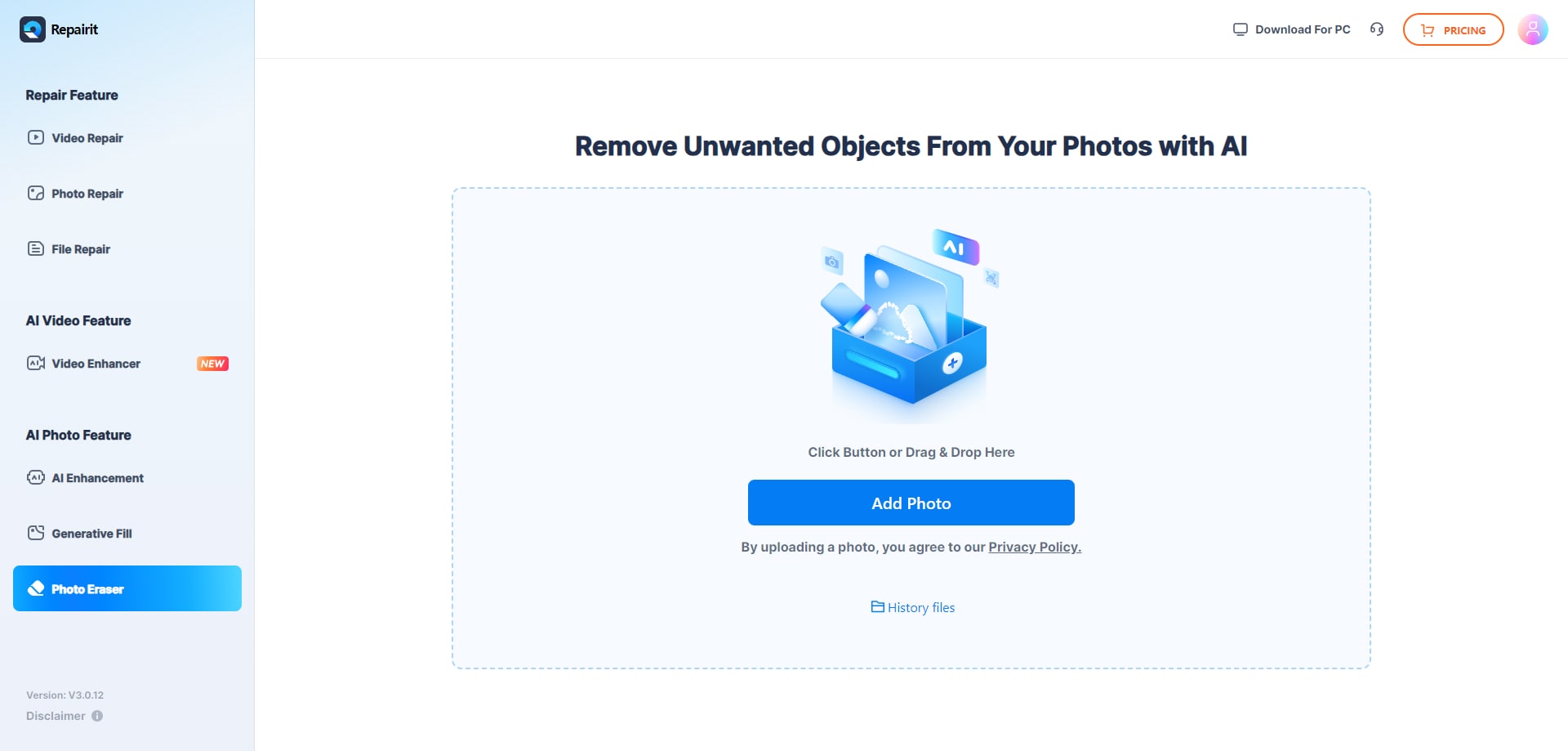
Step 1. Upload the photo you want to edit and start the object removal process.
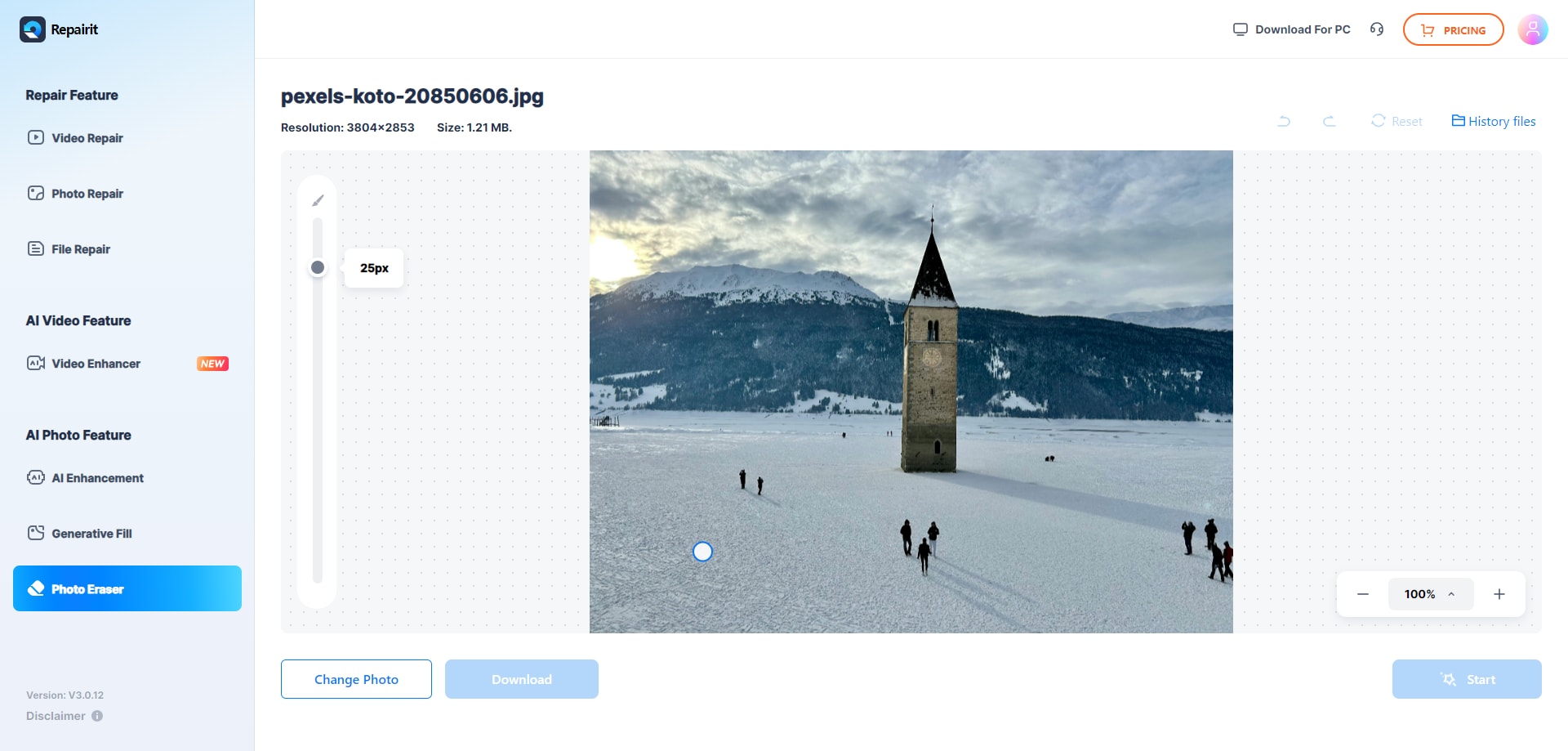
Step 2. Adjust the brush size and select the object or area you want to remove from the image.
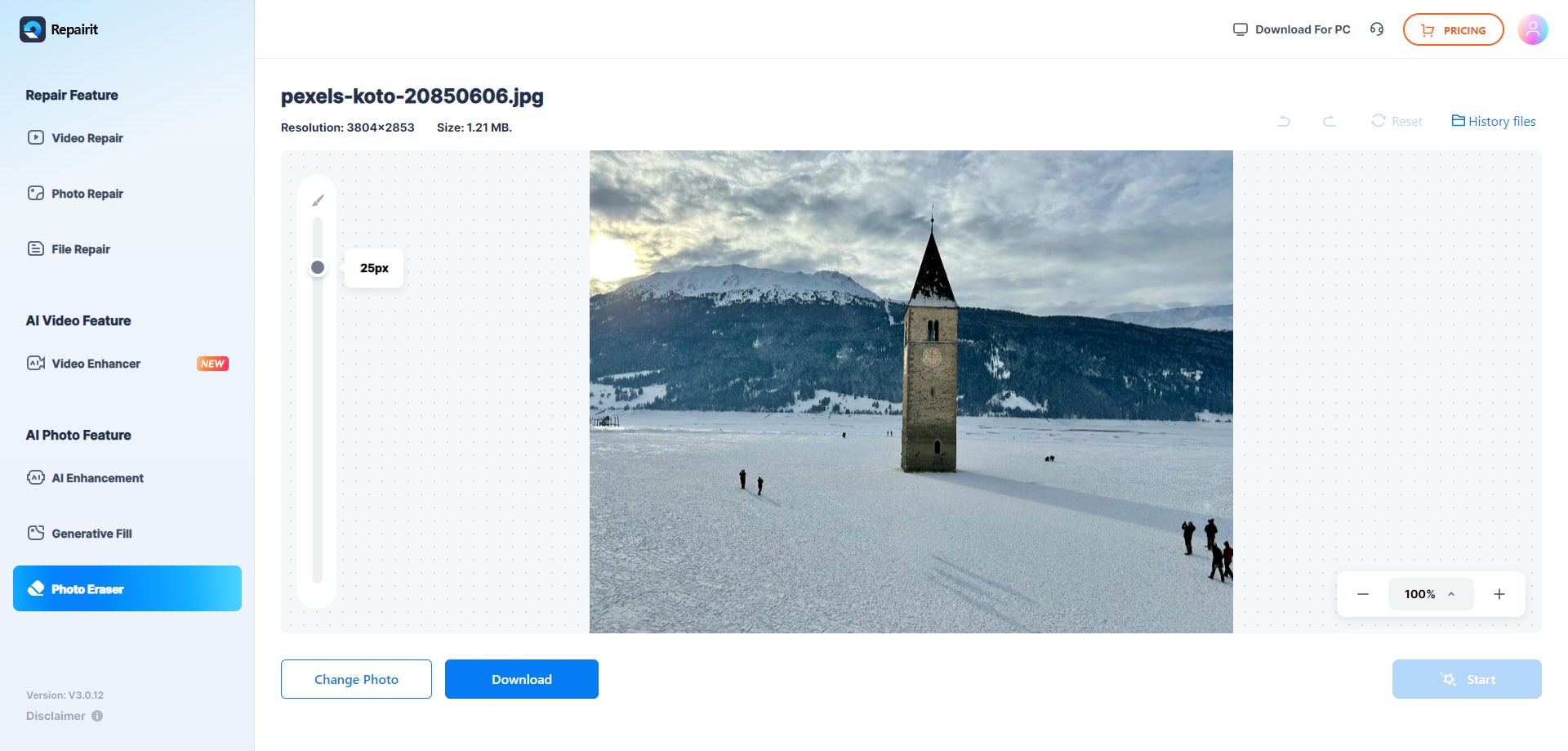
Step 3. Let the AI process the image and download the cleaned photo after the object is removed.
Final Verdict
Overall, both tools can remove unwanted objects, delete watermarks, and clean up images effectively. The main differences lie in focus, control, and how much time you want to spend on each edit.
For dedicated object removal, Repairit Photo Eraser usually delivers faster, simpler results with less effort, especially for users who do not need a full editing suite. It focuses on AI-driven cleanup so you can remove unwanted objects, delete watermarks, and remove background distractions in a few guided steps.
Adobe Photoshop remains a strong option when you already work in its ecosystem or require detailed control using generative fills, content-aware tools, and manual refinements. In most cases, choose Repairit Photo Eraser when speed and ease matter most, and choose Adobe Photoshop when object removal must sit inside a broader, professional editing workflow that includes other advanced edits.
Next: Repairit Photo Eraser vs Photodirector
FAQ
-
1. Is Repairit Photo Eraser easier to use than Adobe Photoshop for object removal?
For most users, yes. Repairit Photo Eraser focuses only on removing unwanted objects, so you mainly upload, select, and let AI erase. Adobe Photoshop offers many more tools and settings, which are powerful but can feel complex when you only need to clean up images. -
2. When does Adobe Photoshop make more sense than Repairit Photo Eraser?
Adobe Photoshop makes more sense if you already work professionally in Photoshop, need precise control over selections and layers, or want to combine object removal with other advanced edits. Its content-aware and generative tools are especially useful in complex scenes. -
3. Can both tools remove background distractions and delete watermarks?
Both tools can remove background distractions and delete many simple watermarks. Repairit Photo Eraser aims to handle these tasks quickly with AI, while Adobe Photoshop lets you refine results by hand if the watermark or distraction is in a challenging area. -
4. How should I decide between Repairit Photo Eraser and Adobe Photoshop?
Consider your main goal and how often you edit. If you mostly erase objects from photos and want a short learning curve, Repairit Photo Eraser is usually more practical. If you need full creative control, layer-based editing, and frequent professional work, Adobe Photoshop may be the better long-term choice.