
 TL;DR:
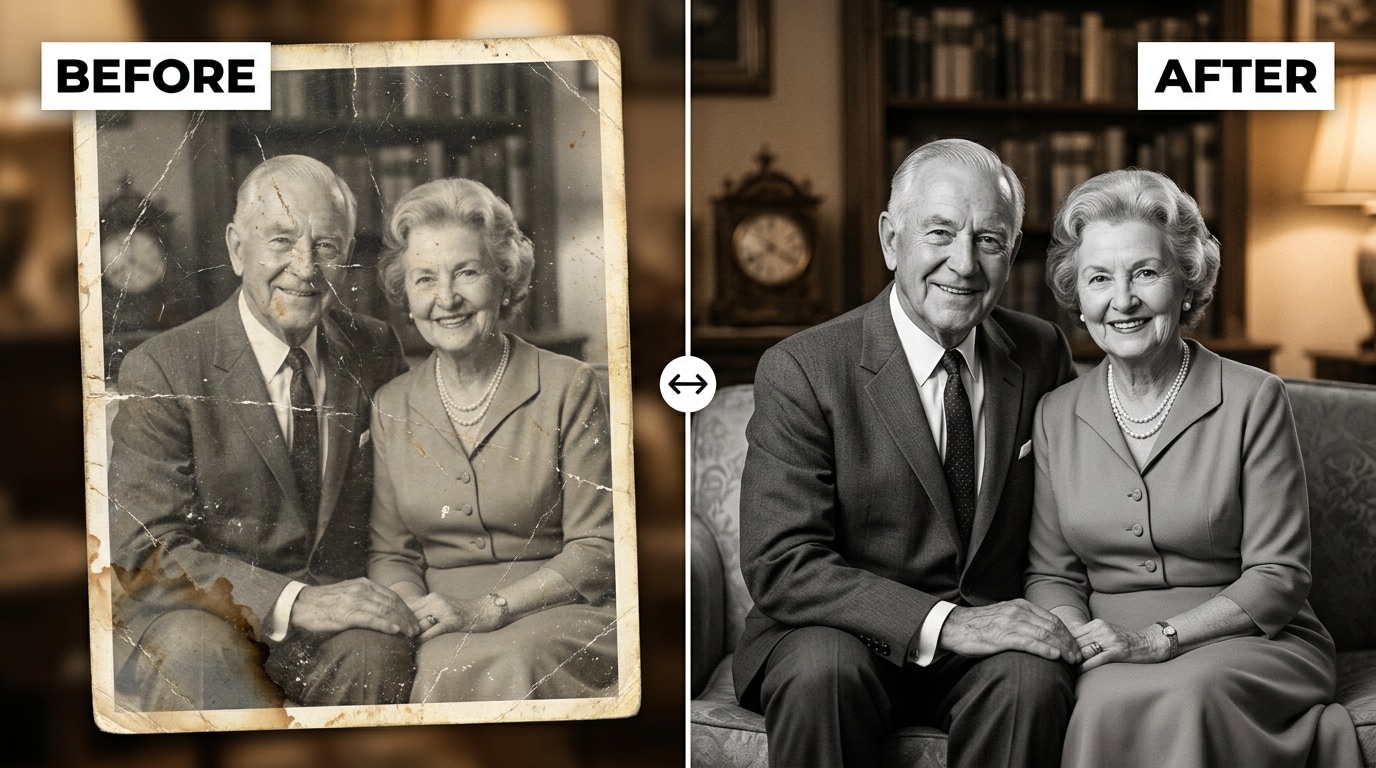
Relumi AI Retake — Old Photo Repair is a free iOS and Android tool that automatically restores damaged photographs by fixing scratches, water stains, faded contrast, and camera blur in a single pass without manual editing.
● For optimal processing, upload a 600 DPI flatbed scan or a glare-free smartphone photo, and set the correction Intensity slider to 50% for moderate wear or 65-80% for heavy physical damage.
● The AI reconstructs missing pixel structures to fill creases, isolates tonal values to eliminate water stains, and infers lost facial details to fix focus issues rather than applying standard edge-sharpening filters.
● The core feature exports watermark-free, full-resolution images without a subscription, but it does not colorize black-and-white prints, alter original compositions, or guarantee perfectly accurate reconstructions when large sections of the image are completely missing.
Ask AI for a summary
 ChatGPT
 Perplexity
 Gemini
 Claude
 Grok
Grok
It starts with a shoebox. Or a drawer. Or a scan from your mom's phone of a print she found while clearing out the attic. The photo is there — a grandparent you barely remember, a family gathering from forty years ago, a wedding portrait that predates everyone in the room — but it's damaged. Scratched. Water-stained. Faded to grey where it used to have detail. Blurry in a way that no amount of squinting fixes.
The damage isn't just cosmetic. A scratched photo feels like a scratched memory. The people in it are real, the moment was real, but the physical record of it has deteriorated in ways nobody planned for. And fixing it by hand — the Photoshop cloning, frequency separation, manual healing brush work — takes hours of skilled labor that most people simply don't have access to.
Relumi AI Retake — Old Photo Repair handles this automatically. Upload the scan, select the feature, and the AI detects and removes scratches, eliminates stains and water damage, recovers faded detail, and sharpens blurry areas — restoring the photo to something close to how it looked when it was first developed. Free on iOS and Android.
In this article
Part 1: Why Old Photos Degrade — And Why They're So Hard to Fix by Hand
Old photographs fail in predictable ways — each one a result of how the physical chemistry of film and paper interacts with time, light, humidity, and storage.
- Scratches and physical damage. Photographic prints stored in shoeboxes, wallets, or albums accumulate surface scratches over decades. Each time the print moves, each time something presses against it, the emulsion layer picks up fine marks. Deep creases form where prints were folded or pressed. Torn edges and missing corners are common in prints that were handled frequently or stored loosely. By the time a photo is scanned, these marks are recorded as hard light lines running across faces, backgrounds, and sky — distracting and impossible to ignore.
- Staining and water damage. Moisture is the most destructive force for printed photographs. A single water event — a leak, a flooded basement, even persistent humidity — leaves brown tide marks, yellow stains, and dark mold spots on the print surface. Foxing — the reddish-brown speckles that appear on aged paper — develops from mold spores that were dormant in the paper fibers for decades. These stains settle on top of the image, covering faces and backgrounds in ways that no simple brightness or contrast adjustment can remove.
- Fading and color shift. Photographic dyes degrade at different rates. Cyan dyes in color prints from the 1970s–1980s often fade faster than magenta or yellow, leaving photos with an unnatural warm cast. Black-and-white prints lose contrast as the silver in the emulsion oxidizes. The result is a flat, low-contrast image where shadows have lifted toward grey and highlights have lost their brightness — the photo still exists, but the visual impact is gone.
- Blur and focus loss. Many old prints were shot on consumer cameras with limited autofocus. Others were printed from slightly out-of-focus negatives. Motion blur from long exposures, camera shake, or simply a child who moved at the wrong moment is locked permanently into the print. When scanned, this softness is even more apparent — detail that should be there simply isn't, and standard sharpening filters create halos rather than recovered information.
The standard digital repair approach requires a different tool for each problem: healing brush for scratches, content-aware fill for stains, curves for fading, smart sharpen for blur. Each correction requires judgment, skill, and time. For a single photo, an experienced retoucher might spend an hour. For a shoebox of fifty, that scales to weeks. As one Reddit user put it after surveying the options: "for family photos I don't need creative control, just cleanup. The simpler the interface, the better. If it takes longer to learn the app than to scan the picture, it's not worth it."
Part 2: How Relumi AI Retake Repairs Old Photos — And How to Use It
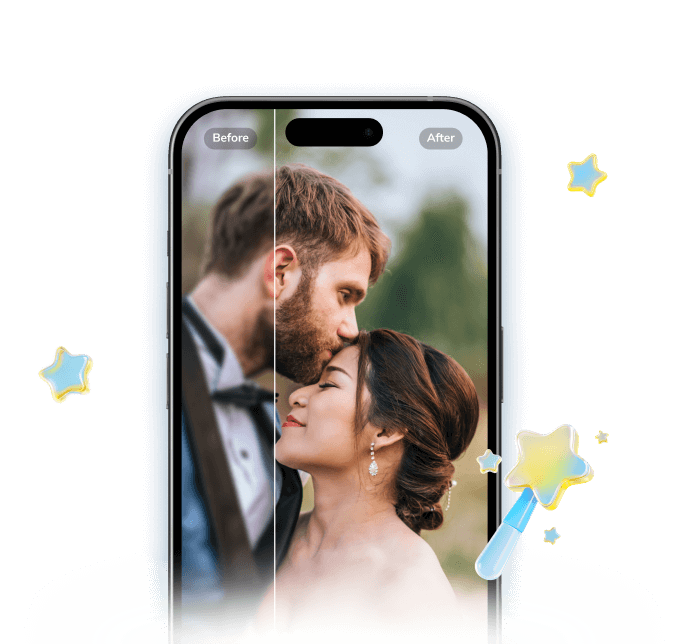

Relumi AI Photo Enhancer
AI Retake — Old Photo Repair That Brings Damaged Memories Back
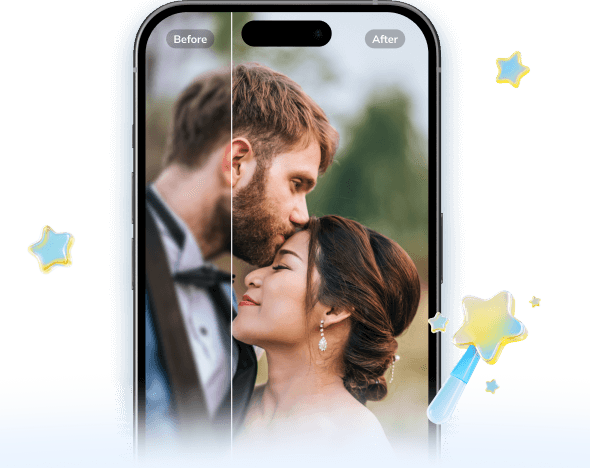
 Scratch and crease removal: The AI detects linear surface damage — fine scratches, fold creases, and torn edges — and reconstructs the underlying image content by analyzing the surrounding pixel structure. The result is a smooth, uninterrupted surface that matches the original photo's tone and texture.
-
Stain and water damage repair: Identifies discolored areas caused by water damage, foxing, mold spots, and age stains. The AI separates the stain layer from the underlying image and reconstructs the covered content — recovering faces, clothing, and backgrounds that were partially or fully obscured.
-
Fading and contrast restoration: Analyzes the tonal range of the original photo and recovers lost contrast, shadow depth, and highlight detail. Works on both black-and-white prints that have grayed out and color prints with shifted or faded dyes — restoring the image to something close to its original visual impact.
The practical difference from Photoshop-based restoration: manual repair requires identifying each scratch individually, selecting it, filling it with content-aware reconstruction, then touching up color and tone — and repeating that process for every mark on the photo. Relumi's Old Photo Repair runs a single automated pass that detects all damage types simultaneously and corrects them in one operation. There are no layers to manage, no tools to learn, and no judgment calls required about which healing method to use. You get a clean result in minutes rather than hours.
How to Use Relumi AI Retake — Old Photo Repair on iPhone
Step 1. Scan or Upload Your Damaged Photo
- Scan the original print with a flatbed scanner if available, or photograph it with your phone under even lighting without flash (direct flash creates glare that hides detail). Save the scan or photo to your camera roll.
- Open Relumi, tap the + button, and select the scan from your camera roll.
- Once the photo loads, tap AI Retake in the bottom toolbar and select Old Photo Repair from the feature list.
- Use the Intensity slider to set your preferred correction level — start at 50% for moderately damaged photos, increase toward 70–80% for heavily scratched or stained prints.
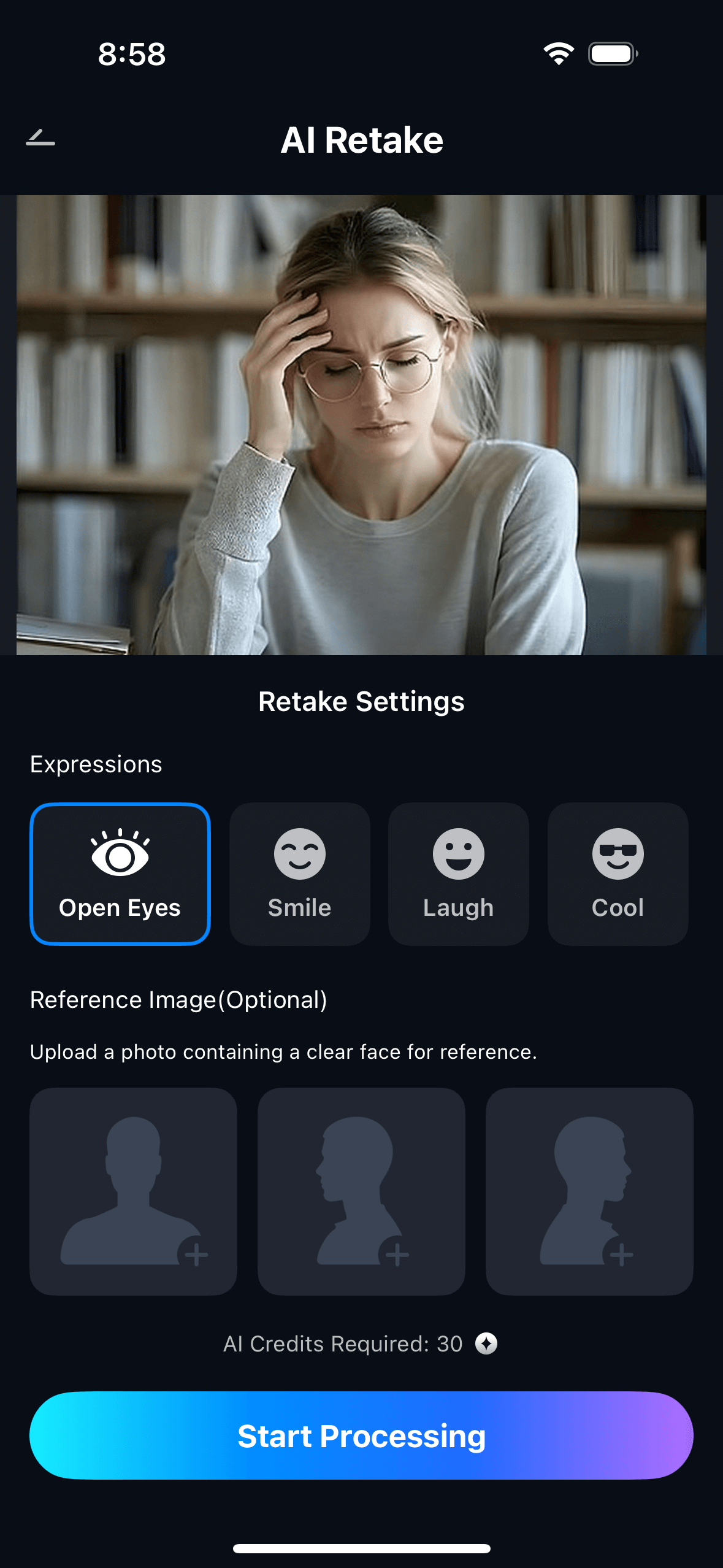
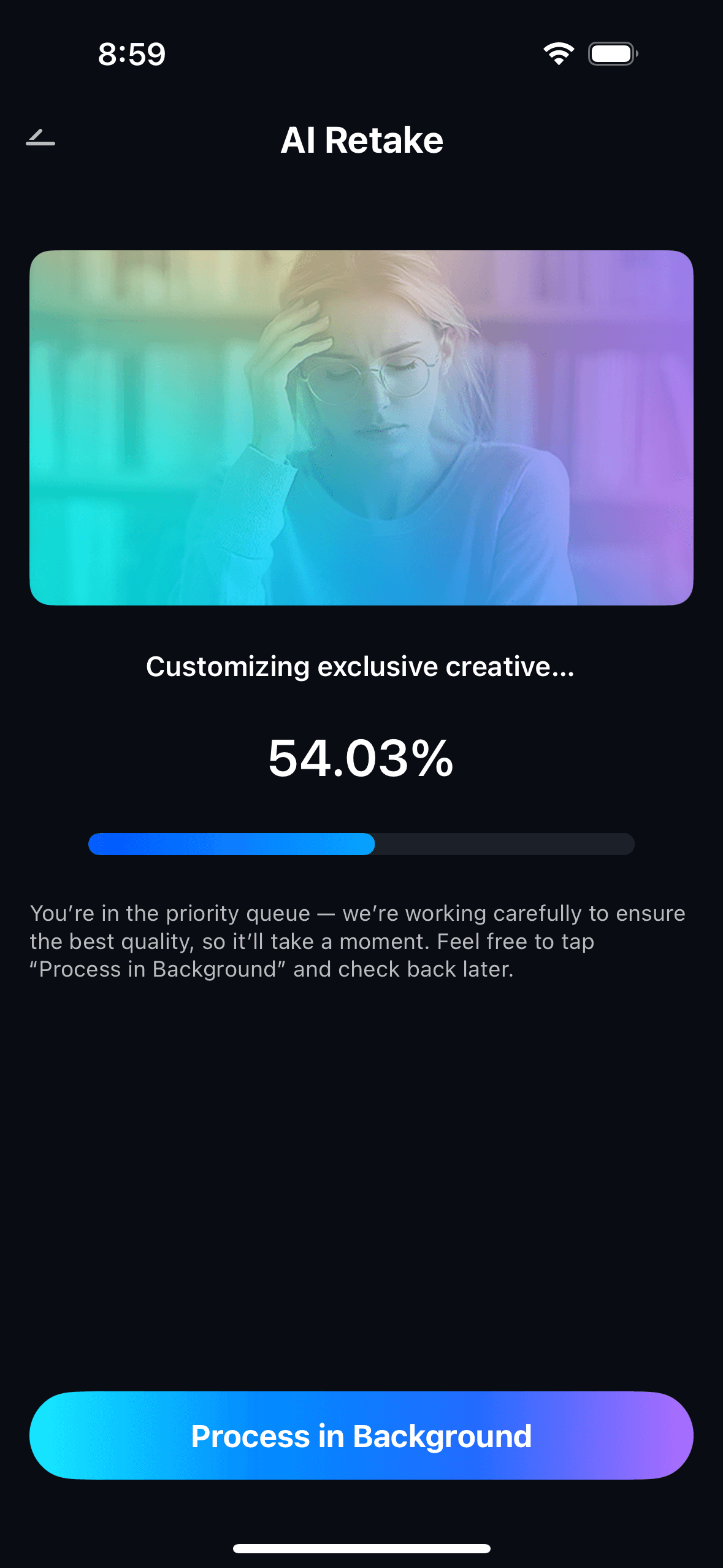
Step 2. Start AI Retake Processing
- The AI scans the entire image, detecting scratches, creases, stain regions, faded areas, and soft or blurry zones simultaneously.
- Each damage type is handled with a different correction method — scratch removal uses inpainting reconstruction; stain removal uses tonal isolation; fading uses contrast and dye recovery; blur uses detail upscaling — all in a single automated pass.
- Processing runs in the background, typically taking under a minute even for heavily damaged prints. You can continue using your phone while it works.
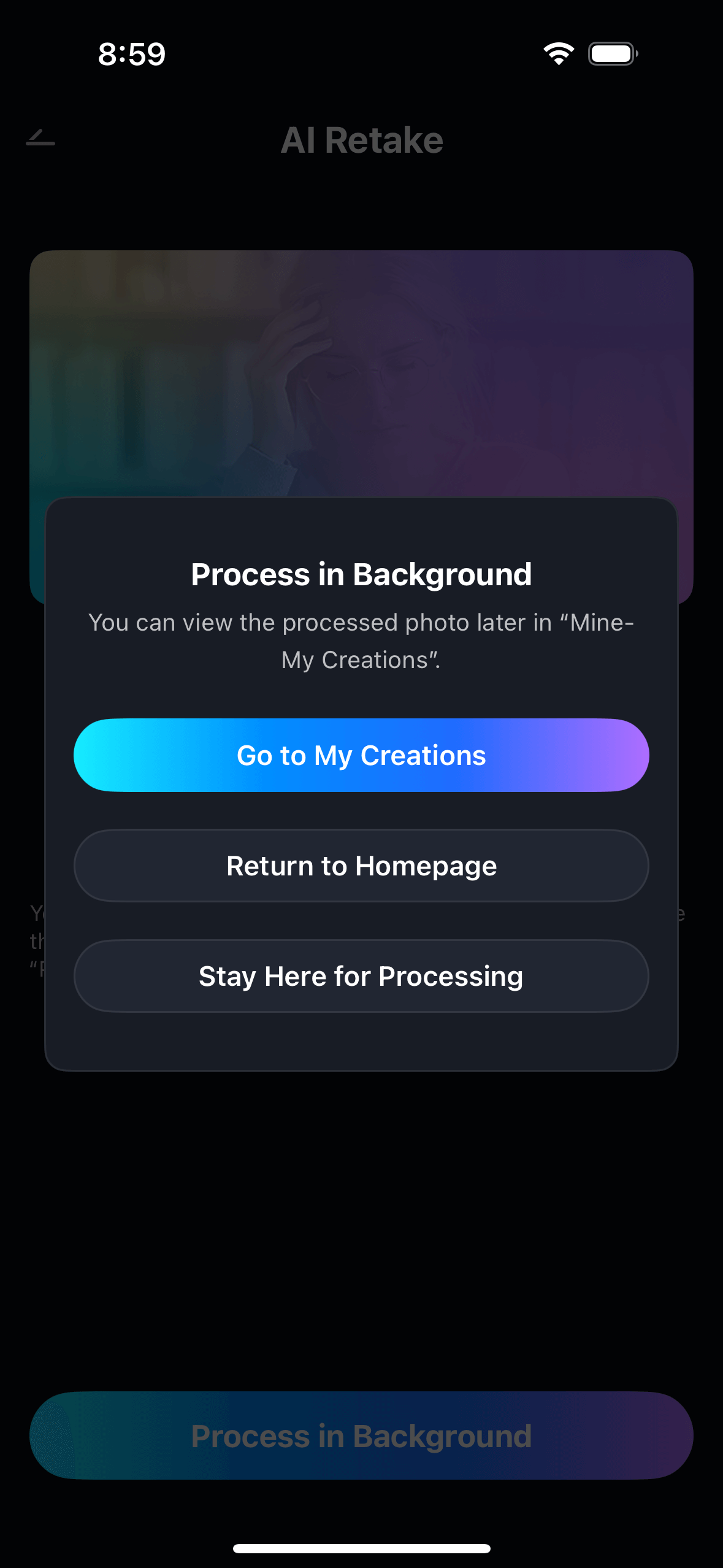
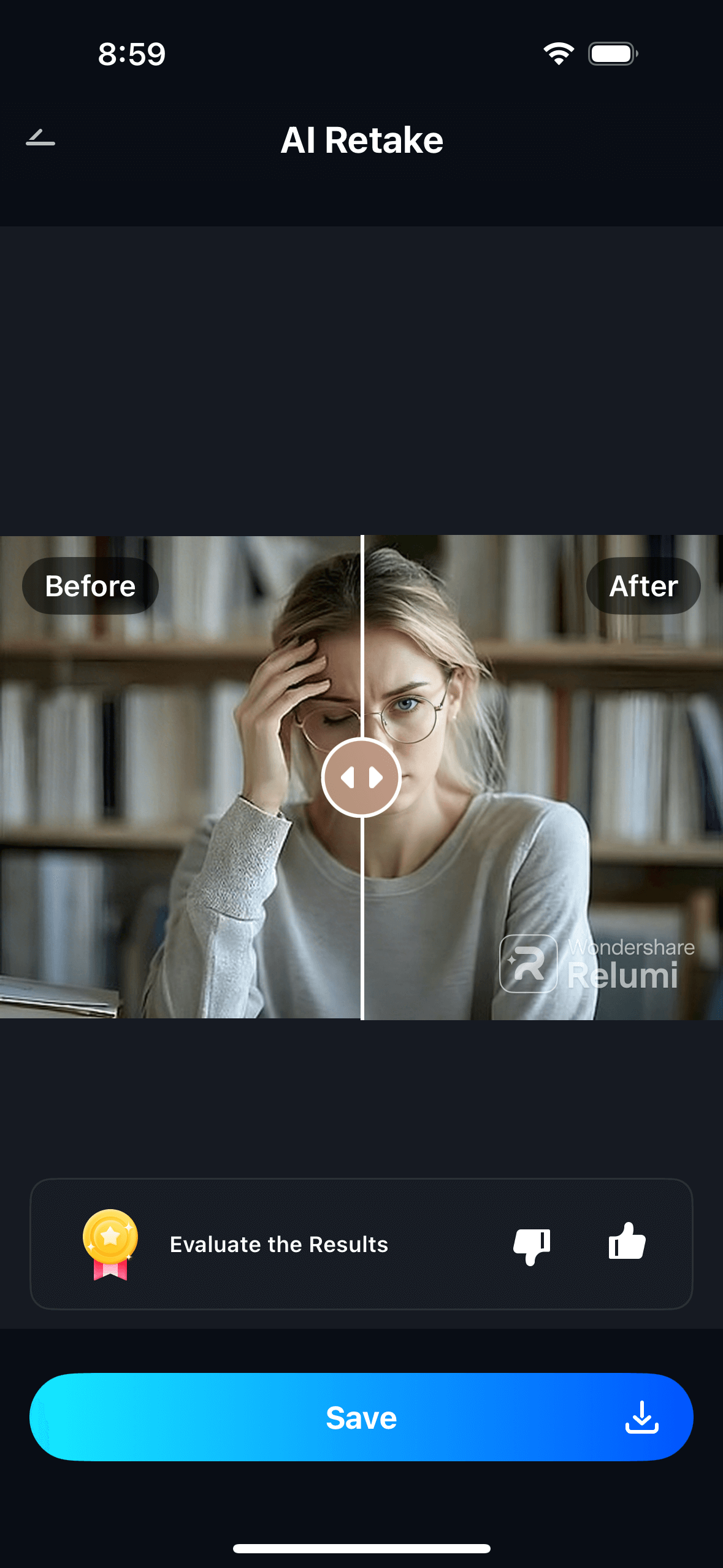
Step 3. Preview, Compare & Save
- Use the before/after toggle to compare the original damaged scan and the restored version side by side.
- Adjust the intensity slider if needed — higher for more severely damaged prints, lower if you want to preserve more of the original film grain and character of the old photo.
- Tap Save to export the restored photo in full resolution without a watermark. View all restored photos in My Creations, or share directly with family.

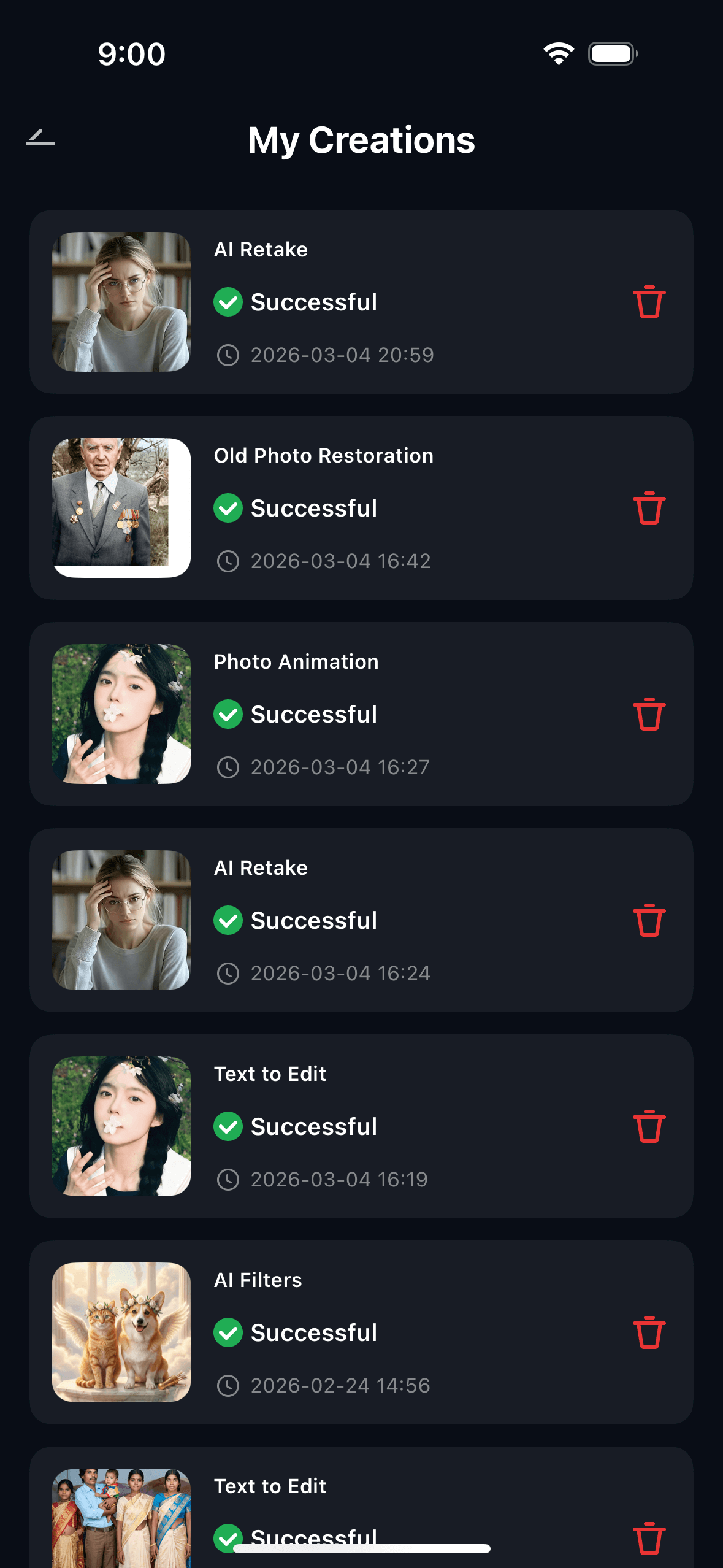
The result is a restored photo that keeps the character and grain of the original — it looks like the photo was well cared for, not like it was digitally rebuilt from scratch. The faces are still the same faces. The composition is unchanged. The damage is simply gone.
Part 3: Three Types of Damaged Photos Where This Feature Makes the Difference
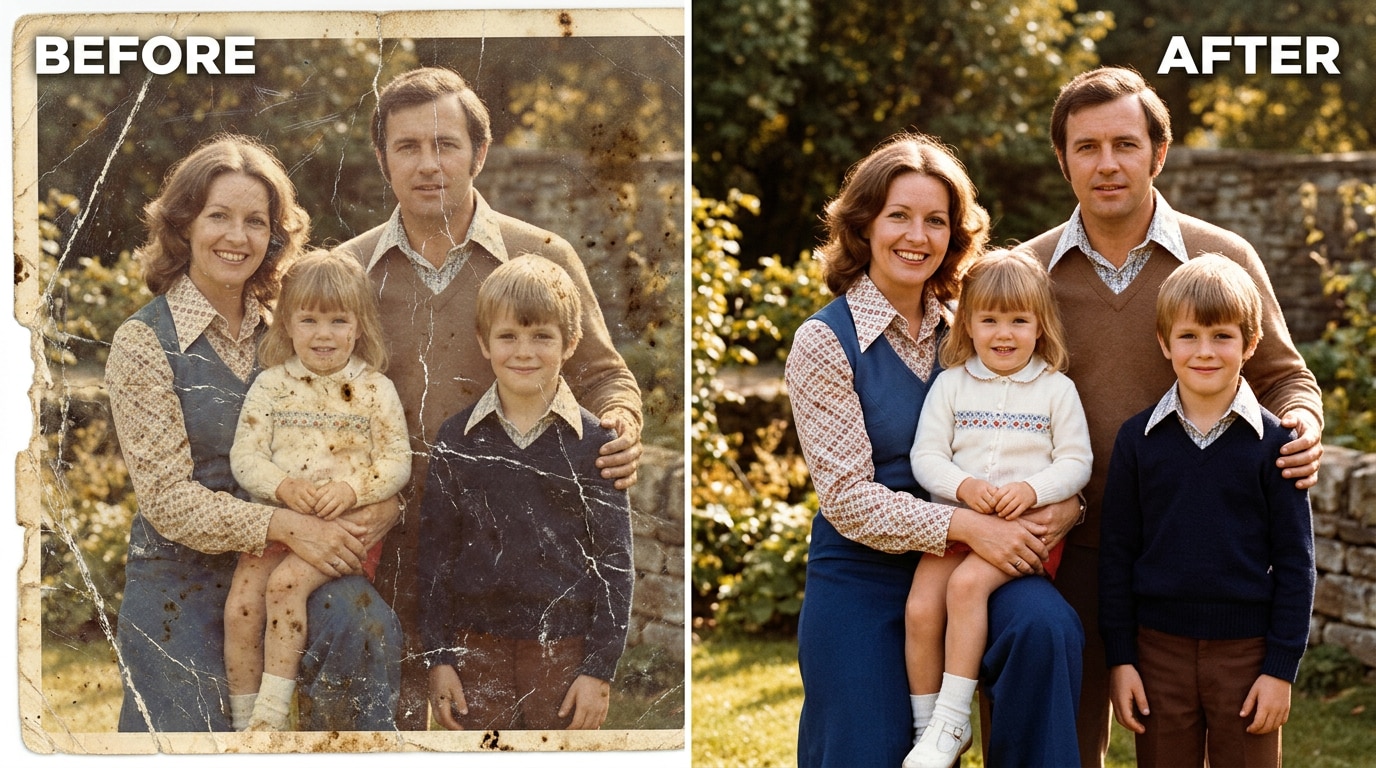
🖼️ 1. Scratched and Physically Damaged Prints
Physical damage is the most visible form of photo deterioration — and the most emotionally jarring. A white scratch line running directly across a face makes the photo feel broken in a way that's hard to look past. Fold creases through the center of the image, torn corners, and surface abrasions from decades of being pressed against other prints in a wallet or album all show up as hard visual interruptions in what should be a continuous image.
Old Photo Repair handles these directly. The AI detects linear scratch marks and crease lines across the image surface, treating each as a region where the underlying image content needs to be reconstructed rather than simply brightened. It analyzes the surrounding photo data — the skin tone on either side of a scratch, the clothing pattern interrupted by a crease — and fills the damaged region seamlessly. For prints with heavy scratching across large areas, use the intensity slider at 65–75%; for single isolated scratches, 50% is typically sufficient and preserves more surrounding detail.
💧 2. Water-Stained and Faded Vintage Portraits
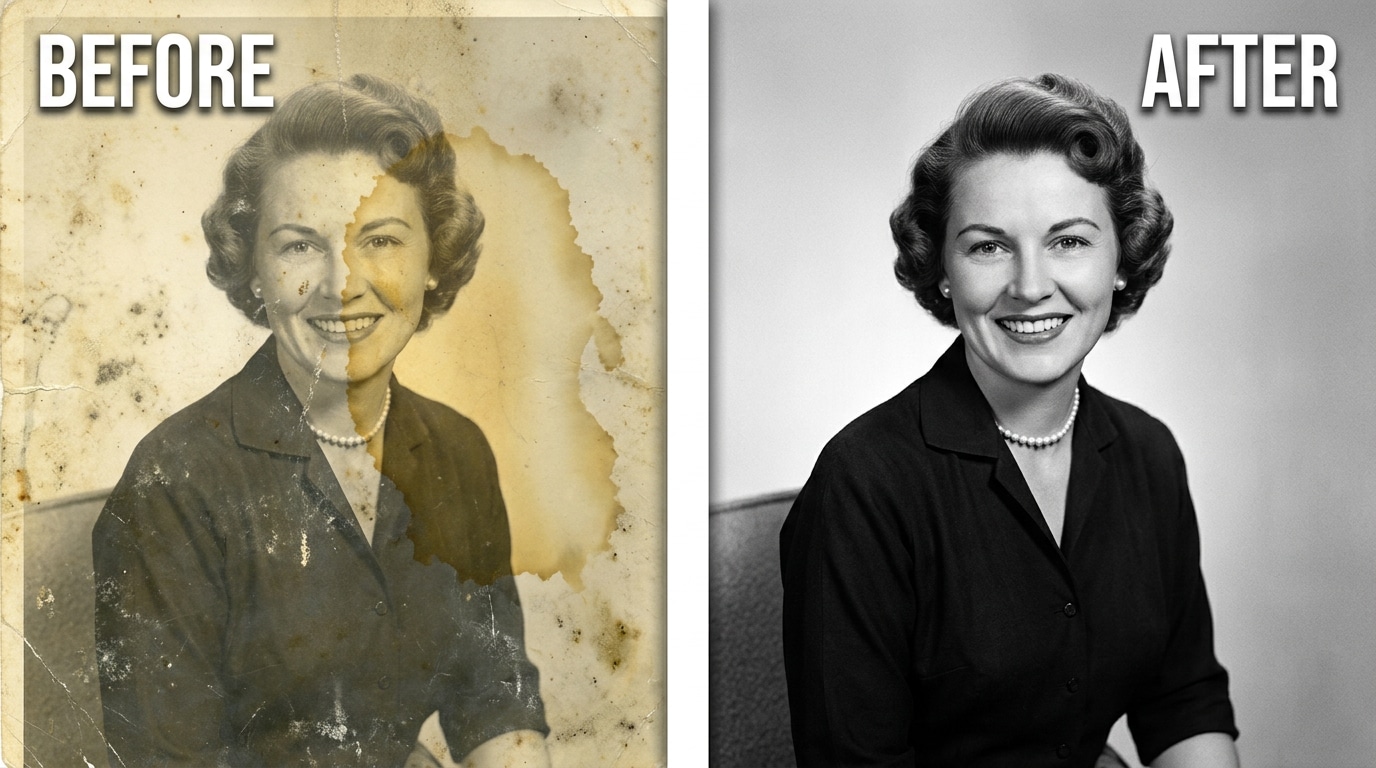
Water damage and fading represent a different kind of loss — not a hard visible mark, but a gradual obscuring of the image itself. A water stain settles over a face or background and changes the tonal values of everything it touches: the face underneath looks darker or lighter than it should, the stain has its own brownish color that bleeds into skin tones and clothing, and the sharp edge where the tide mark dried creates an unnatural boundary across the image. Fading works more slowly but produces the same loss of information: shadow areas lift toward grey, highlights lose their brightness, and the print looks flat and washed-out rather than detailed and dimensional.
The AI identifies stained regions by detecting areas where the tonal values deviate from what the surrounding image context predicts. It reconstructs the content under the stain using the intact surrounding image as reference — recovering facial features, fabric textures, and background detail that the stain was obscuring. For heavily faded black-and-white prints, the contrast and tonal restoration brings back the original depth and visual presence of the photo. The result is a portrait where the face is fully visible, the tones are balanced, and the stain is simply not there anymore.
🔍 3. Blurry and Low-Detail Old Photographs
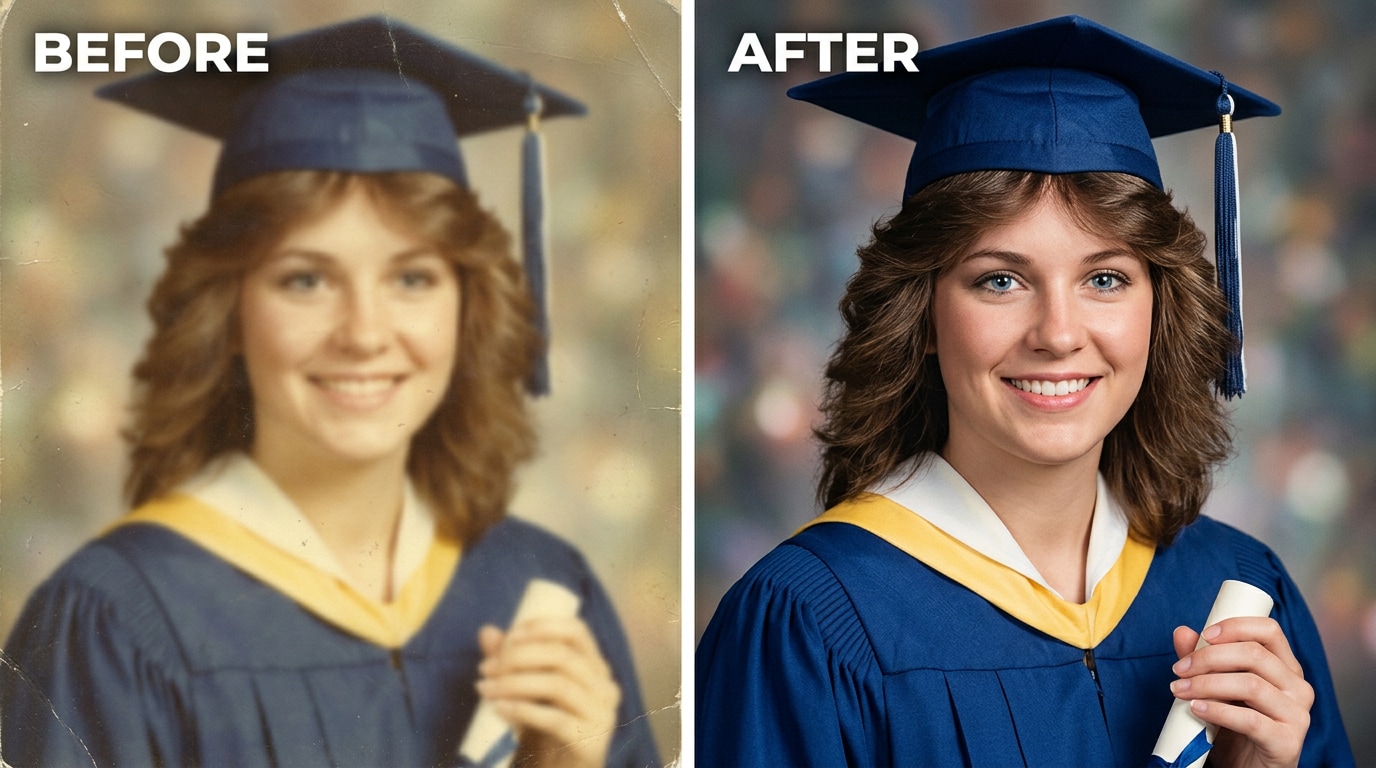
Blur in old photographs is one of the most common and least fixable problems with traditional tools. Standard sharpening filters — even advanced ones like Unsharp Mask or high-radius clarity adjustments — work by increasing the contrast at existing edges. They make a soft photo look more contrasty, but they don't recover detail that was never captured at high resolution in the first place. The result is a sharpened-but-halo-fringed image that looks worse than the original soft version in a different way.
Relumi's AI approach to blur is fundamentally different. Instead of sharpening existing edges, it uses an AI model trained on portrait and scene photography to reconstruct what the detail should look like, using the available soft image as input. For a blurry face, it recovers the shape of the eyes, the definition of the nose, the structure of the hairline — not by sharpening what's there, but by inferring what should be there from the available information. The result is facial detail that looks realistic rather than over-processed. For scanned prints that were blurry to begin with, this often produces the clearest version of the photo that has ever existed.
Conclusion
Old photographs degrade in predictable ways — scratches, stains, fading, and blur — but each type of damage requires a different repair technique, and handling all of them manually takes more time and skill than most people have. The photos that survive in shoeboxes and attic boxes are often the only records of people and moments that can't be recreated. When they're damaged, the loss is real.
Relumi AI Retake — Old Photo Repair handles all four damage types in a single automated pass: it removes scratches and creases, eliminates stains and water damage, restores faded contrast and color, and recovers blurry facial detail — without requiring any technical knowledge or manual editing. The photo that comes out looks like it was well preserved, not like it was digitally rebuilt. Scan it, upload it, and the restoration happens in minutes.
Free on iOS and Android. No subscription required for the core feature.
FAQ
-
What types of damage can Old Photo Repair fix?
The feature handles four main damage types in a single pass: scratches and physical surface damage (fine marks, fold creases, torn edges); stains and water damage (tide marks, foxing, mold spots, yellowing); fading and contrast loss (flat, grey, or color-shifted prints); and blur and soft focus (out-of-focus prints, camera shake, low-resolution detail loss). For most old prints, all four will be present to some degree, and the AI addresses each type simultaneously without requiring you to specify what kind of damage you have. -
Will it change what the people in the photo look like?
No — Old Photo Repair is a restoration tool, not a face enhancement tool. It does not alter facial features, add or remove elements, or change the composition of the photo. When recovering detail in blurry areas, the AI reconstructs what should be there based on the existing image data — it fills in detail that was always present but soft, rather than inventing new detail. The people in the restored photo look exactly the same as they did in the original, just more clearly. -
What's the best way to scan an old photo before uploading?
A flatbed scanner at 600 DPI or higher gives the best results — it captures the full resolution of the print without glare. If you don't have a scanner, photograph the print under even, diffuse indoor lighting (not direct sunlight or flash) and hold the camera parallel to the print to avoid perspective distortion. The higher the resolution of the input scan, the more detail the AI has to work with and the better the restoration result will be. -
Can it repair photos where large areas are completely missing or very heavily damaged?
For moderate damage — scratches covering up to 30–40% of the image, partial staining, areas of heavy fading — the results are typically very good. For extreme cases where a large portion of the image is missing entirely (a torn-off section, a very large water stain covering most of a face), the AI will attempt reconstruction but the result may be approximate rather than accurate. In those cases, try the maximum intensity setting and use the before/after toggle to evaluate the result — for some heavily damaged areas, partial recovery is still significantly better than the original damaged state. -
Does it work on black-and-white photos as well as color?
Yes. Old Photo Repair works on both black-and-white and color prints. For black-and-white photos, the restoration focuses on contrast recovery, scratch removal, stain elimination, and detail sharpening. For color prints, the same repairs apply plus dye balance correction for color-shifted or faded prints. The feature does not colorize black-and-white photos — it restores them to their original black-and-white appearance with full contrast and detail. -
Is Old Photo Repair free?
Yes. Old Photo Repair is available on Relumi's free tier for both iOS and Android. You can restore damaged old photos and export the results in full resolution without a watermark. No subscription is required to use the core restoration feature.



