
If Discord won’t open, the fix depends on what “not opening” actually means:
- the app is stuck in the background,
- it loads forever or shows a blank window,
- it crashes immediately, or
- Discord can’t reach its servers (often when the website won’t load either).
This guide helps you identify your scenario first, then applies the safest fixes in order—starting with reversible steps and moving to advanced methods only if needed.
Table of Contents
Part 1. Identify the Discord Not Opening On PC First
Before trying any fixes, understand first what’s happening with your Discord. The app might not open for different reasons, and it can show up in several ways.
| Symptom | Possible Cause | Try This First |
| Discord won’t open at all | App stuck or not responding | Close Discord completely from the Task Manager and try reopening |
| Discord opens but crashes immediately | Corrupted files or an outdated app | Restart your PC and update Discord to the latest version |
| Discord shows a blank window | Cache or temporary files issue | Clear Discord cache files |
| Discord starts slowly or freezes | Background apps using CPU | Close unnecessary programs running in the background |
| Error message appears when opening | Installation or permission issue | Run Discord as Administrator |
Part 2. Quick Fixes to Fix Discord Not Opening On PC (Low Risk)
If Discord isn’t opening on your PC, don’t panic. Many of these issues are simple and can be fixed quickly. Below are some low-risk solutions that usually work, starting from the easiest to the most effective.
1. End Discord Process in Task Manager
Sometimes Discord keeps running in the background even if you can’t see it. This can make it freeze, stop responding, or refuse to open. A simple fix is to close Discord completely using Task Manager. This solves the problem and lets Discord open properly.
Here are the steps:
Step 1: Access your Task Manager.
Step 2: Click the Processes tab.
Step 3: Look for Discord under Apps. Click it, then choose End Task.
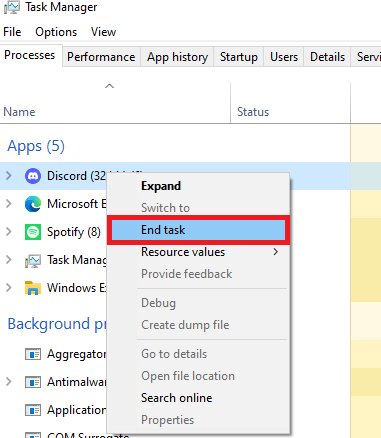
Step 4: Close Task Manager and open Discord again to see if it works.
2. Restart Your Computer
Sometimes, the easiest fix is the best. Restarting your computer can solve many problems, including Discord not opening. When you restart, your system clears temporary glitches, frees up memory, and stops background programs that might be blocking Discord.
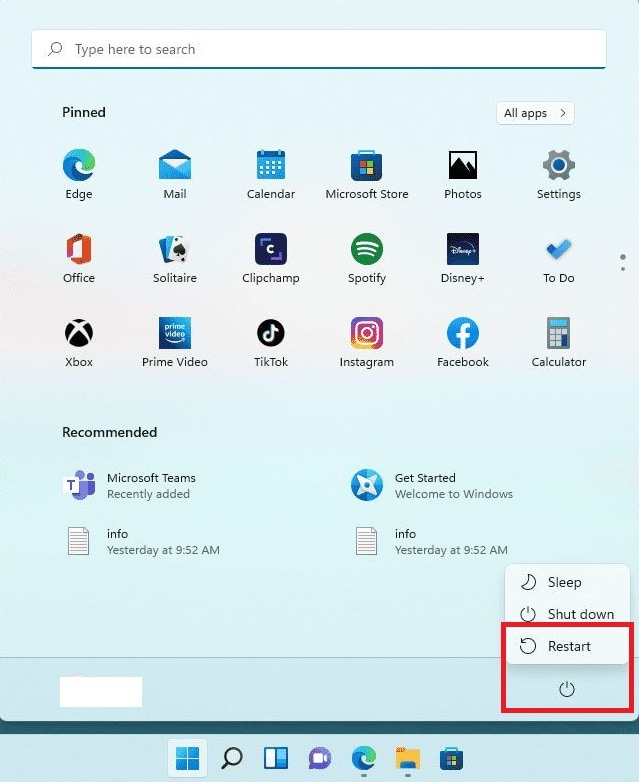
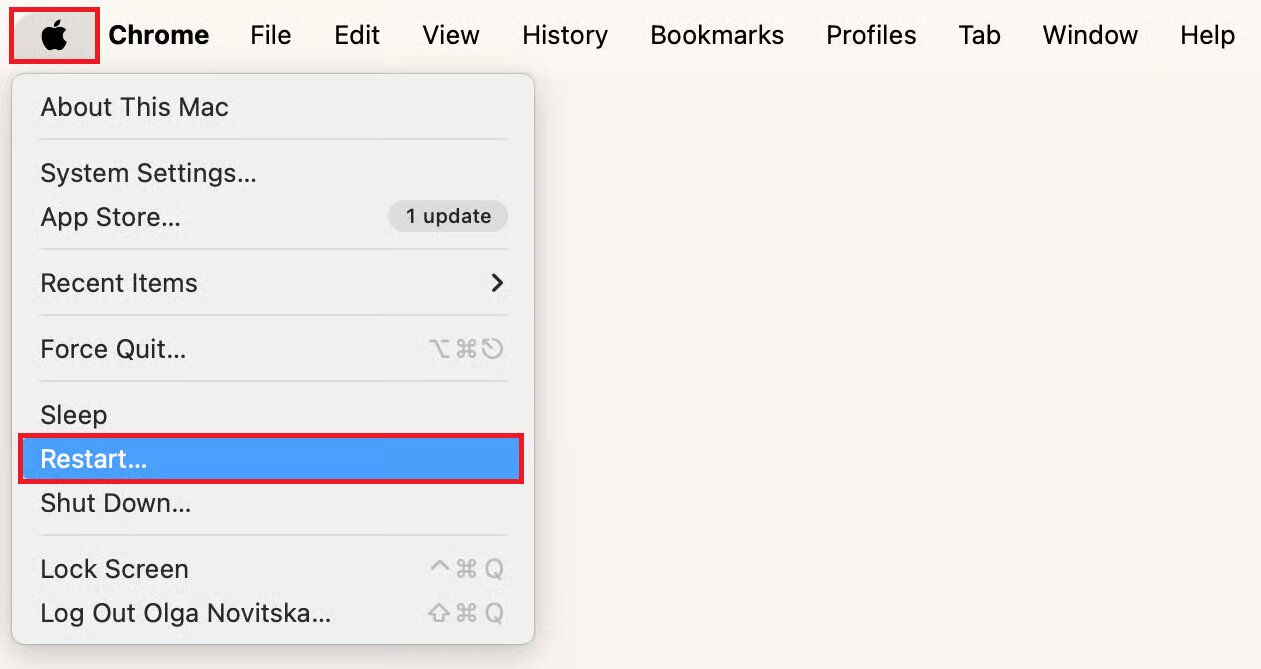
Step 1: Restart your Windows and Mac.
- Windows: Click the Start menu and find Restart.
- Mac: Click the Apple menu and pick Restart…
Step 2: Wait for your computer to reboot, then open Discord again to see if it fixed the issue.
3. Check Discord Server Status
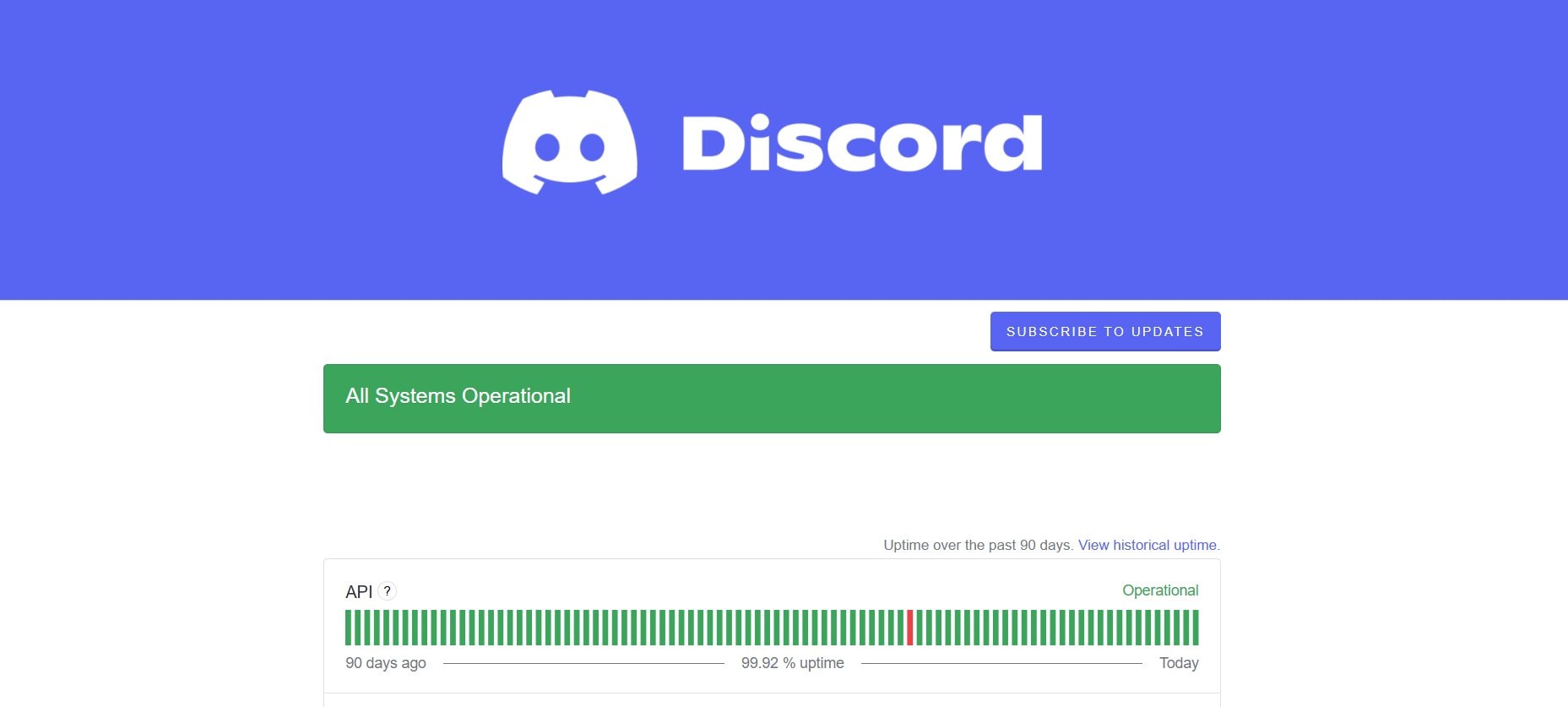
Maybe the problem isn’t on your PC. It’s on Discord’s side. Visit theDiscord Status Page to monitor if servers are down. If there’s a server outage, Discord won’t open, no matter what you do. Waiting for the issue to be fixed on their end is the safest approach.
4. Run Discord as Administrator
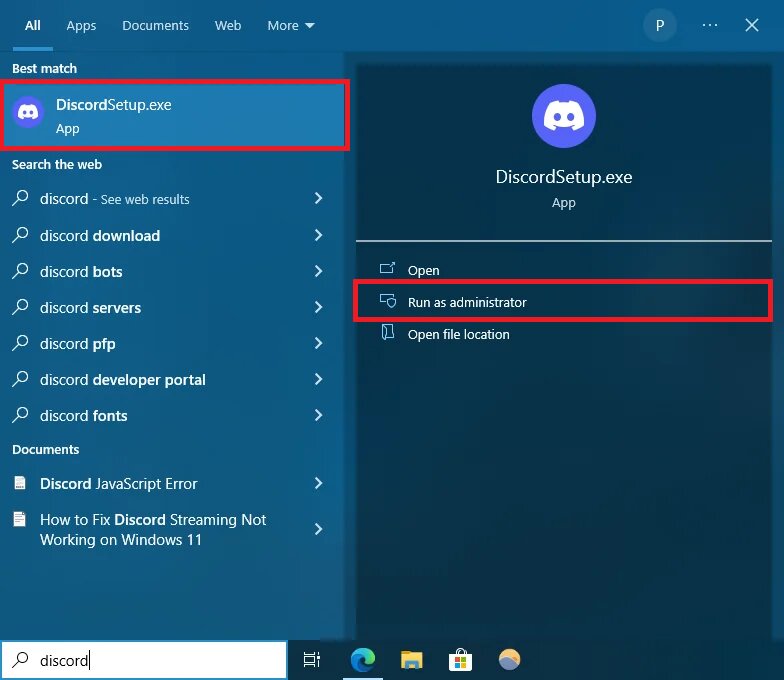
Running Discord as an administrator gives the app full access to your system, which can fix issues where Windows blocks it from opening. This helps Discord avoid permission errors and run smoothly without changing your settings.
Here’s how to do it:
Step 1: Right-click the Discord shortcut or app.
Step 2: Choose Run as Administrator.
5. Clear Discord Cache (Most Effective Fix)
Cache files store temporary data but can get corrupted, causing Discord not to open. Clearing them mostly fixes the problem. Don’t worry, as clearing the cache won’t delete your account. It only removes corrupted files that may block the app.
On Windows:
Step 1: Close Discord.
Step 2: Press Windows + R, type %appdata%, and hit Enter.
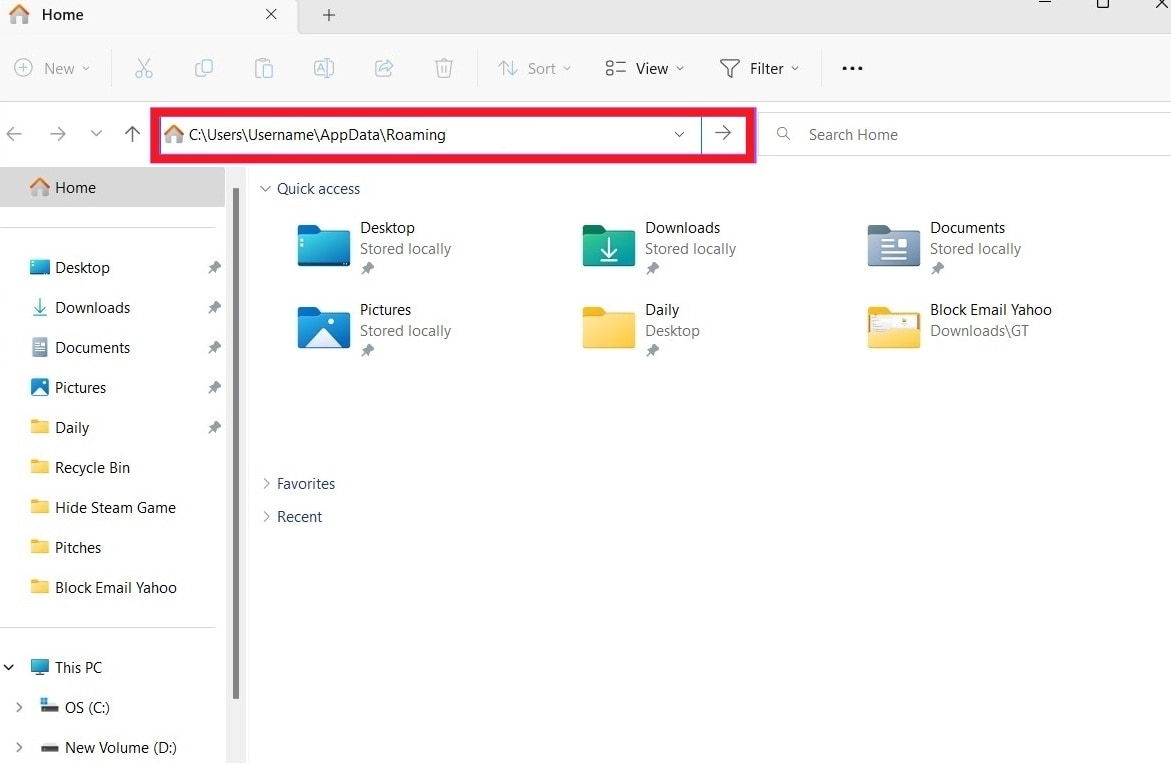
Step 3: Open the Discord folder (if you see Local, LocalLow, and Roaming, go to Roaming and Discord).
Step 4: Eliminate the Cache, Code Cache, and GPUCache file folders.
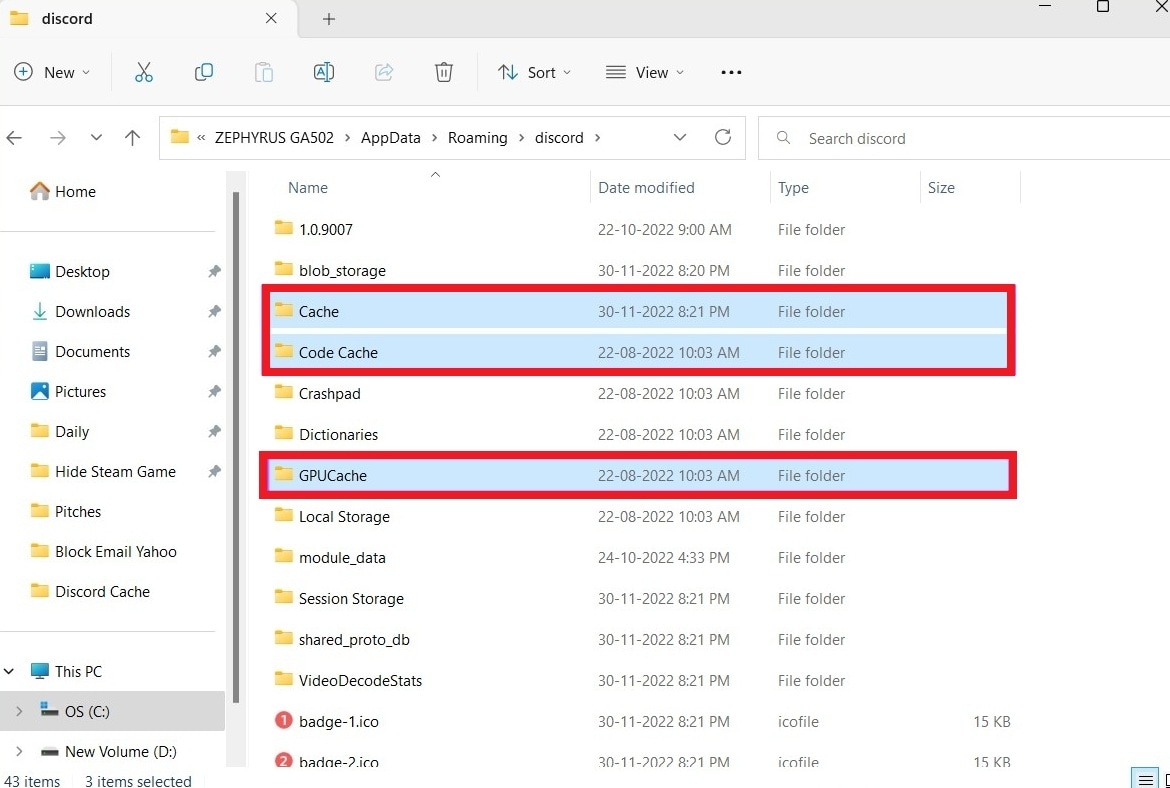
Step 5: Reopen Discord, as it will recreate these folders automatically.
On Mac:
Step 1: Close Discord.
Step 2: Open Finder, click Go and Go to Folder…, and type ~/Library/Application Support/Discord.
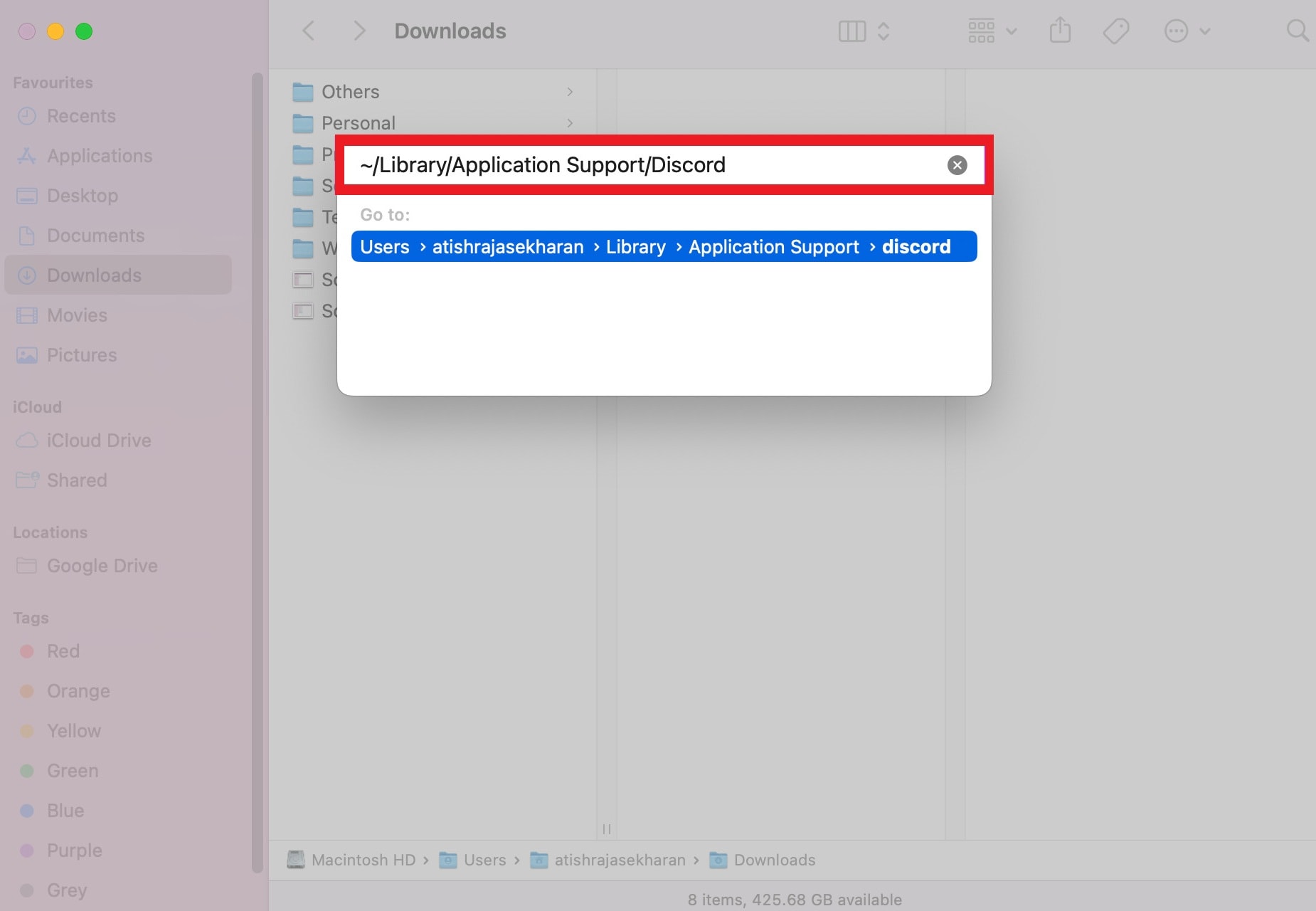
Step 3: Delete the Cache, Code Cache, and GPUCache folders.
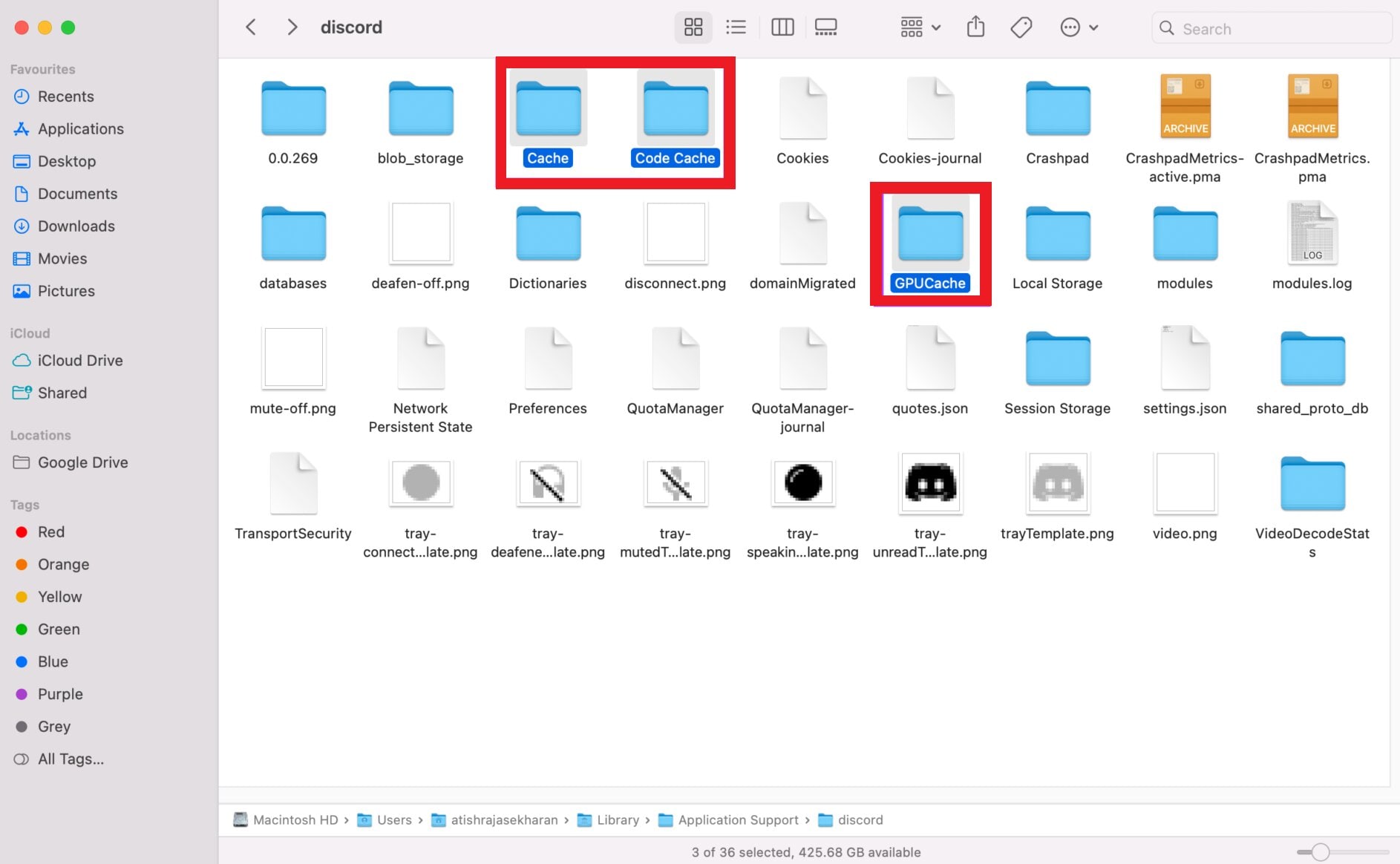
Step 4: Reopen Discord, and the folders will come back empty.
6. Disable Conflicting Programs
Some apps can conflict with Discord and stop it from opening. Common root causes are VPNs, antivirus software, or overlay apps like game recorders.
What to do:
Step 1: Temporarily disable your VPN or antivirus.
Step 2: Close apps with overlays (like Discord overlay in games, NVIDIA GeForce Experience, etc.).
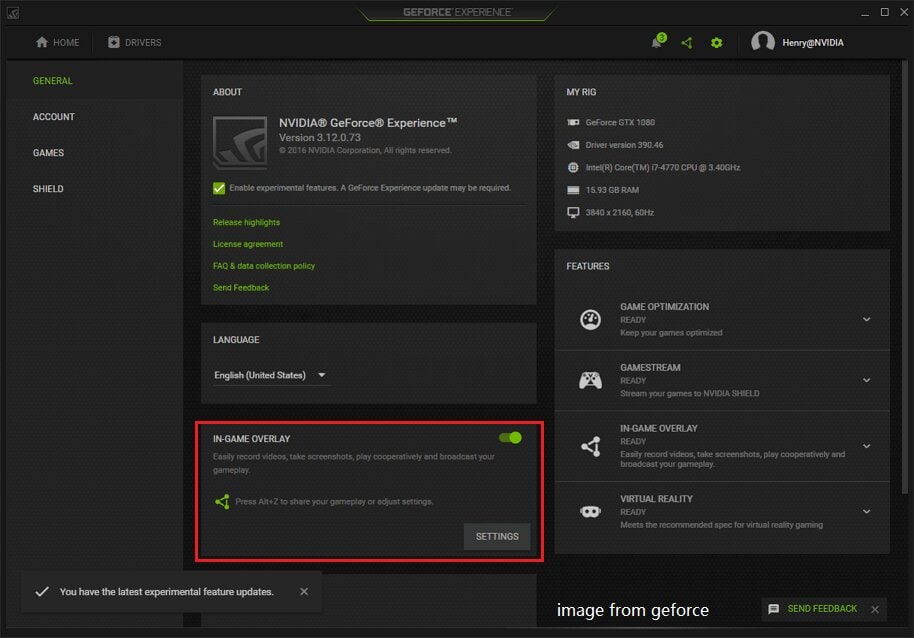
Step 3: After disabling, open Discord again.
7. Reinstall Discord
If nothing works, reinstalling Discord can solve deeper issues. This removes any corrupted files and ensures you have the latest version.
⚠️ Warning: Custom settings or preferences may reset after reinstalling. Make sure you know your login info before starting.
On Windows:
Step 1: Press Windows + R, type appwiz.cpl, and hit Enter.
Step 2: Find Discord in the list, right-click it, and select Uninstall.
Step 3: Delete leftover folders:
- Press Windows + R, type %appdata%, and press Enter. Delete the Discord folder.
- Press Windows + R again, type %localappdata%, and delete the Discord folder there too.
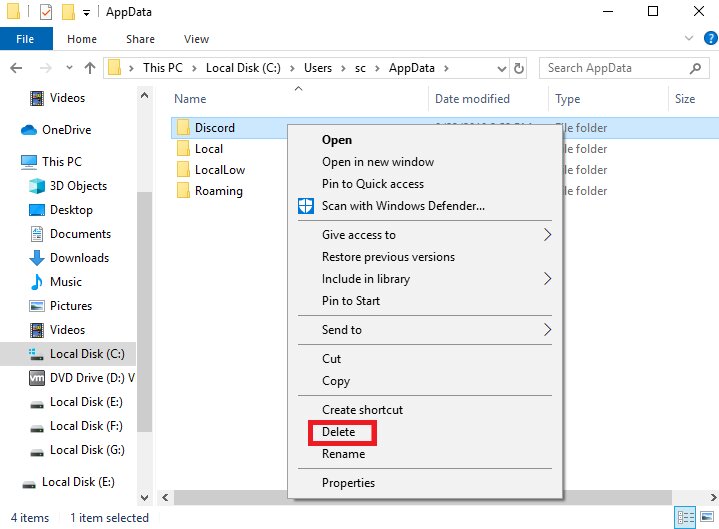
Step 4: Download and run the latest Discord version for Windows.
On Mac:
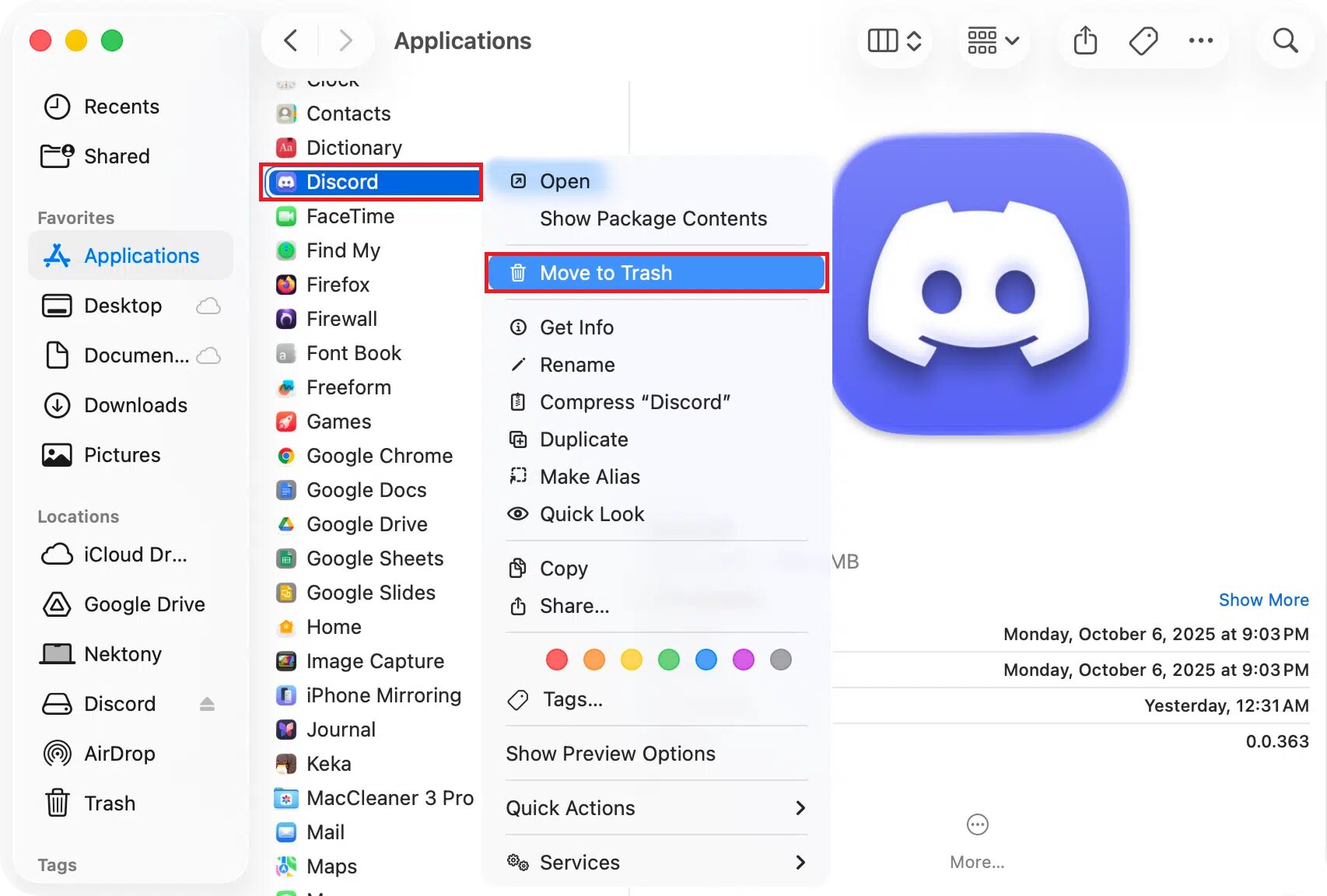
Step 1: At Finder, tick the Applications folder.
Step 2: Drag Discord.app to the Trash.
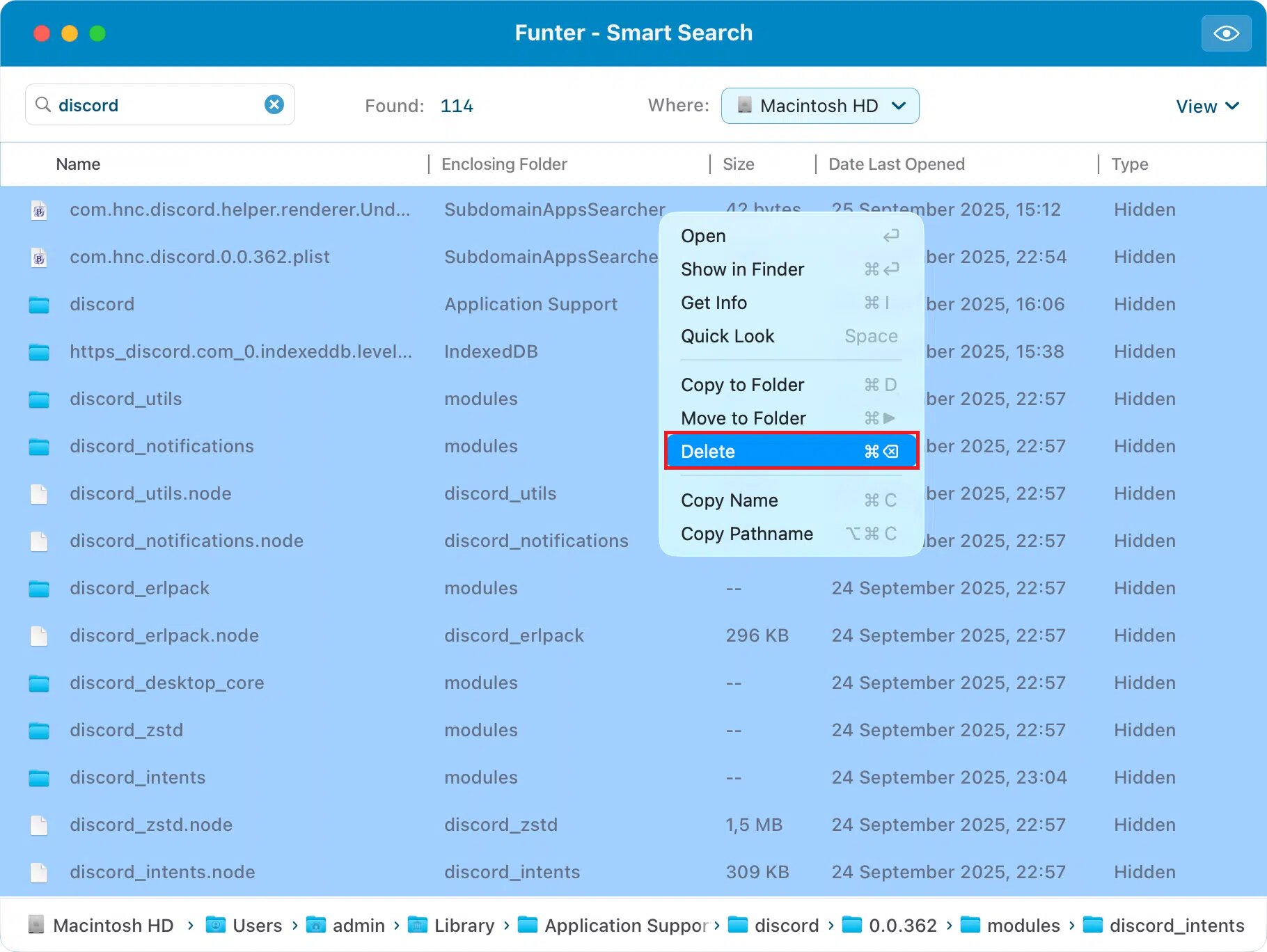
Step 3: Remove leftover files:
- Open Finder, click Go and Go to Folder…, and type ~/Library/Application Support/. Delete the Discord folder.
Step 4: Go to the official website and install Discord for Mac.
Part 3. Advanced Fixes to Fix Discord Not Opening On PC
If the quick fixes didn’t work, don’t worry. The problem may be deeper and needs more advanced steps to fix. These methods are still safe but involve a little more effort.
1. Update Windows/macOS
Outdated system software can be the root cause of Discord crashing or refusing to open. Keep your operating system up to date to ensure the app runs smoothly and avoids compatibility issues.
Windows:
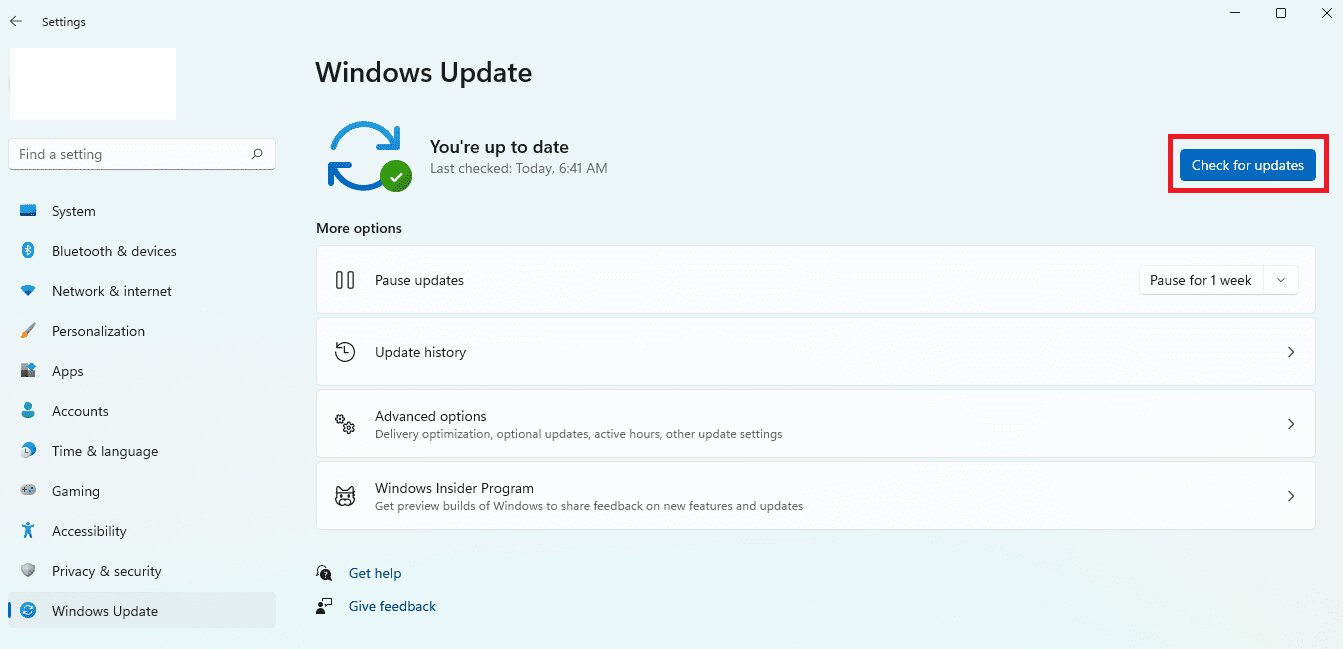
Step 1: Move to Settings and tick Update & Security.
Step 2: Click Windows Update and Check for updates.
Mac:
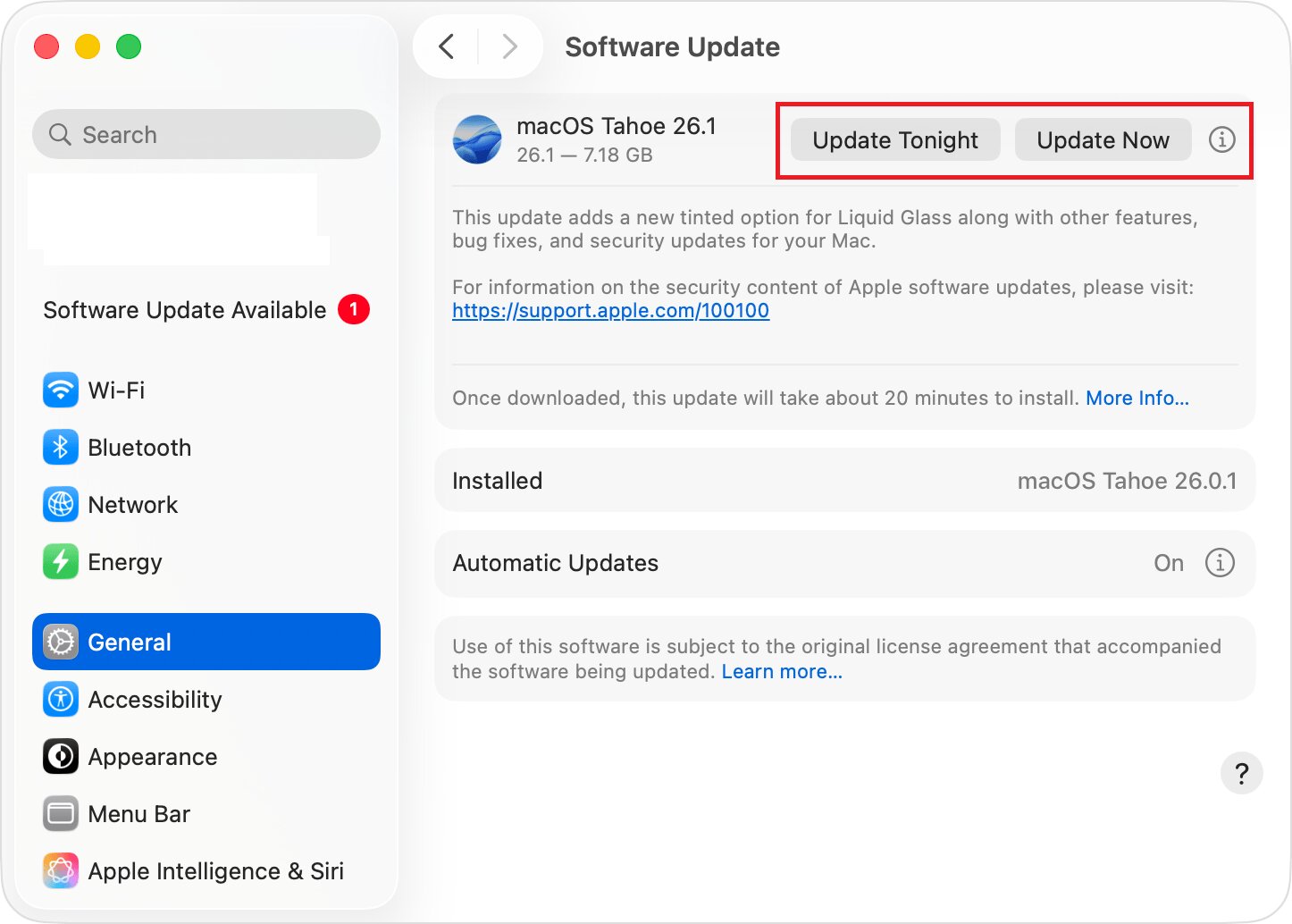
Step 1: Run the Apple menu and System Settings.
Step 2: See Software Update and install any available updates.
2. Run SFC Scan (Windows)
Sometimes system files on Windows get corrupted, which can stop apps like Discord from opening. Running a smooth System File Checker (SFC) scan can repair these files.
How to do it:
Step 1: Navigate to Command Prompt and select Run as administrator.
Step 2: Type the syntax, sfc/scannow, and tick Enter.
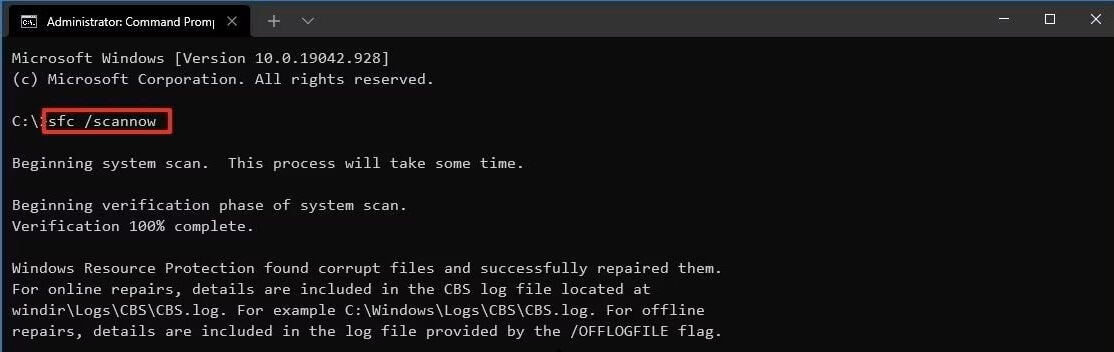
Step 3: Wait for the SFC scan to finish, then restart your PC and try Discord again.
3. Create New User Profile
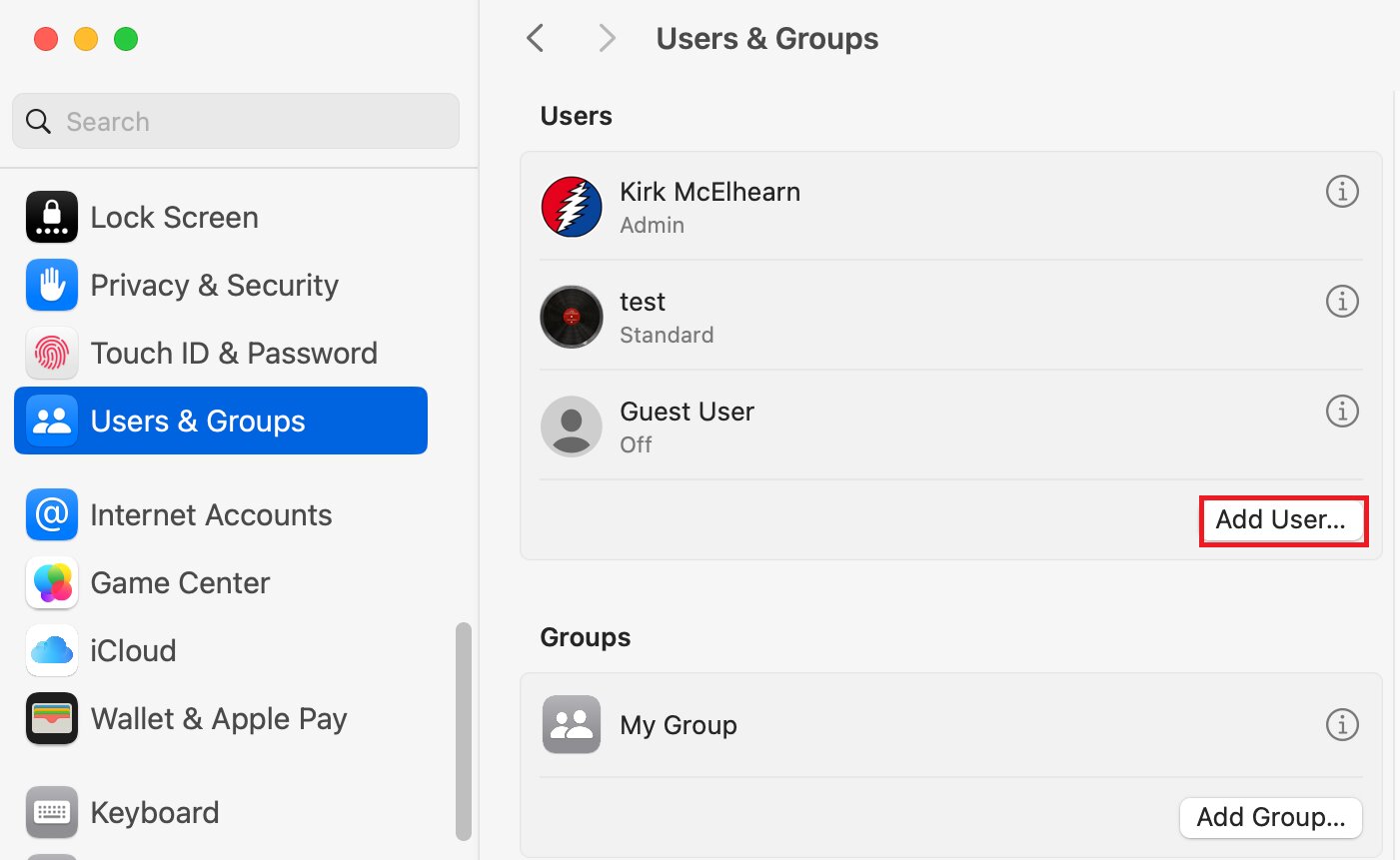
If Discord still won’t open, the issue may be related to your Windows or Mac user profile. You should try to generate another Discord user profile to have a fresh environment.
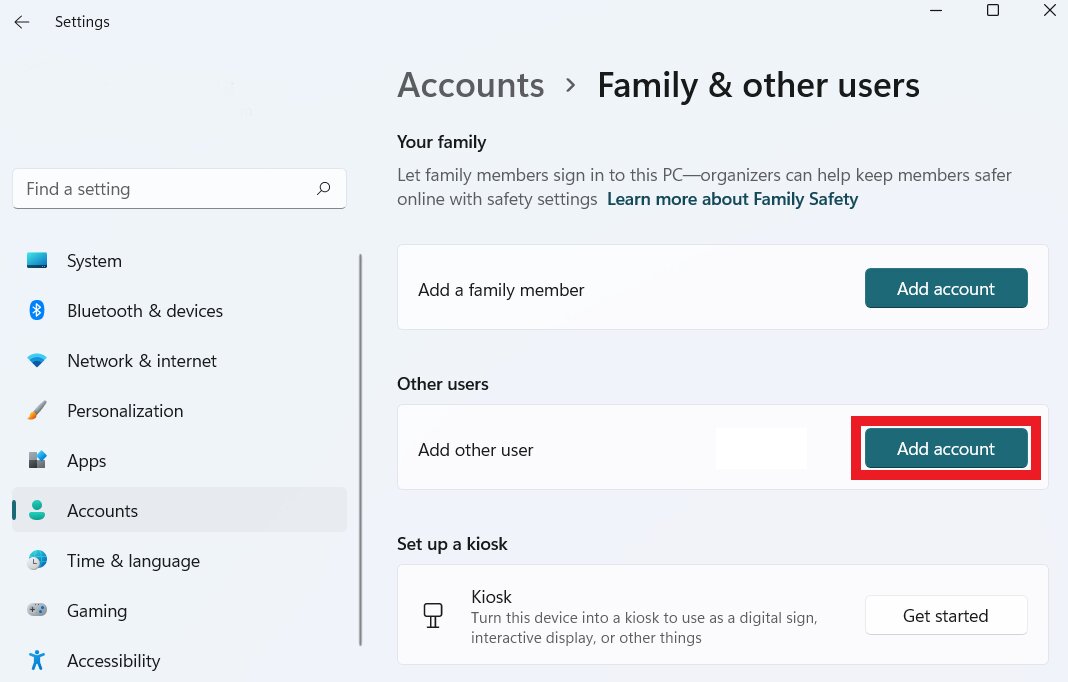
Windows:
Step 1: Go to Settings and Accounts.
Step 2: Search for Family & other users and pick the Add someone else to this PC option
Mac:
Step 1: Go to System Settings.
Step 2: Under the Users & Groups section, click Add User.
More related articles:
[Easy-to-Solve] Uncovering Top 6 "Discord Videos Not Playing" Fixes
How to Fix Discord Stream No Sound or Audio Issue Completely
Mastering Discord Video Compression: An Ultimate Guide
Part 4. Optional: If Discord Crashes Due to Corrupted Media Files
If ever your Discord crashes or fails to open, it’s most likely due to corrupted media files. Your videos, images, and other files cannot be played due to constant errors. These damaged files can interfere with the app and cause it to close unexpectedly.
If you suspect this is the problem, you can use a professional repair tool to fix corrupted media files safely. One reliable option is Repairit Video Repair by Wondershare. Repairit is trusted by creators, editors, and pros worldwide and is especially useful if Discord crashes or won’t open due to corrupted media files.
Step-by-Step Guide:
Step 1: Open Repairit. Press Add video and start repairing or the Add button to input your corrupted media files.

Step 2: Hit Repair to start fixing the corrupted media files due to Discord crashes.

Step 3: If the preview is OK, hit Save and pick a new location on your computer.

If Nothing Works
But even after trying all the fixes, Discord may still not open. Don’t be sad. There are still ways to stay connected and get help.
- Use Discord Web - If the desktop app won’t open, you can still use Discord in your browser. You can chat, join servers, and use most features without installing anything.
- Contact Discord Support - If the problem continues, reaching out to Discord’s support team is a good idea. They can help troubleshoot issues specific to your account or system.
- Check Hardware Compatibility - Some older PCs or Macs may have hardware or system limitations that prevent Discord from running properly. Make sure your computer meets Discord’s minimum requirements for CPU, RAM, and operating system.
Part 5. Discord Not Opening? Prevent This for Future Purposes
Follow these tips to avoid errors in opening Discord on your PC or Mac.
- Keep Discord updated. Always install the latest version to avoid bugs and compatibility problems.
- Regularly update Windows or macOS systems to ensure Discord works well with your computer.
- Over time, cache files can get corrupted. Clearing them every few weeks can prevent crashes.
- VPNs, antivirus programs, or overlay apps can interfere with Discord. Close them if you notice problems.
- Restart your computer regularly. This clears memory and temporary glitches that can block Discord.
- Check media files before uploading. Corrupted videos or images can crash Discord, so make sure your files are healthy.
- Use Discord web as a backup. If the app ever fails, you can always access Discord from your browser.
Conclusion
If Discord is not opening on PC or Mac, don’t panic. In most cases, the problem is caused by simple issues like stuck background processes, corrupted cache files, outdated systems, or software conflicts. The good news is that these problems are quick to fix.
You can do the quick fixes like restarting your computer and clearing cache, or advanced methods like updating your system or running an SFC scan. You can get Discord running again in no time. And if Discord crashes due to corrupted media files, using a reliable repair tool can also help solve the issue.
FAQs
-
Why is Discord not opening on my PC?
Discord might not open if it’s stuck in the background, has corrupted cache files, or conflicts with programs like antivirus software or VPNs. Outdated Windows or Discord versions can also cause issues. Usually, ending Discord in Task Manager, clearing the cache, or reinstalling the app fixes it. -
Why is Discord not opening on Mac?
On Mac, Discord may not open because of corrupted cache, leftover files, or an outdated macOS. Other apps in the background can also cause problems. Clearing the cache, updating macOS, or reinstalling Discord usually works. -
Does clearing the cache delete my account?
No. Clearing the cache only removes temporary files. Your account, messages, and settings stay safe. Discord will create new cache files when you reopen it. -
Why is Discord stuck on update?
Discord can get stuck updating if the internet is slow, the app doesn’t have permission, or cache files are corrupted. Closing Discord, running it as administrator, clearing the cache, or reinstalling usually fixes it.




