
MOV files that were damaged during transfer usually come from something interrupting the file copying process. MOV files are widely used by cameras, iPhones, and editing software, but they're also sensitive to transfer errors.
What makes this frustrating is that the file often looks completely normal, it has the correct size and format, but refuses to play. This typically means the file's internal structure was damaged during transfer.
The good news is that MOV files can often be repaired if the damage isn't too severe.
In this article
Part 1. Why MOV Files Get Damaged During Transfer
A MOV file isn't just a simple video; it's a structured container that stores video, audio, and metadata (like duration and resolution).
During transfer, your system rebuilds this structure on the destination device. If even a small part is missing, especially the "moov atom" (header), the video may fail to open.
Common Causes:
- Interrupted file transfer
- Removing the device too early
- Corrupted storage device (USB, SD card, drive)
- File system errors
- Incomplete copying process
MOV-Specific Causes:
- Missing or damaged header (moov atom)
- Incomplete metadata writing
- Codec incompatibility after transfer
Even a small error can make the entire file unplayable.
Part 2. 5 Signs Your MOV File Might Be Corrupted
Before fixing, it helps to confirm the file is actually corrupted.
Common Signs:
- The MOV file won't open in any media player
- Black screen during playback
- "Unsupported format" error
- Video freezes while audio continues
- File cuts off before finishing
Part 3. How Corruption Shows Up
Corruption in MOV files can manifest in several ways, depending on which part of the file structure is affected. Each symptom offers clues about the underlying issue:
- Visual issues: These are the most common signs of data corruption. You might notice pixelation, green or black frames, flickering, or distorted visuals. This usually means that the video stream itself has missing or scrambled data blocks, often caused by interrupted transfers or incomplete writes during recording.
- Playback freezing: When the video halts but the audio continues, or vice versa, it suggests that the file's indexing or frame order has been disrupted. The player struggles to locate the next frame, leading to stuttering or complete pauses. This can happen when the header information or timecode references are damaged.
- Metadata errors: Incorrect duration, missing thumbnails, or absent preview images point to corruption in the file's metadata section. Metadata defines how the player interprets the file's structure, so even minor errors can cause mismatched playback times or prevent the file from loading properly in editing software.
- Player crashes: If your media player freezes or closes unexpectedly when opening a MOV file, the corruption may extend to the container format itself. This type of damage often occurs when the file's internal hierarchy, such as the 'moov' or 'mdat' atoms, is incomplete or misaligned.
In most cases, these symptoms indicate structural damage rather than simple codec or compatibility issues. Unlike format mismatches, structural corruption affects how the file is read at a binary level, meaning repair tools or re-indexing utilities are often required to restore normal playback.
Part 4. Basic Fixes to Try First
Before using advanced repair tools, try these practical fixes:
Fix 1: Perform a Fresh Transfer
If the transfer was interrupted, copying the file again can restore the missing data.
Step 1. Locate the original MOV file on your source device (camera, SD card, or phone).
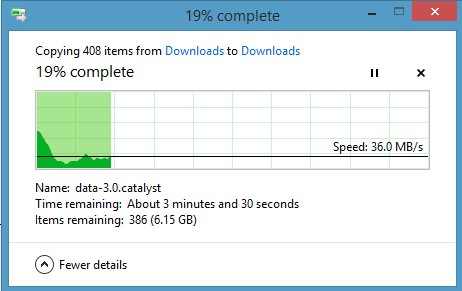
Step 2. Copy the file again using a stable connection and wait until the transfer fully completes.
Why this works: If the original transfer was interrupted, the file may be incomplete. A fresh transfer restores the full file.
Fix 2. Use VLC to Repair the File Index
VLC can sometimes rebuild the damaged file structure during playback.
Step 1. Open VLC, go to Tools. Under Preferences, select Input/Codecs, and set Damaged file to "Always fix."
Step 2. Open the MOV file in VLC and check if it plays.
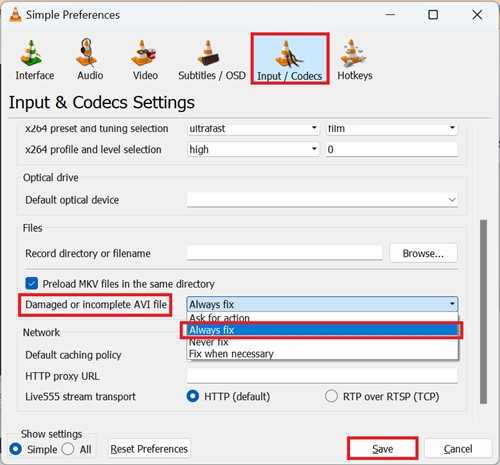
Why this works: VLC can reconstruct parts of the file in memory, allowing playback.
Fix 3. Check the File Extension
Incorrect file extensions can prevent proper playback even if the file is intact.
Step 1. Right-click the file and choose "Rename."
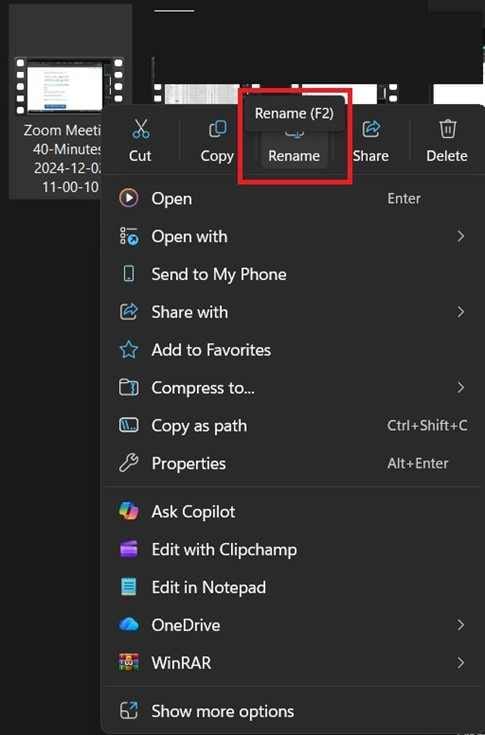
Step 2: Ensure the extension is set to ".MOV."
Why this works: Correct file labeling ensures the system uses the right decoder.
Fix 4. Scan the Storage Device for Errors
Drive errors can affect how files are read and opened.
Step 1. Right-click the storage device and open "Properties."
Step 2. Run the error-checking tool under the "Tools" tab.
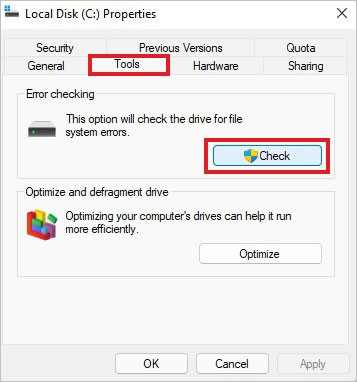
Why this works: Fixing file system errors can restore proper file access.
Fix 5. Disable Hardware Acceleration
Playback issues may sometimes be caused by system settings rather than file damage.
Step 1: Open your media player settings.
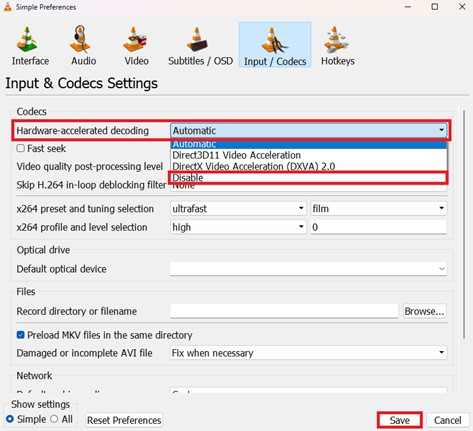
Step 2: Disable hardware acceleration and try playing the file again.
Why this works: This removes GPU-related playback conflicts.
Part 4. Advanced Fix: Repair the MOV File
If basic fixes don't work, the MOV file likely has deep structural corruption.
How to Tell If the File Is Truly Corrupted:
- The file fails to open on multiple devices
- VLC cannot play the file
- File size looks incorrect
- Playback errors are consistent across players
In these cases, a repair process is needed.
What a Repair Tool Can Do:
- Rebuild missing or damaged structure
- Restore playback functionality
- Fix freezing, black screen, or audio issues
- Recover usable video data
How to Use a Repair Tool
If you confirm the video is corrupted, Repairit Video Repair can safely restore its functionality.
Step-by-Step (Optional)
Step 1. Add the corrupted MOV file.

Step 2. Run the Repair process.

Step 3. Preview the repaired result, then save the file.

Part 5. How to Prevent MOV File Corruption
To avoid this issue in the future:
- Always wait for transfers to complete fully
- Safely eject storage devices
- Use high-quality cables and readers
- Avoid interrupting file transfers
- Keep backup copies of important videos
Conclusion
If you need to repair MOV files damaged during transfer, the issue is usually caused by interrupted transfers or structural damage to the file.
Start with simple fixes like re-transferring the file or using VLC to rebuild the index. If the problem persists, repair methods can often restore the file and make it playable again.
FAQs
-
Can MOV files be repaired after transfer?
Yes, especially if the corruption happened during transfer and the data is still present. -
Why are MOV files sensitive to corruption?
Because they rely on structured metadata that must be fully written to work properly. -
Will renaming the file fix corruption?
Only if the issue is incorrect labeling, not structural damage. -
Can partially transferred MOV files be fixed?
Only the transferred portion can be recovered; missing data cannot be restored.




