
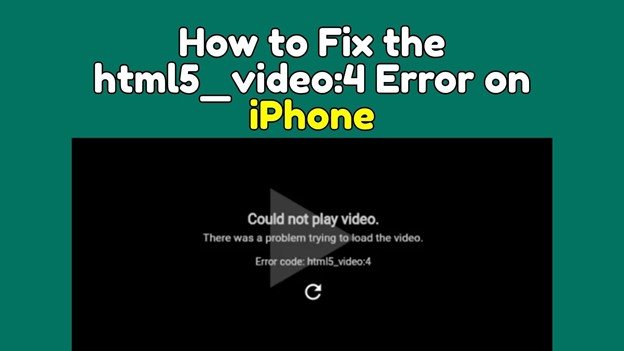
The HTML5_video:4 error on iPhone is a playback issue that appears when a video fails to load, buffer, or decode properly in browsers like Safari or inside certain apps that rely on HTML5 video players. Instead of playing normally, users may encounter a blank screen, a stuck loading indicator, or a direct error message such as HTML5_Video:4, which prevents any interaction with the video.
This problem is more common on iPhones because iOS uses a strict video playback environment based on WebKit (Safari's engine), which supports only specific codecs and streaming methods. Unlike desktop browsers that can rely on multiple codecs or plugins, iPhones require videos to meet precise format, encoding, and delivery standards.
In many cases, the issue is caused by incompatible video formats, corrupted cached data, unstable internet connections, or website-level playback errors. However, it can also occur due to deeper problems such as broken video files or system-level glitches.
This guide provides a comprehensive breakdown of the error, explains the technical causes in detail, and walks you through step-by-step solutions to restore smooth video playback on your iPhone.
In this article
Part 1. What Does HTML5_Video:4 Error Mean?
The HTML5_Video:4 error is a video playback failure code that indicates the browser or app could not successfully load or decode a video file. It is not a single fixed error but rather a generic signal that something in the playback pipeline has failed. On iPhone, HTML5 video playback involves multiple stages:
- Loading the video source from a server
- Initializing the video player in Safari or an app
- Verifying format and codec compatibility
- Buffering and decoding video data
- Rendering the video on screen
If any of these steps fail, the player cannot proceed, and the error appears.
For example, if the video uses an unsupported codec, Safari cannot decode it. If the connection drops while buffering, the video cannot load. If the file metadata is corrupted, the player cannot interpret the structure.
Because of this, HTML5_Video:4 is not the root problem itself, but rather a symptom of deeper compatibility, network, or file issues.
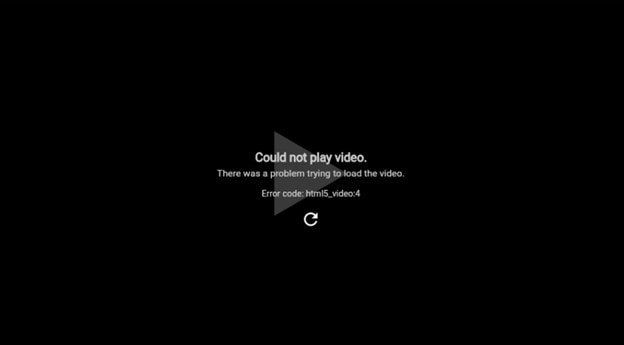
For example, if your browser cannot load required scripts, the video player may not initialize. If DRM verification fails, the system may block playback entirely. Similarly, if your connection drops during buffering, the stream may stop and trigger an error.
Because of this layered system, the same error message can appear for different underlying problems, which is why troubleshooting needs to be done step by step.
Part 2. Why does HTML5_Video:4 error happen on iPhone
This error can occur for several reasons, often related to how iOS handles video playback.
1. Unsupported Video Format - iPhones primarily support formats like MP4 with H.264 or HEVC codecs. If a video uses formats like WebM or unsupported encoding profiles, Safari cannot decode it. Even if the video works on desktop browsers, it may fail on iPhone due to these strict compatibility limitations.
2. Corrupted Video File - If the video file is incomplete or damaged, the player cannot process its internal structure. Missing headers, broken frames, or incomplete metadata can prevent playback entirely.
This is especially common with interrupted downloads or improperly transferred files.
3. Safari Cache or Data Issues - Safari stores cached data to improve loading speed, but outdated or corrupted cache files can conflict with new video streams. When this happens, the browser may fail to load updated video components, resulting in playback errors.
4. Network Instability - Video streaming requires continuous data transfer. If your connection is slow, unstable, or frequently interrupted, the video may fail to buffer properly. This is particularly noticeable on mobile data connections or weak Wi-Fi signals.
5. Website Player Compatibility Issues - Some websites use custom HTML5 players that are not fully optimized for iOS Safari. These players may rely on scripts or codecs that are unsupported on iPhones. As a result, videos may fail even though the same content works on other devices.
6. iOS or App-Level Glitches - Temporary bugs in iOS or apps can interfere with video playback. Background processes, memory issues, or outdated system components can disrupt the video player.
Part 3. Quick Checks Before Fixing
Before applying fixes, it is important to identify when and where the issue occurs. This helps you avoid unnecessary steps and apply the correct solution.
- If the error occurs only on one website, the issue is likely related to that site's player or video format
- If it happens on all videos, the problem is likely with Safari, iOS, or your network
- If only specific videos fail, the issue may be file corruption or encoding problems
- If the issue changes between Wi-Fi and mobile data, the problem is likely network-related
These quick checks act as a diagnostic step, helping you narrow down whether the issue is system-wide or isolated.
Part 4. Basic Fixes for HTML5_Video:4 Error
These fixes address temporary issues and should always be attempted before more advanced troubleshooting.
Fix 1. Refresh the Page
Refreshing reloads all scripts, reconnects to the video server, and clears temporary playback errors that may have occurred during loading.
Step 1. Tap the Refresh button in Safari or reload the page manually.
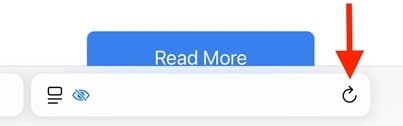
Step 2. Wait for the page to fully reload and try playing the video again.
Fix 2. Restart Your Device
Restarting clears temporary system glitches and resets network connections.
Step 1. Turn off your device using the Power option.
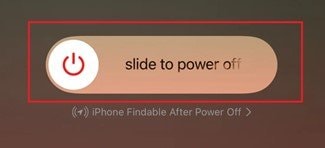
Step 2. Turn it back on and launch Hulu again.
Fix 3. Clear Safari Cache
Clearing the cache removes outdated or corrupted data that may conflict with current video streams.
Step 1. Open Settings, scroll to Safari, and tap Clear History and Website Data.
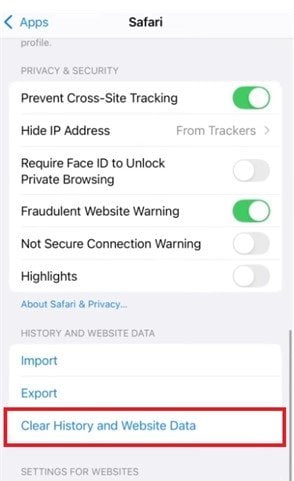
Step 2. Confirm the action, reopen Safari, and test the video again.
Fix 4. Update iOS
System updates include fixes for playback bugs, compatibility issues, and performance improvements.
Step 1. Open Settings, tap General, then tap Software Update.
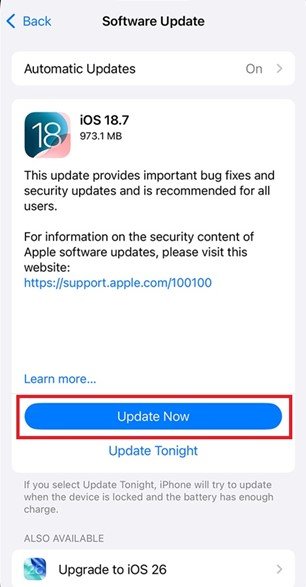
Step 2. Tap on Update Now and wait for it to be downloaded.
Fix 5. Try Another Browser
Step 1. Install another browser and tap Open to launch it.
Step 2. Load the video and check if playback works.
Fix 6. Switch Network
Changing networks helps identify whether the issue is caused by unstable connectivity.
Step 1. Turn off Wi-Fi in Settings and enable mobile data, or switch back to Wi-Fi.
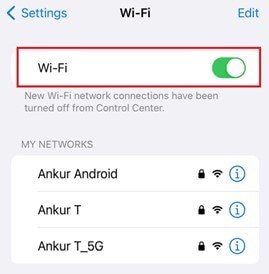
Step 2. Reload the video and test playback.
Fix 7. Reset Network Settings
Resetting network settings clears misconfigurations that may affect connectivity.
Step 1. Open Settings, tap General, then select Reset Network Settings.
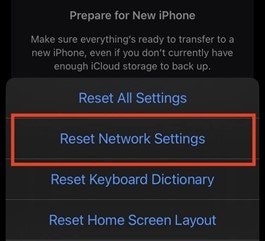
Fix 8. Use a Supported Video Format
Converting videos to a compatible format ensures proper playback on an iPhone.
Step 1. Convert the video to MP4 (H.264) using a converter and tap Save.
Step 2. Open the converted file and play it on your iPhone.
Part 5. Rare Case: Repair Corrupted Video Files
If the HTML5 video:4 error on iPhone occurs only with specific videos, the issue may be caused by file-level corruption rather than browser, network, or system problems. This means the video itself has structural damage that prevents proper decoding and playback.
This type of issue often results from:
- Interrupted downloads or transfers
- Incomplete file encoding
- Damaged metadata or headers
- Storage or file system errors
When a video file is corrupted, Safari or any media player may fail to interpret its structure, resulting in playback errors such as black screens, loading failures, or the HTML5_Video:4 error.
In these cases, tools like Repairit Video Repair can help rebuild the internal structure of the video file and restore proper playback functionality.
What it CAN Do
- Repair structurally corrupted video files that fail to play
- Rebuild damaged headers and restore video metadata
- Fix playback issues such as black screen, freezing, or no video
- Restore audio-video synchronization problems caused by file damage
What itl CANNOT Do
- Fix unsupported video formats on iPhone
- Resolve network or streaming-related issues
- Repair hardware or iOS system problems
- Recover videos that are completely missing or reduced to 0 KB
Step 1. Upload the corrupted video file.

Step 2. Start the Repair process.

Step 3. Preview and save the restored file to a new location.

⚠️ Note: This solution should only be used if the issue affects specific downloaded or transferred video files. If the error occurs across multiple websites or streams, the problem is likely related to browser, network, or system compatibility instead.
Part 6. How to Prevent HTML5_Video:4 Error in the Future
Preventing the HTML5 video:4 error on iPhone is more effective than repeatedly troubleshooting it, especially since most causes are related to compatibility, caching behavior, and unstable playback conditions. Below are some prevention strategies:
- Use Supported Video Formats Consistently - iPhones rely on a limited set of supported codecs, primarily MP4 with H.264 or HEVC. Playing videos outside these formats increases the risk of decoding failures and playback errors. If possible, ensure that videos are encoded in iPhone-compatible formats before playback, especially if you are transferring files from other devices.
- Keep iOS Updated Regularly - Apple frequently releases updates that improve media playback compatibility and fix bugs affecting Safari and system-level video decoding.
- Clear Safari Cache Periodically - Cached data helps speed up browsing, but over time it can become outdated or corrupted. This can interfere with how video players load scripts and streaming data. Clearing the cache periodically ensures that Safari always loads fresh resources, reducing the risk of playback conflicts.
- Avoid Unstable or Slow Internet Connections - HTML5 video playback depends heavily on continuous data streaming. Any interruptions in connectivity can prevent proper buffering and lead to loading errors. Using a stable Wi-Fi connection instead of fluctuating mobile data significantly improves playback reliability.
- Use Reliable and Optimized Websites - Not all websites optimize their video players for iOS Safari. Some rely on unsupported codecs, scripts, or playback frameworks that may not function properly on iPhones. Always use trusted platforms that follow standard HTML5 video implementation and support mobile playback.
- Avoid Interrupting Video Playback or Loading - Switching apps, refreshing pages repeatedly, or interrupting loading processes can cause incomplete buffering. This may result in playback errors when the video resumes. Allow videos to load fully before interacting heavily with the page to avoid disrupting the playback process.
- Ensure Proper File Transfer Methods - When transferring videos to your iPhone, using unreliable methods (such as interrupted wireless transfers) can corrupt files. Always use stable transfer methods like AirDrop, verified cloud storage, or direct cable transfer to maintain file integrity.
- Keep Browser and Apps Updated - Even though Safari is tied to iOS, third-party browsers and apps also need updates to maintain compatibility with modern video formats. Outdated apps may fail to properly load or decode video streams, increasing the likelihood of playback errors.
- Monitor Storage and Device Performance - Low storage space or heavy background activity can affect how videos are buffered and processed. Ensuring sufficient storage and closing unnecessary apps helps maintain smooth playback performance.
Conclusion
The HTML5 video:4 error on iPhone is typically caused by format incompatibility, cache conflicts, or network instability. While it may appear technical, most cases can be resolved with simple steps like refreshing the page, clearing Safari data, or updating iOS.
For more persistent issues, switching networks, testing different browsers, or converting video formats can help restore playback. In rare situations where only specific files fail, video corruption may be the underlying cause.
With a structured approach, you can quickly identify the issue and restore reliable video playback on your iPhone.
FAQs
-
What does the HTML5_Video:4 error mean on iPhone?
It means the video cannot be loaded or decoded by the browser or app. This usually happens due to format incompatibility, network issues, or playback failures. -
Why do I see HTML5_Video:4 on Safari?
It often appears due to corrupted cache, unsupported video formats, or website compatibility issues. Clearing Safari data or refreshing the page usually helps resolve it. -
Can internet issues cause this error?
Yes, unstable or slow internet connections can interrupt video loading. This prevents the player from buffering and starting playback properly. -
How do I fix HTML5 video errors on iPhone?
You can refresh the page, clear Safari cache, update iOS, and check your network connection. These steps resolve most playback problems quickly. -
Can corrupted videos cause HTML5_Video:4 error?
Yes, damaged or incomplete video files may fail to play correctly. Repairing or re-downloading the file can restore proper playback.




