
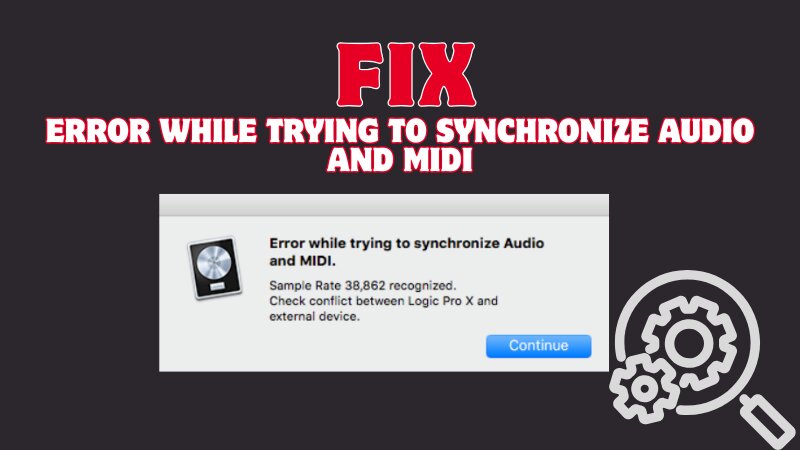
Seeing the "Error while trying to synchronize audio and MIDI" can interrupt your workflow. This error appears when your DAW cannot keep the audio engine and MIDI clock in sync. It happens during playback, recording, or exporting a project.
This issue is popular with DAWs like Pro Tools, Cubase, FL Studio, Logic Pro, and Ableton Live. In most cases, the error means there is a mismatch between the audio engine and the MIDI clock. Luckily, there are fixes you can try to solve this error. Let's get started.
In this article
Part 1. What Causes Audio and MIDI Synchronization Errors?
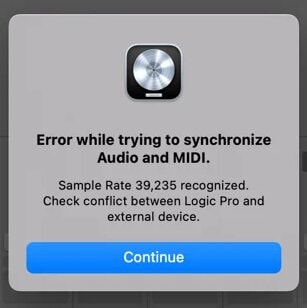
Audio and MIDI synchronization errors happen when your software struggles to keep the audio and MIDI signals running at the same speed. When this happens, playback may lag, stop, or show the "error while trying to synchronize audio and MIDI" message.
Here are some of its causes:
- Sample Rate Mismatch - Different sample rates between the project and system disrupt timing.
- Clock Source Conflict - Competing devices confuse timing and cause sync issues.
- Buffer Size Too Low or Too High - A very low buffer size can overload the CPU. A very high buffer can create delays. Both can affect timing and cause synchronization errors.
- Audio Driver or ASIO Conflict - Old or incompatible drivers disrupt the DAW and hardware connection.
- MIDI Routing Problems - Wrong MIDI input or output settings can send signals to the wrong device or channel. This can break synchronization.
- Corrupted Project or Audio Files - Damaged project files or audio clips can also trigger sync errors during playback, recording, or exporting.
Part 2. Step-by-Step Fixes for Synchronize Audio and MIDI Error
If you notice the "error while trying to synchronize audio and MIDI", don't overdo it. These issues are quick to troubleshoot once you know where to look. Try the solutions below:
Fix 1: Match Sample Rate Across Devices
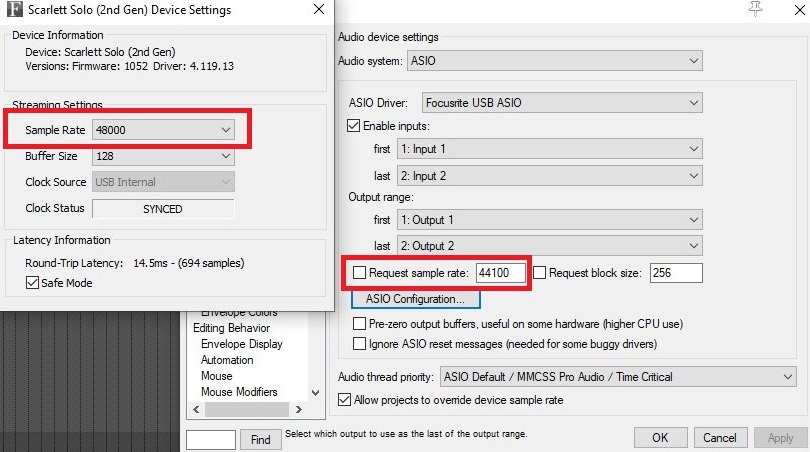
This happens when your DAW project has a different sample rate than your audio interface or system. When the rates don't match, audio and MIDI can't run at the same speed. Make sure all devices use the same sample rate to fix the problem.
Here's how to match the sample rate:
Step 1: Open your DAW's Audio Settings.
Step 2: Check the project sample rate.
Step 3: Open your Audio Device Settings.
Step 4: Set the interface sample rate to match the DAW. Make sure your system audio settings match, too.
Step 5: Apply changes and restart the DAW if needed.
Fix 2: Check Clock Source
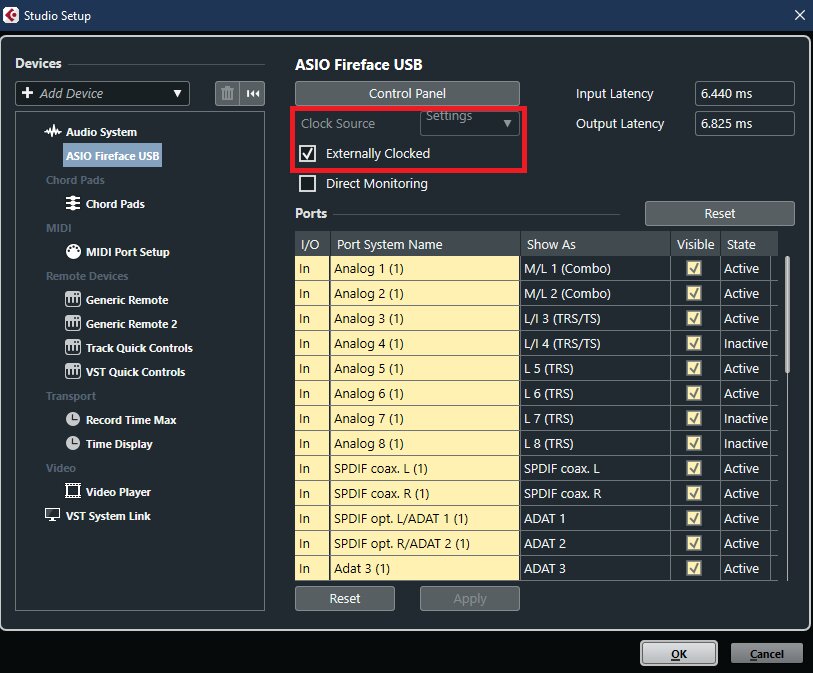
Your DAW uses a clock source to keep audio and MIDI in sync. If more than one device tries to control it, sync problems can happen. Check if only one device manages the timing to keep playback and recording smooth.
Here are the steps:
Step 1: Open your DAW's Audio System Settings.
Step 2: Look for the Clock Source option.
Step 3: Make sure only one device is set as the clock source.
Step 4: If using an external device, click Externally clocked. If not, uncheck it.
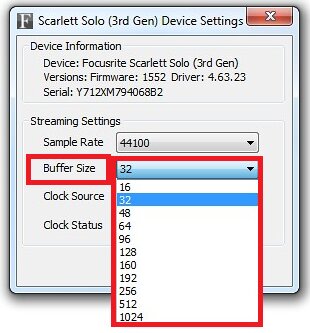
Fix 3: Adjust Buffer Size
Buffer size controls how your computer processes audio. If the buffer is too low, your CPU may struggle and cause timing issues. If it's too high, it can create delays. Setting the right buffer size helps keep audio and MIDI running smoothly.
See the steps below:
Step 1: Find the Buffer Size or Latency setting.
Step 2: Increase the buffer if you hear glitches or errors.
Step 3: Lower it if you notice too much delay while recording.
Fix 4: Re-select Audio Interface
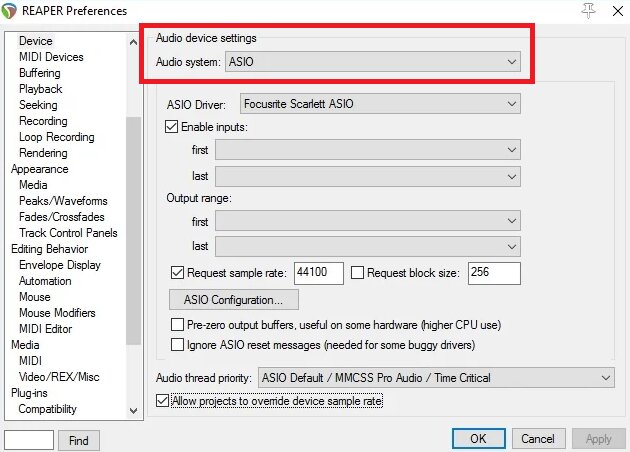
Sometimes your DAW loses connection with the audio interface, especially after updates or device changes. When this happens, audio and MIDI may not stay in sync. Re-selecting the audio interface can refresh the connection and fix the issue.
Step 1: Find the Audio system under the Audio device settings.
Step 2: Select a different device, then switch back to your audio interface.
Step 3: Make sure the correct driver (like ASIO) is selected.
Fix 5: Reconnect MIDI Devices
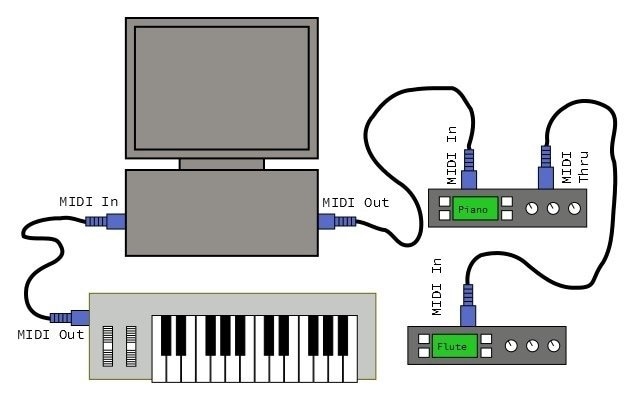
Loose connections or wrong MIDI settings can cause sync problems. If your MIDI keyboard, controller, or interface is not detected properly, the DAW may not align MIDI with audio. Reconnecting the device can help restore the connection.
Step 1: Disconnect the MIDI device from your computer.
Step 2: Reconnect the cable or plug it into another USB port.
Step 3: Open your DAW's MIDI Settings or Preferences. Check if the MIDI device is detected.
Step 4: Enable the device for input or output if needed.
Step 5: Test the device to see if MIDI and audio are now in sync.
Fix 6: Restart Audio Services (Windows)
On Windows, audio services ensure the system communicates with audio devices. If these services stop or freeze, you may encounter sync errors. Restart them to refresh the system and restore DAW functionality.
Adhere to the following steps:
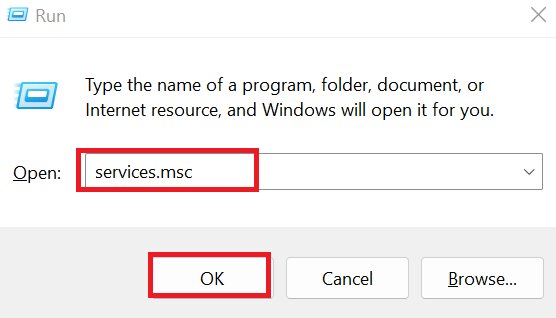
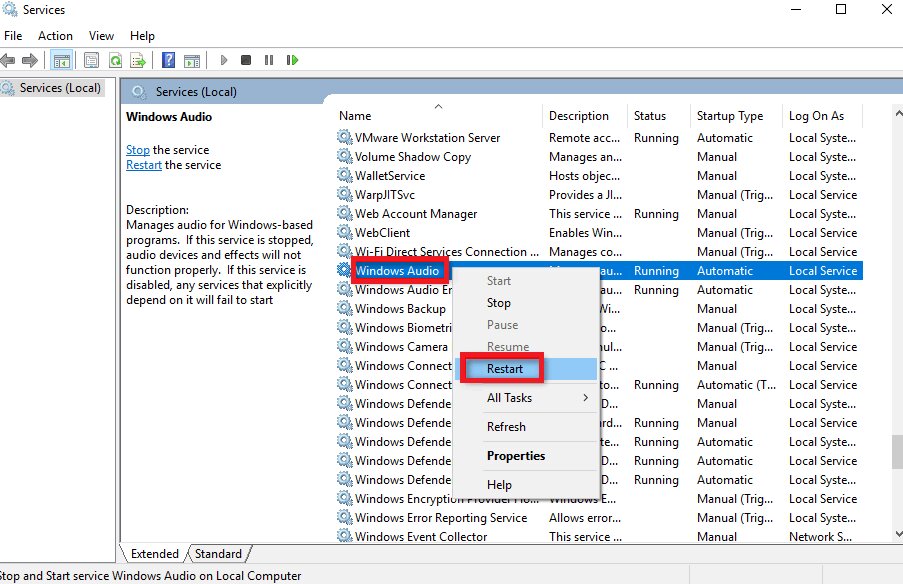
Step 1: Open the Run box and enter services.msc.
Step 2: Locate Windows Audio in the list.
Step 3: Right-click it and select Restart.
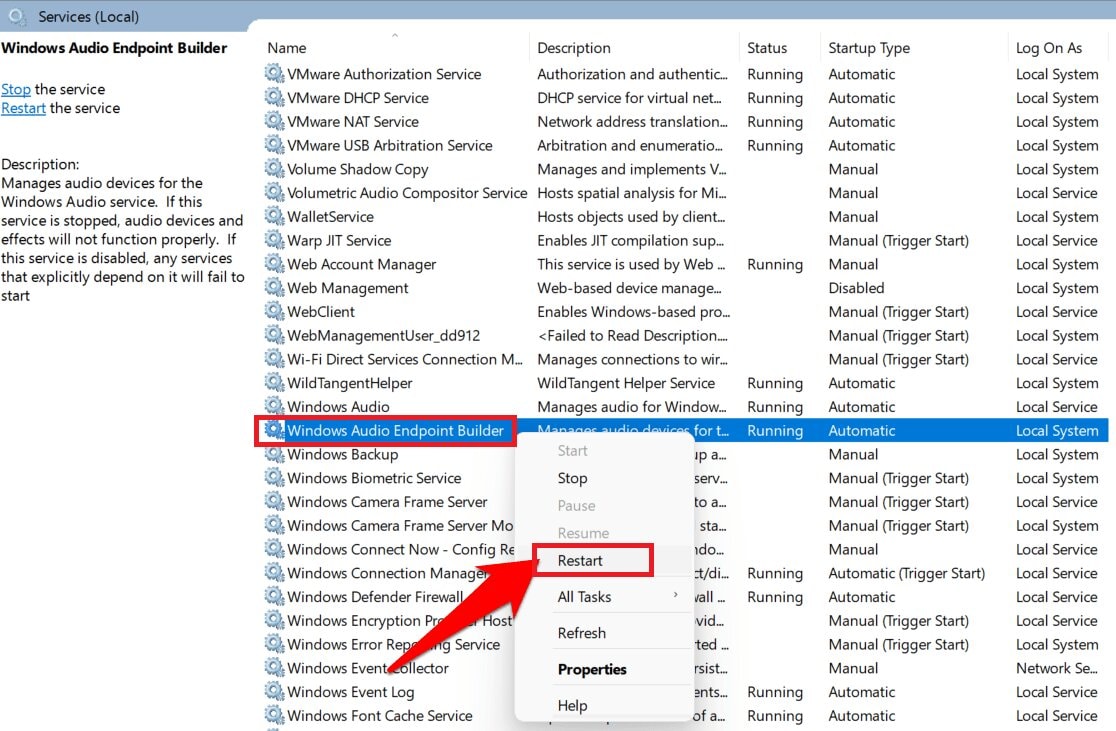
Step 4: Restart your Windows Audio Endpoint Builder.
Step 5: Close the window and reopen your DAW.
Fix 7: Update or Roll Back Audio Drivers
Audio drivers help your computer communicate with your audio interface. If the driver is outdated or not stable, sync errors can happen. So, update or roll back your audio driver to solve the problem.
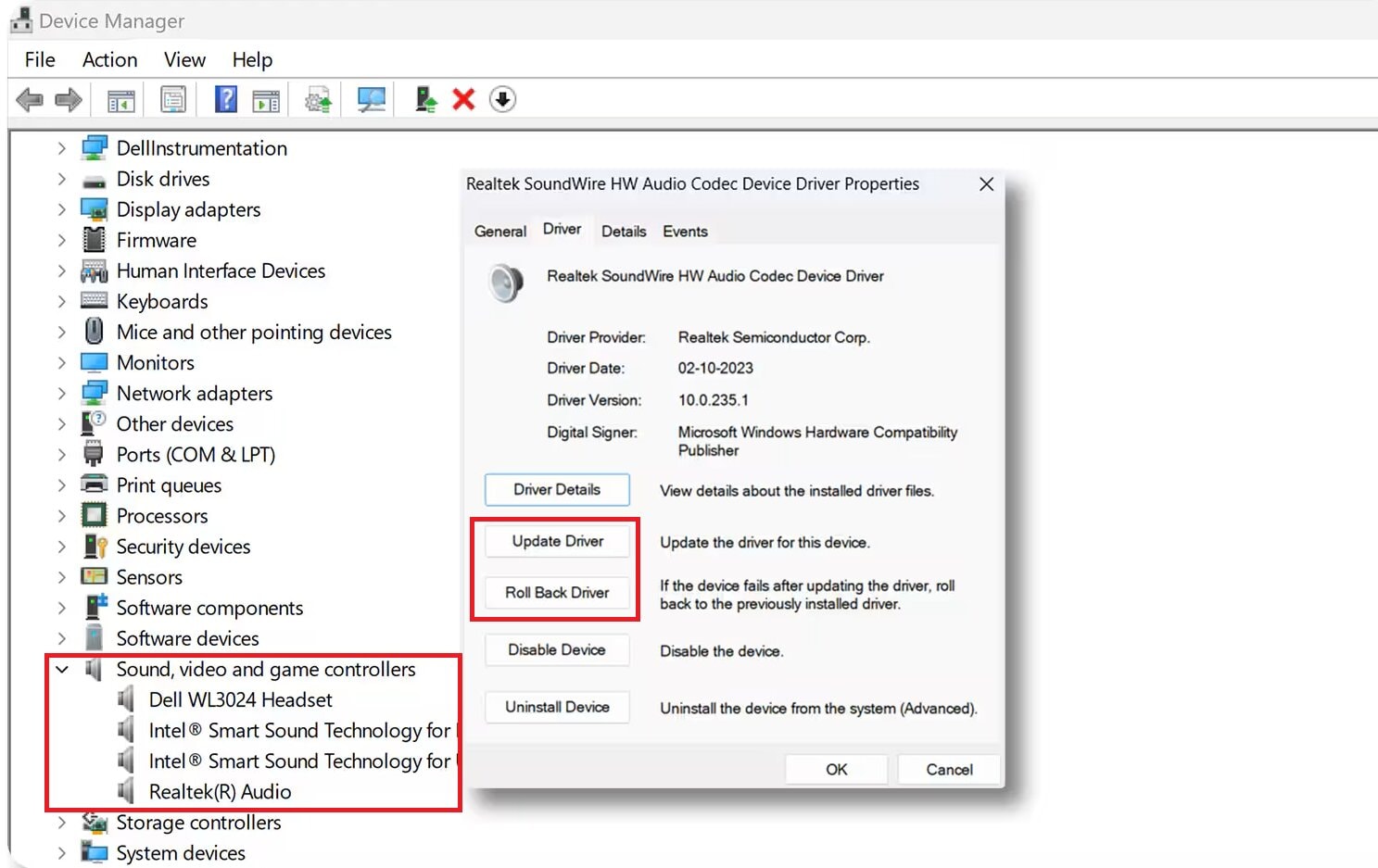
Step 1: Access your Device Manager and expand Sound, video and game controllers.
Step 2: Right-click your audio device and select Properties.
Step 3: Go to the Driver tab.
Step 4: Hit Update Driver to install the latest version.
Step 5: If the issue started after an update, pick the Roll Back Driver instead.
Fix 8: Rebuild DAW Preferences (Advanced)
DAW preference files store settings for audio, MIDI, and performance. If these files become corrupted, sync errors can happen. Rebuilding the preferences lets the DAW create new settings, which can fix deeper issues.
Step 1: Close your DAW completely.
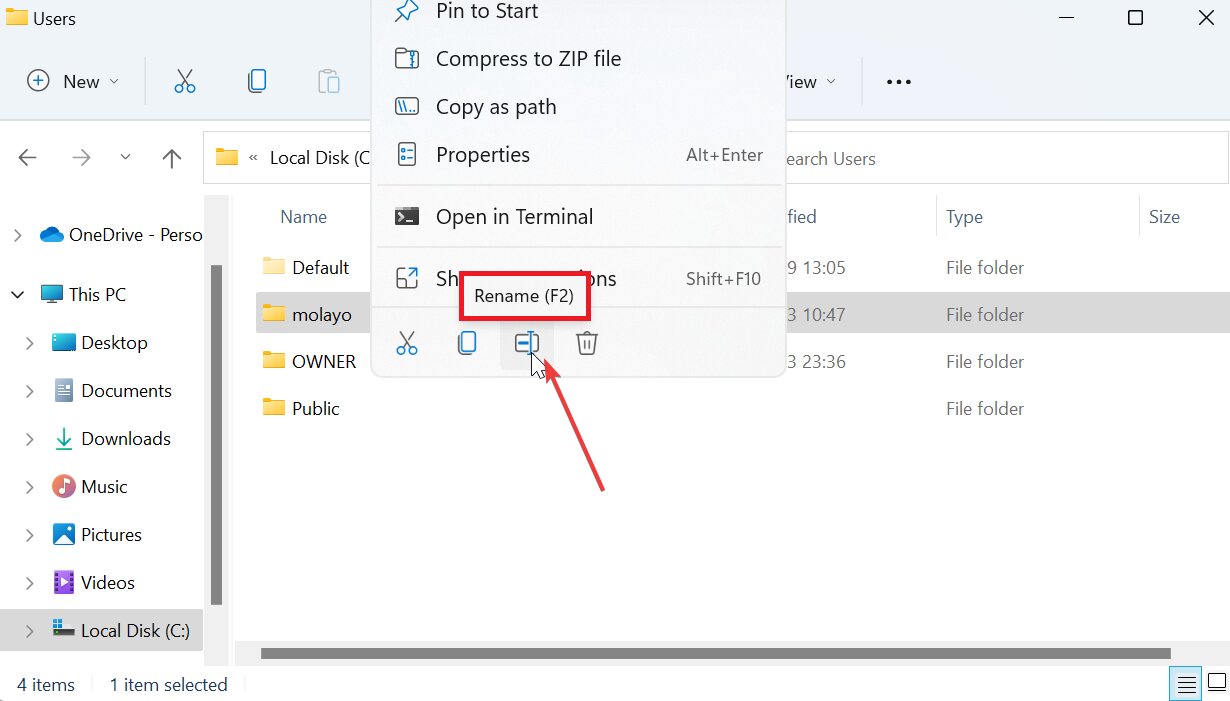
Step 2: Find the DAW preferences folder on your computer.
Step 3: Rename or delete the preferences file or folder.
Step 4: Reopen the DAW.
Step 5: The software will create new preference files automatically. Reconfigure your audio and MIDI settings if needed.
Part 3. If Corrupted Audio Files Cause Sync Errors
In most cases, the "error while trying to synchronize audio and MIDI" appears because of sample rate mismatches, buffer settings, clock conflicts, or driver problems.
However, in rare situations, the issue may come from damaged audio files inside the project.
This can happen when:
- the DAW crashes during recording
- the computer shuts down unexpectedly
- audio files fail to save properly
- storage devices disconnect while recording
When this happens, audio clips such as WAV recordings may become corrupted. Even after fixing hardware settings, the DAW may still show synchronization errors because the damaged audio file cannot play correctly.
When to consider repairing the audio file
You may want to check the audio file itself if:
- the project crashes at the same audio clip every time
- the audio file will not open outside the DAW
- playback stops or freezes at a specific recording
- exporting fails at the same position in the timeline
Before using any repair tool, try these quick checks:
- Replace the problematic audio clip
- Re-import the recording from the original source
- Copy the project to a new session and test again
If the audio file itself is corrupted and cannot be recovered from a backup, an audio repair tool such as Repairit Audio Repair may help restore the recording.
It can assist with:
- damaged WAV recordings
- audio files that will not play
- clips with distortion, missing data, or playback errors
It does not fix DAW synchronization settings, driver issues, or MIDI routing problems. It only repairs the audio file itself.
Step-by-Step Guide:
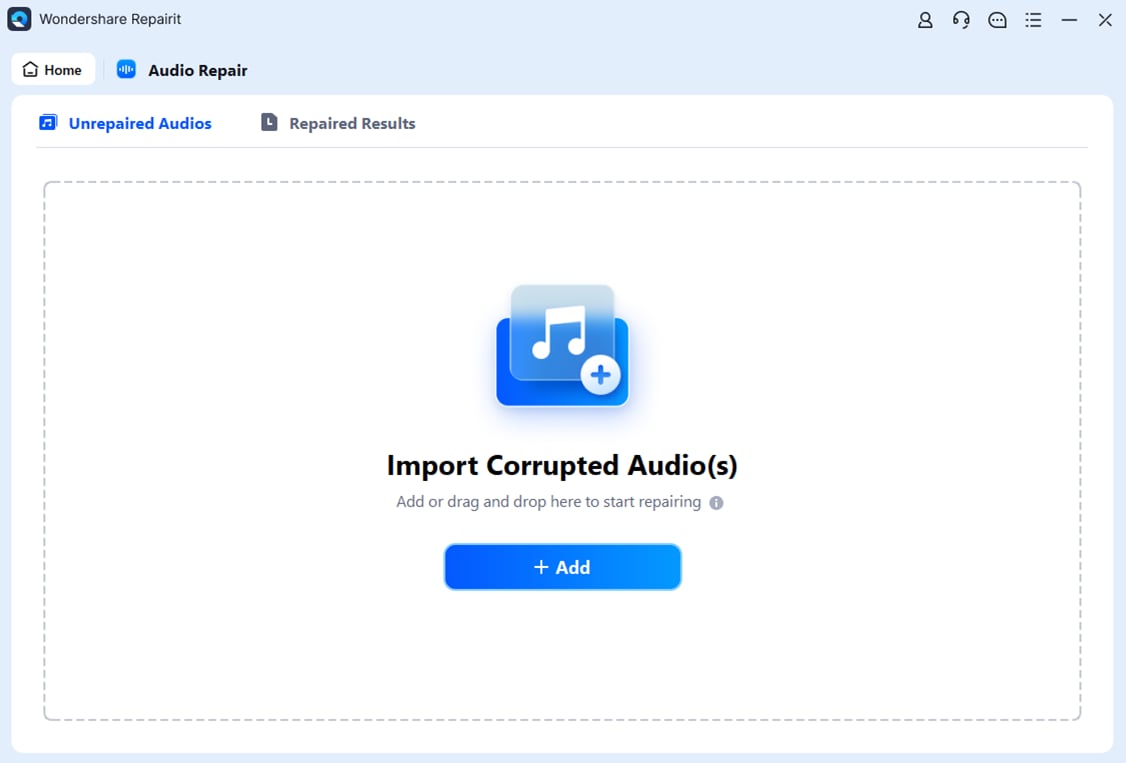
Step 1: Locate your Repairit, find More Types Repair and pick Audio Repair. Click Add to upload your corrupted audio files caused by sync errors.
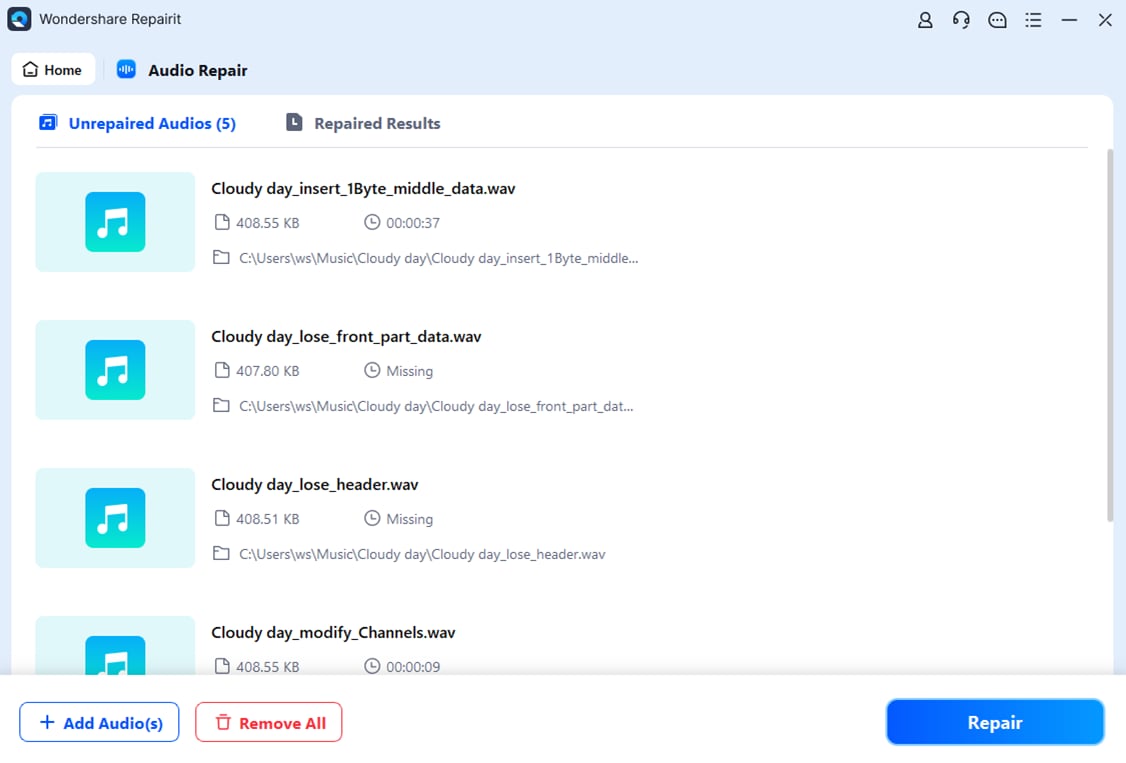
Step 2: Hit Repair. You may be asked to input a sample audio file in the same format as the corrupted one. This helps improve the repair quality drastically.
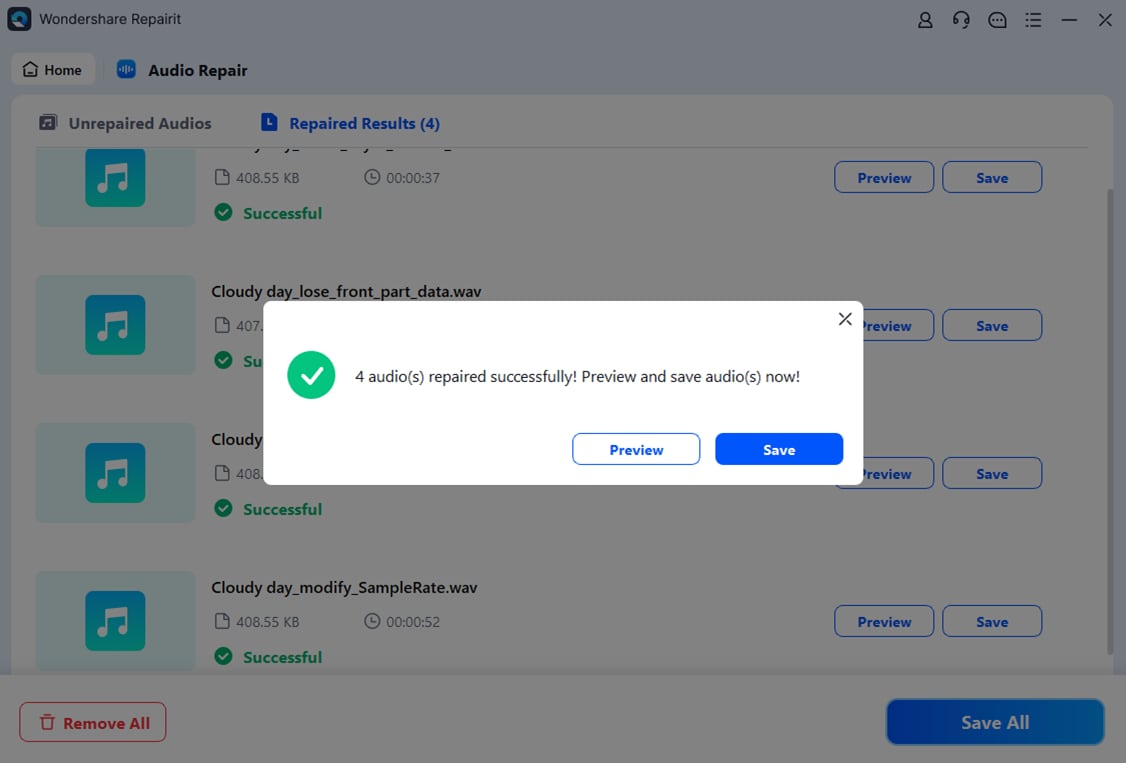
Step 3: Hit Preview to check the repaired audio files caused by sync errors. If you're satisfied, press Save and choose where to store them. Your repaired audio files are now ready to use without sync issues.
Part 4. How to Prevent Errors While Trying to Synchronize Audio and MIDI
Audio and MIDI sync errors can disrupt your session. Many are easy to avoid by keeping settings stable and devices properly connected, helping your DAW sync audio and MIDI.
Here are some simple ways to prevent sync errors:
- Match sample rates before starting so they run at the same speed.
- Use a buffer size your computer can handle. Too low overloads the CPU, too high causes delay.
- Plug in MIDI devices before opening your DAW. Connecting or removing them mid-session can confuse the system.
- Update drivers so your computer communicates properly with audio interfaces and MIDI devices.
- Other apps that use audio can interfere with your DAW. Close them so your system can focus on your project.
- Plug your audio interface directly into your computer, not a USB hub, for a stable connection.
Conclusion
Sync errors happen when your DAW cannot align audio and MIDI timing. Sample rate mismatches, buffer settings, driver conflicts, or device problems usually cause them. Check settings and use these fixes to restore playback and recording in Pro Tools, Cubase, and other DAWs. If the cause is damaged audio files, tools like Repairit Audio Repair can help restore your project.
FAQs
-
Does clock source mismatch cause synchronization errors?
Yes. If different devices try to control the clock source, the DAW may struggle to keep audio and MIDI timing aligned. Setting a single, correct clock source usually fixes the problem. -
Can ASIO drivers conflict cause this error?
Yes. Conflicting or outdated ASIO drivers disrupt DAW and audio hardware communication. Updating or reinstalling often resolves it. -
Why does this happen after changing the audio interface?
Switching audio interfaces can change sample rate, buffer size, or drivers. If these settings don't match your project, sync errors may appear.




