
You are deep into a tense cutscene in Resident Evil Requiem, watching Leon or Grace deliver a crucial line — only to hear the dialogue land two seconds after their lips have stopped moving. The Resident Evil Requiem audio desync issue is one of the most-reported PC bugs since launch, and it can completely shatter the immersion of Capcom's story-driven survival horror experience.
Whether you are experiencing a gradual Resident Evil Requiem audio delay that grows worse over time or a persistent Resident Evil Requiem audio lag that makes every cutscene unwatchable, the root cause almost always lies in your PC configuration rather than a fundamental engine flaw. This guide provides 11 targeted fixes — ordered from quickest to most involved — so you can restore perfect audio-video sync and get back to surviving in Raccoon City.
Table of Contents
-
- Way 1. Restart Your PC
- Way 2. Change the In-Game Audio Output Device
- Way 3. Set a Fixed Frame Rate Cap (120 or 60 FPS)
- Way 4. Match Your Monitor Refresh Rate to the Frame Rate Cap
- Way 5. Move the Game from HDD to SSD
- Way 6. Disable NVIDIA Reflex Low Latency
- Way 7. Turn Off Frame Generation
- Way 8. Toggle V-Sync On / Off
- Way 9. Enable FreeSync / G-Sync on Your Monitor
- Way 10. Update Your Graphics Driver (Clean Install)
- Way 11. Verify Game Files in Steam
Part 1. Why Is Resident Evil Requiem Audio Out of Sync?
If you are experiencing Resident Evil Requiem audio desync, several different PC-level bottlenecks can trigger the same symptom. Understanding the category your problem falls into makes troubleshooting significantly faster.
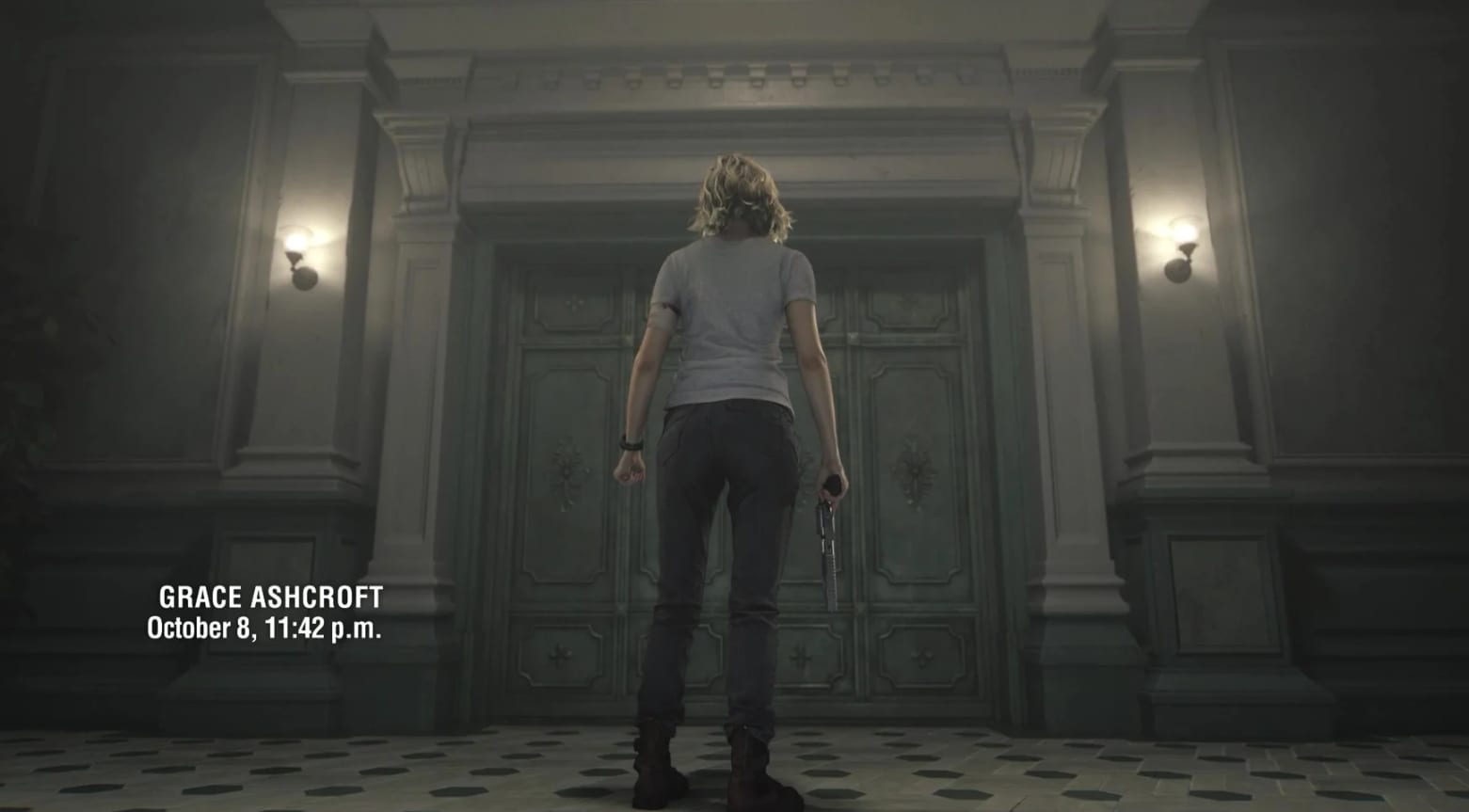
- Slow Storage Drive (HDD): The RE Engine streams massive amounts of texture and audio data simultaneously during cutscenes. A mechanical hard disk drive cannot keep up, so the video cache fills faster than the audio buffer — graphics play flawlessly while sound stalls and drifts behind.
- Variable (Uncapped) Frame Rate: The game's audio engine expects a predictable render cadence. An unlocked frame rate causes irregular frame pacing that breaks the audio-video timing relationship, especially during transitions from gameplay to cinematic sequences.
- Mismatched Monitor Refresh Rate: Running the game at 144 Hz while capping frames at 60 FPS — or any similar mismatch — creates timing gaps that cause the audio and video streams to drift apart progressively over a cutscene.
- NVIDIA Reflex Low Latency Enabled: This feature limits how many frames the CPU pre-renders for the GPU. In competitive shooters it reduces input lag; in RE Requiem's cinematic sequences it disrupts the audio thread's timing and causes it to drop entirely out of sync.
- Frame Generation / DLSS Active: AI-generated frames push visual data onto the screen faster than the audio engine can match, resulting in a desync that worsens as a cutscene runs longer.
- Wrong In-Game Audio Output Device: The game's automatic audio detection is unreliable at launch. Selecting a Surround or spatial headset profile applies heavy DSP processing that introduces a noticeable output delay even when your hardware is working perfectly.
- Outdated Graphics Driver: Driver-level frame-pacing bugs directly affect the timing of the RE Engine's audio-video pipeline. A clean driver reinstall removes these cached bugs.
- Corrupted Game Files: A partial download or corrupted audio asset causes individual tracks to stutter, skip, or desync during playback even when all other settings are correct.
Part 2. How to Fix Resident Evil Requiem Audio Desync / Delay / Lag on PC
Work through the 11 solutions below in order. The early steps take under a minute; the later steps are more involved but resolve persistent cases that the quick fixes miss. Try each fix and test a cutscene before moving to the next.
Way 1. Restart Your PC
Before anything else, perform a full restart. A reboot flushes stale audio driver processes from memory, resets Windows audio session services, and clears any corrupted audio buffers that accumulated during your last gaming session. Many players find that the Resident Evil Requiem audio lag disappears completely after a clean reboot — especially if the previous session crashed or was closed abnormally.
Instructions. Save any open work, then go to Start → Power → Restart. Avoid using Shut Down followed by a manual power-on, as some systems do not fully flush RAM on a cold boot. After the system restarts, launch Resident Evil Requiem and test a cutscene that previously had audio delay.
Way 2. Change the In-Game Audio Output Device
Resident Evil Requiem's automatic audio device detection is currently unreliable. If you are using a gaming headset with surround sound, the game applies spatial processing algorithms that delay the audio output noticeably. Switching to a simpler output profile removes this processing overhead and often fixes the audio desync immediately without any other changes.
Step 1. Launch the game and navigate to Options → Audio → Audio Device.
Step 2. Change the setting from Headset or Surround to TV (or Speaker if TV is not listed for your configuration). The stereo output mode bypasses all spatial processing and forces a direct, low-latency signal to your speakers or headphones.
Step 3. Confirm the change, then test a cutscene. This single setting resolves the majority of Resident Evil Requiem audio delay reports from players using gaming headsets.
Way 3. Set a Fixed Frame Rate Cap (120 or 60 FPS)
An unlocked (variable) frame rate is one of the most common triggers for Resident Evil Requiem audio lag. The RE Engine synchronizes its audio output timing to the render frame cadence; when frames arrive irregularly, the audio thread loses its reference point and drifts behind the video. Applying a hard frame cap provides the stable baseline the audio engine needs.
Step 1. From the main menu, navigate to Options → Graphics → Image.
Step 2. Locate the Frame Rate (or Frame Rate Limit) setting and change it from Variable to Up to 120 FPS. If your monitor's maximum refresh rate is 60 Hz, set it to Up to 60 FPS instead.
Step 3. Apply the changes and restart the game if prompted. Test a cutscene to confirm the audio sync has improved.
Way 4. Match Your Monitor Refresh Rate to the Frame Rate Cap
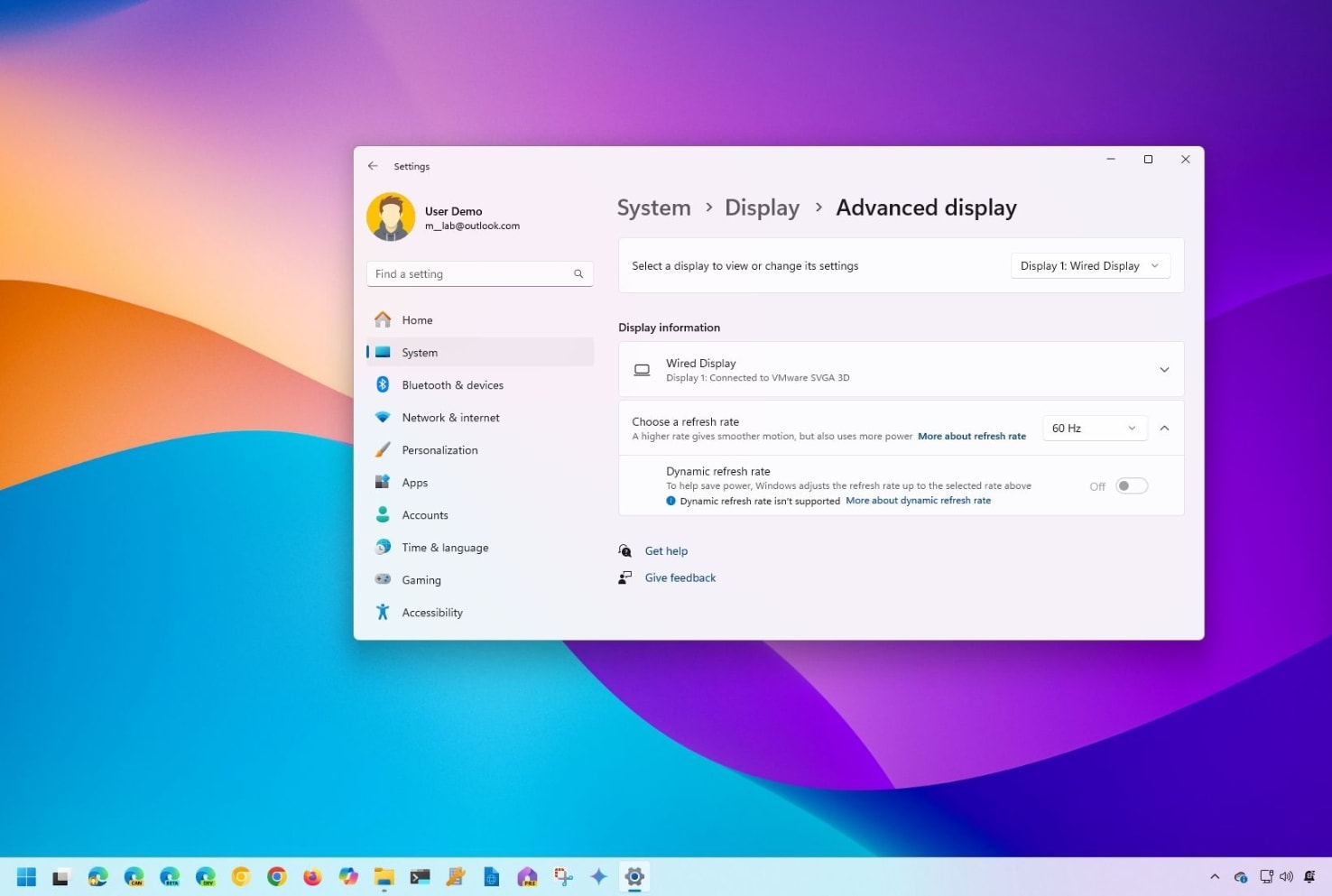
Capping frames inside the game is only half the solution. If your monitor runs at a different refresh rate — for example 144 Hz while frames are capped at 120 FPS — the mismatch still creates a timing gap that causes Resident Evil Requiem audio desync. Aligning the monitor's refresh rate to the in-game frame cap eliminates the gap entirely.
Step 1. Right-click the Windows desktop and select Display settings.
Step 2. Scroll down and click Advanced display settings, then locate the Choose a refresh rate dropdown.
Step 3. Set the refresh rate to match your in-game frame cap: 120 Hz if you capped at 120 FPS, or 60 Hz if you capped at 60 FPS. Confirm the change, then launch the game and test.
Way 5. Move the Game from HDD to SSD
This is the single most impactful fix for players whose Resident Evil Requiem audio desync occurs specifically during cutscenes and area transitions. The RE Engine simultaneously streams high-resolution textures and uncompressed audio. A mechanical hard drive cannot read both streams fast enough — the video buffer fills first, and the audio buffer stalls. Moving the game to any SSD, even a budget SATA model, resolves this bottleneck instantly.
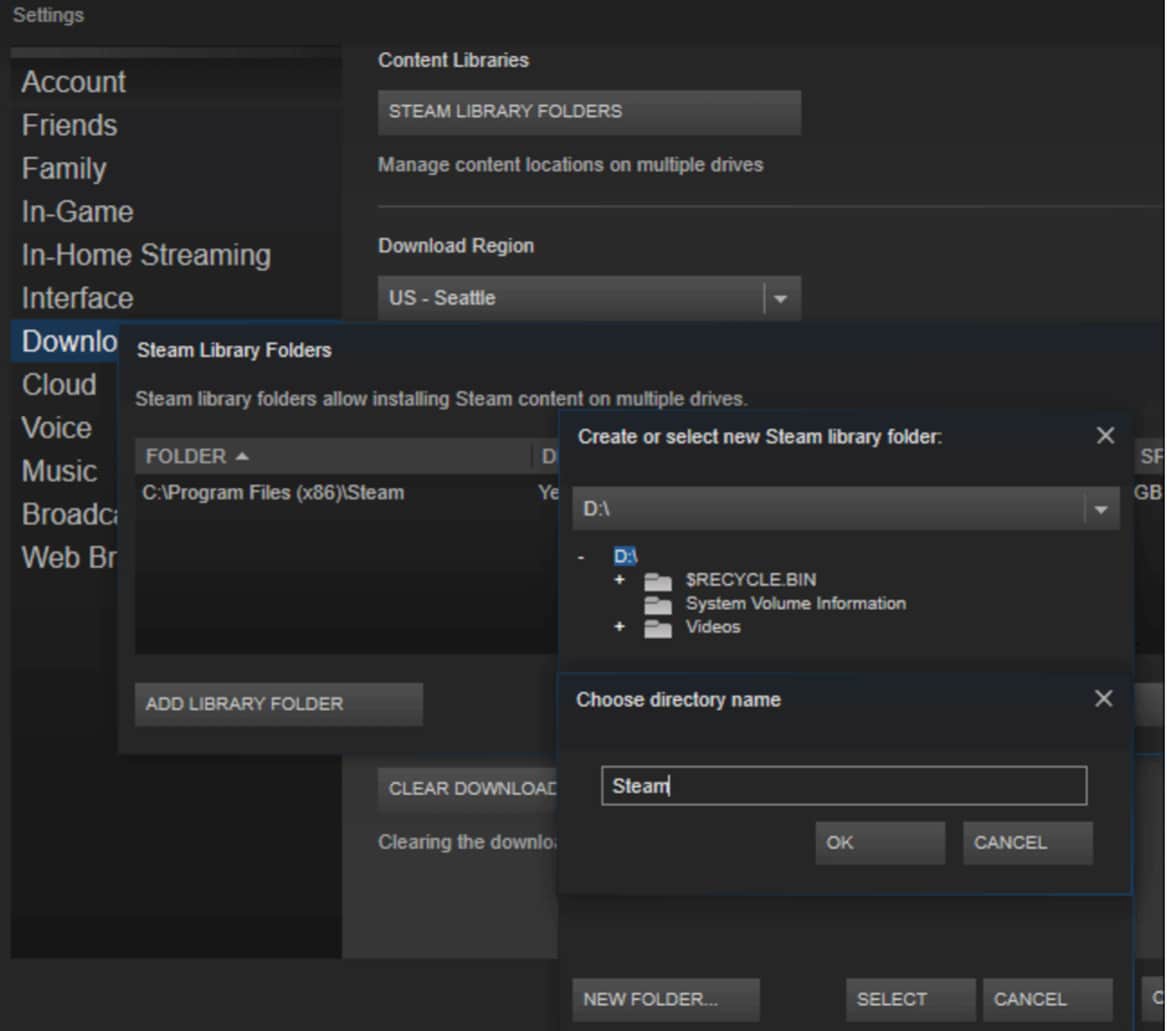
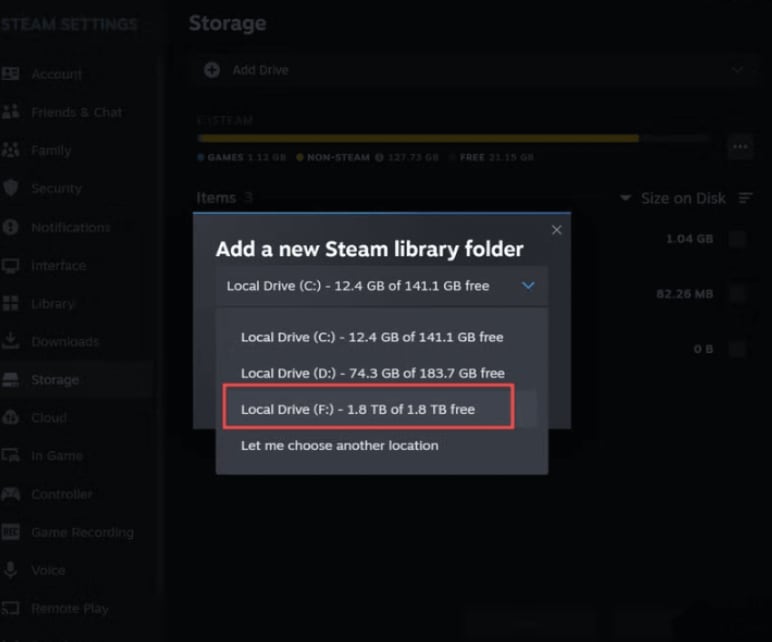
Step 1. Open Steam and click Steam → Settings → Storage from the top-left menu.
Step 2. Click the + button to add your SSD as a Steam library location if it is not listed already.
Step 3. Return to your Steam Library, right-click Resident Evil Requiem, and choose Properties → Local Files → Move install folder.
Step 4. Select your SSD library and click Move. Steam transfers all files without requiring a reinstall, preserving your save data.
Step 5. Once the move is complete, verify game file integrity (see Way 11) and then launch the game and test.
Way 6. Disable NVIDIA Reflex Low Latency
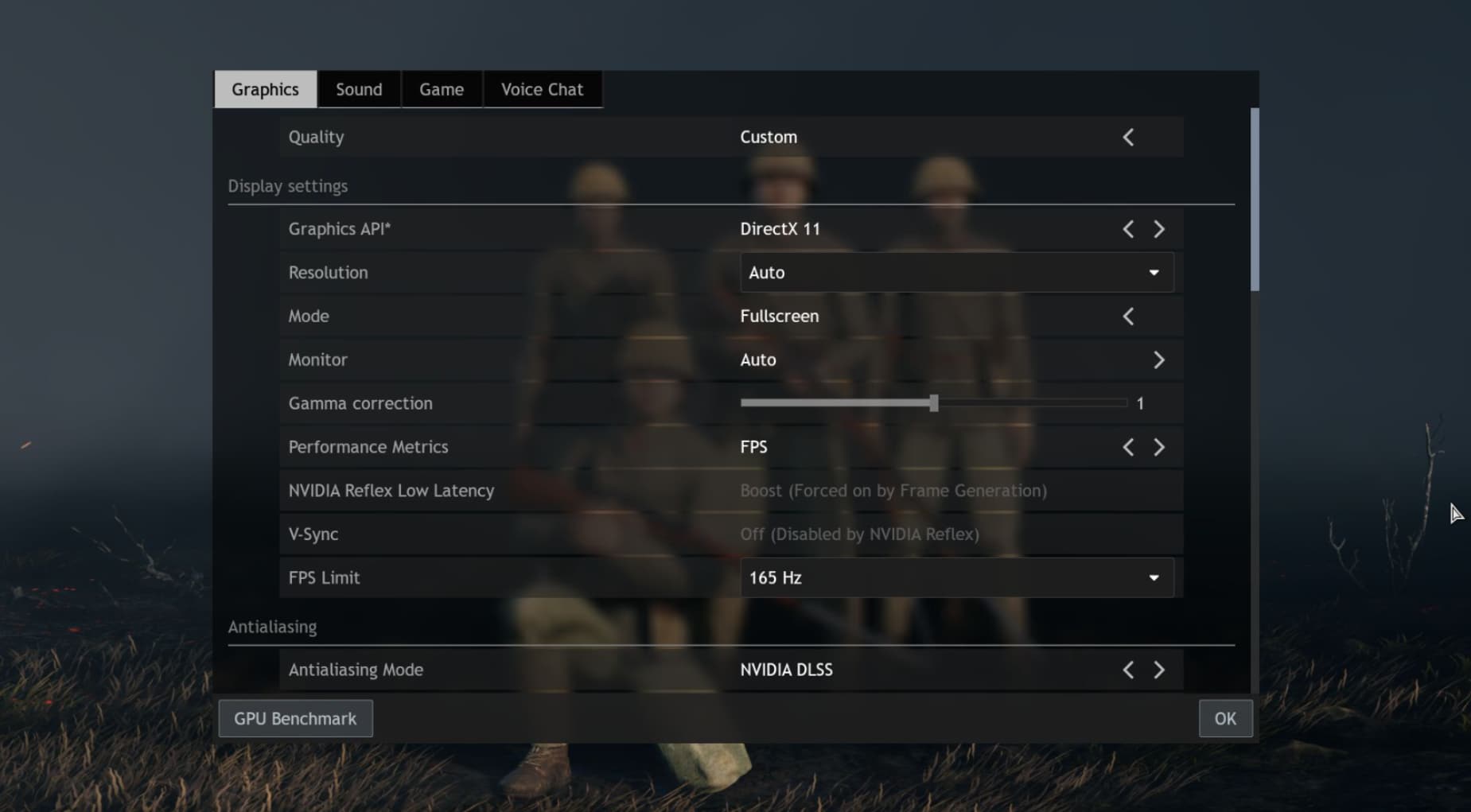
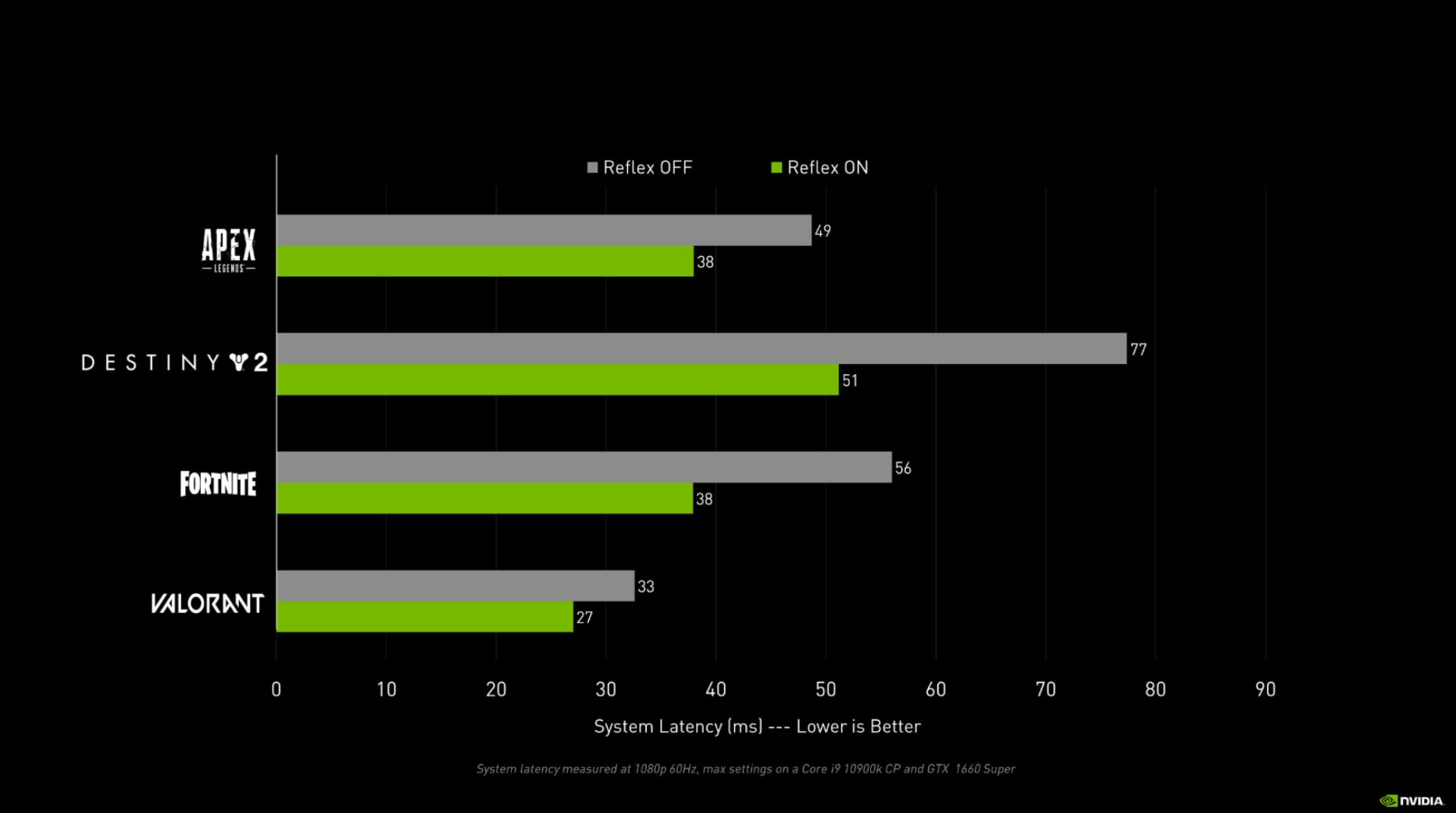
NVIDIA Reflex is designed to minimize input latency by capping how many CPU-rendered frames queue for the GPU. In competitive multiplayer games, the difference is tangible. In story-driven titles like Resident Evil Requiem, however, this aggressive pre-render control disrupts the audio thread's timing and causes it to fall completely out of step with the video stream during cutscenes. Turning it off is a widely confirmed fix for RE Requiem audio desync.
Step 1. Navigate to Options → Graphics → Image → Advanced inside the game.
Step 2. Locate NVIDIA Reflex Low Latency and set it to OFF.
Step 3. Apply the settings and test a cutscene. The majority of players report that audio snaps back into sync immediately after this single change.
Way 7. Turn Off Frame Generation
Frame Generation — whether DLSS Frame Generation (NVIDIA) or AMD Fluid Motion Frames — inserts AI-synthesized frames between real rendered frames to boost the perceived frame rate. The game's audio engine does not account for these artificial frames, causing the audio timeline to fall progressively further behind the visual output. The longer the cutscene, the worse the Resident Evil Requiem audio delay becomes. Disabling Frame Generation realigns the two streams.
Step 1. Go to Options → Graphics → Image.
Step 2. Set Frame Generation to OFF.
Step 3. Optionally, also disable DLSS or FSR upscaling temporarily to rule out any additional upscaler contribution to the desync. Apply the changes and test a cutscene to confirm the audio is now in sync.
Way 8. Toggle V-Sync On / Off
Vertical Synchronization synchronizes the GPU's frame output to the monitor's refresh rate. Depending on your specific hardware configuration, V-Sync being on or off can either stabilize or worsen Resident Evil Requiem audio lag. If it is currently on, try turning it off — and if it is off, try enabling it briefly to find the setting that produces the best result on your system.
Step 1. Navigate to Options → Graphics → Display → Vertical Synchronization.
Step 2. If V-Sync is currently ON, switch it OFF. If it is already OFF, toggle it ON and test a cutscene.
Step 3. Keep whichever setting produces the best audio-video sync. On monitors with adaptive sync (FreeSync or G-Sync), turning V-Sync off and enabling the monitor's native adaptive sync technology (Way 9) typically delivers the most stable result.
Way 9. Enable FreeSync / G-Sync on Your Monitor
Adaptive sync technologies — AMD FreeSync and NVIDIA G-Sync — allow the monitor to dynamically match its refresh rate to the GPU's live frame output. This eliminates the timing mismatches between monitor and GPU that cause audio to drift from video over extended scenes. If your monitor supports either technology, enabling it alongside a capped frame rate (Way 3) provides the most stable audio-video alignment available.
For AMD FreeSync:
Step 1. Access your monitor's OSD menu (button on the back or side of the monitor) and navigate to Gaming or Display settings. Enable FreeSync.
Step 2. Open AMD Software: Adrenalin Edition → Display and confirm that FreeSync is set to Enabled.
For NVIDIA G-Sync:
Step 1. Enable G-Sync Compatible in your monitor's OSD menu under Gaming or Display settings.
Step 2. Open NVIDIA Control Panel → Display → Set up G-Sync and enable it for your monitor. Apply the changes, then launch the game and test audio sync.
Way 10. Update Your Graphics Driver (Clean Install)
An outdated or corrupted GPU driver is a frequently overlooked cause of Resident Evil Requiem audio lag. Frame-pacing regressions in older driver versions directly disrupt the RE Engine's audio-video pipeline. Performing a clean driver install removes all cached driver data — not just the driver binary — so old bugs cannot persist after the update.
Step 1. Download the latest driver directly from the GPU manufacturer's official website:
- NVIDIA: nvidia.com/drivers
- AMD: amd.com/support
Step 2. Run the installer and select Custom Installation when prompted (not the Express option).
Step 3. Check the box labelled "Perform a clean installation" (NVIDIA) or select Factory Reset (AMD). This wipes all previous driver data before installing the new version.
Step 4. Complete the installation and restart your PC. Launch Resident Evil Requiem and test audio sync in a cutscene.
Way 11. Verify Game Files in Steam
A partial download, failed update, or storage error can corrupt an audio asset, causing individual tracks to stutter, skip, or play out of sync even when all system settings are correct. Steam's built-in file verification tool scans every game file against Valve's servers and automatically re-downloads anything that is missing or corrupted.
Step 1. Open Steam and navigate to your Library.
Step 2. Right-click Resident Evil Requiem and select Properties.
Step 3. Click the Installed Files tab, then click Verify integrity of game files.
Step 4. Wait for the scan to reach 100%. Steam automatically re-downloads any file that fails the integrity check.
Step 5. Once verification is complete, relaunch the game and test audio playback in a cutscene.
Pro Tip: Repair Corrupted Resident Evil Requiem Audio Files with Repairit
Even after applying all 11 fixes, some players find that specific audio files — recorded gameplay clips, captured cutscenes, or downloaded audio assets — remain corrupted at the file level. When the desync is baked into the file itself rather than caused by a system setting, no in-game option can resolve it. This is where a dedicated repair tool becomes essential.
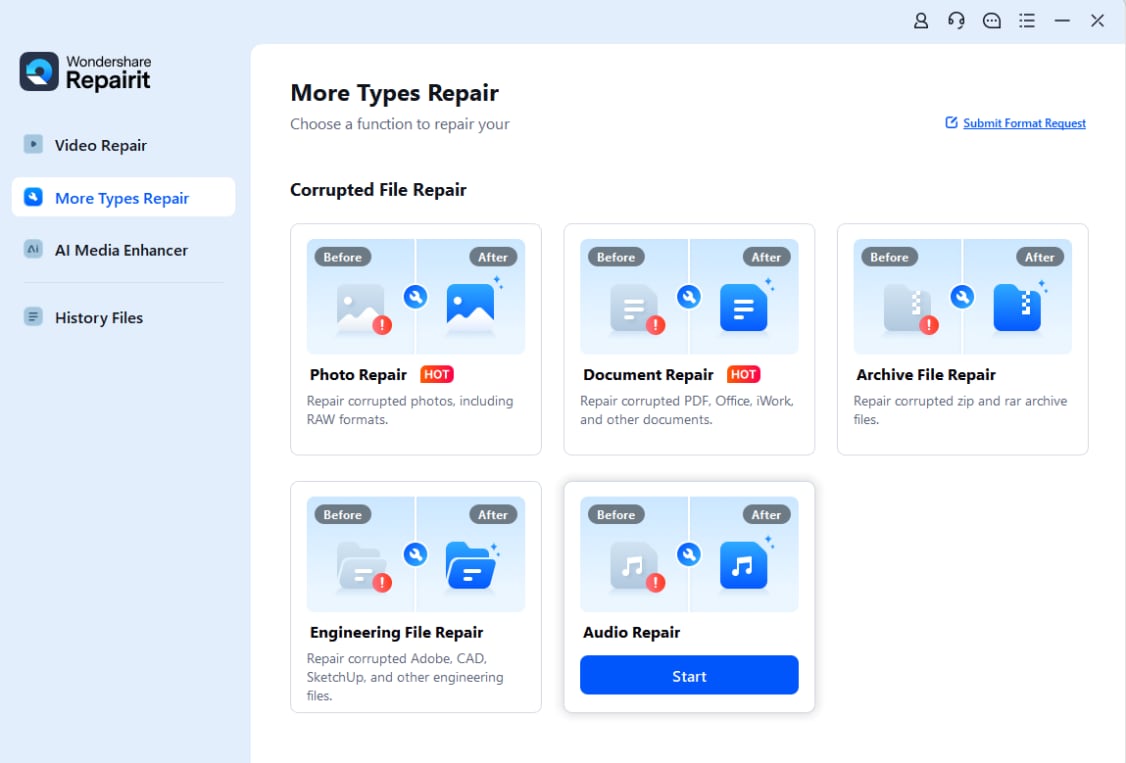
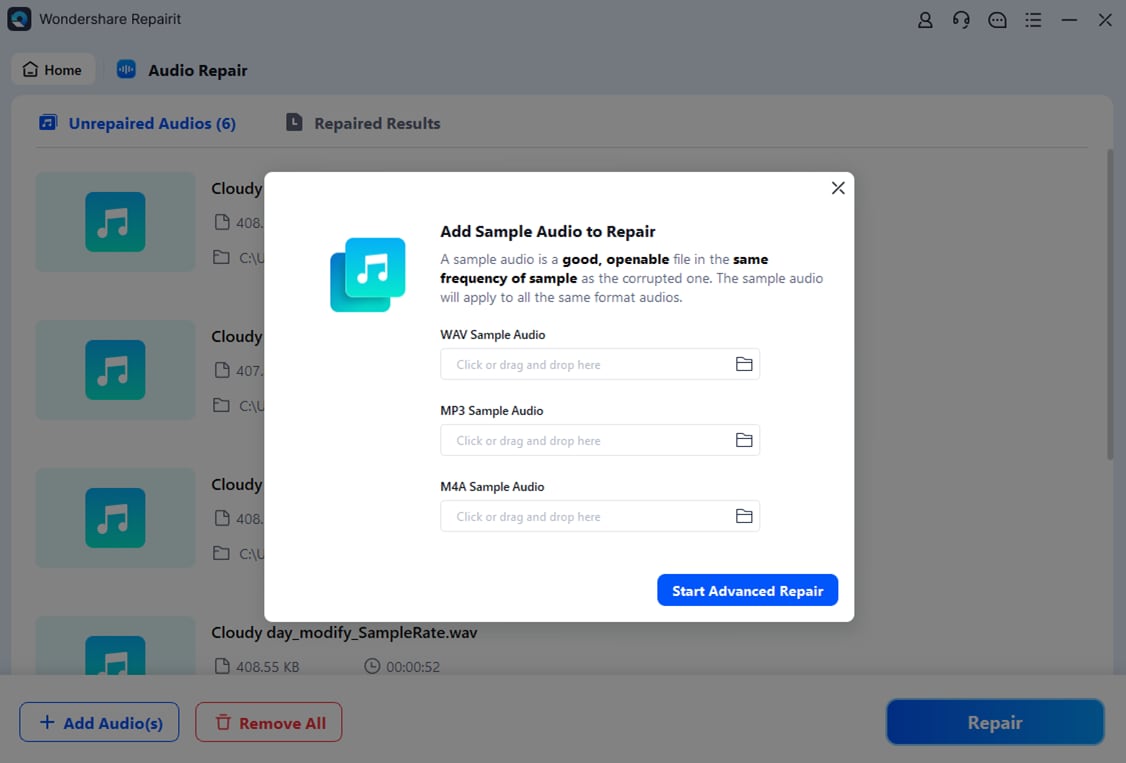
Repairit Audio Repair fixes corrupted audio files in common formats — MP3, M4A, AAC, WAV, AIFF, WMA — including the .opus and .ogg formats used in game audio pipelines. It uses advanced algorithms to rebuild mismatched audio streams, restore clipped or silent segments, and eliminate the static or distortion that corrupted assets introduce. Unlike online tools, the desktop version handles files of any size without upload limits, and supports batch repair so you can process an entire folder of game audio in one run.
Key Features

-
Audio Desync Repair: Rebuilds mismatched audio streams and restores correct timing to out-of-sync game audio files and cutscene recordings.
-
Broad Format Support: Handles MP3, M4A, AAC, WAV, AIFF, WMA, and game-native formats including .opus, restoring corrupted assets without quality loss.
-
Batch Repair: Processes multiple corrupted audio files in a single run — ideal for repairing an entire folder of captured game clips at once.
-
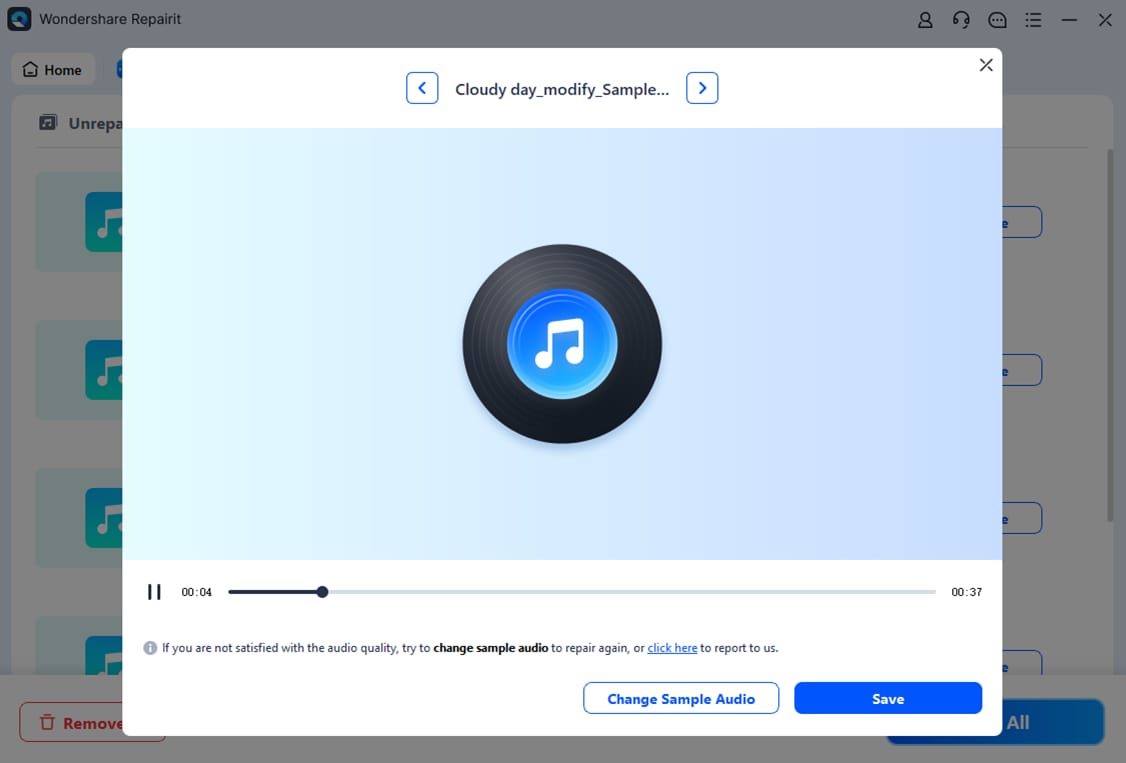
Non-Destructive Workflow: Never overwrites the original file. Repaired audio is saved as a new copy so you can always revert if needed.
How to Fix Corrupted Resident Evil Requiem Audio Files with Repairit
If your captured or downloaded Resident Evil Requiem audio files still exhibit desync or silence after the in-game fixes, follow these 3 steps to repair them with Repairit:
Step 1. Add the Corrupted Audio Files to Repairit
Step 2. Add a Sample Audio File and Start Advanced Repair
Step 3. Preview and Save the Repaired Audio File
Fix Corrupted Resident Evil Requiem Audio Files
 Security Verified. Over 7,302,189 people have downloaded it.
Conclusion
Summing up, the Resident Evil Requiem audio desync issue, audio delay, and audio lag on PC are caused by a handful of identifiable configuration problems rather than a fundamental engine defect. The most effective combination of fixes is: switching the in-game audio device to TV mode, capping the frame rate to a fixed 120 or 60 FPS, matching the monitor refresh rate to that cap, and turning off NVIDIA Reflex Low Latency. For players with the game installed on an HDD, moving it to any SSD delivers the most dramatic and immediate improvement. Should the desync persist at the file level in captured or downloaded audio, Wondershare Repairit provides a reliable, three-step solution to rebuild corrupted audio streams and restore perfect sync.
Frequently Asked Questions
-
1. Why does Resident Evil Requiem audio desync only happen during cutscenes?
Cutscenes blend pre-rendered video with streamed in-engine audio. When the game transitions from gameplay to a cutscene, it resets its frame-pacing logic. If the frame rate is variable or the storage drive is too slow, the audio buffer stalls while the video keeps playing — which is why the desync appears specifically during story sequences rather than general gameplay. -
2. Will disabling NVIDIA Reflex affect my gaming performance?
NVIDIA Reflex primarily benefits competitive multiplayer titles where millisecond-level input latency matters. In a single-player survival horror game like Resident Evil Requiem, the practical difference in response time is imperceptible. Turning it off to fix audio sync has no meaningful impact on how the game feels to play. -
3. Does moving the game to an SSD require a complete reinstall?
No. Steam's built-in Move Install feature copies all game files from one library location to another without deleting and re-downloading the game. Navigate to Steam → Settings → Storage, add your SSD as a library, then right-click Resident Evil Requiem and select Move Install Folder. Your save data is preserved throughout the process.




