
 TL;DR:
The League of Legends VAN 81 error indicates that the mandatory Riot Vanguard anti-cheat failed to initialize, which is most commonly resolved by manually restarting the 'vgc' background service and running the Riot Client as an administrator.
- Vanguard requires strict Windows security checks to authenticate the operating system, meaning you must access your motherboard BIOS during startup to explicitly enable the Secure Boot feature.
- Active VPNs and third-party antivirus applications can misidentify the anti-cheat as a digital threat, requiring you to temporarily disable these external shields so the software can establish a stable connection to Riot servers.
- If the error persists after adjusting permissions, corrupted game files are likely causing the authentication failure, which necessitates a complete clean reinstallation of both the game and Vanguard or the use of file restoration software like Wondershare Repairit.
Ask AI for a summary
 ChatGPT
 Perplexity
 Gemini
 Claude
 Grok
Grok
TL;DR
Vanguard Errors: The VAN 81 error occurs when the anti-cheat software fails during startup.
Simple Fixes: Restarting the VGC service or running the game as administrator resolves issues.
System Settings: You need to enable Secure Boot within your BIOS for proper game security.
Advanced Repair: Use a professional file repair tool like Repairit if corrupted game data causes persistent crashes.
Quick Answer: VAN 81 usually happens when Riot Vanguard fails to start correctly. Restart services, check permissions, secure boot, and repair damaged system files if needed.
Many gamers face connection problems while launching League of Legends after updates. You sit down to play League of Legends, but Vanguard blocks your path. The VAN 81 error means the anti-cheat service failed to start properly.
This technical glitch is very common for players in every single global region. Many frustrated gamers often search for how to fix VAN 81 LoL online. To cater to this issue, gamers will discover simple steps to get them back into the Rift.
In this article
Part 1. What VAN 81 Error Means in League of Legends
The VAN 81 error is a specific connection issue linked to Riot Vanguard. This mandatory anti-cheat software must run correctly before you can play League. Players encounter this problem during login attempts or after launching the game client.
When Vanguard fails, LoL may block access until the connection issue is resolved. MMORPG also reports that Riot publicly discussed Vanguard’s impact after League of Legends update 14.9. Still, a Vanguard VAN 81 error League of Legends fix is usually very simple.
When This Error Usually Appears - 5 Causes
Several technical factors led to this service failure on your computer. So, here are 5 common causes behind this gaming error:
- VGC Disabled: The background service responsible for anti-cheat may be inactive. This critical process fails to launch during your computer's startup sequence.
- Software Blocks: Installed security programs often identify the game files as a threat. These programs stop the execution of necessary background tasks while playing.
- Server Status: The central game servers might be undergoing scheduled maintenance. So, temporary outages prevent the software from establishing a stable link with Riot.
- System Updates: Missing Windows updates lead to internal conflicts with the latest Vanguard. An outdated operating system lacks the modern security protocols required by League.
- File Damage: Important data might become corrupted during a crash or power failure. Broken game files lead to failure in the initial authentication process.
Part 2. League of Legends VAN 81 Error Fix: Step-by-Step Solution
You can easily resolve these technical issues with a VAN 81 League of Legends fix. Therefore, the following 6 methods help gamers restore their game functionality:
Way 1. Restart Riot Vanguard Service
The VGC service is the main engine that powers the Vanguard anti-cheat system. It is advisable to restart this service whenever the software hangs. You can refresh the connection between your local computer and the official game servers. This method is effective when the VGC service won't start League of Legends. Thus, go through these simple instructions to restart the service and join your next match:
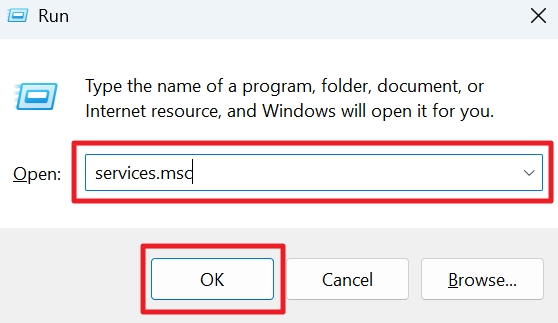
Step 1. Input "services.msc" after pressing "Windows + R" and opt for the "OK" button.
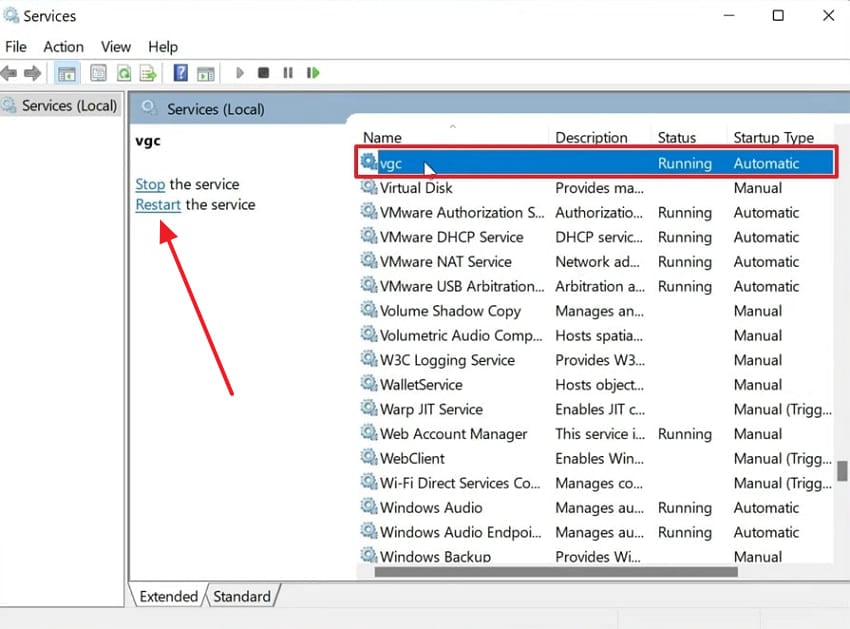
Step 2. After the window appears, scroll through the list to find the "vgc" service. Select it and click the "Restart This Service" option to refresh the service.
Way 2. Run League of Legends as Administrator
Windows needs special permission to run some important files on your computer hardware. Admin mode gives the game full access to all the necessary system resources. This simple step ensures that security blocks do not stop your gaming session. It also allows the software to bypass common restrictions within your local user account. Follow the given instructions for a great Riot Vanguard VAN 81 error fix:
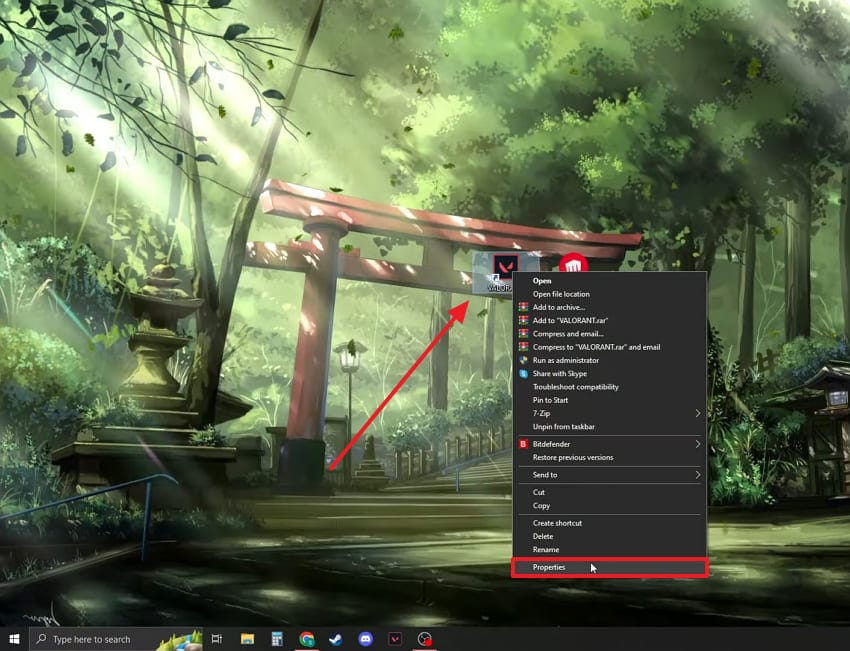
Step 1. Upon right-clicking the "Riot Client" icon and selecting "Properties" from the menu.
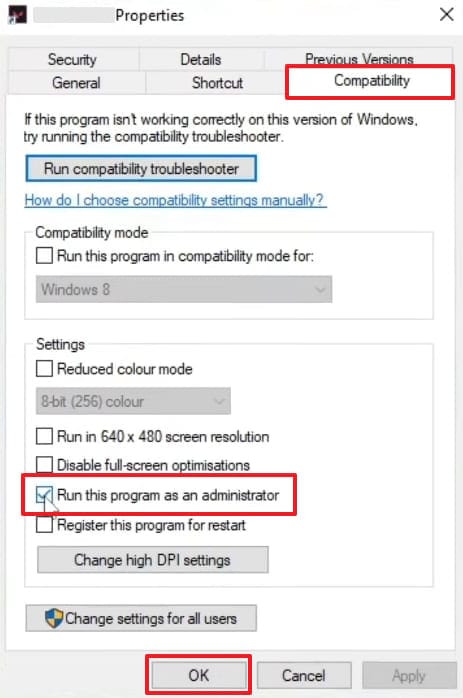
Step 2. You need to access the "Compatibility" tab at the top of the "Properties" panel. Subsequently, check the box of "Run This Program as an Administrator" and opt for "OK."
Way 3. Disable Third-Party Antivirus Temporarily
Security software basically protects your system by blocking unknown apps. Sometimes these programs flag the game's anti-cheat as a dangerous digital threat. Therefore, you need to turn off your shield for a moment to clear the path for the game. It helps you identify if a conflict exists between your security and Vanguard. Hence, adhere to the steps below to learn how to fix VAN 81 LoL:
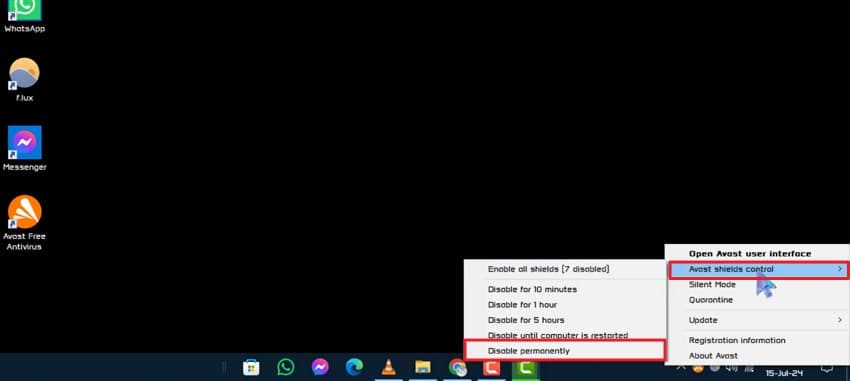
Instructions. Initiate by right-clicking the external antivirus application, such as "Avast." Open the "Avast Shield Control" menu and select the "Disable Permanently" option.
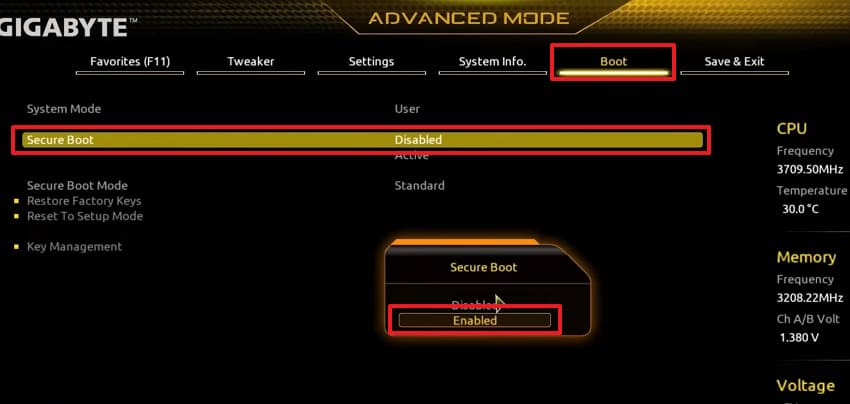
Way 4. Enable Secure Boot in BIOS
It is a safety feature that protects your device from any software threats. Yet, Riot Vanguard requires this setting to ensure a secure environment for every single player. Ars Technica shows that Riot’s Vanguard system now depends on stricter Windows security checks. Furthermore, it verifies that trusted operating systems can load when you start your machine. Let’s apply this Vanguard VAN 81 error League of Legends fix on your device:
Step 1. Press the "Delete" or "F2" keys during startup to access the BIOS settings. Once inside the interface, switch to the "Advanced Mode" section to access additional system settings.
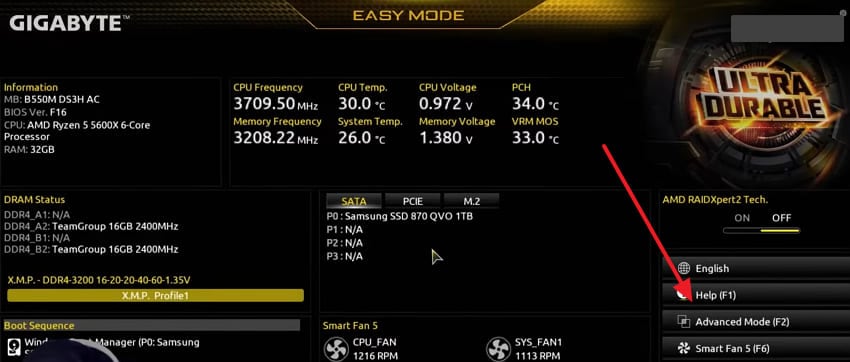
Step 2. After that, move to the "Boot" section and find the "Secure Boot" setting. Open the option and change its status to "Enabled" to activate secure boot protection.
Way 5. Check Background Conflicting Apps
Many different programs run in the background while you use your personal computer. Some of these apps might interfere with the way Riot Vanguard operates. Therefore, closing unnecessary software can provide a reliable VAN 81 League of Legends fix. It frees up system resources and removes any technical blocks during the game launch. Take guidance from the steps to find and close all conflicting background applications:
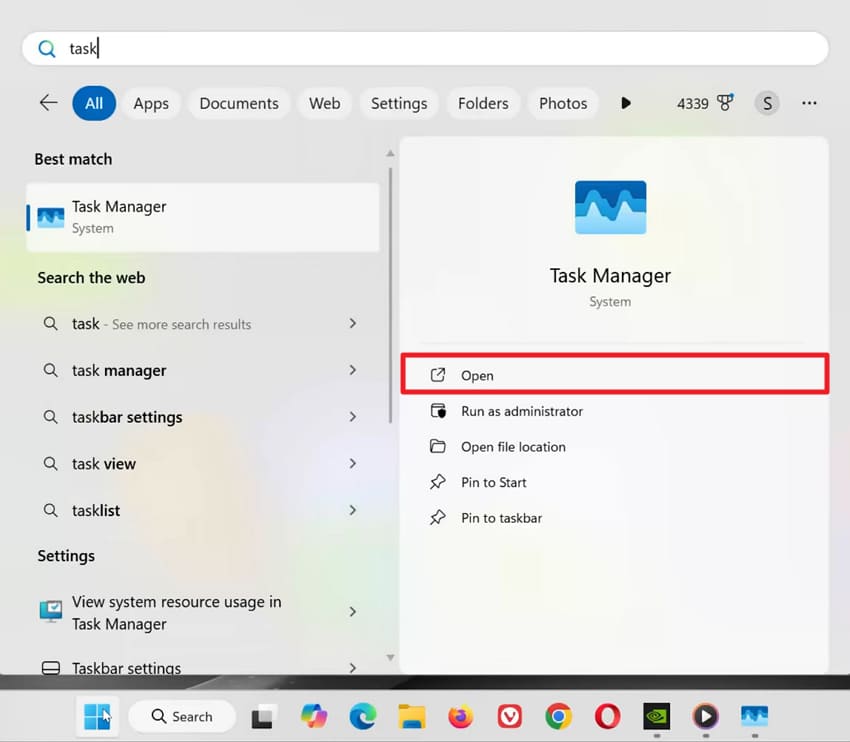
Step 1. When you search for "Task Manager," choose the "Open" option. You can then view all active apps and background services currently running on the system.
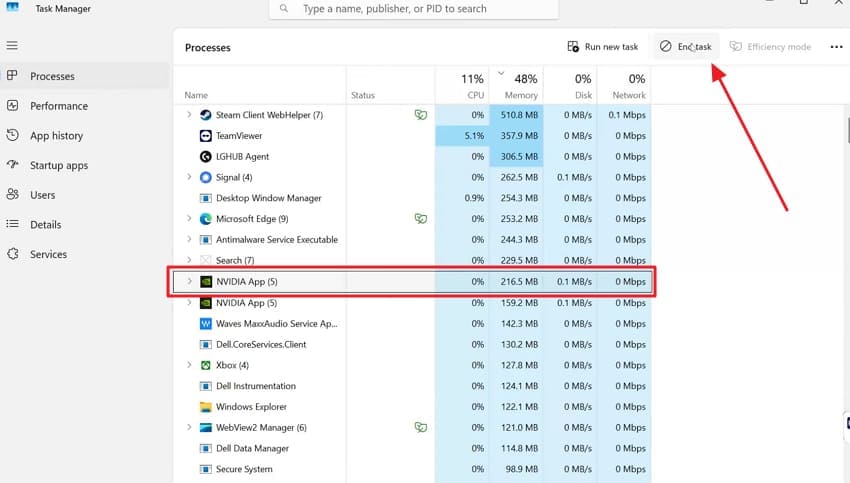
Step 2. From the list of processes, find the active conflicting programs and click to highlight them. Then, press the "End Task" button to force close the application.
Way 6. Perform a Clean Reinstall of Riot Vanguard and Game
A fresh installation removes all the old, broken files from your hard drive. This deep cleaning process ensures that every game component is brand new and functional. It is the best choice when the VGC service won't start League of Legends again. The system replaces missing data and resets all your core settings to default values. So, review the steps given below to reinstall the software on your system:
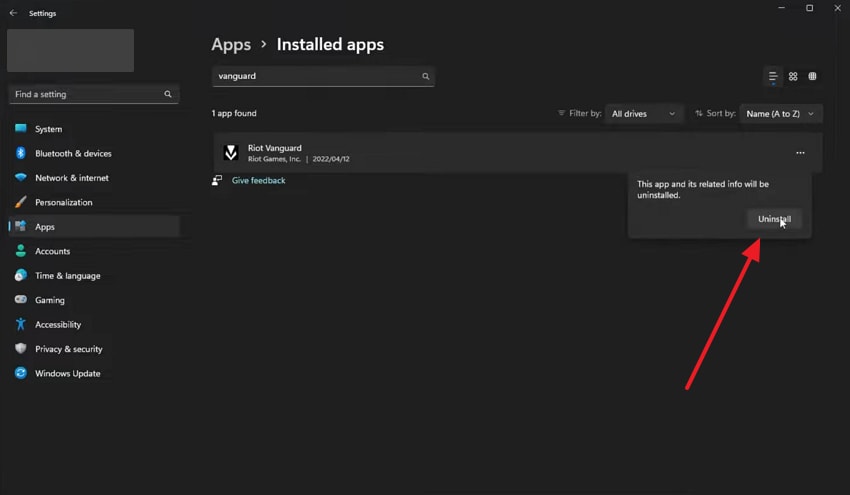
Step 1. As you head to the "System" section from settings, opt for "Installed Apps." Then, find "Riot Vanguard" to click the "Three Dots" next to it and choose "Uninstall."
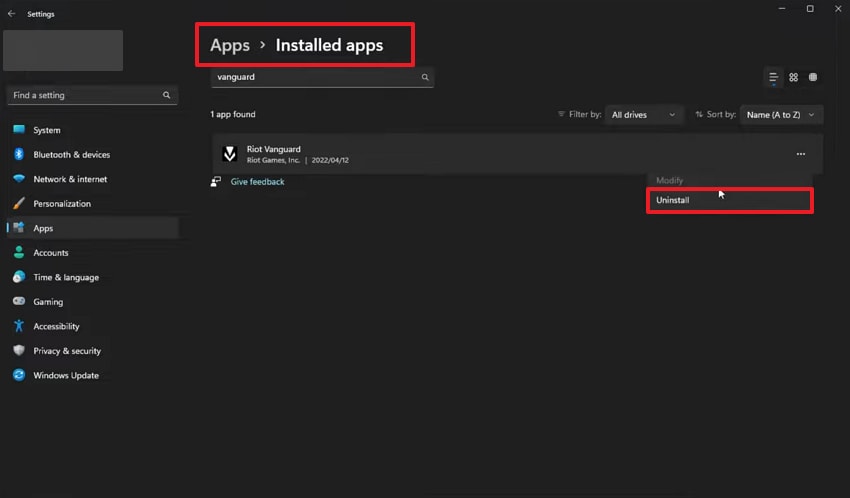
Step 2. From the upcoming menu, press the "Uninstall" option again. Now, you need to do the same uninstalling process for the "League of Legends" game.
Step 3. Once done, access the official "League of Legends" site and click "Download for Windows." Then, run the downloaded file and go through the displayed prompt to install it.

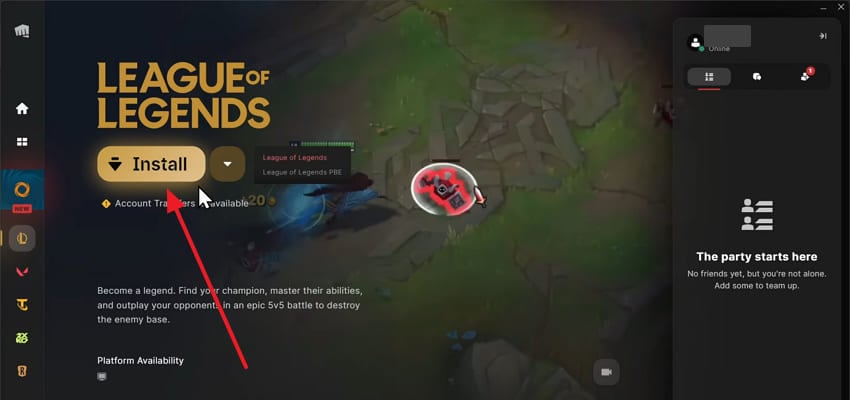
Step 4. Moving forward, run the "Riot Client" app and access the "League of Legends." Then, press "Install" to automatically install "Riot Vanguard."
Pro Tip. Use Repairit If Game Files Cause VAN 81 Error
It is also possible that the VAN 81 error keeps appearing even after applying all the fixes above. In many cases, corrupted game files are the main reason behind this issue on your system. A VAN 81 League of Legends fix becomes more difficult when essential game data is damaged. This is where tools like Repairit can help as a supportive solution. Its File Repair feature repairs corrupted game files that may be preventing the game from launching properly.
Gamers can use it to fix damaged game-related files that standard troubleshooting methods may not fully resolve. Instead of targeting system-level components, the tool focuses on restoring file integrity so the game can function as expected. Repairit also supports batch repair, allowing multiple corrupted game files to be fixed in one go. Additionally, it provides a preview before saving, so you can verify the repaired files and stay in full control of the process.
Key Features

-
Game File Repair: This feature repairs corrupted game files that may be causing your persistent VAN 81 error on your computer.
-
Support Game Files: It repairs supported game-related files that may affect normal gameplay and Vanguard service performance on your system.
-
Reliable File Repair: Repairit restores corrupted game file structures to help ensure smoother gameplay and stable game performance on your system.
Guide to Use Repairit If Damaged Game Files Cause VAN 81 Error
Repairing your broken game files is very simple when you use this tool. So, adhere to these easy steps to fix your corrupted data and start playing League:
Step 1. Import Corrupted Files Causes VAN 81 Error
Choose "Start" to use "Document Repair" from the "More Types Repair" tab. Following that, import the corrupted game files by pressing the "+Add" button.

Step 2. Fix Corrupted Files Cause VAN 81 Error
Click the "Repair" button after the files are added. The tool will then scan and repair any damaged or missing data in the files.
Step 3. Save Fixed File to Preferred Location
When the repair is finished, click the "Save All" button to download the repaired files. Now, Repairit allows you to select your desired output location to export the files.

Repair Corrupted Files
 Security Verified. Over 7,302,189 people have downloaded it.
Conclusion
In conclusion, fixing the VAN 81 error is essential for a smooth League of Legends experience. You now have several methods to resolve these anti-cheat service issues. In case the error returns, corrupted system files may be the real cause. That is why many players search for how to fix VAN 81 LoL. For deeper file damage, programs such as Repairit help gamers repair broken game files.
Frequently Asked Questions
-
Can a VPN cause the Vanguard connection service to fail?
Using a virtual private network might interfere with the game's local network settings. The software struggles to verify your account location when a VPN is active. So, you can try disabling your network proxy to resolve these persistent login issues very quickly. -
What if the game works, but Vanguard keeps crashing during matches?
Persistent crashes during gameplay usually indicate that your system files are corrupted. Standard troubleshooting methods might not reach the hidden data errors within your drive. In such cases, try software like Repairit to fix damaged files and ensure total game stability. -
Can I play League of Legends without installing the Vanguard software?
Riot Vanguard is a mandatory requirement for all players on the Windows platform. The game client will refuse to launch if the anti-cheat is not active. You must keep this service running to access the competitive matchmaking modes.




