
 TL;DR:
To repair a document corrupted by an interrupted save, you can rebuild its incomplete file structure using the host application's built-in Open and Repair function, restore an AutoRecover backup, or extract the readable content using a basic editor.
● Use native recovery options first by accessing the Windows Previous Versions tab via file properties or checking the application's Document Recovery pane for temporary files generated before the crash.
● If the file only partially loads or freezes the application, launch it in Protected View or Draft Mode to bypass broken formatting metadata, then copy the intact text into a fresh document.
● For severe structural damage that standard applications cannot open, utilize a dedicated tool like Repairit File Repair (compatible with Windows Vista/7/8/10/11 and macOS X 10.12 or later) to scan and rebuild the missing file components.
Ask AI for a summary
 ChatGPT
 Perplexity
 Gemini
 Claude
 Grok
Grok
A document can become corrupted if the saving process is interrupted before the file is fully written and finalized. This often happens during sudden shutdowns, software crashes, forced restarts, or storage disconnects. Since applications continuously update file structure and metadata while saving, any interruption may leave the document incomplete, unreadable, or partially damaged.
In many cases, you can still repair a document after an interrupted save using built-in recovery features, repair tools, or alternative recovery methods. This guide explains why save interruptions cause corruption and the steps you can take to restore your files.
In this article
Why Save Interruptions Corrupt Documents
When you save a document, the application doesn’t just drop the content onto your storage device; it carefully rewrites parts of the file structure, updates formatting information, and finalizes metadata. This process ensures the document can be reopened and read correctly later.
If the save is interrupted, however, the file may be left incomplete, missing critical instructions that tell the system how to display or interpret the content.
What Happens During an Interrupted Save
- Document structure is left unfinished – The program may stop mid‑way, leaving the file only partially written.
- Formatting and metadata aren’t updated – Essential details like styles, indexes, or timestamps may be missing, making the file unreadable.
- Content data is incomplete – Sections of text, images, or tables may not be fully written, resulting in missing or corrupted content.
- File system entries remain inconsistent – The operating system may think the file exists, but the underlying data doesn’t match, leading to errors when opening.
Common Causes of Document Corruption
- Improper shutdowns – The computer powers off before the save process finishes, leaving the file half‑written.
- Application crashes – Programs freeze or close unexpectedly while writing the file, cutting off the process.
- Storage disconnection – USB drives or external storage are removed during saving, breaking the data stream.
- Disk write errors – Bad sectors or failing drives interrupt the writing process, leaving gaps in the file.
- Forced system restarts – Updates or crashes force the system to reboot while a save is still in progress.
Even if the file icon appears in your folder, it may not open properly because the underlying structure is broken. Unlike temporary glitches, save interruptions often cause permanent corruption, meaning the file cannot be recovered without repair tools or backups.
How to Identify Signs of File Corruption
Before attempting repairs, it is important to determine how the document was affected. Interrupted saves can cause minor formatting problems or complete file failure, depending on when the interruption occurred.
Signs of a Corrupted Document:
- Files won’t open — The application displays errors like “File is corrupted” or “Unreadable content.”
- Blank pages appear — The document opens but contains missing or empty content.
- Formatting issues — Text, images, or layout elements appear broken or misplaced.
- Freezing or crashing — The application becomes unstable when opening the file.
- Missing file details — File size, preview, or metadata appears incorrect.
- Partial recovery only — Some sections of the document are accessible while others are damaged.
Basic Fixes to Repair a Corrupted Document
Fix 1. Open the File Using Built-In Repair Features
Many office applications include automatic repair tools that attempt to rebuild damaged file structures during opening.
Step 1. Open the application first instead of double-clicking the file. Use the Open menu and select the damaged document.
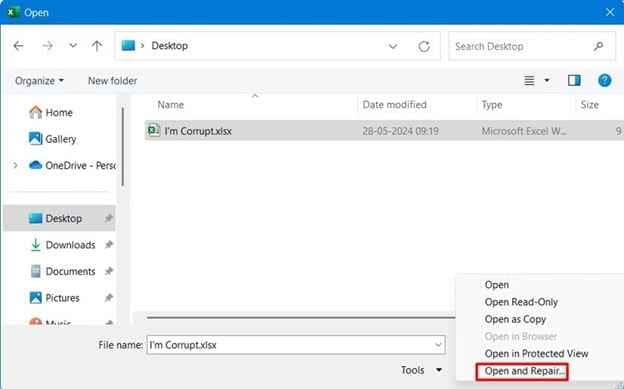
Step 2. Choose the Open and Repair option if available, then allow the application to scan and restore the file structure.
Fix 2. Restore Previous Versions
Windows and cloud services sometimes store temporary or previous versions that can help recover data after interrupted saves.
Step 1. Right-click the damaged document and select Properties, then open the Previous Versions tab.

Step 2. Select an earlier version created before the interruption and restore or copy the file to another location.
Fix 3. Recover Temporary or AutoSave Files
Applications like Microsoft Word and Excel often create temporary backup files during editing sessions.
Step 1. Open the application and check the Document Recovery or AutoRecover section.
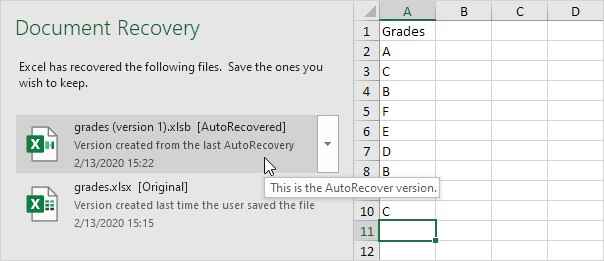
Step 2. Locate recently saved temporary files and save the recovered version as a new document.
Fix 4. Copy Content Into a New File
If the document partially opens, creating a fresh file may bypass damaged formatting or metadata.
Step 1. Open the damaged document in Protected View, Draft Mode, or another compatible editor.
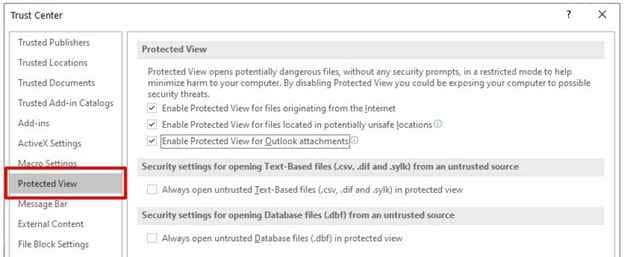
Step 2. Copy readable content into a newly created document and save it under a different filename.
Restore Severely Corrupted Documents Using a Repair Tool
When standard repair methods fail, the document may have deeper structural corruption caused by incomplete save operations or damaged storage sectors. Advanced repair tools can scan the file internally and rebuild missing data structures.
It CAN:
- Restore damaged document structure and metadata.
- Recover unreadable text, formatting, tables, and embedded objects.
- Repair files that fail to open normally.
- Process multiple corrupted files at once.
- Recover content from severely interrupted save operations.
If the file remains inaccessible, a repair solution like Repairit File Repair can help repair corrupted Office documents and restore usability.
Step-by-Step:
Step 1. Upload the corrupted document.

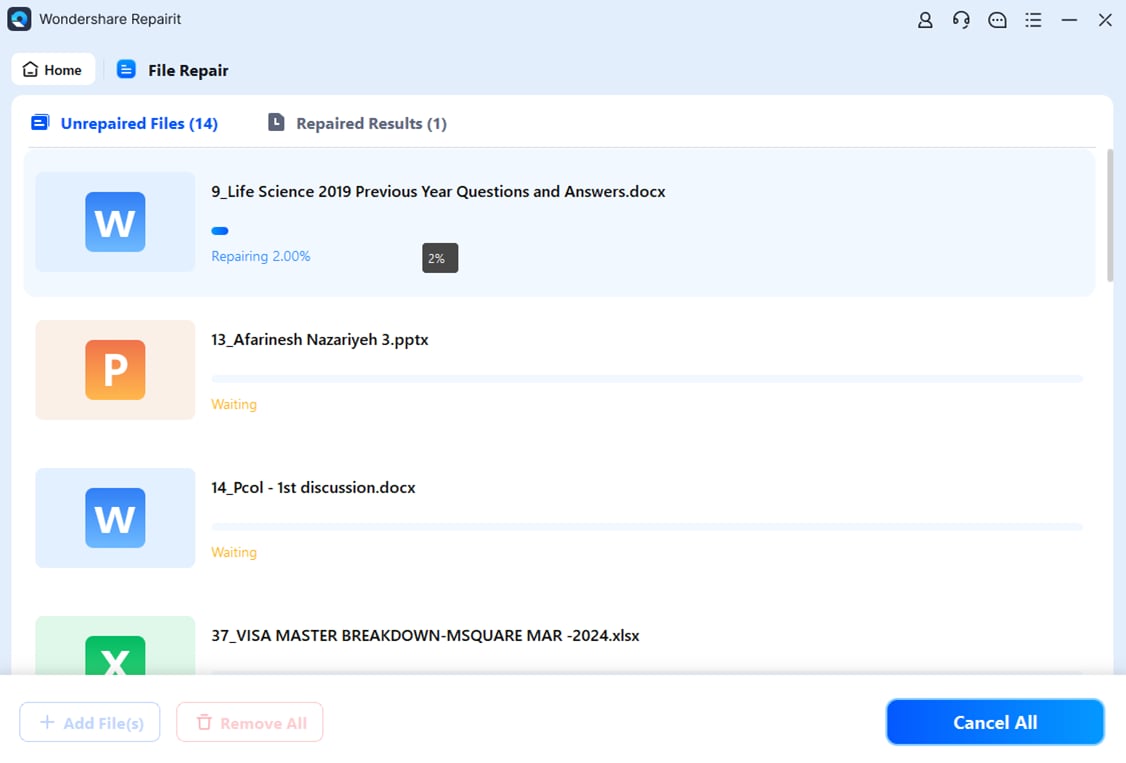
Step 2. Start the repair process to scan and rebuild damaged file components.
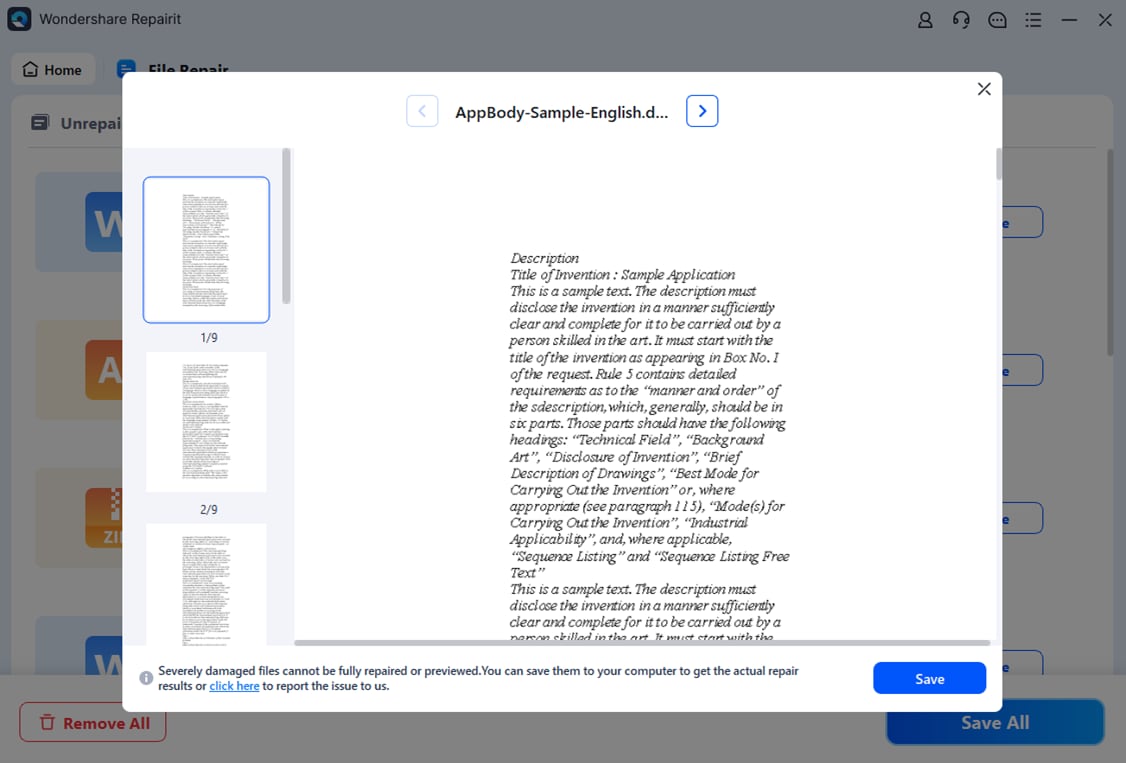
Step 3. Preview the repaired document and save the restored version to a different storage location.
How to Prevent Document Corruption During Saving
Preventing save interruptions is the most effective way to protect your documents from corruption and data loss. By following safe handling practices, you can greatly reduce the risk of incomplete saves and ensure your files remain accessible.
- Avoid forced shutdowns – Always let applications finish saving before restarting or powering off your computer. Cutting power mid‑save leaves the file only partially written.
- Use reliable storage devices – Faulty or aging drives increase the chance of interrupted writes. Investing in dependable hardware helps maintain stable saves.
- Enable AutoSave features – Many modern applications include automatic backup or versioning tools. These features capture progress in real time, improving recovery chances if something goes wrong.
- Keep enough free storage space – A nearly full drive can block or interrupt save operations. Maintaining free space ensures the system has room to finalize files properly.
- Use backup systems – Cloud syncing and local backups provide extra protection. Even if a file becomes corrupted, you’ll have a safe copy to restore from.
Conclusion
When a document becomes corrupted after a save interruption, it’s usually because the process stopped before all data was written. Built‑in recovery tools, backups, or repair software can often restore access and recover missing content.
To avoid future issues, enable AutoSave, use reliable storage, and always let your system finish saving before shutting down or disconnecting devices. These simple habits help keep your files safe and your work intact.
FAQs
-
Why does a document become corrupted during saving?
The save process rewrites parts of the file structure. If the process is interrupted, the document may not finish saving correctly. -
Can I recover unsaved changes after a crash?
Yes. Many applications store temporary AutoRecover or backup files that can restore recent changes. -
Why does my document open blank after an interruption?
The content section of the file may have been damaged even though the document container still exists. -
Can corrupted Office files be repaired?
Yes. Built-in repair tools and specialized file repair software can often restore damaged Office documents. -
Is it safe to continue using the same storage device?
If corruption happens repeatedly, the storage drive may have underlying hardware or file system issues that should be checked immediately.




