
You’re not alone if you open Spotify but see a black screen on your Windows PC or Mac. The app may seem to be running, but nothing appears on the screen; instead, it remains completely black. This can happen on both Windows and macOS for several different reasons.
In most cases, the fixes are simple and can be tried easily without any technical expertise. Thus, this guide walks you through proven fixes for the Spotify black screen issue on Windows 11, 10, and Mac. You'll also learn what causes the problem and how to get Spotify working normally again.
In this article
Part 1. What's Really Causing the Spotify Black Screen?
It becomes much easier to choose the right solution for the Spotify black screen on Windows 10, 11, or Mac if the actual cause is known:
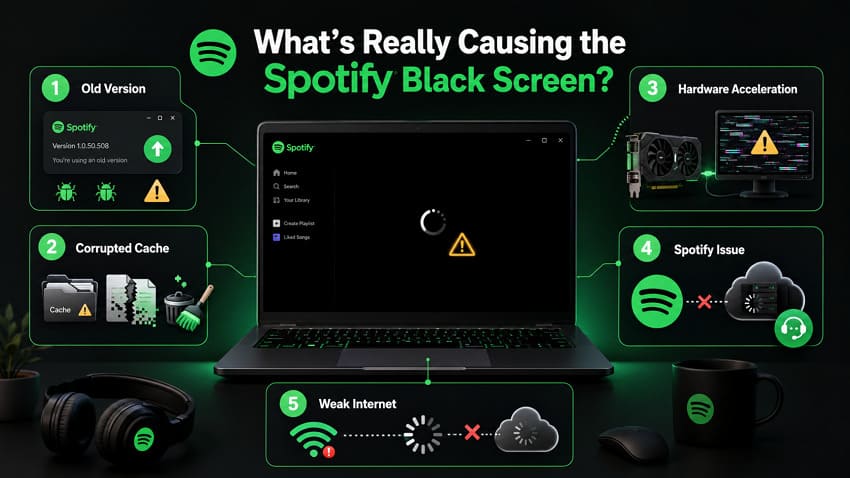
- Older Spotify Version: Spotify may turn black if the app is too old, as it may have bugs that freeze the screen. Whenever this happens, the app may open normally, but nothing appears except a black page.
- Cache Files are Corrupted: The app saves small temporary files that help with quick loading but can become corrupted over time. This freezes or shows a black screen, but you can clear the cache to get sorted.
- Hardware Acceleration Problems: This setting can make Spotify use the graphics card in a way that causes errors. Computers with hardware acceleration issues may not open Spotify properly or may get stuck.
- Spotify-Side Faults: You may see a black screen if Spotify is experiencing a temporary bug, server-side issue, or loading problem. In such cases, the app may fail to load properly until the issue is resolved by Spotify.
- Internet Connection Instability: The application might not load completely if it is being used on a poor internet connection. In these situations, the screen may remain dark or blank until the connection stabilizes.
Quick Fixes to Try for Fixing the Spotify Black Screen
Whether you’re having the Spotify black screen Mac problem or the same issue on Windows, try these quick fixes:
Force-Close and Reopen the App
An app freeze is one reason its background process may stop responding. Subsequently, you may only see a blank or black window instead of your playlist or home page. Under such conditions, force close Spotify and re-open it for a smooth start with all processes, as guided:
On Windows
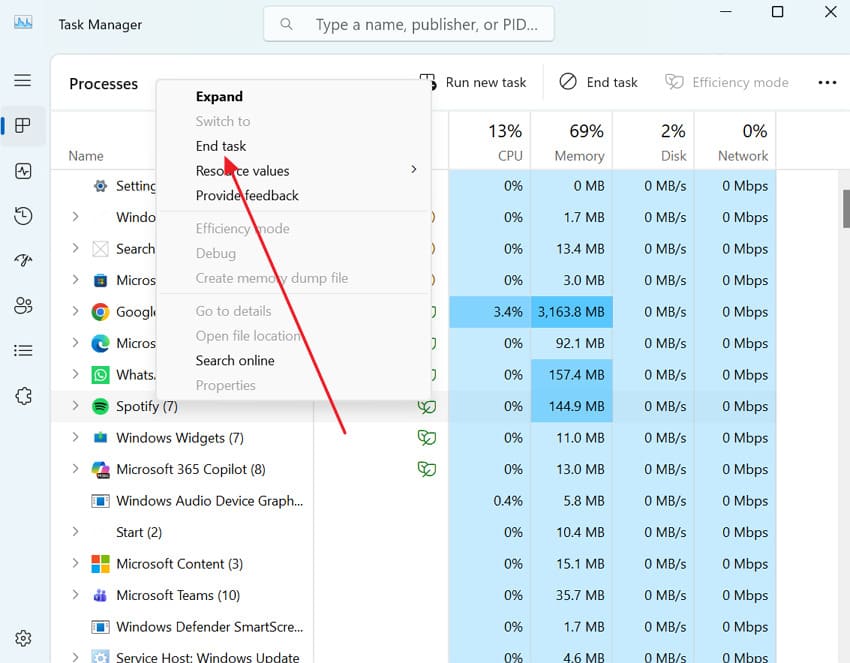
Instructions. Open Task Manager on Windows > Locate Spotify > Right-click it > Choose "End Task" option > Launch Spotify again.
On Mac
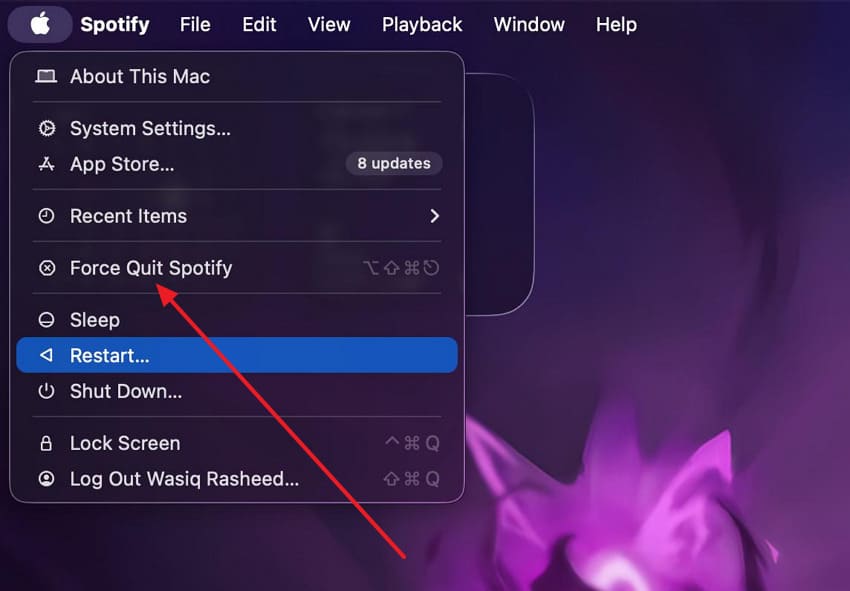
Instructions. Press "Apple" in the top-left corner > Choose "Force Quit Spotify" > Re-open Spotify from the Launchpad or Applications.
Is Your Wi-Fi or Data Actually Working?
Spotify needs a strong internet connection to load, whether it is being used on Windows or macOS. Check that your Windows PC or Mac is connected to a stable internet connection. If needed, reconnect to Wi-Fi or Ethernet before opening Spotify again. A quick connection check can save you from unnecessary troubleshooting and solve the Spotify black screen of death.
Give Your Device a Full Restart
Restart your computer or macOS to refresh the operating system, reload essential services, or clear software conflicts. Perform this simple fix to resolve temporary glitches on both Windows and Mac that prevent Spotify from displaying its interface. Follow the tutorial and give your devices a complete restart for Spotify stuck on black screen:
For Windows
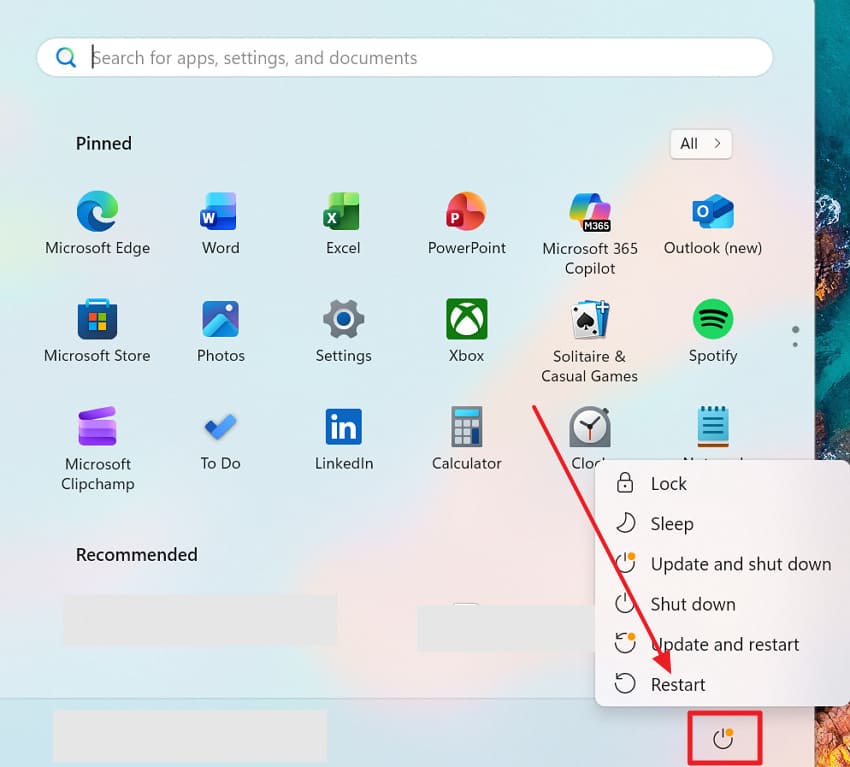
Instructions. Click the "Start" icon > Press the "Power" icon > Choose the "Restart" option > Wait > After the restart, open Spotify again.
For Mac
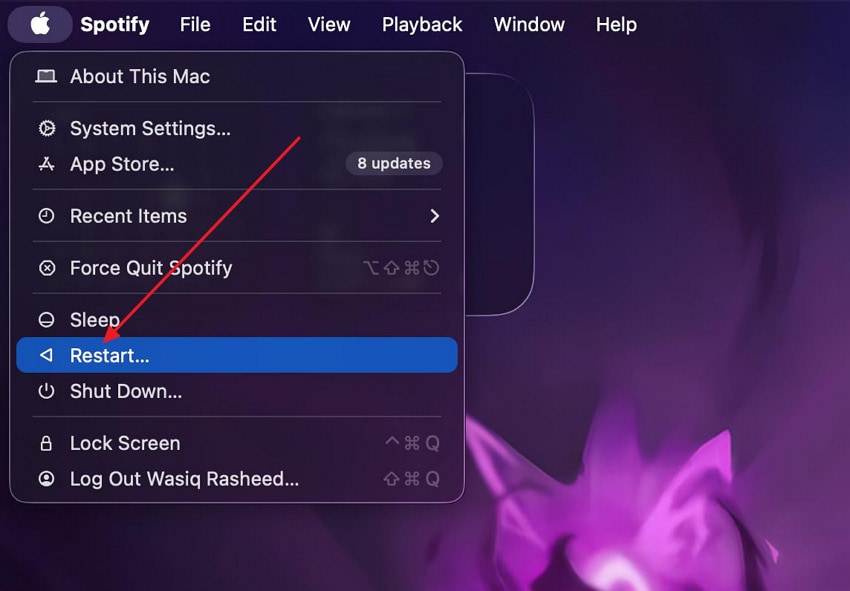
Instructions. Close all apps > Click the "Apple" menu > Choose "Restart" > Confirm action > Wait > Open Spotify again.
Check on Other Devices
For a constant Spotify black screen, consider signing in with the same account on another device. This helps distinguish whether the issue is caused by your PC or something related to your Spotify account.
Part 2. Spotify Black Screen Still Not Fixed? Try These Advanced Solutions
The methods below work for both Windows and macOS to fix the deeper Spotify black screen of death issue:
Fix 1. Update Spotify to the Latest Version
Every new update includes bug fixes, security improvements, and better support for the latest Windows and Mac updates. It only takes a few minutes and can resolve various common app problems without changing any of your Spotify settings. To proceed, follow the given guidelines for Windows and Mac to update your Spotify version:
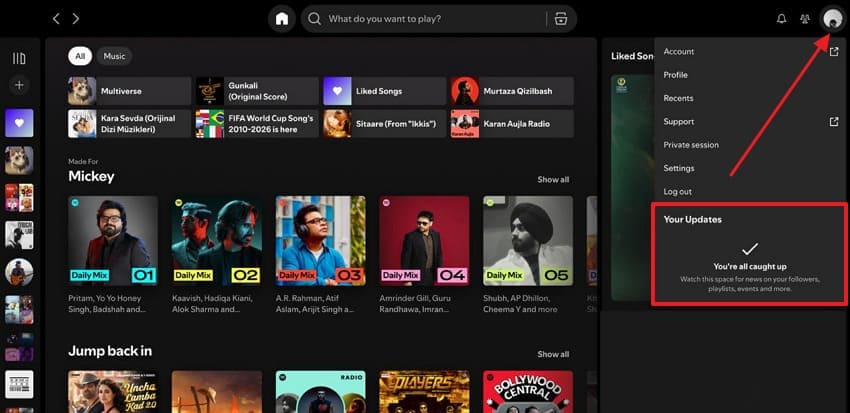
Instructions. Open Spotify on Windows or macOS > Click "Profile Picture" > Check "Update Available" option under Your Updates.
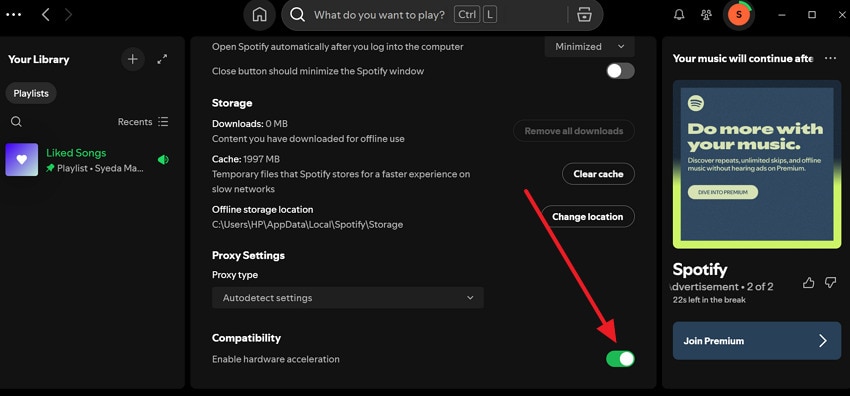
Fix 2. Turn Off Hardware Acceleration
Hardware Acceleration lets Spotify use your computer’s graphics card to improve performance and make the app smoother. Turn off this option because it makes Spotify use your system’s standard graphics processing instead, which often fixes display problems. To address the Spotify black screen on Windows 11 or macOS, read the given instructions and get sorted:
Step 1. On Windows or Mac, access the Spotify app > Press "Profile Picture" > Choose the "Settings" option.
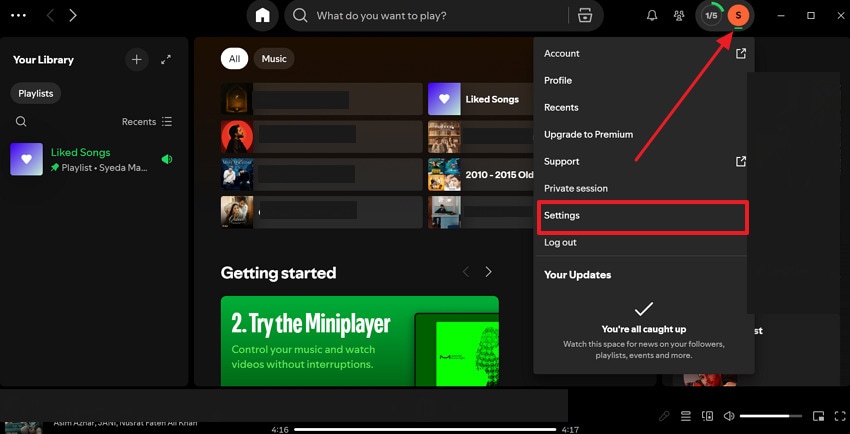
Step 2. Scroll down in Settings > Turn off "Enable Hardware Acceleration" under the Compatibility section > Close Spotify > Open it again.
Fix 3. Clear Spotify's Cache and Local Data
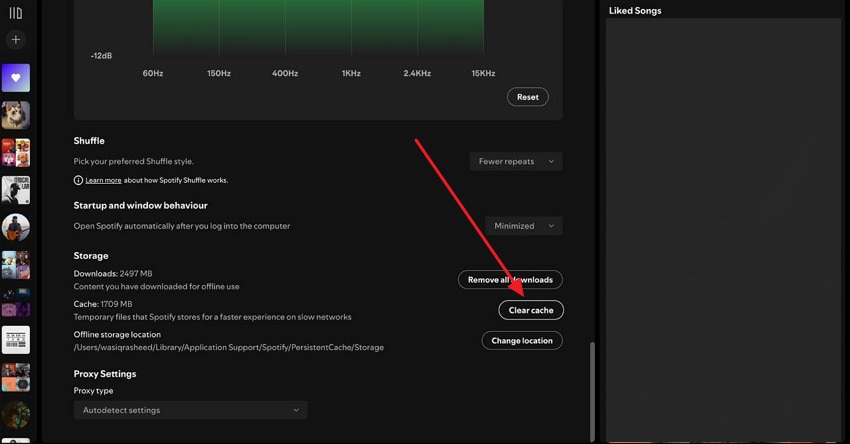
Your Spotify app stores cache files to help songs, album artwork, and other content load faster. Once the Spotify stuck on black screen issue occurs, consider clearing the cache to remove temporary files. For a better understanding, follow the tutorial and clear Spotify’s cache or local data:
Instructions. Enter Spotify Settings on Windows or macOS > Locate the "Cache" option > Click "Clear Cache" > Confirm action > Restart Spotify.
Fix 4. Disable Dark Mode Temporarily
Although Dark Mode works without any issues, it can sometimes cause display glitches after a system update. Switch to Light Mode as it's a quick way to navigate if the problem is related to your system's appearance settings. Learn how to disable Dark Mode on Windows and Mac to make the Spotify app appear normal again:
On Windows
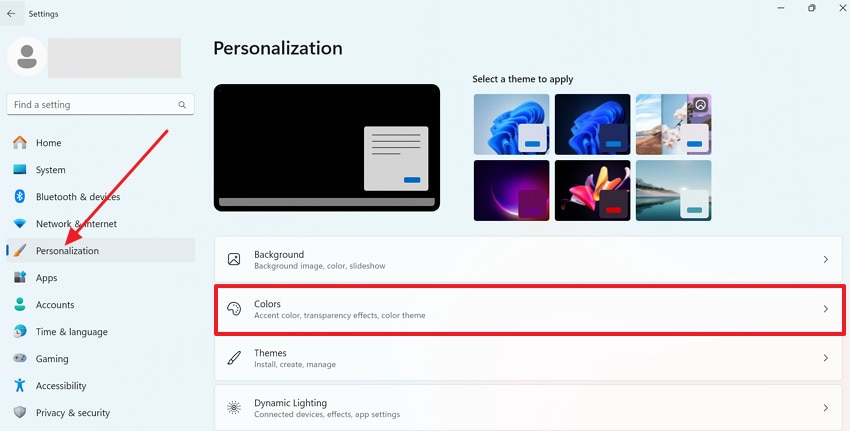
Step 1. In your Windows Settings, open the "Personalization" tab > Select the "Colors" option.
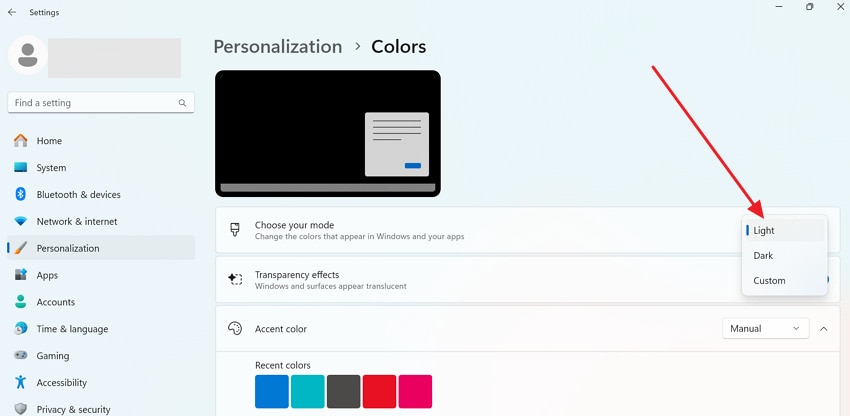
Step 2. Now, expand the "Choose Your Mode" menu > Press the "Light" option > Restart Spotify.
On Mac
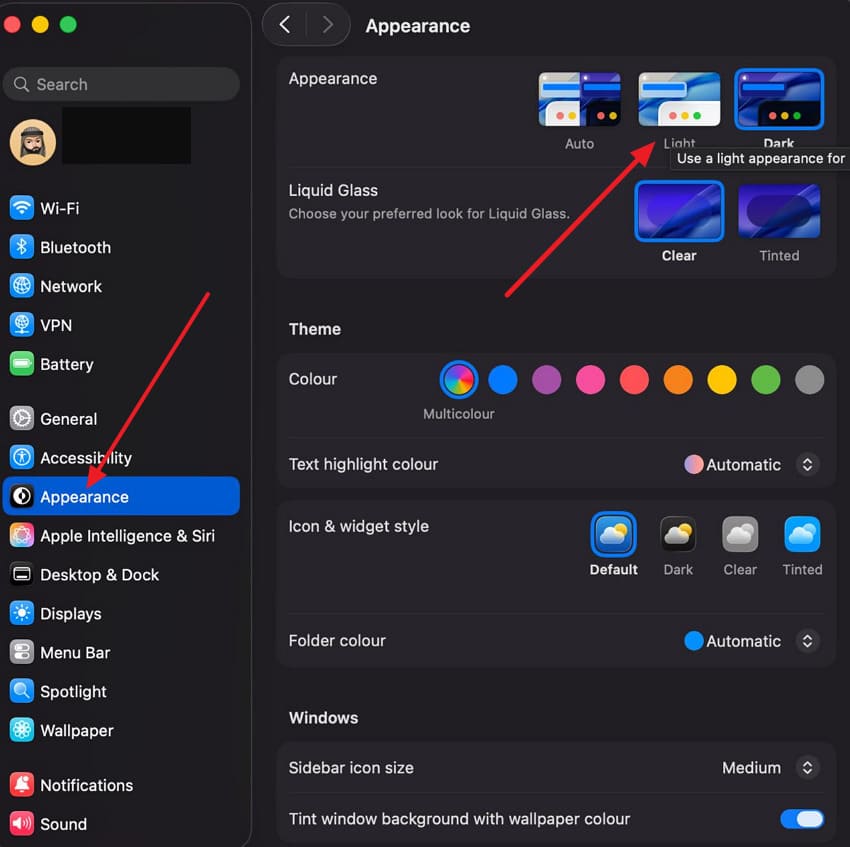
Instructions. On macOS, open System Settings > Access the "Appearance" section > Choose "Light Mode" > Reopen the Spotify app.
Fix 5. Disable Battery Saver or Low Power Mode
By limiting background activity, Battery Saver on Windows and Low Power Mode on macOS aid in lowering power use. It can prevent Spotify from operating or loading its interface, despite being used to prolong battery life. Try to turn these features off on your devices and give Spotify access to the resources it needs:
For Windows
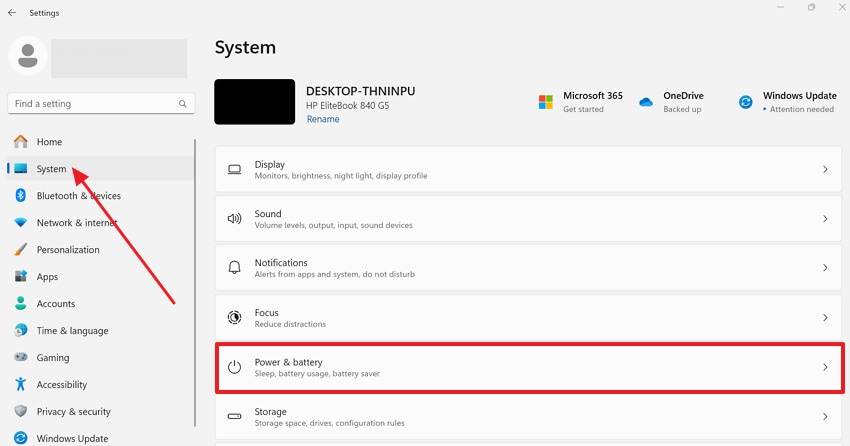
Step 1. Choose the "System" option from the Windows Settings > Access the "Power & Battery" option to proceed.
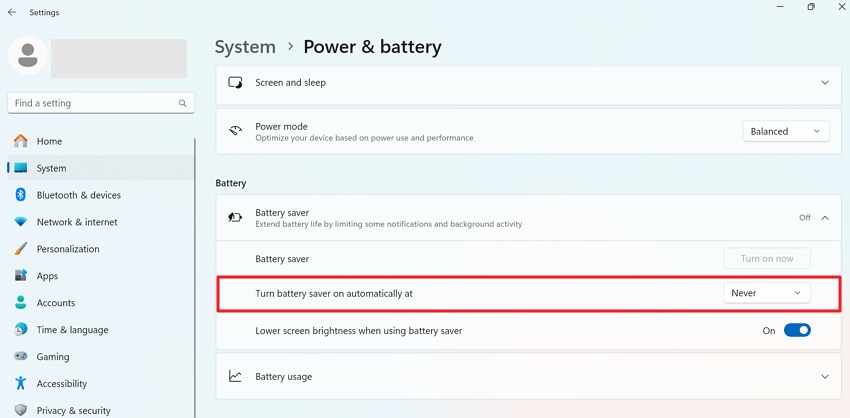
Step 2. Locate the Battery section > Choose "Never" for "Turn Battery Saver On Automatically At."
For Mac
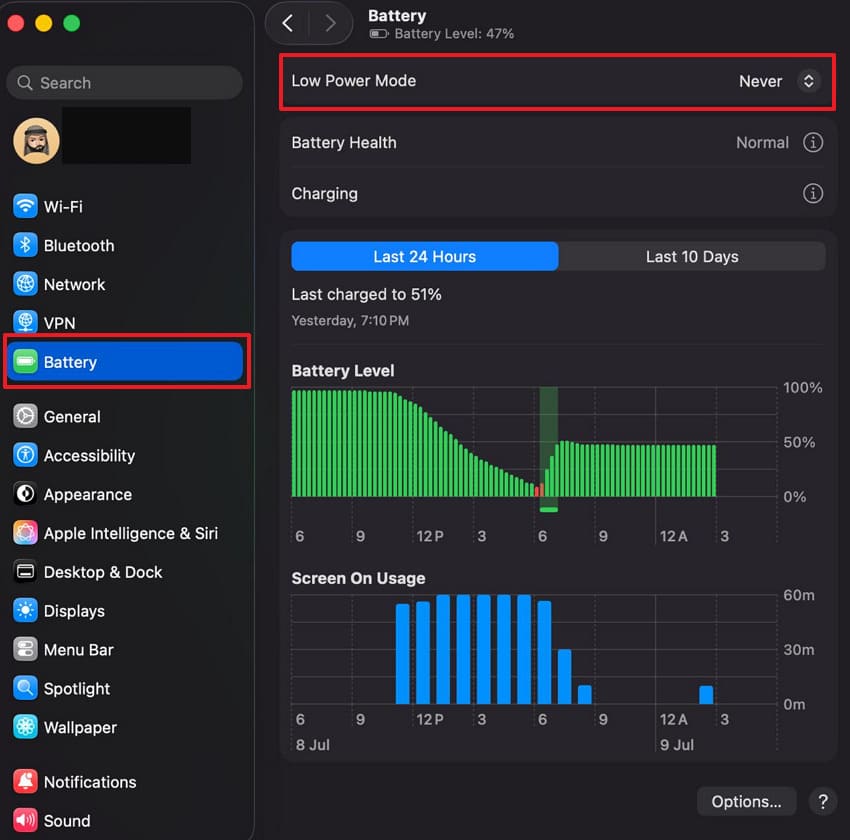
Instructions. From System Settings on Mac > Click "Battery" option > Choose "Never" for Low Power Mode > Open Spotify again.
Fix 6. Log Out and Log Back into Your Account
At times, the Spotify black screen on Mac or Windows happens due to your account, not because of your app. Thus, log out, then log in to your account to refresh your account connection without making any changes to settings. Perform this quick fix to resolve account-related issues with Spotify on Windows and Mac:
Step 1. Hit the "Profile Picture" on the Spotify app > Press the "Log Out" option from the menu.
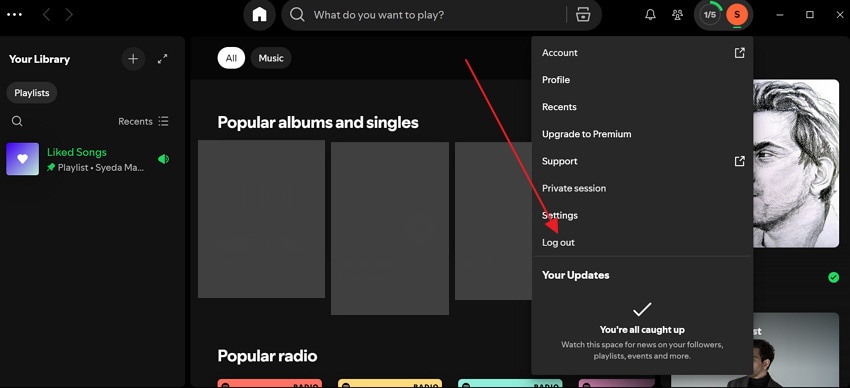
Step 2. Click "Log In" to sign back in to your account and check whether the black screen disappears.

Fix 7. Disable Browser Extensions (Web Player)
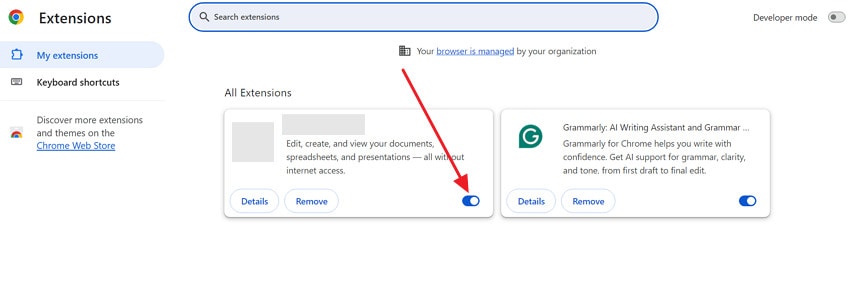
When the Spotify Web Player is in use, browser extensions might interfere with how the website loads. Ad blockers, script blockers, or security extensions may prevent important Spotify files from being accessed properly. Disable these extensions to find out whether one of them is causing the problem, as shown in the guidelines:
On Windows
Step 1. On Chrome, press the "Three Dots" menu > Hover over "Extensions" option > Choose "Manage Extension."
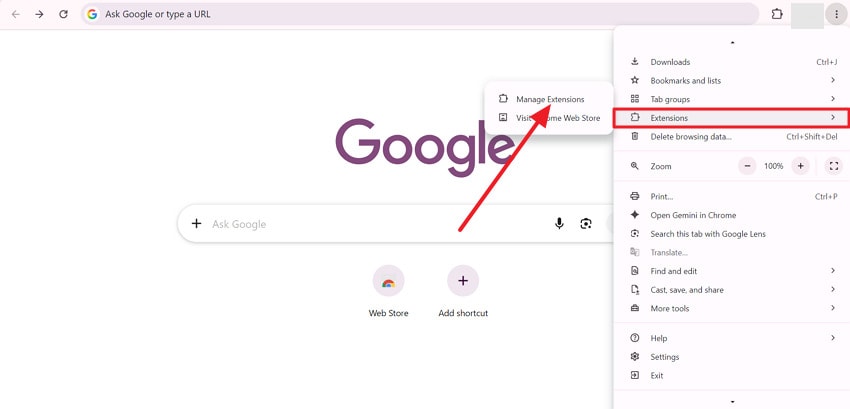
Step 2. Turn off all unnecessary extensions > Refresh Spotify Web Player > Check black screen.
On Mac
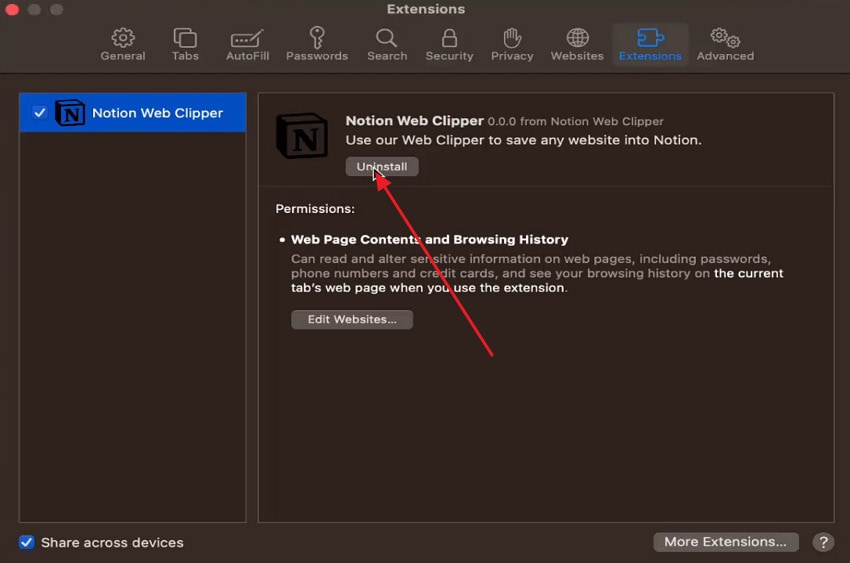
Step 1. In the top toolbar, press the "Safari" option > Select the "Safari Extension" option.
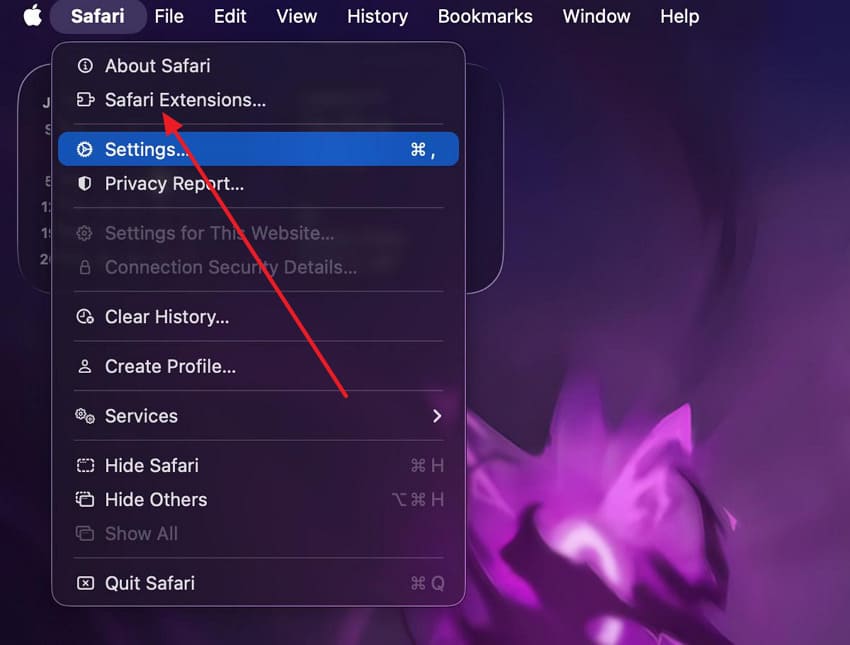
Step 2. Then, select the extension > Click the "Uninstall" option > Reload the Spotify Web Player.
Fix 8. Contact Spotify Support if Nothing Works
After trying everything, if the Spotify black screen on Windows 11 or Mac issue is still persistent, it's time to contact Spotify Support. The issue may be related to your account, a bug in the latest app version, or a problem that only Spotify can investigate. Their support team can guide you through advanced troubleshooting steps, check for known issues, and assist you accordingly.
Pro Tip. Got a Corrupted Music File? Here's How Repairit Fixes It
Regardless of the Spotify black screen of death, if you have downloaded your favorite tracks and suspect them to be corrupted, download Repairit. The program claims to repair corrupted audio recorded or stored on many devices, such as voice recorders. This includes music and sounds from portable recorders, camera footage, and files exported from editing software. Repairit targets a wide range of sound issues, not just files that won’t open.
Besides this, it helps with clipping, humming, and cases where the file opens but plays with no sound. This further helps when your music file plays but sounds noisy, broken, or incomplete after downloading. In addition, Repairit successfully repairs half-broken music files, rebuilding the missing or damaged parts. It can even effectively handle corrupted downloads, interrupted recordings, or system-damaged files.
Key Features

-
Repairs Common Music Formats: It can fix most popular music formats, including MP3, M4A, FLAC, and many others.
-
Uses Sample Audio to Restore: For advanced repairs, Repairit asks you to add a sample audio, a clean, playable source for the damaged one.
-
Keeps Timing, Rhythm, and Melody Intact: The program focuses on keeping the rhythm, notes, and melody of the original track.
Guide to Repair Corrupted Music Files with Repairit
Instead, you give up on a music file that won’t play or is corrupted, follow the tutorial, and get it repaired:
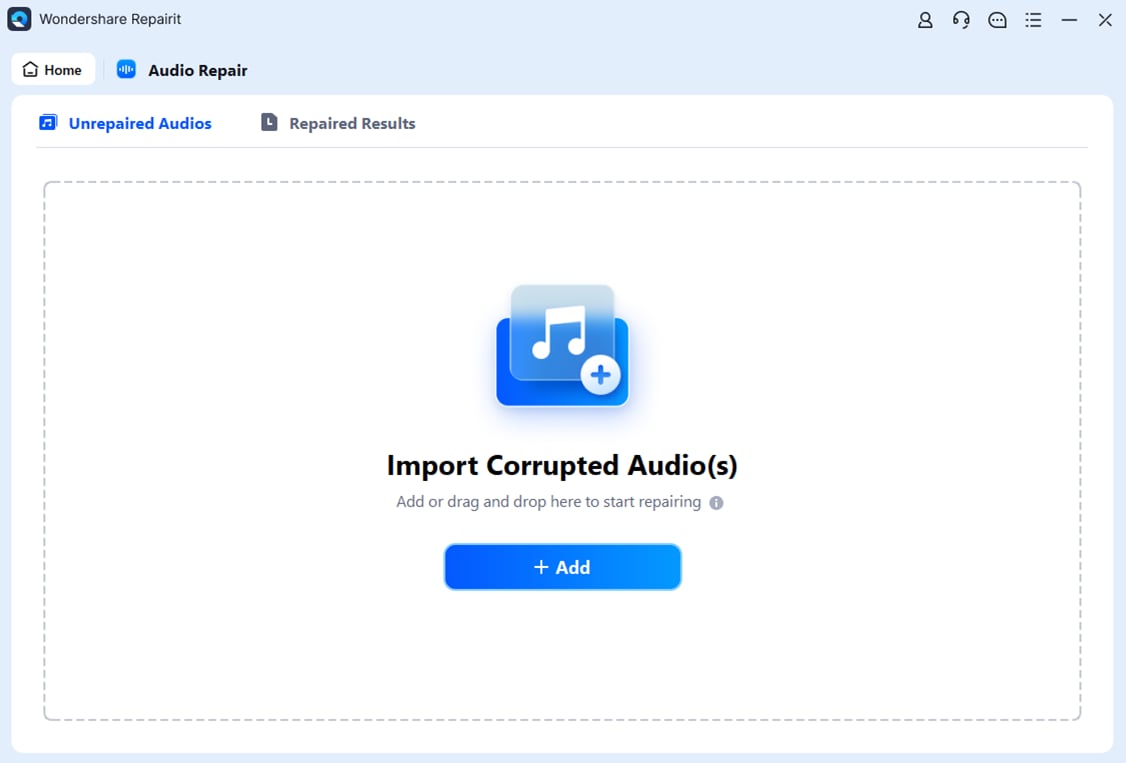
Step 1. Insert Your Corrupted Audio Files
Install Repairit > Access "More Types Repair" > Press "Start" for Audio Repair > Click the "Add" button to insert audio files.
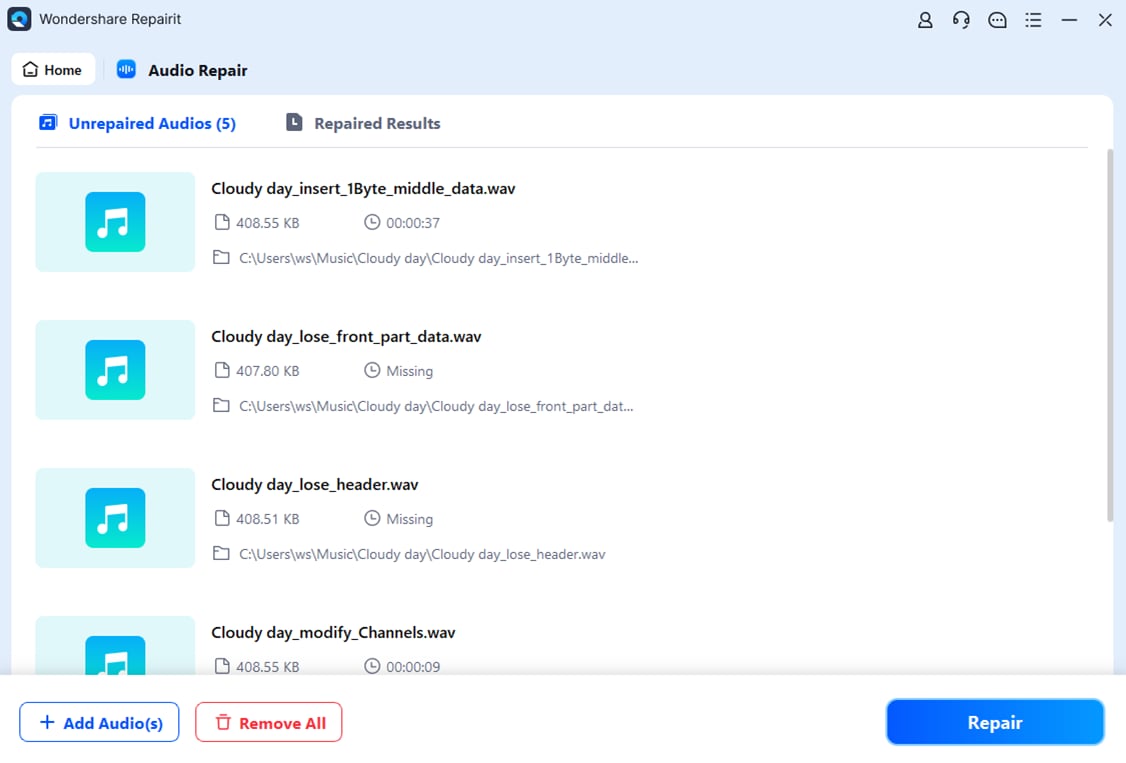
Step 2. Start the Audio Repair Process
Once done, press the "Repair" button > Start the repair process > Analyze the process in the meantime.
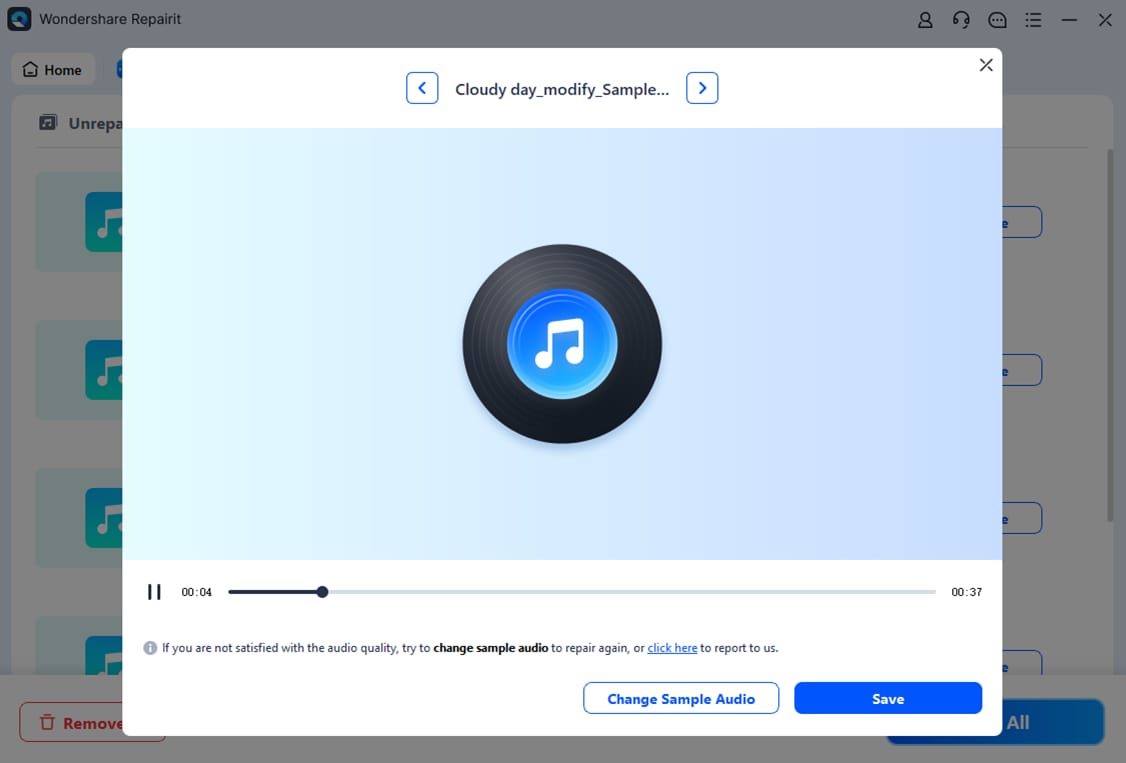
Step 3. Review and Download the Fixed Audios
After repair, preview each file individually > Press the "Save" button to download audios.
Conclusion
At last, the Spotify black screen on Windows 11, 10, or Mac is most of the time fixed through simple fixes discussed in the guide. Start with basic fixes such as clearing the cache and then move to advanced methods if needed. In cases where your downloaded music files are broken or corrupted, Repairit can be a reliable option for complete repair.
FAQ
-
Q1. What to do if Spotify works on the phone but shows a black screen on the PC?
If Spotify works on your phone but shows a black screen on your Windows PC or Mac, the issue is likely related to the desktop app or your computer. Try restarting your device, clearing Spotify's cache, updating the app, or reinstalling it if the problem persists. -
Q2. Why does Spotify work once, then turn black the next time?
This can happen when some files or settings break after the first run. The app may cache bad data or hit a graphics glitch, so it works once and then fails. -
Q3. Can my antivirus or firewall cause a black screen in Spotify?
It is possible that if security software blocks parts of Spotify, the app may open but not show content. You can try temporarily allowing Spotify through your firewall or antivirus, then check for the Spotify black screen of death.




