
 TL;DR:
To maintain consistent characters in Stable Diffusion across different prompts, use the image-to-image workflow with a properly adjusted strength value and reuse the exact generation seed to preserve the original subject's identity.
● The Stable Diffusion 3.5 family targets different hardware and speed requirements: 3.5 Large requires high compute for 8.1-billion parameter quality, 3.5 Medium is optimized for self-hosting on consumer hardware, and the distilled Large Turbo and Flash variants execute rapid generations in exactly four inference steps.
● Running the model weights locally demands capable hardware but grants complete control over fine-tuning and custom generation pipelines, whereas the Stability AI API and browser-based Stable Assistant offer immediate access but restrict direct model switching and advanced parameter controls.
● Address major structural errors or malformed anatomy by revising text prompts or using the inpainting workflow, and reserve external software like Repairit strictly for upscaling, denoising, or sharpening facial details on structurally accurate outputs.
Ask AI for a summary
 ChatGPT
 Perplexity
 Gemini
 Claude
 Grok
Grok
Stable Diffusion is not a single website. It is a family of open-weight image models developed by Stability AI. Tools called Stable Diffusion AI image generators are usually interfaces built around these models. Different models, settings, and platforms can produce noticeably different results from the same prompt.
The Stable Diffusion 3.5 family includes models built for quality, speed, local use, and API workflows. This guide compares these models, access methods, prompting techniques, and advanced generation workflows. It also covers common output problems. For final refinement, Repairit can help improve soft faces, low resolution, noise, and unwanted artifacts in generated images.
In this article
Part 1. What Is the Stable Diffusion AI Image Generator?
A Stable Diffusion image generation tool is typically an app or interface powered by a Stable Diffusion model, rather than one official “Stable Diffusion” website. Stability AI offers several Stable Diffusion 3.5 models, including Large, Large Turbo, and Medium, with downloadable weights available under the Stability AI Community License. Stable Diffusion 3.5 Flash is also available through the developer API.
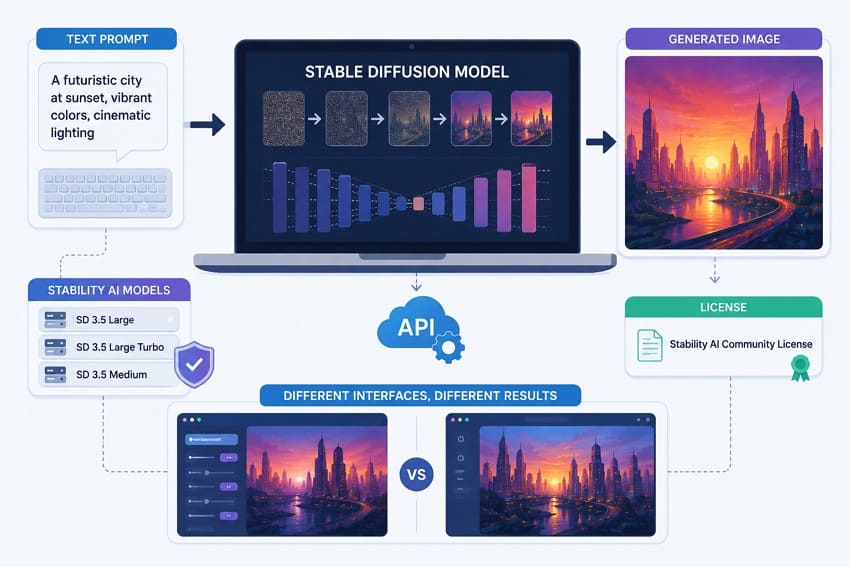
This distinction matters because different Stable Diffusion tools can run different models, versions, settings, and processing workflows. As a result, entering the same prompt into two interfaces may produce noticeably different images, even when both tools are based on Stable Diffusion.
Stable Diffusion vs an Online AI Image Generator
Stable Diffusion is a family of trained models, not a single product with a login screen. Stability AI publishes model weights, allowing developers to build different interfaces around them. Users can access these models through browser tools, a developer API, local installations, and supported platforms. Local setups provide greater control over settings like sampler choice, generation steps, and custom fine-tunes, while browser-based tools simplify these options for easier setup.
What Can You Create with Stable Diffusion?
Stable Diffusion image generation handles a wide range of visual styles instead of sticking to just one type of image. Stability AI names photography, 3D, painting, and line art as styles the model family supports.
- Photorealistic Images: Portraits, environments, lifestyle scenes, and other shots made to look like real photography.
- Digital Art and Illustrations: Painting, line art, concept art, comics, and other stylized visuals.
- Product and Concept Images: Visual mockups, design explorations, ad concepts, and early-stage ideas.
- Images Containing Text: Newer Stability models have improved at typography and prompt understanding. However, generated text still needs a check for spelling and layout mistakes.
- Image-to-Image Variations: Stability's current API can take an existing image along with a prompt, using a strength setting to control how much the original image shapes the new result.
Stylized Creative Scenes: Users can create fantasy, surreal, cinematic, photographic, 3D, and other distinct visual styles.
Part 2. Stable Diffusion 3.5 Models for AI Image Generation
The current Stable Diffusion AI image generator family available through Stability AI's API includes 4 Stable Diffusion 3.5 variants: Large, Large Turbo, Medium, and Flash. Large, Large Turbo, and Medium are also officially available as downloadable model weights, while Flash is currently documented on Stability AI's developer platform as an API model.
| Model | Best For | Main Strength | Speed | Access Consideration |
| 3.5 Large | Professional-quality images | 8.1B parameters and strong prompt adherence | Slower | Download or API |
| 3.5 Large Turbo | Fast, high-quality iteration | Distilled generation in 4 steps | Fast | Download or API |
| 3.5 Medium | Local use on consumer hardware | 2.5B parameters and 0.25–2 MP output | Moderate | Download or API |
| 3.5 Flash | Fast API-based generation | Distilled generation in 4 steps | Very fast | API only |
For Stable Diffusion image generation, the right model depends on your priorities. You may need higher image quality, faster generation, local hardware support, or efficient API access. Compare the Stable Diffusion 3.5 models below to find the best option for your workflow:
Stable Diffusion 3.5 Large
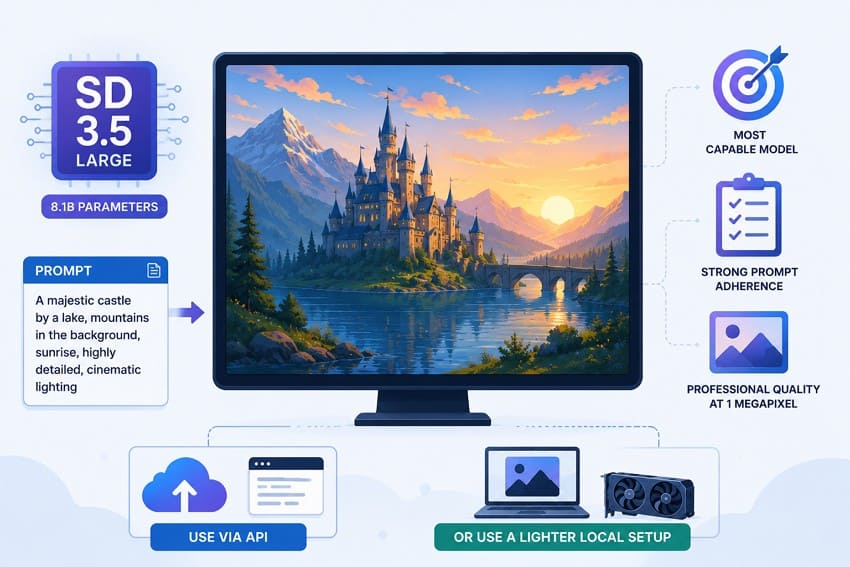
At 8.1 billion parameters, Stable Diffusion 3.5 Large is the most capable model in the family and is designed for professional use at around 1 megapixel. Its strong prompt adherence helps handle complex descriptions involving multiple subjects and detailed scenes. Since Large requires more computing resources than Medium, users with less capable GPUs may prefer API access or a lighter model for local generation.
Stable Diffusion 3.5 Large Turbo
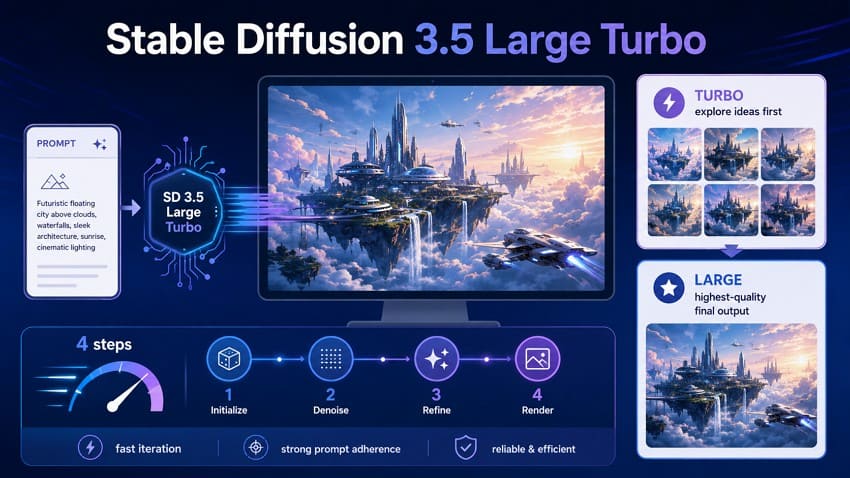
Stable Diffusion 3.5 Large Turbo is a distilled version of Large that generates images in four steps. It delivers faster generation while maintaining strong prompt adherence and image quality. This makes Turbo useful for quickly testing prompts and exploring ideas, while Large is better suited when maximum base-model quality is the main priority.
Stable Diffusion 3.5 Medium
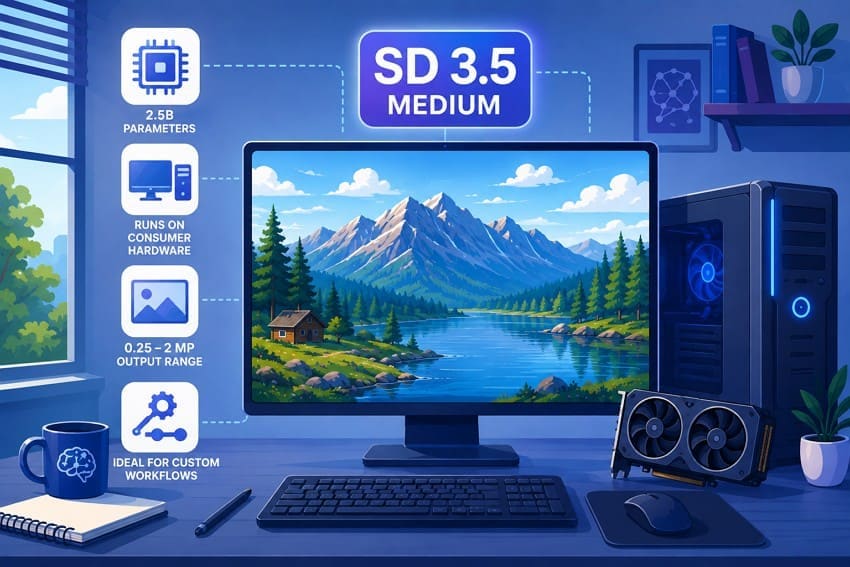
Medium has 2.5 billion parameters and uses an improved MMDiT-X architecture designed to run on consumer hardware. It supports image generation from 0.25 to 2 megapixels, offering flexible resolution options for different workflows. Its smaller size and hardware requirements make it a practical choice for local generation, fine-tuning, and building custom pipelines.
Stable Diffusion 3.5 Flash
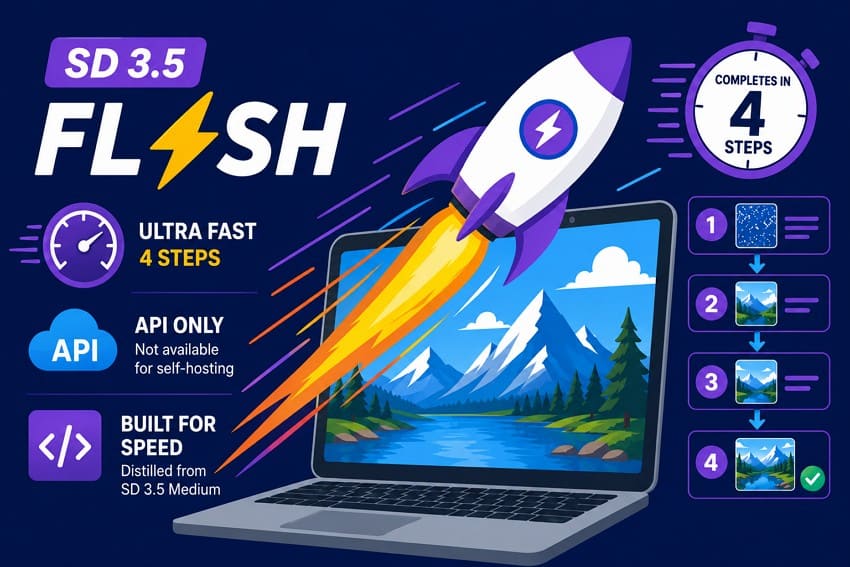
Flash is distilled from Medium and generates images in four steps, according to Stability AI's API documentation. It is designed for fast, efficient image generation through the API. Unlike Large, Large Turbo, and Medium, Flash is available as an API model rather than downloadable weights, so it is not intended for self-hosted workflows.
Part 3. Ways to Access Stable Diffusion AI Image Generation
Choosing the right Stable Diffusion image generation model is only the first step. You also need an access method that matches your workflow, hardware, and level of technical control. The main options include browser-based tools, the Stability AI API, and self-hosted setups:
| Access Method | Best For | Setup Level | Main Advantage | Main Consideration |
| Stable Assistant | Creative work without setup | None | Browser-based and easy to use | Fewer advanced controls |
| Stability AI API | Apps and automated generation | Moderate | Programmatic and repeatable workflows | Credit-based pricing |
| Self-hosted | Customization and fine-tuning | High | Greater control over the pipeline | Requires capable hardware |
Use Stable Assistant in a Browser
Stable Assistant is Stability AI's browser-based creative platform. Its image generation uses Stable Image Ultra, a flagship service built with Stable Diffusion 3.5 Large and advanced workflows. The platform also provides tools for editing, upscaling, background replacement, structure-guided generation, and other image creation tasks.
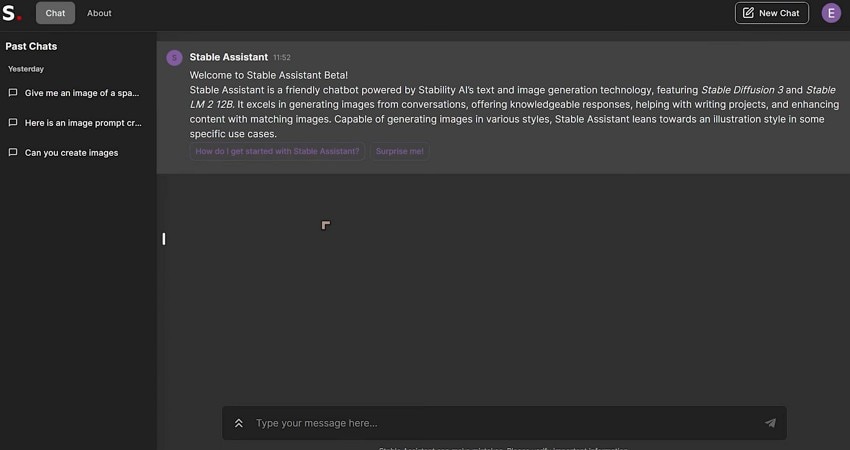
Unlike a local Stable Diffusion setup, Stable Assistant does not provide direct selection between SD 3.5 Large, Large Turbo, Medium, and Flash. It uses its own generation workflow instead. This means the same prompt can produce different results in Stable Assistant compared with running Stable Diffusion 3.5 Medium locally.
Use the Stability AI API
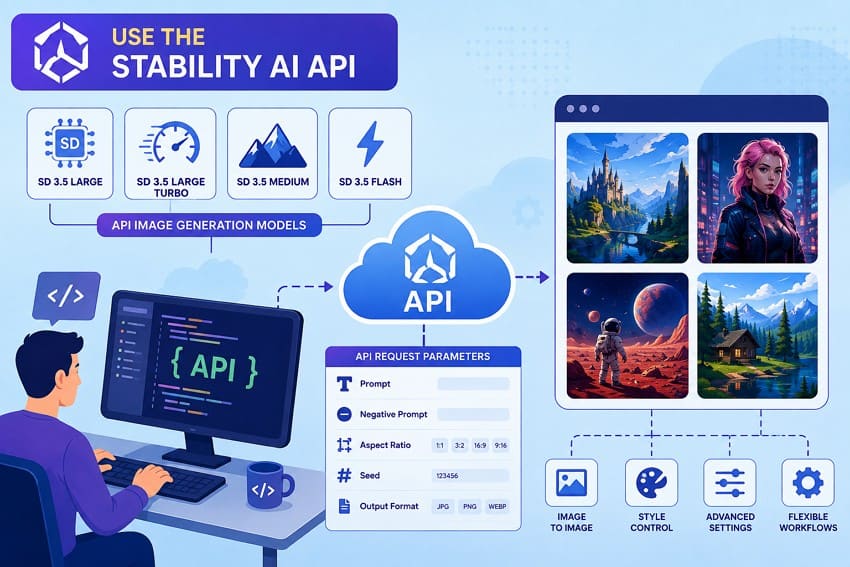
The Stability AI API is designed for developers, apps, automation, and repeated Stable Diffusion image generation. Stability's current pricing page lists Stable Diffusion 3.5 Large, Large Turbo, Medium, and Flash as available options. The API supports settings such as prompts, negative prompts, aspect ratios, seeds, and output formats. Additional controls are available for image-to-image and other supported workflows.
Run Stable Diffusion Locally
Self-hosting involves downloading Stable Diffusion model weights and running them through a compatible interface on your own hardware. Stability AI publishes these weights on Hugging Face, along with resources for running the models. This approach supports fine-tuning, LoRAs, and custom generation pipelines while providing greater control over the workflow. However, local use requires suitable hardware and additional setup.
Part 4. How Stable Diffusion Image Generation Works
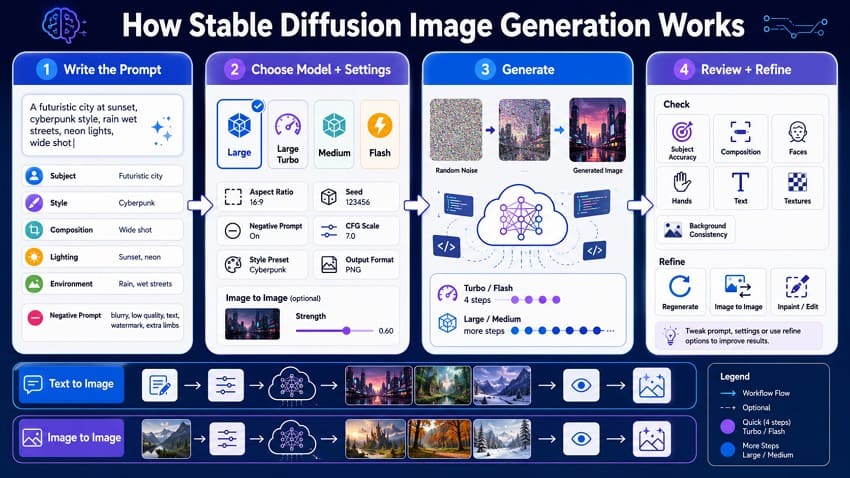
The available controls vary by interface, but the basic workflow of a Stable Diffusion AI image generator remains similar. Text-to-image and image-to-image generation work differently, yet both follow a clear process. Here is how the basic Stable Diffusion generation workflow works:
Step 1. Write the Image Prompt
Start by clearly describing the main subject, then add style, composition, lighting, environment, and other important details. Stable Diffusion 3.5 understands prompts better than earlier versions, so natural, descriptive language usually works better than vague instructions. Stability AI's API also supports a negative prompt, which lets you name things you don't want to appear in the image.
Step 2. Choose the Model and Generation Settings
Pick a Stable Diffusion 3.5 model based on what matters most to you, whether that's image quality, speed, or your hardware. Following this, adjust the settings your interface offers. The current API supports:
- Aspect ratio
- Seed
- Negative prompt
- CFG scale
- Style preset
- Output format
For text-to-image, the API offers aspect ratios like 1:1, 16:9, 3:2, 2:3, 4:5, and 9:16. For image-to-image, you also add an existing image plus a strength value, which controls how much that original image shapes the new result.
Step 3. Generate the Image
Text-to-image models begin with random noise and gradually transform it into an image that follows the prompt. The number of inference steps varies by model and workflow. Stable Diffusion 3.5 Large Turbo and Flash are distilled models designed to generate high-quality images in just 4 steps.
Stable Diffusion 3.5 Large uses 40 inference steps by default in Stability AI's official Hugging Face Space. Other non-distilled models may also require more steps, depending on the implementation and settings. Turbo and Flash achieve faster generation because distillation allows them to produce strong results with fewer inference steps.
Step 4. Review and Refine the Result
Check the image before touching the prompt. Look at subject accuracy, composition, facial anatomy, hands, generated text, fine textures, and background consistency. So, if the subject or composition is wrong, revise the prompt and regenerate. If only one part needs fixing, image-to-image or inpainting may be faster than starting over. Reusing the same seed also helps keep variations more consistent.
Part 5. How to Get Better Results from a Stable Diffusion AI Image Generator
Prompt quality plays a major role in the results. The following table explains how to structure prompts for better outcomes with a Stable Diffusion AI image generator:
| Prompt Element | What to Include | Why It Matters |
| Main Subject | The specific subject you want generated | Gives the model a clear visual focus |
| Visual Style | Photography, illustration, painting, or 3D | Defines the intended rendering style |
| Composition | Framing, camera angle, distance, position | Controls how subjects appear in the frame |
| Lighting | Natural, studio, dramatic, or soft | Influences mood, depth, and visual atmosphere |
| Important Details | Clothing, environment, colors, expressions | Guides details the model might otherwise interpret differently |
| Aspect Ratio | The shape that suits the composition | Helps create suitable framing and composition |
| Negative Prompt | Elements to exclude, where supported | Helps reduce unwanted elements or characteristics |
| Seed | A reused value for similar variations | Helps reproduce results when other settings remain unchanged |
Part 6. Beyond Basic Stable Diffusion Image Generation
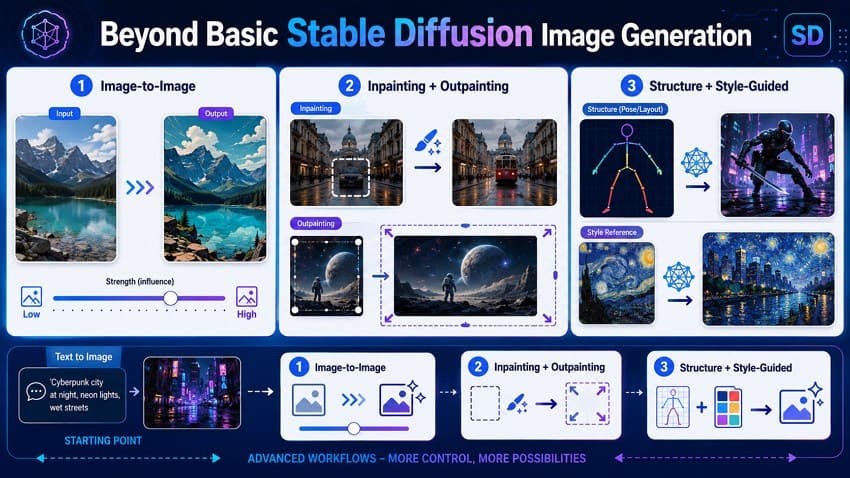
A strong prompt is only the starting point for Stable Diffusion image generation. Beyond text-to-image, several workflows use existing images to guide, modify, or extend the output. The following 3 workflows expand what you can create, although availability depends on the access method:
Image-to-Image Generation
An existing image becomes the starting point for generation. A strength value controls how much the source influences the result. Lower values preserve more of the original image, while higher values allow greater changes. This approach is useful for creating variations while retaining elements from the source.
Inpainting and Outpainting
Inpainting regenerates a selected area while preserving the rest of the image, making it useful for correcting specific elements. Outpainting extends an image beyond its original boundaries to create additional content. Stability AI provides both as separate editing services rather than standard parameters within a text-to-image generation call.
Structure and Style-Guided Workflows
These workflows use an existing image to guide the generation process. Structure-guided generation can preserve elements such as layout or pose while changing the visual content. Style-guided generation applies the visual characteristics of a reference image to new content. Stability AI provides these capabilities as separate services alongside its main generation tools.
Part 7. Common Stable Diffusion Image Generation Problems
A Stable Diffusion AI image generator can sometimes produce inaccurate details, inconsistent subjects, or unwanted visual artifacts. The following table covers common generation problems, their possible causes, and practical ways to improve the results:
| Problem | Possible Cause | What to Try |
| Image Ignores the Prompt | Prompt is vague or overloaded | Simplify it, then add details gradually |
| Faces or Hands Look Wrong | Complex anatomy generated inaccurately | Regenerate or inpaint the affected area |
| Generated Text Is Incorrect | Typography remains inconsistent | Add or correct text in an editor |
| Output Looks Soft | Limited detail or output resolution | Upscale and enhance the generated image |
| Multiple Subjects Look Inconsistent | Subjects are described ambiguously | Describe each subject and position clearly |
| Odd Background Elements Appear | Background details are underspecified | Describe the intended background explicitly |
| Image-to-Image Changes Too Much | Strength value is set too high | Lower the strength and generate again |
| Result Looks Overprocessed | Guidance or other settings are too aggressive | Reduce guidance and compare the results |
Part 8. Improve Stable Diffusion AI Images with Repairit
Repairit can refine images after Stable Diffusion image generation by addressing common quality issues such as softness, low resolution, noise, and unwanted artifacts. The table below matches each image problem with the most suitable Repairit AI feature:
| Output Problem | Repairit Feature | What It Does |
| Overall Softness | AI Photo Enhancer | Improves overall sharpness, clarity, and image quality |
| Soft or Unclear Faces | Portrait Enhancer | Enhances facial details for clearer-looking portraits |
| Insufficient Resolution | AI Image Upscaler | Enlarges images while improving resolution and detail |
| Visible Grain or Noise | AI Denoise | Reduces visible noise while retaining image details |
| Unwanted Objects or Artifacts | AI Photo Eraser | Removes selected elements and fills the cleared area |
| Frame Is Too Tight | AI Image Extender | Expands the image beyond its original boundaries |
| Broader Visual Change Needed | One-Prompt Edit | Applies prompt-based changes to the existing image |
Portrait Enhancement for AI-Generated Faces
AI-generated portraits can look structurally correct but still have soft or unclear facial details. Repairit's Portrait Enhancer helps improve facial clarity and overall portrait quality. It works best when the face is already correctly generated but needs refinement. If eyes, facial structure, or other features are malformed or missing, regenerating or inpainting the image is usually more suitable than enhancement.
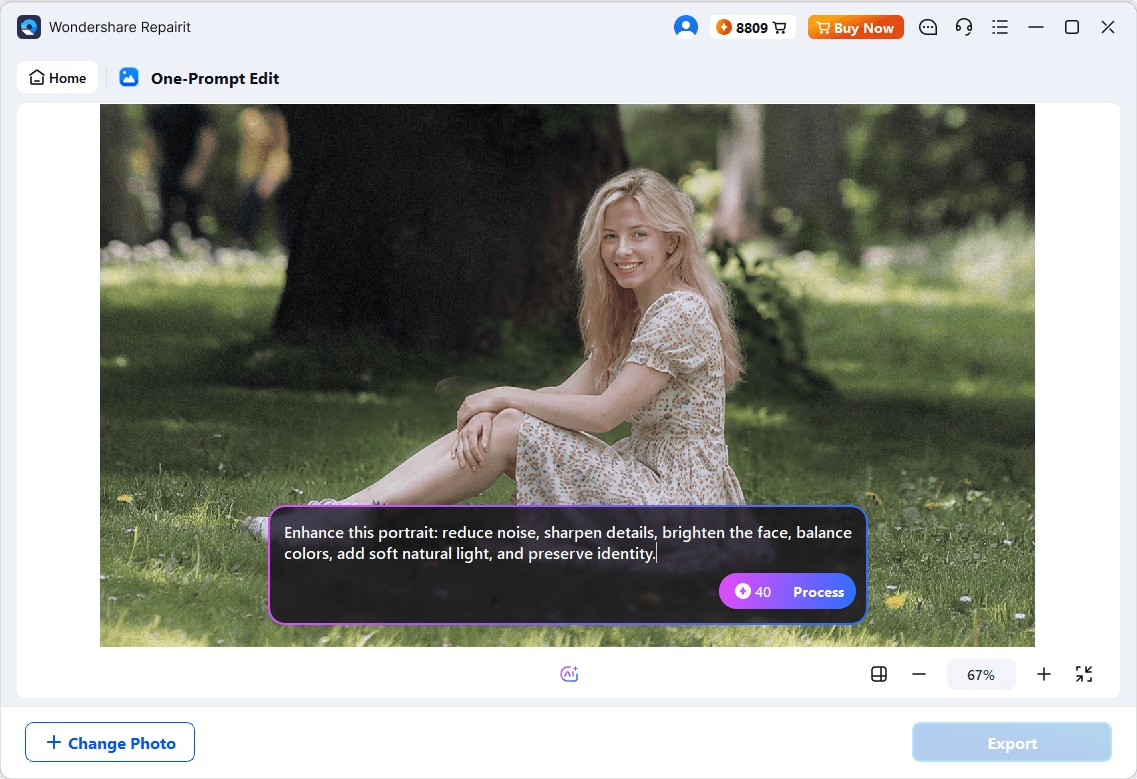
One-Prompt Edit for Final AI Image Refinement
One-Prompt Edit lets you describe the desired change in plain language instead of making manual selections. It can refine existing images by adjusting elements such as lighting, unwanted objects, or background details. This makes it useful when the overall Stable Diffusion image is already strong but still needs targeted visual changes.
You can continue refining the result with additional prompts when further changes are needed. Repairit's AI Image Extender provides another option when the composition feels too tight. It expands the image beyond its existing boundaries and generates additional visual content around the original frame.
How to Improve a Stable Diffusion Image with Repairit
Once you identify the problem in your generated image, Repairit provides dedicated AI tools for different enhancement needs. Follow these 2 steps to refine your Stable Diffusion image:
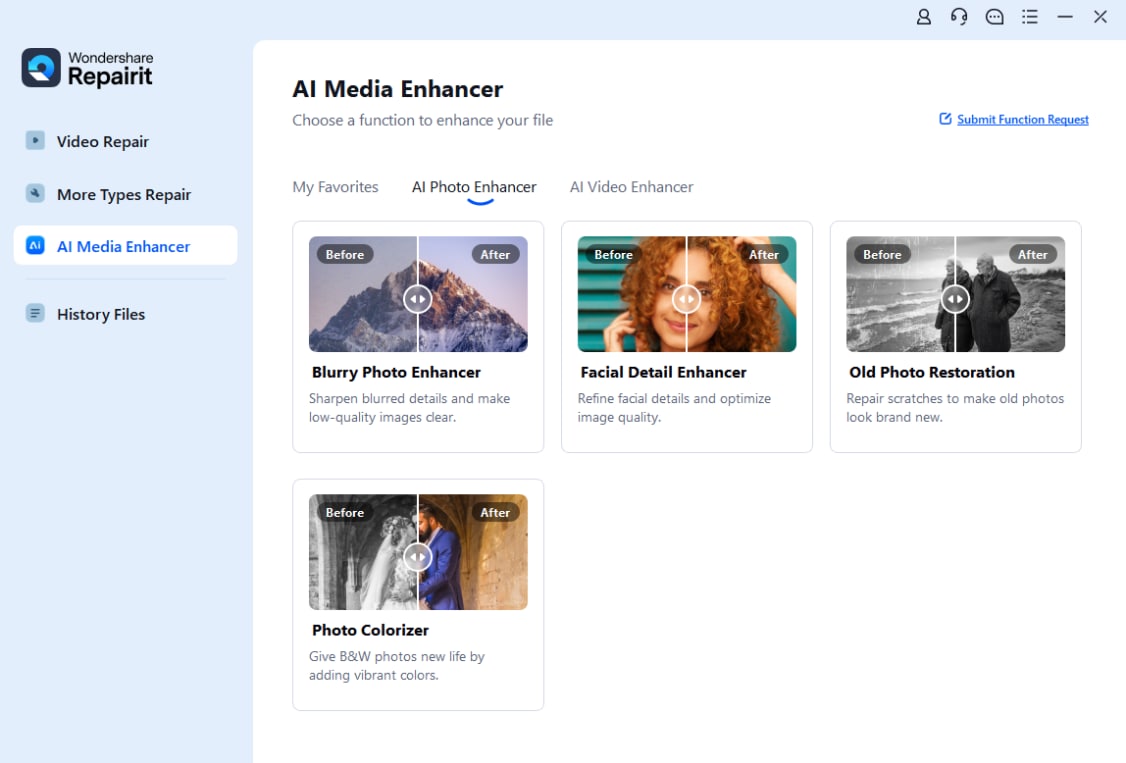
Step 1. Select the Right AI Feature and Import the Image
Open Repairit and select “AI Media Enhancer” from the left panel. Under “AI Photo Enhancer,” choose the feature that matches your needs, such as One-Prompt Edit, Photo Eraser, or another enhancement tool. Then, import your Stable Diffusion image to begin.
Step 2. Process, Preview, and Save the Result
Start the selected AI process and wait for Repairit to enhance the image. Preview the result and compare it with the original. Once satisfied with the improvement, save the final image to your device.
Conclusion
Three choices can significantly improve results from a Stable Diffusion AI image generator. First, choose a model that fits your workflow and priorities. Large favors quality, Turbo supports faster iteration, Medium suits local customization, and Flash provides efficient API-based generation.
Next, write clear, descriptive prompts with details added in logical layers. Finally, match each output problem with the right solution. Major structural errors may require regeneration or inpainting. Soft faces, low resolution, noise, and minor artifacts can often be improved using Repairit's AI enhancement tools.
FAQ
-
What is the difference between Stable Diffusion 3.5 and Stable Image Ultra?
Stable Diffusion 3.5 is a model family you can download or access through the API. Stable Image Ultra is Stability AI's flagship service, combining 3.5 Large with advanced workflows and powering Stable Assistant. -
Can Stable Diffusion work without an internet connection?
Yes. Stable Diffusion can work without an internet connection when installed locally. Once the model weights and required files are downloaded, image generation can run entirely on your own hardware without internet access. -
Is Stable Diffusion 3.5 free for commercial use?
Yes, under certain conditions. The Stability AI Community License allows commercial use for individuals and organizations earning less than $1 million in annual revenue. Organizations above this threshold need an Enterprise License for commercial use.




