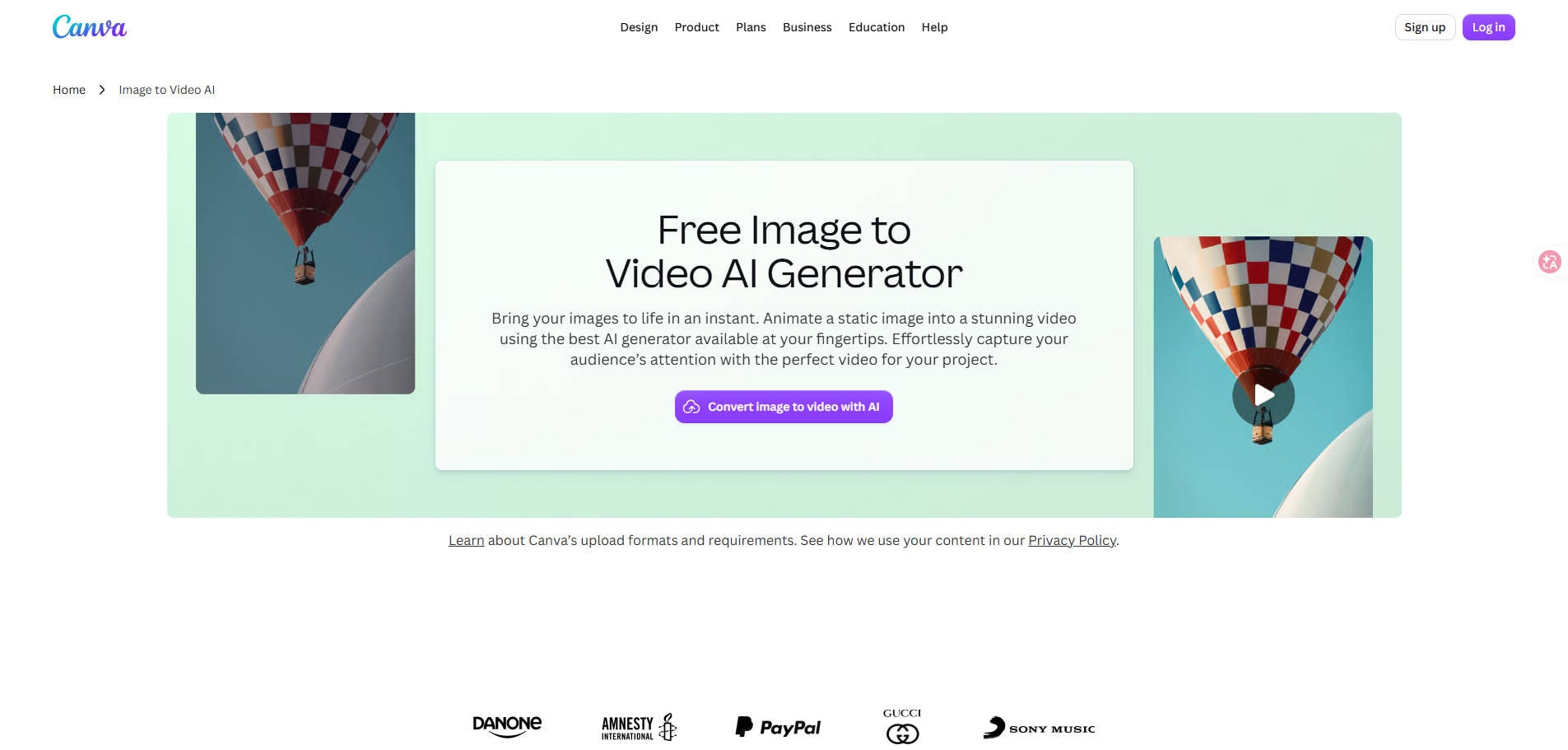
A single photo can become a scrolling-stopper in a product reel, social story, or travel montage. But before spending AI credits, you need to know what Canva Image to Video actually creates. Does it generate convincing motion, or simply move a static picture around the screen? How much control do you get, and can you use it for free?
This Canva Image to Video review examines the current official workflow, its limits, and the kinds of projects it suits best. It also explains how to choose between Canva's distinct video tools and when a dedicated photo animator may be more appropriate. The assessment is based on published product documentation and publicly available information, not an independent hands-on benchmark.
In this article
Part 1. What Is Canva Image to Video?
Canva Image to Video is an AI feature inside Canva's design editor that gives a selected photo, illustration, or graphic a short sequence of generated motion. Rather than building an entire film, it adds movement to an existing visual so you can place the clip inside a slideshow, social post, product video, or presentation.
The process is different from putting an image on a timeline and applying a simple pan or dissolve transition. Canva offers a Smart mode, which generates movement automatically, and a Custom mode, which accepts a written motion description. The editor then lets you combine the result with text, overlays, sound, and other design elements.
According to Canva Help Center, the feature ordinarily creates a five-second clip. Some outputs may be shorter. Canva also advises that faces do not always animate correctly and that transparent-background images are not supported.
| Feature | What to expect |
| Input | A selected image or graphic in the editor |
| Motion controls | Smart automatic motion or Custom written description |
| Typical output | Five-second silent clip; some generations may be shorter |
| Audio | Add sound separately in the Canva editor |
| Free access | Available while the monthly Canva AI allowance remains |
| Notable limitations | Transparent backgrounds and some facial motion |
That makes the tool attractive for short, attention-grabbing movement rather than elaborate multi-shot production. If you need a longer finished marketing video, Canva's separate Magic Video and standard video editor offer a different workflow.
Part 2. How to Use Canva Image to Video
For a first attempt, choose a clear, high-resolution image with one main subject, a simple background, and enough empty space for motion. Canva's documentation specifies a minimum of 256 x 224 pixels and recommends avoiding transparent backgrounds.
- Open your design. Sign in to Canva and open an existing design or create a new one. Upload your photo or select an eligible image from the media library.
- Select the image. Click it in the editor, then choose Edit > Image to Video. On mobile, use the corresponding image tools entry.
- Choose Smart or Custom. Smart is convenient when you have no specific motion in mind. Custom allows a plain-language prompt such as "slowly move the camera toward the coffee mug while steam rises." Avoid contradictory instructions.
- Generate and preview. Select Generate 5 second video. Inspect subject edges, product labels, hands, faces, and backgrounds for movement artifacts. Use Generate again only when the result needs another attempt; usage may consume AI allowance.
- Finish the design. Add text, captions, branding, audio, or extra clips in Canva's editor. Export the finished video in the format supported by your account and design.
For the most current control labels and platform-specific details, follow Canva’s official Image to Video instructions. Because the interface can change, rely on the current help documentation rather than third-party screenshots of older editor menus.
Example: Animate a Product Photograph for a Social Post
Imagine a skincare brand has one clean product photo but no motion footage. The simplest approach is to upload the photo, choose Custom, request subtle camera movement and natural light, and keep the label in view. Then place the clip into a vertical Canva template with a short benefit statement and logo. The AI-generated clip is only one element of the advertisement, not the entire campaign.
Check product shape, packaging lettering, and color consistency before publishing. Generative motion can distort small text or alter details that shoppers use to recognize the real item. For a cleaner preparation image, a dedicated white background picture editor can help you choose a suitable background before attempting animation.
Part 3. What Canva Image to Video Does Well
The feature's biggest strength is not long-form filmmaking; it is how naturally a short generated clip fits into an existing Canva layout. Creators can animate an illustration, place it behind a headline, then finish a social post without moving through several standalone editing applications.
Our assessment: Canva makes sense when an animated still is just one part of a larger presentation, advertisement, or social design. It is less compelling when the primary goal is detailed character performance or realistic facial movements from a cherished portrait.
Starting with a sharper original often makes it easier to judge final motion. For a very small source image, see this guide to increasing image resolution before animation. Improving source quality does not guarantee better AI motion, however.
Part 4. Canva Image to Video Limitations and Pricing
Is Canva Image to Video Free?
Canva states that Image to Video is available on its Free plan while you have monthly AI usage allowance remaining. That does not mean unlimited generations or that every premium design asset is free. The amount of AI usage, access to related features, and workspace rules can differ by plan or change over time. Check your account's remaining allowance before planning multiple campaign variants.
For students using Canva Education, administrators may need to enable the feature. Canva also lists China as an unavailable region for Image to Video. Free-plan access is a more useful purchasing fact than a copied subscription price, which can change by country, billing cycle, and promotion.
Five-Second Clips, Silent Output, and Visual Artifacts
The output duration is fixed at approximately five seconds; Canva notes some results may be closer to three seconds. You can combine clips in the editor to produce a longer video, but doing so does not turn each individual generation into a longer native scene. Audio needs to be added separately.
Images containing complex faces, fingers, tiny writing, or overlapping objects may produce inconsistent motion. When reviewing a result, look for flickering logos, shifting facial features, implausible object geometry, and warped packaging. If the effect is distracting, a gentle standard Canva animation may look cleaner than another generative pass.
Canva also distinguishes permission to use a tool from rights to the source materials. If you are creating branded commercial content, verify image rights, music licensing, and the current AI usage terms before publication.
Part 5. Canva Image to Video vs. Other Canva Video Tools
One reason Canva reviews can be confusing is that the platform offers several ways to make a still image move. These are not interchangeable.
| Workflow | What it does | Choose it when... |
| Image to Video | Generates brief AI motion from one selected still | You need an animated detail in an existing Canva design |
| Standard animations and transitions | Moves or reveals existing elements without generating new scene action | You need predictable motion, legible text, or precise layout consistency |
| Magic Video | Assembles a roughly 60-second edited video from photos and clips with templates, music, and transitions | You have multiple assets and want a longer, assembled story |
| Magic Media text-to-video | Generates video from a text prompt rather than merely animating a selected still | You want a newly generated scene instead of motion applied to an existing image |
For instance, a café menu with animated text and three product photos may only require normal transitions. A single photo of steaming coffee can benefit from Image to Video. A 45-second montage of menu shots and testimonials is better suited to a multi-asset editor such as Magic Video.
Canva's Magic Video documentation explains the separate long-form assembly workflow. Avoid tutorials that describe arranging images on a timeline as proof that the Image to Video AI model has generated realistic motion: those are different production tasks.
Part 6. Canva Image to Video vs. Wondershare Repairit
If you mostly create branded graphics or presentations, Canva is a convenient place to turn an image into a short visual element. But someone animating a family portrait or a pet photo may be looking for a different experience: they want the subject itself to move, not merely a polished social post.
Wondershare Repairit offers an Animate Photo workflow for still portraits, older photos, and pets. It is worth exploring when motion applied to the subject is more important than Canva's design templates. Animation quality can vary by subject, and neither tool should be described as preserving every facial detail perfectly.
| Decision factor | Canva Image to Video | Repairit Animate Photo |
| Typical starting point | Image within a Canva design | Standalone portrait, old photograph, or pet image |
| Primary goal | Short motion for a layout | Animate the photo subject |
| Design templates and branding | Broad Canva editor tools | Not a substitute for the full Canva design editor |
| Motion generation | Smart or written prompt in Image to Video | Photo-oriented animation workflow |
| Price / usage | AI allowance varies by plan | Check current Repairit feature access and credits |
| Best fit | Social graphics and product snippets | Portrait, pet, and memory-focused animation |
Create an Animated Photo With Repairit
For a portrait or pet image, start with a clear source photo, choose Animate Photo, then inspect the preview for expressions, motion, and background consistency. Save only the version that looks appropriate for your subject. Repairit's official tool page describes the upload, animation, preview, and save workflow. Results and feature access depend on the image and current plan.
Before animating a social portrait, consider whether the image itself needs a different kind of edit. Repairit's One-Prompt Edit can adjust photo styling and remove distractions through text instructions; it is a separate image editing task, not the photo animation engine. For profile-focused preparation, the Instagram profile picture maker guide offers additional ideas.
And if you are comparing only still-image sharpness and detail, the existing Repairit vs. Canva Photo Enhancer comparison is the more relevant guide. This review is about motion generation, not photo upscaling performance.
Part 7. Which Workflow Is Best for Your Photos?
Choose the workflow by your actual deliverable rather than the name of the AI feature.
- Product ads or marketing graphics: Use Canva if you need an animated visual within a branded layout. Prepare a clean still first and carefully check any text or packaging that AI motion might distort.
- Old family portraits: Explore Repairit Animate Photo when the subject's movement is more important than templates. If the original is damaged or faded, review the free photo fix software guide first and distinguish restoring a photo from animating it.
- Instagram portraits: Refine crop, background, and facial clarity before adding short motion. The profile picture guide covers the photo preparation stage rather than the final video.
- Drawings and artwork: Preserve the visual style of your source. If you need to create a sketch first, see photo-to-sketch creation options; generating the artwork and animating it are separate tasks.
- Quick mobile edits: If your starting photo needs color and light corrections instead of motion, compare free Android photo editing apps before using video credits.
For a fair side-by-side evaluation, use the same source photo and compare visible subject consistency, text preservation, motion usefulness, output restrictions, and required manual cleanup. Do not judge one tool solely by how dramatic its generated motion looks: the most useful video may be the more restrained and reliable one.
Conclusion
Canva Image to Video is a practical choice for short, AI-animated elements inside a design workflow. Its Smart and Custom modes offer accessible motion generation, and Free-plan users can try it within their AI allowance. Yet the short, silent output and known limitations around faces and transparent backgrounds mean it is not the right tool for every photo.
For motion within social designs, product graphics, or presentations, start with Canva. For portraits, pets, or older family memories where the photo subject itself is the focus, consider Repairit Animate Photo as another option. Whichever route you choose, inspect the result and check the current usage terms before exporting or publishing.
FAQ
-
Can Canva turn a still image into a video with AI?
Yes. Select an image in the Canva editor, open Edit, choose Image to Video, then use Smart or Custom mode. It generates a short clip with AI-created motion. -
Is Canva Image to Video free?
Canva says its Free plan can access Image to Video while the account has monthly AI usage allowance remaining. Generation limits and available features can change, so check your current account before starting a campaign. -
How long are Canva Image to Video clips?
Canva Help currently describes fixed five-second clips, while noting that some generations may be around three seconds. You cannot directly select a longer duration in this feature; combine clips in the editor for a longer sequence. -
Does Canva Image to Video animate faces?
Canva warns that full facial motion is not reliably supported. If your main goal is to animate a portrait or family photo, consider a dedicated photo-animation workflow and review the result for unnatural movement. -
Is Canva Image to Video the same as Magic Video?
No. Image to Video generates motion from one selected still image. Magic Video assembles a longer edited video from multiple assets and templates. Standard transitions and animations are also separate effects. -
Does the generated clip include sound?
Not automatically. Canva says Image to Video clips are silent, but you can add music, voice, or sound effects in the Canva editor afterward. -
Should I use Repairit instead of Canva for photo animation?
Use Canva when you want a short animated element inside a Canva design. Repairit Animate Photo is an alternative to explore for animating individual portraits, pets, or older photos. Compare current availability and preview quality for your particular image.