
- Main Causes: Blank desktop icons usually come from hidden settings, broken links, or corrupted files.
- Quick Fixes: Rebuild caches, recreate shortcuts, and check display scaling to restore icons.
- Deep Repair: If normal fixes fail, tools like Repairit can help repair corrupted files behind icon errors.
- Prevention Tips: Keep backups, update drivers, and avoid changing sensitive system settings often.
- Quick Answer: Blank desktop icons in Windows 11 usually happen due to cache errors, system corruption, or hidden settings. Refresh icons, clear caches, and restore system files to fix missing or white shortcut icons.
Many users feel frustrated when their computer screen looks empty. It is hard to work when you see blank desktop icons in Windows 11. This common issue makes it difficult to find your favorite programs. You might feel confused when your colorful shortcuts suddenly turn into white boxes.
As a result, a broken icon can slow down your work and ruin your overall experience. Still, fixing these missing or white icons is much easier than it looks. This helpful guide will show you how to restore your desktop shortcuts. You will also learn prevention tips to avoid similar problems.
In this article
Part 1. 5 Common Reasons Desktop Icons Become Blank or Missing
Several issues can cause white desktop shortcut icons in Windows 11. Understand the 5 primary reasons before you start fixing your broken system screen:
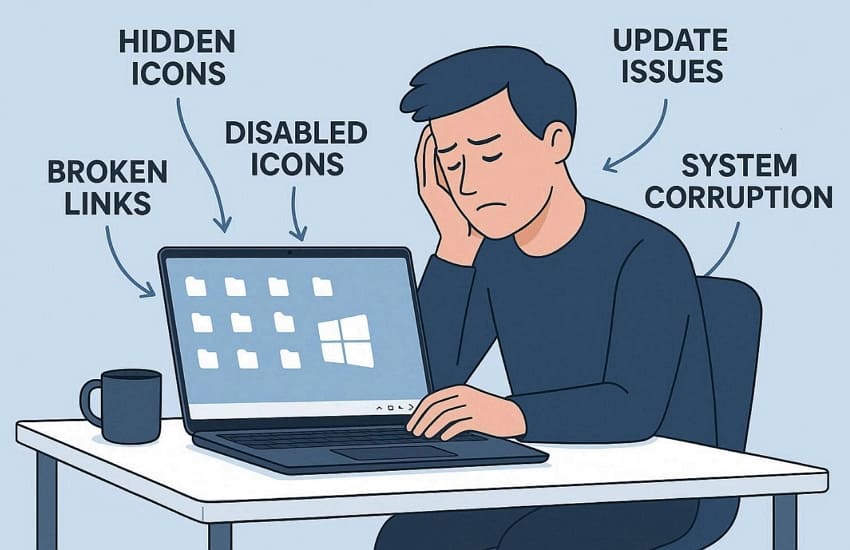
- Hidden Icons: System settings might have hidden all the shortcut icons on your screen. This makes icons appear missing even though they are still present on the system.
- Disabled Icons: Default system items like This PC are not enabled in your personalization menu. Specific settings often prevent these standard shortcuts from appearing.
- Broken Links: The original target file was moved or renamed to a different folder. Windows fails to find the source data needed to load the correct icon.
- Update Issues: Recent system updates sometimes break the mapping for store apps. New software patches often disrupt the link between shortcuts and their visual icons.
- System Corruption: Damaged system files can stop the shell from resolving your shortcuts. Microsoft also identifies corrupted icon cache files as a frequent cause for unexpected visual changes on-screen.
Part 2. How to Fix Blank Desktop Shortcut Icons on Windows - 5 Ways
If your desktop icons are blank in Windows 10 and 11, quick fixes can restore them. The following 5 solutions restore missing shortcuts and repair broken desktop icons:
Way 1. Rebuild Icon Cache
Rebuilding the icon cache is a very powerful way to fix blank icons in Windows 10 or 11. This simple process refreshes the database that stores all your colorful shortcut images. It forces your system to redraw every single icon from the original source files. Microsoft even recommends clearing and rebuilding the icon cache when desktop icons keep refreshing. Follow these easy steps to refresh and restore your desktop images:
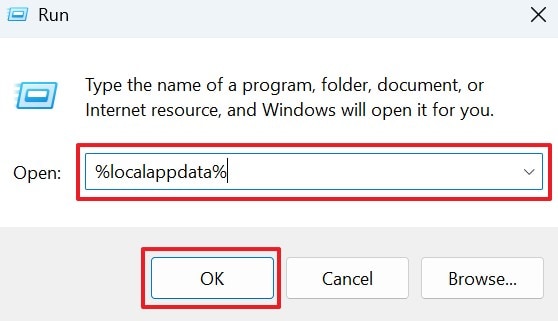
Step 1. Press the "Windows + R" keys together to type "%localappdata%" and hit "OK."
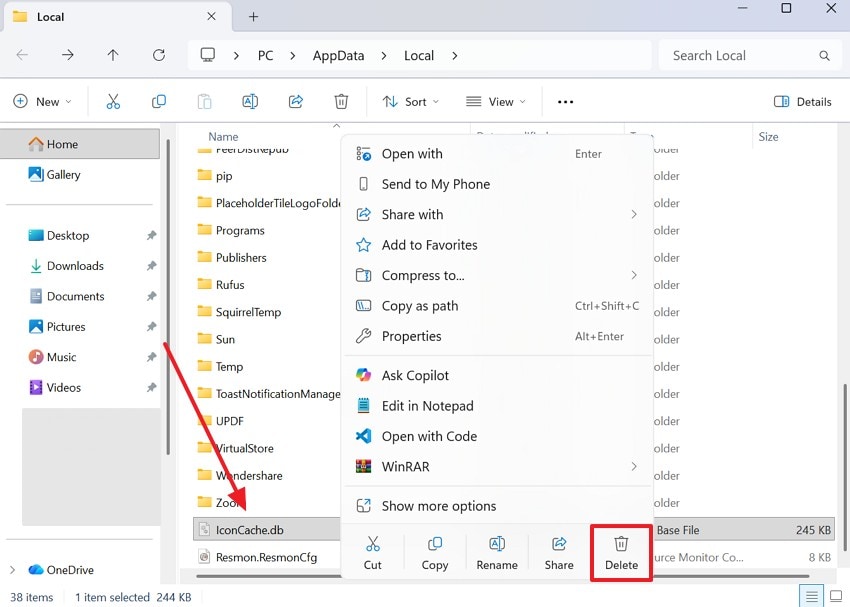
Step 2. Moving forward, right-click the "IconCache.db" file and opt for "Delete."
Way 2. Clear Thumbnail Cache
Clearing the thumbnail cache helps when shortcut icons turn white on Windows 11. This process deletes temporary image files that might be corrupted or very old. Your computer will generate fresh previews for all your desktop shortcuts and folders. It removes broken visual data that prevents your icons from loading correctly. Adhere to these simple instructions to clear your cache and fix your icons:
Step 1. To initiate, search for "Disk Cleanup" and press the "Open" option.
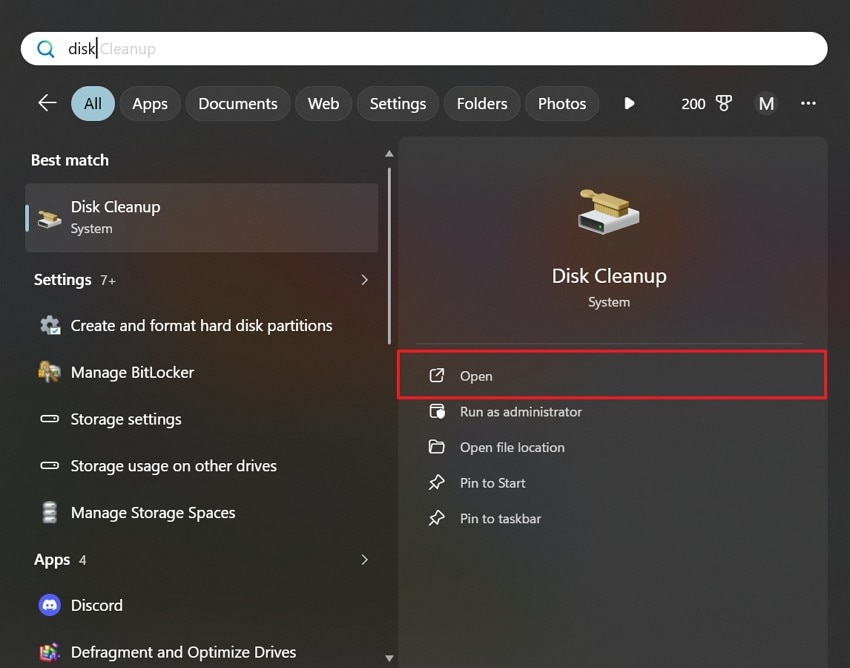
Step 2. From the upcoming prompt, choose "Windows (C:)" and click "OK."
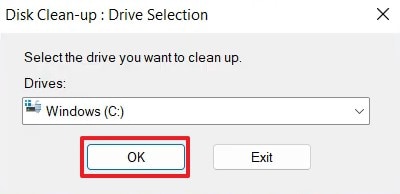
Step 3. Later on, tick the "Thumbnails" box and press the "OK" button.
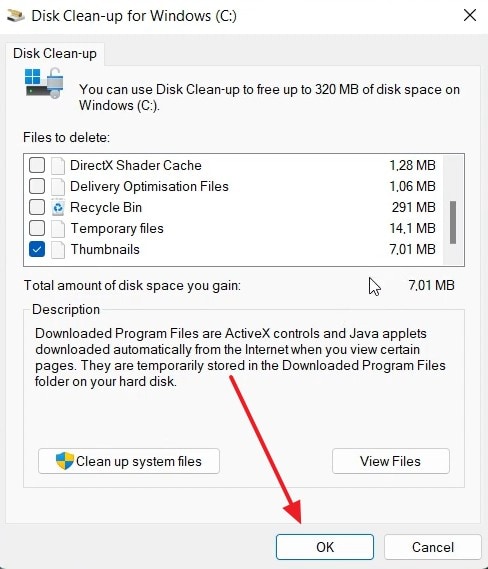
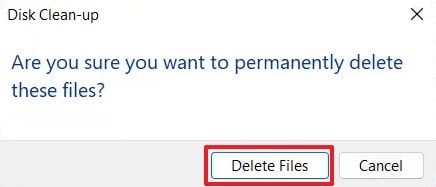
Step 4. Upon seeing a new dialog box, you need to press the "Delete Files" button.
Way 3. Recreate Shortcuts
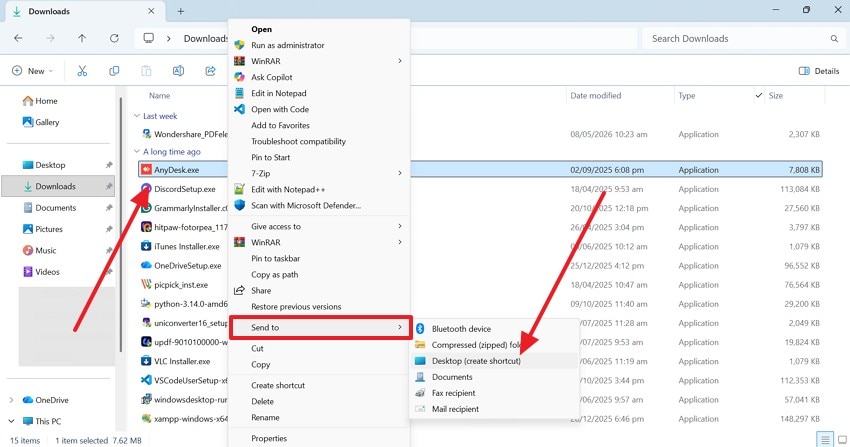
Recreating shortcuts gives Windows a fresh path to the correct app files. It helps when Windows 11 app icons are blank after an update or disappear. This method removes broken links and replaces them with working desktop shortcuts. In addition, it even restores the proper icon image when the original shortcut failed. Go through these simple steps to delete old shortcuts and create brand new ones:
Instructions. Upon launching "File Explorer," access the program’s location to recreate the shortcut. Then, right-click the app to expand "Send To" and opt for "Desktop (create shortcut)."
Way 4. Check Display Scaling Settings
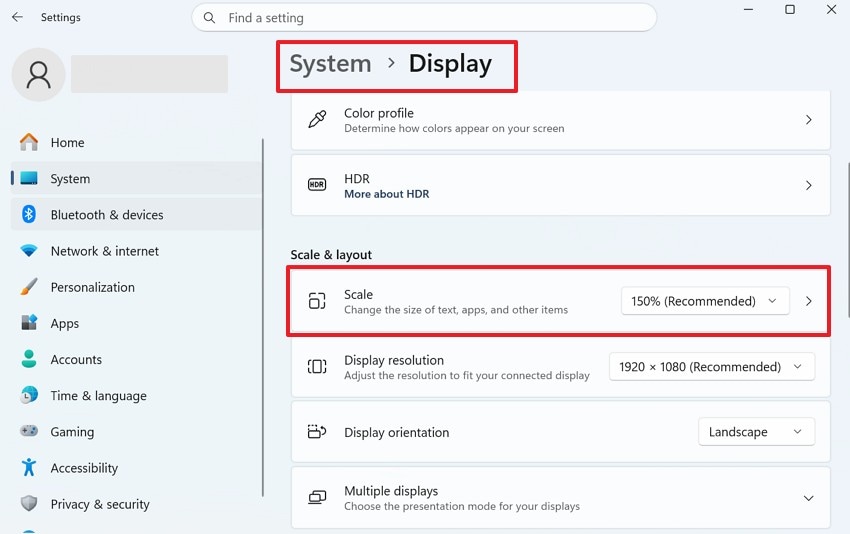
You should also adjust your display scaling to solve the issue of blank desktop icons in Windows 11. This setting controls how large or small items appear on your computer screen. Sometimes a wrong scale level causes your shortcut images to disappear or look white. Changing this value refreshes the way Windows renders every icon on your main desktop. So, take guidance from these steps to check and restore your desktop icons:
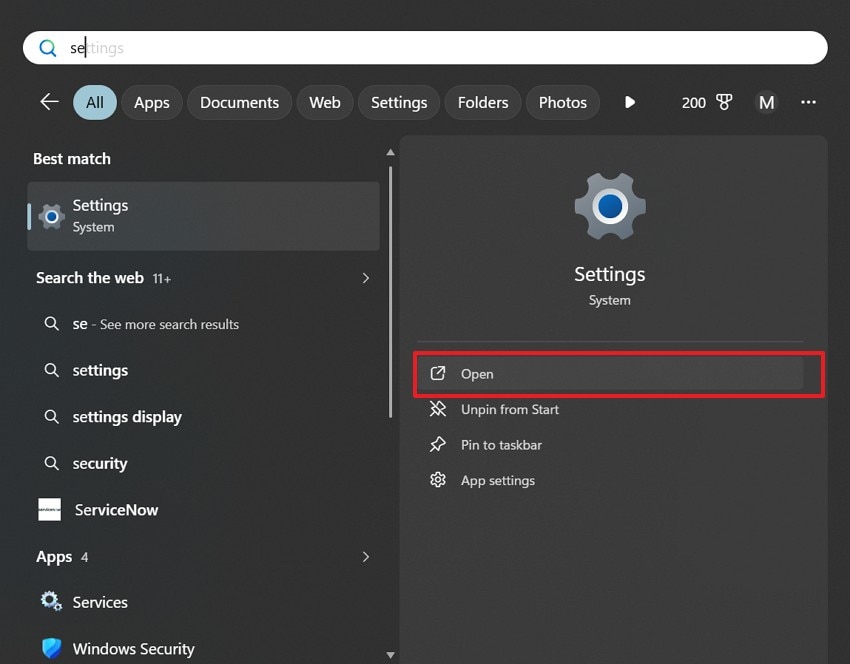
Step 1. Initially, choose the "Open" option upon searching for the "Settings" app.
Step 2. Following that, go to the "System" tab and access the "Display" settings. After that, you need to make sure the "Scale" setting is set to the "Recommend" value.
Way 5. Run SFC Scan
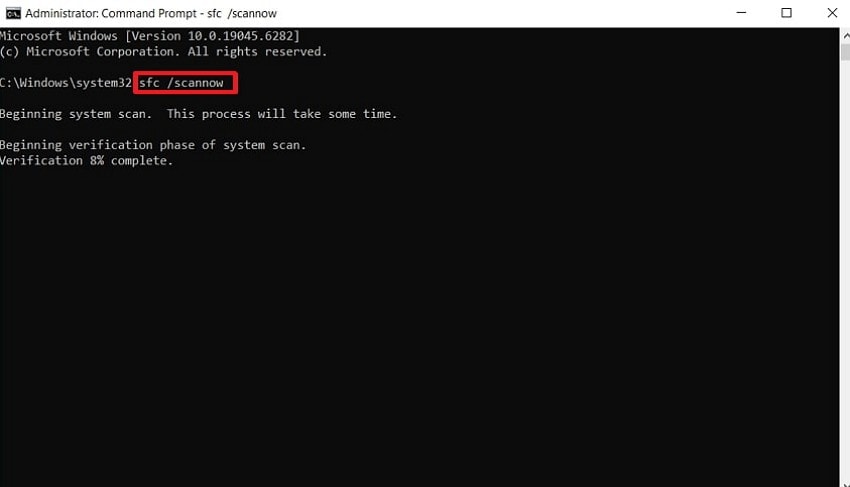
This native tool checks your entire system for any broken or missing files. It identifies deeply hidden errors that prevent your desktop shortcuts from showing images. When the scan finds a problem, it replaces the damaged data with healthy files. Therefore, this deep repair process restores the stability of your visual desktop icons and folders. Hence, let’s explore the steps to run the scan and repair your system files:
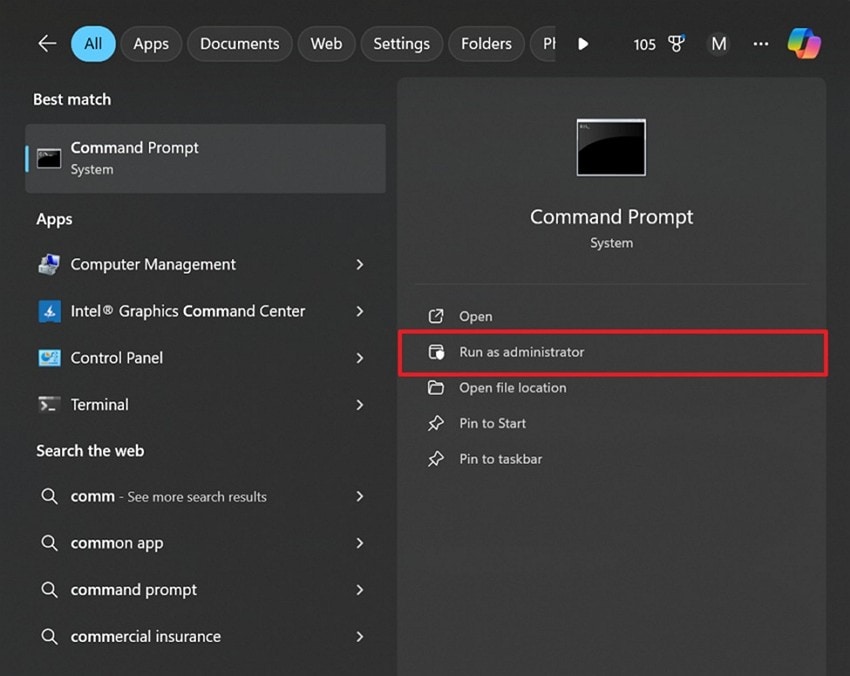
Step 1. Type "Command Prompt" in the search bar and open it via "Run as Administrator."
Step 2. Inside the upcoming window, input "sfc /scannow" and press "Enter" afterward.
Pro Tip. Use Repairit to Fix Corrupted Files Behind Icon Errors
Many users cannot fix blank icons in Windows 10 or 11 using traditional repair utilities alone. Deep corruption inside your local system often causes many annoying visual errors. Windows often forgets which specific program should open your important files. This broken association leads to generic boxes instead of colorful desktop icons. This is where tools like Repairit help restore all your deeply corrupted system files.
This software can fix unreadable data without overwriting any of your original content. It resolves damage caused by sudden power outages or incomplete system software updates. Furthermore, you can repair multiple damaged files together to save valuable time. This file repair tool can also repair system log files that help Windows communicate with your hardware.
Key Features

-
Corrupted File Repair: Repairs damaged files that may appear with blank, missing, or incorrect desktop shortcut icons in Windows.
-
File Structure Recovery: Restores damaged file structures that can stop Windows from loading the correct application icon properly.
-
Multiple File Repair: Repairs several corrupted files together when widespread file damage causes repeated desktop icon issues.
Guide to Use Repairit and Fix Corrupted Files Behind Icon Errors
The following step-by-step guide explains how you can repair corrupted system files and resolve icon errors:
Step 1. Select the Corrupted System Files
Upon accessing the "More Types Repair" tab, select "Document Repair." After that, press "Start" and click the "+Add" button to import the damaged files.

Step 2. Start the Repair Process for Damaged Files
When all corrupted files appear in the list, hit the "Repair" button to proceed. The software will scan every file and recover any broken or missing content.
Step 3. Save the Repaired Files to Your Computer
Once the repair process completes, click "Save" to export the repaired files onto your device.

Repair Corrupted Files
 Security Verified. Over 7,302,189 people have downloaded it.
Part 3. How to Prevent Desktop Icon Issues in the Future - 5 Tips
Stopping desktop icons from being blank in Windows 10 and 11 is very easy for users. Follow these helpful tips to keep your computer screen looking clean and professional:
- Manual Backups: Create a backup of your important shortcut files before making any changes. This ensures you can restore your icons if a system error occurs later.
- Driver Maintenance: Keep your graphics drivers updated to avoid compatibility issues. Fresh drivers help Windows render every single shortcut image with perfect visual clarity.
- Folder Organization: Avoid moving original program folders to different locations on your drive. Windows can find the source data when you keep your files organized.
- Cache Cleaning: Clear your temporary icon cache files every few months to prevent corruption. This simple habit keeps your desktop shortcuts loading fast and looking very sharp.
- Registry Care: Avoid changing complex registry settings unless you are a technical user. Incorrect registry changes can sometimes affect how desktop icons display in Windows.
Conclusion
To summarize, desktop shortcut problems can interrupt work and create confusion. Yet, several simple solutions restore missing shortcuts and fix broken desktop image rendering. You have explored practical methods for resolving blank desktop icons in Windows 11. However, some deep file corruption requires a professional tool to ensure permanent results. You should use tools like Repairit to fix damaged system files and restore broken icons.
FAQs
-
Is it safe to delete the Roblox folder from my local computer system?
Deleting the main folder is safe and helps you perform clean installations. The application will recreate all necessary files once you launch the game again. This simple process removes old data that might cause your game to crash. -
Can antivirus software block my Roblox game from running correctly?
Yes, antivirus programs may block Roblox processes and trigger sudden crashes. Therefore, adding the game to your whitelist stops the software from blocking active processes. This change allows the application to communicate with servers without interruption. -
How do I know if my game files are deeply corrupted and broken?
Frequent crashes after a fresh install often indicate that your files are damaged. At these points, software like Repairit can scan and fix broken internal data structures. This tool ensures your local files are healthy enough for long gaming sessions.




