Fortnite relies heavily on audio cues like footsteps, gunfire, and alerts to help players react quickly during matches. When Fortnite suddenly has no sound, it can make gameplay confusing and significantly affect performance.
In most cases, Fortnite's no sound issues are caused by incorrect audio settings, device conflicts, or outdated drivers. This guide explains the common causes and shows step-by-step solutions to restore sound in Fortnite quickly.
In this article
Part 1. Why Fortnite Has No Sound
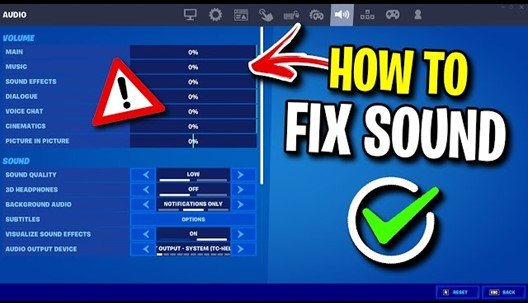
If Fortnite launches but you hear no audio, the issue usually affects one or more types of in-game sound, such as:
- No background music
- No weapon or effect sounds
- Voice chat is not working
- No in-game audio at all
Fortnite audio works through several system components. If any of these fail or are misconfigured, the game may run without sound:
- Fortnite audio settings -- sound or voice chat may be muted in the game
- Operating system audio -- system volume or sound configuration may be incorrect
- Audio drivers -- outdated or faulty drivers can interrupt sound output
- Connected devices -- headsets, Bluetooth speakers, or HDMI audio may redirect sound
- Game files -- missing or corrupted files can prevent certain sounds from playing
Understanding which component is causing the issue helps you apply the correct fix in the next steps.
Part 2. Common Causes of Fortnite No Sound Issues
Fortnite sound problems usually fall into two main categories: system/device issues or game-related problems. Identifying which category applies can help you fix the problem faster.
System or Device Causes
These issues occur outside the game and affect how your device outputs sound.
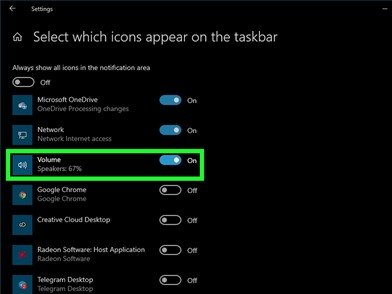
- Muted system volume -- Your computer or console volume may be turned down or muted.
- Incorrect audio output device -- Sound may be routed to another device, such as HDMI, a monitor speaker, or a disconnected headset.
- Headset or Bluetooth conflicts -- Wireless headsets or Bluetooth speakers may automatically become the active audio device.
- Outdated audio drivers -- Old or incompatible sound drivers can prevent games from producing audio.
- Console audio settings -- On Xbox or other consoles, incorrect system audio settings may block game sound.
Game or File Causes
These problems occur within Fortnite itself or with the game files.
- Muted Fortnite audio settings -- Music, sound effects, or voice chat may be disabled in the game settings.
- Corrupted game audio files -- Missing or damaged files may prevent certain sounds from playing.
- Incomplete updates -- A failed or interrupted game update can cause audio components to malfunction.
- Voice chat configuration conflicts -- Incorrect voice chat settings may disable communication audio during gameplay.
Part 3. Identify Your Fortnite Audio Problem
Before diving into fixes, quickly determine where the problem lies. This saves time and prevents unnecessary troubleshooting.
Fast Checks to Identify the Source:
- Other games have sound → The problem is likely with Fortnite.
- No apps have sound → Likely a system or device audio issue.
- Sound only works with a headset → Check audio output device settings.
- Missing specific sounds (music, effects, or voice chat) → Could indicate corrupted game files.
Identifying your scenario first ensures you apply the right fix instead of guessing, making it faster to restore sound in Fortnite.
Part 4. How to Fix Fortnite No Sound Step-by-Step
If Fortnite has no sound, don't panic. Most audio issues are caused by simple settings, output mismatches, or temporary glitches. The following step-by-step fixes start with the easiest solutions and gradually cover more advanced options to restore your game audio.
Follow these steps in order, testing Fortnite after each one to see if sound is back.
Fix 1. Check System and Game Volume Settings
Start by making sure both your system and Fortnite audio settings are correctly configured. Many "no sound" issues happen simply because the volume is muted or specific game audio channels are disabled.
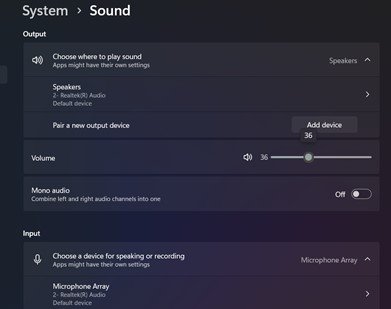
Step 1. On PC, click the speaker icon and ensure the volume is up. On the console, check the system audio settings.
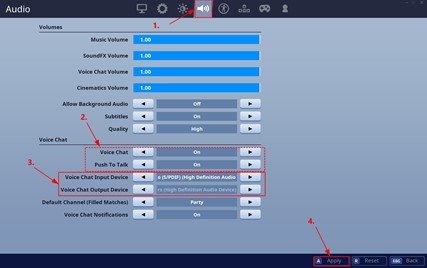
Step 2. Open Fortnite audio settings. Launch Fortnite and go to Settings, choose Audio. Enable all audio channels. Make sure Music, Sound Effects, and Voice Chat are turned on and the sliders are set to audible levels.
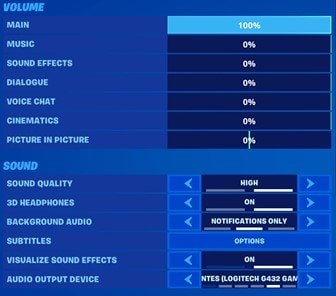
This simple check often resolves most missing sound problems instantly.
Fix 2. Verify Audio Output Device
Sometimes Fortnite has no sound because your system is sending audio to the wrong device. This happens when multiple output devices are connected, like Bluetooth headsets, speakers, or consoles. Ensuring the correct audio output is selected often restores sound immediately.
Step 1. Open system sound settings:
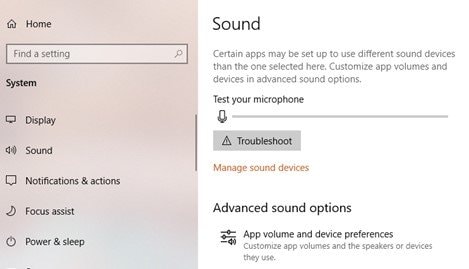
For PC (Windows): Right-click the speaker icon. Open Sound settings.
For Mac: Go to Apple menu. Under System Settings, choose Sound.
For Xbox / Console: Go to Settings. Click on General. Hover to Volume & Audio output.
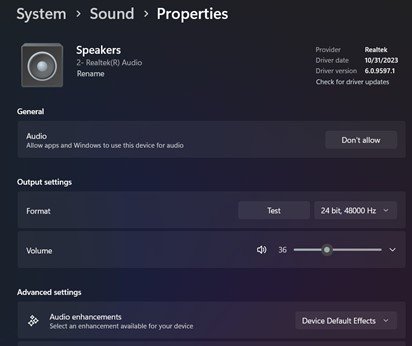
Step 2. Confirm the correct output device. Make sure the sound is set to your active speakers or headset.
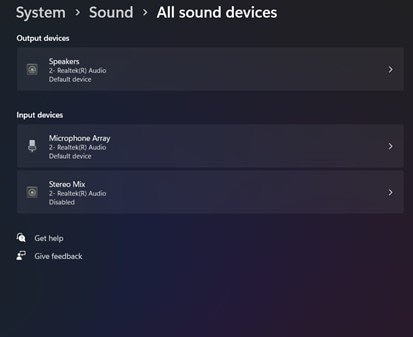
Step 3. Turn off or disconnect extra Bluetooth speakers or headsets that may be taking priority. On Xbox, ensure Headset or TV speakers are selected in audio output, and check that party chat isn't routing sound elsewhere.
Fix 3. Restart Fortnite and Your Device
Temporary glitches in Fortnite or your system can cause audio to stop working, even if all settings are correct. Restarting both the game and your device often resolves these transient issues.
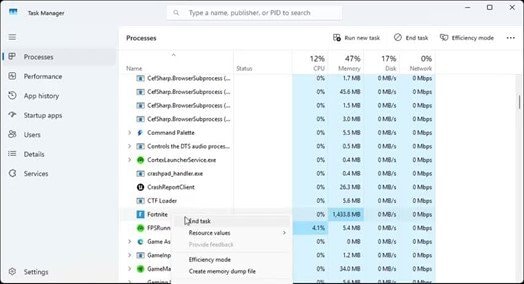
Step 1. Close Fortnite completely. Ensure it's not running in the background.
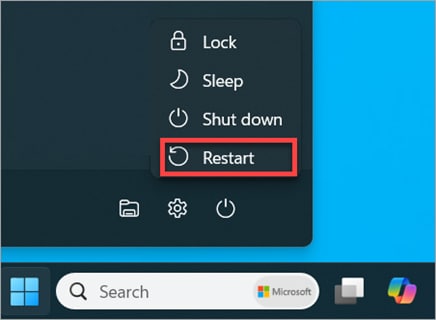
Step 2. Restart your PC or console. This resets system processes and clears temporary audio glitches.
Step 2. Launch Fortnite again. Open the game and check if the sound is restored.
A simple restart can fix many "no sound" problems quickly, making it one of the easiest troubleshooting steps.
Fix 4. Update Audio Drivers or Console Software
Sometimes, Fortnite has no sound because your system or console is running outdated software. Compatibility issues with audio drivers or system updates can prevent the game from playing audio correctly. Keeping everything up to date ensures Fortnite can access the necessary audio components.
FOR PC:
Step 1. Update your sound/audio drivers via Device Manager or the manufacturer's website.
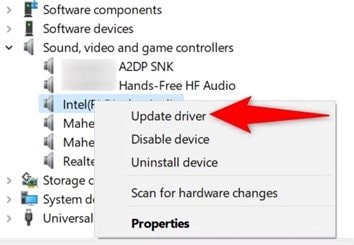
Step 2. Install the latest Windows updates to ensure system compatibility.
FOR CONSOLE (XBOX/PLAYSTATION):
Step 1. Check for system updates in Settings. Go to System, choose Updates.
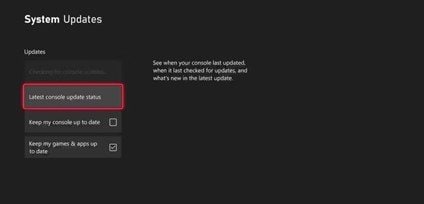
Step 2. Make sure Fortnite itself is updated to the latest version.
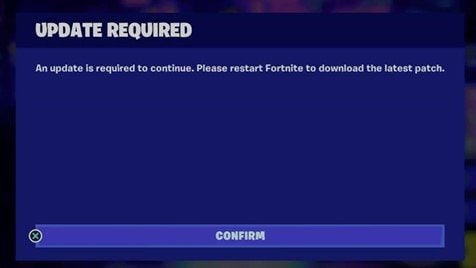
After updating, restart your PC or console and launch Fortnite to test the audio.
Fix 5. Disable Conflicting Applications or Headsets
Some apps or connected devices can interfere with Fortnite's audio. Programs that manage audio routing, voice chat, or background recording may prevent sounds from playing correctly. Similarly, certain headsets or virtual audio devices can create conflicts.
Examples of conflicting apps:
- Discord or other voice chat programs
- Audio routing apps (like Voicemeeter, Soundflower, etc.)
- Background recording or streaming software
Step 1. Close all unnecessary background applications that may use audio.
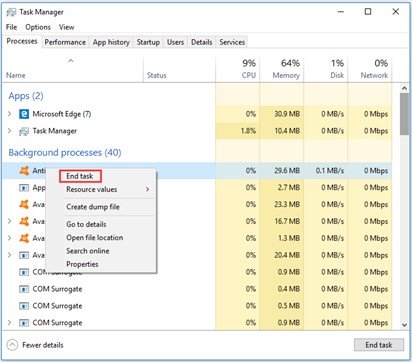
Step 2. Disconnect or unplug any extra headsets or virtual audio devices not in use.
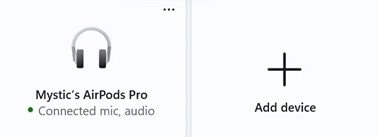
Step 3. Relaunch Fortnite and check if the audio works correctly.
This step often resolves hidden conflicts that prevent Fortnite from producing sound.
Part 5. Why Fortnite Audio Problems Occur
Fortnite sound issues usually happen because:
- The game engine uses audio middleware, which can fail to initialize properly.
- OS audio settings determine where sound is routed; a wrong configuration can block audio.
- Driver conflicts or outdated drivers may prevent the game from outputting sound.
These technical factors are why simple fixes, like checking volume, output devices, or restarting, often solve the problem quickly.
Part 6. Repairing Corrupted Audio Files When Sound Still Fails
If Fortnite still has no sound after checking all system and game settings, the problem may be corrupted audio files. Symptoms of corrupted audio files:
- Missing weapon or game sound effects
- Broken voice lines or in-game dialogue
- Damaged gameplay recordings
In these cases, a dedicated tool like Repairit Audio Repair can help.
What it can fix:
- Corrupted audio recordings
- Damaged exported gameplay files
- Broken or missing audio tracks
Important: This tool does not fix system settings, console issues, or Fortnite itself---only corrupted audio files.
Step 1. Add a corrupted audio file.
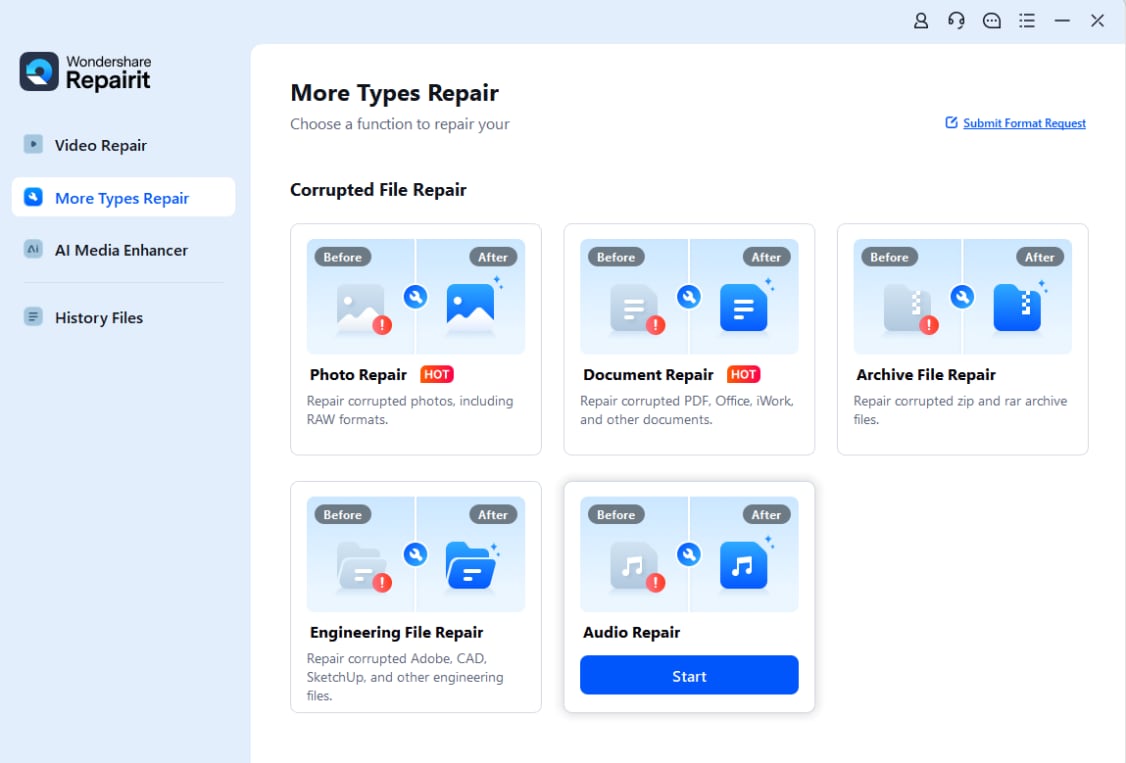
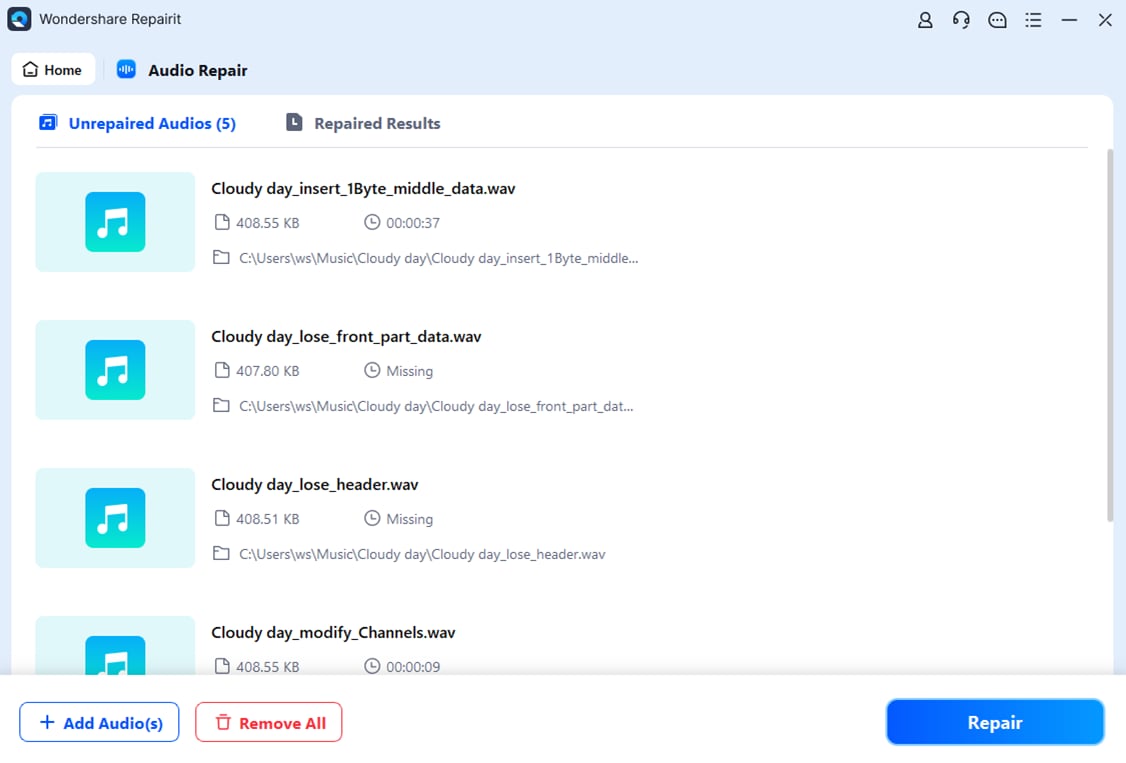
Step 2. Click the Repair button to repair the corrupt audio.
Step 3. Preview the repaired audio and save your audio files to your desired location.
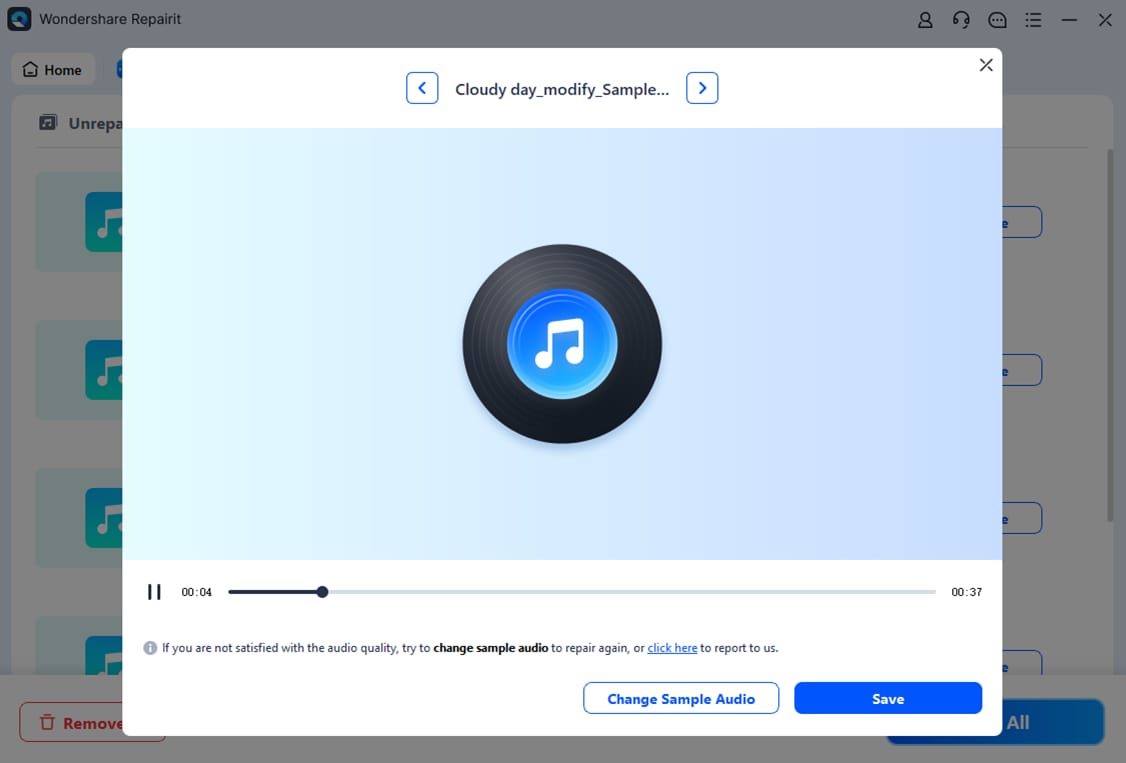
This process can recover lost or broken sounds in exported gameplay and recordings, giving you back playable audio without affecting your system or game settings.
Part 7. How to Prevent Fortnite Sound Issues
Preventing Fortnite audio problems is easier than fixing them. Follow these tips:
- Keep Fortnite updated -- Ensure you're using the latest game version with bug fixes and audio improvements.
- Update audio drivers -- Regularly check PC or console drivers to avoid conflicts.
- Avoid frequent device switching -- Minimize switching between headsets, speakers, or Bluetooth devices mid-game.
- Maintain stable system resources -- Close unnecessary apps to keep CPU and RAM available for Fortnite.
- Verify game files -- Use Epic Games Launcher or console tools to repair or verify game integrity if audio problems appear.
Following these steps reduces the chances of sound issues and ensures smoother gameplay.
Conclusion
Fortnite's no sound issues are usually caused by system or game audio settings. Start with basic troubleshooting like checking volume, output devices, and in-game audio settings. If problems persist, move on to updating drivers, restarting devices, and adjusting configurations.
Only use audio repair tools when the audio files themselves are corrupted. With these steps, most Fortnite audio problems can be resolved quickly, letting you get back to smooth, uninterrupted gameplay.
FAQs
-
Why does my Fortnite have no sound?
It's usually caused by muted system or game volume, incorrect audio output, headset or Bluetooth conflicts, or outdated drivers. Checking settings and restarting the game often resolves the issue. -
Why is there no sound on Fortnite on Xbox?
Xbox sound issues often occur due to incorrect console audio settings, output device conflicts, or network/driver glitches. Verify audio settings and disconnect unused devices to fix it. -
Can reinstalling Fortnite fix sound issues?
Yes, reinstalling can fix corrupted game files that affect audio. Always back up settings or saved content before reinstalling. -
Can corrupted audio files cause missing sound?
Yes. Missing weapon sounds, broken voice lines, or corrupted gameplay recordings may indicate damaged audio files. -
Can audio repair software fix Fortnite sound problems?
Yes, it can restore corrupted or damaged audio files, but it cannot fix system settings or the game itself.