Is your PS5's sound not working? Well, it can appear in several ways, including no sound at all, audio cutting in and out, or sound playing only through the controller instead of the TV. In some cases, the video displays correctly, but there is no audio output, which makes games, streaming, or media playback unusable. These issues are commonly related to HDMI connection problems, incorrect audio output settings, TV configuration conflicts, headset routing errors, or corrupted media files.
Because the PS5 relies on digital audio transmission through HDMI and system-level audio routing, even small configuration mismatches can interrupt sound output. This guide explains how to identify the cause and apply safe, step-by-step fixes to restore audio quickly.
Table of Contents
Part 1. What Causes PS5 Sound Not Working?
The PS5 uses digital audio routing that depends on system settings, HDMI communication, and playback compatibility. When any of these components fail or become misconfigured, audio may stop working even though the console itself is functioning normally.
Below are the most common causes:
Incorrect Audio Output Settings
The PS5 allows audio output through HDMI, controllers, headsets, or AV receivers. If the wrong output device is selected, the console may send sound to a device that is not currently in use, resulting in no audible output.
For example:
- Audio routed to headset while using TV speakers
- Output set to AV receiver when none is connected
- Controller speaker enabled instead of the main output
Faulty HDMI Cable or TV Settings
HDMI carries both video and audio signals. If the cable is loose, damaged, or incompatible, video may work while audio fails. Additionally, some TVs have audio format limitations or disabled speaker output settings. This commonly happens if you are:
- Using older HDMI cables
- Switching between multiple HDMI devices
- TV audio output is set incorrectly
Controller or Headset Audio Conflicts
The PS5 controller includes a built-in speaker and supports headset audio routing. If audio is redirected to the controller or headset, the TV may produce no sound. It occurs when:
- Headphones were previously connected
- Controller speaker volume is active
- Output routing did not reset
System Software Glitches
Temporary software errors can interrupt audio services. This may happen after system updates, rest mode usage, or prolonged gaming sessions. Symptoms include:
- Sound suddenly stops
- Audio cuts in and out
- Restart temporarily fixes the issue
Corrupted Audio or Video Files
If sound problems occur only during specific games or videos, the issue may be file-level corruption rather than hardware failure. This happens when:
- Game files are incomplete
- Media files are damaged
- Downloads were interrupted
Part 2. Quick Self-Check: Identifying When and Where the Problem Occurs
Before changing settings, perform a quick diagnosis. This helps avoid unnecessary resets and ensures the correct solution is applied. Follow these checks:
- Check if Sound Works on Controller or Headset - If audio plays through the controller or headset but not the TV, the HDMI output or audio routing settings are likely misconfigured. This confirms that console audio is functioning, and output routing needs adjustment.
- Check if the Problem Happens Only in Certain Games or Apps - If sound works in menus but not in a specific game or streaming app, the issue is likely related to that game or media file rather than the console. It means that the game file may be corrupted, the app may have an audio bug, or the media format may be unsupported.
- Check if Sound Is Missing Everywhere - If no sound works at all, including games, menus, and apps, the issue may involve system software, the HDMI connection, or system settings. This requires system-level fixes.
- Check if TV Volume, Mute, or Audio Output Is Disabled – Sometimes the issue is not with the PS5 but with the TV itself. If the TV is muted, the volume is too low, or the audio output is set to an external device that is turned off, no sound will be heard. This confirms the console may be working normally, and the TV audio settings need correction.
- Check if the HDMI Cable or Port Is Causing the Issue – A faulty or loose HDMI cable can carry video but fail to transmit audio properly. Try switching to another HDMI port on the TV or using a different HDMI cable to test. If sound works after changing ports or cables, the original connection is likely defective or incompatible.
Part 3. Safe Fixes for PS5 Audio Issues
These fixes resolve most PS5 sound problems and are safe to perform.
Fix 1. Check PS5 Audio Output Settings
If the PS5 is sending sound to the wrong device, such as a controller or disconnected headset, no audio will be heard from your TV even though the console is working properly.
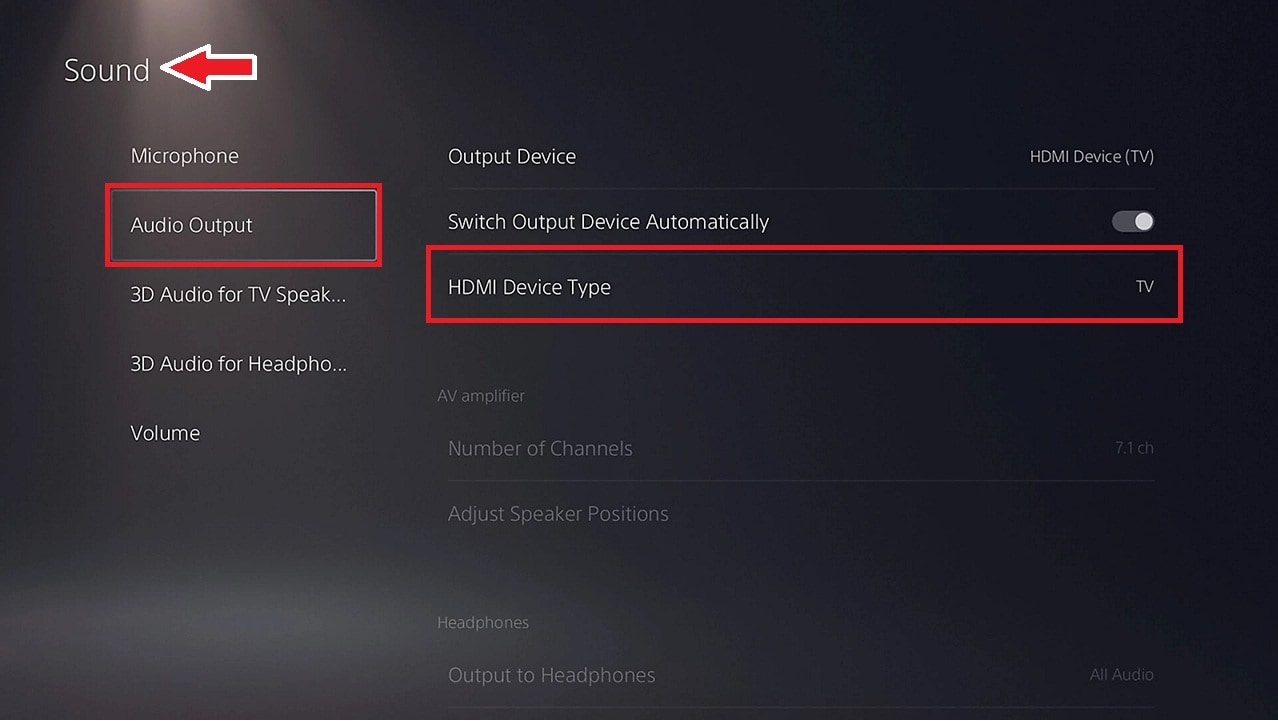
Step 1. Go to Settings. Under Sound, click on Audio Output.
Step 2. Select the correct output device, such as HDMI Device (TV). Test the sound after switching.
Fix 2. Adjust Audio Format
Changing the audio format helps restore sound if the current format is incompatible with your TV, soundbar, or AV receiver.
Step 1. Go to Settings. Under Audio Output, select and choose Audio Format (Priority).
Step 2. Select Linear PCM, then test sound.
Fix 3. Reconnect or Replace HDMI Cable
A loose, damaged, or incompatible HDMI cable can transmit video without audio, which results in no sound output.
Step 1. Turn off the PS5 and unplug the HDMI cable from both the console and the TV.
Step 2. Reconnect it securely or use another HDMI cable, then restart the PS5 and test the sound.
Fix 4. Check TV Audio Settings
Incorrect TV audio settings, such as disabled speakers or conflicting audio output options, can prevent sound from playing.
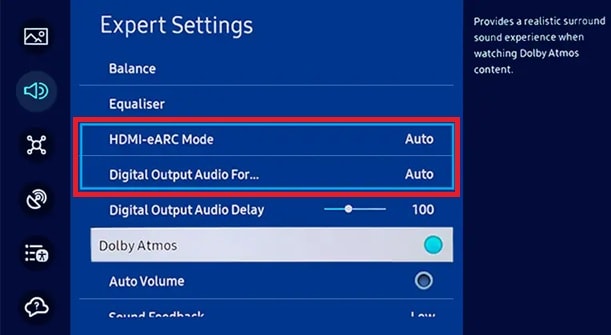
Step 1. Open TV Settings and select TV Speakers
Step 2. Disable eARC or CEC temporarily. Test audio again.
Fix 5. Adjust Controller and Headset Audio
When audio is routed to the controller speaker or headset, the TV may not produce sound even though the console is functioning normally.
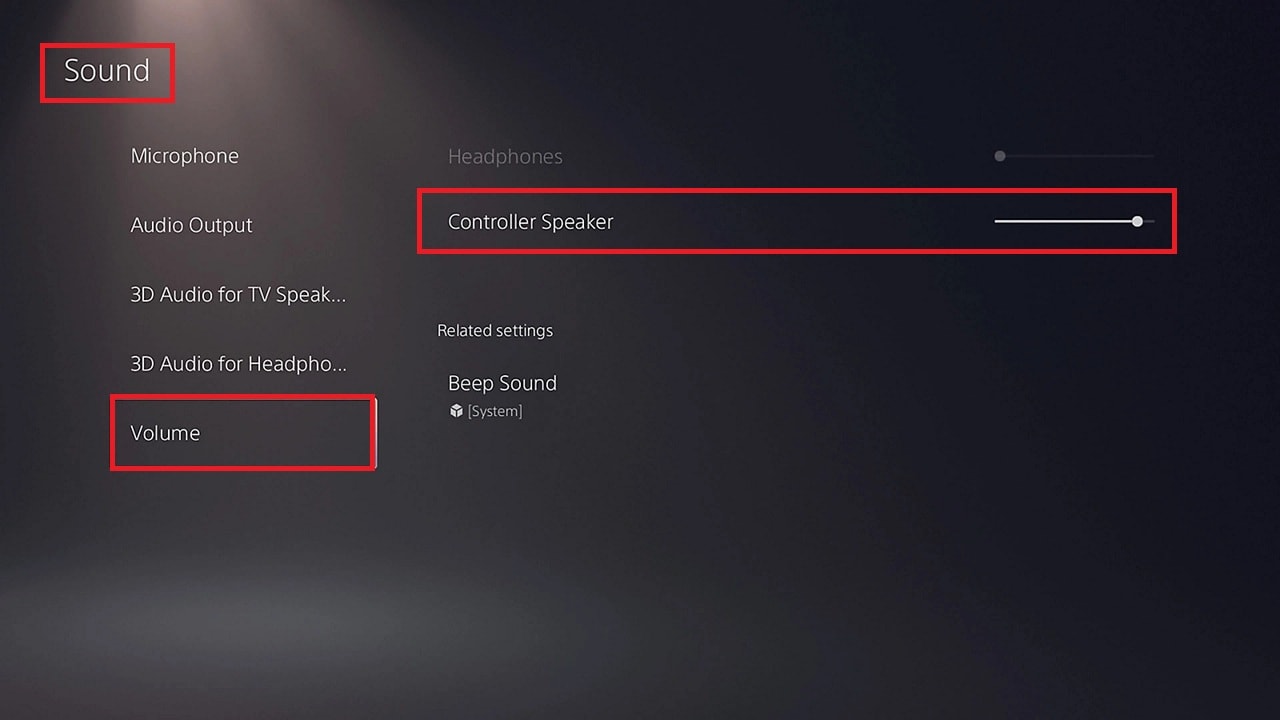
Step 1. Go to Settings, then Sound. Scroll down to Volume and Controller Speaker.
Step 2. Lower or disable the controller speaker output.
Fix 6. Restart PS5 and Update System Software
Restarting and updating the system can resolve software bugs, compatibility issues, and temporary errors affecting audio output.
Step 1. Turn off the PS5 completely and restart
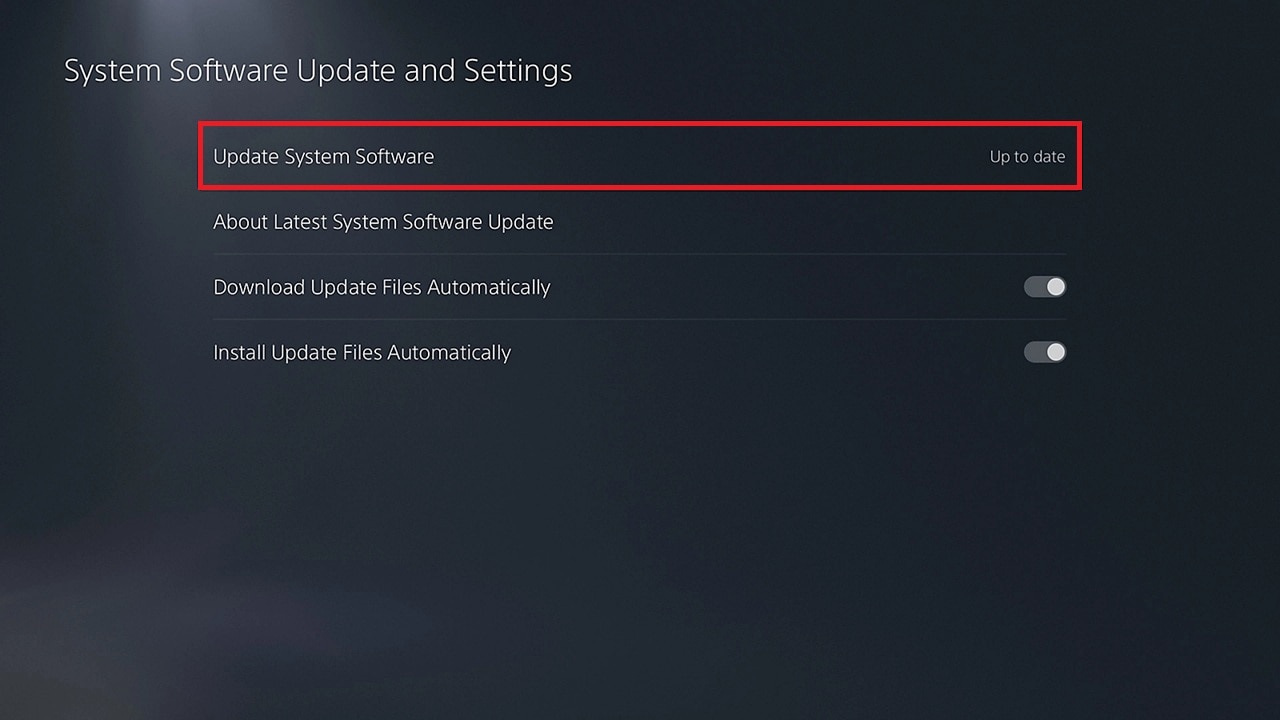
Step 2. Go to System Settings. Under System Software, choose Update System Software. Install updates if available. System updates often fix audio bugs released by Sony.
Part 4. Advanced Methods for PS5 Audio Problems (Use Only If Basic Fixes Fail)
If sound problems continue after applying basic fixes, deeper system issues may be involved. These advanced methods repair internal system structures and reset configuration files that may interfere with audio output.
⚠️ Use these solutions carefully.
Advanced Fix 1. Rebuild Database in Safe Mode
Rebuilding the database repairs corrupted system data and reorganizes internal files that may interfere with sound functionality.
Step 1. Power off the PS5, hold the power button until the second beep to enter Safe Mode.
Step 2. Select Rebuild Database and allow completion.
Advanced Fix 2. Reset PS5 System Settings
Rebuilding the database repairs corrupted system data and reorganizes internal files that may interfere with sound functionality.
Step 1. Go to System Settings. On System Software, choose Reset Options.
Step 2. Select Reset Your Console (optionally keep data) and follow instructions.
More related articles:
PS5 Keeps Crashing Mid Game? 5 Simple Solutions
Easy 5 Solutions To Fix PS5 Corrupted Data Error
Part 5. Rare Case: When Audio or Video Files Cause PS5 Sound Issues
If sound issues occur only when playing specific video or audio files, the problem may involve file corruption rather than console hardware or settings. This typically happens when files are interrupted during download, improperly transferred, or damaged during storage.
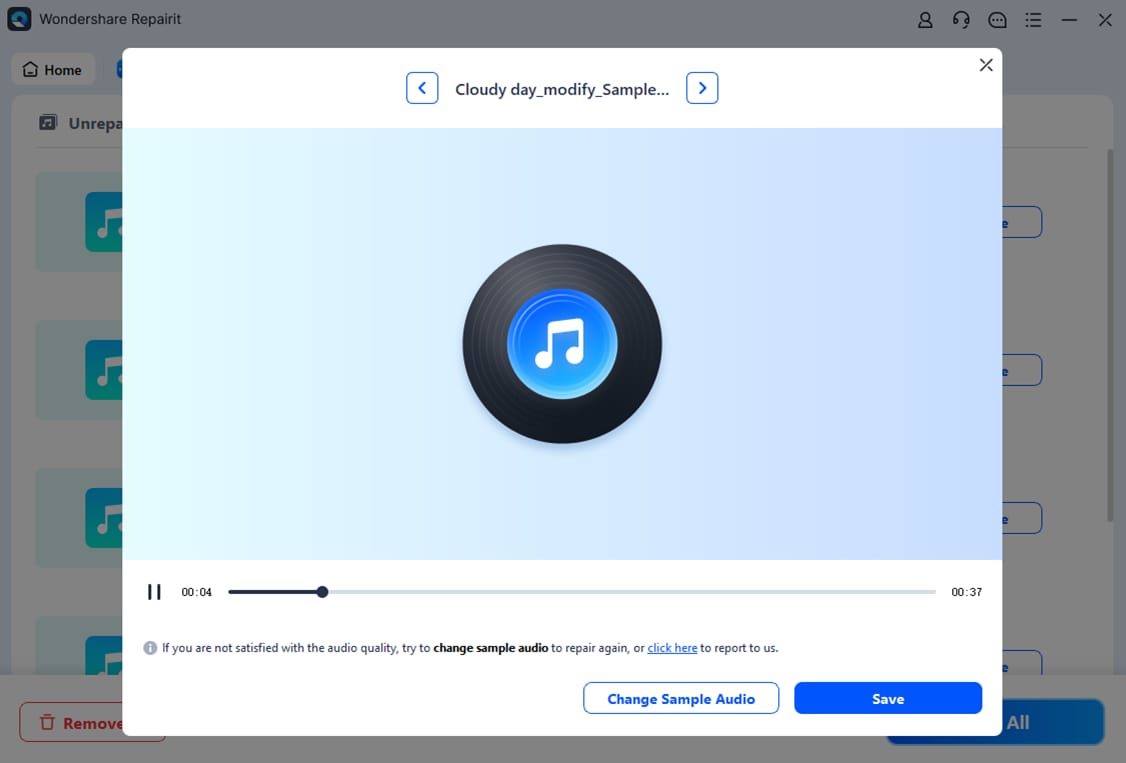
In this situation, repairing the affected file may restore normal playback. Repairit Audio Repair is designed to repair damaged audio file structures and restore proper playback when files become distorted, silent, or incomplete. It rebuilds essential audio components such as file headers, metadata, and data streams so devices like the PlayStation 5 can recognize and play the file correctly again.
This is especially useful for audio and video files that were interrupted during download, transfer, or recording, which often results in missing sound or glitching during playback.
It CAN:
- Repair corrupted audio and video files
- Restore playback functionality
- Fix missing or damaged audio data
It CANNOT:
- Fix HDMI hardware issues
- Resolve PS5 system software errors
- Repair physical hardware damage
Step 1. Add the file.
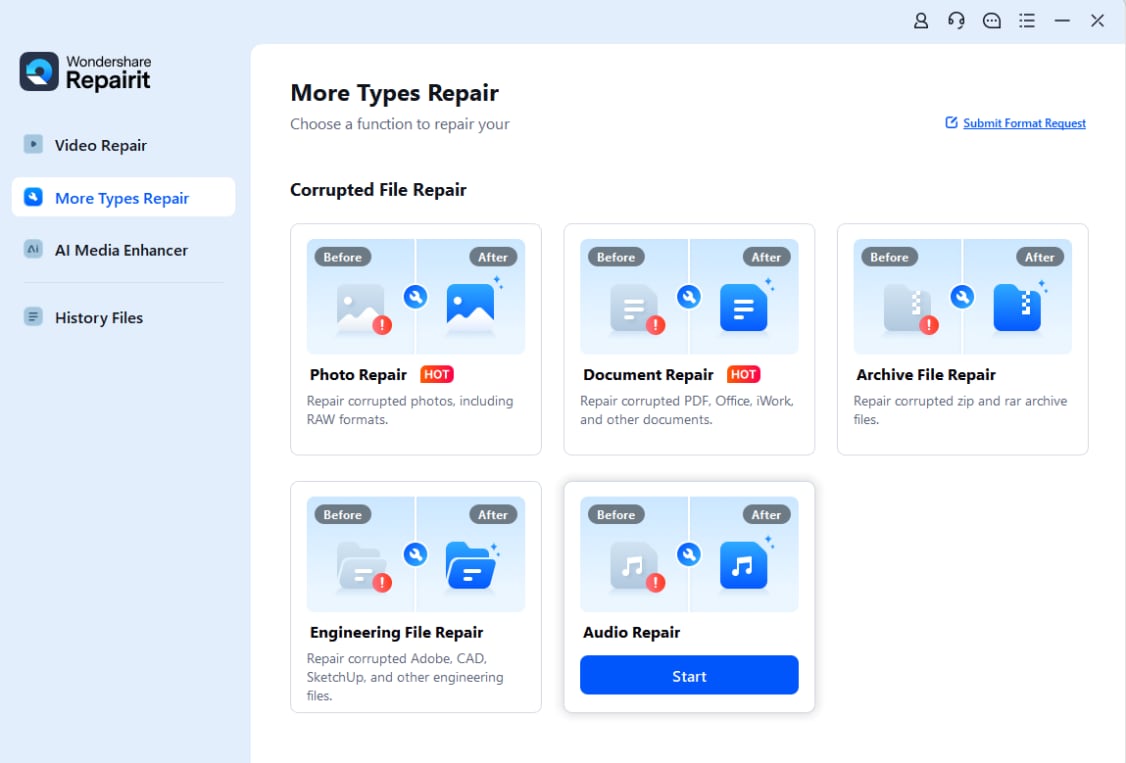
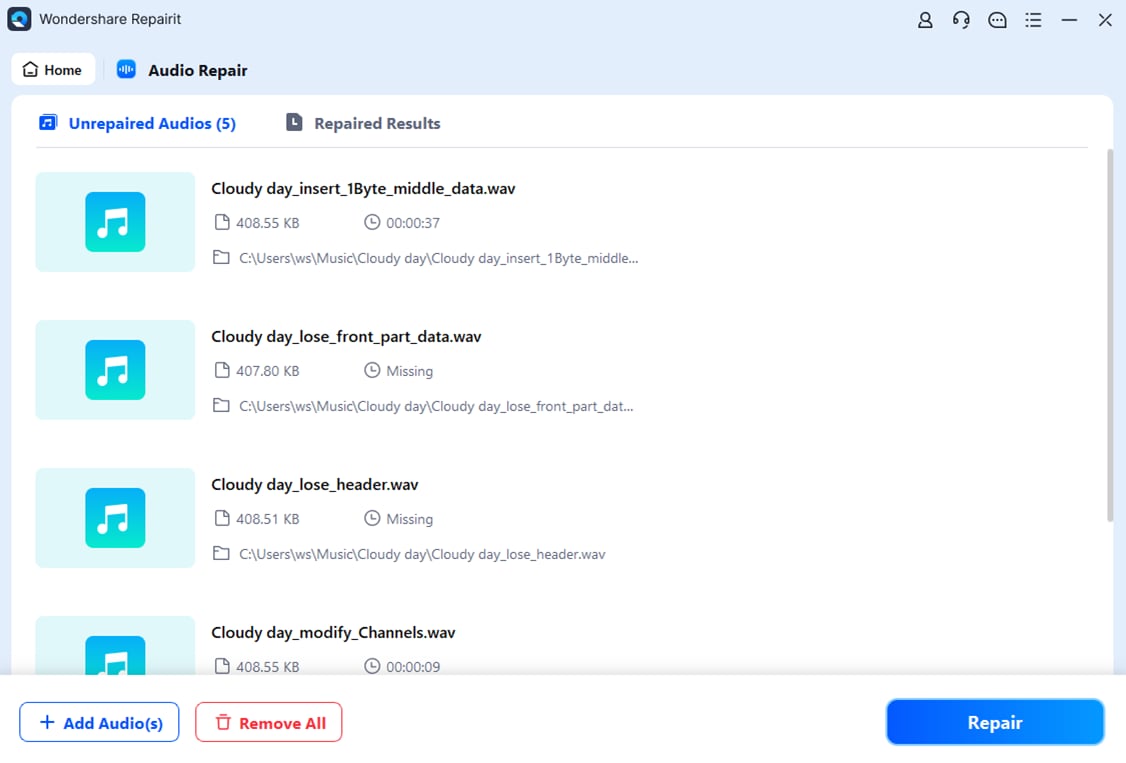
Step 2. Click the Repair button to begin repairing the file.
Step 3. Preview the repaired file and save it to your computer. Choose a new location.
⚠️ This solution should only be used when sound problems affect specific files rather than the entire PS5 system.
Conclusion
When the PS5’s sound is not working, it is usually caused by incorrect audio output settings, HDMI connection issues, or temporary system glitches. In most cases, checking audio settings, reconnecting cables, and restarting the console can restore sound quickly.
If basic fixes do not work, advanced methods like rebuilding the database or resetting system settings may resolve deeper issues. When sound problems occur only in specific files, repairing the corrupted audio file may help restore proper playback.
FAQs
-
Why is my PS5 not making any sound?
This usually happens due to incorrect audio output settings, HDMI connection issues, or system glitches. Checking output settings and restarting the console resolves most cases. -
How do I fix audio issues on PS5 quickly?
Start by checking audio output settings and reconnecting the HDMI cable. Restarting the PS5 also helps fix temporary audio errors. -
Can a corrupted game file stop my PS5 from producing sound?
Yes, corrupted files may prevent audio from playing properly in specific games. Reinstalling the game or repairing the file may resolve the issue. -
Will resetting my PS5 fix all audio problems?
Resetting fixes system configuration errors, but may not fix hardware or cable issues. Always try basic fixes first before resetting. -
Do I need special tools to repair PS5 audio issues?
Most PS5 audio problems can be fixed using built-in settings and troubleshooting steps. Professional tools are only needed if specific audio or video files are corrupted.