Glitch sounds refer to abnormal audio behavior such as crackling, popping, skipping, stuttering, or robotic-sounding playback. Many users notice audio glitching on Windows PCs during gaming or streaming, on smart TVs while watching content on platforms like Netflix or YouTube, or when using HDMI-connected devices such as streaming boxes and consoles. In some cases, glitch sounds only happen when playing specific downloaded files, which often indicates file corruption rather than a system issue.
This guide will help you identify where the glitch sounds are coming from and apply the correct fix based on the actual cause, whether it’s a configuration issue, hardware problem, or file-level corruption.
Table of Contents
Part 1. What Are Glitch Sounds and Why Do They Happen?
Glitch sounds happen when audio data is not processed or delivered properly from the source to the output device. This disruption can occur at different stages, including decoding, processing, or playback.
Below are the most common technical causes explained in practical terms:
- Buffer underruns - Audio systems process sound in small chunks called buffers. If your system cannot process the audio fast enough due to high CPU usage or driver latency, gaps occur, which you hear as pops, clicks, or stutters.
- Sample rate mismatches - Audio systems process sound in small chunks called buffers. If your system cannot process the audio fast enough due to high CPU usage or driver latency, gaps occur, which you hear as pops, clicks, or stutters.
- Driver latency or driver faults - Outdated or corrupted audio drivers can delay communication between the operating system and audio hardware, resulting in inconsistent playback.
- HDMI signal interference - HDMI carries both audio and video digitally. Poor-quality cables, loose connections, or interference can interrupt the signal, causing sound glitches.
- Corrupted audio files - If an audio file becomes damaged during download, transfer, or storage, parts of the sound data may be missing or unreadable, which results in glitch sounds during playback.
It is important to distinguish between:
- System-wide glitch sounds — affect everything you play
- File-specific glitch sounds — affect only certain media files
This distinction determines the correct solution.
Part 2. Identify Where the Audio Glitching Is Coming From
You need to identify the source of the problem before applying fixes. This prevents unnecessary troubleshooting and helps you choose the right solution faster.
Step 1: Test Different Audio Sources
Play audio from multiple apps and files to compare behavior.
For example:
- Play a YouTube video
- Play a local music file
- Play audio from another app
If glitch sounds happen everywhere, the issue is likely system-related. If it happens only in one file, the file itself may be corrupted.
Step 2: Test Different Output Devices
Switch between different playback devices to isolate the problem.
For example:
- Try headphones instead of speakers
- Try external speakers instead of built-in speakers
- Change HDMI ports or cables
If the glitch disappears on another device, the original hardware may be faulty.
Step 3: Observe the Pattern
Pay attention to patterns, such as:
- Only during gaming → system resource issue
- Only on TV apps → TV firmware issue
- Only specific files → file corruption
Once you identify the pattern, apply the relevant fixes below.
Part 3. How to Fix Glitch Sounds on Windows PC
These fixes apply to PCs running Microsoft Windows systems and should be performed in order.
Fix 1. Restart Windows Audio Services
Audio services manage sound processing in the background. Restarting them refreshes the audio system and resolves temporary glitches.
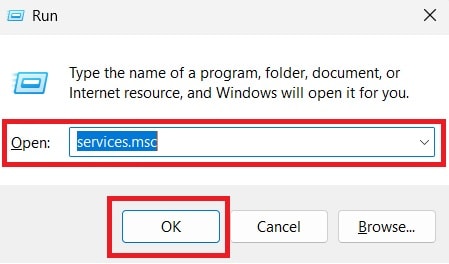
Step 1. Press Windows + R, type services.msc, and press Enter or click OK.
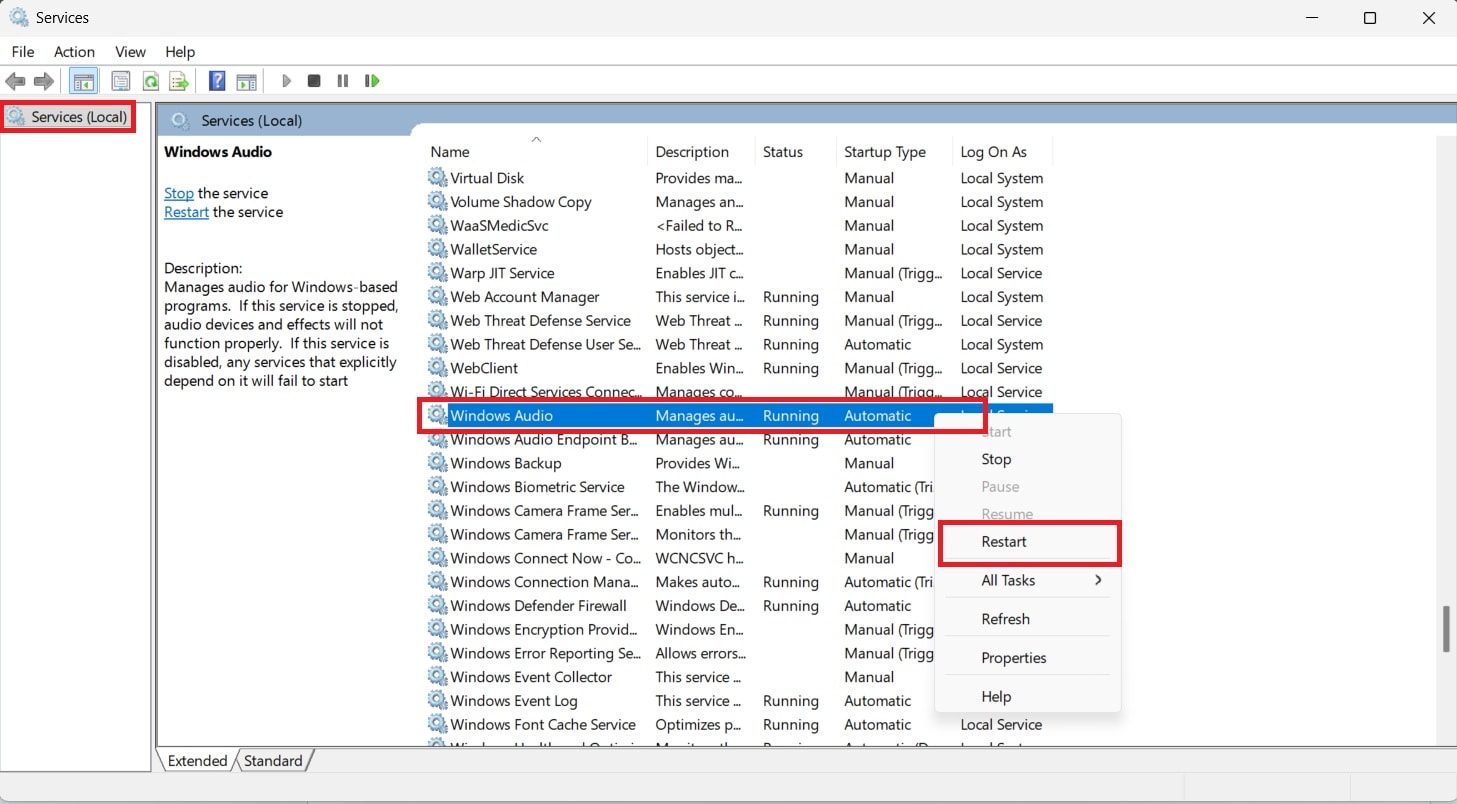
Step 2. Find Windows Audio, right-click it, and select Restart. Restart your computer and test the audio again.
Fix 2. Update or Reinstall Audio Drivers
Drivers act as the communication bridge between your system and sound hardware. Corrupted or outdated drivers are one of the most common causes of glitch sounds.
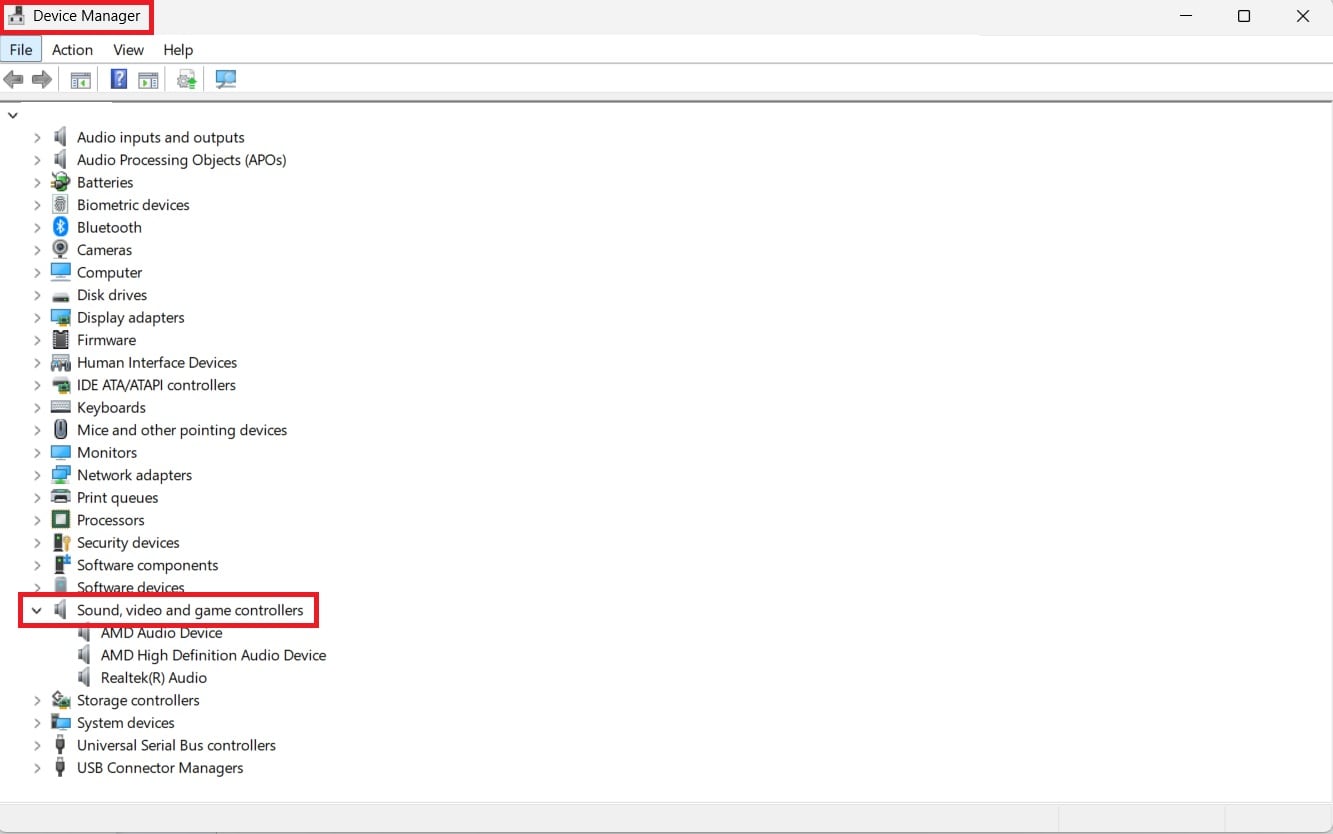
Step 1. Right-click Start and open Device Manager. Expand Sound, video and game controllers.
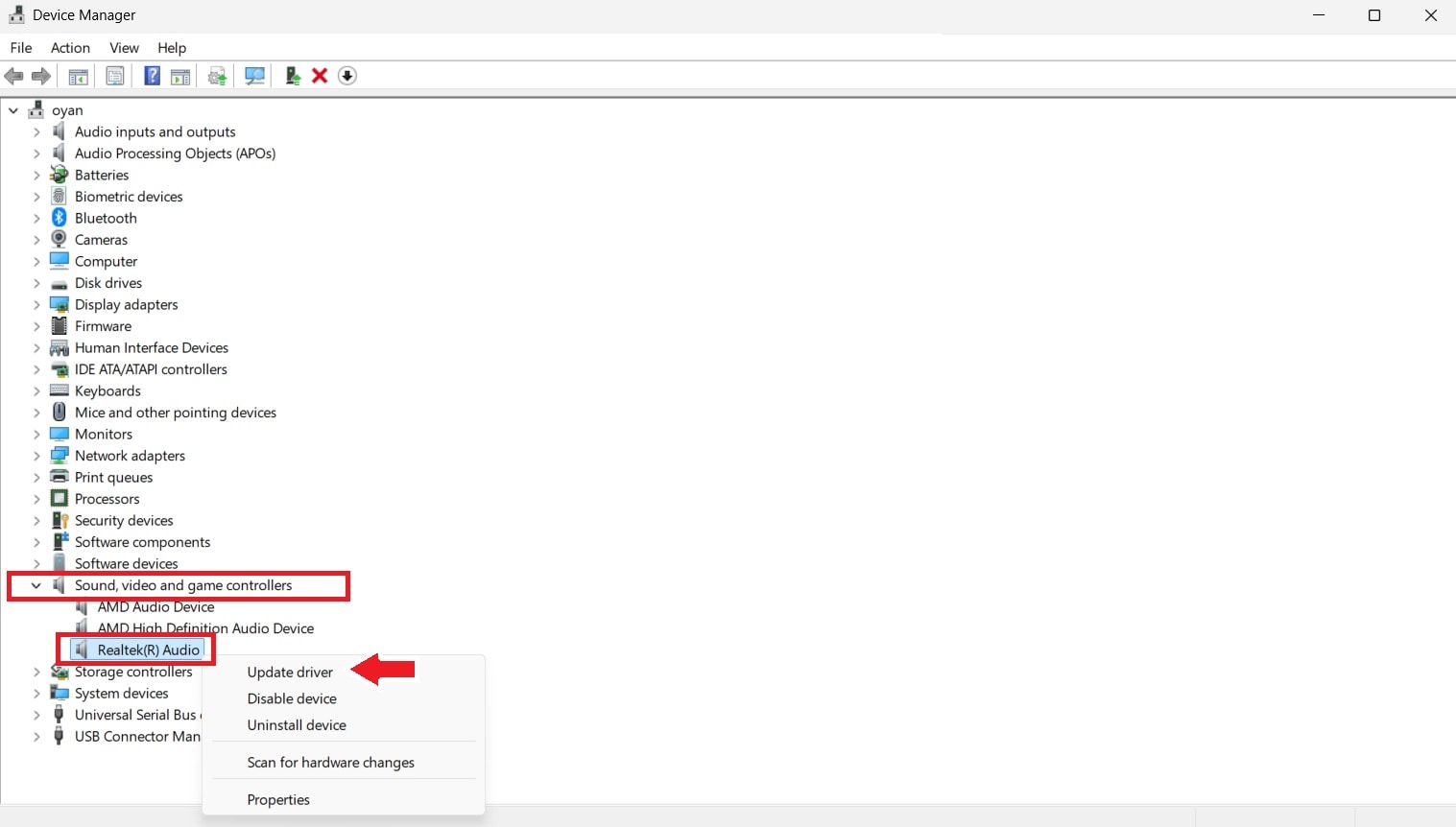
Step 2. Right-click your audio device and select Update driver. Restart your computer after updating.
Fix 3. Adjust Audio Format Settings
Incorrect audio format settings can create compatibility problems.
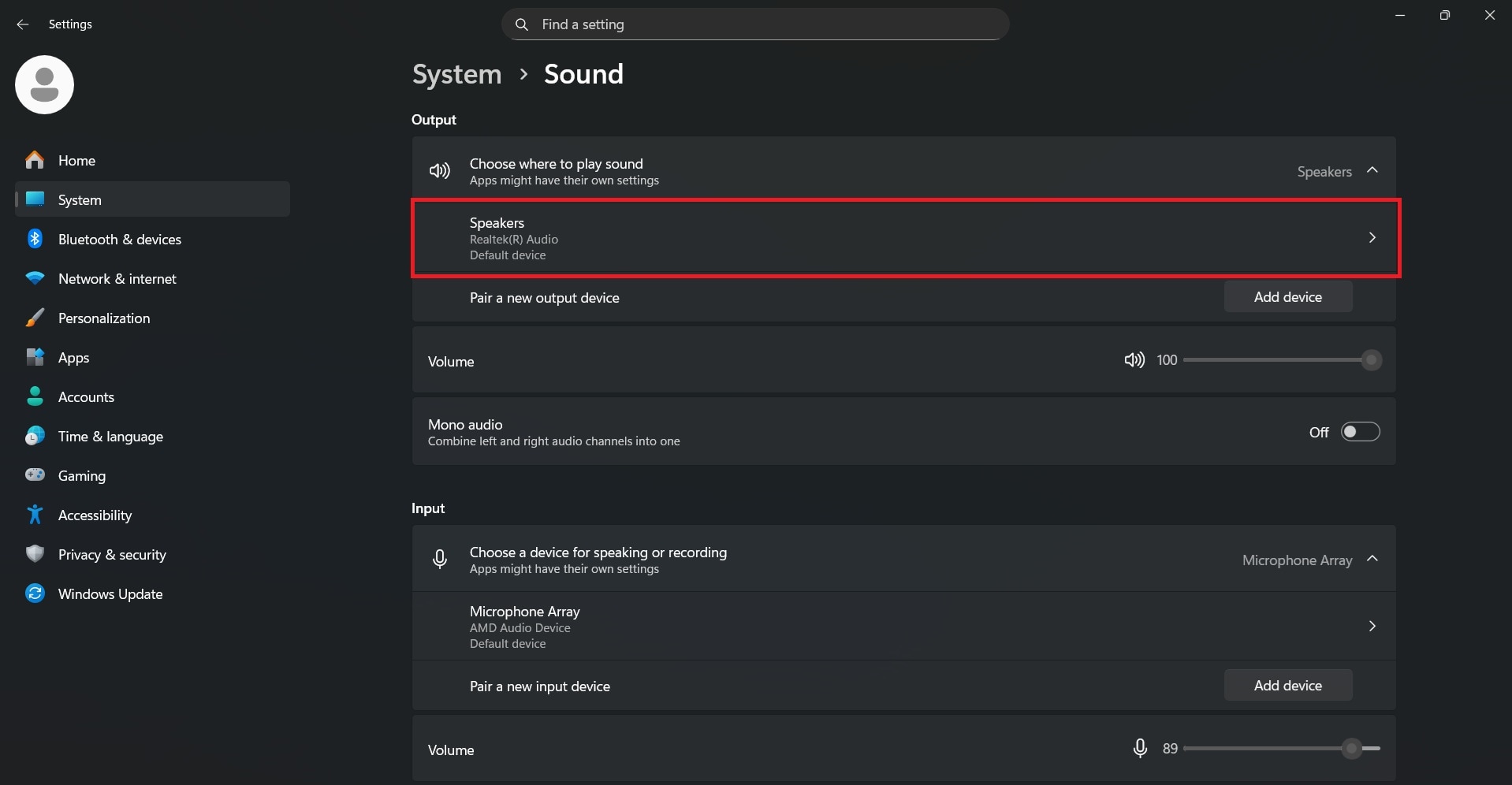
Step 1. Go to Settings. Scroll down and select Sound. Choose your output device.
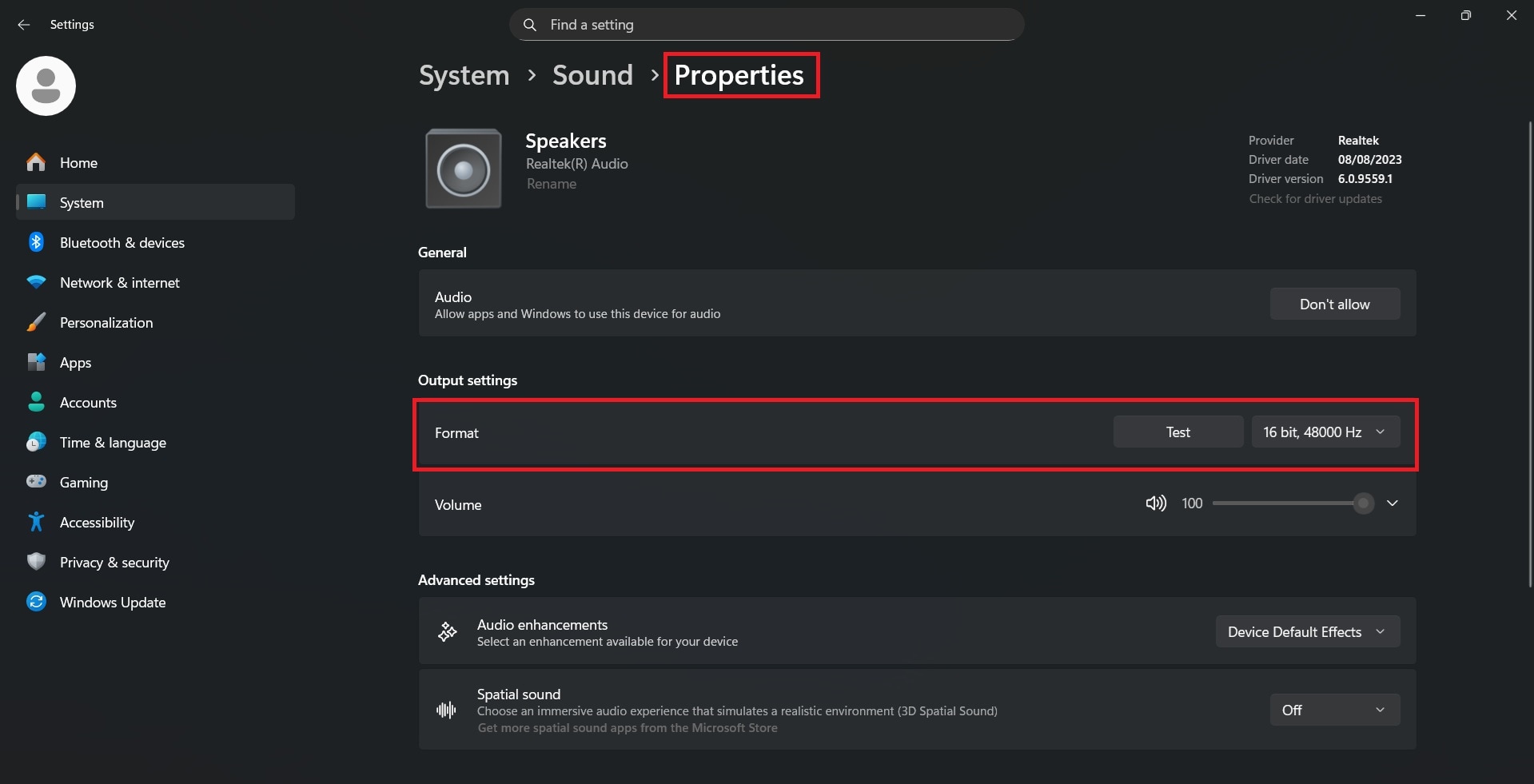
Step 2. Under Properties, change the format to 44,000 Hz or 48,000 Hz. Apply changes and test audio.
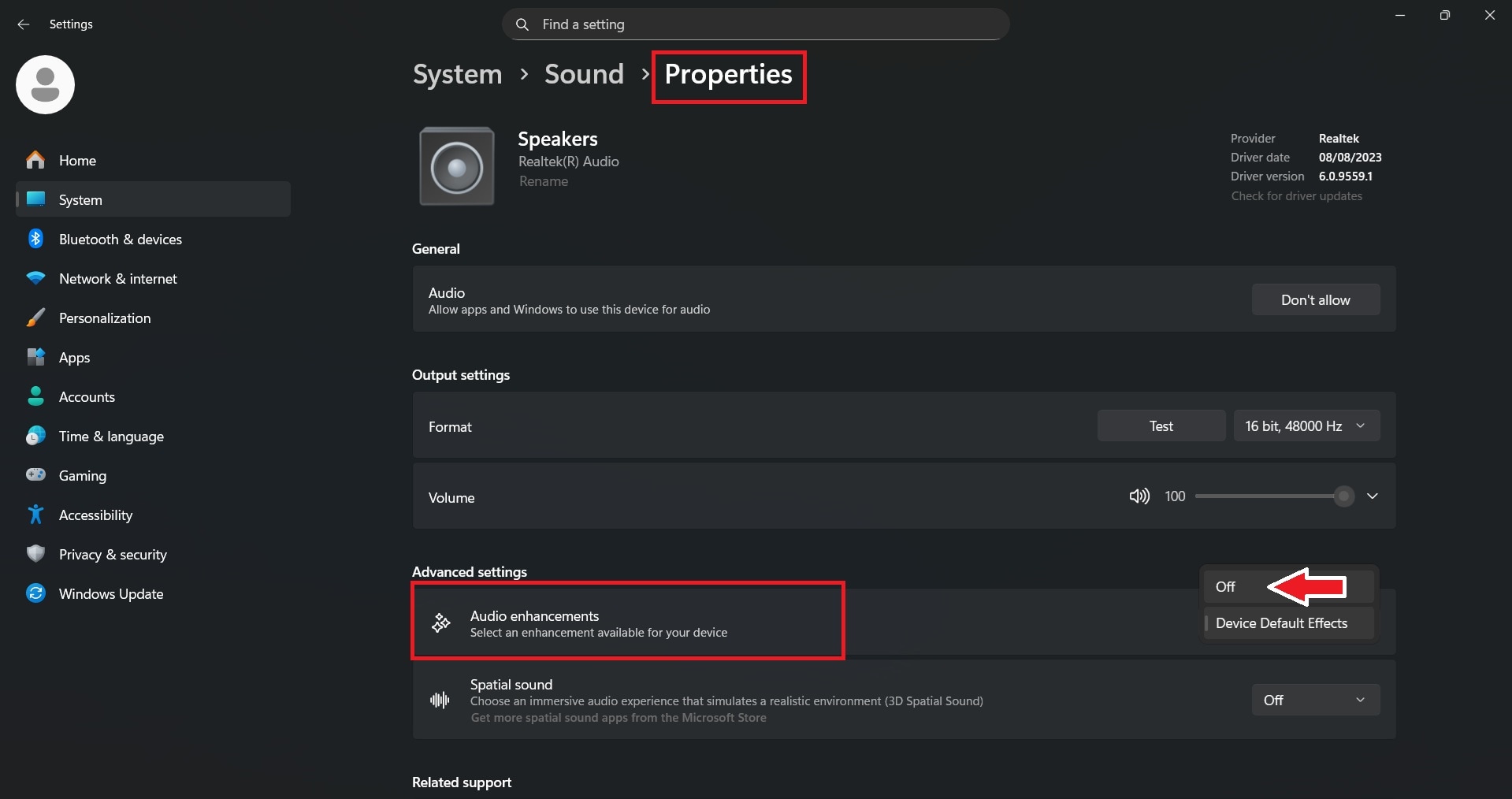
Fix 4. Disable Audio Enhancements
Enhancement features sometimes conflict with hardware.
Step 1. Open Sound settings. Select your output device.
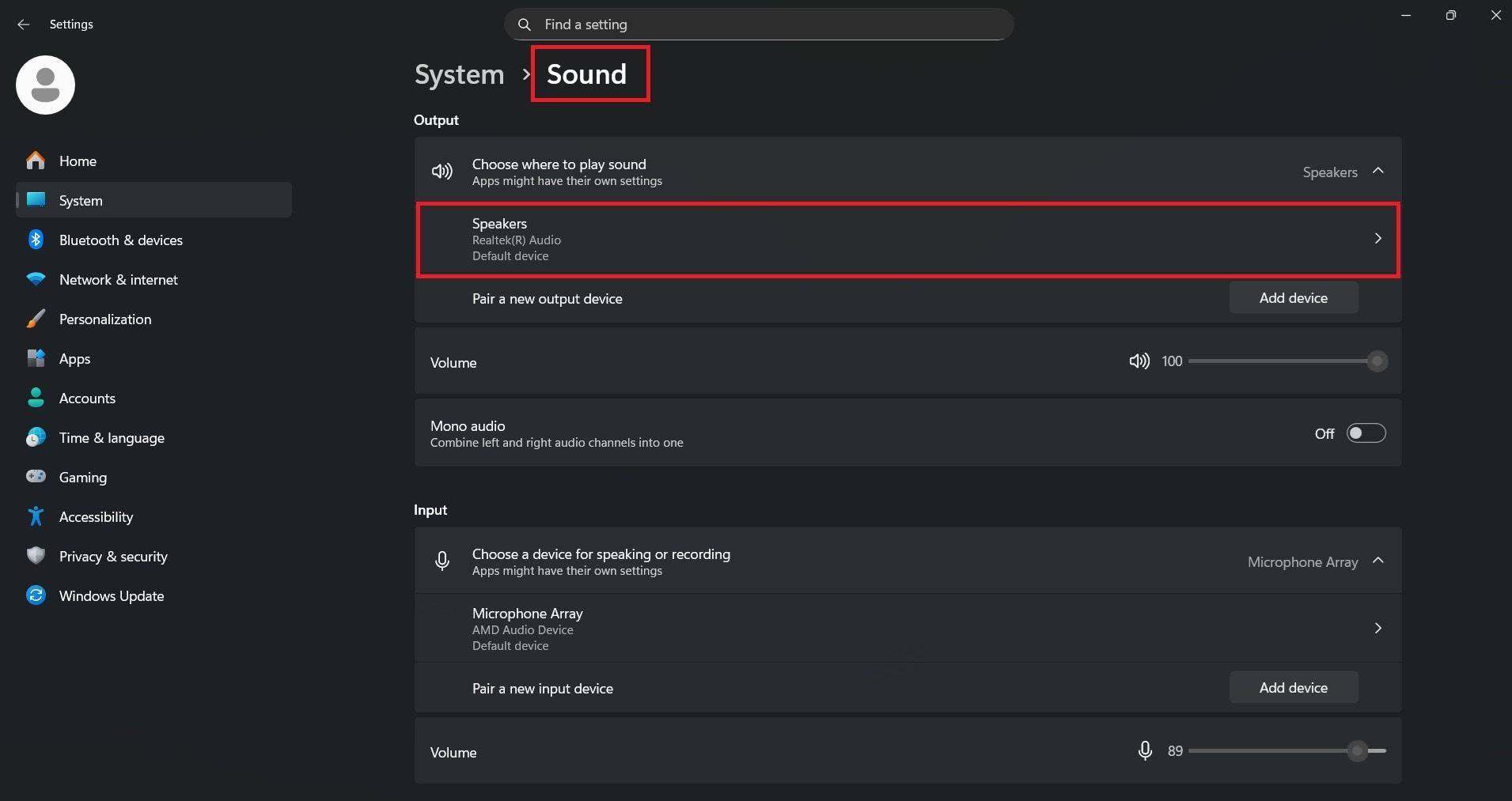
Step 2. Under Properties, Disable audio enhancements. Restart and test.
Fix 5. Reduce System Load
High CPU usage interrupts audio processing.
Close:
- Games running in the background
- Editing software
- Multiple browser tabs
Part 4. How to Fix TV Glitching Sound Issues
TV glitch sounds are usually caused by firmware bugs, cable problems, or incorrect settings.
Fix 1. Power Cycle the TV
Power cycling resets the TV’s internal processes and clears temporary bugs that may interfere with audio playback. This is often effective if the glitch started suddenly without any changes to your setup.
Step 1. Turn off the TV and unplug it from the power outlet.
Step 2. Wait 60 seconds, then plug it back in and turn it on to test the sound.
⚠️ Risk Note: This process is safe and will not delete your settings, but avoid repeatedly unplugging the TV quickly, as sudden power interruptions may stress the hardware over time.
Fix 2. Check HDMI and External Devices
HDMI cables and external devices like streaming boxes, soundbars, or consoles are common sources of audio glitches if the connection becomes loose or unstable. Even minor cable wear can disrupt the digital audio signal.
Step 1. Disconnect the HDMI cable from both the TV and the connected device.
Step 2. Reconnect it securely, or try a different HDMI cable or port if the issue continues.
⚠️ Risk Note: Avoid forcing HDMI cables into the port, as this can damage the connector pins and lead to permanent connection problems.
Fix 3. Update TV Firmware
TV firmware controls how the system handles audio and video processing, and outdated versions may contain bugs that cause glitch sounds. Installing the latest update ensures compatibility with apps and external devices.
Step 1. Open Settings and select System.
Step 2. Scroll down and choose Software Update, then install any available updates.
⚠️ Risk Note: Do not turn off the TV during the update process, as interrupting a firmware update can cause system errors or startup issues.
Fix 4. Reset TV Audio Settings
Incorrect audio settings, especially after updates or when connecting external devices, can cause compatibility issues that result in glitching sounds. Resetting the audio settings restores the default configuration and removes any conflicting adjustments.
Step 1. Open Settings on your TV and go to Sound or Audio Settings.
Step 2. Select Reset Audio Settings or Restore Default Sound Settings, then confirm and test the audio.
⚠️ Risk Note: This will remove custom sound presets, equalizer adjustments, and sound output preferences, so you may need to reconfigure them afterward.
Fix 5. Perform a Factory Reset (Last Resort)
If glitch sounds persist after trying all other fixes, performing a factory reset can resolve deeper system or firmware issues. This process reinstalls the TV’s original system state and removes corrupted settings that may be affecting audio performance.
Step 1. Go to Settings, then select System or General, and choose Reset or Factory Reset.
Step 2. Confirm the reset and allow the TV to restart, then set it up again and test the sound.
⚠️ Risk Note: A factory reset will erase all installed apps, accounts, and personal settings, so make sure you remember your login information before proceeding.
Part 5. If Sound Glitching Happens Only in Certain Files (Optional)
If glitch sounds occur only in specific audio files, the problem is likely file corruption rather than device or system configuration. This commonly happens after interrupted downloads, unsafe USB removal, recording errors, or transfer failures.
In these situations, using a professional tool like Repairit Audio Repair can help rebuild damaged audio structures and restore normal playback. It works by analyzing the file’s internal structure and repairing missing or broken components without affecting the original recording quality.
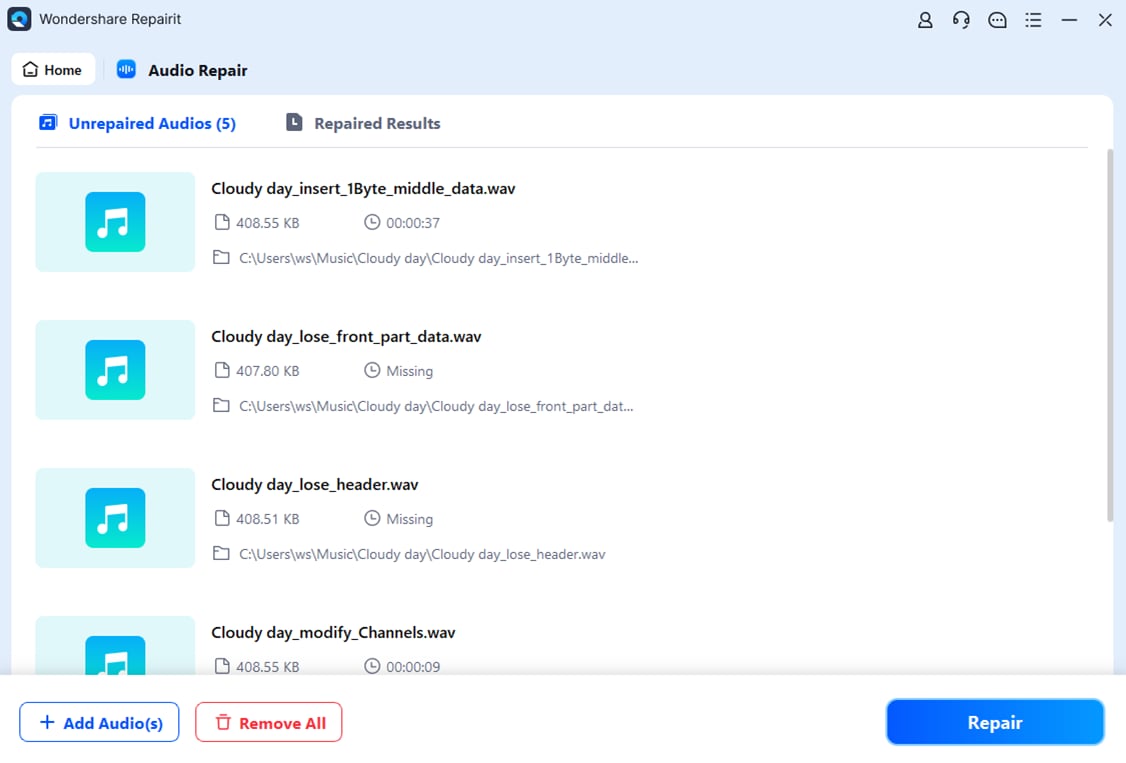
Here are the steps to repair corrupted audio files:
Step 1. Add the corrupted audio file.
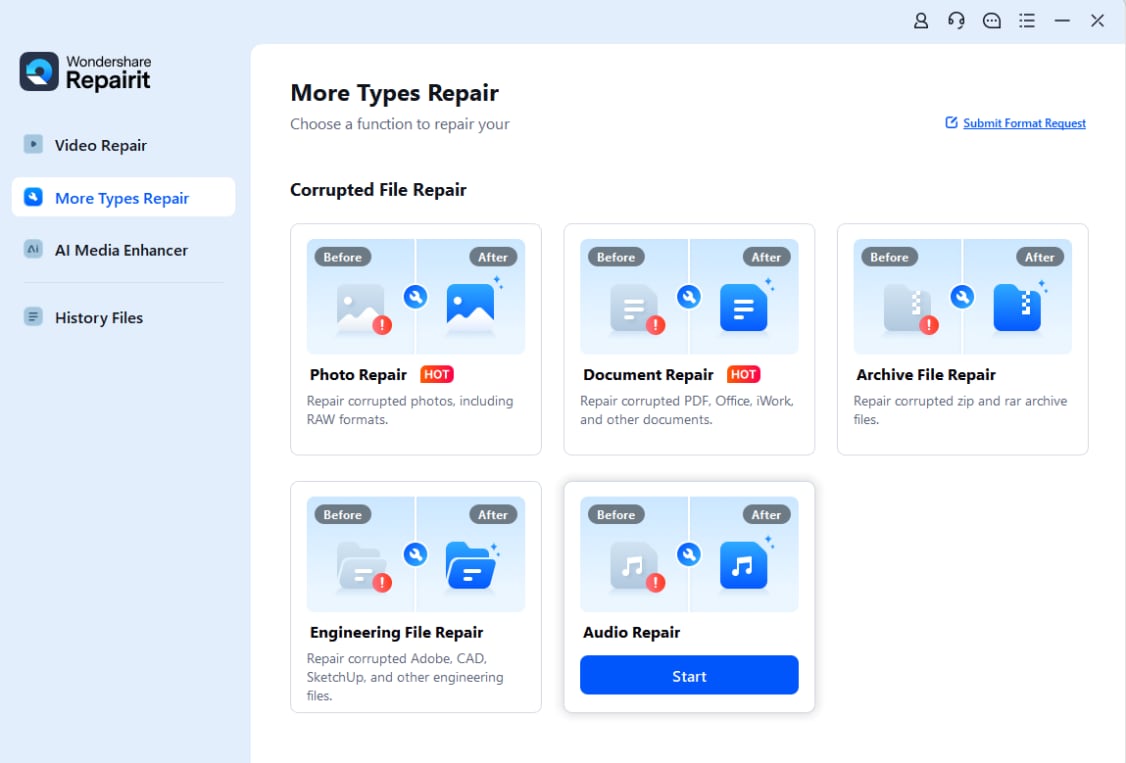
Step 2. Start the repair process to fix damaged audio data.
Step 3. Preview the repaired file and save it to your computer.
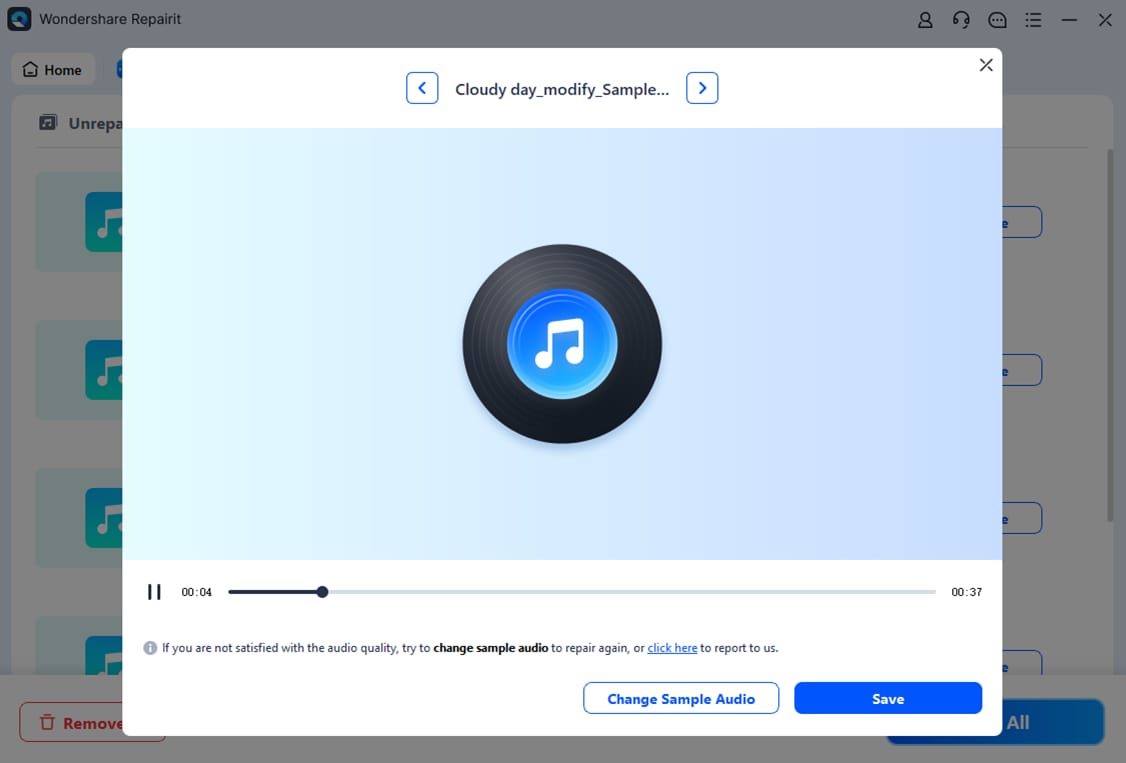
⚠️ Use this solution only if glitch sounds happen in specific files, not across your entire system.
Part 6. Tips to Prevent Glitch Sounds in the Future
Audio glitches can often be prevented by maintaining your system and handling files properly. Follow these practices:
- Keep audio drivers updated to maintain compatibility and stability.
- Use high-quality HDMI and audio cables to prevent signal interruptions.
- Avoid running too many heavy programs during playback to reduce processing delays.
- Safely eject storage devices to prevent file corruption.
- Keep backup copies of important audio files in case damage occurs.
These steps reduce the risk of both system-level and file-level audio issues.
Conclusion
Glitch sounds usually result from driver problems, incorrect settings, unstable connections, or damaged files. Identifying whether the issue is system-wide or file-specific helps you choose the correct fix faster.
Most problems can be resolved by updating drivers, adjusting audio settings, or checking hardware connections. If the issue only affects certain files, repairing the damaged audio may restore normal playback.
FAQs
-
What causes glitch sounds on Windows?
This usually indicates HDMI cable problems, firmware bugs, or audio configuration errors rather than video issues. -
Why is my TV glitching sound but the picture is fine?
This usually indicates HDMI cable problems, firmware bugs, or audio configuration errors rather than video issues. -
Can HDMI cables cause sound glitching?
Yes. Loose, damaged, or low-quality HDMI cables can interrupt digital audio signals. -
How do I know if an audio file is corrupted?
Yes. Loose, damaged, or low-quality HDMI cables can interrupt digital audio signals. -
Can audio repair software fix all glitch sounds?
No. It can only fix file corruption, not hardware or driver problems.