
WMA, short for Windows Media Audio, is a digital audio format and audio codec developed by Microsoft to compress sound while keeping file sizes small. It matters because it lets you store more music, podcasts, and voice recordings without filling your drive, and was widely used for streaming, online radio, and portable players. Today, WMA format still appears in older music libraries, legacy Windows apps, and some broadcasting workflows, especially where bandwidth and storage are limited.
Repair Corrupted Files To Save Your Data
 Security Verified. Over 7,302,189 people have downloaded it.
In this article
How WMA Works
The WMA codec uses psychoacoustic modeling to analyze which parts of the audio the human ear hears clearly and which parts can be simplified or removed. It then compresses that data into a smaller WMA file while trying to keep the music or voice sounding natural. Like MP3 and AAC, standard WMA is a lossy codec, so it discards some information to shrink file size. At lower bitrates, this can significantly reduce storage and bandwidth needs for streaming or downloads, but the audio may sound slightly less detailed compared with high-bitrate or lossless formats.
Variants like WMA Pro and WMA Lossless improve quality or preserve every audio sample. WMA Lossless keeps all original data but still packs it more efficiently than uncompressed WAV, so files are smaller but remain bit-perfect copies of the source.
Key Features, Pros, and Cons
Main features of WMA
-
Multiple profiles: standard WMA format, WMA Pro for higher fidelity, and WMA Lossless for exact copies of the source audio.
-
Flexible bitrates: from low bitrates suitable for streaming voice to higher bitrates for near-CD-quality music.
-
Tight Windows integration: designed for Windows Media Player, Windows Media Center, and older Microsoft services.
-
Streaming support: originally optimized for online radio and media streaming over limited connections.
-
Digital rights management (DRM): historically used for protected music downloads from older online stores.
Pros, cons, and real-world performance
Pros
Good perceived quality at low to medium bitrates, especially for speech and background listening.
Smaller file sizes than some legacy codecs at equivalent perceived quality.
Lossless option (WMA Lossless) for archiving or production workflows within a Windows environment.
Well supported by older Windows PCs, some car stereos, and legacy portable players.
Cons
Proprietary format tied closely to Microsoft, limiting native support in some open-source players and systems.
DRM-protected WMA tracks can be difficult or impossible to play on newer systems once licensing servers are offline.
Not the preferred choice for new music distribution, which now favors MP3, AAC, or lossless FLAC.
Typical real-world performance
In practice, standard Windows Media Audio at bitrates around 64–128 kbps often sounds acceptable for casual listening, podcasts, or audiobooks and can outperform older MP3 encoders at very low bitrates. For critical music listening, higher bitrate WMA Pro or WMA Lossless may be used, but many users instead pick more modern codecs. When a WMA vs MP3 comparison is done today, quality differences are usually subtle for non-expert listeners, while compatibility benefits heavily favor MP3.
WMA vs Other Audio Codecs
When comparing WMA with other audio codec options, you mainly look at quality, compression efficiency, and how easily the files play across devices.
| Codec | Main characteristics and best use cases |
|---|---|
| WMA | Efficient at low to mid bitrates, strong on Windows and some legacy hardware. Best for older libraries, Windows-based workflows, and cases where existing content is already in WMA. |
| MP3 | Lower compression efficiency than newer formats but universal compatibility. Ideal for sharing music, car stereos, and mixed-device environments. |
| AAC | Generally better quality than MP3 at the same bitrate, widely used by Apple and many streaming services. Good for modern devices and online distribution. |
| Opus | Highly efficient, especially for voice and low-bitrate streaming. Common in VoIP, online conferencing, and some web apps, but less used for offline music libraries. |
| FLAC | Open-source lossless codec. Larger files than WMA standard but perfect quality and broad support. Ideal for archiving and high-fidelity listening. |
| Vorbis (Ogg) | Open, lossy codec with better efficiency than older MP3. Frequently used in some games and open-source projects, but not as common on hardware players. |
In plain terms, WMA offers decent sound and compression but loses ground in compatibility to MP3 and AAC, and in flexibility to open formats like FLAC and Vorbis. For new projects, MP3, AAC, or Opus are usually more practical, but if your collection or workflow already revolves around WMA files, converting or carefully managing them is often the best strategy.
Compatibility and Practical Use
Originally, Windows Media Audio was built into Windows Media Player, Zune devices, Xbox media features, and numerous older portable music players. Many car stereos, DVD players, and set-top boxes still list WMA format as supported, particularly if they were released when WMA was popular.
Today, WMA files remain easy to open on Windows using built-in players, and cross-platform apps like VLC, foobar2000, and some web-based tools can decode them as well. On macOS, Linux, Android, and iOS, WMA is not always supported natively, but third-party apps or conversions make playback possible.
To use WMA in a modern workflow, you have several options:
-
Play directly: open the file in Windows Media Player, VLC, or another compatible player.
-
Convert to MP3, AAC, or FLAC: use an audio converter to change legacy WMA into a more universal format for phones, smart speakers, and streaming services.
-
Keep WMA for archives: if your ecosystem is Windows-centric and everything works, you can keep existing WMA files while creating MP3/AAC copies for sharing.
Although WMA is no longer the leading choice for new content, it is still relevant for maintaining older libraries, handling archives from legacy systems, and supporting hardware that explicitly depends on WMA format playback.
How to Use Repairit to Fix a Corrupted WMA File
Why use Repairit for broken WMA audio
If a WMA file refuses to play, cuts off unexpectedly, or causes the player to crash, it may be corrupted. This can happen due to interrupted downloads, storage failures, malware, or sudden power loss while saving or transferring the file. Instead of discarding these tracks, you can try specialized audio repair software.
Repairit is designed to fix damaged media files, including problematic WMA tracks. It analyzes the internal structure of the audio, looks for inconsistencies or missing information, and attempts to rebuild a clean, playable copy. You do not need deep technical knowledge; the program guides you through a short, wizard-style workflow.
Key features of Repairit for WMA repair
-
Repairs corrupted or unplayable WMA files and other audio formats in a few guided steps.
-
Supports batch processing so you can repair multiple WMA tracks in one run.
-
Lets you preview repaired audio before saving, so you can confirm that glitches are gone.
Step-by-step: repair corrupted WMA files
-
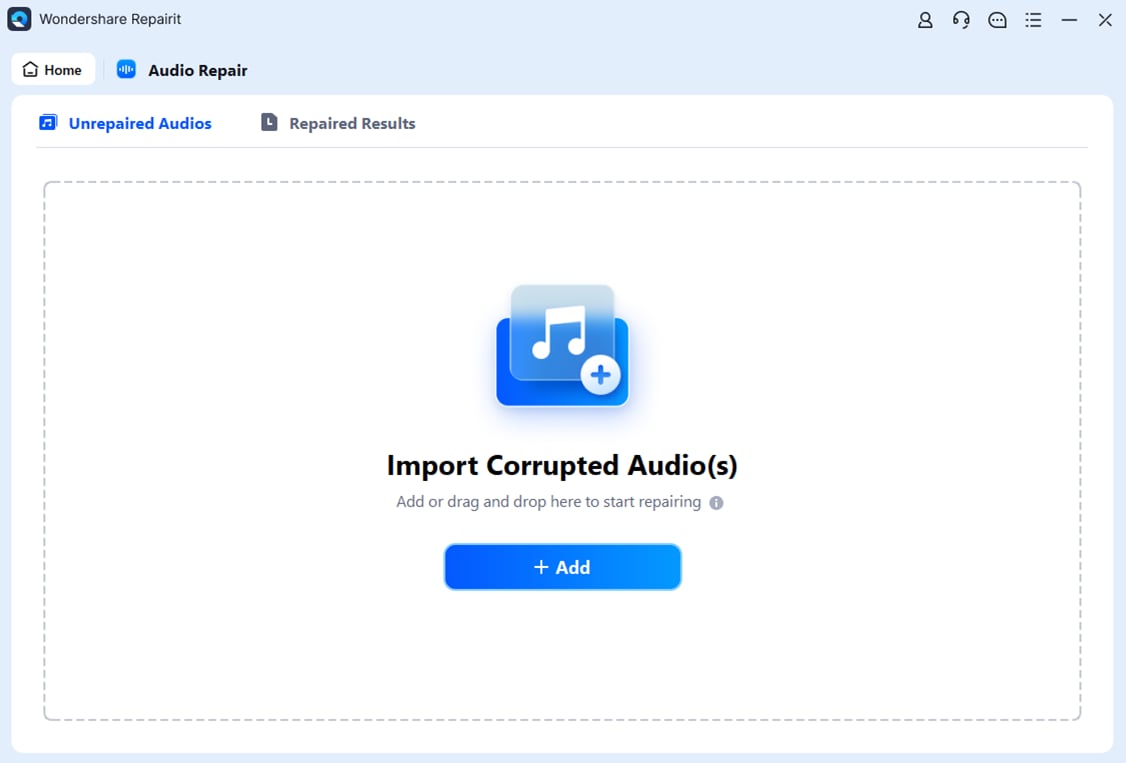
Add corrupted audio files
Install and open Wondershare Repairit, then go to the Audio Repair module. Click the option to add files and browse to the folder containing your damaged WMA format tracks. Select one or more problematic files and confirm. The chosen items will appear in the file list, showing their names, sizes, and statuses so you know exactly what will be repaired.
-
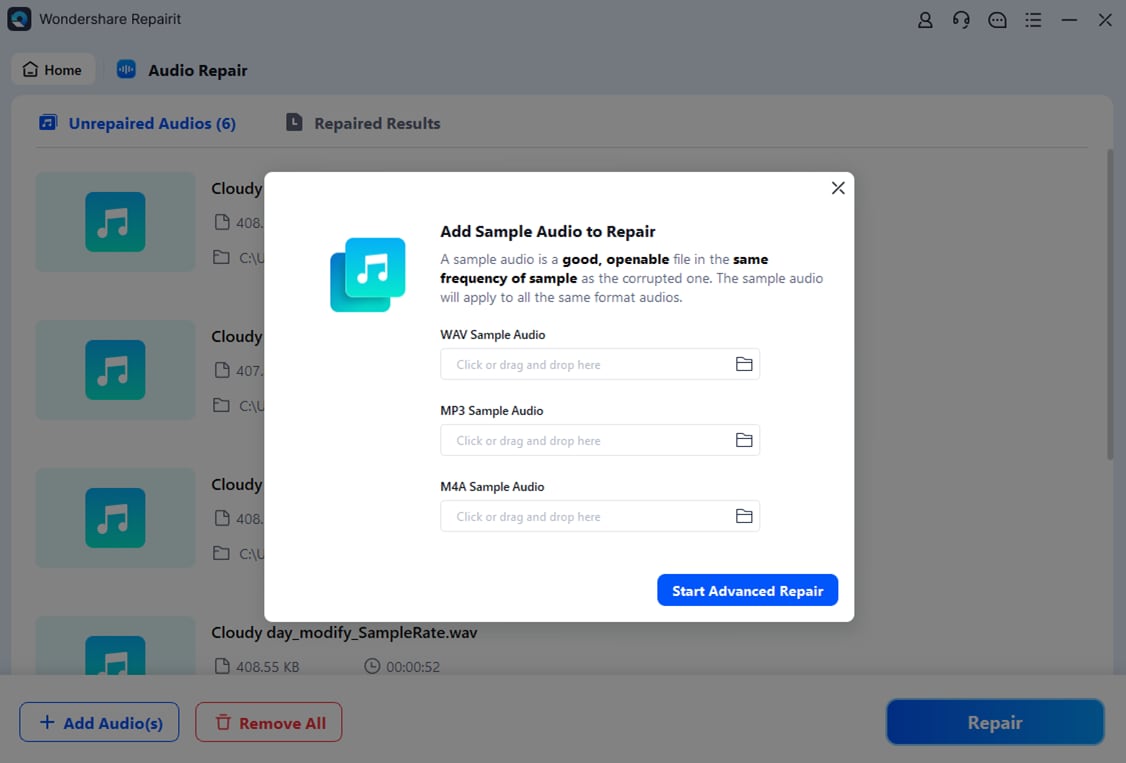
Repair audio codecs
After importing the broken WMA clips, start the repair task with a single click. Repairit scans each file, checks the audio codec headers, and looks for structural errors such as missing segments, damaged metadata, or inconsistent timelines. During this stage, the tool attempts to reconstruct the internal layout of the audio so that media players can decode it smoothly. When the process is done, you will see a result status for every track and, where available, a preview button to listen inside Repairit.
-
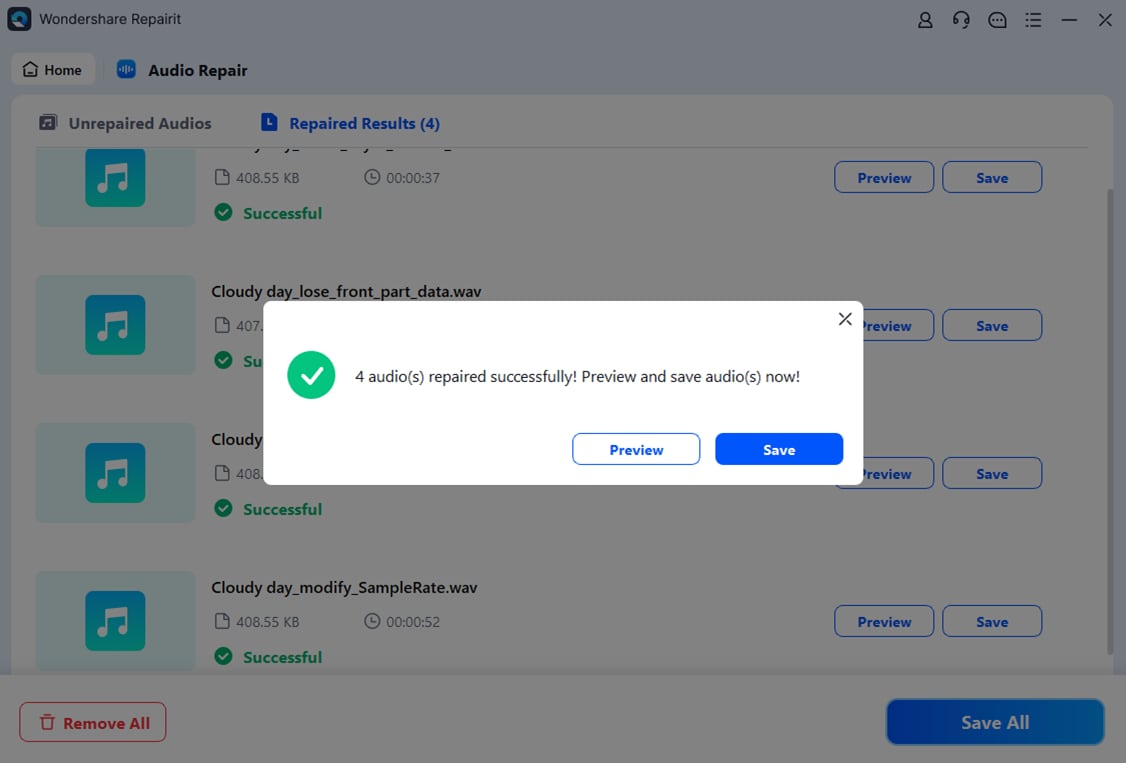
Save the repaired audio files
If the preview sounds correct and playback is stable, choose a safe destination folder for the repaired items. For best practice, select a different location from the original source so you can keep an untouched backup of your corrupted WMA files. Click Save, and Repairit will export clean, playable copies ready to open in Windows Media Player, VLC, or any other compatible player. If needed, you can later convert these fixed files to MP3, AAC, or FLAC for broader compatibility.
Conclusion
WMA is a Microsoft-developed audio codec built to provide good sound at smaller file sizes, especially for streaming and storage-limited devices. It includes both lossy and lossless profiles and fits naturally into older Windows-based ecosystems and hardware that specifically advertises Windows Media Audio support.
However, WMA is less universal than MP3, AAC, or FLAC in today's mixed-device world. If you still rely on WMA format, it is worth safeguarding your collection. When files become corrupted or stop playing, tools like Wondershare Repairit can often restore them, helping you preserve music, podcasts, and recordings that might otherwise be lost.
Next: What is DTS Codec?
FAQ
-
1. What is a WMA file?
A WMA file is an audio file encoded with the Windows Media Audio codec created by Microsoft. It was introduced as an alternative to MP3, aiming to deliver similar or better quality at smaller file sizes, and is commonly found in older Windows music libraries, online radio recordings, and legacy portable players. -
2. Is WMA better than MP3?
At very low bitrates, WMA can sound slightly better than older MP3 encoders because it was tuned for efficiency. However, for most everyday listening, the audible difference between modern WMA vs MP3 encodes is small. MP3 clearly wins in compatibility, which is why many users prefer it for sharing and long-term storage. -
3. How can I play WMA files on my device?
On Windows, you can open WMA format files in Windows Media Player, Groove Music, or third-party players like VLC and foobar2000. On macOS, Linux, Android, or iOS, you may need a compatible app such as VLC or to convert the files to MP3, AAC, or FLAC using an audio converter. -
4. Why will my WMA file not play properly?
If a WMA file will not play, plays only partially, or causes errors, the reasons may include missing codecs, incomplete downloads, file corruption, or outdated DRM. Trying another player like VLC can rule out codec issues. If the problem persists, the file is likely damaged and may need repair WMA software. -
5. How do I fix a corrupted WMA file?
To repair WMA audio, you can use a dedicated tool such as Wondershare Repairit. Import the corrupted track, let the program analyze and rebuild its structure, preview the repaired result, and then save a new, playable copy. After repair, you may choose to convert the file to MP3 or AAC for easier use on modern devices.




