If your iPhone games have no sound, it can be frustrating—especially when other apps work normally. In most cases, the issue is caused by simple settings like Silent Mode, Bluetooth connections, or in-game audio controls. Occasionally, it may be related to software glitches or corrupted audio files.
This guide walks you through quick checks and step-by-step solutions to restore sound in iPhone games, starting with the easiest fixes and moving to more advanced options if needed.
Note: This guide focuses on game audio issues caused by settings, routing, and software behavior. If your iPhone has no sound in every app (including Music/YouTube and phone calls), the problem may be system-wide or hardware-related and may require Apple Support.
Key Takeaways
- Most “no sound in iPhone games” issues are caused by Silent Mode, volume settings, or Bluetooth routing.
- Always test whether the problem is game-specific or system-wide first.
- Restarting or updating iOS often resolves hidden audio glitches.
- Audio repair tools only help when a file (recording/cutscene/export) is corrupted—they don’t fix iPhone system sound.
Table of Contents
Part 1. Why Is There No Sound in iPhone Games?
There are a few common reasons iPhone games lose audio. The key is figuring out which “type” of silence you’re dealing with:
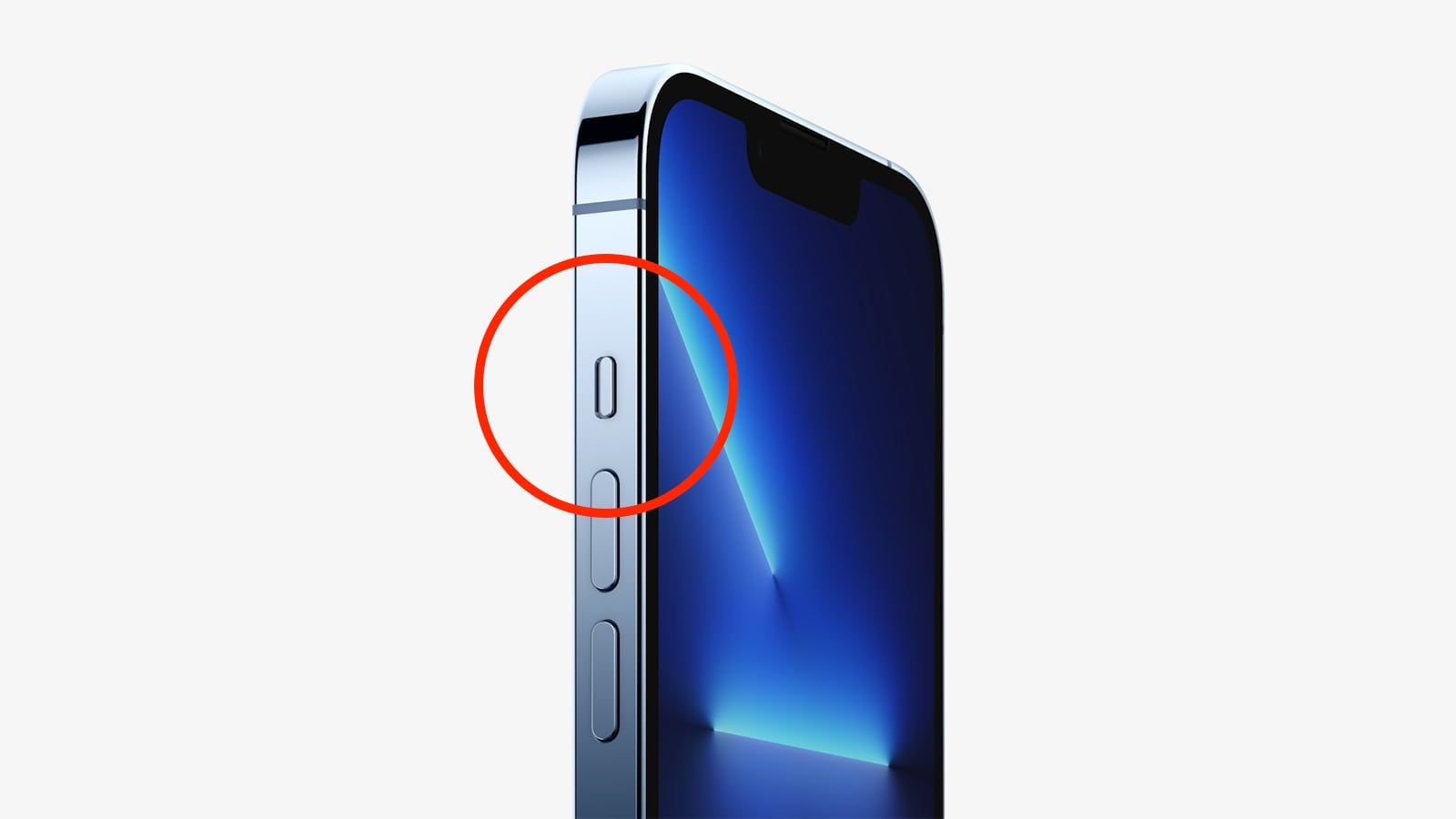
- Silent Mode Is Enabled: If the Ring/Silent switch is turned on, many games will mute audio automatically—even if media volume appears high.
- Media Volume Is Set to Zero: iPhone separates ringtone volume from media volume. Your phone may ring normally, but game audio won’t play if the media volume is lowered.
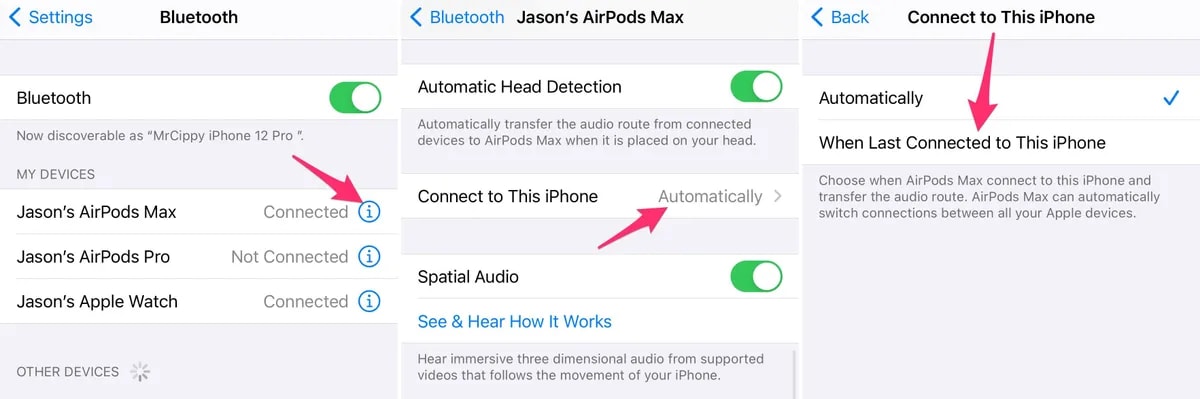
- Bluetooth Is Automatically Connected: Your iPhone may be routing audio to AirPods, a car system, or a Bluetooth speaker without you realizing it.
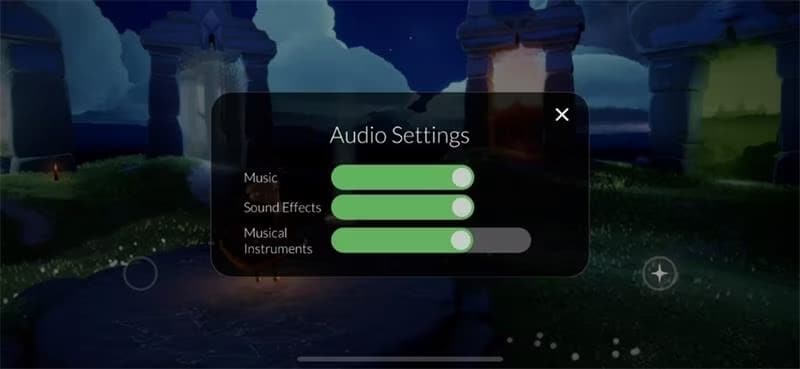
- In-Game Audio Is Muted: Some games have independent sound controls. Music, sound effects, or voice chat may be disabled within the app settings.
- Screen Time or Parental Restrictions: Restrictions can sometimes interfere with app behavior, including media playback.
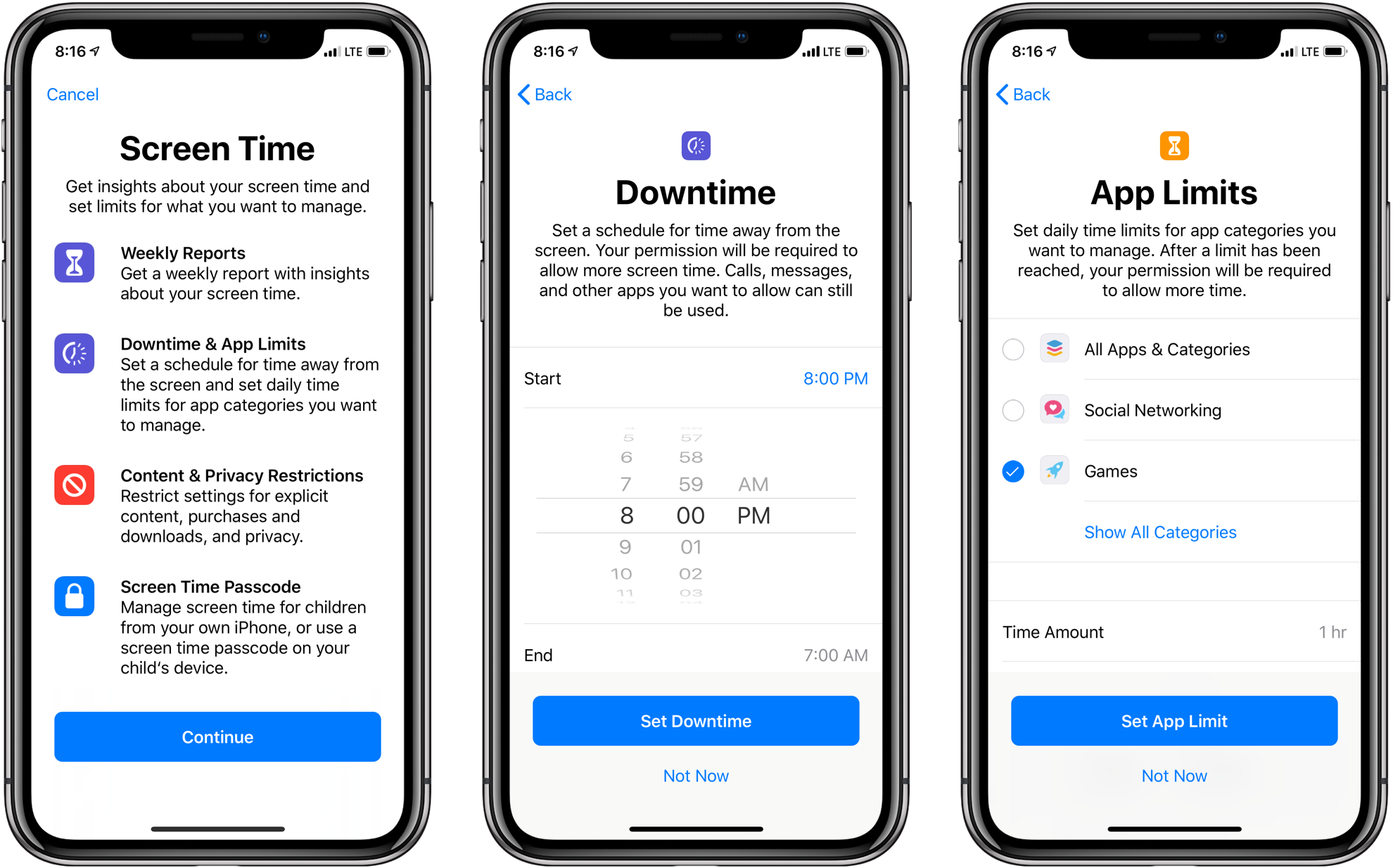
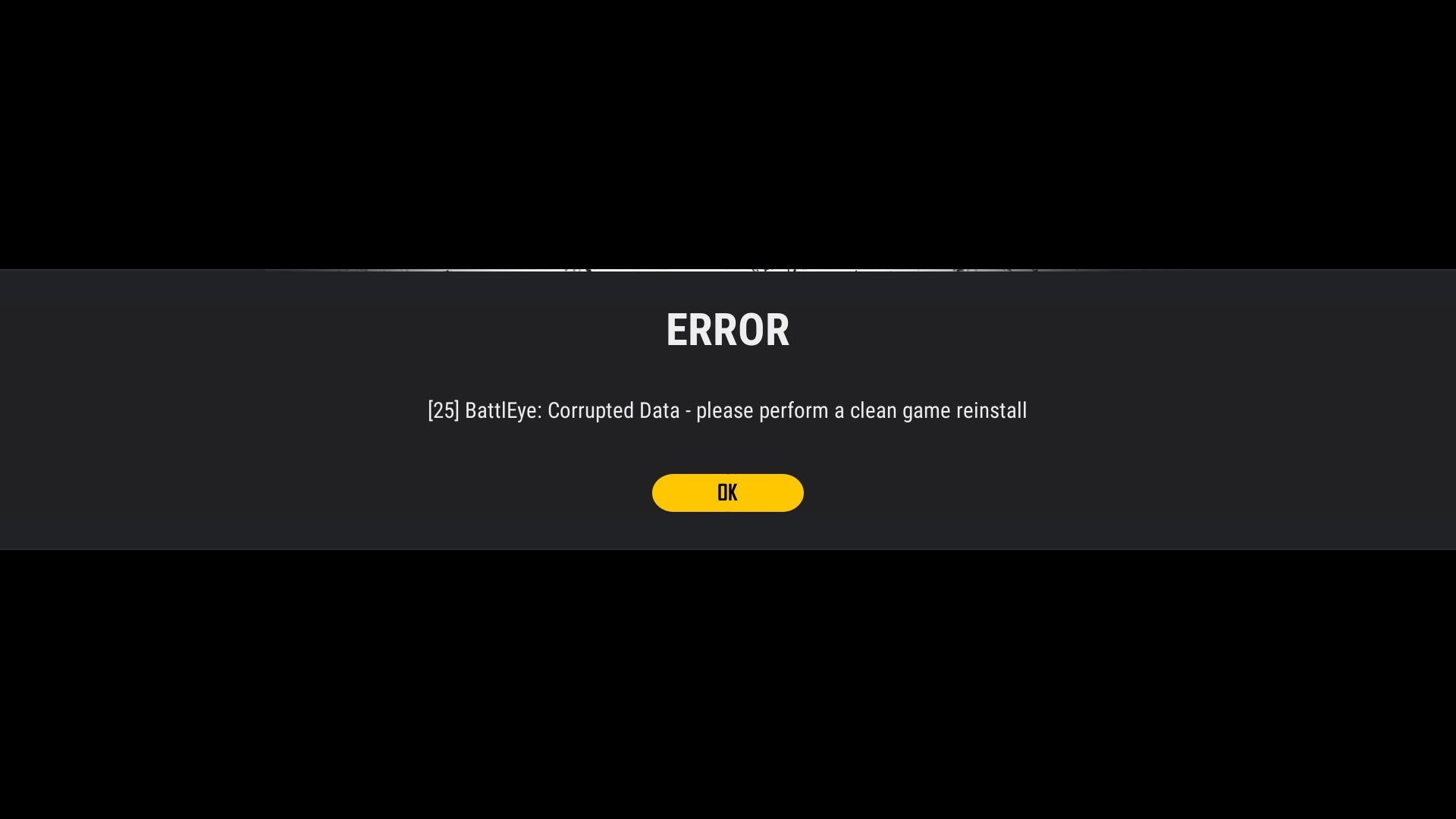
- Game App Bug or Corrupted Installation: If only one game has no sound, the app itself may be outdated or improperly installed.
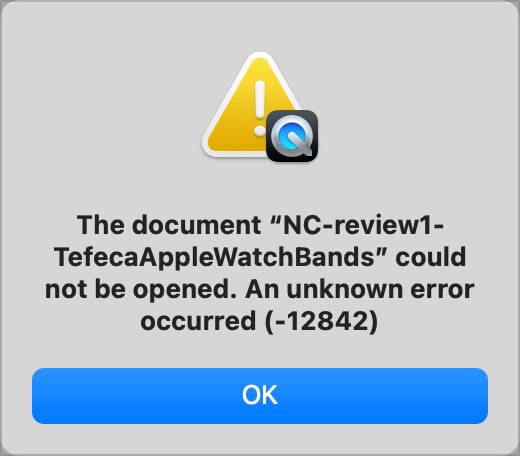
- Corrupted or Damaged Audio Files (Rare): In uncommon cases, downloaded game media, cutscenes, or exported gameplay recordings may have damaged audio tracks.
Important Note: The issue may be device-wide (no apps have sound) or game-specific (only one app is affected). Identifying which type of problem you’re facing will help you choose the fastest solution in the next steps.
Part 2. Quick Checks Before Troubleshooting
Before diving into detailed fixes, spend under one minute running these quick checks. This helps you determine whether the issue is game-specific or a system-level problem.
1. Test Sound in Another App
Open Music, YouTube, or play a video in Safari. If audio works there, your iPhone speakers are functioning properly.
2. Make a Quick Phone Call
Call a friend or voicemail and switch to speaker mode. If you hear audio clearly, your speaker hardware is fine.
3. Check If It Happens in All Games
Open a different game
- If only one game has no sound → It’s likely an app issue.
- If all games are silent → It’s likely a device or system issue.
4. Turn Volume Up While the Game Is Open
Press the volume up button while the game is running. Remember: iPhone has separate controls for ringtone and media volume.
5. Check Control Center Audio Output
Swipe down to open the Control Center and check the audio output panel.Make sure sound isn’t being routed to:
- AirPods
- Bluetooth speakers
- Car audio
- Other connected devices
Diagnosis Outcome
- Sound works in other apps → The issue is likely game-specific.
- No sound anywhere → It’s likely a system-level or device issue.
Once you know which type of problem you’re dealing with, the next fixes will be much easier and faster.
Part 3. Step-by-Step Fixes for “No Sound in iPhone Games”
Now let’s fix the issue. Start with the simplest checks first, then move to more advanced solutions if the problem continues. Test the game after each step to identify what restores the sound.
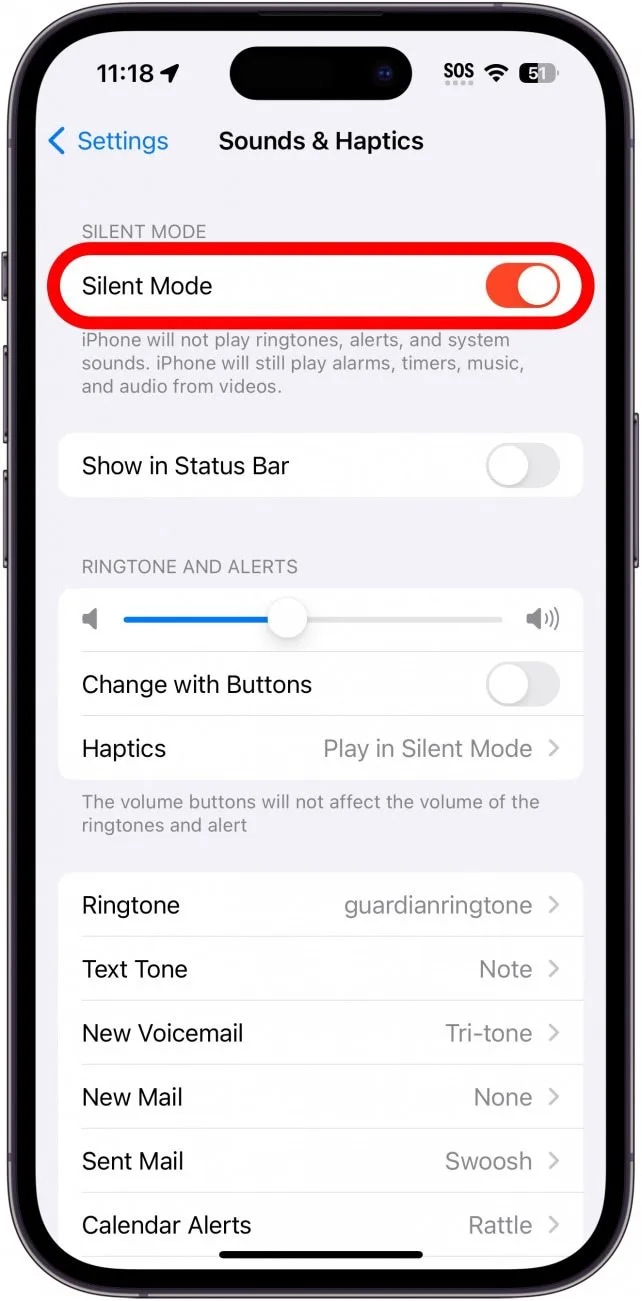
Fix 1: Check Silent Mode and Volume Settings
One of the most common reasons for no sound in iPhone games is Silent Mode or incorrect media volume settings. Many games automatically mute audio when Silent Mode is enabled—even if your ringtone works normally.
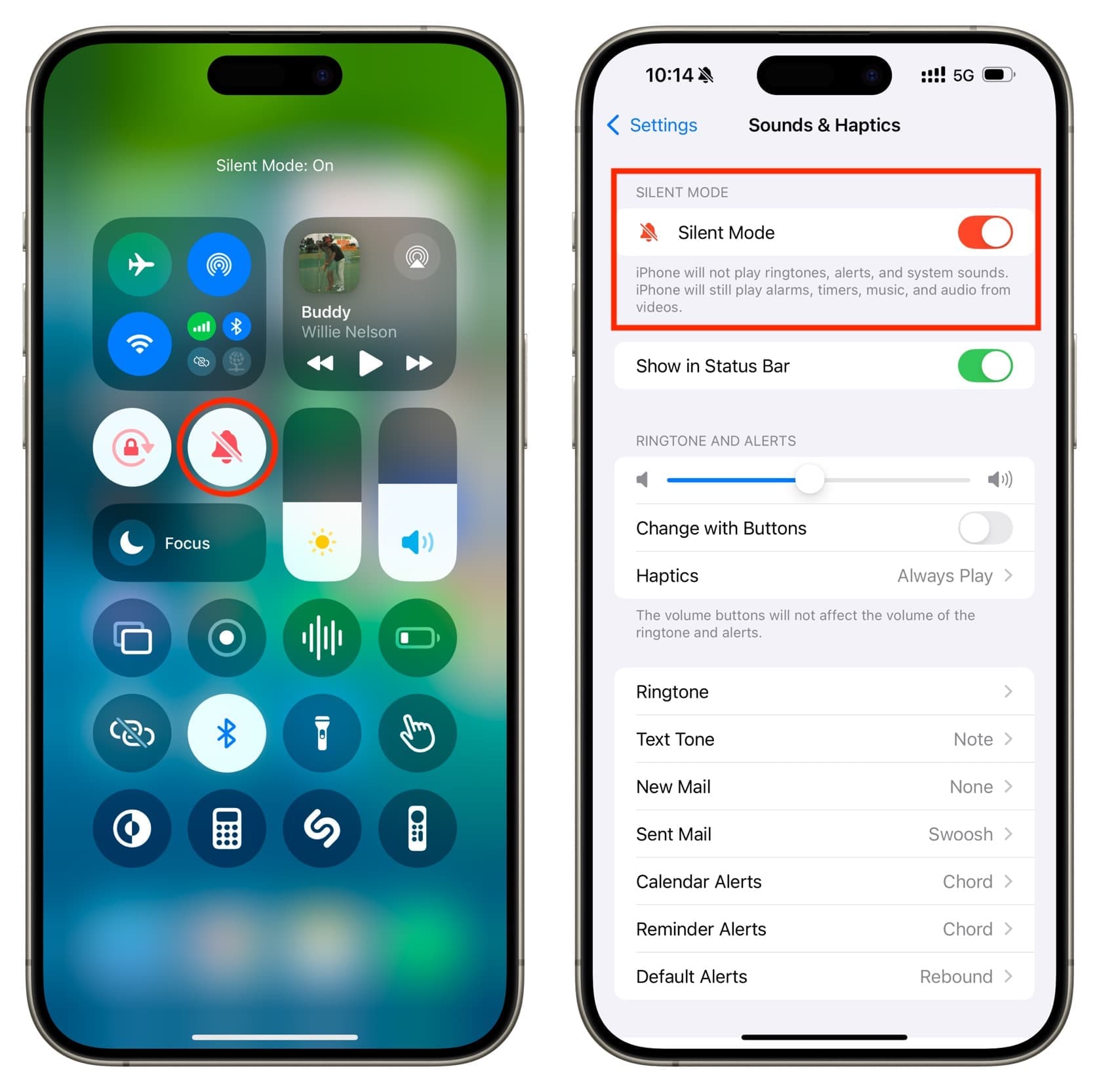
Also remember: media volume (for apps and games) is separate from ringtone volume. Your phone can ring loudly but still have zero game sound.
Step 1: Locate the Ring/Silent switch above the volume buttons. If you see orange, Silent Mode is on, toggle the switch back to Ring mode.
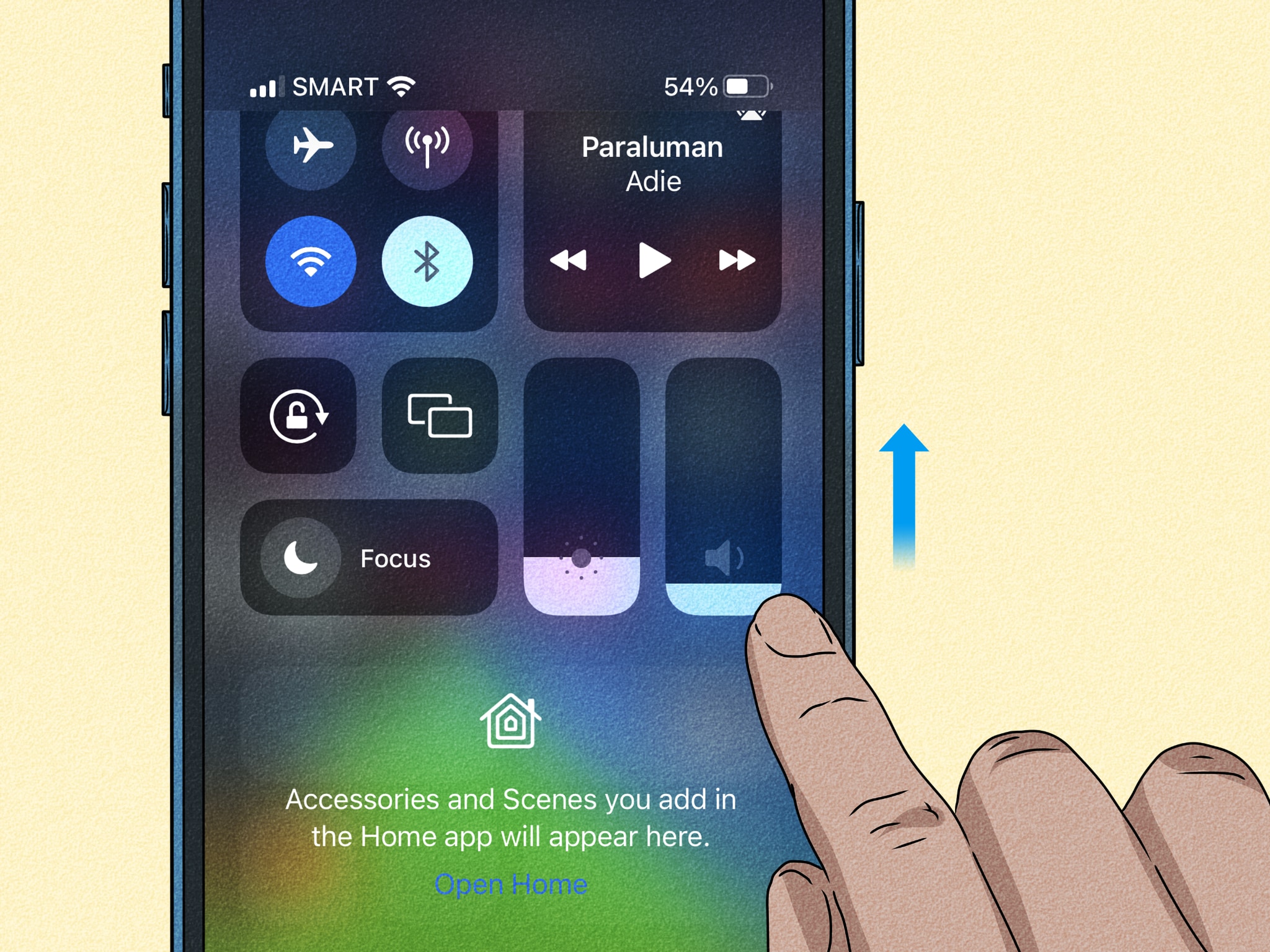
Step 2: Swipe down from the top-right corner to open the Control Center. Drag the media volume slider upward and ensure audio is not muted.
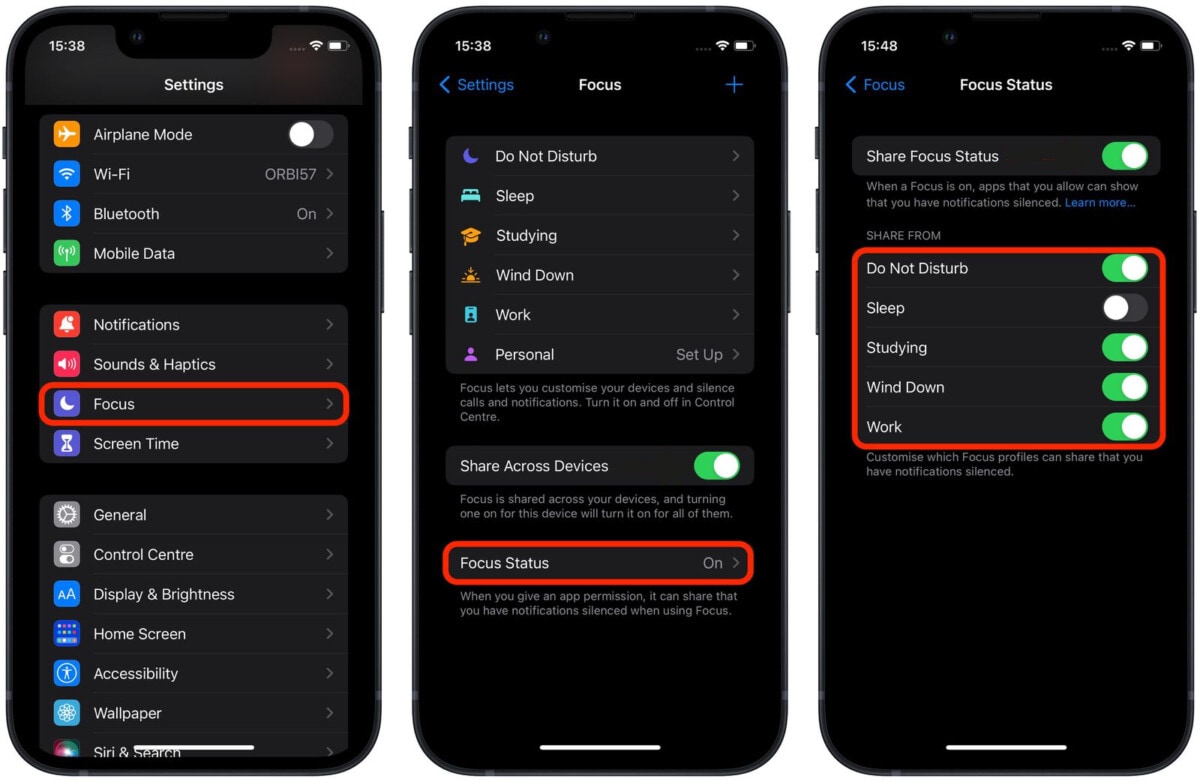
Step 3: In the Control Center, check if Focus or Do Not Disturb is enabled. Turn it off temporarily and test the game again.
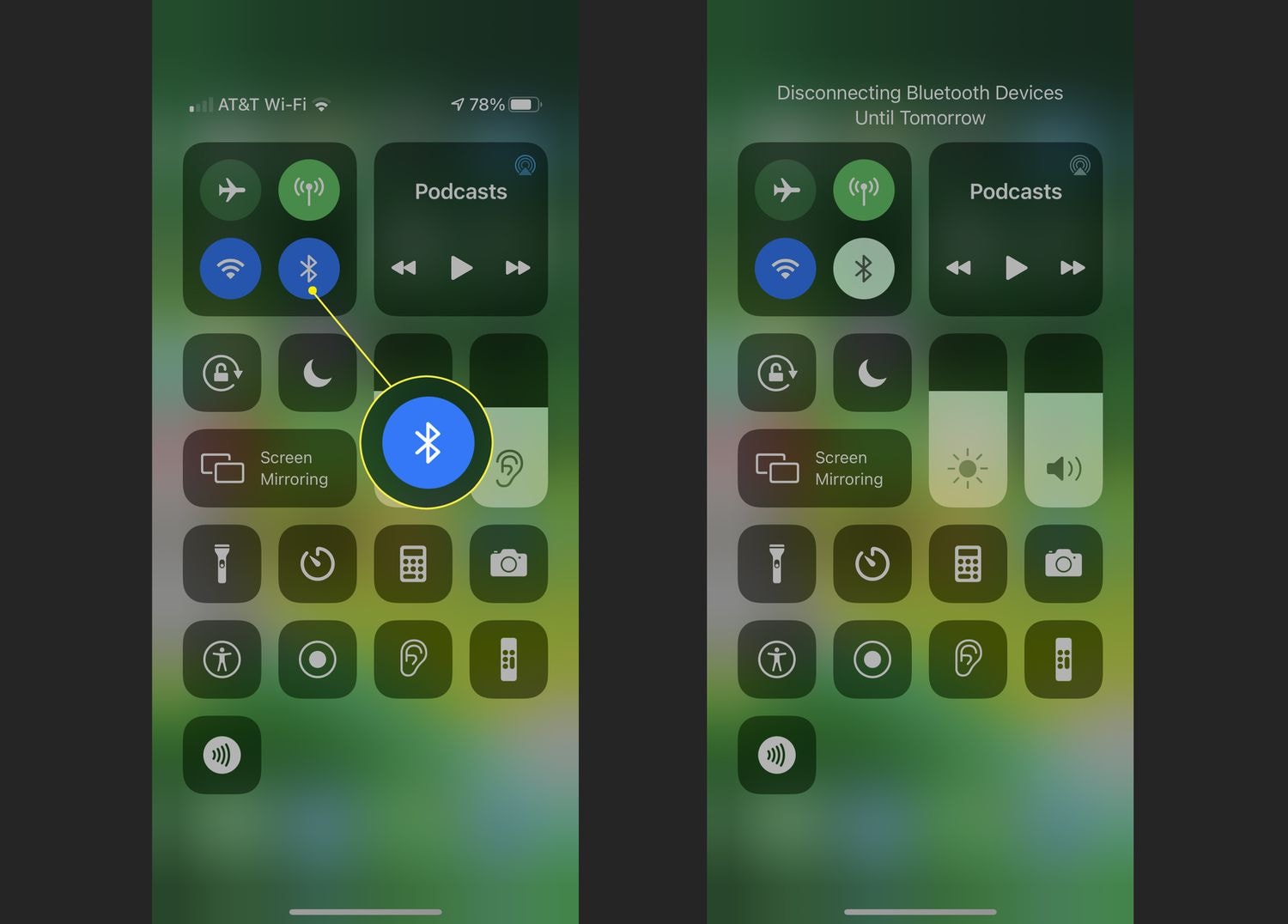
Fix 2: Disconnect Bluetooth or External Devices
Sometimes your iPhone games have no sound because the audio is being sent to another device instead of your phone’s speaker. iPhones automatically route sound to the last connected audio device, even if you’re not actively using it.
Your audio may be playing through:
- AirPods
- Bluetooth headphones or speakers
- Car audio systems
- Smart TVs or AirPlay devices
If those devices are nearby or previously paired, your game audio might be going there silently.
Step 1: Swipe down from the top-right corner of your screen.
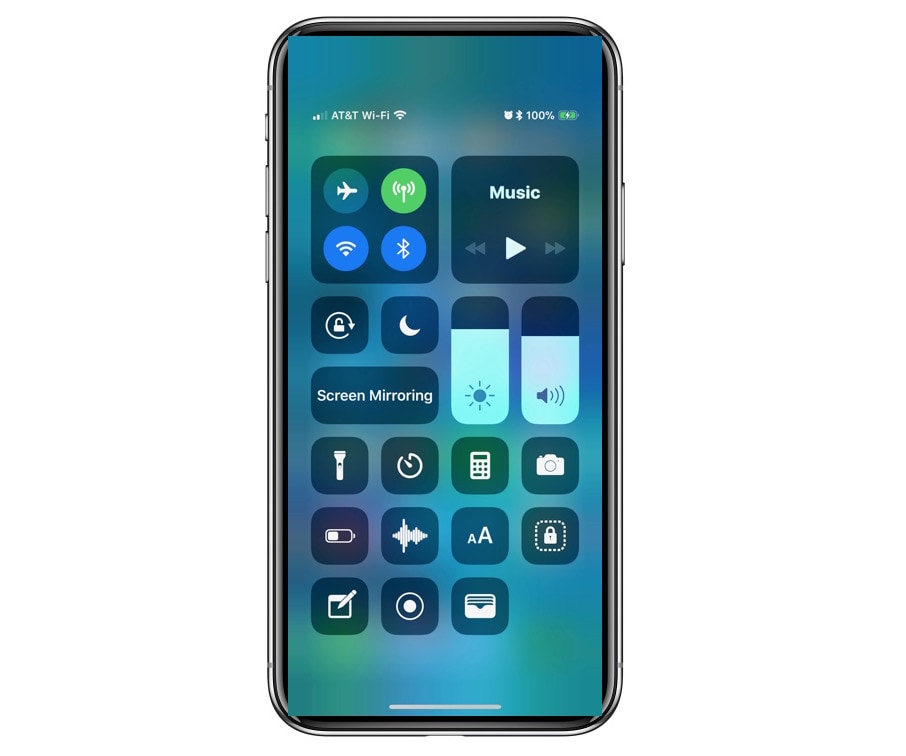
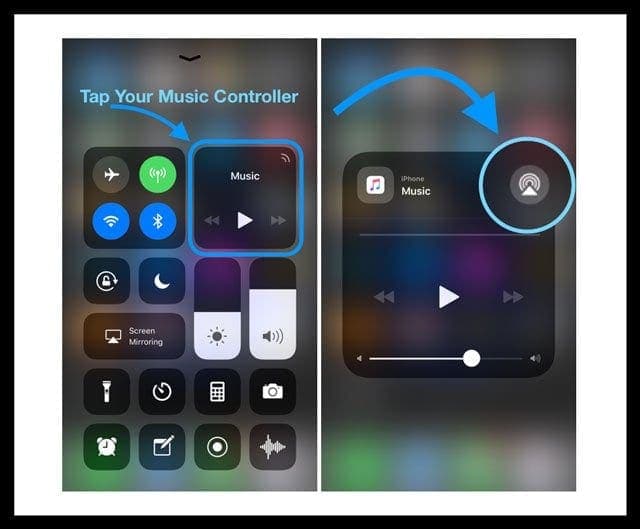
Step 2: In the media playback box, tap the AirPlay icon (triangle with circles). You’ll see a list of connected audio devices.
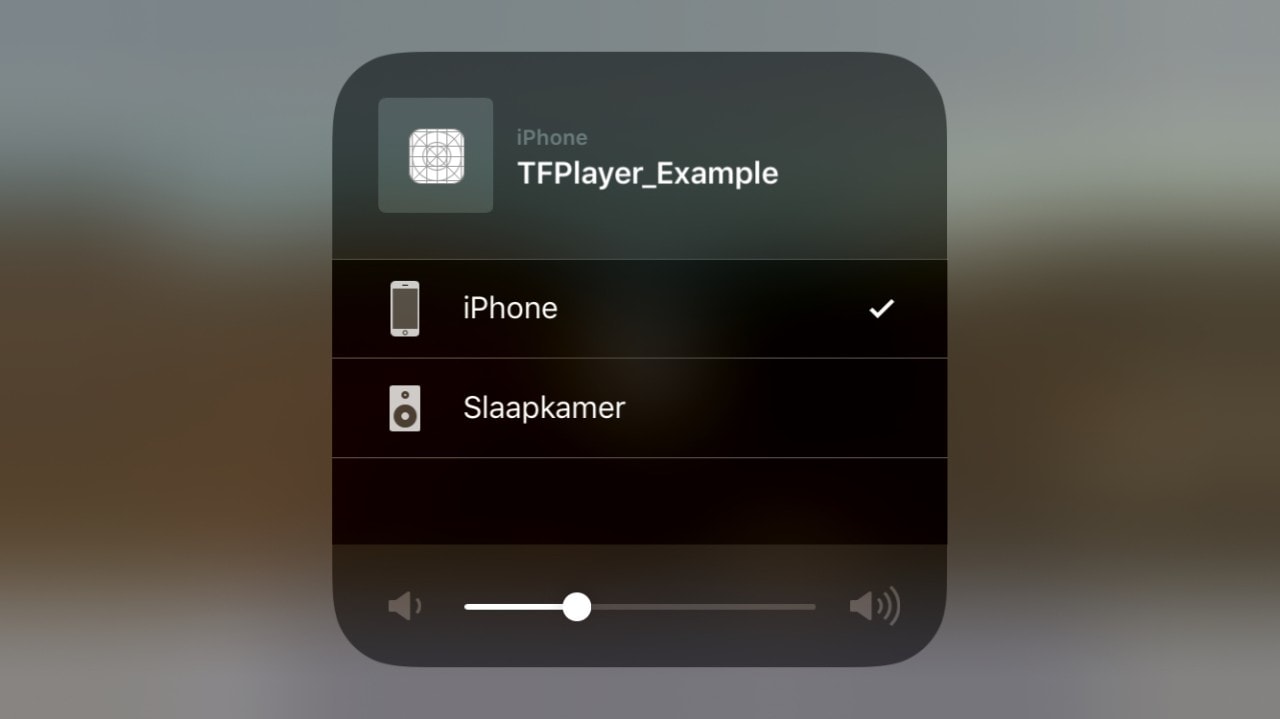
Step 3: Select iPhone as the audio output device. This forces audio back to your phone’s built-in speaker.
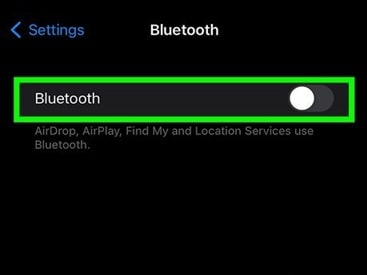
Step 4: Go to Settings → Bluetooth. Toggle Bluetooth off temporarily then reopen the game and test the sound
Fix 3: Restart Your iPhone
If your iPhone games still have no sound, the issue may be caused by a temporary iOS glitch. Occasionally, background audio services fail to load properly, which can prevent media sound from playing inside apps—even though your speakers are working.
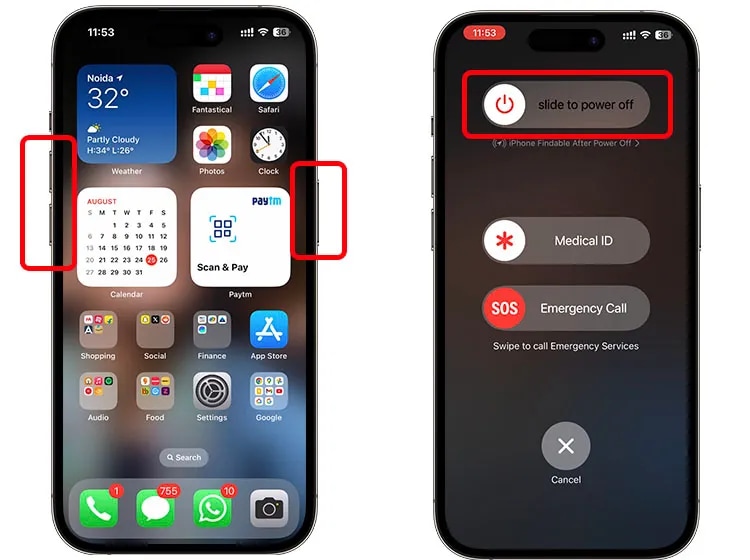
Restarting your iPhone refreshes system processes and clears minor software bugs.
Step 1: Press and hold the Side button + Volume button (for Face ID models). Or hold the Power button (for older models), then Slide to power off.
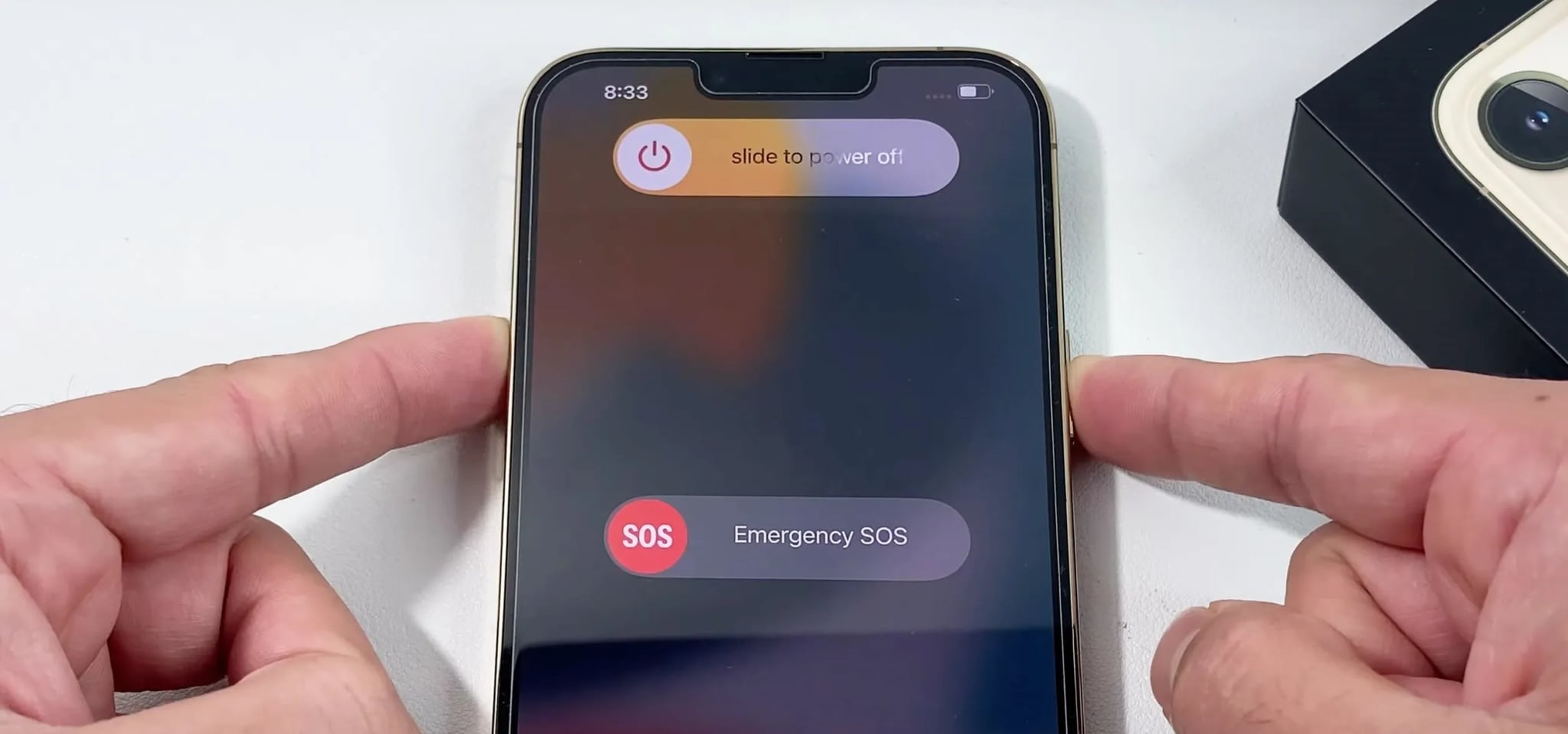
Step 2: This allows background processes and memory to fully reset.
Step 3: Press and hold the Side/Power button until the Apple logo appears.
Step 4: Open the affected game and test the sound.
Fix 4: Update iOS and the Game App
Sometimes, no sound in iPhone games occurs because your device or the game app is outdated. Compatibility issues between iOS and game updates can prevent audio from playing correctly.
Keeping both your iPhone and apps up to date ensures the latest bug fixes and audio improvements are applied.
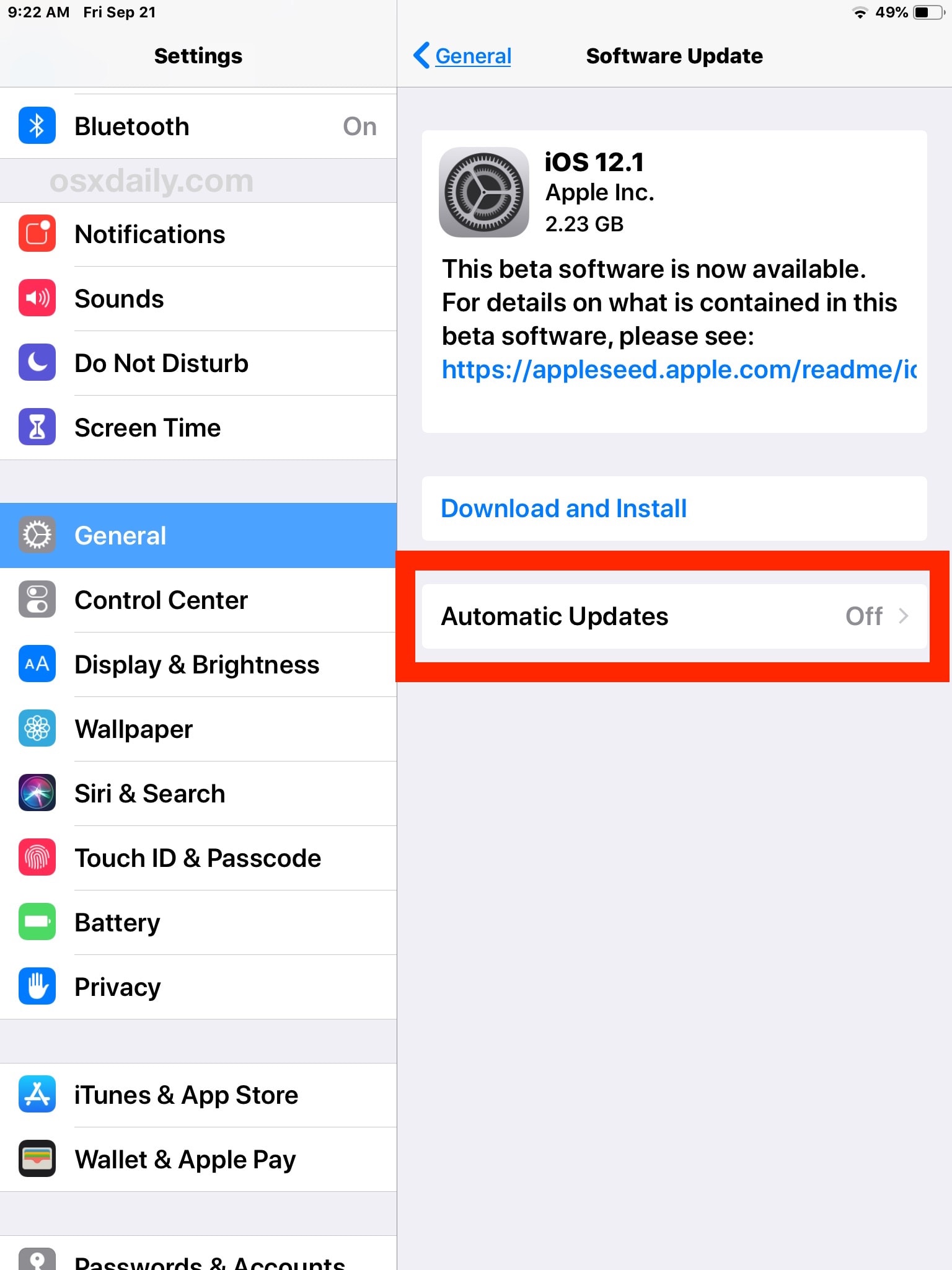
Step 1: Update iOS, Open Settings → General → Software Update. If an update is available, tap Download and Install then follow the prompts to complete the update.
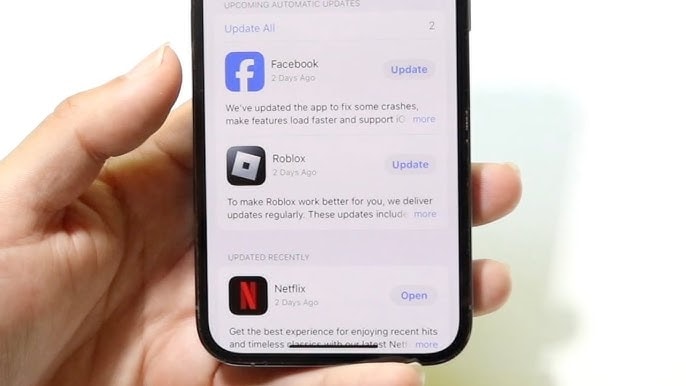
Step 2: Tap your profile icon in the top right. Scroll to Available Updates, locate the game, and tap Update.
Step 3: Power off and back on to ensure updates take effect. Launch the game again and test the sound.
Fix 5: Reset All Settings (If Audio Still Fails)
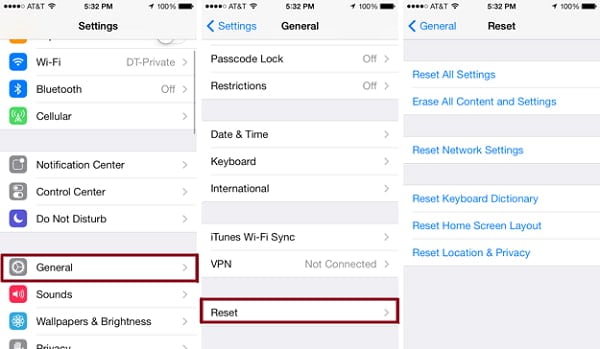
If all other troubleshooting steps fail, resetting all settings can help fix persistent iPhone game audio issues. This method targets system-level glitches without deleting your apps or personal data.
What It Does
- Resets system preferences including network, audio, and display settings.
- Does NOT erase apps, photos, or other personal data.
Step 1: Go to Settings → General → Transfer or Reset iPhone. Tap Reset.
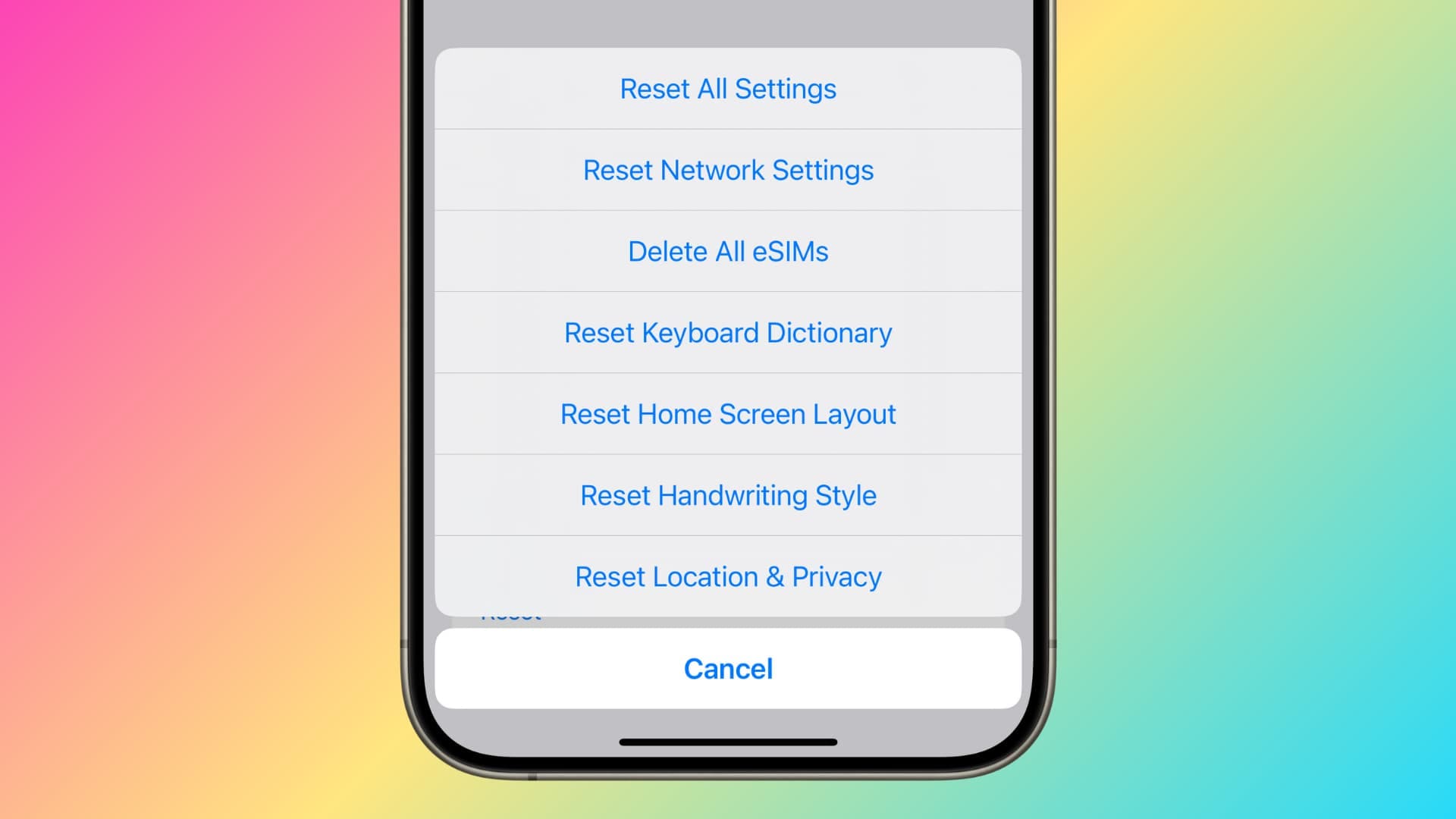
Step 2: Select Reset All Settings. Enter your passcode when prompted.
Step 3: Your iPhone will restart automatically. Open the game and check if sound now works.
Note:
- Wi-Fi passwords and Bluetooth pairings will be removed.
- You’ll need to reconnect devices and re-enter Wi-Fi credentials.
- Resetting all settings often resolves stubborn audio glitches caused by misconfigured system preferences or background conflicts.
Part 4. When No Sound Is Caused by Corrupted Audio Files
Sometimes, the “no sound” problem isn’t caused by your iPhone or the game itself but by corrupted audio files. This situation usually occurs with downloaded game cutscenes, exported gameplay recordings, or saved media files that fail to play sound correctly.
When to Use Audio Repair
- The iPhone plays sound normally in apps and games, but one saved/exported file has no audio, and
- The same file is silent on other devices/players too.
If the audio track or container structure is damaged, a repair tool may restore playable audio. Repairit Audio Repair can repair damaged or corrupted audio files without affecting your system settings.
- CAN: fix structurally damaged audio tracks/containers and restore playback for corrupted files
- CAN’T: fix iPhone system sound, replace missing audio that was never recorded, or repair 0 KB files
Step 1: Install the software on your computer then open the Audio Repair module. Click Add to select the corrupted file.
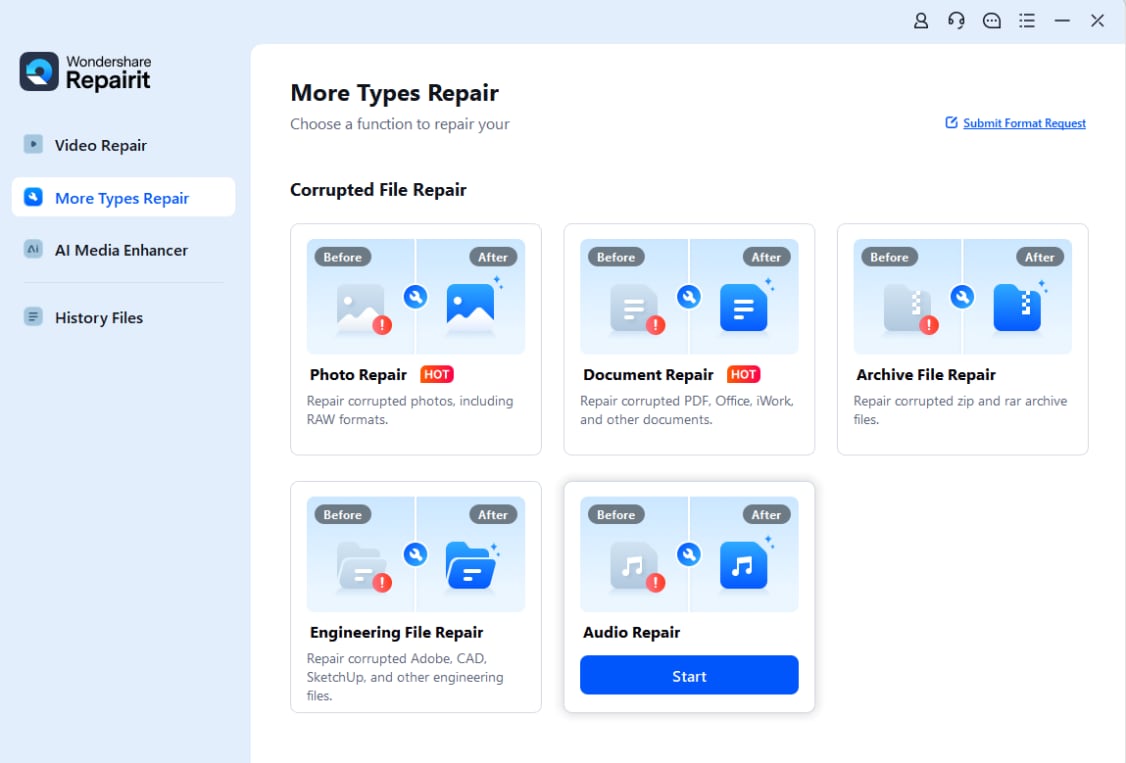
Step 2: Confirm the file format is supported (MP3, WAV, M4A, etc.). Click the Repair button to repair the corrupt audio.
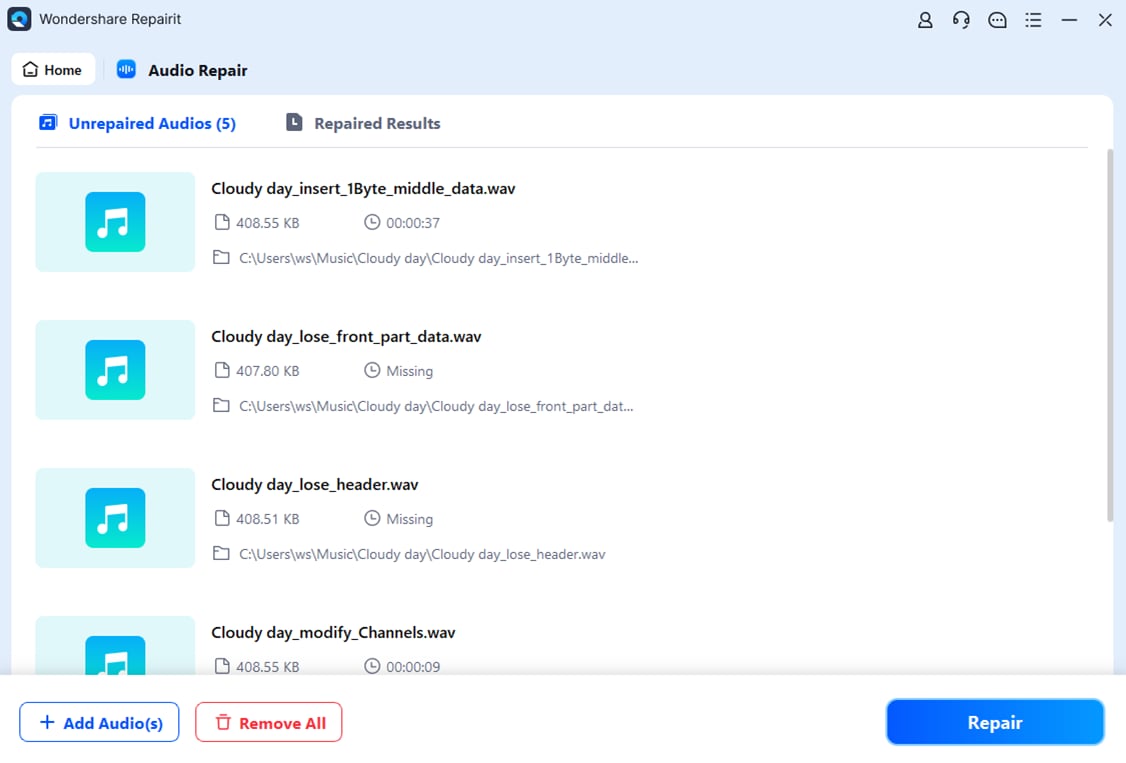
Step 3: Preview the repaired audio. Once you’re satisfied with the file, save your files to your desired location.
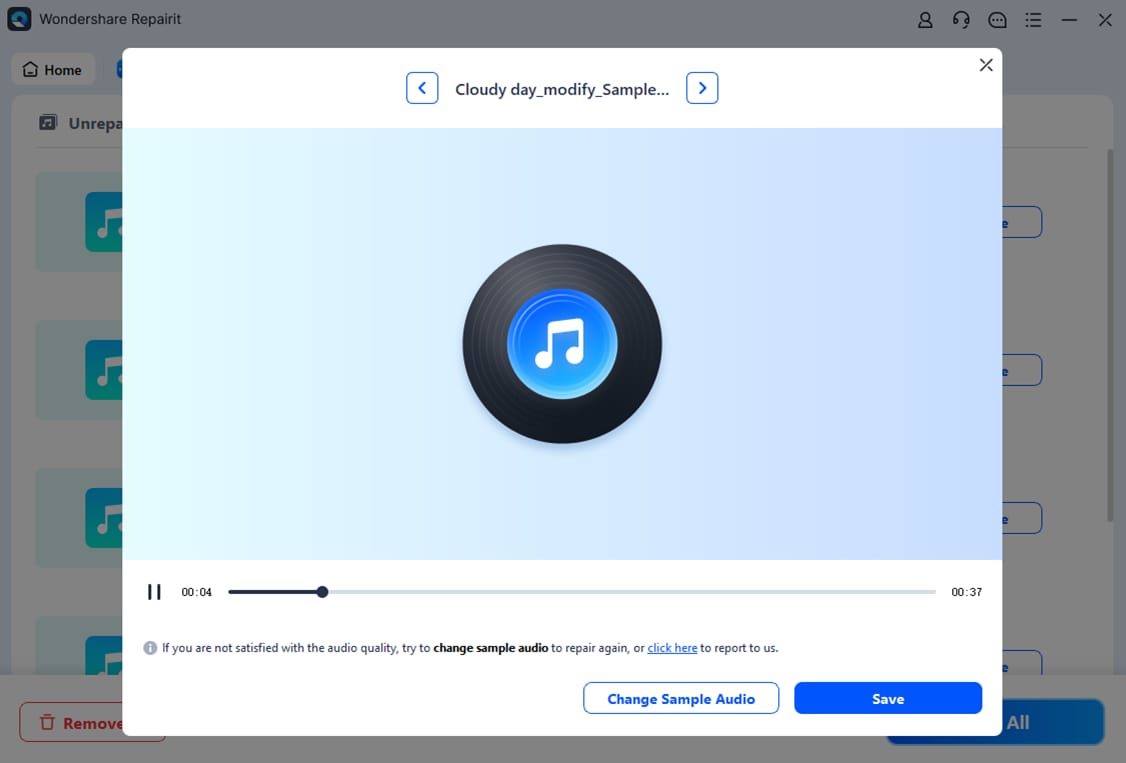
Important: This method does not fix system-wide audio issues. It only applies when the audio data in a file is damaged or missing.
Part 5. How to Prevent iPhone Game Audio Issues in the Future
Preventing audio problems before they happen can save time and frustration. Here are key practices to keep your iPhone games sounding their best:
- Keep iOS updated: Regular updates fix bugs and improve system compatibility with apps.
- Avoid beta versions unless necessary: Beta iOS releases may have unstable audio performance.
- Restart your device weekly: This refreshes background processes and clears minor glitches.
- Avoid force-closing system audio processes: Let iOS manage media services to prevent unintended audio interruptions.
- Monitor Bluetooth usage: Disconnect devices when not in use to avoid audio routing issues.
- Avoid downloading unofficial game builds: Only use App Store versions to ensure stable and complete audio files.
Following these preventive steps reduces the risk of “iPhone games no sound” issues and helps maintain a smooth gaming experience.
If Nothing Works (Quick next steps)
- Test sound in Music/YouTube and on a phone call. If there’s no sound anywhere, it’s likely a system-wide or hardware issue.
- Try wired headphones (if supported) or another Bluetooth device to compare output.
- If the problem persists across all apps after resets and updates, consider contacting Apple Support for hardware diagnostics.
Conclusion
Most “iPhone games no sound” issues are caused by simple settings or software glitches rather than permanent device problems. Starting with Silent Mode and volume checks, ensuring Bluetooth isn’t routing audio elsewhere, and verifying in-game sound settings often resolves the issue quickly.
If the problem persists, updating iOS and the game app or restarting your iPhone usually restores normal audio. Only in rare cases where audio files themselves are corrupted should you use a tool like Repairit Audio Repair to fix damaged media. The good news is that most audio issues can be fixed within minutes, so you can get back to enjoying your games without frustration.
FAQs
-
Q1: Why does my iPhone have sound everywhere except games?
Your iPhone likely has no sound in games because the physical silent switch is on, the media volume is muted within that specific app, or a "Do Not Disturb/Focus" mode is active. Games typically rely on media volume, which can be silenced even if ringtones work, or they may conflict with background audio processes. -
Q2: Why is my game audio only working with headphones?
Game audio often works only with headphones because your system is configured to output sound to the headset by default instead of speakers. This is frequently caused by incorrect audio device settings, a muted system/application, or a hardware issue with your speakers. -
Q3: Can a software update remove sound in games?
Yes, a software update (operating system or game patch) can remove or break sound in games by introducing bugs, misconfiguring audio settings, or installing incompatible audio drivers. This often results in muted game audio, muffled sound, or complete silence, requiring fixes like updating drivers, disabling exclusive mode, or adjusting sound settings. -
Q4: Does resetting settings delete my data?
No, Reset All Settings only restores system settings to default—Wi-Fi passwords, Bluetooth pairings, and preferences are removed, but apps, photos, and files remain intact. -
Q5: Can Repairit fix system audio problems on iPhone?
No. Audio repair tools only apply to silent or corrupted recordings/exports. They can’t change iOS audio routing, volume contexts, or in-game mute settings.