
FLAC (Free Lossless Audio Codec) is a digital audio format that compresses sound without losing any original detail, making it ideal for archiving and high-fidelity listening. Because every bit of the source is preserved, FLAC audio is popular for music libraries, downloads from hi-res music stores, and some streaming services that offer lossless tiers, ensuring studio-level quality on home systems, portable players, and computers.
Repair Corrupted Files To Save Your Data
 Security Verified. Over 7,302,189 people have downloaded it.
In this article
How FLAC Works
FLAC format uses lossless compression to reduce file size without discarding any audio information. It analyzes the waveform, finds patterns and redundancy, and stores them more efficiently using mathematical models, then adds checksums so the decoder can verify accuracy on playback. Typical FLAC audio files are about 30–60% smaller than uncompressed WAV, but when decoded, they reconstruct the signal bit-for-bit, delivering original quality while saving storage and bandwidth compared with raw PCM.
Key Features, Pros, and Cons
Main features of FLAC
- Lossless compression: Preserves 100% of the source audio while still shrinking file size significantly compared with WAV or AIFF.
- Open and royalty-free: The FLAC codec is open-source, so developers can implement it without licensing fees, which encourages broad support.
- Rich metadata support: Stores tags, artwork, lyrics, and replay gain data cleanly, making it ideal for organized music libraries.
- Error detection: Built-in checksums help identify corruption, improving reliability during copying and long-term storage.
- Streaming-friendly design: Supports fast seeking and efficient decoding, which benefits local streaming over home networks.
Pros, cons, and real-world performance
Advantages of FLAC
- Delivers true lossless audio with no quality degradation from the original recording.
- Much smaller than uncompressed formats, optimizing storage for large music collections.
- Widely supported by desktop players, many mobile apps, and dedicated hi-fi streamers.
- Fast encoding and decoding, even on modest hardware.
Limitations of FLAC
- Larger than lossy formats like FLAC vs MP3, so it uses more space on phones or portable players.
- Not universally supported on all hardware, particularly some older car stereos or simple Bluetooth speakers.
- Overkill for low-bitrate streaming or casual listening, where bandwidth and space are more critical than perfect fidelity.
Real-world performance
In daily use, FLAC audio typically behaves like a responsive, high-quality music file. Tracks start quickly, seek accurately, and remain transparent even on revealing headphones and hi-fi systems. Most listeners find FLAC indistinguishable from the studio master, while still being practical to store on modern drives or NAS devices.
FLAC vs Other Audio Codecs
When comparing FLAC to other popular audio codec options, it helps to consider quality, efficiency, compatibility, and ideal use cases.
| Codec | Best use and key traits |
|---|---|
| FLAC | Lossless, open-source. Excellent for archiving, hi-fi listening, and downloads when storage space is available. |
| FLAC vs MP3 | MP3 is lossy and much smaller at comparable bitrates, with near-universal compatibility. FLAC sounds better for demanding listeners and preserves the master for future conversions. |
| FLAC vs AAC | AAC is also lossy but more efficient than MP3, used by many streaming platforms. FLAC still wins for archival quality and offline hi-res libraries. |
| FLAC vs WAV | WAV is uncompressed PCM with huge file sizes but simple support. FLAC vs WAV: FLAC provides identical sound with around half the space and richer tagging. |
| FLAC vs Vorbis / Opus | Vorbis and Opus are lossy, efficient for streaming, voice, or low-bitrate use. FLAC suits master storage and serious listening; Opus and Vorbis serve bandwidth-limited scenarios. |
In short, FLAC format is best when you want to keep a master-quality copy of your music or audio projects, while lossy codecs remain better suited to compact streaming and everyday listening on constrained connections or devices.
Compatibility and Practical Use
FLAC audio is supported on most desktop operating systems (Windows, macOS, Linux) through players such as VLC, foobar2000, and many built-in apps. Many Android phones play FLAC natively, while iOS can handle it through third-party apps or when files are wrapped in compatible containers.
Home audio gear, including network streamers, DACs, and some modern AV receivers, often supports FLAC files directly from USB, SD cards, or network shares. For portable use, users can convert FLAC to MP3, AAC, or another audio codec with tools like dedicated converters or integrated music managers, retaining FLAC as the archival source.
Despite the growth of streaming, FLAC remains highly relevant for collectors, DJs, producers, and anyone who wants an offline, future-proof library that can be re-encoded to new formats without repeated quality loss.
How to Use Repairit to Fix a Corrupted FLAC File
Why choose Repairit for FLAC repair
When a FLAC file becomes corrupted due to disk errors, interrupted transfers, or system crashes, it may refuse to play, stutter, or show error messages in your player. Wondershare Repairit offers a focused way to bring damaged FLAC audio back to life, even if you are not technical. You can access it from the Repairit official website and use its guided workflow to analyze and repair problematic tracks while keeping your original files safe.
Key features of Repairit
- Repairs corrupted or unplayable audio files in various formats, including FLAC.
- Performs automatic analysis of file issues with a streamlined, click-through workflow suitable for beginners.
- Lets you preview repaired audio before saving, so you confirm that glitches and errors are gone.
Step-by-step: repair a corrupted FLAC file
- Add a corrupted audio codec
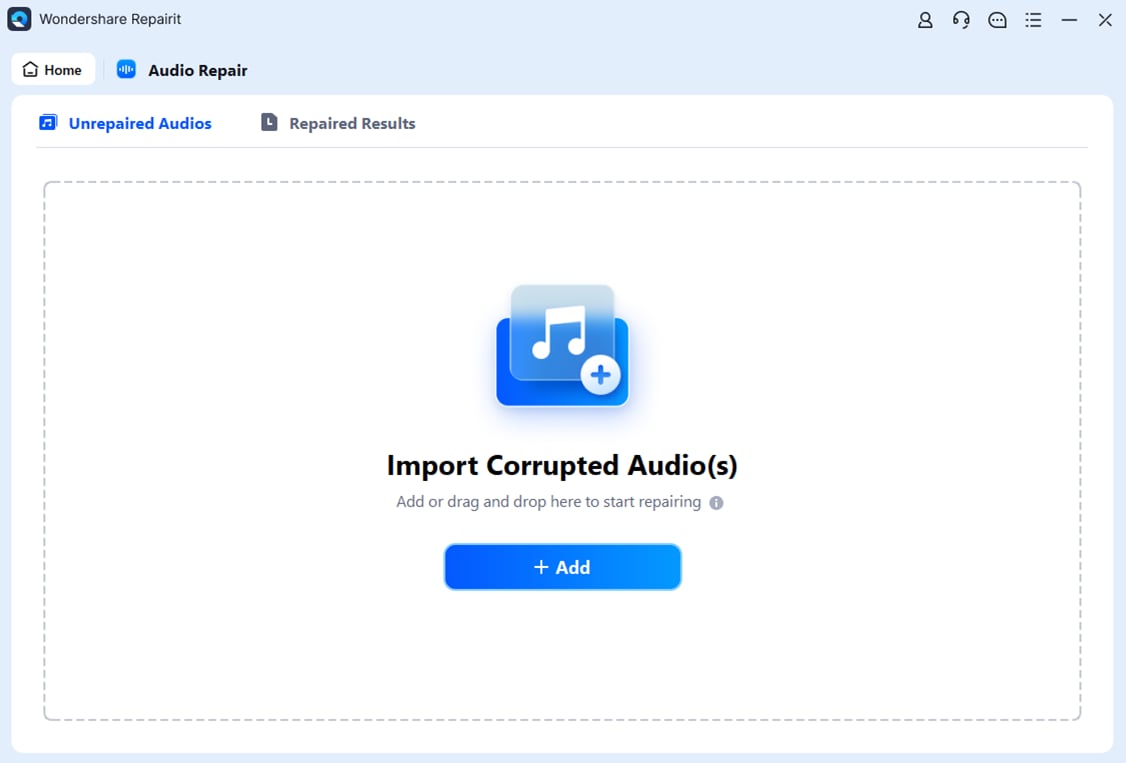
Open Wondershare Repairit and switch to the Audio Repair module. Click the option to add files and browse to your damaged FLAC files on local drives, external disks, or memory cards. Select one or multiple tracks so you can process a whole folder or album in a single repair session.
- Repair audio codecs
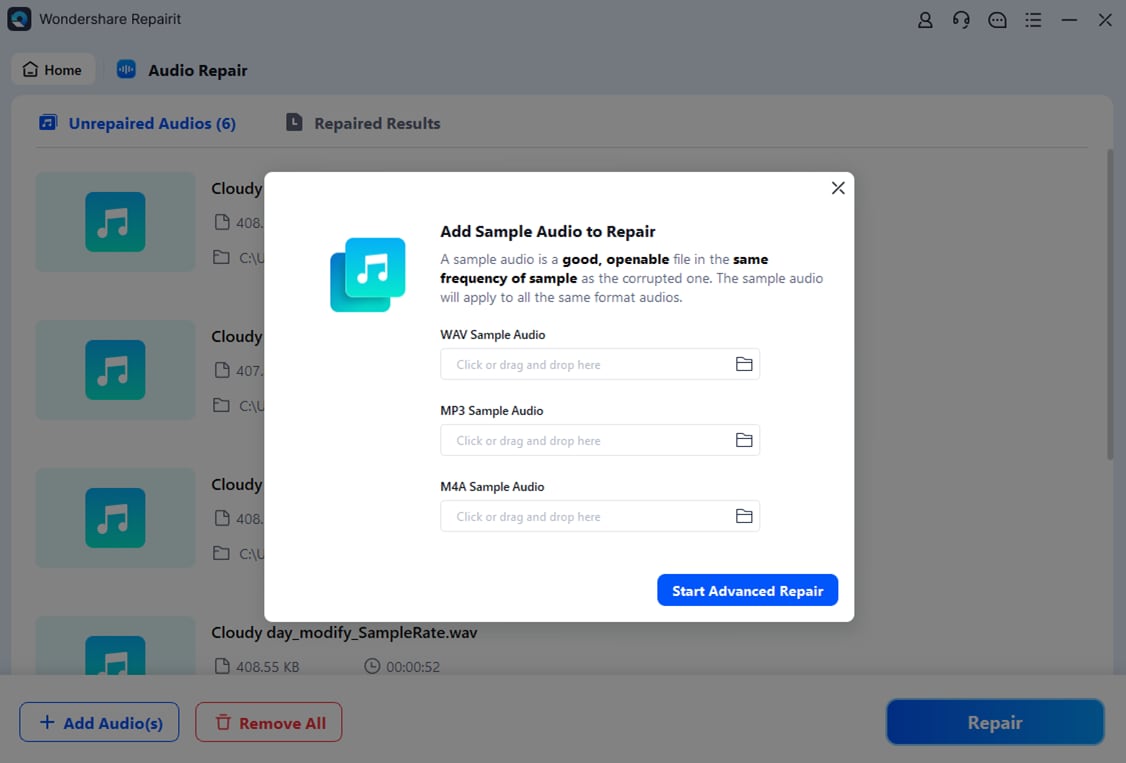
After importing the tracks, click the Repair button to let Repairit scan each FLAC audio file. The tool inspects headers, frames, and internal structure to locate inconsistencies or damage, then attempts to reconstruct playable data. During this stage you can track progress in the interface and see the repair status for each selected item.
- Save the repaired audio codec
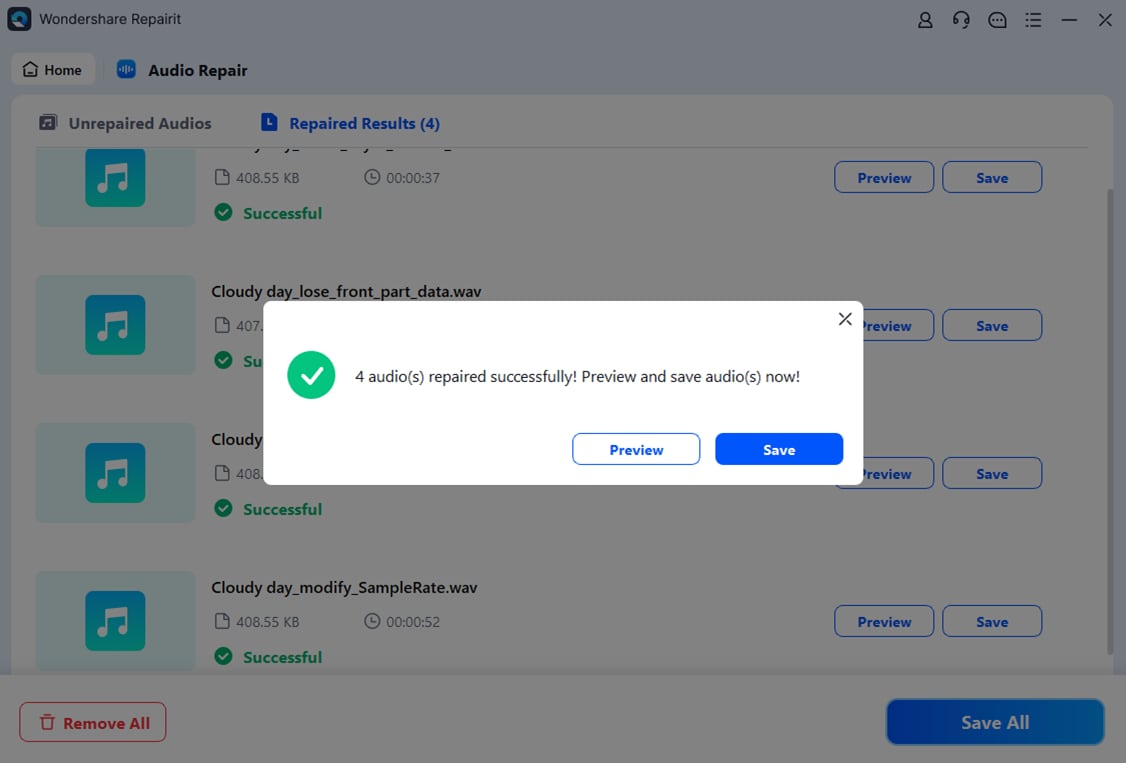
When the repair completes, use the Preview option beside each entry to listen and check for smooth playback, correct duration, and the absence of major glitches. If you are satisfied with the restored FLAC format files, click Save, choose a secure output folder, and confirm. Repairit keeps the fixed versions separate from the originals so you can back them up or convert them to other audio codec formats later if needed.
Conclusion
FLAC remains one of the most important formats for anyone who cares about preserving music and audio in full quality. It combines truly lossless sound with significantly reduced file sizes, rich metadata, and strong ecosystem support, making it ideal for long-term libraries, hi-fi playback, and professional workflows.
While even FLAC audio can suffer from corruption, tools like Wondershare Repairit help you recover damaged tracks and protect the time and effort invested in building your collection. By keeping a well-organized FLAC archive and repairing problematic files promptly, you ensure your music remains future-proof and ready for any device or codec you choose later.
Next: What is Vorbis Codec
FAQ
-
1. Is FLAC really lossless?
Yes. FLAC uses lossless compression, which means the decoded audio is bit-for-bit identical to the original source file with no quality loss at all. -
2. Does FLAC sound better than MP3?
FLAC vs MP3: FLAC preserves the full original audio, while MP3 removes data to shrink size. On good equipment, many listeners can hear clearer detail and dynamics in FLAC, especially with complex music. -
3. Why are FLAC files larger than other music files?
Because FLAC format keeps every bit of audio information. It usually compresses an uncompressed WAV file to about 50–70% of its size, which is still bigger than most MP3 or AAC files that discard data. -
4. Can my phone play FLAC files?
Most Android devices can play FLAC audio with the built-in player or popular apps. On iOS, you may need a third-party app, but many modern players support FLAC either directly or through internal conversion. -
5. How do I fix a corrupted FLAC file that will not play?
Stop copying or editing the damaged file to avoid further corruption. Then use a repair tool like Wondershare Repairit to scan the FLAC file, reconstruct broken structures, and export a repaired version that plays correctly.




