If you've been using SpotDL for a while, chances are you've already run into the audio provider error at some point. It usually shows up unexpectedly, sometimes in the middle of a playlist download, sometimes right at the start, and it can be confusing because the message itself doesn't clearly explain what went wrong. The good news is: this error is rarely random. In most cases, it comes down to how SpotDL retrieves audio and how its dependencies behave.
This guide breaks everything down in a way that's easy to follow, even if you're not deeply technical. We'll go through what the error actually means, why it happens, and how to fix it step by step.
In this article
What is the Audio Provider Error in spotDL?
The audio provider error in spotDL typically occurs when the tool fails to fetch audio from its source, most commonly YouTube or YouTube Music. Because spotDL relies on external providers to locate and match tracks, any disruption in that process can trigger errors such as:
- AudioProviderError: YT-DLP download error -- This happens when yt-dlp, the backend tool responsible for extracting audio, is outdated or incompatible with the provider.
- No results found for a track -- SpotDL may correctly read your Spotify track metadata, but fail to find a matching audio source on YouTube.
- Download stops midway -- Interrupted connections, provider rate limits, or corrupted cache files can cause downloads to halt unexpectedly.
In simple terms, spotDL can successfully identify your Spotify track but cannot retrieve the actual audio file from its provider. This issue often stems from outdated dependencies, unstable internet connections, or mismatched track metadata.
Why Does the spotDL Audio Provider Error Happen?
Here are the most common causes of the spotDL audio provider error:
- Outdated spotDL or yt-dlp -- SpotDL depends on yt-dlp to fetch audio from providers. If either tool is outdated, requests may fail because they cannot handle the latest provider changes.
- Missing or Broken FFmpeg -- FFmpeg is required to process and convert downloaded audio files. If it's not installed or properly detected, downloads may fail or produce unusable files.
- No Matching Audio Source -- Sometimes the provider, like YouTube, cannot find a version of the song that matches your Spotify track. This mismatch leads to errors even though the track metadata is correct.
- Internet or DNS Issues -- An unstable connection or misconfigured DNS can interrupt provider searches. These interruptions often cause downloads to stop midway or fail entirely.
- Rate Limits or Too Many Requests -- Downloading large playlists too quickly may trigger provider or API limits. Once these limits are hit, spotDL cannot continue fetching audio until the restriction resets.
- Corrupted Cache or Config Files -- Old cache or misconfigured files can interfere with new searches. Clearing them ensures spotDL works with fresh data and avoids mismatches.
How to Fix SpotDL Audio Provider Error (Step-by-Step)
Here are the most effective solutions, with consistent steps and clearer guidance for each fix:
Fix 1: Update spotDL and yt-dlp
Outdated dependencies are one of the most common reasons spotDL fails to fetch audio from providers.
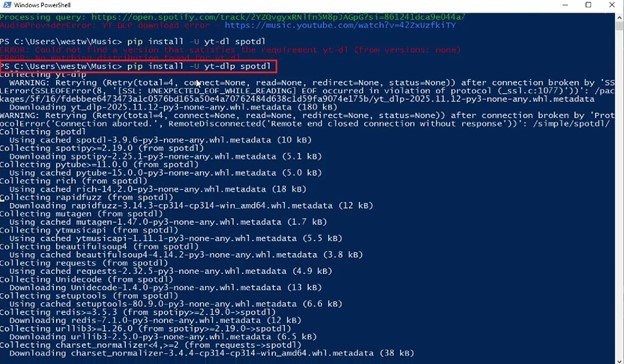
Step 1. Open Windows PowerShell and run: pip install -U spotdl yt-dlp.
Step 2. Restart your terminal, then test spotDL using a single track.
Fix 2: Install or Update FFmpeg
FFmpeg is required for converting and finalizing downloaded audio files. If FFmpeg is missing or not detected, spotDL may find the audio but fail to process or save it.
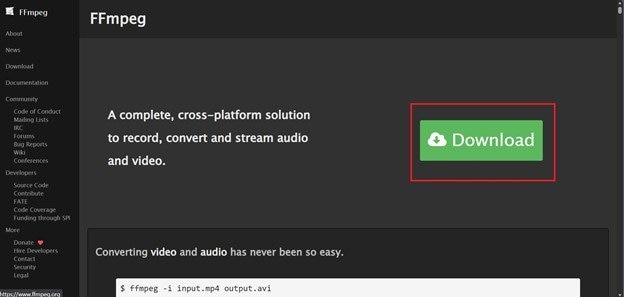
Step 1. Download FFmpeg and add its bin folder to your system PATH.
Step 2. Run the command: ffmpeg -version to confirm it is correctly installed
Fix 4: Clear Cache and Config
Corrupted or outdated cache data can interfere with new searches and downloads. Clearing the cache removes stored metadata that may no longer match current provider results.
Step 1. Run the command: spotdl --clear-cache.
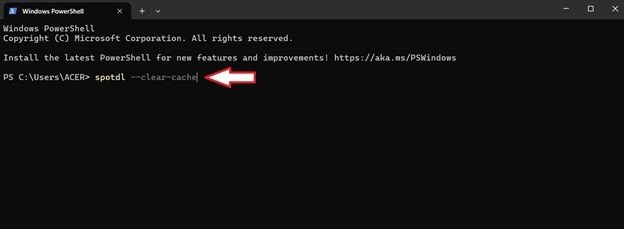
Step 2. Restart your terminal and run your download command again.
Fix 5: Check Internet Connection
spotDL relies on a stable internet to search and retrieve audio from external providers.
Step 1. Open YouTube in your browser and check if videos load and play properly.
Step 2. Restart your router or switch to a different network if the connection is unstable.
Even minor interruptions can cause provider requests to fail or timeout.
Advanced Fix: Repair Corrupted Audio Files (Bonus)
In some cases, the error may occur after partial downloads, leaving you with corrupted or unplayable audio files.
For these scenarios, you can use Repairit Audio Repair as a secondary solution. This tool supports repairing damaged audio files caused by:
- Interrupted downloads
- Conversion failures
- File corruption during transfer
It's not a direct fix for spotDL errors, but it helps recover files when downloads fail midway.

-
Repair damaged audios with all levels of corruption, such as audio not working, clipping audio, humming audio, rumbling audio, sibilant audio, out-of-sync audio, etc.
-
Repair audios of diverse formats, including MP3, M4A, FLAC, AAC, WAV, etc.
-
Repair damaged or corrupted audios from mutiple devices: portable voice recorder, recording software, shooting apparatus, SD cards, phones, hard drives, USB flash drives, etc.
-
Support Windows 11/10/8/7/Vista, Windows Server 2003/2008/2012/2016/2019/2022, and macOS 10.12~macOS 14.
Best Practices to Avoid spotDL Audio Provider Error
Here are some simple habits to prevent the error from happening again.
- Keep all tools updated - Regularly update spotDL, yt-dlp, and Python to ensure they remain compatible with audio providers. Outdated versions often cause mismatches that lead to provider errors.
- Download in smaller batches - Large playlists can trigger rate limits and cause interruptions during downloads. Splitting them into smaller groups makes the process smoother and more reliable.
- Use a stable internet and DNS - A consistent connection reduces the risk of failed provider searches or incomplete downloads. Configuring a reliable DNS service can further improve stability.
- Clear cache periodically - Old cache files may conflict with updated provider data and cause errors. Clearing them ensures spotDL works with fresh, accurate information.
Conclusion
The audio provider error in spotDL is usually caused by outdated dependencies, missing tools, or provider mismatches. It is not a permanent issue.
By updating your setup, checking configurations, and using alternative search methods, most errors can be resolved quickly. If files become corrupted during failed downloads, tools like Wondershare Repairit can help recover them.
FAQs
-
What is the spotDL audio provider error?
This error occurs when spotDL cannot fetch audio from its source, such as YouTube. It usually happens due to outdated tools or missing matches between the requested track and available providers. -
Does updating yt-dlp fix the error?
Yes, updating yt-dlp often resolves the issue because it manages the audio extraction process. Keeping it current ensures compatibility with provider changes. -
Why do some songs fail while others download?
Certain tracks may not have matching audio sources or may be restricted by the provider. As a result, only specific songs fail while others complete successfully. -
Can internet issues cause audio provider errors?
Yes, unstable connections or DNS problems can interrupt provider searches. This can lead to failed downloads or incomplete audio retrieval. -
How do I fix corrupted audio after a failed download?
You can use audio repair tools to fix damaged files caused by incomplete downloads. Alternatively, re-downloading the track with updated tools often produces a clean version.