
ALAC, short for Apple Lossless Audio Codec, is a lossless audio codec that compresses music without throwing away any sound data. It delivers the same audio quality as the original CD or studio master, but in a smaller file than uncompressed WAV or AIFF. This makes Apple Lossless ideal for high-fidelity music libraries, streaming within the Apple ecosystem, and everyday music playback where listeners care about clarity and detail.
Repair Corrupted Files To Save Your Data
 Security Verified. Over 7,302,189 people have downloaded it.
In this article
How ALAC Works
The ALAC audio format uses lossless compression, which means it rearranges and packs audio data more efficiently without discarding any information. Instead of permanently cutting frequencies the ear might not notice (like MP3 or AAC), ALAC looks for patterns and redundancy in the digital waveform and encodes them in a more compact way. A decoded ALAC file expands back to the exact same audio as the source, so quality is identical while file size is typically 40–60% smaller than WAV, making it both space-efficient and bit-perfect.
Key Features, Pros, and Cons
Main features of ALAC
- Provides truly lossless compression with bit-for-bit identical playback to the original audio.
- Developed by Apple and deeply integrated into iOS, macOS, iTunes, and Apple Music.
- Supports metadata tags, artwork, and album information for organized music libraries.
- Designed for efficient decoding on mobile devices to save battery while playing high-quality audio.
- Open-sourced by Apple, allowing broader support in third-party apps and tools.
Pros, cons, and real-world performance
Pros
Delivers CD-quality or better sound, ideal for audiophiles and critical listening.
Reduces storage needs compared with uncompressed WAV or AIFF while preserving quality.
Works seamlessly across Apple hardware and services, including iPhone, iPad, Mac, and Apple TV.
Fast, low-overhead decoding that runs smoothly even on older Apple devices.
Cons
Outside the Apple ecosystem, ALAC support is not as universal as MP3 or AAC.
File sizes remain larger than lossy codecs like MP3, AAC, and Opus, using more storage and bandwidth.
Some hardware players and car systems still lack native Apple Lossless support.
Real-world performance
In everyday listening, most people will not hear a difference between ALAC and other lossless codecs like FLAC. However, compared with lossy formats such as MP3 or AAC, ALAC can sound cleaner, especially on high-end headphones or speakers with detailed recordings. The trade-off is bigger files, but for users in the Apple ecosystem, the combination of excellent audio quality and smooth playback makes ALAC a practical default for a high-quality music library.
ALAC vs Other Audio Codecs
| Codec | Main Difference vs ALAC |
|---|---|
| ALAC vs MP3 | MP3 is lossy and removes data, leading to smaller files but lower potential quality. ALAC is lossless, keeping full quality at the cost of larger files. |
| ALAC vs FLAC | Both are lossless and sound identical. FLAC has broader support on non-Apple devices, while ALAC integrates better with Apple software and hardware. |
| ALAC vs AAC | AAC is a more efficient lossy codec than MP3, ideal for streaming and mobile data. ALAC keeps perfect quality but uses more space and bandwidth. |
| ALAC vs Opus/Vorbis | Opus and Vorbis are modern lossy codecs targeting streaming and voice with very small files. ALAC targets archival and high-fidelity playback instead. |
Audio quality
Because ALAC is lossless, its audio quality matches the original source and is on par with FLAC. Lossy codecs like MP3, AAC, Opus, and Vorbis can sound excellent at high bitrates but technically discard information to compress more aggressively.
Compression efficiency
Lossy codecs typically offer much smaller files: a high-quality MP3 or AAC might be 5–10 times smaller than a comparable ALAC audio format. Among lossless codecs, ALAC and FLAC have similar compression ratios, though FLAC may occasionally gain a few extra percentage points on certain material.
Compatibility
- ALAC: Best support on Apple devices and apps, decent support in modern third-party players.
- FLAC: Widely supported across non-Apple platforms, some Apple apps still require conversion or third-party players.
- MP3/AAC: Universally compatible on virtually any device, including older hardware.
- Opus/Vorbis: Great in browsers and some apps, but not as common in stand-alone hardware players.
Best use cases
- ALAC: High-quality local libraries, Apple Music downloads, archiving CD collections on Apple devices.
- FLAC: Cross-platform lossless libraries, downloads from hi-res music stores, non-Apple gear.
- MP3/AAC: Legacy devices, car stereos, and situations where maximum compatibility is crucial.
- Opus/Vorbis: Streaming, gaming, voice chat, and very bandwidth-sensitive scenarios.
Compatibility and Practical Use
The ALAC audio format is natively supported across most Apple platforms, including iOS, iPadOS, macOS, tvOS, and watchOS. You can play ALAC through the Music app, iTunes (on older systems), QuickTime, and Apple Music streaming for lossless content. Many third-party apps such as VLC, foobar2000, and other modern players on Windows and Android, also support ALAC.
Devices and platforms that support ALAC
- iPhone, iPad, iPod touch, Apple Watch, and Apple TV.
- Mac computers through the Music app, QuickTime, and Finder preview.
- Windows PCs via iTunes (where available) or third-party players like VLC and foobar2000.
- Some network players, DACs, and smart speakers that understand Apple Lossless.
How to play and convert ALAC files
- On Apple devices, simply add ALAC files to your Music library and sync or stream them.
- On Windows or Android, install a compatible player such as VLC, foobar2000, or another app that lists ALAC support.
- For wider compatibility, convert ALAC to MP3, AAC, or FLAC using a quality audio converter while keeping backups of the original lossless files.
Despite the rise of streaming, ALAC is still highly relevant for listeners who want clean, high-resolution audio and tight integration with the Apple ecosystem. It remains a solid choice for both casual and serious music collectors who need a future-proof, lossless archive.
How to Use Repairit to Fix a Corrupted ALAC File
Why use Repairit for ALAC repair
When an ALAC track refuses to play, stutters, or throws an error in your player, the file structure may be damaged. Repairit official website offers a dedicated audio repair feature that can analyze and fix broken Apple Lossless files along with many other formats. Instead of re-downloading or re-ripping your music, Repairit attempts to reconstruct the audio so the file can be opened and played normally again.
Key features of Repairit for ALAC audio repair
- Repairs corrupted or unplayable audio files in various formats with a guided process.
- Analyzes file structure to fix errors that lead to stuttering, noise, or failure to open.
- Provides a preview option so you can check repaired audio before saving it.
Steps to repair corrupted ALAC files
- Add corrupted audio
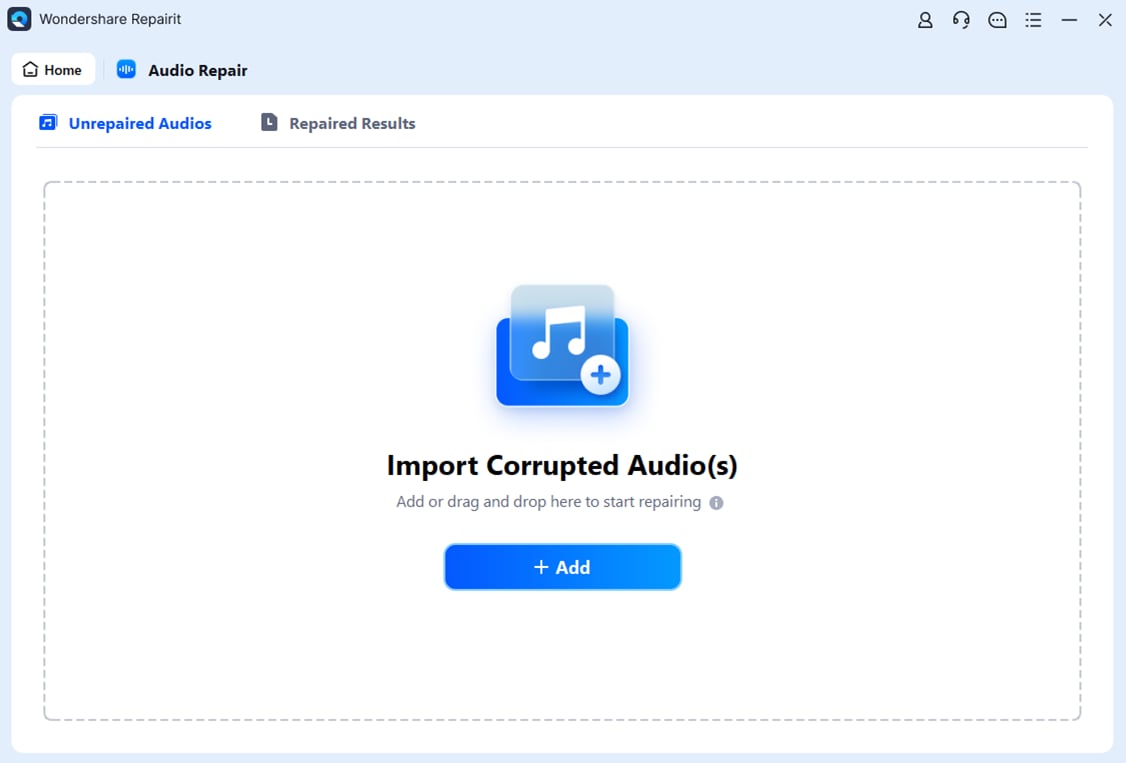
Install and open Repairit on your computer, then choose the Audio Repair module from the main interface. Click the option to add files and browse to your damaged ALAC tracks. Select one or multiple .m4a or .caf files that contain Apple Lossless audio and import them into the repair list so Repairit can process them together.
- Repair audio codecs
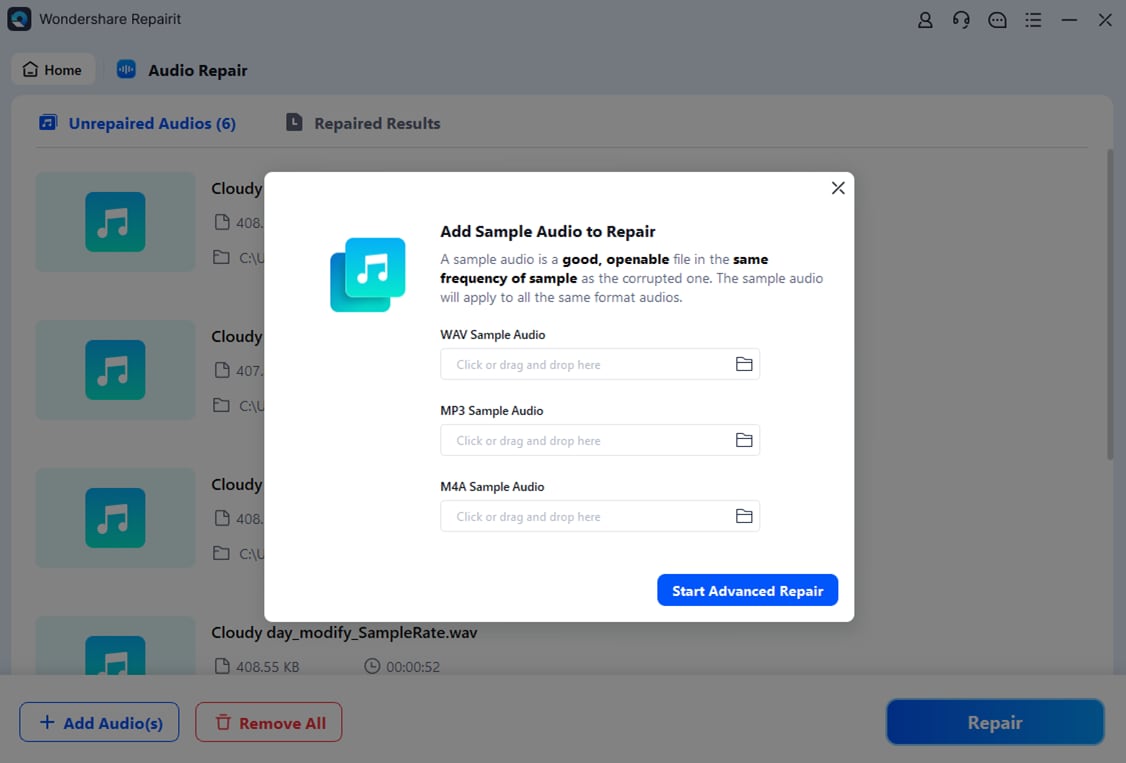
After the corrupted ALAC audio format files are loaded, start the repair task. Repairit will scan the internal structure of each file, detect header issues, timing problems, or damaged frames, and then rebuild the audio stream so compatible players can decode it. You can watch the progress bar as the tool analyzes and repairs every selected track.
- Save the repaired audio
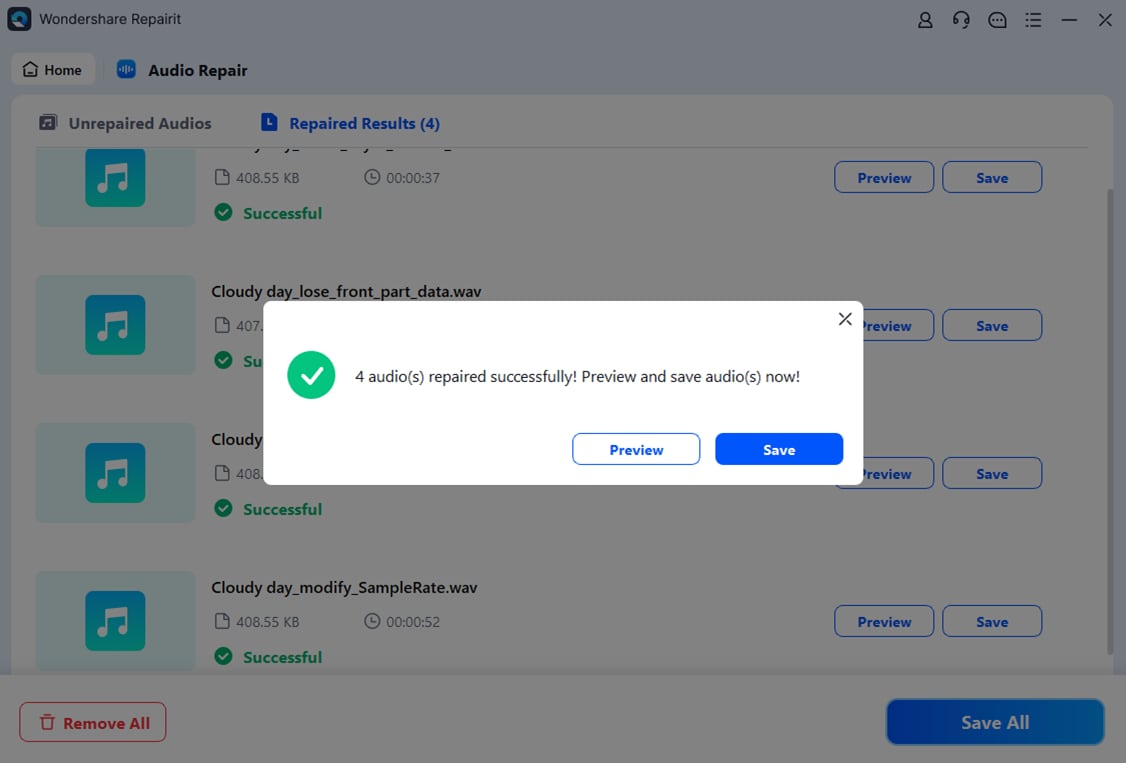
When the repair process finishes, use the preview option (if available) to listen to the recovered ALAC audio and confirm that glitches or playback errors are gone. If you are satisfied with the result, click Save, choose a safe output folder that is different from the source location, and export your repaired files so they are ready to use in your favorite player or music library.
Conclusion
The ALAC format combines pristine, lossless audio with more efficient storage than raw WAV or AIFF, making it a natural fit for Apple users who care about sound quality. With performance that matches FLAC and tight integration across Apple devices, it remains an excellent option for building and preserving a high-quality music library.
Like any digital format, ALAC files can become corrupted during transfer, storage, or editing. When that happens, tools such as Repairit can repair structural damage so your Apple Lossless collection stays playable and reliable for years to come.
Next: What is Wma Codec?
FAQ
-
1. What is ALAC used for?
ALAC, or Apple Lossless Audio Codec, is used to store and play high-quality digital audio without losing any original data. It is ideal for archiving CDs, downloading lossless tracks from Apple Music, and maintaining a premium local music library while saving space compared with uncompressed formats.
-
2. Is ALAC better than FLAC?
In terms of sound quality, ALAC and FLAC are effectively identical because both are lossless. The main differences are ecosystem and compatibility: ALAC works more smoothly inside the Apple world, whereas FLAC is more widely supported on non-Apple devices, media players, and hi-fi equipment.
-
3. Can I play ALAC files on non-Apple devices?
Yes. Many third-party players on Windows, Android, and Linux support the ALAC audio format, including VLC, foobar2000, and others. However, compatibility is not as universal as MP3 or AAC, so you may need to install a specific app or codec pack on some devices.
-
4. Why will my ALAC file not play?
An ALAC file might not play if it was corrupted during download or transfer, if the file is incomplete, or if your software and codecs do not support Apple Lossless. Trying another media player, updating your software, or repairing the file with a tool like Repairit often resolves the problem.
-
5. How can I repair a corrupted ALAC file?
Start by backing up the damaged file, then test it in a different player to rule out simple playback issues. If it still fails, open Repairit, add the corrupted ALAC audio format file, run the repair process, and save the fixed copy to a new location so you can safely restore the audio without risking further damage.




