
Snapchat is popular for its stories, filters, and fun features. But like any app, it can have problems. Sometimes, you may notice there is no sound on Snapchat when watching stories or videos. This can be annoying, especially when you expect to hear audio. There are a few common reasons for this. It could be your phone settings, app glitches, or even corrupted video files.
Luckily, most of these troubles are quick to fix. You can explore simple steps to restore sound, and if your Snapchat videos are damaged, you can use a dedicated video repair tool to recover them.
In this article
Part 1. Why Is Snapchat No Sound Happening?
No sound on Snapchat can happen for a few simple reasons.
- The sound might be turned off in the app settings, which is easy to miss. Your phone's volume could also be muted or too low.
- Using the old Snapchat version can cause sound problems.
- App permissions also matter. If Snapchat can't access your microphone, it may not play or record audio.
- In some cases, small bugs in your phone's system can affect sound, too.
- Audio might be playing through another device instead of your phone.
- Some videos may be damaged, which can cause no sound on Snapchat videos.
Part 2. Fix No Sound on Snapchat Video While Recording
You may notice that your Snapchat videos have no sound while recording. This generally happens because the app can't access your microphone, or something isn't working properly.
Fix 1. Enable Microphone Access for Snapchat
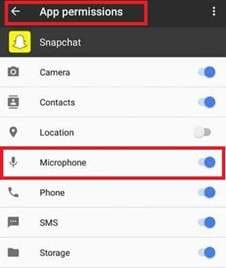
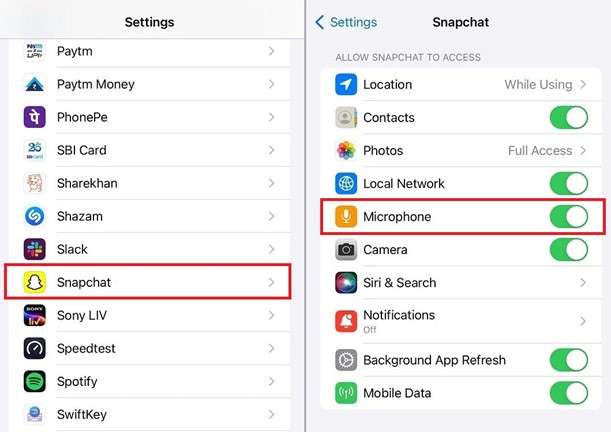
If your Snapchat video has no sound while recording, the app may not have permission to use your microphone. Without this access, it can't record audio. So, allow microphone access for Snapchat.
On Android:
Step 1. Open your phone's Settings and your App permissions. Hit the microphone.
Step 2. Find Snapchat and turn the permission on. Once enabled, Snapchat should be able to record sound again.
On iPhone:
Step 1. Access your iPhone's Settings and tap Snapchat.
Step 2. Turn on the Microphone toggle to give Snapchat access.
Fix 2. Reinstall Snapchat
If the app is outdated or has a glitch, it may not record sound correctly. Reinstalling Snapchat can fix bugs and delete any hidden issues. This helps restore normal audio recording. How to uninstall:
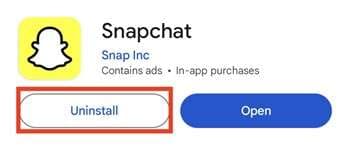
For Android:
Step 1. Go to Settings and Applications.
Step 2. Find Snapchat and tap Uninstall.
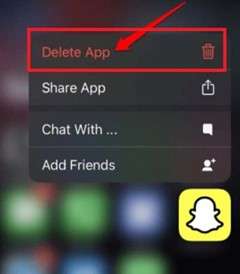
For iPhone:
Step 1. Tap Snapchat and click Remove App.
Step 2. Hit Delete App and confirm by tapping Delete again.
After uninstalling, reinstall Snapchat from the App Store or Google Play Store and try recording your video again.
Part 3: Fix No Sound When Watching Snapchat Videos
If you can't hear sound when watching Snapchat videos, the issue is linked to your phone settings or audio output. Try the steps below to troubleshoot.
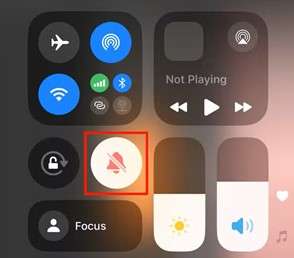
Turn Off Silent Mode
If your phone is on silent or the media volume is too low, you won't hear any sound on Snapchat videos. Use the volume buttons to increase the media volume and make sure silent mode is off. Now, you can ensure that your Snapchat videos will play with audio normally.
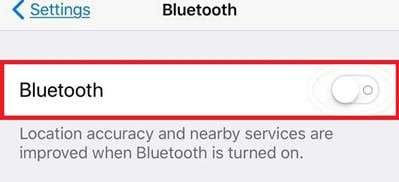
Disconnect Bluetooth Devices
Is your phone connected to Bluetooth devices like headphones, speakers, or earbuds? The sound may play there instead of your phone. To verify this, go to your phone's Settings and turn off Bluetooth. This will bring the sound back to your device so you can hear Snapchat videos normally.
Restart Your Phone
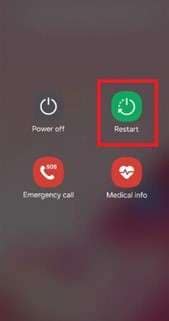
Small glitches or memory issues can cause Snapchat videos to have no sound. Restart your phone to refresh the system and fix audio problems. You can also clear Snapchat's cache to help. How to restart:
For Android:
Step 1. Hold the Power button.
Step 2. Click Restart.
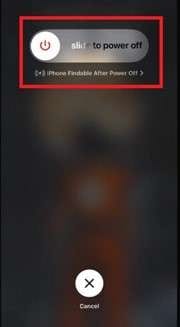
For iPhone:
Step 1. Press and hold the Side button (and a volume button on newer models). Then, slide to power off.
Step 2. Turn it back on after a few seconds.
Part 4. Repair Corrupted Audio Files Due to No Sound on Snapchat Video Issues
Still no sound on Snapchat? The reason may not be your phone or app. It's the video itself. Some videos may have damaged or missing audio, making them completely silent. In these cases, you can use a handy tool like Repairit Audio Repair. It repairs damaged video and audio files so you don't lose those important or fun moments.
Take a look at its key features:
- Repairs corrupted audio in your Snapchat videos that are silent or unplayable.
- Works with MP3, M4A, WAV, AAC, FLAC, WMA, AIF, AIFF, and more.
- Fixes audio from voice memos, phone recordings, camera/camcorder videos, screen recordings, or downloaded files.
- Restores clipping, humming, static, rumbling, or muffled sounds in our Snapchat videos.
- Repairit doesn't overwrite your original files and can repair multiple files at once.
Step-by-Step Guide:
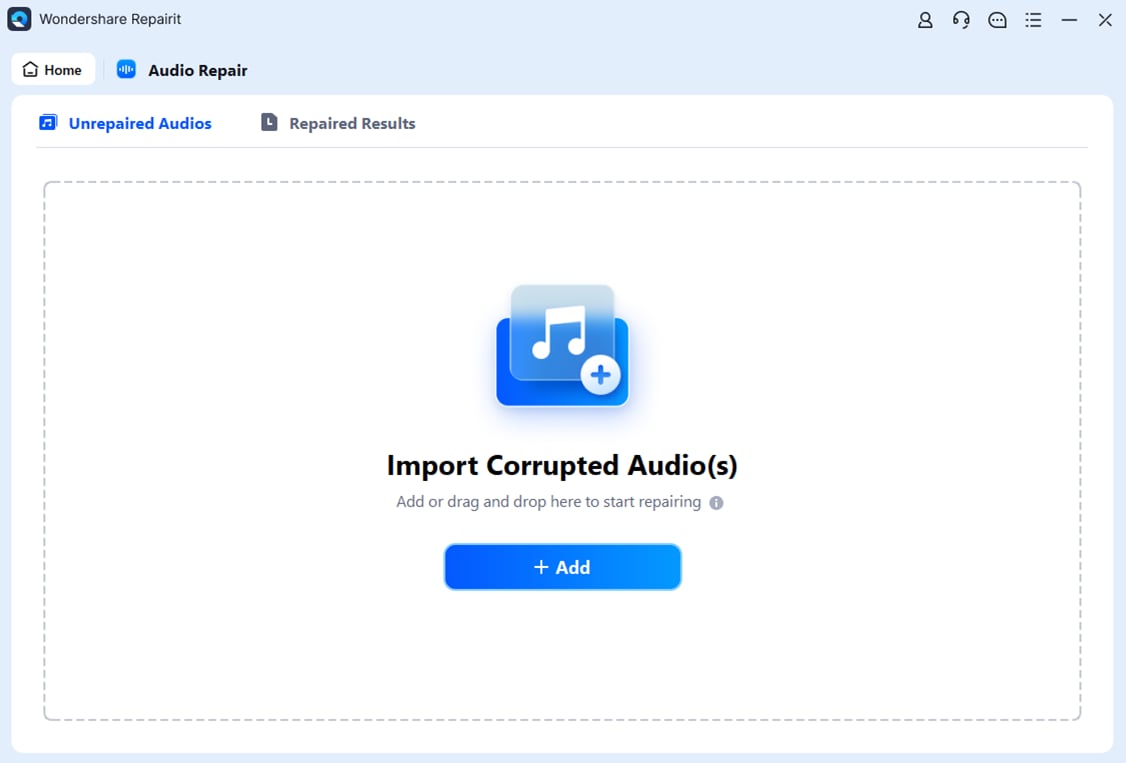
Step 1: Launch Repairit, find More Types Repair and press Audio Repair. Click Add to upload your corrupted audio file due to no sound on Snapchat video issues.
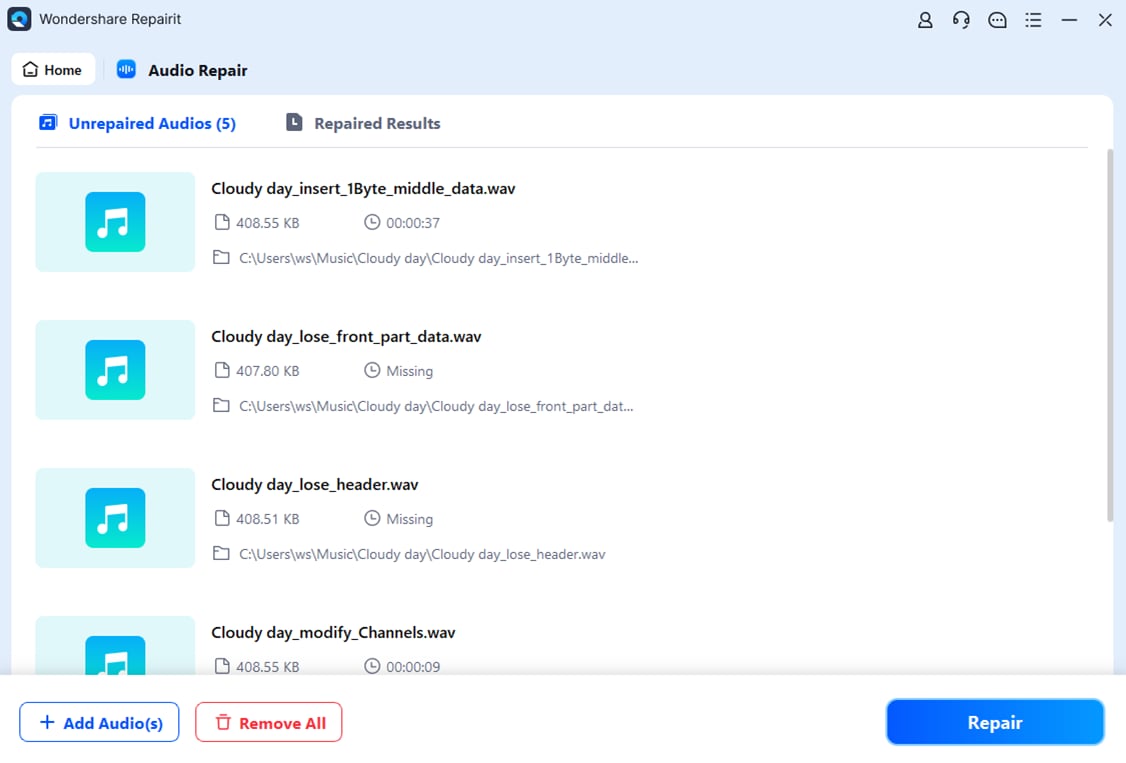
Step 2: Hit Repair. You may be prompted to add a sample audio file in the same format as the corrupted one. This helps boost the Snapchat audio repair quality.
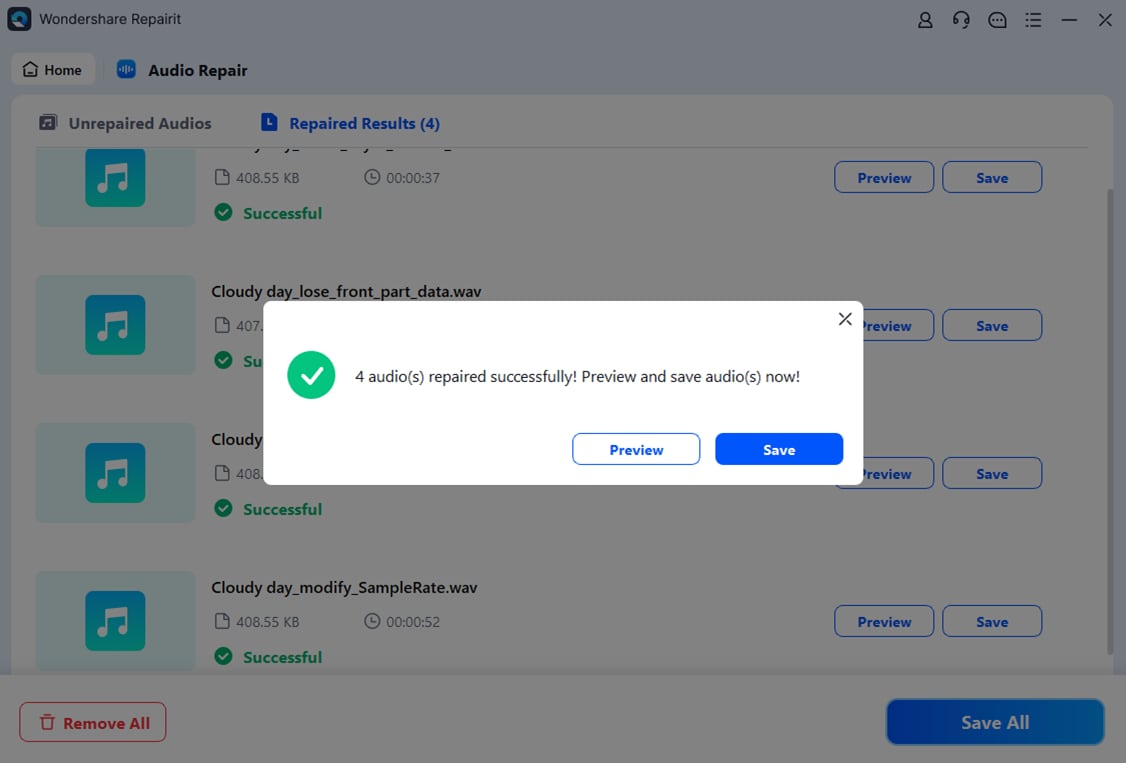
Step 3: Tick Preview to check the repaired Snapchat audio. If it's good, click Save and choose where to store the fixed audio files. You can now hear and play your Snapchat videos without any trouble.
Part 5. What to Do If Snapchat Videos Still Have No Sound
If your Snapchat videos still have no sound after trying basic fixes, don't worry. You can still run simple checks to find the problem.
- Test other apps for sound. Open other apps like YouTube or Music and see if the sound works. This helps you know if the issue is only on Snapchat or your whole phone.
- Use headphones to check the output. Plug in headphones or earbuds and try again. Sometimes the sound is playing, but not through your phone's speakers.
- Report the issue to Snapchat support. If nothing works, the problem may be with the app itself. In that case, contact Snapchat support so they can help you fix it.
Part 6. Tips to Avoid Snapchat No Sound Issues
Follow these tips to prevent your Snapchat videos from going silent.
- Keep Snapchat updated. New updates fix bugs and improve performance, so your audio is less likely to fail.
- Avoid unstable connections. Recording or uploading videos with weak internet or poor network connections can cause audio problems.
- Clear app cache regularly. Over time, Snapchat's cache can get cluttered and cause glitches. Cleaning it can keep the app running smoothly.
- Check volume and permissions. Make sure your phone isn't silent, and Snapchat has access to your microphone.
Conclusion
No sound on Snapchat videos can be annoying. It can happen for many simple reasons like phone settings, app glitches, permission issues, or even damaged video files. But don't worry. This is a common issue and can usually be fixed easily using the steps in this guide.
You can check your volume, update the app, restart your phone, or adjust permissions. If the issue is caused by corrupted audio, professional repair tools can help bring the sound back.
FAQs
-
How can I get more music or sound options on Snapchat?
Snapchat has a small sound library. For more, play music while recording or use a video editor like Filme to add audio. -
Can I use TikTok audio in Snapchat videos?
No. TikTok sounds can't be added directly to Snapchat. You can only use Snapchat's built-in music. To use other audio, you'll need a video editor. -
Why is the music feature missing on my Snapchat?
If the music feature is missing, update Snapchat to the most updated version in your app store. -
Does Snapchat have limited sound options?
Yes, you can only use sounds available in Snapchat. Play audio while recording or use a video editor for more options. -
Can I upload my own sounds to Snapchat?
No, Snapchat doesn't allow direct uploads of personal audio files. You can only use the sounds available in its library or record external audio while filming.