
Suppose you are late and wish to listen to an important voice message on WhatsApp, but you hear no sound. Voice notes fail to play, which can be extremely frustrating when you are in urgent need of the information. There are many causes of this issue of “WhatsApp voice messages no sound,” including bugs in the app, phone settings, and sound output.
This is a problem encountered by many users on Android and iPhone, and can appear difficult to resolve. Nevertheless, you can easily fix the sound of WhatsApp voice messages with the help of a few easy steps presented in this guide.
Table of Contents
Part 1. 5 Common Causes for WhatsApp Voice Messages No Sound
If you can’t hear WhatsApp voice messages, the following 5 reasons can be the issue behind this:
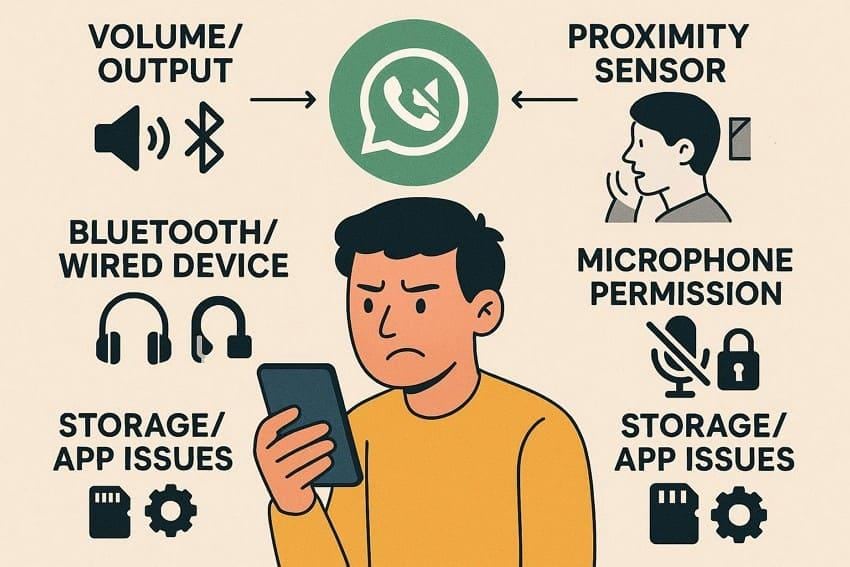
- Volume and Output: WhatsApp voice notes use media volume, not ringtone, so the sound may be very low or silent. In addition, silent mode, headphones, or Bluetooth can send sound to the wrong place, causing no audio.
- Bluetooth or Wired Device: Audio may go to Bluetooth or wired devices instead of the phone speaker. Sometimes devices stay “connected” in the background, so the phone speaker plays nothing.
- Microphone Permission: When WhatsApp does not have permission to use the microphone, it will be able to record silent voice messages. The microphone is blockable by other apps, so it is possible that the audio captured but displayed as normal is silent.
- Storage, or Application Problems: Insufficient storage may not allow voice messages to be saved or downloaded fully by WhatsApp. Furthermore, older app versions or temporary glitches can cause sound to stop until you update, clear the cache, or restart.
Part 2. Try Step-by-Step Fixes for WhatsApp Voice Messages No Sound
For a situation when you can't hear the voice note on WhatsApp, try the 7 simple quick solutions listed below:
Way 1. Test Speakers and Earphones
Play music or videos in another app to see if the main speaker and ear speaker work. Additionally, try with and without Bluetooth or wired earphones to find if the sound goes to the wrong device. If audio works in other apps but not in WhatsApp, the problem is in the app.
Way 2. Check Network Connection
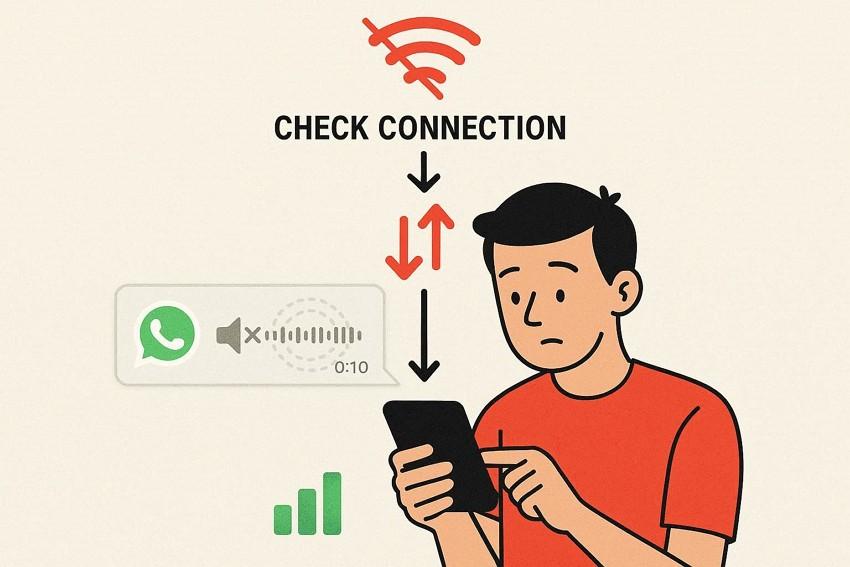
After the speaker tests if the WhatsApp voice messages have no sound problems persist, check the internet connection. Poor Wi‑Fi or mobile data can cause messages to become stuck, so they appear to play but have no sound. Hence, a strong connection makes sure the full audio file is ready before you press play. It also fixes upload problems, so others can hear your voice messages.
Way 3. Re-download Voice Messages
A weak connection or storage glitch can leave only part of the audio, so it plays with no sound. Therefore, re-downloading it by pressing the “Downward Arrow” icon over a stable network gets a fresh, complete file. In addition, it replaces corrupted data caused by sudden phone freezes or low storage. So, if sound works after re‑download, the problem was the file, not your speaker or volume.
Way 4. Check Do Not Disturb Settings
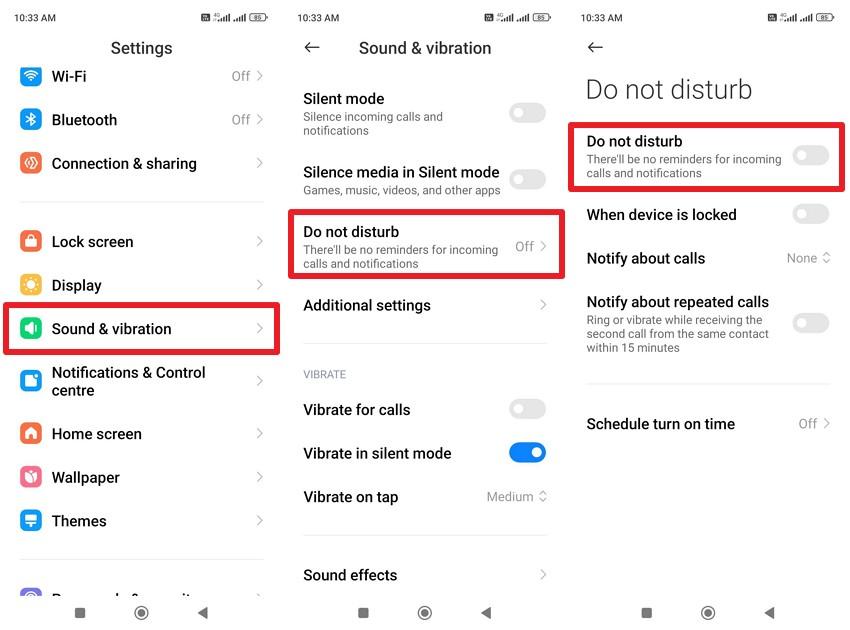
This is another fix you can try when you can't hear the voice note on WhatsApp. DND can mute notifications and sometimes affect voice‑note playback, so reviewing its settings ensures WhatsApp can play sounds. Furthermore, it clears confusion between message alerts and actual media playback. Thus, it is suggested to review DND schedules, exceptions, and override settings to stop random silence at certain times, as guided:
On Android
Instructions: Go to “Sound & Vibration” in settings and scroll down to choose the “Do Not Disturb” menu. Here, toggle off the “Do Not Disturb” option.
On iPhone
Step 1. In the settings, tap on “Focus” and choose the “Do Not Disturb” option at the top.
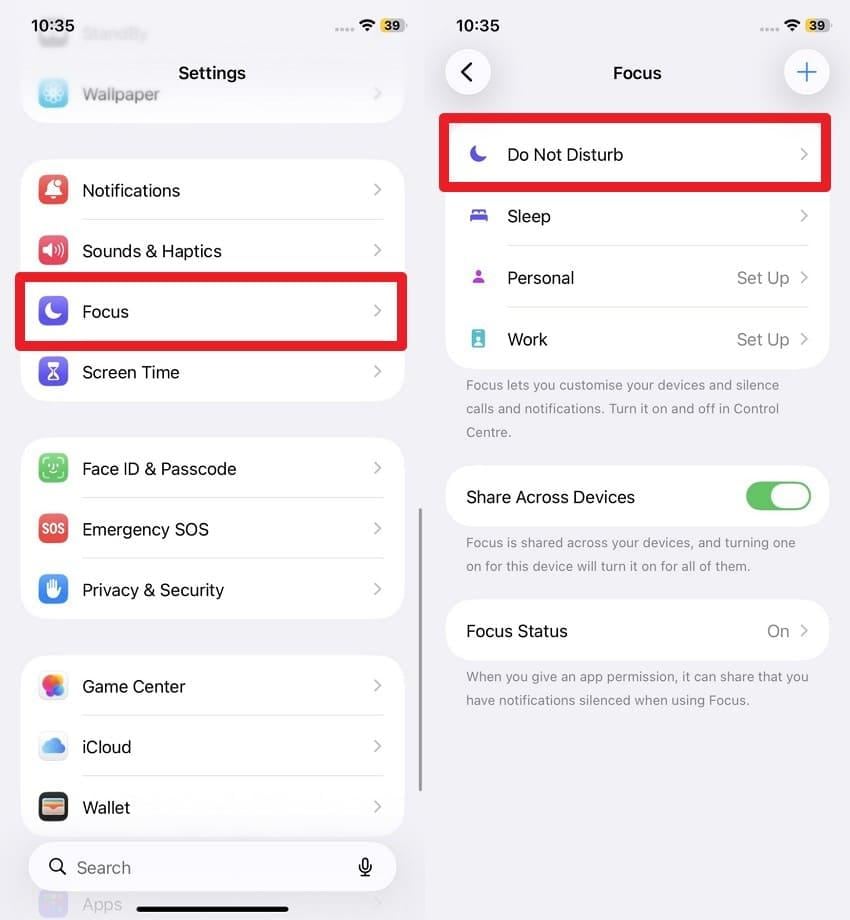
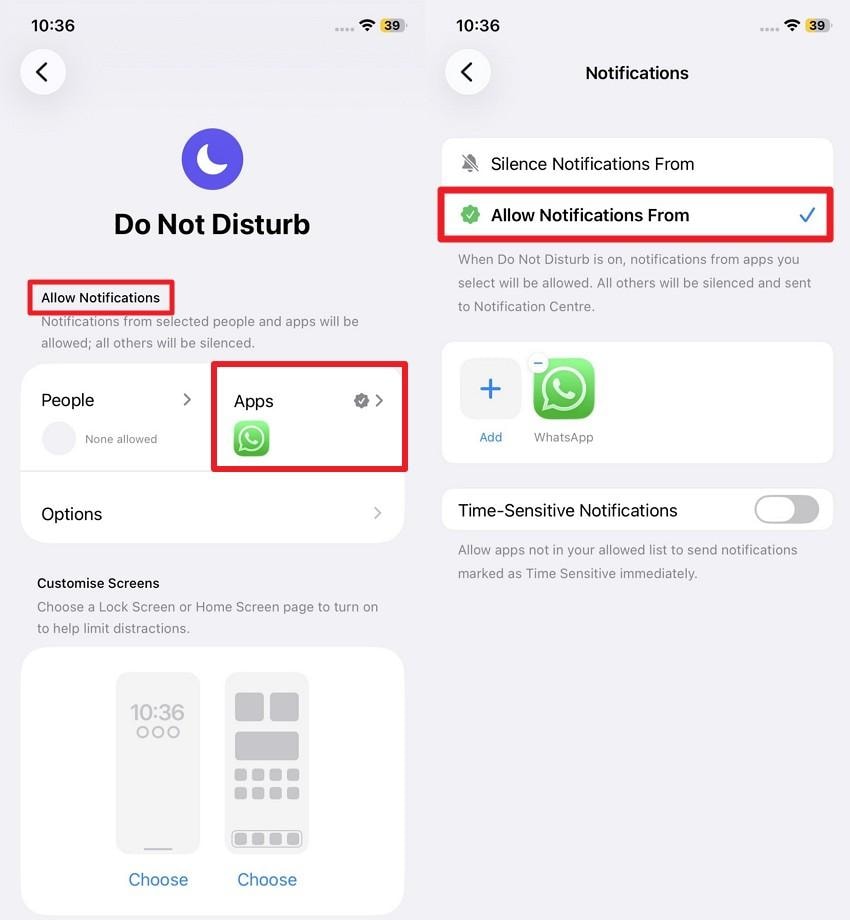
Step 2. In the “Allow Notifications” menu, tap on the “Apps” menu, and press the “+Add” option to add WhatsApp. Then, choose the “Allow Notifications From” option to let WhatsApp make a sound while Focus is on.
Way 5. Check WhatsApp App Permissions
If you still can’t hear WhatsApp voice messages, checking the app permissions might help. Microphone access must be enabled for voice messages to play. On an iPhone, Screen Time or privacy settings can block the microphone without warning. Thus, correct permissions show whether the problem is app-related, not hardware. So, the following instructions highlight how you can easily check app permissions on Android and iOS in a few taps:
On Android
Step 1. Choose the “Apps” option in the settings and tap on “Manage Apps.”
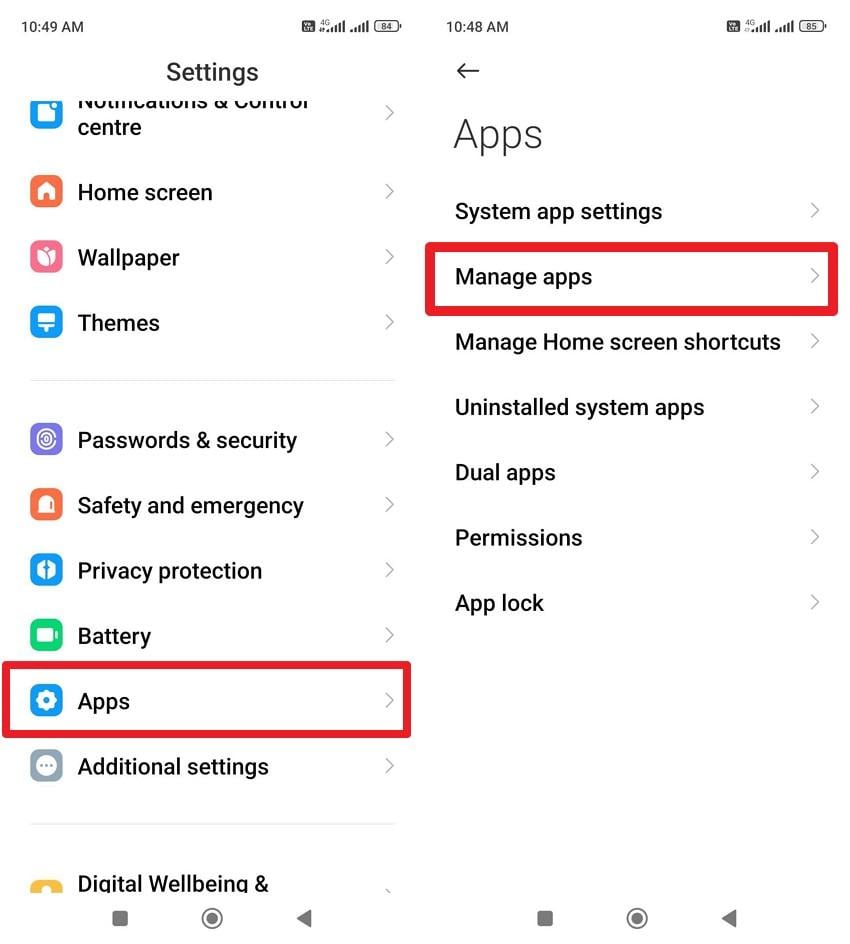
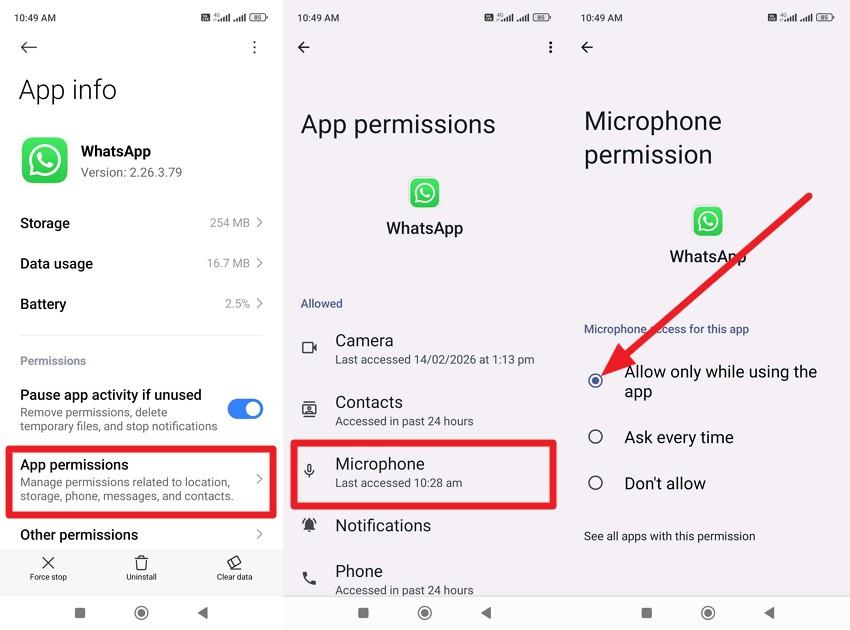
Step 2. Pick WhatsApp from the list, then in the “App Info” interface, select the “App Permissions” menu. There, choose “Microphone” and set it to the “Allow Only While Using the App” option. Other than these settings, make sure all the other WhatsApp settings are set to “Allow.”
On iPhone
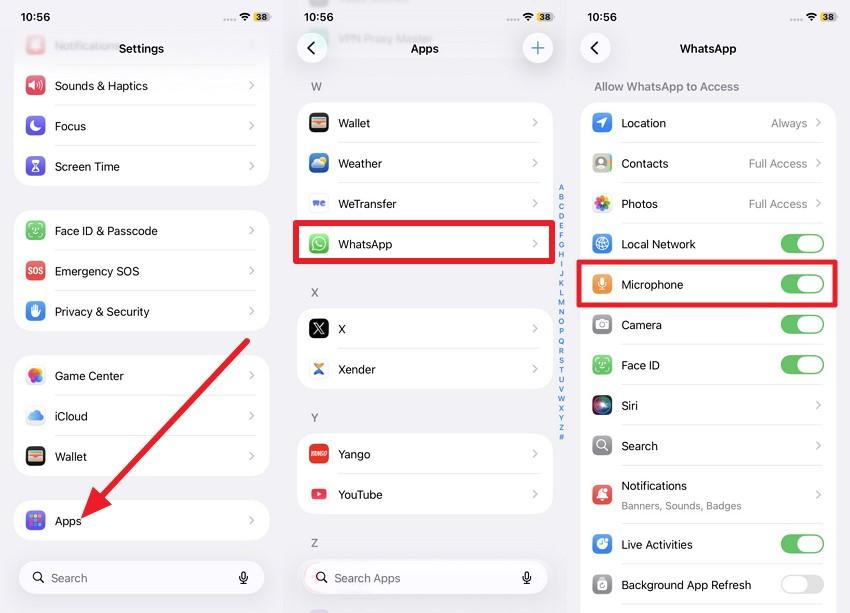
Step 1. Choose “Apps” from the settings and pick “WhatsApp” from the list. After that, toggle on “Microphone” and other settings, such as “Photos,” to set WhatsApp permissions.
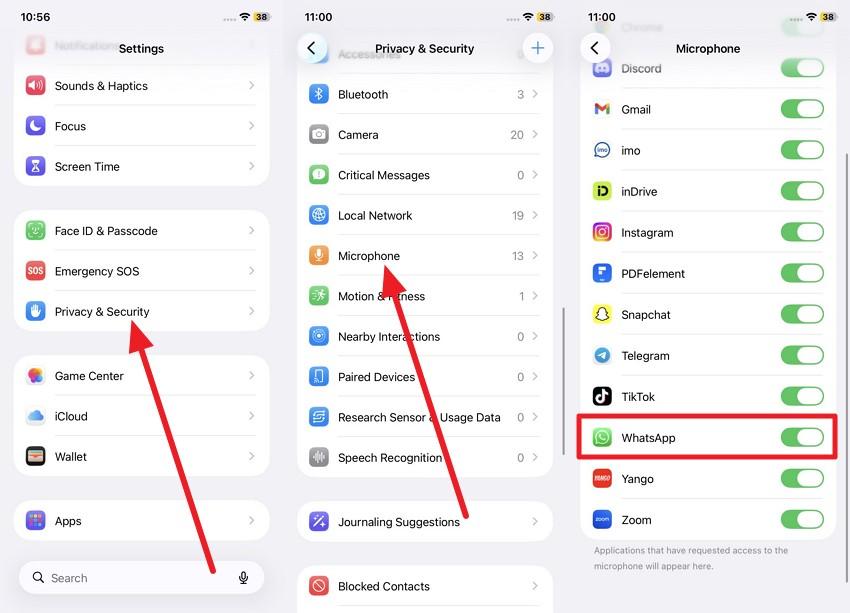
Step 2 [For Confirmation]. Likewise, go to the “Privacy & Security” settings, select “Microphone,” and make sure “WhatsApp” is enabled.
Way 6. Clear WhatsApp Cache (Android)
When Android users face the WhatsApp voice messages no sound problem, clearing the cache can be effective. Old cached audio or thumbnails can cause messages to play with no sound or stop early. Thus, this solution can fix glitches after updates and lets WhatsApp rebuild temporary files for smooth playback. It frees storage so audio can save correctly and improves app speed, once the cache is cleared via the mentioned steps:
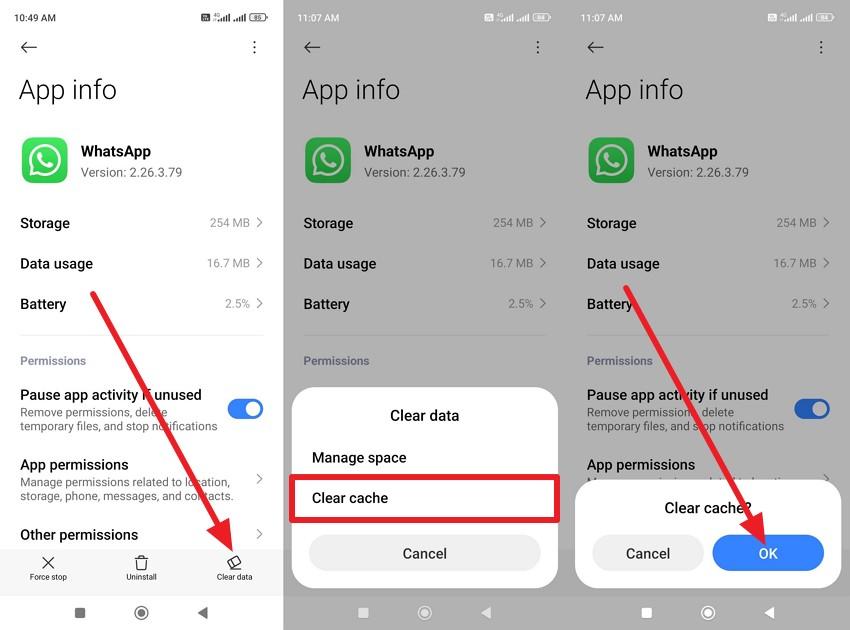
Instructions. Go to WhatsApp “App Info” interface via “Apps > Manage Apps” settings and pick the “Clear Data” option. After that, choose the “Clear Cache” option and press the “Ok” button to confirm.
Way 7. Update or Reinstall the WhatsApp App
If nothing helps, and you still can't hear the voice note on WhatsApp, update or reinstall the app. Older versions may have audio or playback issues, and updating installs the latest fixes. Thus, reinstalling replaces damaged app files and resets internal settings that can block voice notes. A fresh version also ensures compatibility with your phone’s system and audio features, once installed via the listed instructions:
On Android
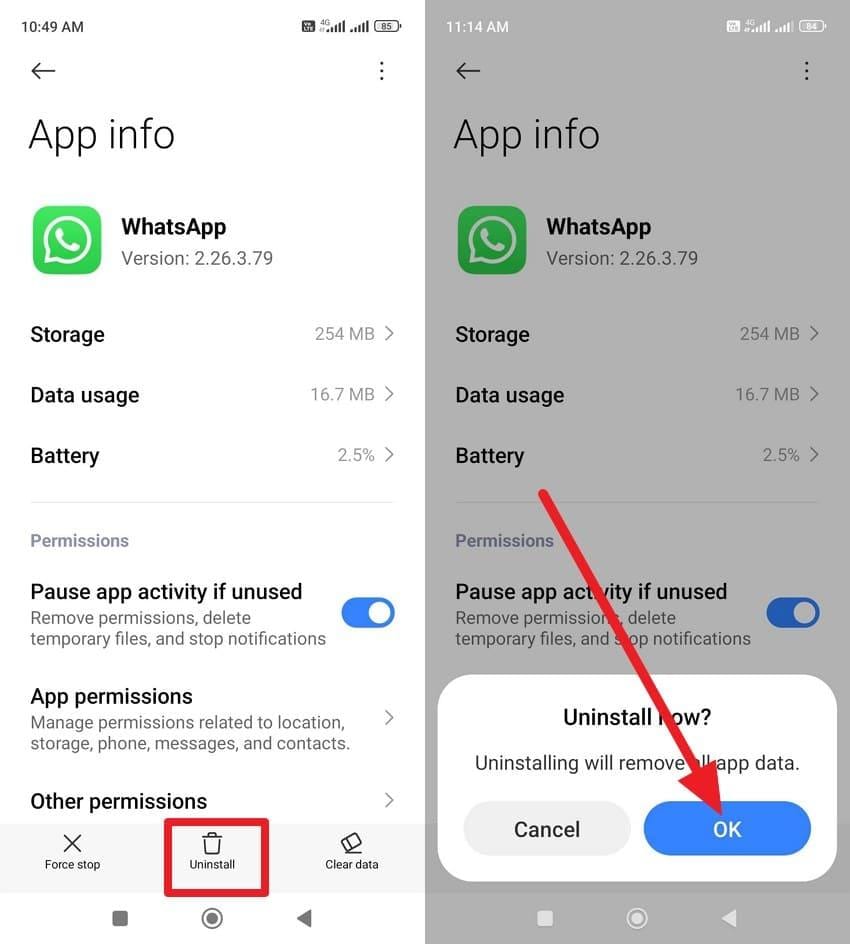
Instructions: In the WhatsApp “App Info” interface, press the “Uninstall” option and choose “Ok” to confirm. Once uninstalled, open the Google Play Store, search for WhatsApp, and tap “Install” to reinstall.
On iPhone
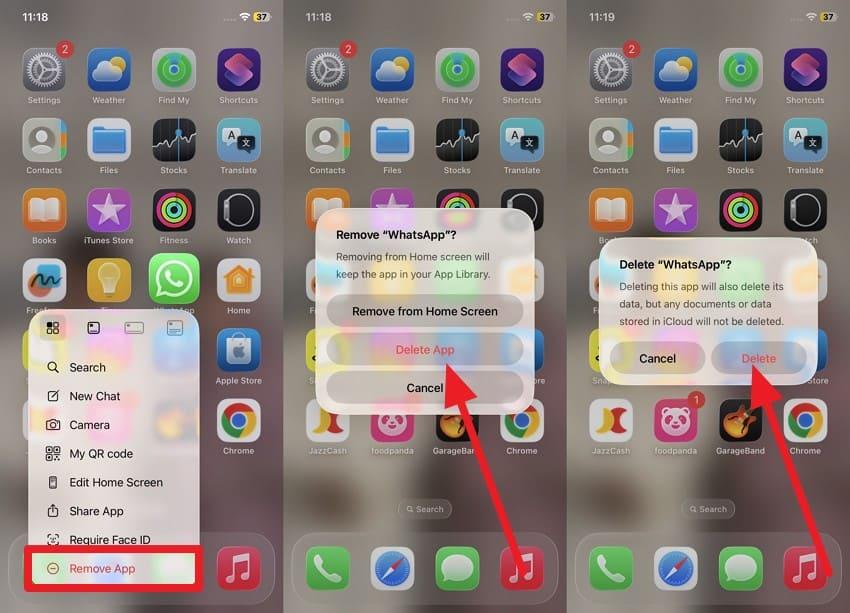
Instructions. Long-press WhatsApp, then select the “Remove App” option, then tap “Delete App.” When the new popup menu appears, tap on “Delete” to confirm. Here, head to the App Store, search for WhatsApp, and tap the “Cloud” icon to reinstall.
Pro Tip: Repair Corrupted WhatsApp Audio Files or Voice Notes
When you get WhatsApp voice messages with no sound problem, especially with downloaded audios, it's possible they're corrupted. Here, an audio repair tool, Repairit, allows you to repair common formats such as. M4A, .MP3, AAC, and.WMA in batches. So, while fixing multiple audio files at once, you can also repair professional, lossless formats like .WAV and. AIFF, with the option to preview the repaired audio file in detail.
In terms of repair, it uses advanced algorithms to fix clipped, noisy, or distorted audio and restore clarity without losing quality. While doing so, it can improve sound quality if you experience clipping, static, or humming in your WhatsApp downloads. Unlike other options, its desktop version enables one to repair audio files or any format without any limit.
Key Features

-
Advanced Audio Repair: Often needs a “sample” good file in the same format to guide the repair for best results.
-
Non‑destructive Workflow: It doesn’t overwrite the original audio, creating repaired copies so you can always revert if needed.
-
Cross‑platform Desktop Tool: Available on Windows and macOS, allowing you to transfer audio from your phone and repair larger or important files on a computer.
How to Fix Corrupted Downloaded Audio Files with Repairit - Detailed Guide
If you can’t hear WhatsApp voice messages or download audios, follow the mentioned 3 steps and learn to repair it with Repairit:
Step 1. Add Corrupted WhatsApp Audio Files
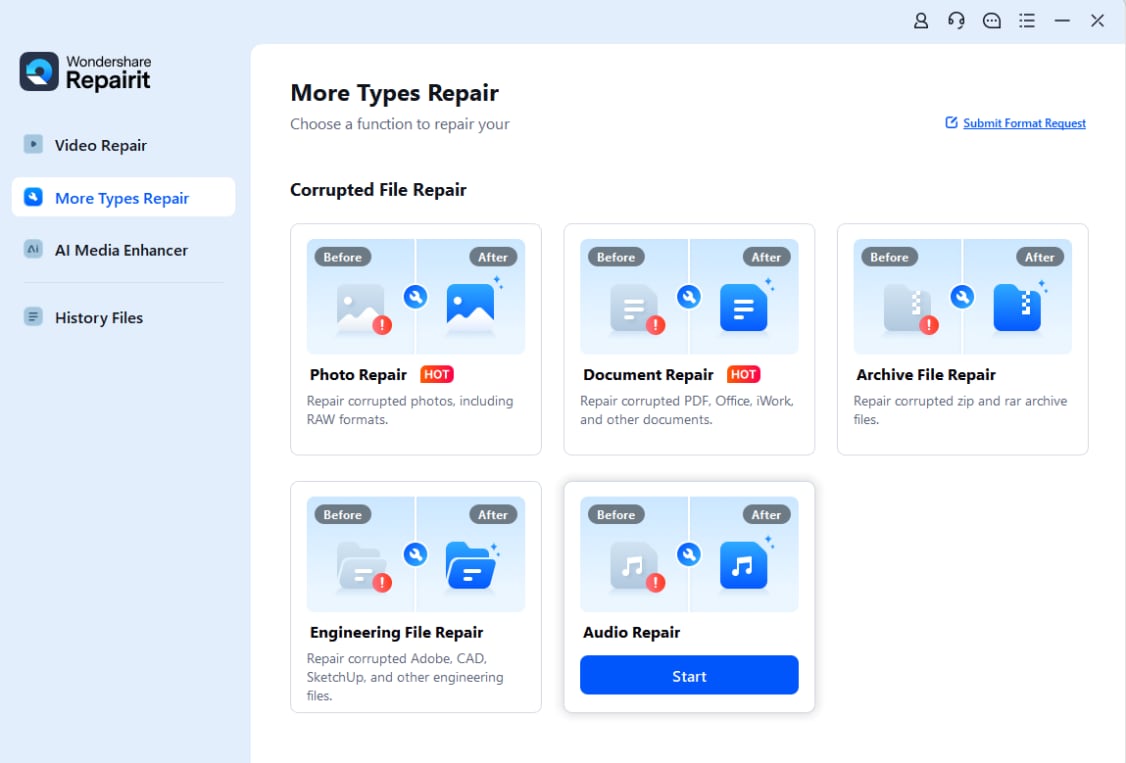
On the “Audio Repair” tool in the “More Types Repair” section, press the “Start” button to import files. For that, tap the “+Add” button when directed on the new interface.
Step 2. Insert the Good File Sample for Advanced Repair
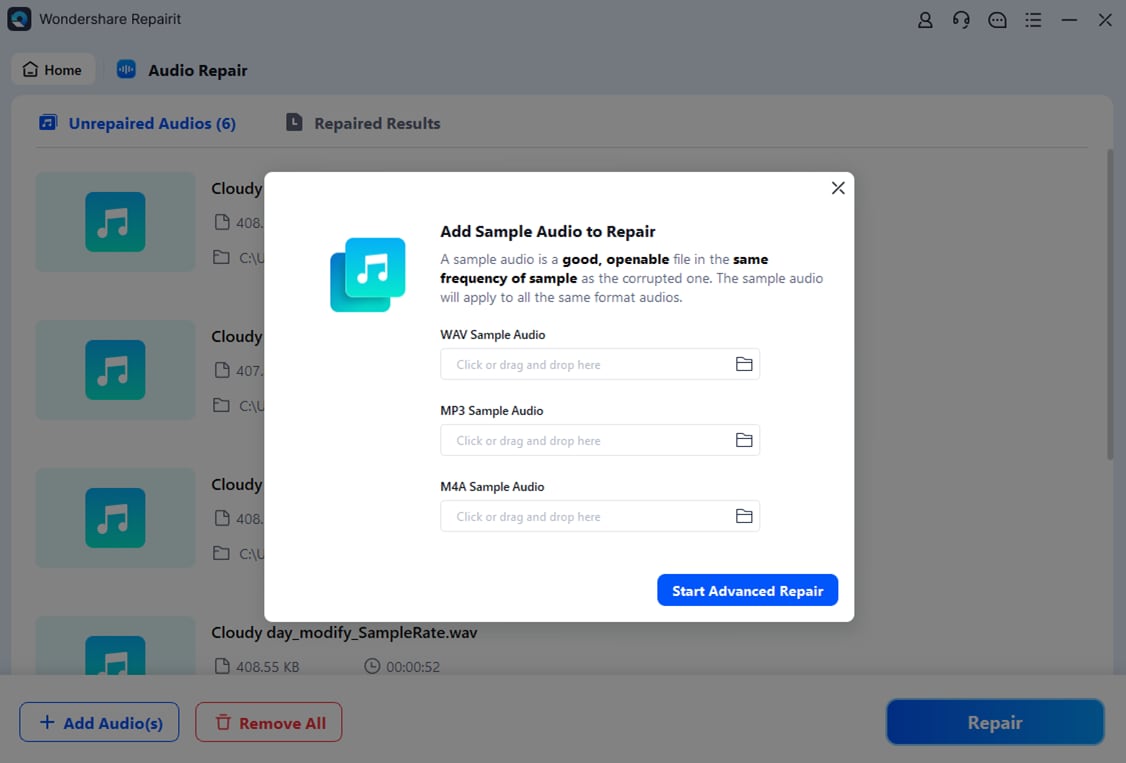
If you seek to add multiple audio files, press the “+Add File(s)” button and tap on “Repair” to continue. In the popup, select the good sample based on the corrupted audio, then tap “Start Advanced Repair.”
Step 3. Change the Sample or Save the Fixed Audio File
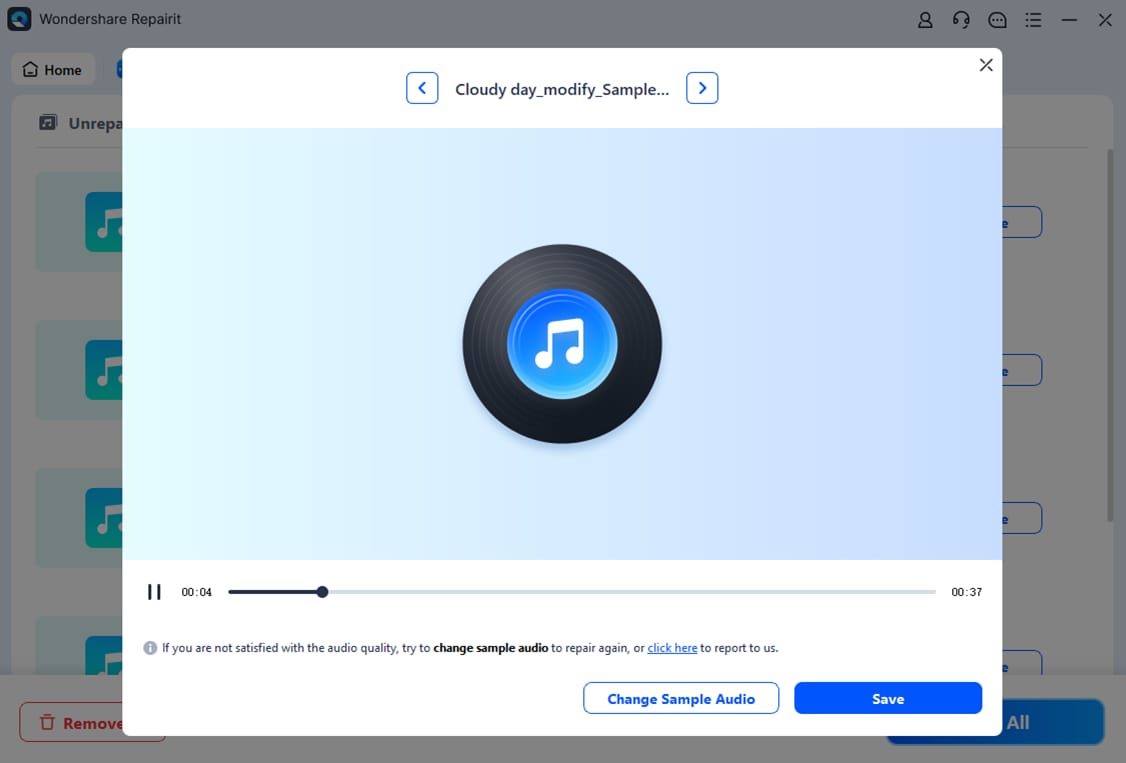
As the tool detects and fixes corrupted WhatsApp audio files, choose “Change Sample Audio” to repair the file again. If everything seems okay, tap on the “Save” button and export.
Fix Corrupted Downloaded Audio Files
 Security Verified. Over 7,302,189 people have downloaded it.
Conclusion
Summing up, why users encounter the WhatsApp voice messages no sound issue has been explained in this guide. While knowing the reasons, 7 simple solutions are explained in detail that one can follow to restore audio playback. However, if the corruption is the bottleneck, use Repairit to repair audio files of common and lossless formats in batches.
Frequently Asked Questions
-
1. Can I play WhatsApp voice messages on another device?
Yes, you can forward the message or use WhatsApp Web to play it elsewhere. Besides, this helps determine whether the sound problem is on your phone or in the app. -
2. Can a blocked contact affect voice message playback?
No, blocking a contact stops new messages but does not remove or mute old messages. Therefore, you can still hear previous voice notes from that contact without issues. -
3. Do silent voice messages indicate a file format issue?
Sometimes, the issue is compatibility, as WhatsApp uses .opus audio for voice messages. Some media players cannot decode it properly, so the file may appear silent.




