Error 0x80004005 usually appears in Windows as an "Unspecified error." That wording is frustrating because the code does not point to one single problem. You may see it while installing a Windows update, extracting a ZIP file, opening a shared folder, copying or deleting a file, or using another Windows application.
The best way to fix error 0x80004005 is to first identify what you were doing when the error appeared. A Windows Update failure needs a different fix from an archive extraction problem or a network-share error.
This guide helps you match the error to the most likely scenario and apply the appropriate fix on Windows 10 or Windows 11.
In this article
Part 1: What Does Error 0x80004005 Mean?
0x80004005 is a general Windows failure code commonly described as "Unspecified error." It does not identify one exact cause. Instead, Windows or an application can return the code when an operation fails without providing a more specific error.
That is why searching for a single universal "0x80004005 fix" often leads to confusing advice. The correct solution depends on where the error appears.
| Where Error 0x80004005 Appears | Likely Area to Check |
| Windows Update or Windows upgrade | Update services, update cache, system files, pending restart |
| ZIP or archive extraction | Unsupported encryption, damaged archive, extraction software |
| Shared folder or NAS access | Network configuration, permissions, sharing settings |
| Copying, moving, deleting, or opening a file | Permissions, file-system access, security software, file corruption |
| Outlook | Outlook-specific sync, account, service, or profile issue |
| A game or third-party application | Application-specific files, services, permissions, or installation problem |

Part 2: Which 0x80004005 Error Are You Seeing?
Before changing Windows settings, identify the action that triggers the error. This makes troubleshooting faster and avoids unnecessary changes to unrelated parts of the system.
- Error appears during Windows Update: Start with the Windows Update troubleshooter, restart the PC, and check Windows system files.
- Error appears while extracting a ZIP file: Test the archive with another extraction tool and determine whether the archive is encrypted or damaged.
- Error appears while accessing a shared folder: Check the network path, sharing permissions, discovery settings, and authentication.
- Error appears while copying or deleting a file: Check ownership, permissions, security software, and whether the source file or folder is accessible.
- Error appears only in Outlook: Use an Outlook-specific troubleshooting workflow rather than changing unrelated Windows settings.
- Error appears only in a game or application: Treat it as an application-specific problem first. Repair or reinstall that application before making system-wide changes.
If you are seeing the error specifically in Microsoft Outlook, use the dedicated guide for Outlook error 0x80004005 instead of the general Windows methods below.
Part 3: How to Fix Error 0x80004005 on Windows 10/11
Fix 1: Troubleshoot Windows Update
If error 0x80004005 appears while downloading, installing, or upgrading Windows, restart the computer first and try Windows Update again.
- Open Settings.
- Go to System > Troubleshoot > Other troubleshooters.
- Find Windows Update.
- Click Run.
- Apply the recommended fixes.
- Restart Windows and check for updates again.
If the problem is tied to one specific update, check its KB number and verify whether a newer cumulative update is already available before manually installing an older package.
Fix 2: Repair Windows System Files with SFC and DISM
Damaged Windows system files or component-store corruption can interfere with updates and other system operations. Run SFC and DISM from an elevated Command Prompt.
Step 1. Search for Command Prompt, right-click it, and select Run as administrator.
Step 2. Run:
sfc /scannowStep 3. After SFC finishes, run:
DISM /Online /Cleanup-Image /RestoreHealthStep 4. Restart Windows and repeat the operation that previously triggered error 0x80004005.
Fix 3: Fix 0x80004005 When Opening a Network Share
If File Explorer shows 0x80004005: Unspecified error while opening a shared folder, NAS, or another computer on the network, check the network connection and sharing configuration before changing unrelated Windows components.
- Confirm that both devices are connected to the expected network.
- Verify the shared folder path and make sure the target computer or NAS is online.
- Open Advanced sharing settings and confirm that Network discovery and File and printer sharing are configured appropriately for your network.
- Check whether your Windows account has permission to access the shared folder.
- If necessary, test the network share by its IP address to distinguish a name-resolution problem from an access problem.
For managed business networks, avoid enabling legacy or insecure sharing protocols unless your network administrator specifically requires them.
Fix 4: Fix 0x80004005 When Extracting ZIP Files
If the error occurs while opening or extracting a ZIP archive, the Windows system itself may be working normally. The problem can instead be the archive format, encryption method, password, or file corruption.
Try these checks:
- Copy the archive to a local drive before extracting it.
- Make sure you have the correct password for an encrypted archive.
- Try another reputable archive tool such as 7-Zip if Windows cannot process the compression or encryption method.
- Download the archive again if it came from the internet.
- If multiple archive tools report errors, check whether the ZIP file itself is corrupted.
If the ZIP archive itself is damaged rather than merely unsupported, use a dedicated ZIP Repair Tool instead of repeatedly changing Windows settings.
Fix 5: Check File Permissions and Security Software
If error 0x80004005 appears when opening, copying, moving, renaming, or deleting a particular file or folder, check whether Windows actually has permission to access the item.
- Right-click the affected file or folder and select Properties.
- Open the Security tab and review the permissions for your Windows account.
- If the file came from another computer or account, confirm that you have the required access rights.
- Check whether antivirus or endpoint-security software is blocking the operation.
- If security software appears to be involved, review its quarantine, protection history, or exclusion settings rather than permanently disabling protection.
If the error affects only one file while other files in the same folder work normally, the file itself may also be damaged.
Fix 6: Clear Temporary Files
Temporary data can occasionally interfere with installation or file operations. Windows provides built-in storage cleanup options that are safer than manually deleting unknown system folders.
- Open Settings > System > Storage.
- Select Temporary files.
- Review the available categories carefully.
- Select only the temporary data you no longer need.
- Remove the selected files and restart the affected operation.
Part 4: Repair Corrupted Files Due to the Error 0x8004005 on a Windows System
Error 0x80004005 and file corruption are not the same problem. In many cases, fixing Windows permissions, updates, networking, or archive compatibility resolves the error without repairing any file.
File repair becomes relevant only when a specific file still exists but is genuinely damaged. Examples include:
- A Word document that no longer opens or displays unreadable content.
- An Excel workbook that reports corruption or cannot be opened.
- A PowerPoint presentation with damaged slides or broken content.
- A PDF that fails to open in multiple compatible readers.
- A ZIP archive that multiple extraction tools identify as corrupted.
For supported damaged files, Repairit File Repair can be used after you have confirmed that the problem is file corruption rather than the Windows error itself. You can also access the broader Wondershare Repairit toolkit for supported repair workflows.
-
Repair damaged files with all levels of corruption, including blank files, files not opening, unrecognizable format, unreadable content, files layout changed, etc.
-
Supported the repair of all formats of PDF, Word, Excel, PowerPoint, Zip, and Adobe files.
-
Perfectly repair corrupted files with a very high success rate, without modifying the original file.
-
No limit to the number and size of the repairable files.
-
Support Windows 11/10/8/7/Vista, Windows Server 2003/2008/2012/2016/2019/2022, and macOS 10.10~macOS 13.
How to Repair a Corrupted File with Repairit
If the Windows error has been resolved but a supported file still cannot open normally, make a copy of the damaged file and repair the copy.
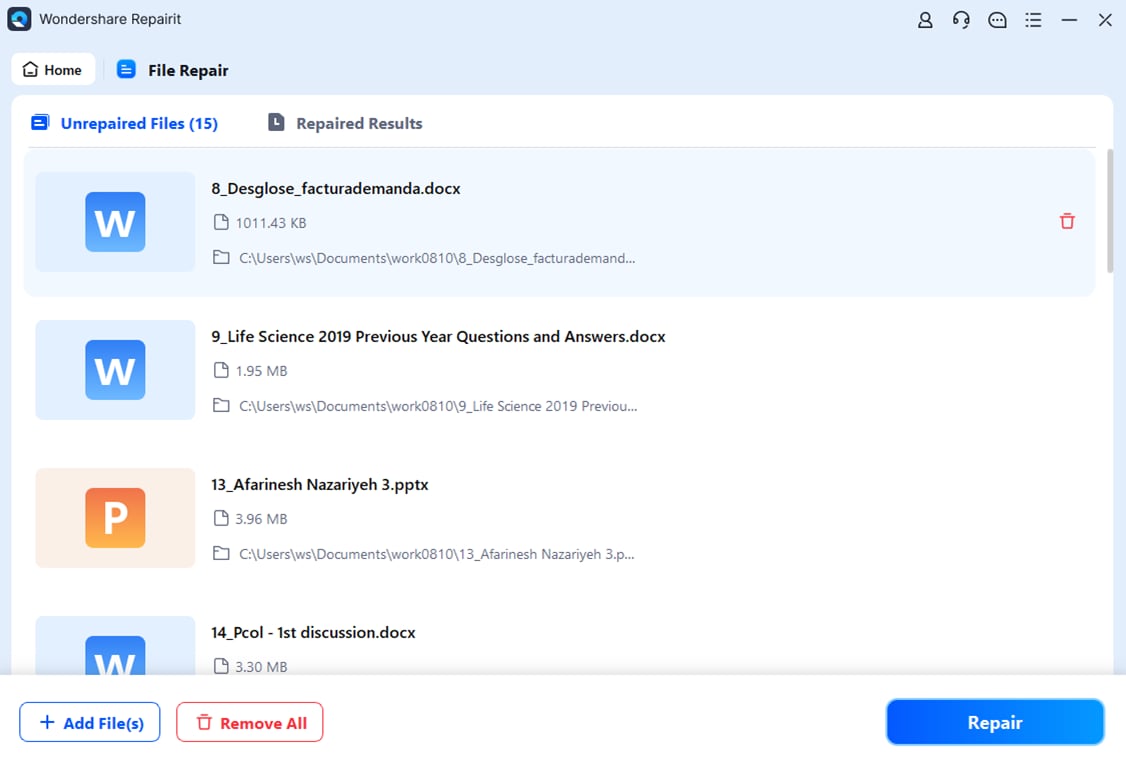
Step 1. Open the repair tool and Click on the "+Add" button to add all the corrupted files to the app. Click on the "Repair" button at the bottom to begin the repair process.
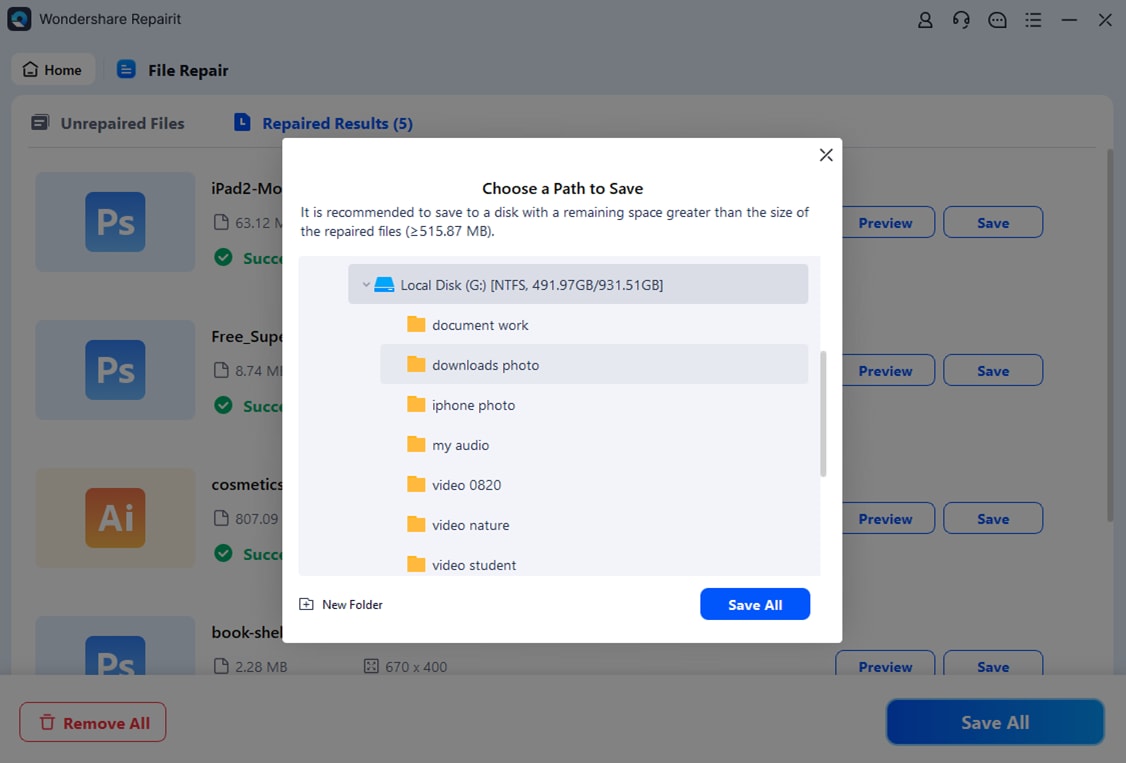
Step 2. You can preview the repaired files by clicking on the "Preview" button after the process is over. Click on the "Save" option to save the repaired file to your system by providing the location in the browser.
Conclusion
Error 0x80004005 is an unspecified Windows failure, so the right fix depends on where the error appears. Start by identifying whether the problem happens during Windows Update, archive extraction, network access, file operations, Outlook, or a specific application.
Use Windows troubleshooting for system-level failures, network and permission checks for shared folders, and a compatible archive tool for ZIP-related problems. Only move to file repair when a particular file remains damaged after the underlying Windows problem has been resolved.
FAQ
-
What does error code 0x80004005 mean?
0x80004005 is a general Windows error commonly described as an unspecified failure. It does not identify one exact cause, so the correct fix depends on the operation or application that triggered it. -
How do I fix error 0x80004005 on Windows 11?
Identify where the error occurs first. For Windows Update, restart the PC, run the Windows Update troubleshooter, and check system files with SFC and DISM. For ZIP files, test another extraction tool. For network shares, check network discovery, permissions, and the share path. -
How do I fix 0x80004005 when extracting a ZIP file?
Make sure the archive is fully downloaded, confirm the password if it is encrypted, and try a compatible archive tool such as 7-Zip. If multiple tools report corruption, the ZIP file itself may need repair. -
Why do I get 0x80004005 when accessing a shared folder?
The cause may involve network connectivity, sharing permissions, authentication, name resolution, or Windows sharing settings. Confirm that the host is reachable and that your account has permission to access the share. -
Can SFC fix error 0x80004005?
SFC may help when the error is caused by corrupted Windows system files. It will not solve every 0x80004005 scenario, especially errors caused by ZIP encryption, network permissions, Outlook, or third-party applications. -
Can Repairit fix error 0x80004005?
Repairit does not repair Windows error code 0x80004005 itself. It is relevant only when a supported Word, Excel, PowerPoint, PDF, ZIP, or other file is actually corrupted and still cannot open after the Windows or application issue has been addressed.