
Many users face the “Package Failed updates, dependency or conflict validation" error, especially after updating an app. Due to the error, a specific app, such as Photos, suddenly crashes without any clear error message. With the advancement in technology, you can now easily resolve this error using an appropriate method.
This guide will walk you through how conflicts between various versions occurred and how to identify these errors. Furthermore, you will be provided with 6 efficient methods to help you resolve this error easily.
Table of Contents
Part 1. Understanding Package Failed Updates and Their Causes
“Package Failed updates, dependency or conflict validation" error in Windows indicates that it cannot be updated because the required dependency is missing or damaged. This error usually indicates that, when it checks all required elements for the update, they are unavailable, missing, or corrupted. Usually, this dependency or conflict validation error occurs due to the following reasons:
- Corrupted or Incomplete Files: Update packages or their temporary cache can become damaged due to interrupted downloads or disk errors.
- Not Enough Free Disk Space: If the system drive is nearly full, Windows cannot continue the update, which can cause the package to fail during installation.
- Damaged System Files: Corruption in core Windows files or the components stop updates from finding or replacing the right components.
- Incompatible Dependencies: The required framework or other Windows features may be missing, leading to this specific error.
- Network or User’s Interruption: Loss of internet during a download, or manual termination of update processes, can leave updates in a partially installed state.
Part 2. How to Identify Which Packages Are Causing Errors
After understanding the causes of “Package Failed updates, dependency or conflict validation,” let's examine how to identify the tools that cause errors:
Checking Logs and Error Messages
Before applying any fixes, it’s important to pinpoint which packages are actually causing the errors:
- Read the Complete Error Text and Code: Error dialogs, Store messages, or PowerShell output usually show a code like 0x80073CF3, so copy this code for further procedure.
- Use Event Viewer: Open the “Event Viewer” tool and navigate to the “AppXDeployment-Server” to find the recent error at the time of installation failure.
- Query Deployment Logs with PowerShell: If the error includes an ActivityId, run PowerShell as admin and use the command to find the detailed failure log.
Tools To Detect Conflicts or Missing Dependencies
Now, let's explore some efficient tools to detect the conflicts for the “Package Failed updates, dependency or conflict validation” error:
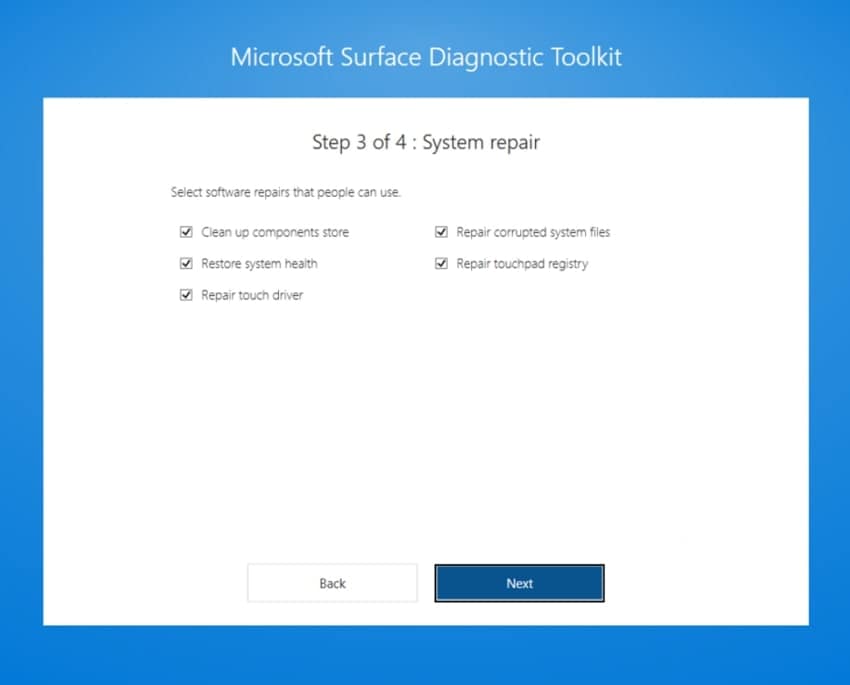
1. Built‑in Deployment and Store Diagnostics
Microsoft’s AppX deployment troubleshooting guidance describes how to interpret common deployment error codes. Furthermore, it may help to find the cause of the error that occurred in your system.
2. PowerShell Package and Dependency Commands
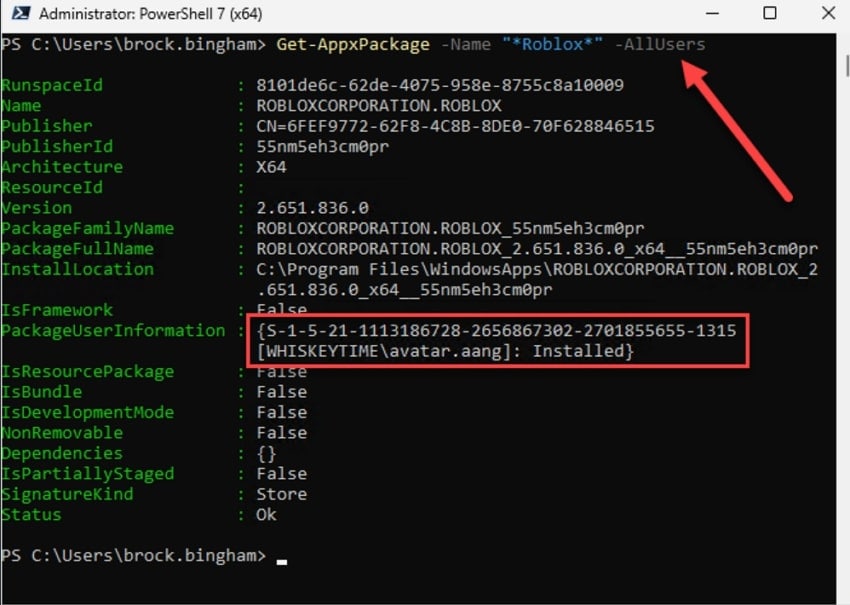
Users can use commands like "Get-AppxPackage" to see which versions of a package are installed and to reveal duplicates. You can combine this with deployment logs, making it easier to find conflicts and missing dependencies.
Part 3. Step-by-Step Guide to Fix Package Failed Updates
Let’s move into the practical fixes you can apply to fix the “Package Failed updates, dependency or conflict validation” error:
Fix 1. Reset the Photos App
Resetting the Photos App is useful because it directly targets corruption or a bad state inside that specific package. It helps in deleting all the cache data, local configuration, and temporary files that may be blocking updates or breaking dependencies. Furthermore, the reset option is available in its built-in settings, making it easier to access this method. Thus, let's explore the detailed guide below for resetting the Photos App:
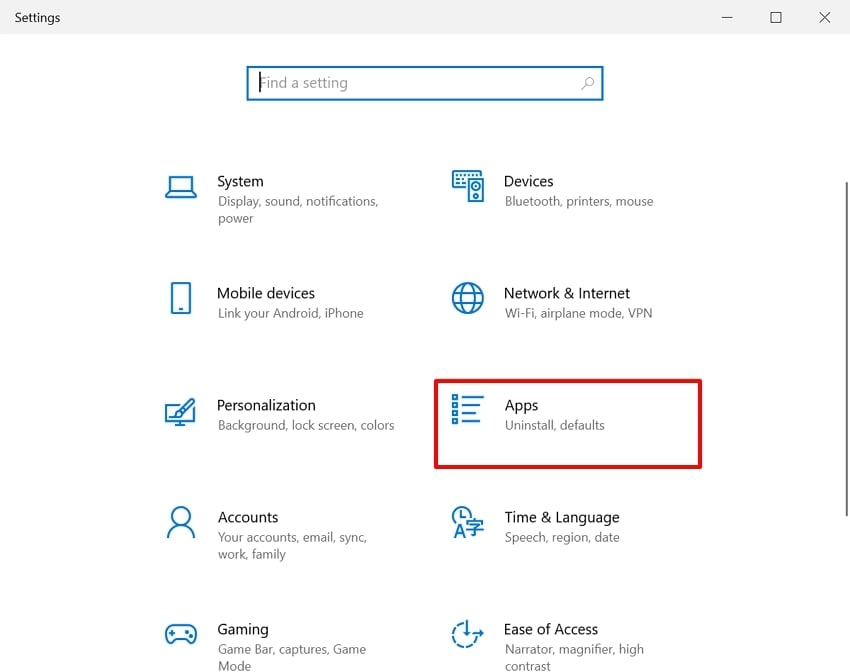
Step 1. Access the “Settings" window and click on the "Apps” option available on its main interface.
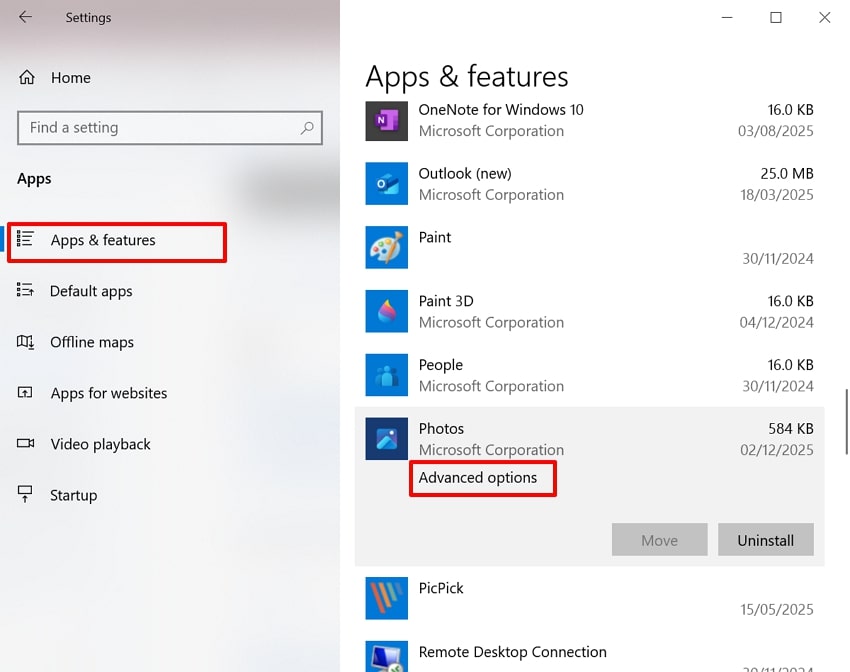
Step 2. Following this, choose the “Apps & Features" option within the left panel. Navigate to the "Photos” app and click the “Advanced Options” option located beneath it.
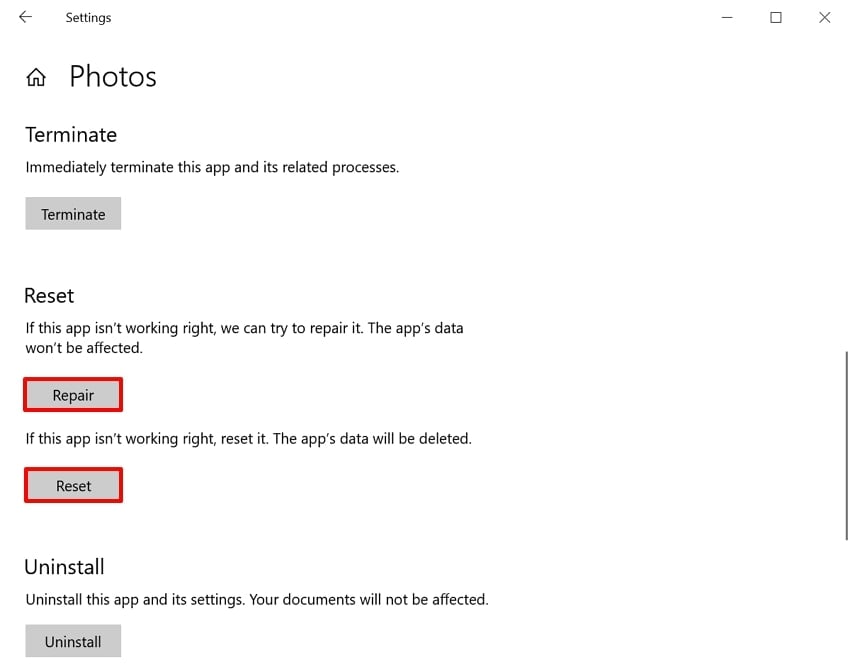
Step 3. Here, click on the “Repair" button to repair the specific error. If the error remains persistent, select the "Reset" button to reset the Photos app and restart the PC.
Fix 2. Run SFC & DISM Scans
To fix the “Package Failed updates, dependency or conflict validation" error, you can use the Command Prompt. Running SFC and DISM scans helps repair system issues effectively. SFC scans protected Windows files and replaces corrupted ones, while DISM checks and restores the WinSxS component store. This built-in method is reliable for resolving update conflicts. Follow the step-by-step guide below to use CMD correctly:
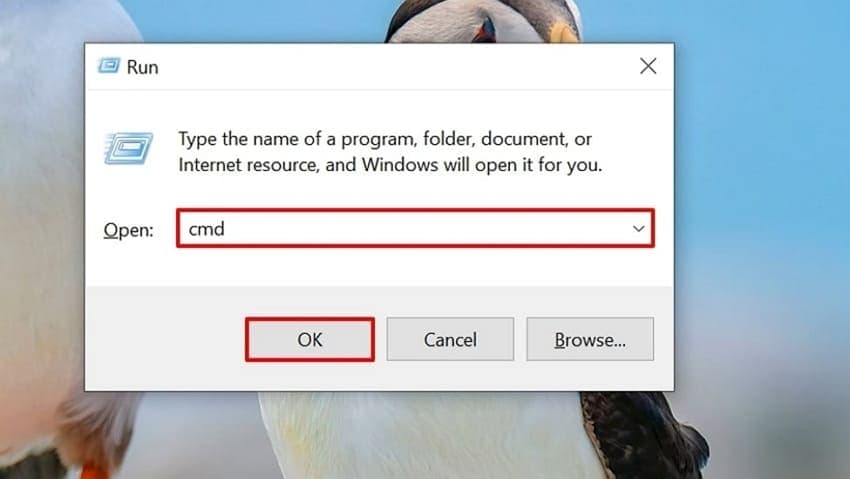
Step 1. Using the “Windows + R" command, open the Run program and type "cmd” to launch Command Prompt.
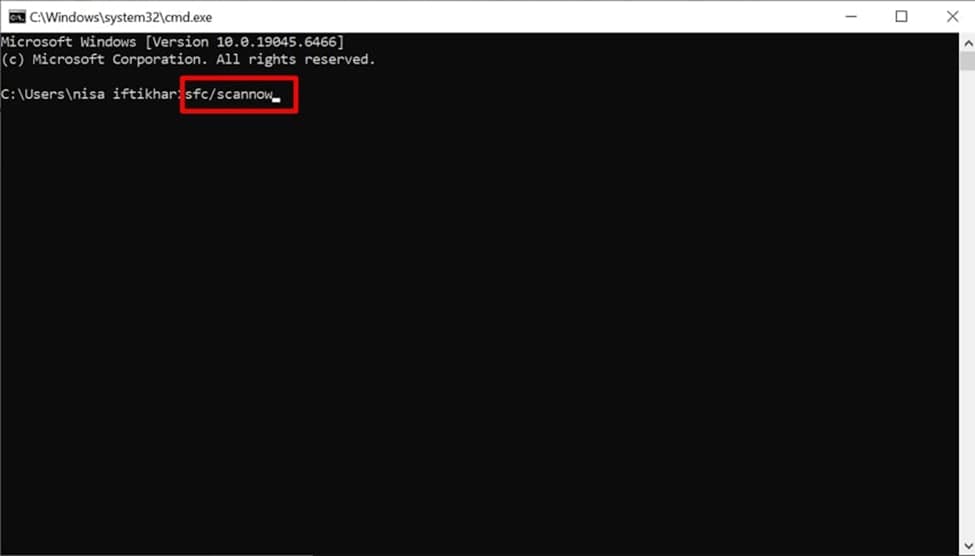
Step 2. Upon entering the tool, add the “sfc /scannow” command and hit the “Enter” button to let the tool start SFC scanning.
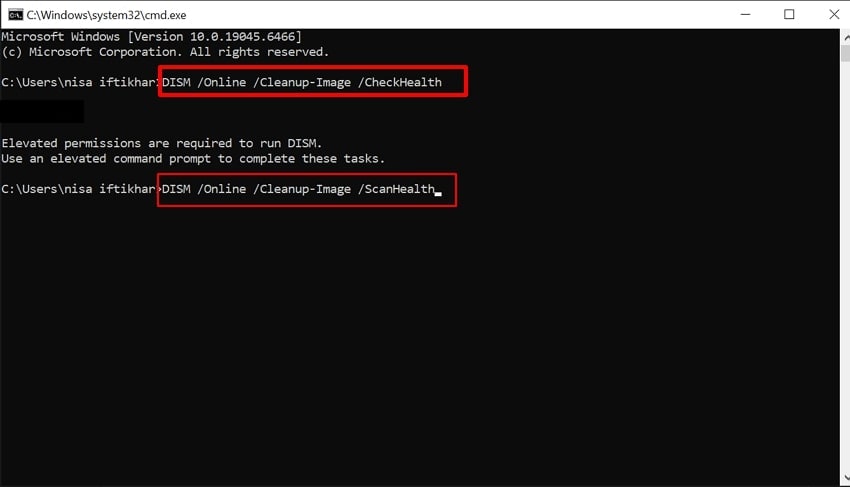
Step 3. Enter the command “DISM /Online /Cleanup-Image /CheckHealth” and hit the “Enter” button. Following this, add another command stating “DISM /Online /Cleanup-Image /ScanHealth” and again press the “Enter” button. Now, wait for all the commands to run and restart the PC to fix the error.
Fix 3. Clear Windows Store Cache via PowerShell
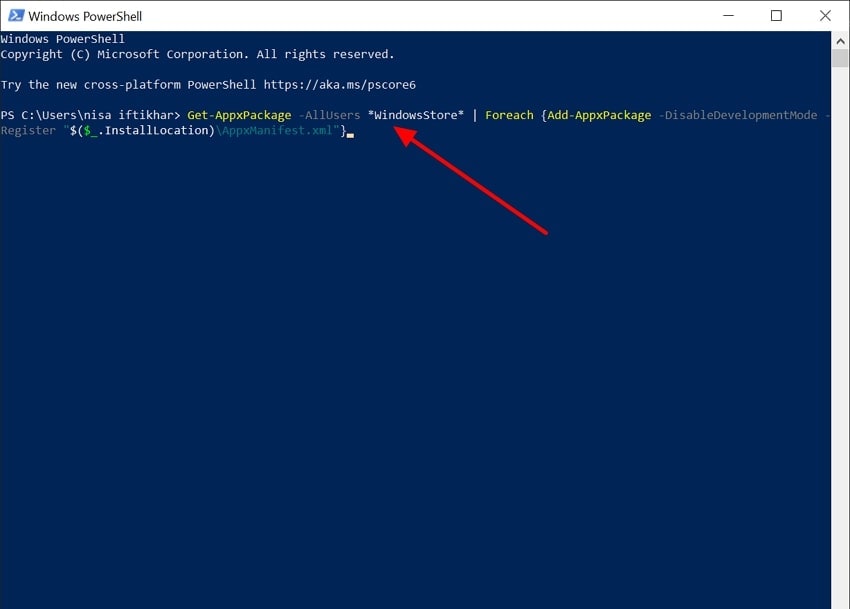
This method works because the “Package Failed updates, dependency and conflict validation” error often stems from corrupted Store caches. If the problem continues, you can fully re-register the partially installed Store package. This approach repairs Store infrastructure without reinstalling Windows, making it safe and efficient, which can be understood using the steps below:
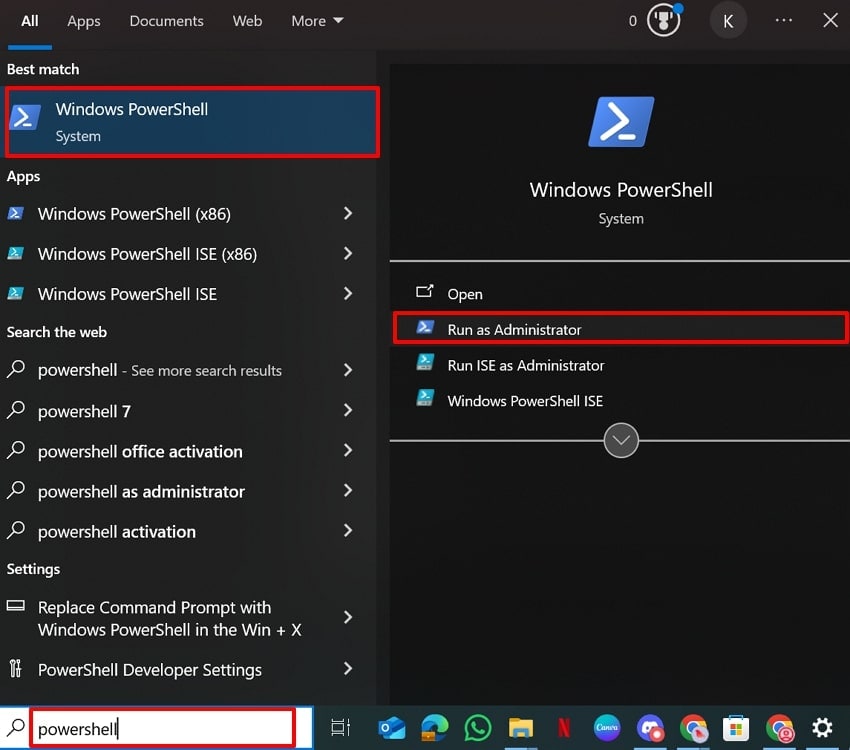
Step 1. Initiate by searching for “PowerShell” tool in your Windows search bar and select the “Run as administrator” option to launch it.
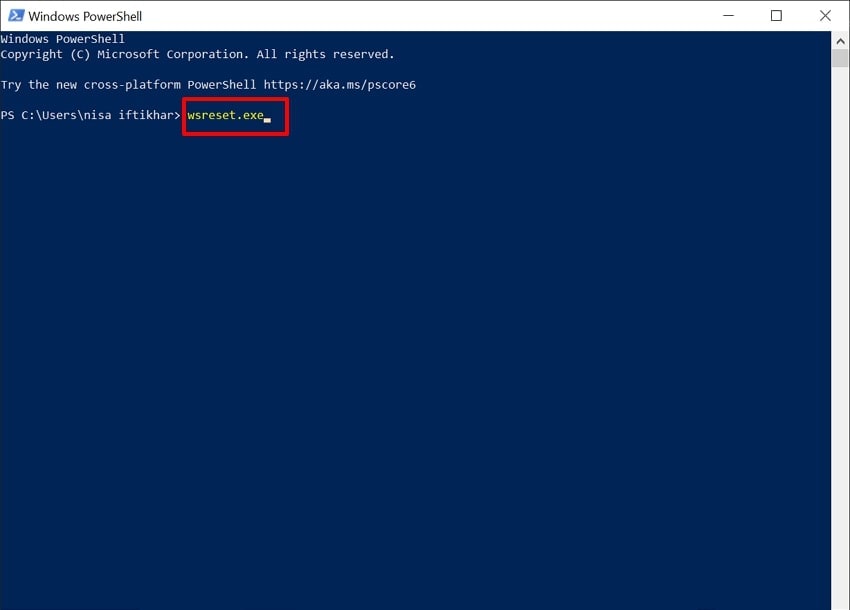
Step 2. As you enter PowerShell, insert the "wsreset.exe" command to quickly reset the Store. It will clear the Store cache and will open the Microsoft Store when finished.
Step 3. Furthermore, you can deeply reset the app for better results. Add “Get-AppxPackage -AllUsers*WindowsStore*|Foreach{Add-AppxPackage-DisableDevelopmentMode-Register"$($_.InstallLocation)\AppxManifest.xml"}” command and hit the “Enter” button.
Fix 4. Update Your Windows OS
Regular Windows updates help prevent package errors caused by bugs or missing system components. Updating ensures your system has the required patches for new Store apps and dependencies. Windows also includes built-in tools to repair, deploy, and apply fixes safely without risky manual changes. Follow the guide below to update Windows and resolve the "Package Updated failed, dependency or conflict validation” error effectively:
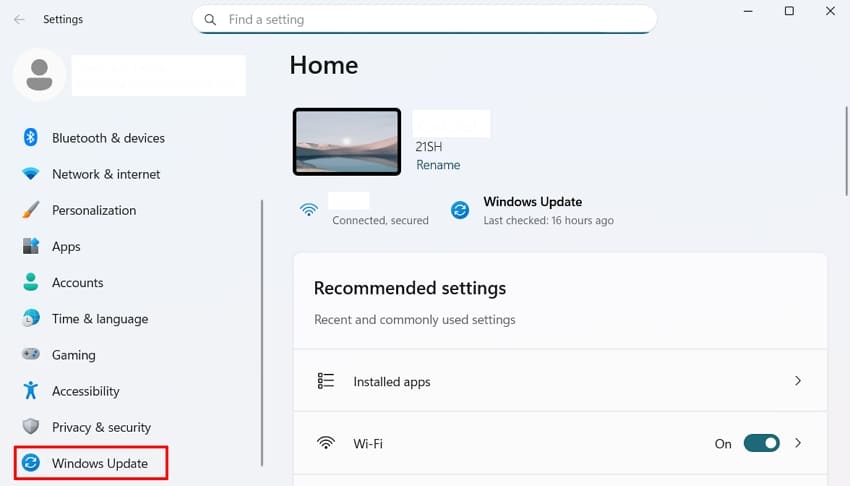
Step 1. Open the “Settings” app from the Windows search bar and click on the “Windows Update” section from the left pane.
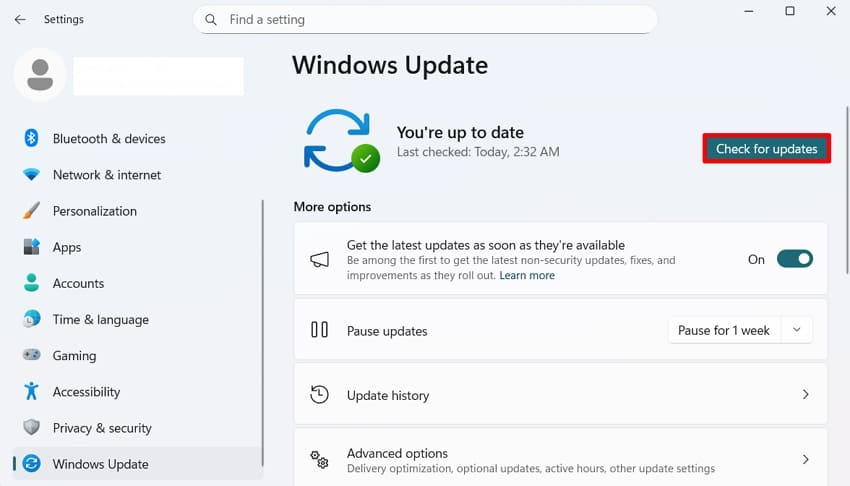
Step 2. Here, click on the “Check for Updates” option to check if there is any new update available. If it is available, then select the “Download and Install” option to start the updating procedure instantly.
Fix 5. Reinstall Corrupted Visual C++ Redistributable Package
If an app relying on Visual C++ becomes corrupted, reinstalling the latest version can resolve the issue. A fresh installation replaces damaged files and allows dependency checks to pass smoothly. It also ensures you receive the latest fixes and security updates for the runtime. Instead of reinstalling Windows, this approach repairs only the required dependency layer, which is focused on in the guide below:
Step 1. Open “Control Panel” from the Windows search bar and navigate to the “Programs and Features” option from its main interface.
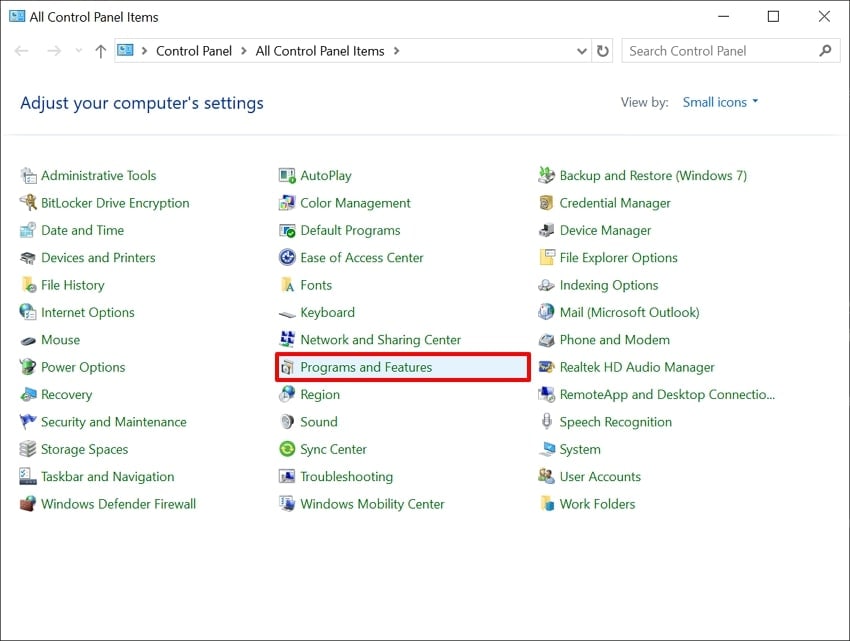
Step 2. Look for Microsoft Visual C++ within the list and right-click to select the "Uninstall” option.
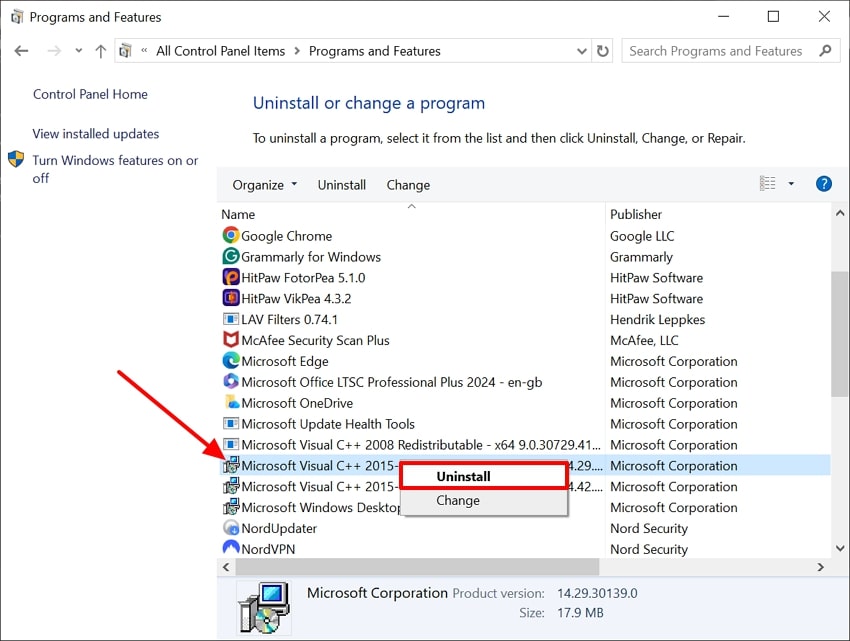
Step 3. Now, go to the official Visual Studio page and download the latest supported installers for the required versions. Here, run each downloader separately and follow the ongoing instructions properly.
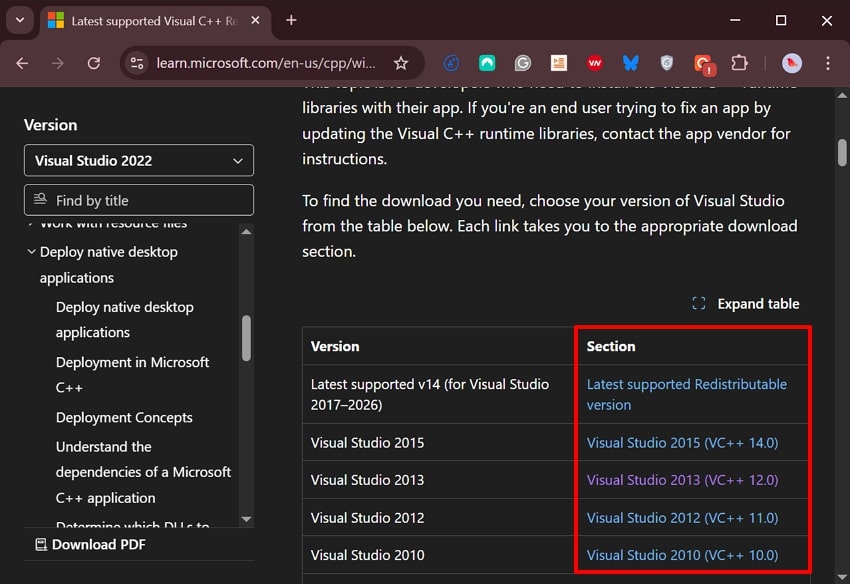
Fix 6. Update or Reinstall the Specific Microsoft App (Notepad/Photos/Video)
Sometimes, the "Package Failed updates, dependency or conflict validation” error occurs because of outdated apps. Regularly checking for updates helps prevent failures during installation or updates. App updates often include required frameworks and components that reduce conflicts and errors. Beyond fixing this issue, updates also unlock new features and improvements, as provided in the guide below:
Step 1. After opening “Microsoft Store," which is already available in Windows, click on the "Downloads" option available in the left pane.
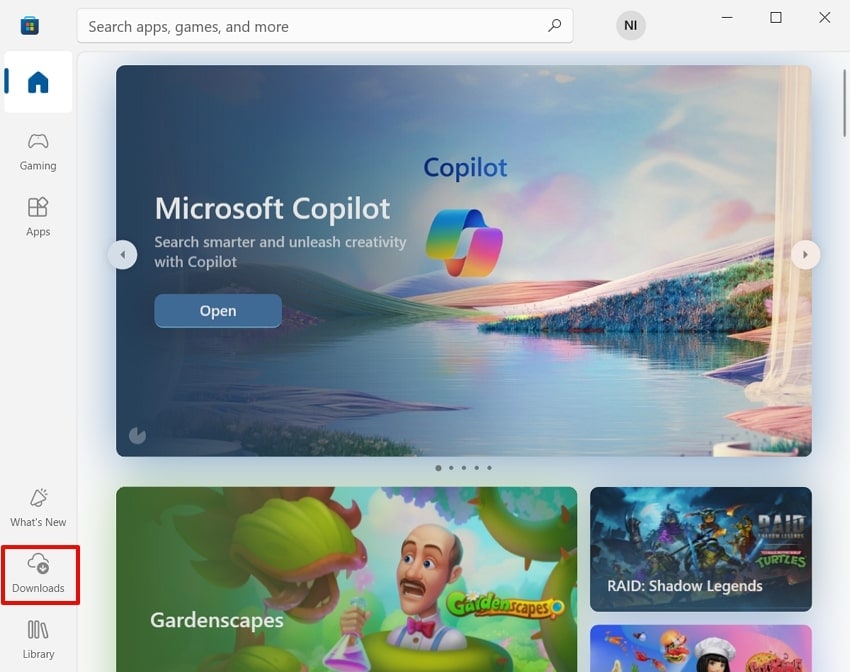
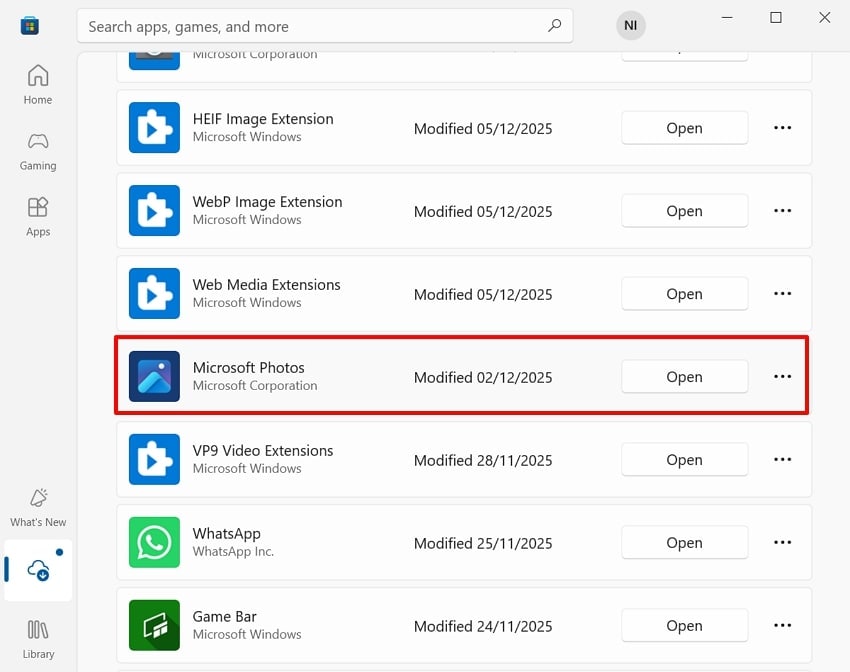
Step 2. Here, navigate to the desired app, like the "Photos" app, and click on the "Update” button if available.
Pro Tip. Rescue Your Package Updates by Repairing Corrupted System Files
In a design studio where a small IT team manages multiple Windows laptops, a major cumulative update may fail across several systems. As a result, designers often experience apps stopping midway during updates. In this situation, using Repairit is recommended. Its patented AI algorithms analyze system corruption and accurately rebuild affected files, helping restore update stability and keep workflows running smoothly.
From basic documents to system files, Repairit provides a dedicated repair facility for its users. Whether you are a Windows or macOS user, this service ensures that you can easily repair your corrupted files while keeping their original structure intact.
Key Features
Archive File Repair: This platform offers convenient repair of damaged ZIP, 7Z, ISO, and other archive file formats, while protecting their internal elements.
Batch Processing: This efficient file repairing tool provides an advanced batch processing system, making it easier to process numerous files simultaneously.
Office Document Repair: Whether you have a corrupted Word file or a damaged PowerPoint presentation, Repairit offers dedicated file repair for all Office-related formats.

-
Archive File Repair: This platform offers convenient repair of damaged ZIP, 7Z, ISO, and other archive file formats, while protecting their internal elements.
-
Batch Processing: This efficient file repairing tool provides an advanced batch processing system, making it easier to process numerous files simultaneously.
-
Office Document Repair: Whether you have a corrupted Word file or a damaged PowerPoint presentation, Repairit offers dedicated file repair for all Office-related formats.
Detailed Guide to Use Repairit For System File Repair
If you are also facing file corruption issues due to “Package Failed updates, dependency or conflict validation,” follow the guide below:
Step 1. Insert All Corrupted Files into the Repairit Tool
Initiate the process by clicking on the “More Types Repair" section in the left sidebar. Following this, choose the “Document Repair” option to insert the desired corrupted file into the tool.

Step 2. Initiate the Repairing Procedure Instantly
Upon inserting the corrupted system files, it will automatically start the repair procedure. Here, all the unrepaired files appear under the “Unrepaired Files” tab.

Step 3. Preview and Render the Generated Outcome to the Desired Folder
As the repaired file is ready, click on the “Preview” button to check the system files. After previewing it, hit the “Save” button to export the outcome to the device folder.

Use Repairit For File Repair
 Security Verified. Over 7,302,189 people have downloaded it.
Conclusion
Summing up, users can now easily fix the “Package Failed update, dependency and conflict validation” error by opting for proper methods. For your convenience, this guide covers how to identify the error and provides efficient fixes for this error. Furthermore, if your system file becomes corrupted due to this error, we recommend Repairit, which offers the highest accuracy in file repair.
FAQs
-
Q1. Which apps are usually affected by this error?
This error typically affects the Microsoft Store and built-in apps such as Photos and Notepad, especially after recent OS updates. However, you can easily resolve this error by using an appropriate method, such as updating or reinstalling the app. -
Q2. How do I find out which package is causing the error?
Users can easily identify dependency and conflict validation errors in “Event Viewer,” under the “AppXDeployment-Server” log. Furthermore, you can use PowerShell commands to determine which app is causing the issue. -
Q3. What quick fixes should I try first for a single app (like Photos or Notepad)?
In this scenario, you can try repairing or resetting the app within the settings app. If the error remains persistent, then try updating the app, or you can directly reinstall the app to get its latest updates. -
Q4. What should you do if this error corrupts your essential files?
You can easily repair the corrupted files by using a reliable and efficient tool like Repairit. This tool lets you repair multiple files simultaneously and provides a preview option to review the results instantly.




