
 TL;DR:
Adding emojis to photos can be done instantly using your smartphone's built-in markup tools, web platforms for custom icons, or AI-powered apps that place them automatically based on your instructions.
● iPhone and Android default photo editors are best for fast, private offline edits using standard keyboard emojis, but they limit you to basic manual resizing without advanced filters.
● Browser-based editors like IMAGE ONLINE CO are ideal for bypassing app installations and allow you to upload your own images as custom emojis, provided you have an active internet connection.
● The Repairit App is recommended for users who want to use the Text-to-Edit feature to automate emoji placement and fix blurry images, though it requires downloading the software and may necessitate a subscription for full access.
Ask AI for a summary
 ChatGPT
 Perplexity
 Gemini
 Claude
 Grok
Grok
Make your photos more fun and lively with cute emojis. These little icons can show emotions, add humor, and give your pictures a playful touch. From hearts and smileys to location pins and party icons, emojis are perfect for social media posts, family albums, or messages to friends.
But how to add an emoji to a photo? Adding emojis is simple and doesn’t require complicated Photoshop skills. You can do it right on your phone, use free online editors, or try AI-powered apps like the Repairit App. With its Text to Edit feature, you can add emojis and enhance your images in just a few taps.
Table of Contents
Part 1. Why Add Emojis to Pictures
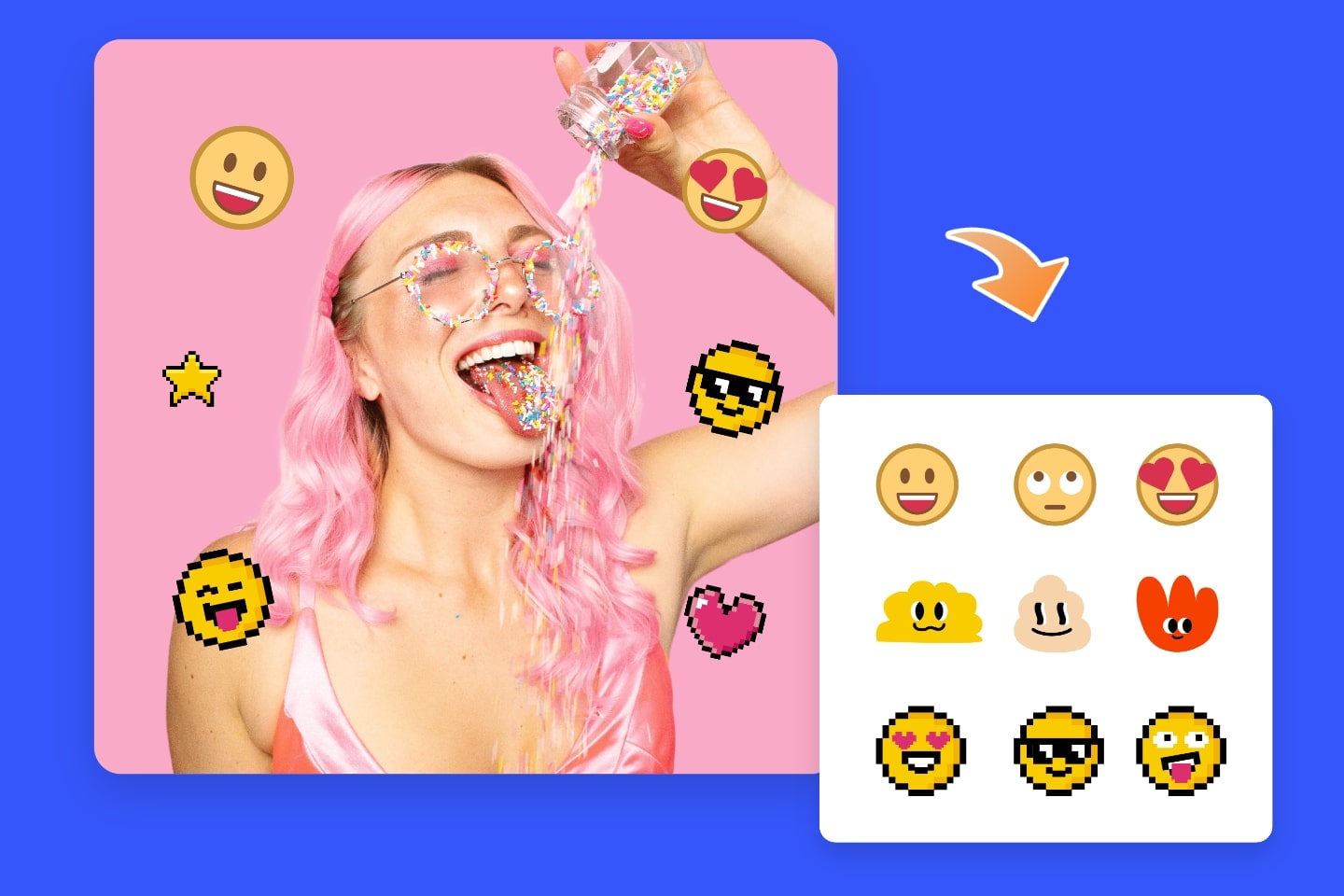
People use emojis on photos for many simple but meaningful reasons. Here are some of the most common ones:
- To express mood or personality. Emojis help show how you feel without needing words.
- To highlight moments or reactions. A heart, smiley, or surprised face can instantly set the tone of a picture.
- To make social media posts more engaging. Emojis catch attention and make photos more fun to look at.
- To personalize your style. Adding emojis lets you show your aesthetic, humor, or creativity.
- To cover unwanted objects. Stickers and emojis are great for hiding photobombers or messy backgrounds.
- To match seasons or holidays. Use pumpkins, hearts, or snowflakes to give your photos a festive vibe.
Part 2. 3 Simple Ways to Add Emojis to Photos
Adding emojis to pictures is easier than ever thanks to built-in phone tools, free online editors, and new AI-powered apps. Below are three of the simplest methods you can use in 2025, along with the pros and cons of each.
Option 1: Use Your Phone’s Built-in Editor (Android & iPhone)
Most advanced phones let you insert emojis directly through their default photo editors with no extra apps needed. This option is perfect if you want a quick edit or don’t want to download anything.

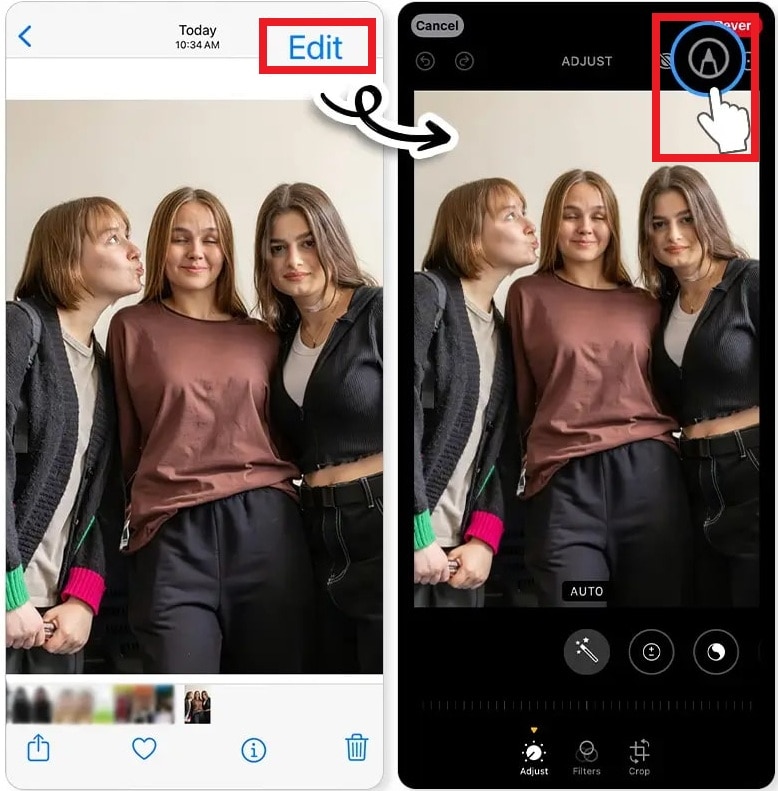
Step 1: Pick your image in the Photos app and hit the Edit button.
Step 2: Tap the pencil icon to access the Markup menu. At the bottom, tap the “+” symbol.
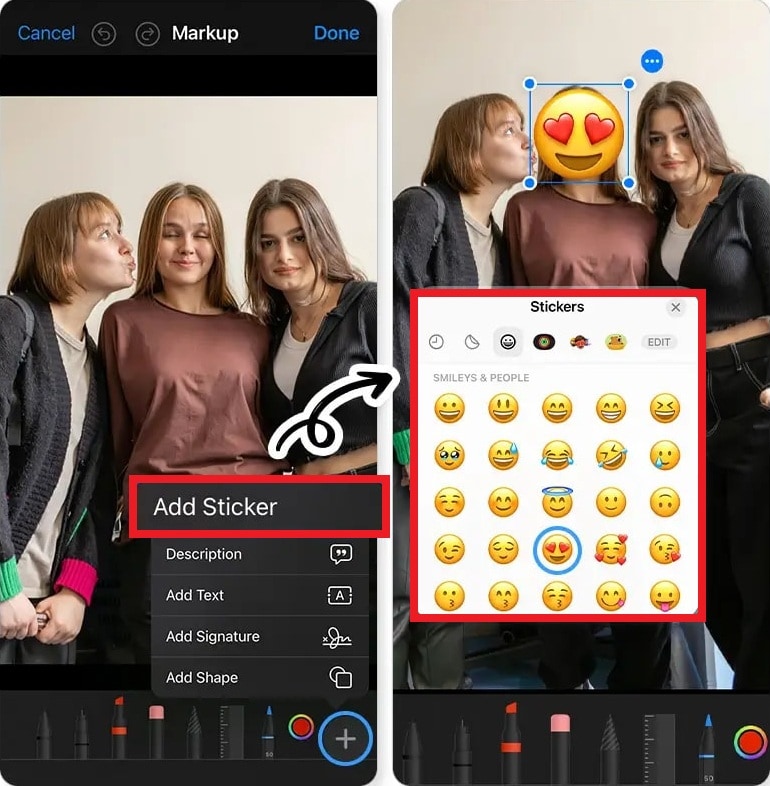
Step 3: Tap Add Sticker to choose emojis from the sticker menu.
Alternatively, tap Add Text, then tap the smiley face on the keyboard to access emojis.
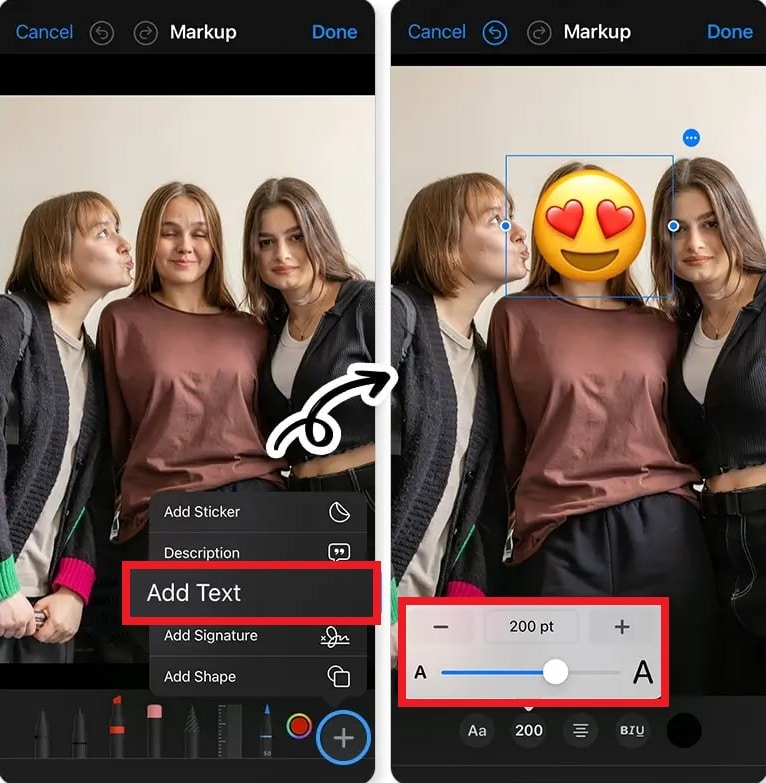
Step 4: Select your emoji and drag it to the desired spot. Resize or rotate as needed. Repeat to add more emojis.
Step 5: When you’re done, tap Done to keep the edited copy in your camera roll.
Step 1: Open your Photos or Gallery app and choose the photo.
Step 2: Tap the Edit icon and find Text.
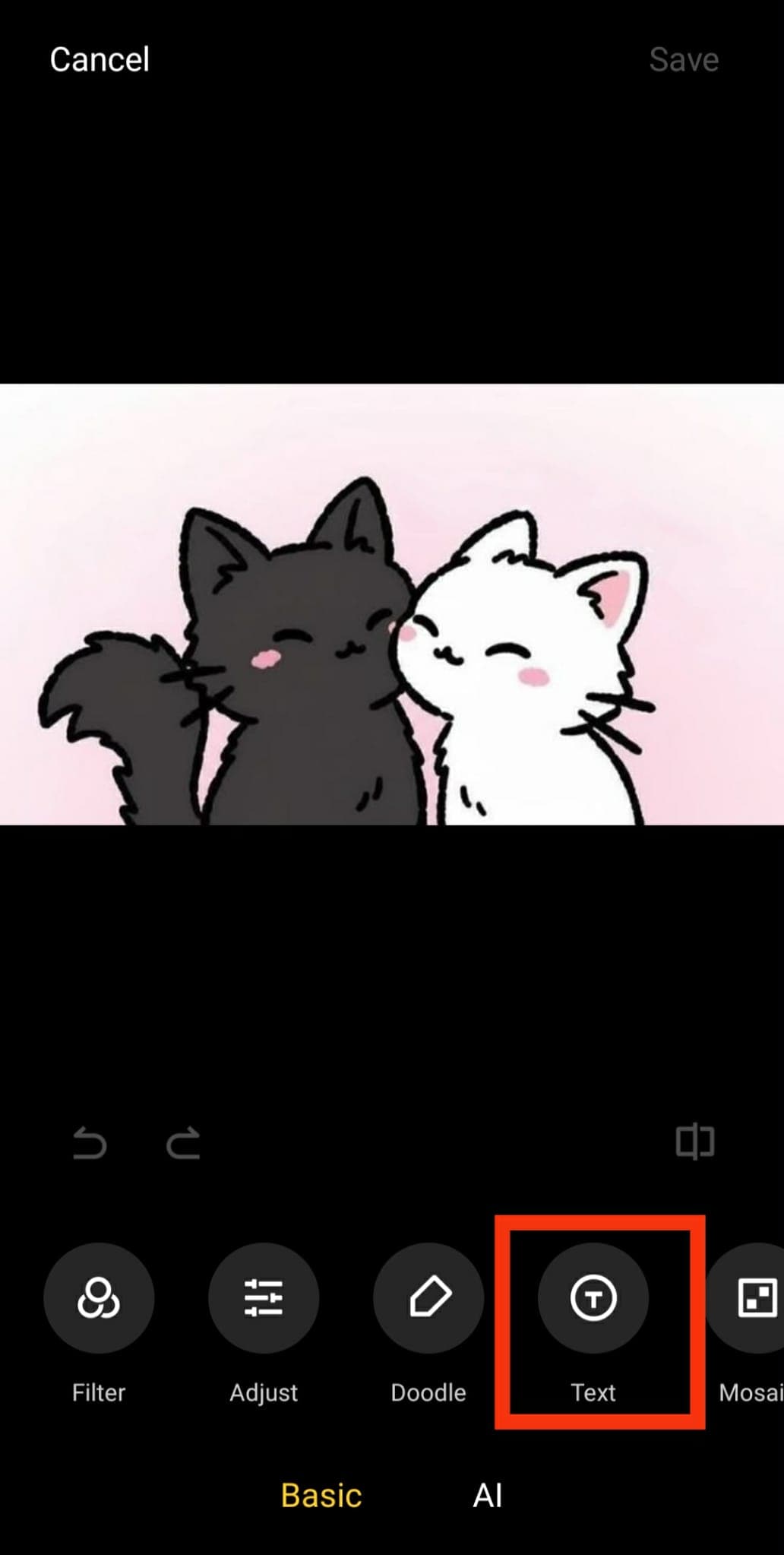
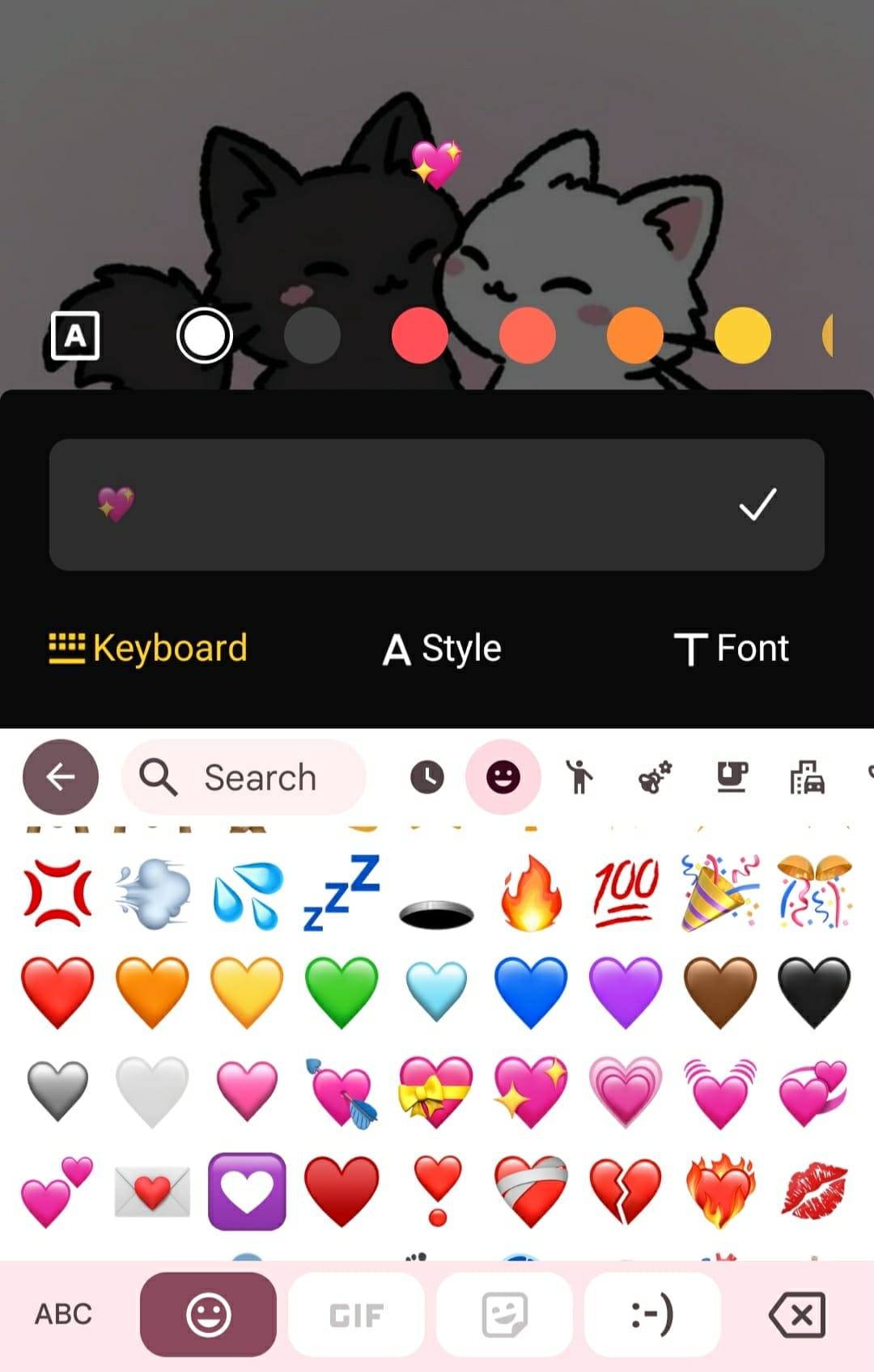
Step 3: Find the emojis in your keyboard and tap them to add. Place it on your photo. Resize or rotate it using pinch or rotate gestures.
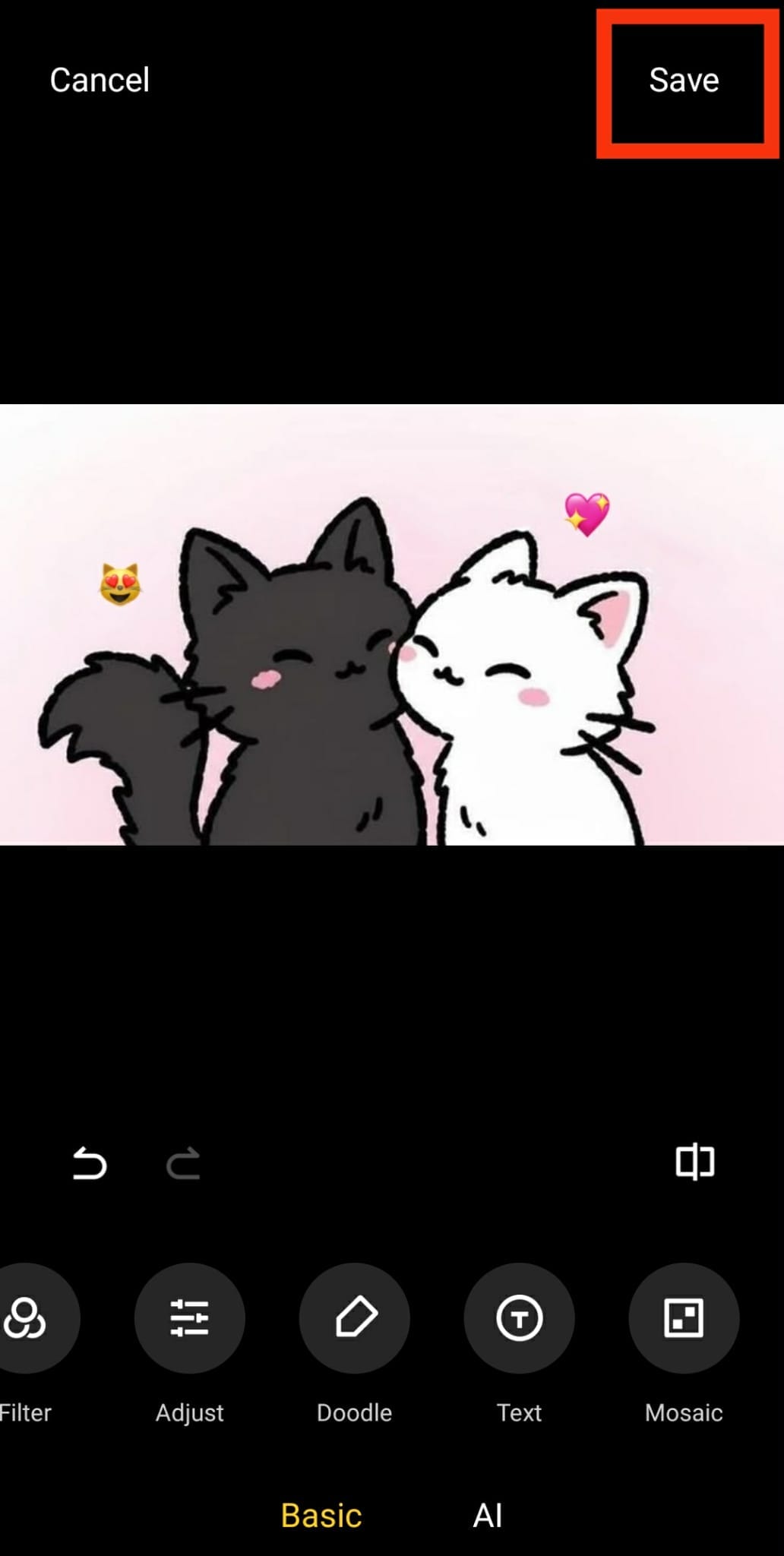
Step 5: Tap Save to keep the changes on your edited photo.
Option 2: Use an Online Photo Emoji Editor
Online editors are ideal if you want more creative options without installing apps. These tools run in your browser and usually include hundreds of emoji stickers, filters, and customization features.
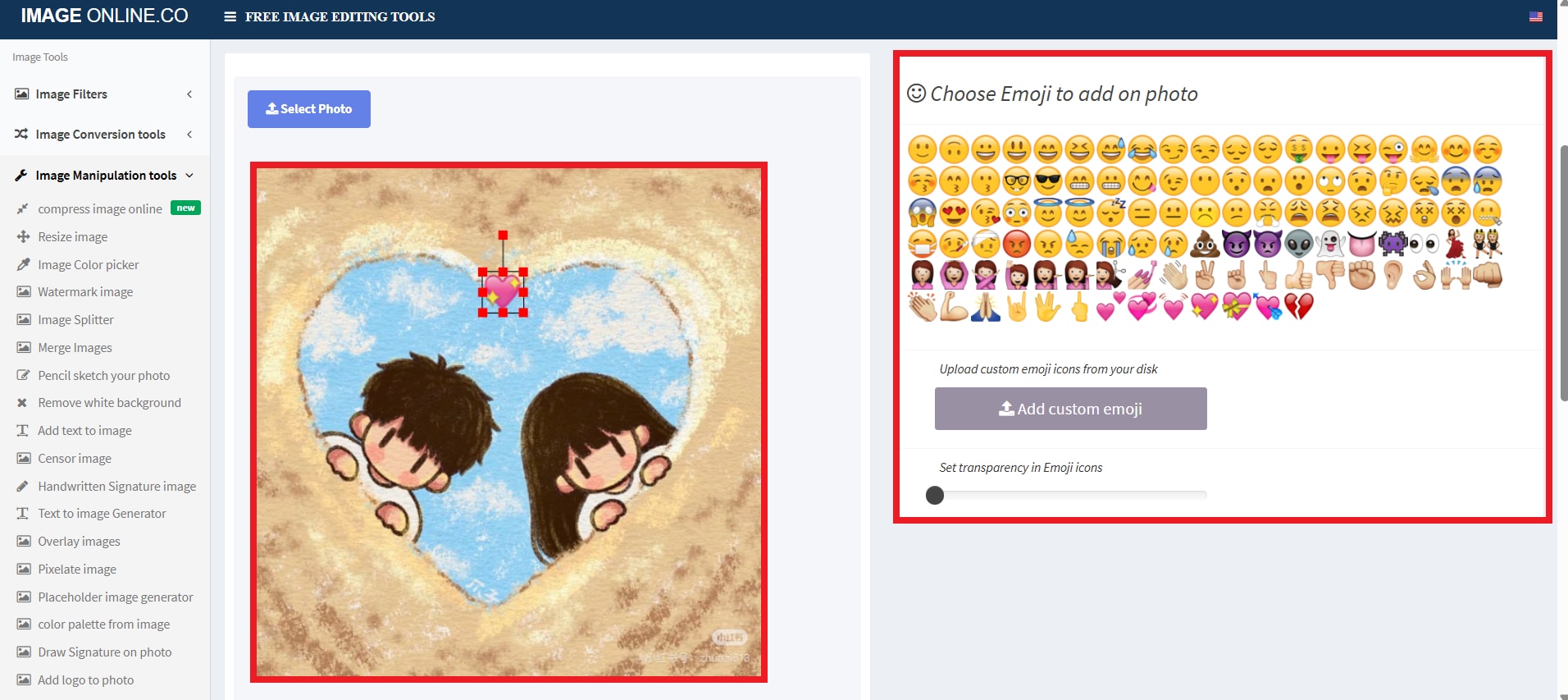
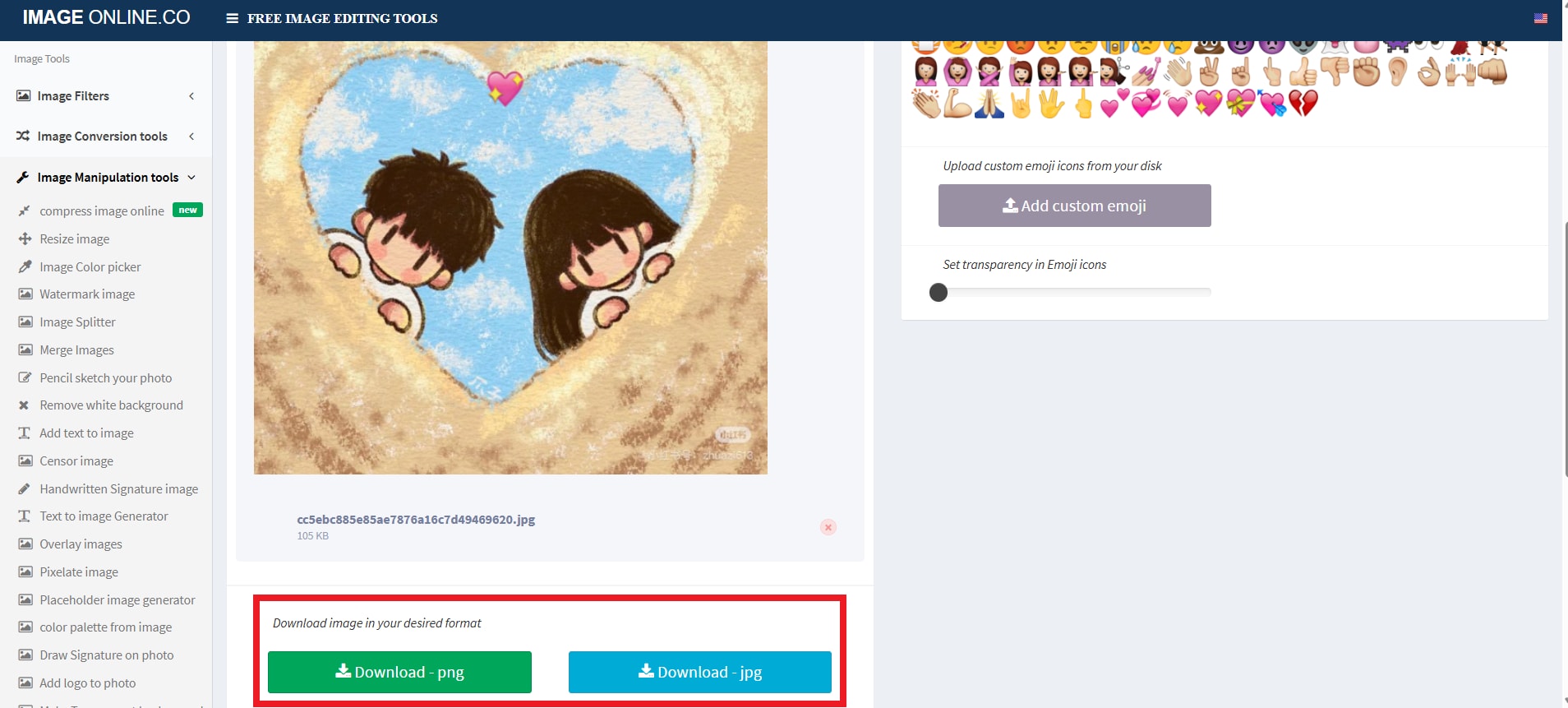
A great example is IMAGE ONLINE CO. This is a free online tool to add emojis to your photos. You can use standard smiley icons or upload your own images to use as custom emojis. Just upload your photo, click on emojis to place them, use the custom upload option for unique emojis, adjust transparency if needed, and then download your photo as a JPG or PNG.
Step 1: Visit the site and click Select Photo or drop the image in the field.
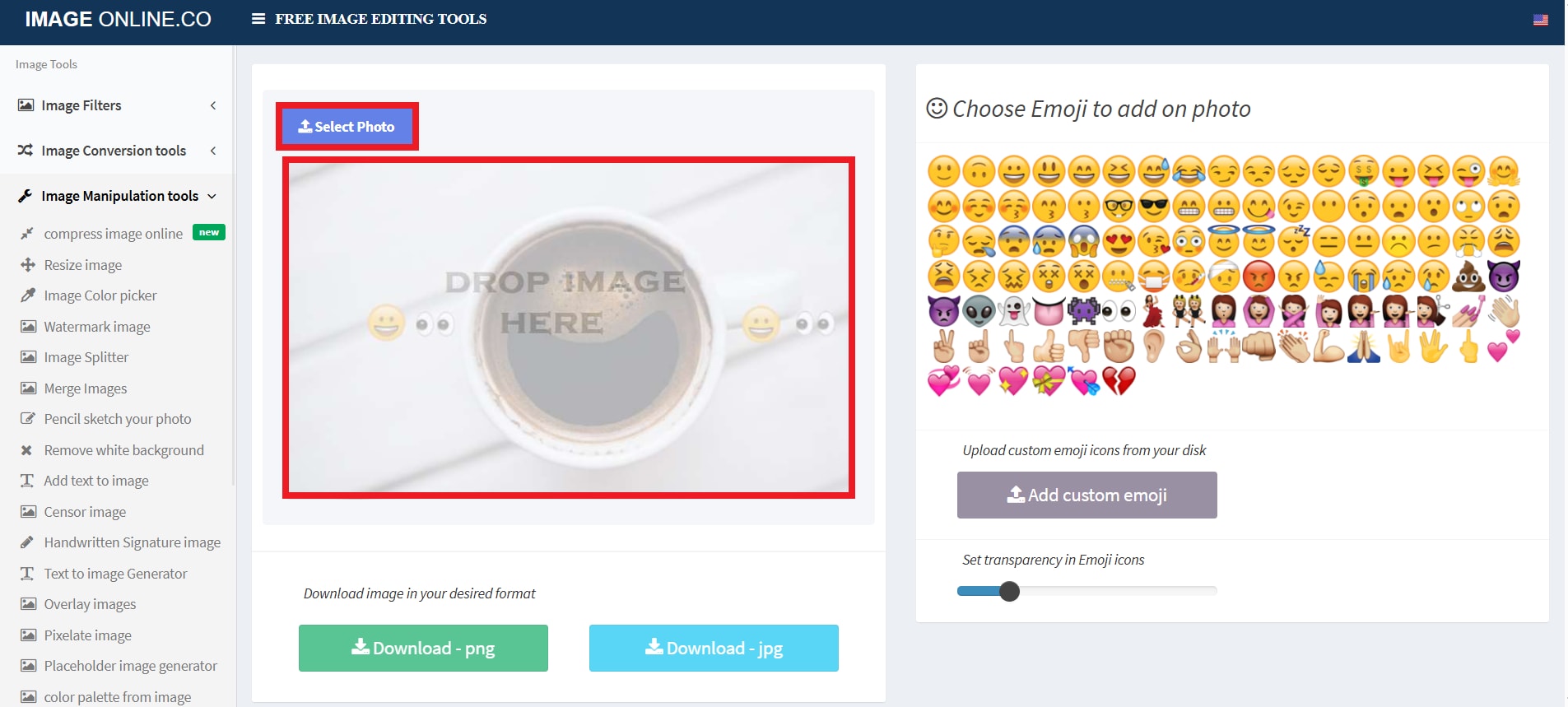
Step 2: Choose emoji(s) to add to your photo. You can rotate and resize it. Plus, you can also add custom emojis.
Step 3: Once you finish editing, download your photo in your desired format.
Option 3: Use AI-Powered Editors like Repairit App (Recommended)
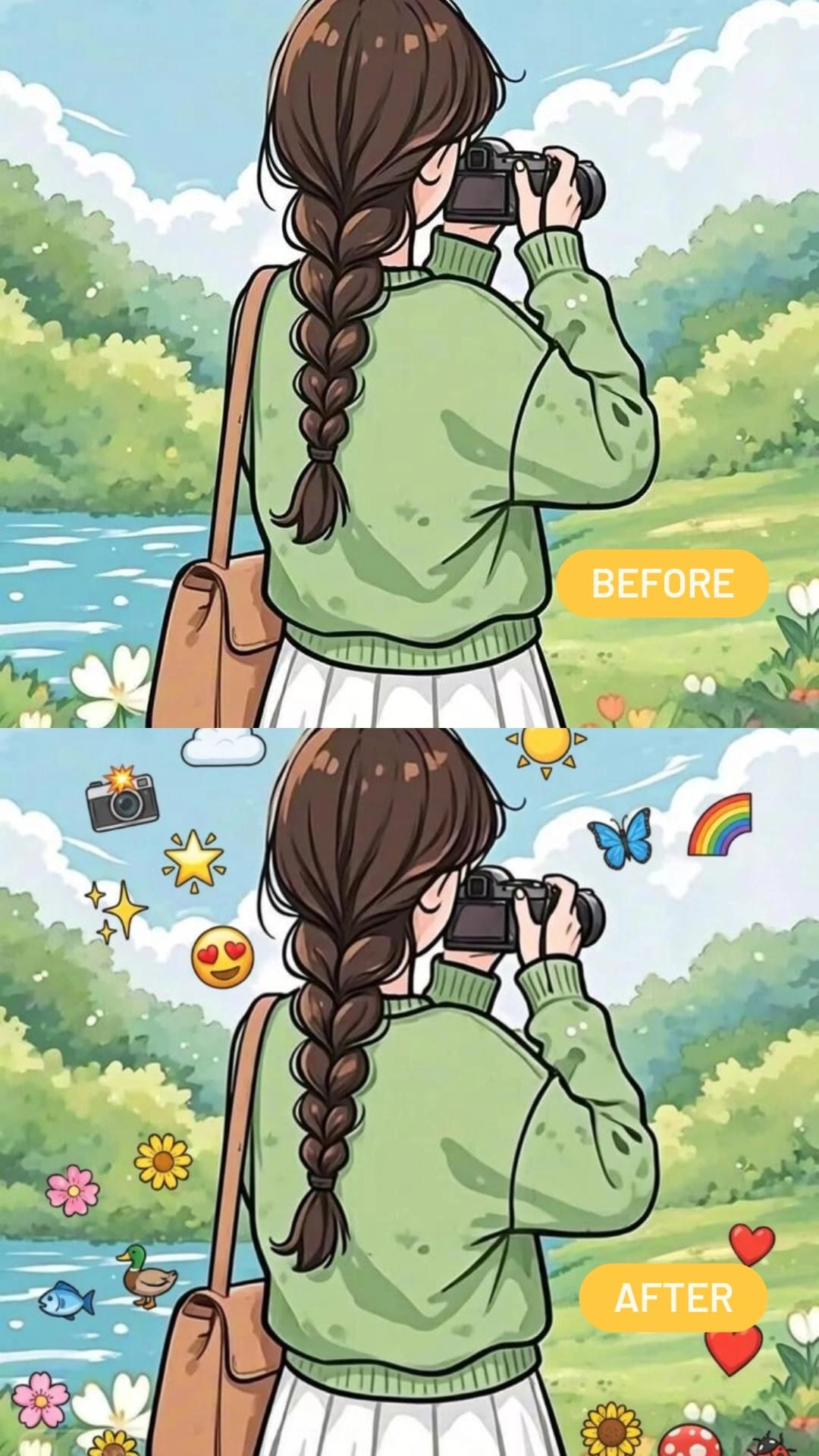
AI editing is now smarter, faster, and fully customizable. Instead of dragging and resizing emojis one by one, the app can place them exactly where you want and adjust them to fit your photo’s style.
Make your photos more fun and expressive with emojis using the Repairit App. Repairit’s AI-powered tools make it simple to add emojis by using the new “Text-to-Edit” feature. Repairit also offers extra tools like retouching, fixing blurry images, and enhancing lighting, which is something traditional editors can’t match.
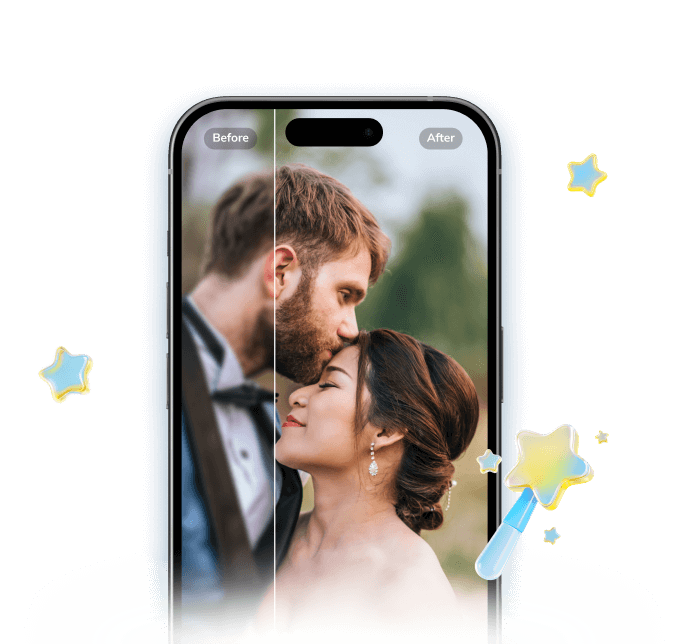

Repairit Al Photo Enhancer
Edit Photos with Words, Create Magic with Al
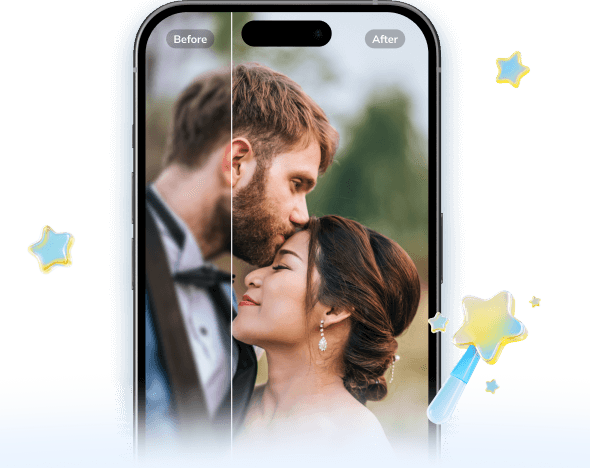
 Nano Banana 2: The algorithm delivers more realistic, enhanced outcomes than ever
-
Memory Revival: Restore old photos, fix scratches & blur, relive details.
-
Creative Freedom: Remove objects & turn ordinary shots into unique stories.
-
Universal Recovery: Rescue corrupted photos from 2,000+ devices & RAW formats, all securely processed.
How to add emojis to your photos with Repairit? Follow these 3 easy steps:
Step 1: In the Repairit app, open Text to Edit and upload the photo you want to edit.
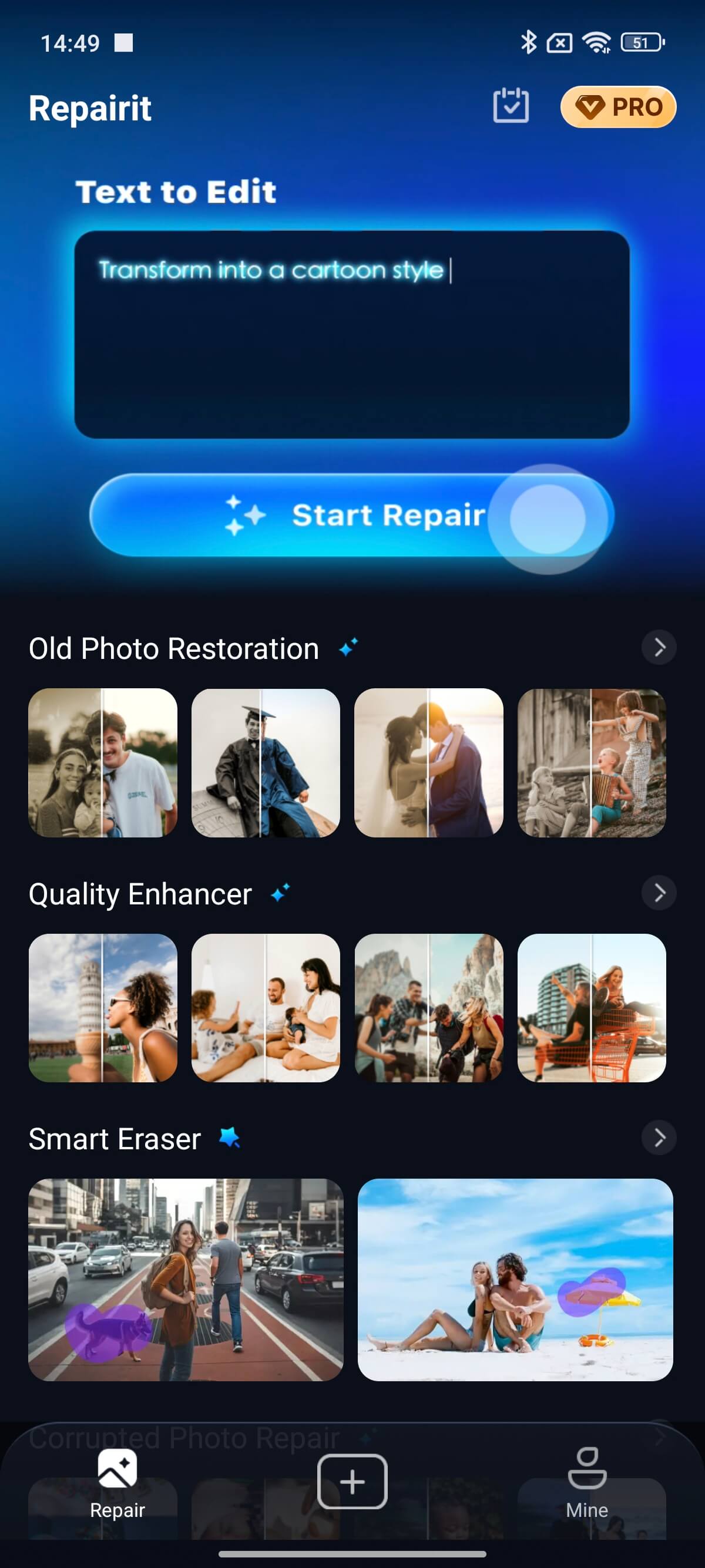
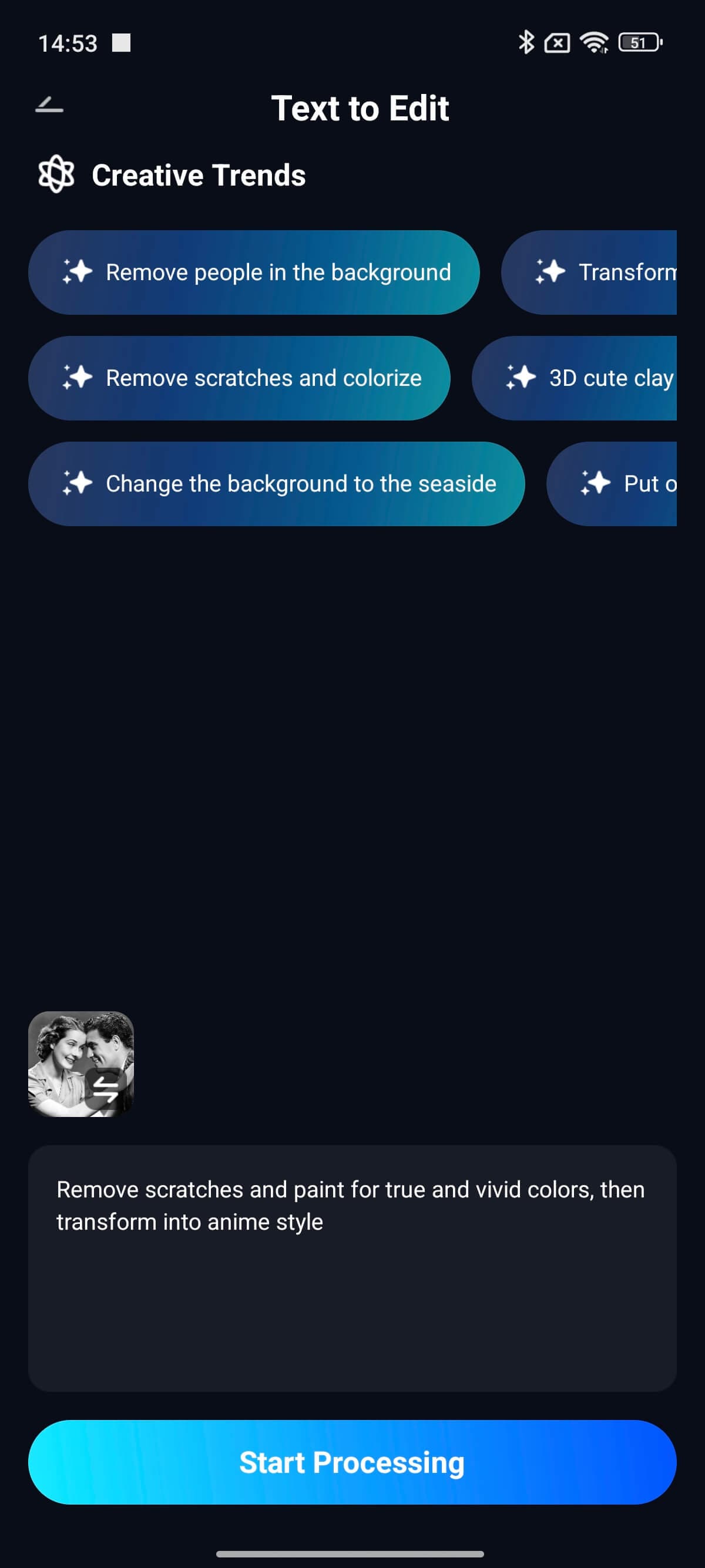
Step 2: Choose a suggested AI prompt or type your own. Tap Start Processing and let AI create your new photo.
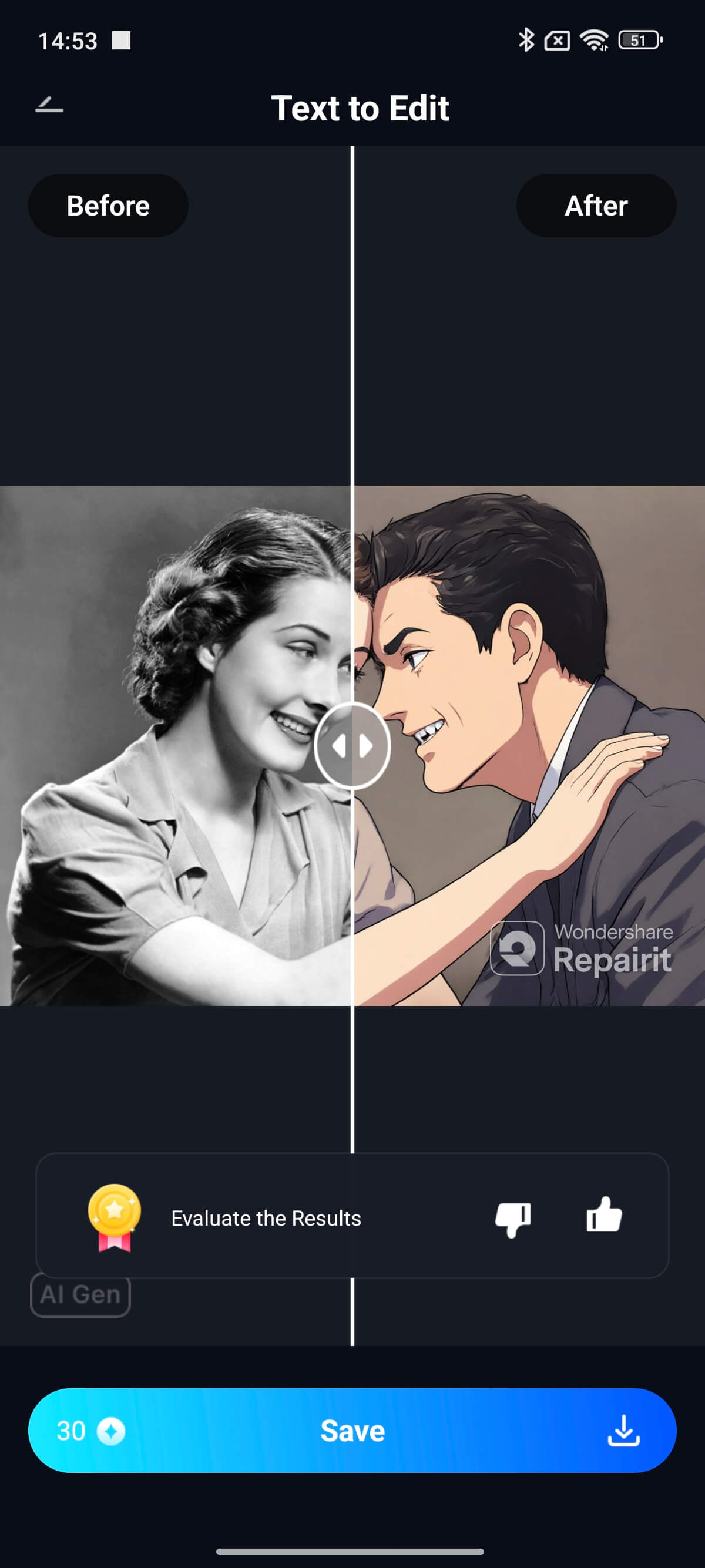
Step 3: Check the AI-generated result and make adjustments if needed. Tap Save to keep your edited photo.
Part 3. Tips for Creative Emoji Edits — How to Add an Emoji to a Photo Like a Pro
Adding emojis can instantly transform the mood and message of your picture. If you’ve ever wondered how to add an emoji to a photo without making it look cluttered or amateur, here are a few easy, creative tips to keep your edits stylish, expressive, and clean.
- Match Emoji Style with Photo Aesthetics: Choose emojis that fit your photo’s overall tone. For cheerful, vibrant images, use smileys, suns, or sparkles. For calm or cozy shots, hearts, coffee cups, or neutral icons blend better. The key is subtlety — let the emoji complement your picture, not overpower it.
- Keep It Simple: Less is often more. One or two emojis can deliver a stronger emotional impact than a crowded layout. Overusing emojis may distract from the main subject or ruin the balance of your composition.
- Consider Color Harmony: When you add an emoji to a photo, make sure the color tones don’t clash. Soft, muted photos work best with minimal, pastel-toned icons, while bold or high-contrast images can handle more vivid emojis.
- Combine Emojis with Filters or Effects: Experiment with filters that enhance your emoji’s vibe — for example, try sunset tones with palm tree emojis or warm filters with heart icons. You can also test placing emojis behind text or layered elements for a more dynamic and creative design.
- Maintain Visual Balance: Always preview your edit before posting. Look out for clashing colors or uneven placement that could make your photo feel messy or inconsistent.
Conclusion
Adding emojis to your photos is an easy way to make them fun and lively. You can use your phone, a free online tool, or an AI app like Repairit to place emojis, enhance your photos, and match your style or mood. With the tips in this guide, you can create interesting photos in just a few taps.
Frequently Asked Questions
-
Q1. How do I resize or move an emoji after adding it to a photo?
Drag the emoji to move it and use pinch or rotate gestures on touchscreens. You can also use the click-and-drag handles on desktop editors to resize or rotate them. -
Q2. Can I add multiple emojis to one picture?
Yes. You can add multiple emojis, each of which can be moved, resized, and rotated independently. -
Q3. Do emojis reduce the photo quality when added?
No. Adding emojis does not reduce photo quality as long as the editor keeps the original resolution.





