TL;DR:
Google AI Photo Editor provides automated, prompt-based image manipulation for quick enhancements directly within the Google ecosystem, but users must switch to a dedicated restoration tool like the Repairit App to fix corrupted, pixelated, or heavily damaged photos.
● Free Google Photos users are restricted to approximately 10 advanced AI edits per month, and the generative AI tools refuse to modify identifiable faces or body parts while occasionally adding visible Gemini or Google watermarks to the output.
● The Google editor utilizes Nano Banana and Gemini models to enable natural language editing features like Reimagine, requiring users to long-press an enhanced image and input text prompts to generate context-aware scene alterations.
● Google AI Photo Editor is best suited for everyday creators needing instant object removal or automated lighting adjustments, whereas the Repairit App is built for users under conditions requiring the recovery of inaccessible files, colorization of vintage images, or structural repair of scratches and fading stains.
Ask AI for a summary
 ChatGPT
 Perplexity
 Gemini
 Claude
 Grok
Grok
Every photo you snap holds a moment you want to remember exactly as it is, but lighting or dull color might get in the way. For a frequent editor, the Google AI photo editor not only helps in adjusting their picture but also understands them. Smart suggestions, automatic enhancement, and an intelligent cleanup tool bring out the best in every shot effortlessly.
What immensely creates the need for a Google Photos editor is the speed at which we create and share content today. For immersive, instant edits, review the following guide, covering updated features and a how-to-get-started tutorial.
Table of Contents
Part 1. What Is Google AI Photo Editor & Why It Matters
Google's AI photo editor is Google’s AI-driven photo editing suite integrated directly into the Google Photos app. Impressively, it leverages generative AI models such as the Nano Banana and Gemini to deliver highly automated edits. This tool set enables users to perform edits ranging from simple enhancements to complex, context-aware tasks like object removal.
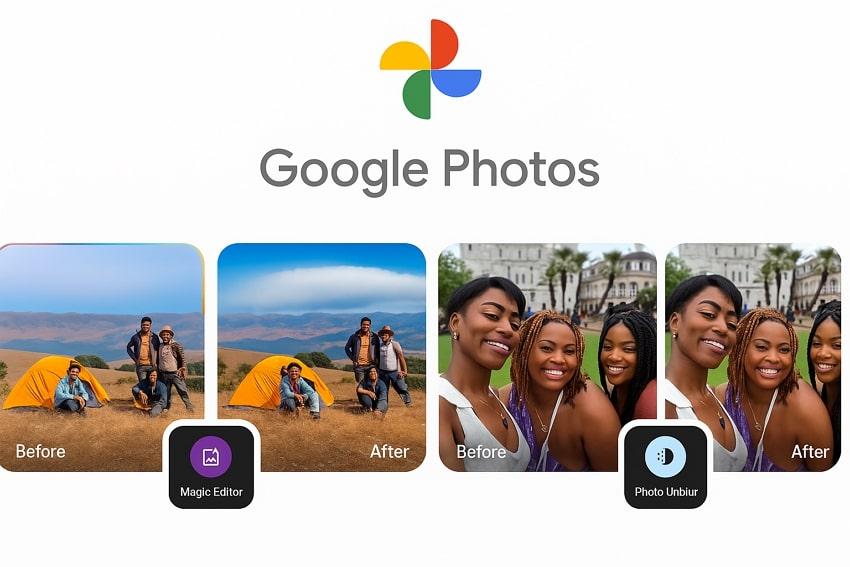
The base purpose of this editor is to introduce advanced photo editing, allowing quick fixes and transformations without prior editing expertise. It is designed for seamless use across the Google ecosystem because it is built directly into Google Photos on Android and Pixel devices. Besides, the editor’s suite of features allows users to remove any element, apply filters, or modify overall lighting within the app.
Practical Use Cases
- To remove unwanted people, objects, and distractions from family photos using Magic Eraser.
- Fix closed eyes, enhance smiles, and adjust portrait blurs or profile shots.
- Automatically denoise images, balance exposures, and improve color with a single tap.
- Editors can use it for applying creative filters and sky styles to create new visual compositions.
- For auto-framing pictures and adjusting frame rates with respect to the platform's requirements.
Part 2. Key Features of Google AI Photo Editor (2025 Update)
As editing standards improve and creators demand smarter tools, Google AI Photo Editor steps up with better upgrades. The listed new features not only improve your workflow, but they also completely transform the way you deal with editing:
| Key Features | Description |
| Magic Editor | AI-powered generative fill for moving subjects, expanding backgrounds, and advanced scene edits. |
| Reimagine | Generates multiple creative, alternative versions of a photo by explaining your vision through a prompt. |
| Natural Language Editing | “Help Me Edit” enables editing via plain language prompts for instant, context-aware results. |
| Magic Eraser | Removes unwanted people, objects, or distractions automatically after analyzing the highlighted element. |
| Portrait Blur | Fixes blurriness and enhances facial features by adjusting depth with the slider. |
| One-Tap Automate Functions | Fast AI-powered image optimization for Enhancement, Dynamic, and Boost. |
| Creative Filters and Sky Styles | Add artistic effects such as Desert and Palma, along with numerous sky style options. |
| Markup Tools | Offers a Pen, Highlight, and Text feature to point out or add a description to your image. |
| Color Tones | This feature supports modifying skin tone, blue tone, and overall saturation in the image. |
| Batch Editing with AI Search | Written or voice commands allow for batch enhancement and search in large photo libraries. |
| Deep Integration with Google Ecosystem | Access via Google Photos on Android, Pixel, iOS, and web, with cloud sync and account linkage. |
Part 3. How to Get Started with Google AI Photo Editor
When you’re ready for a complete makeover, follow the provided guidelines for the AI photo editor Google, and get equipped with possibilities:
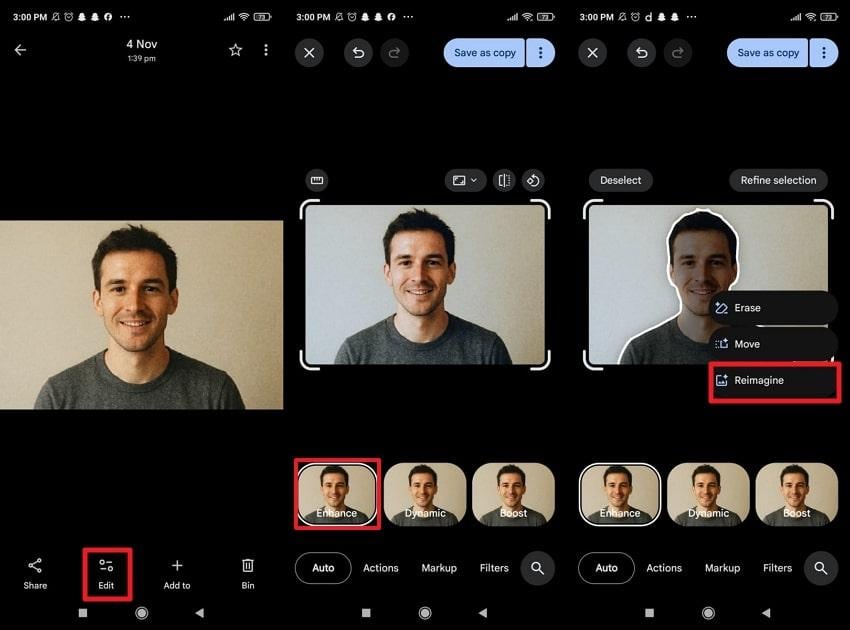
Step 1. At first, open the Google Photos app, select a photo, and press the “Edit” option from the toolbar. Next, choose the “Enhance” option, then long-press the image to reveal further options. Here, select the “Reimagine" option and let AI generate an image according to your imagination.
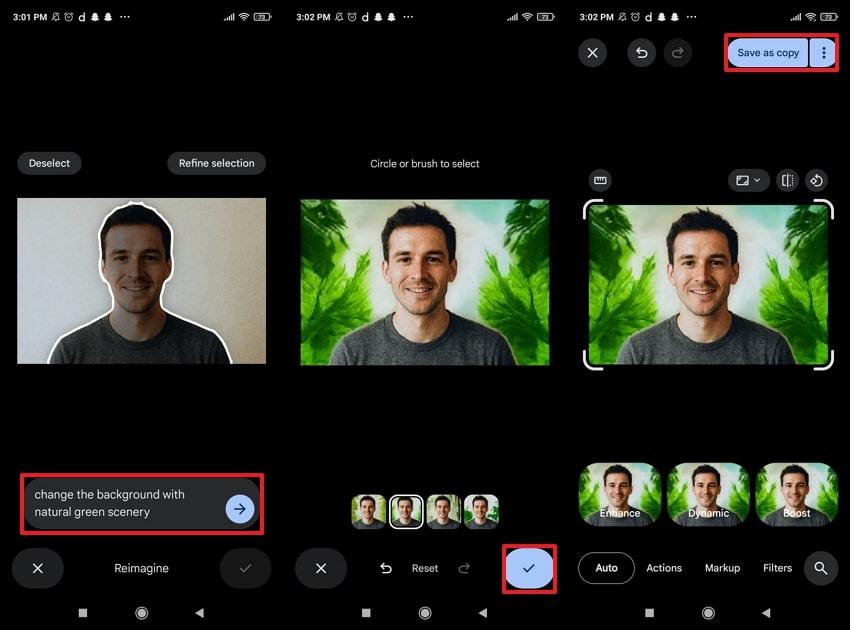
Step 2. Afterwards, type an appropriate prompt in the given space and tap the “Send” icon. Move forward, select the best-suited result, and press the “Tick” button to confirm. Finally, navigate to the “Save as Copy” option to secure the edited image on your device.
Limitations
❌Free Google Photos users can only save a limited number of advanced AI edits (typically 10 per month).
❌Magic Editor and other generative AI tools refuse to edit faces or body parts in identifiable ways.
❌Some AI-edited images (those generated via Gemini/Nano Banana) may have a visible Google or Gemini watermark.
❌The AI editing options might vary across regions/devices and may be absent in states with privacy laws.
❌Functions like Magic Eraser can struggle with closely packed subjects or when selecting intricate areas.
Part 4. Repairit App: The Ultimate Companion to Google AI Photo Editor
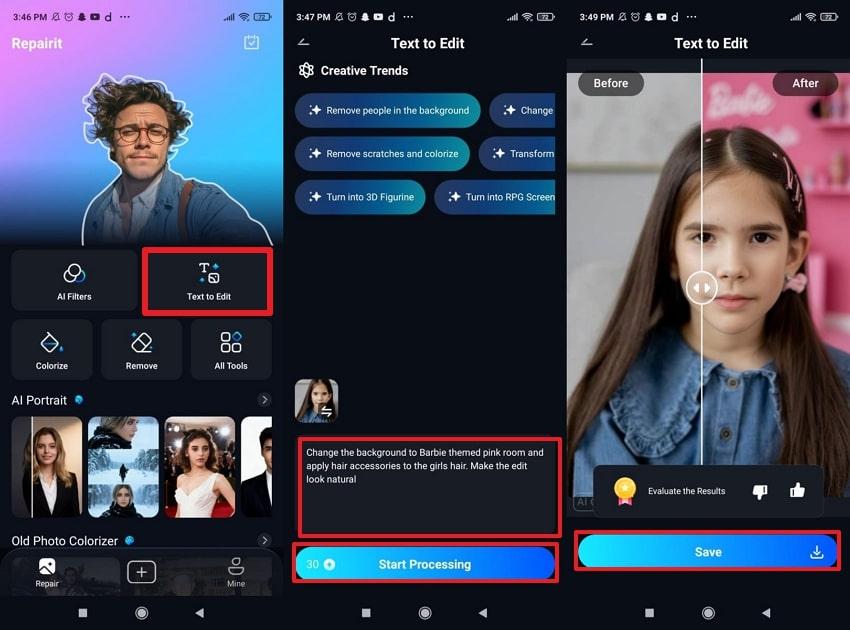
Even though Google AI photo editor excels at transforming everyday shots, there are times when a photo needs more attention. For such professionalism, the Repairit App is the only trusted option that offers a Text-to-Edit functionality for natural edits. With its new integration of Nano Banana algorithms, the results and performance are professionally enhanced. Besides this, the app only requires a text prompt to generate pro-level edits right on your mobile device.
Most importantly, you can preview your generated outcome with the original one for better analysis. The Quality Enhancer optimizes photo sharpness through advanced AI, restoring clarity closer to the reference image. With a suite of colorization styles, you can choose from Classic (vintage look) to Vivid tone for a modern digital effect. All within a single app, you’re facilitated with numerous filter options for Cartoon or Dracula transformations.
Key Features
- Repairs Old Pictures: The app automatically detects scratches or fading stains and intelligently fills natural colors with a single click.
- Precise Element Remover: It identifies and removes specific people or objects from photos, maintaining the background integrity and natural visual flow.
- Fixes Corrupted Photos: You can easily address issues linked to pictures, such as when they’re unable to open or are incomplete.
Detailed Guide to Edit Photos with the Repairit App
- Access the “Text-to-Edit” feature to import an image.
- Next, type an appropriate prompt in the given space and press the “Start Processing” button to generate edits.
- After this, compare your results and tap the “Save” button to download the final version to your gallery.
Part 5. Google AI Photo Editor vs Repairit App [Tested Comparison]
The following table highlights how the AI photo editor Google stacks up against the Repairit App across key features and performance. This side-by-side view makes it easy to see which tool excels in specific editing tasks:
| Aspects | Google AI Photo Editor | Repairit AI Photo Enhancer App |
| Core Editing Technology | Advanced AI/generative fill, deep learning, and natural language editing | Patented AI algorithms for restoration, “text to edit” guided/auto-retouch |
| Smart/Object Removal | Magic Eraser, object/subject/scene manipulation | Smart remover, background/object/person removal, batch clean-up |
| Manual Fine Controls | Minimal, focuses on automation/NL editing. | Some adjustment is possible, but not as granular as dedicated desktop software. |
| Output Quality | Moderate to high; context-aware, generative, and photorealistic | Exceptionally high restored, upscaled, sharp, accurate outcome. |
| Ease of Use | Extremely simple (type or tap what you want, auto AI does the rest) | Very easy (type a prompt or use presets, preview before saving changes) |
Conclusion
In conclusion, the new upgrades in Google AI photo editor bring smart enhancements to your photos, making editing much faster. Whether you want automatic light adjustments or one-tap aesthetic improvements, you’re completely sorted without needing an additional app. When professionalism is the key concern, simply download the Repairit App and get a fully restored, high-quality picture that lasts a lifetime.
Frequently Asked Questions
-
Q1. Can I remove unwanted objects from my photos?
Definitely, the AI-driven Magic Eraser feature in Google AI photo editor allows you to highlight and eradicate unnecessary elements. The tool examines the marked object and generates results with the removed and naturally filled clean edits. -
Q2. Are the edits applied automatically, or can I customize them?
Both options are available, giving you full control over your photo editing experience. The AI photo editor Google offers one-tap auto-enhancements that instantly optimize lighting, color balance, and sharpness. At the same time, you can explore manual adjustment that includes adjusting the applied filters or reimagining the image through prompts. -
Q3. What is the best alternative if my photo is damaged or blurry?
For photos that are blurry, pixelated, or even partially corrupted, the Repairit App is a reliable alternative. While Google AI photo editor excels at enhancing images, it cannot wholly recover the lost details. For this, you’ll need a dedicated app like Repairit that effectively addresses image corruption, whether it's quality loss or inaccessibility.