
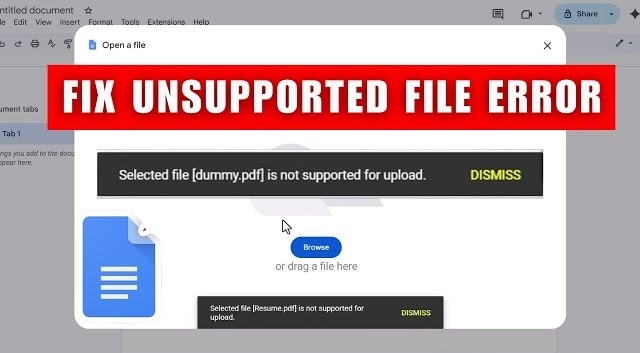
When your Android device says "Unsupported file format" or "Format not supported," it’s frustrating—especially if the file is important. The good news is: in many cases, the file isn’t "lost." It’s either using a format your current app can’t read, the file extension is wrong, or the file was interrupted during saving or transfer.
In this guide, you’ll learn exactly how to open an unsupported file on Android and how to open unsupported files online—with safety-first steps and clear decision rules so you don’t waste time trying the wrong fix.
Quick Answer: Why does Android say "Unsupported file format"?
Most unsupported file errors happen because:
- Your device/app doesn’t support that file type (you need the right viewer).
- The file extension is incorrect or missing (Android can’t recognize it).
- The file is incomplete or corrupted (conversion won’t help; repair may).
- The file was created by newer or uncommon software (compatibility issue).
How to Choose the Right Fix (If/Then Fix Selector)
- If the file opens on another device/PC → it’s likely compatibility → install the right app.
- If the file size is 0 KB / unusually small → it’s likely incomplete → re-download or re-transfer.
- If the extension looks suspicious (.jpg but icon looks like a document, etc.) → identify the real file type.
- If nothing opens it anywhere (Android + PC) → it may be corrupted → try built-in repair first, then a repair tool.
Table of Contents
Part 1. Why Can’t I Open an Unsupported File?
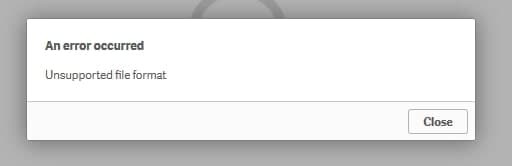
There are a few common reasons why a file won’t open on Android or in an online tool. The key is figuring out whether you’re dealing with a support issue (wrong app/format) or a file damage issue (corruption).
- File Type Not Supported by Your Device or App
- The File Is Corrupted or Damaged
- Missing Codecs or Required Readers
- Files Created by Newer or Uncommon Software
Some files use formats that your phone, tablet, or app doesn’t recognize. For example, certain video, image, or document types may require specific apps to open. If your device doesn’t support that format, you’ll see an error.
Files can get corrupted during downloads, transfers, or storage errors. A damaged file may not open at all or may display errors like "File cannot be opened."
Some files, especially videos or audio, need specific codecs or software to play. Without the right reader or codec installed, your device cannot process the file.
Files made with the latest or less common software may not be compatible with older apps or devices. This can happen with specialized document formats, newer image types, or certain media files.
Part 2. How to Open Unsupported Files on Android (Step-by-Step)
See the safe and proven methods below to open your unsupported files (document, image, video, or audio file) on Android:
1. Identify the File Type Correctly
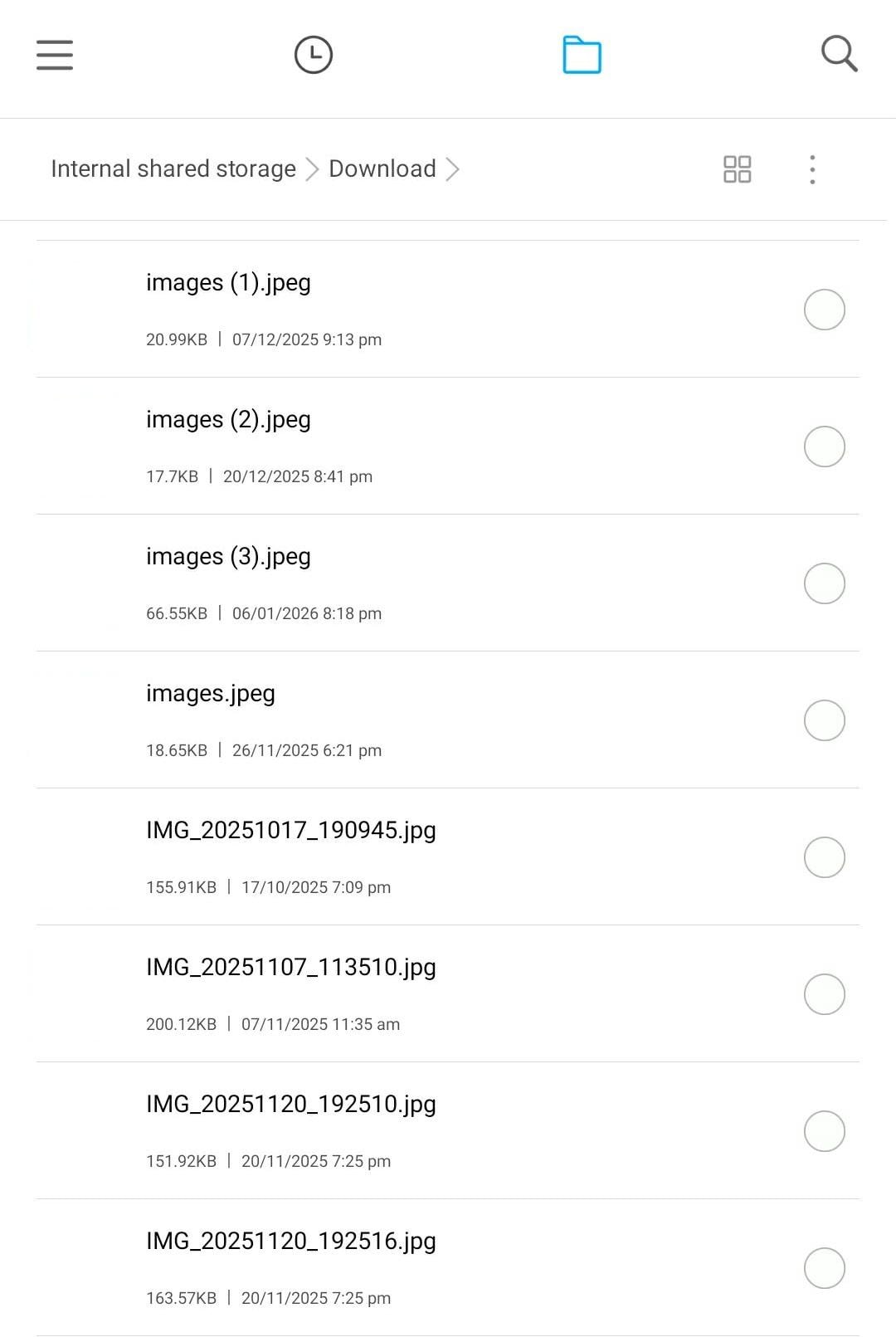
Sometimes your Android can’t open a file because it doesn’t recognize the format. Check the file extension (like .jpg, .pdf, .mp4) to know what type of file it is. Once you know the type, you can choose the right app or method to open it.
You can check the file extension through the following methods:
- Look at the letters after the dot in the file name (e.g., .jpg, .pdf, .mp4).
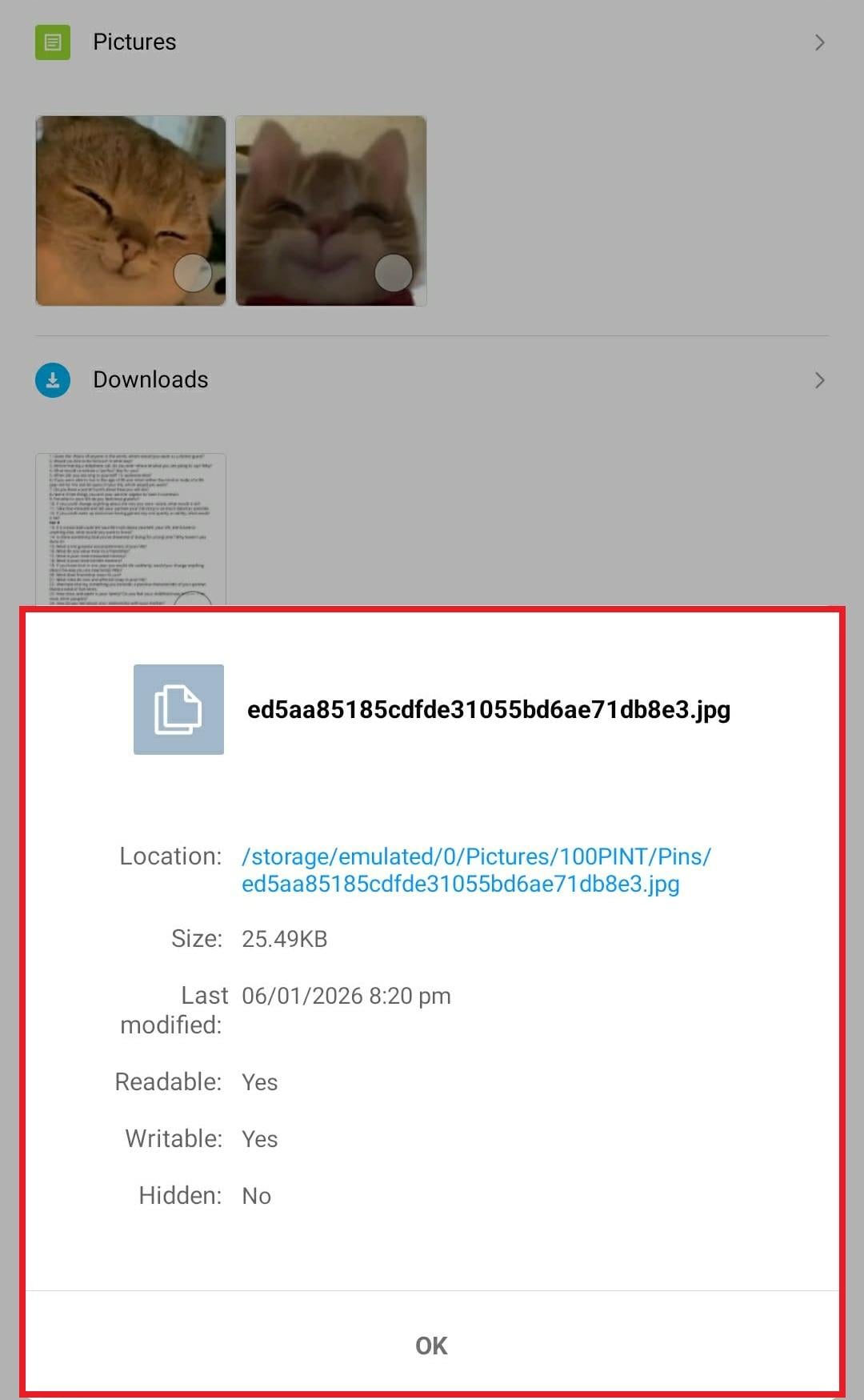
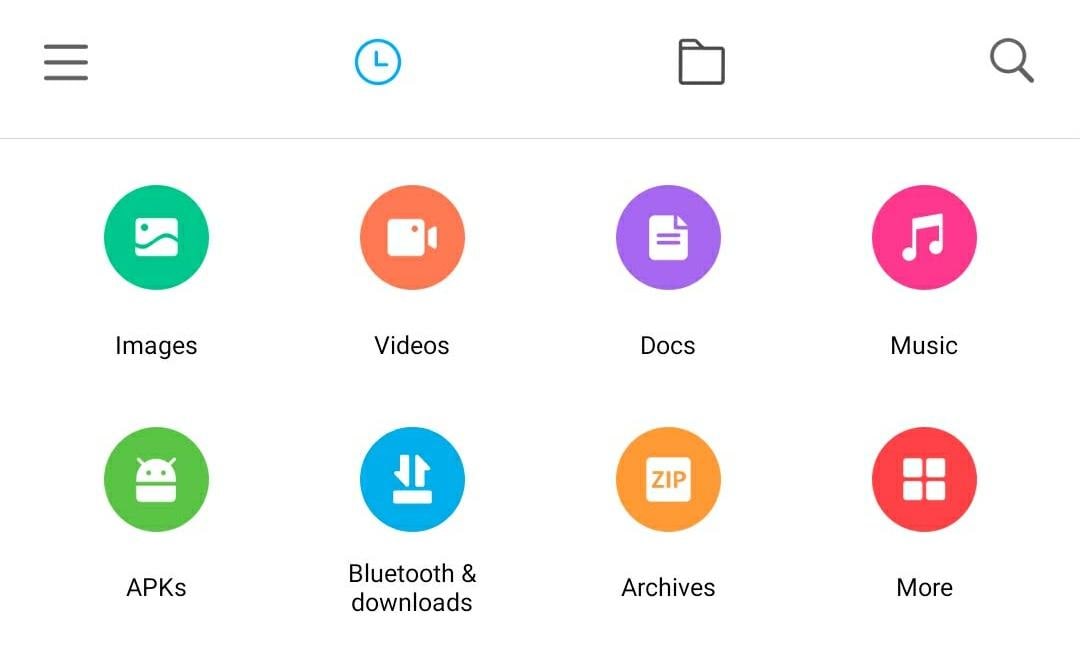
- Long-press the file in your file manager. Then, select Details or Properties to see the file type and size.
- Different files have different file type icons or categories (image, video, document).
2. Install the Right App to Open the File
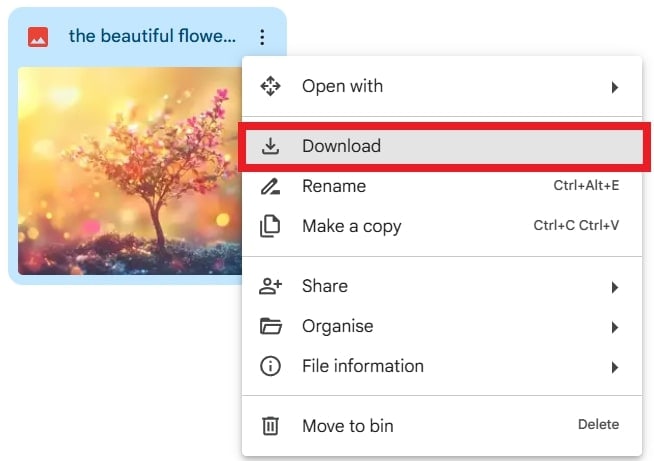
Many unsupported file errors happen because the correct app isn’t installed. So, search for the app that supports your file type in the Play Store, install it, and open the file.
For example:
- PDFs:Adobe Acrobat Reader
- HEIF images:Google Photos
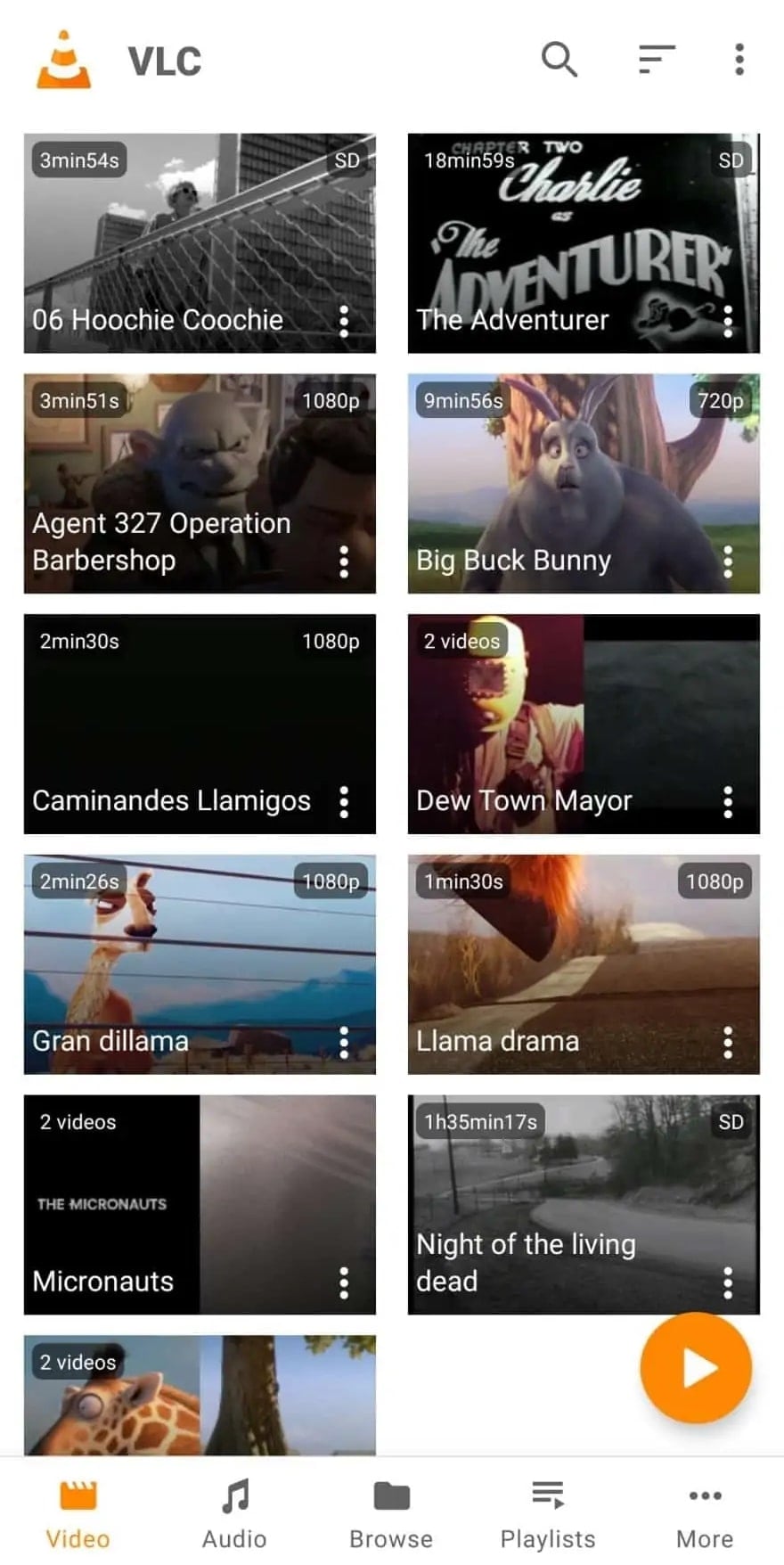
- Videos: VLC Media Player (VLC for Android)

3. Convert the File Format (When It’s Not Corrupted)
If your device still can’t open the file, the format may be incompatible. Use a safe converter app to change the file into a format your Android can read. Adhere to the following steps:
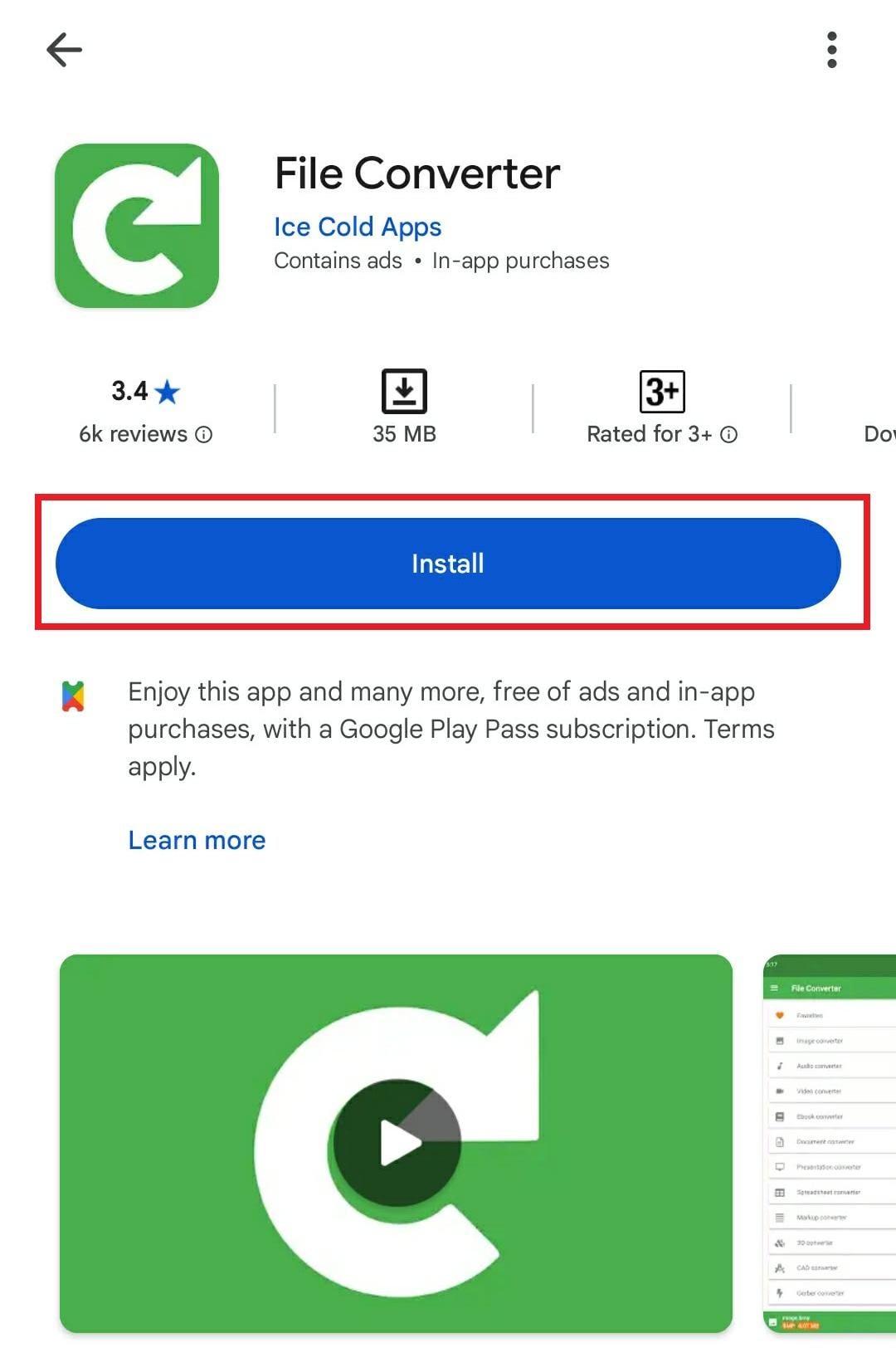
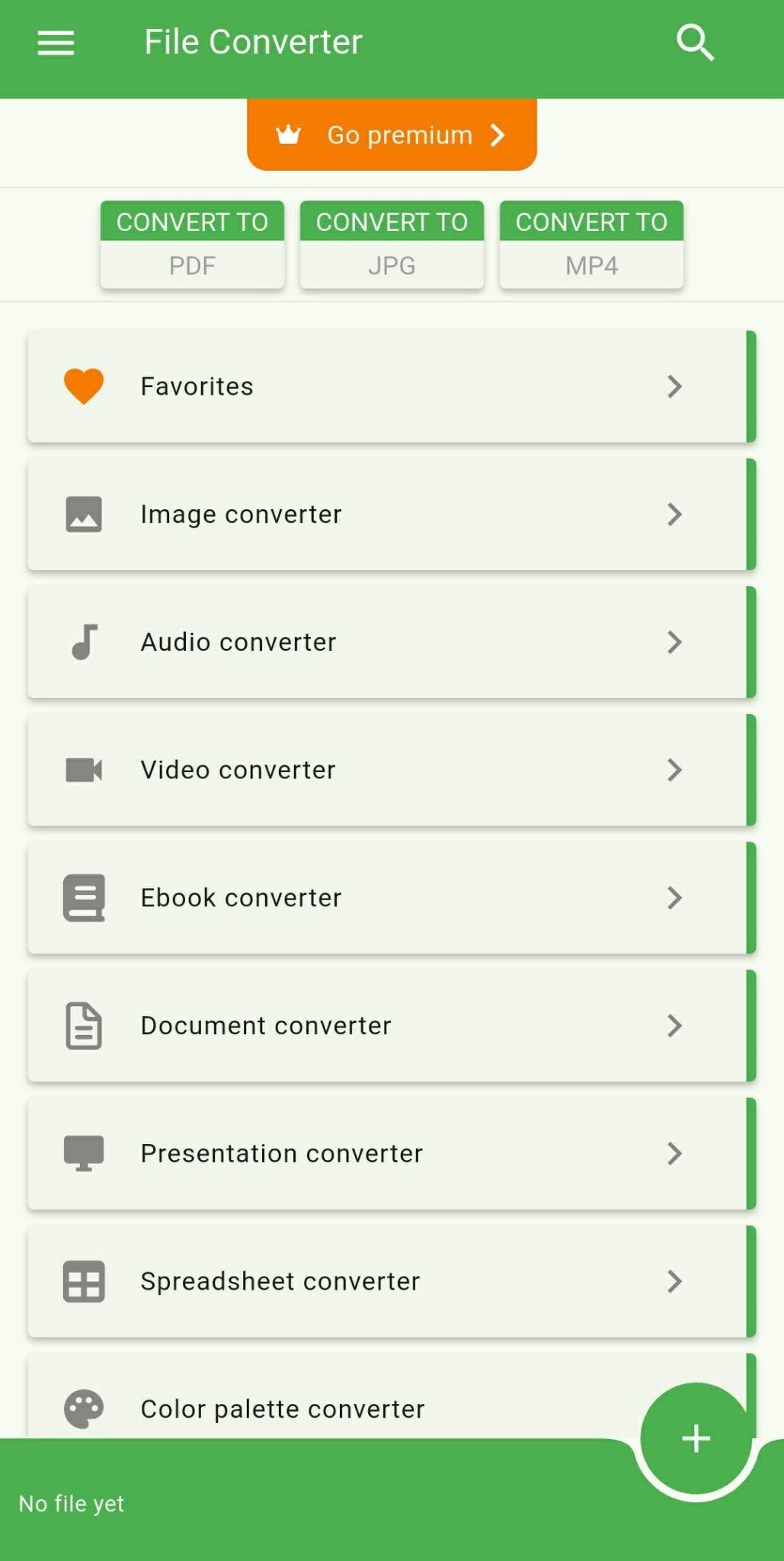
Step 1: Search for File Converter on yourGoogle Play Store and install it.
Step 2: Open the app to see the different file formats it supports (image, audio, video, ebook, document and many more).
Step 3: Find the unsupported file on your Android. For example, let’s convert PDF to DOCX. Pick your file and click start conversion.
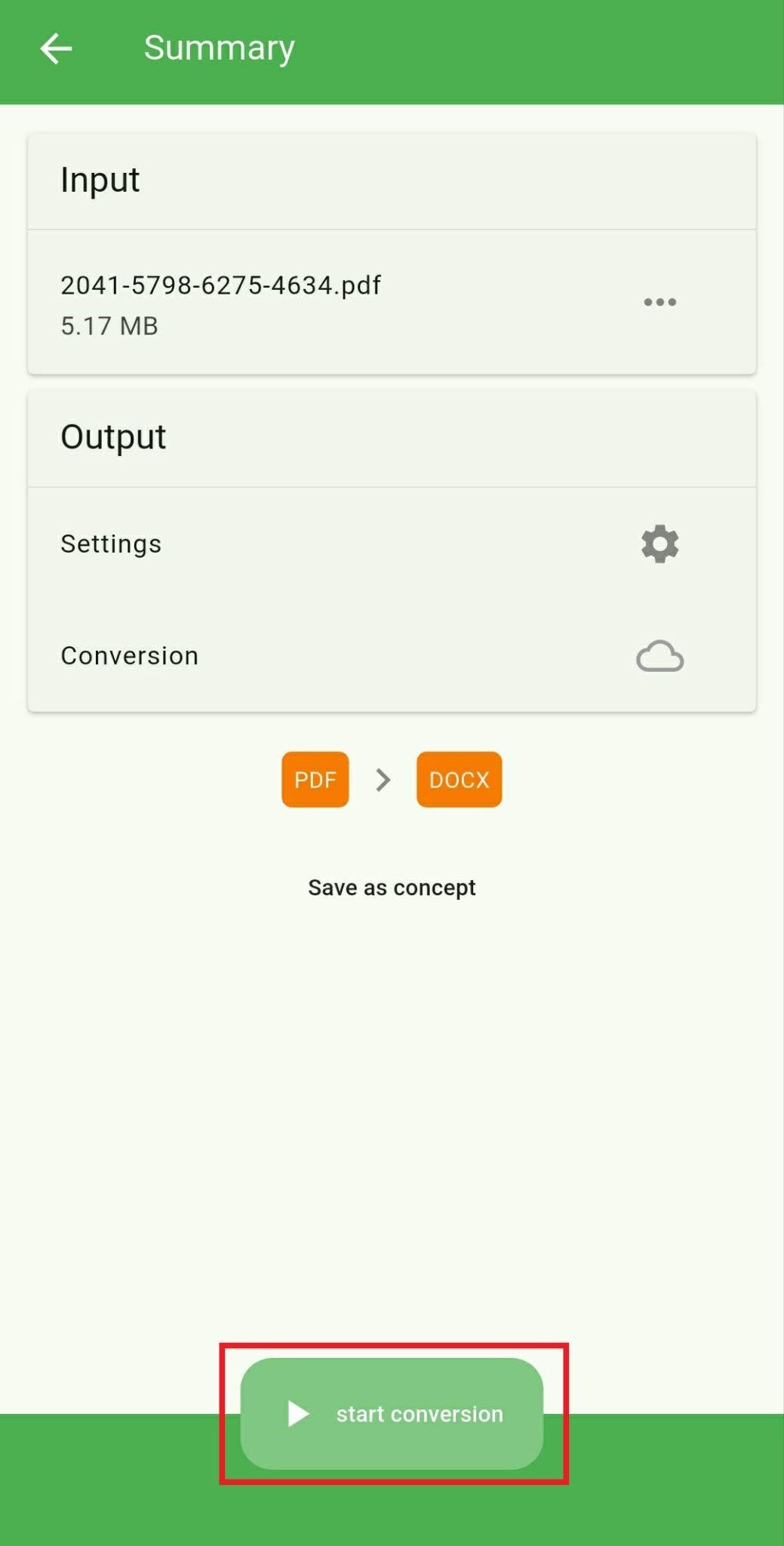
Note: Make sure the file isn’t corrupted before converting, or this method won’t work.
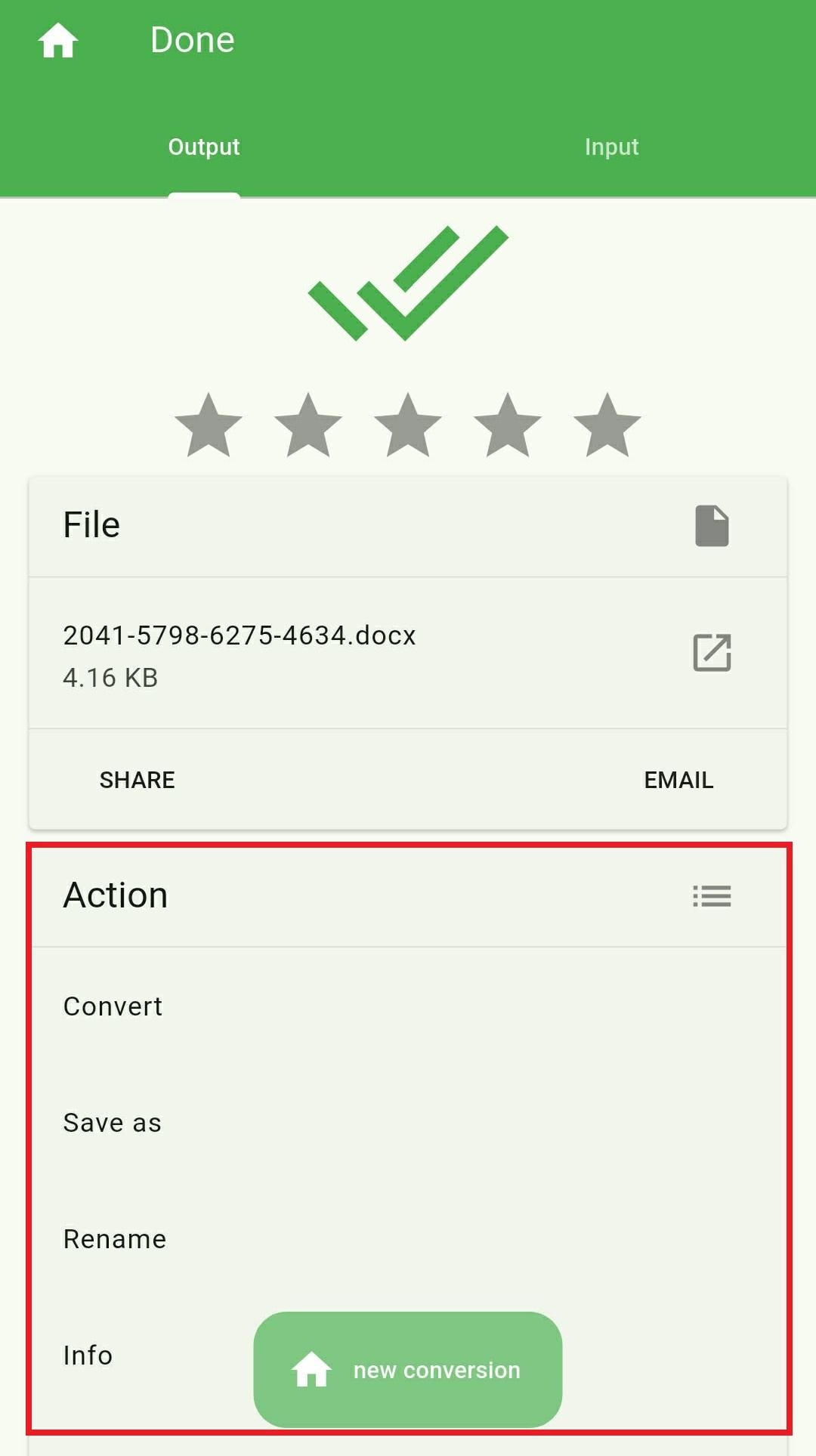
Step 4: After a few seconds, the output will be ready. You can save it, rename it or take a look at its info.
4. Re-Download or Re-Transfer the File
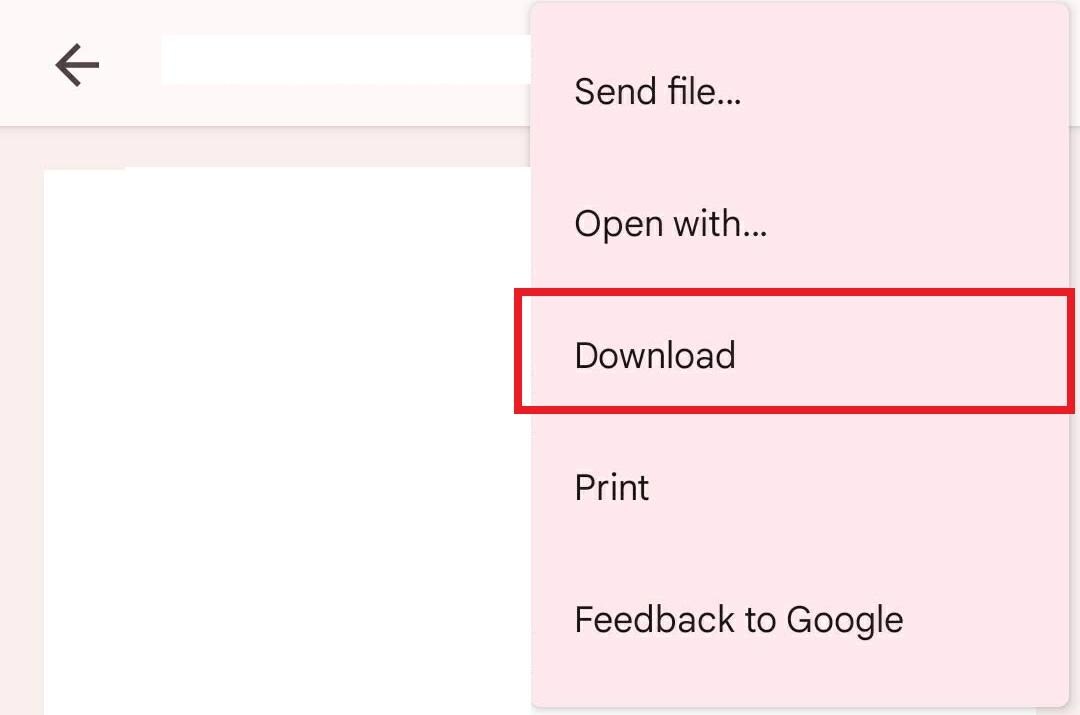
Sometimes files get corrupted during downloads or transfers. Try downloading the file again or transferring it from another device to your Android. A fresh copy usually solves the issue immediately.
5. Restart Your Android Device
If none of the method above works, restart your phone. This can fix minor software glitches that prevent files from opening.
Step 1: Hold the power button on the side of your phone.
Step 2: Select Restart or Reboot.
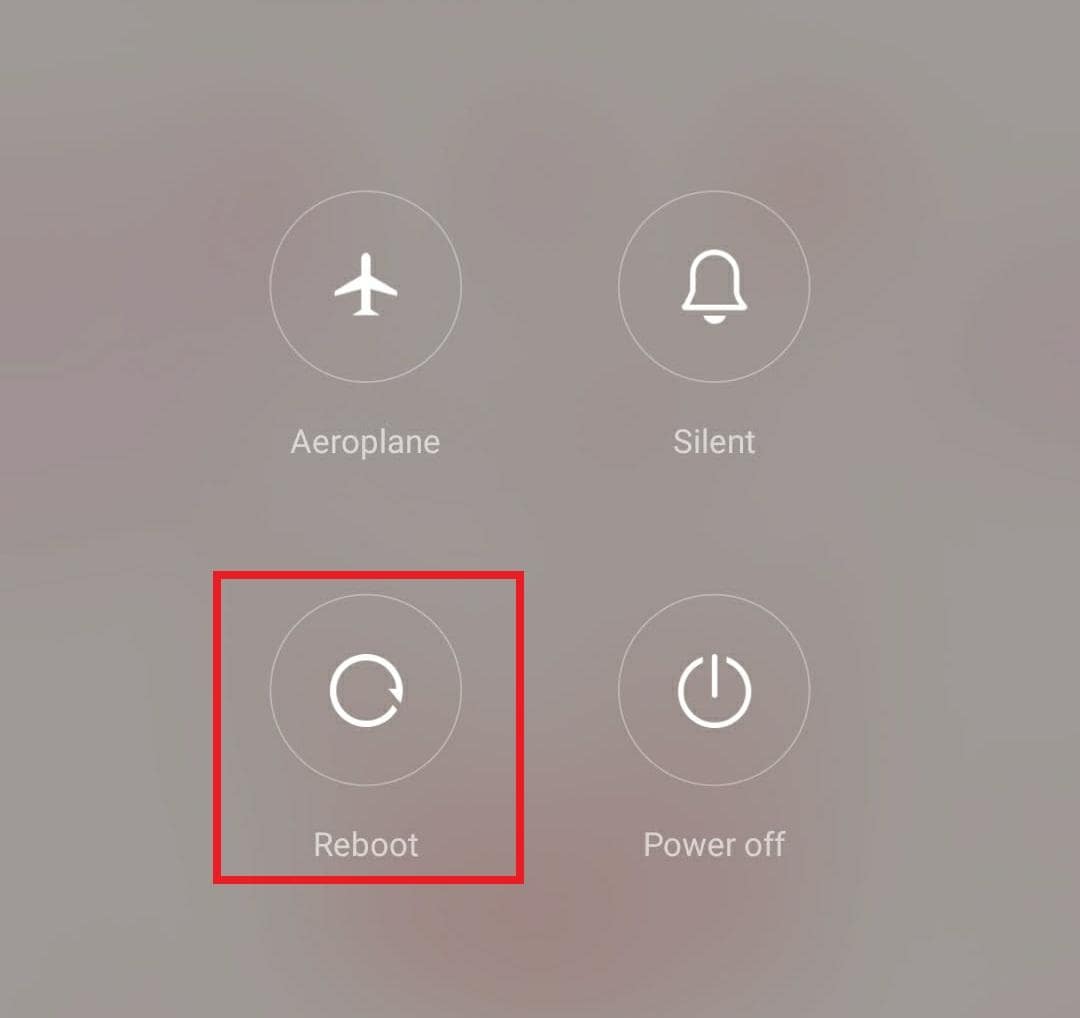
Step 3: Your phone will automatically shut down and start up again.
Step 4: After restarting, open the file again.
Part 3. How to Open Unsupported Files Online (Without Risk)
If your Android can’t open a file, you can try opening it online instead. Using trusted tools, you can safely view or convert files without risking damage or malware. Here are some reliable ways to access unsupported files online:
Method 1. Identify and Correct the File Extension
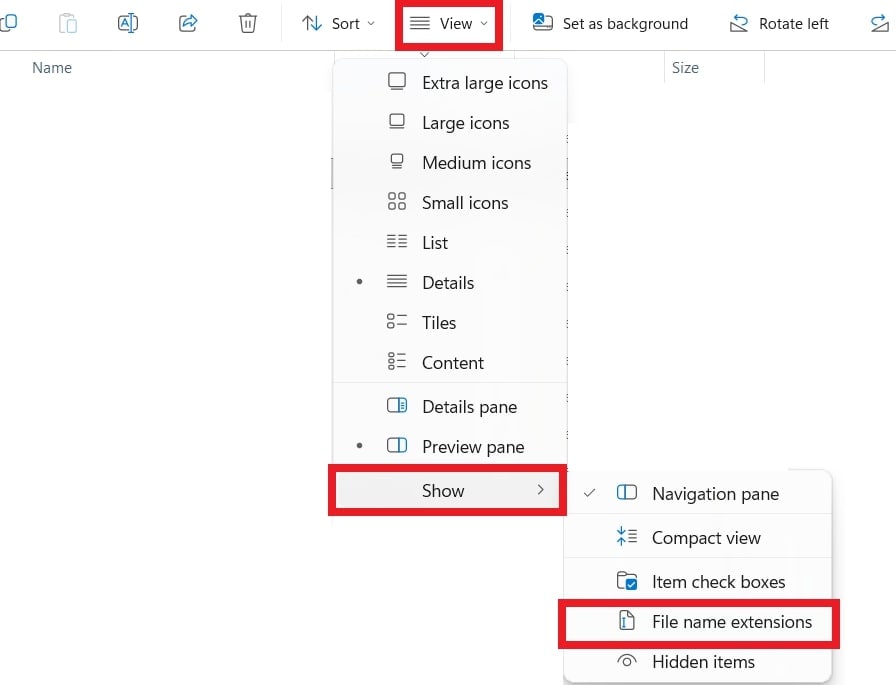
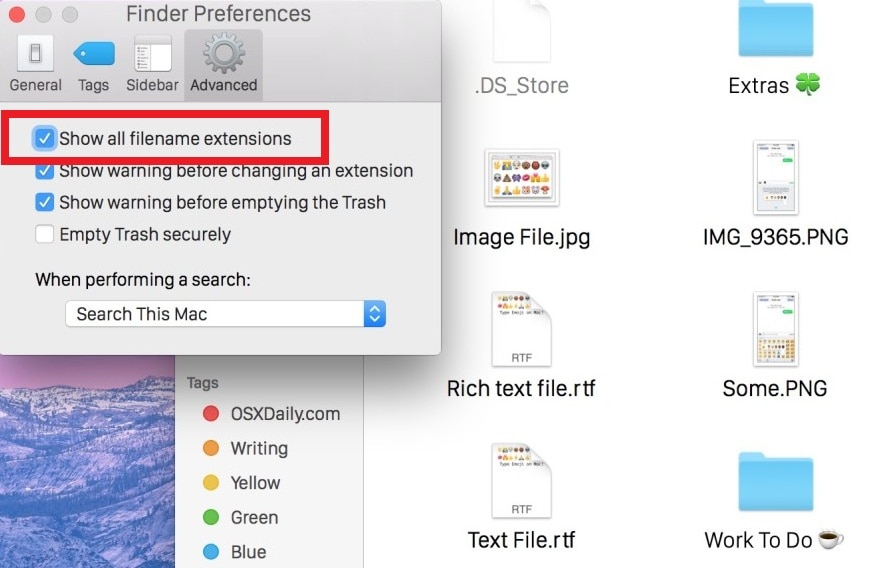
To fix an unsupported file error, start by checking the file’s type and extension. File extensions like .docx, .pdf, or .png tell your system how to open the file.
To show file extensions:
On Windows: In the File Explorer, go to View and Show. Then, turn on File name extensions.
On macOS: Open Finder, go to Settings (or Preferences) and Advanced. Then, check Show all filename extensions.
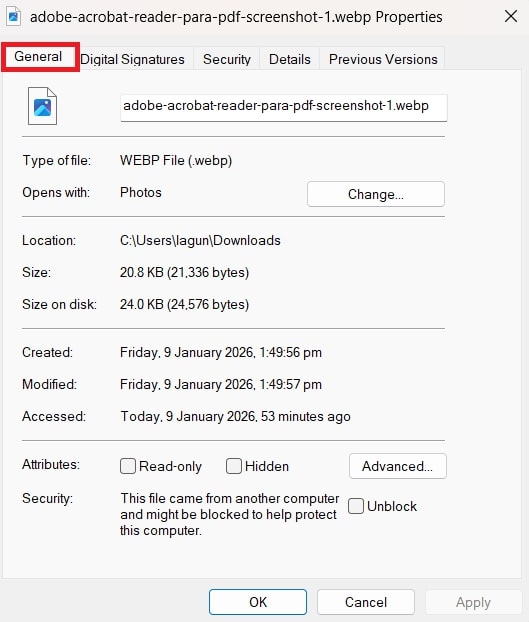
To check file details:
On Windows: Right-click the file, select Properties, and check the file type under the General tab.
On macOS: Right-click the file, select Get Info, and look at the file type under Kind.
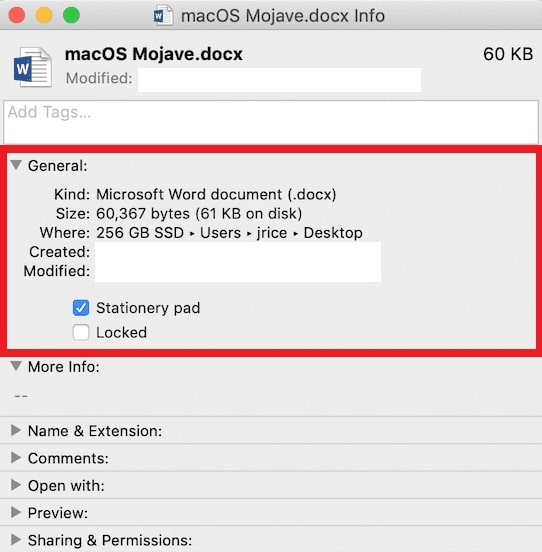
Once you confirm the correct file type, you can choose the right app or fix the extension to open it properly.
Method 2. Use Online Viewers or Converters (With Caution)
Online tools let you open files or convert them into supported formats. To stay safe, use trusted websites only, avoid uploading private files, and always check the file after conversion.
One good file converter is CloudConvert.CloudConvert is a reliable online file converter that supports over 200 formats, including audio, video, documents, images, ebooks, spreadsheets, and more. It offers high-quality conversions with adjustable settings, strong data security with ISO 27001 certification, and keeps your files private.
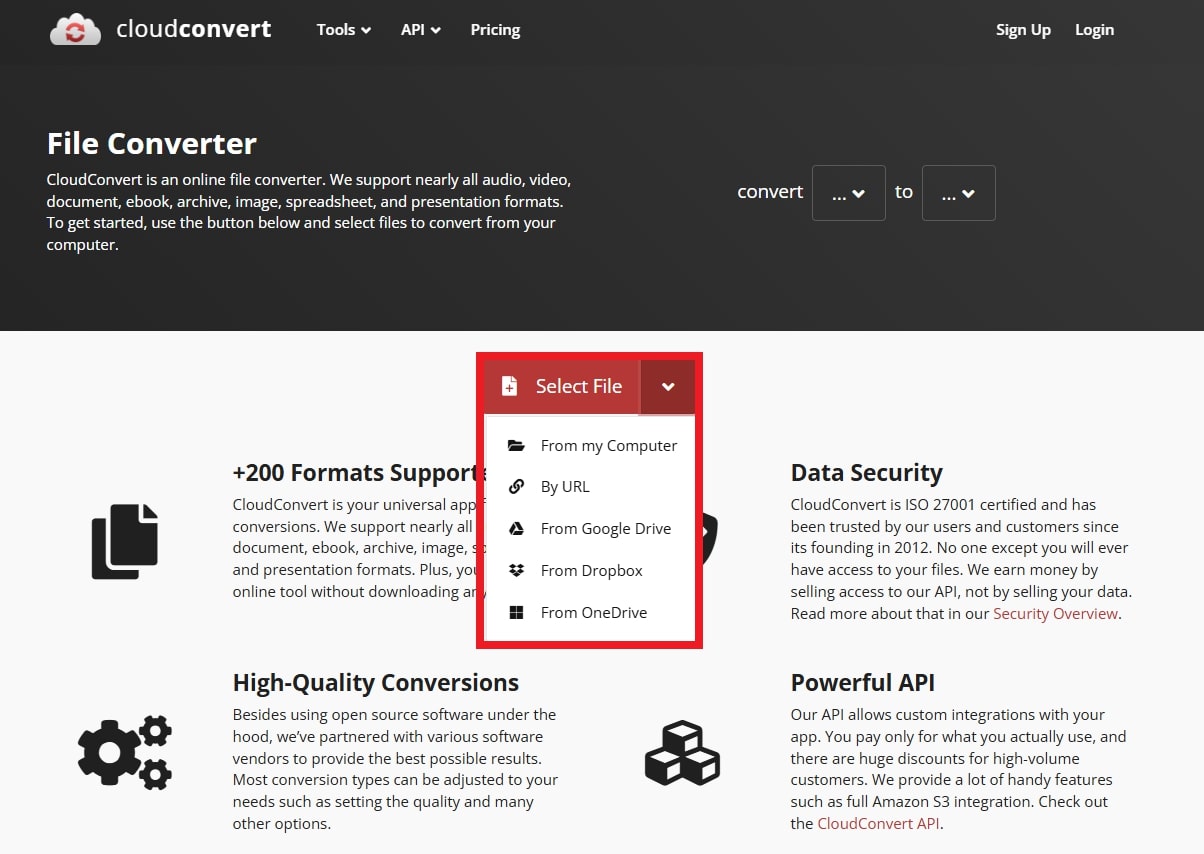
CloudConvert also provides a powerful API for apps and large-scale conversions, making it a flexible solution for both personal and professional use. Stick to the following steps to convert files using CloudConvert:
Step 1: Visit the CloudConvert site and click Select File. You can browse from your computer, URL, Google Drive, Dropbox, and OneDrive.
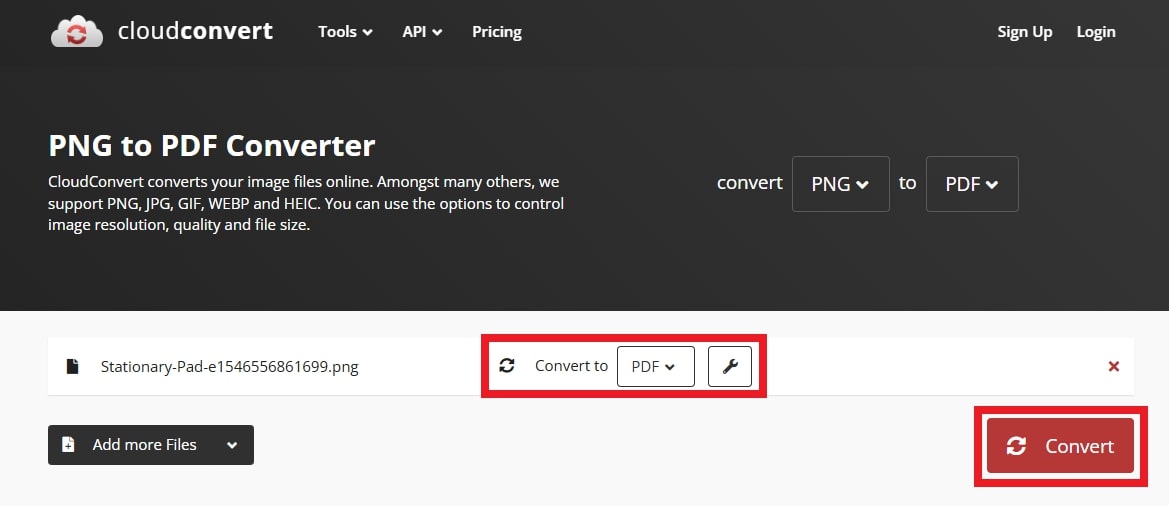
Step 2: Pick your desired output format and hit Convert.
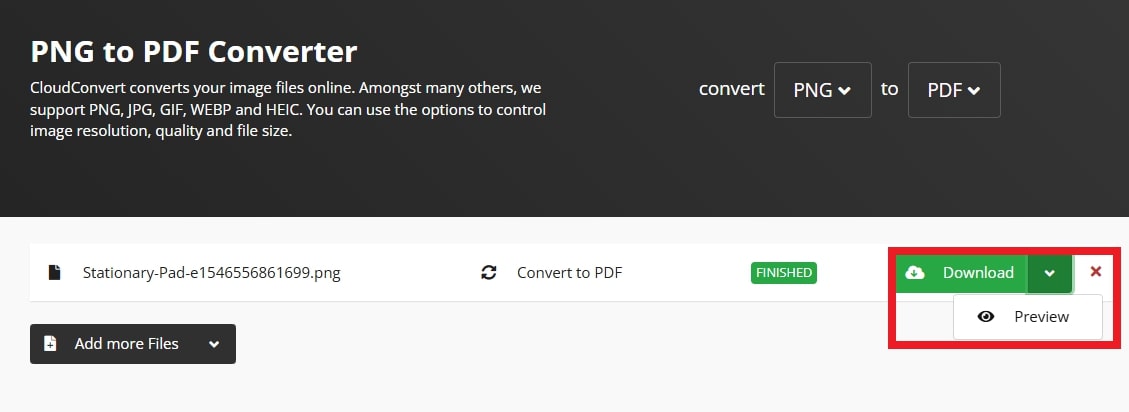
Step 3: Once done, you can instantly preview the file and download it.
Method 3. Use Built-In Repair Features First
Many apps have built-in tools to fix damaged or corrupted files. Before using special repair or recovery tools, try repairing the file with the app it was created in. Remember to always back up the original file first.
Repair Microsoft Office Files (Word, Excel, PowerPoint)
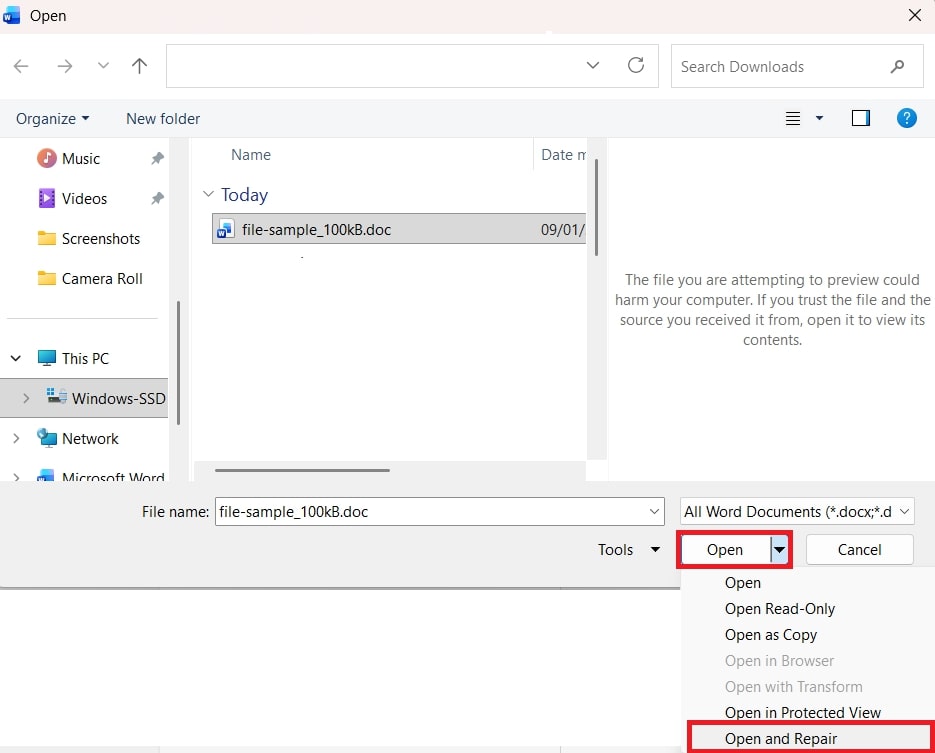
Microsoft Office includes an Open and Repair feature:
Step 1: Open Word, Excel, or PowerPoint.
Step 2: Click File and Open to find your damaged file.
Step 3: Select the file (don’t open it yet).
Step 4: Tick the arrow next to Open.
Step 5: Choose Open and Repair. The app will try to fix the file automatically.
Repair Image Files
Some image files can be fixed using built-in tools:
Step 1: Open the Photos app and try to open the image. If it doesn’t open, use Microsoft Paint.
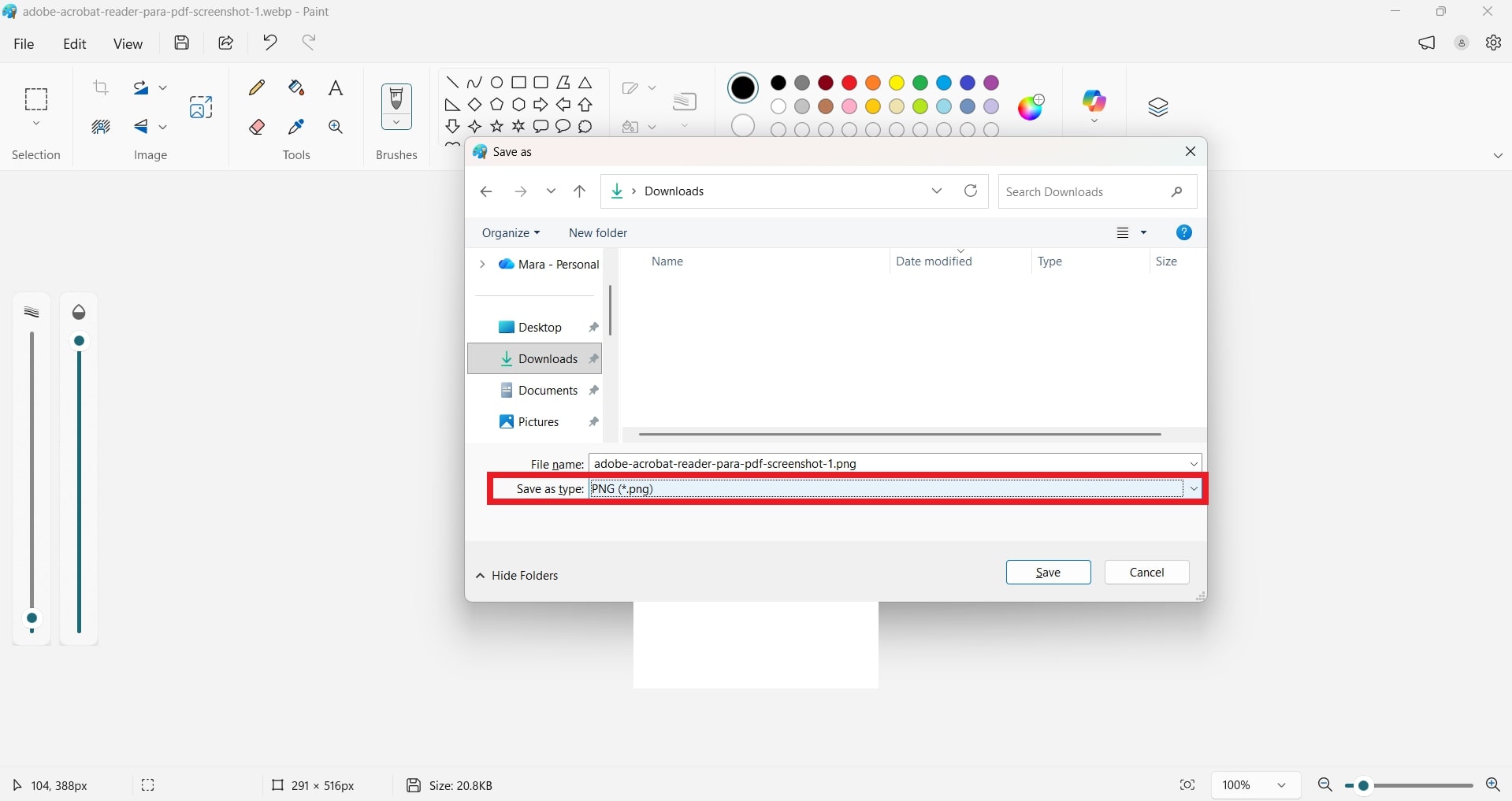
Step 2: Go to File, click Open and load the image.
Step 3: If it opens, click File and Save As. Keep it as a new format like JPG or PNG.
Part 4. Best Way to Open Unsupported Files Safely (When Nothing Else Works)
If you’ve tried the correct app, confirmed the file type, re-downloaded/re-transferred, and even tested online viewers—but it still won’t open—then the issue is usually deeper than compatibility. The file may be severely corrupted, partially written, or damaged during transfer/storage. In that situation, renaming or converting won’t fix the broken structure.
A safer next step is using a trusted file repair solution that works on a copy and doesn’t overwrite the original. Repairit File Repair is built to repair corrupted files so they can be opened again in their intended apps, especially when the file structure is damaged.
Key Features:
- Repairs many everyday file types that won’t open due to corruption (common documents, photos, videos, and archives).
- Creates a repaired copy so the original file remains unchanged (safer for important data).
- Supports batch repair to handle multiple damaged files in one session.
- Allows preview (when supported) before saving the repaired result.
Step-by-Step Guide:
Step 1: Install and open Repairit. Go to More Types Repair, and File Repair.

Press Add to input your corrupted files. Select one or multiple files (Word, Excel, PDF, PPT, etc.).

Step 2: Tick Repair so Repairit will scan and fix the uploaded files automatically.

Step 3: Tick Preview to double-check the repaired file before saving. If the result looks great, click Save or Save All to export multiple files at once. Utilize a folder on your PC to organize the files. Your repaired files will be saved and ready to open without errors.

Best Way to Open Unsupported Files Safely
 Security Verified. Over 7,302,189 people have downloaded it.
Part 5. Tips to Avoid Unsupported File Problems in the Future
Most unsupported file issues are preventable. These habits reduce both compatibility errors and corruption risks:
- Use widely supported formats (JPG/PNG/PDF/MP4/DOCX) when sharing.
- Export properly—don’t rename extensions manually.
- Keep apps and Android updated for better format support.
- Avoid interrupted downloads/transfers (stable internet, reliable cables).
- Safely eject storage devices and avoid sudden power loss while saving.
- Back up important files (cloud + local copy) so you’re covered if corruption happens.
- Be careful with unknown "free viewer" apps or sketchy converter sites.
Conclusion
Unsupported file errors on Android usually come down to compatibility (wrong app/format) or file damage (corruption). Start by identifying the file type, installing the correct app, and re-downloading/re-transferring the file. If the file still won’t open anywhere, it may be corrupted—at that point, a repair workflow is more realistic than conversion.
FAQs
-
Why does my phone say "unsupported file:" even with the right app?
Even if you have the correct app, a file may still appear as unsupported if it’s corrupted, partially downloaded, or created with a newer version of software that your app doesn’t recognize. Sometimes, missing codecs or minor file errors can also cause this. -
Can corrupted files show as unsupported?
Yes. Corrupted or damaged files often appear as unsupported because your device or app can’t read their content properly. Repairing the file or re-downloading it can usually fix the issue. -
Is it safe to open unsupported files online?
Yes. But avoid uploading private or sensitive files to unknown sites, and always double-check files after converting or viewing them online to prevent malware or data loss. -
What’s the difference between converting and repairing a file?
Converting a file changes it from one format to another (e.g., HEIC to JPG) so your device or app can read it. Meanwhile, repairing a file fixes errors, corruption, or damage within the file itself, allowing it to open in its original format.




