
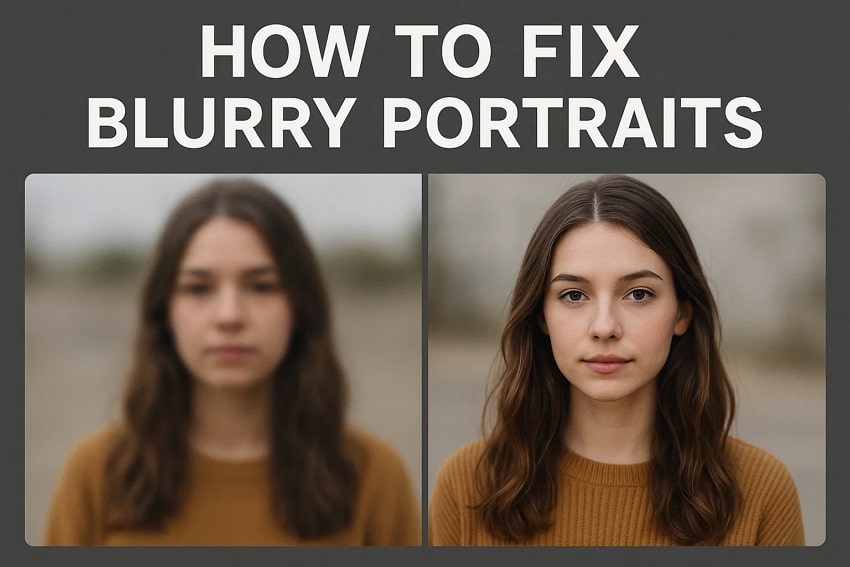
The blurry portrait problem can ruin special moments and reduce photo quality. Many people face this issue when taking quick photos for social media or personal use. It usually happens due to shaky hands or camera focus errors. Fixing these unclear images helps your pictures look fresh and more meaningful.
Clear portraits also make your online profile appear neat and confident. Therefore, this guide explains easy ways to repair blurry photos and keep your portraits always sharp and clear. You will also learn easy tips to avoid this issue in future images.
Table of Contents
Part 1. Importance of Clear Portraits in Photography and Social Media
Clear portraits make your photos look better and more interesting. Moreover, avoiding blurry portraits keeps your social media profiles neat and professional. Below, you will explore a few reasons behind the importance of a clear portrait:
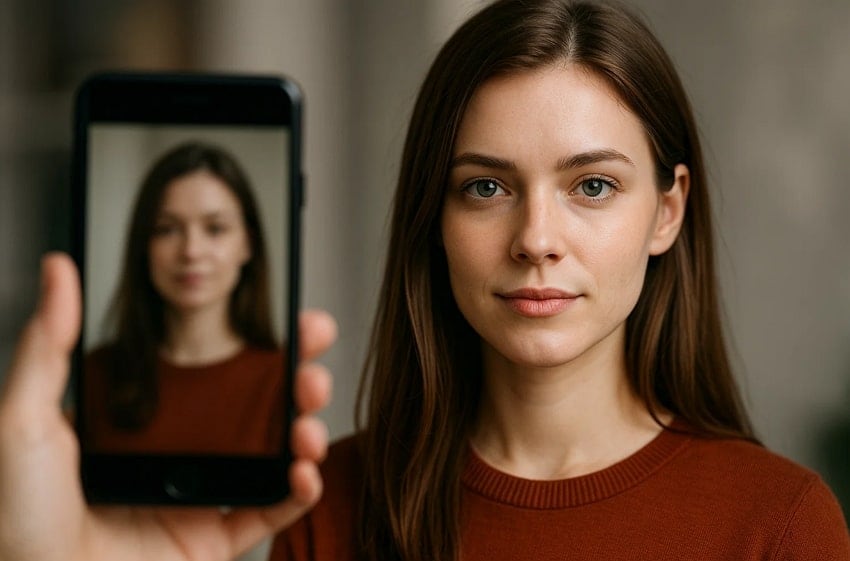
- Social Engagement: Sharp portraits increase likes and comments on social media posts. Blurry portrait content often lowers audience interest and interaction.
- Emotional Impact: Clear portraits capture emotions and expressions more naturally. Soft or out-of-focus images may fail to convey feelings.
- First Impression: A clear portrait creates a strong first impression for viewers online. Low-quality images can make your profile appear careless.
- Memorable Photos: The fine and clear pictures are more likely to be remembered by audiences. Photos lacking clarity often get overlooked or forgotten.
- Visual Storytelling: A clear, sharp portrait tells a story and draws viewers in straight away. Blurry portraits do not provide that immediate context of the photograph.
Part 2. How to Fix Blurry Portraits on Windows PC or MacBook
Many users need a reliable tool to fix every blurry portrait on their computers. To cater to this need, Repairit makes photo recovery easy by offering an AI Photo Enhancer. It optimizes color balance to deliver natural tones without harming image quality. Besides, the tool sharpens blurry edges so each portrait appears brighter and defined. It even uncovers hidden details that improve overall appearance across many challenging images.
Repairit also supports batch processing, which saves time when enhancing larger photo collections. Its AI Image Sharpener handles static blur through strong detail restoration methods. Plus, the tool reduces lens blur to bring natural sharpness back into portraits. Additionally, Repairit removes excess noise to restore smooth surfaces without losing important texture. It also brightens faces gently to create lighter portraits with natural tones.
Key Features

Wondershare Repairit - Portrait Enhance
1,010,994 people have downloaded it.
-
Accurate Focus: Ensures faces stay perfectly sharp even in low-quality portrait captures.
-
Feature Recognition: Detects facial features and enhances them for realistic portrait improvements.
-
Grid Removal: Eliminates printed grid marks to make scanned portraits appear clean.
Guide to Fix Blurry Portraits on Windows PC or MacBook via Repairit
You need to take guidance from the given step-by-step tutorial to fix a blurry portrait using this AI-powered tool:
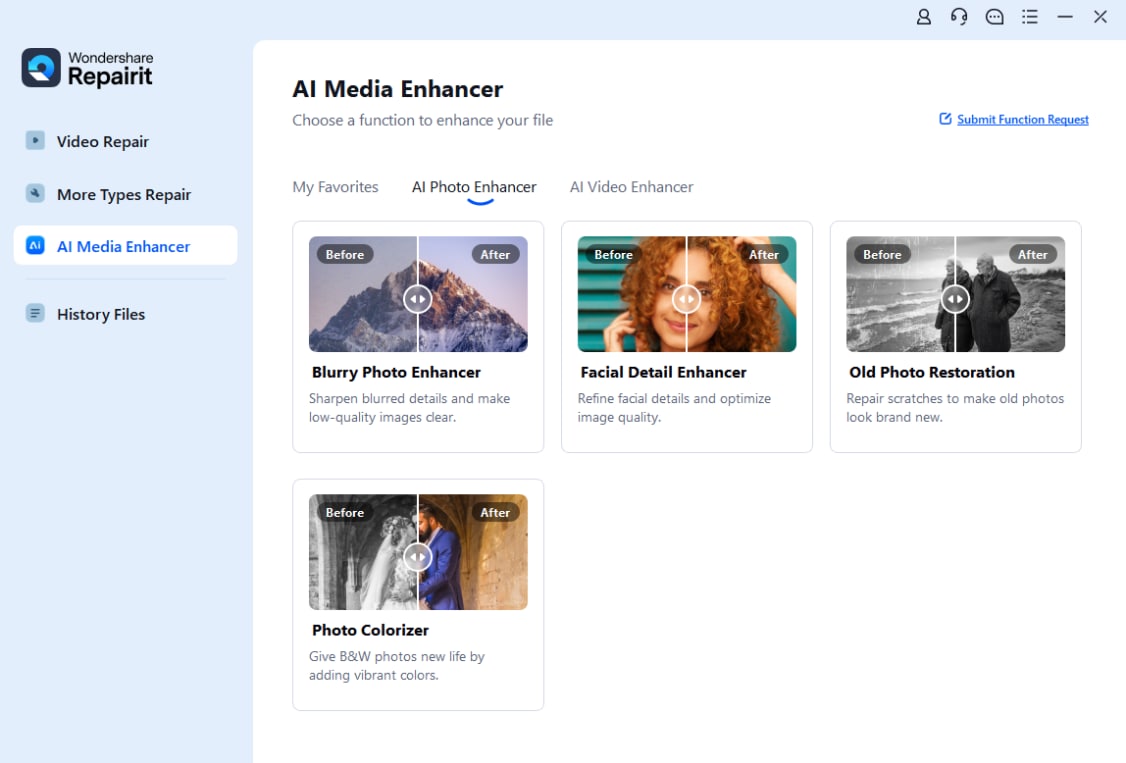
Step 1. Access the Facial Detail Enhancer Tool
After accessing the tool’s “AI Media Enhancer” tab, go to the “AI Photo Enhancer” module. Following this, opt for the “Facial Detail Enhancer” feature.
Step 2. Enhance Your Portrait After Importing It
Moving ahead, press the “+Add” button to import your blurry portrait and then hit “Start Enhancing.” When your blurry photo is enhanced, preview the result and press the “Export All” button.

Fix Blurry Portraits Now
 Security Verified. Over 7,302,189 people have downloaded it.
Part 3. Preventing Blurry Portraits in Future Shots | Tips & Tricks
Preventing future blur requires simple habits that keep every portrait sharp and clean. These tips help you avoid a blurry portrait and capture clearer images:
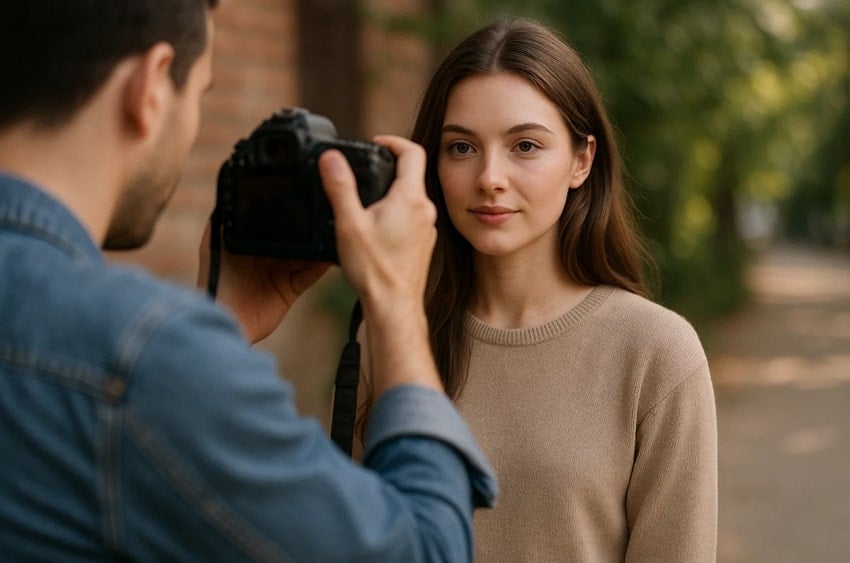
- Steady Hands: Hold your camera to reduce shake and keep portraits clear, always today. Use both hands carefully to maintain balance and avoid unwanted motion during shots.
- Good Lighting: Shoot in bright areas so your camera captures precise details without heavy strain. Proper lighting helps your portraits look sharp and prevents blur caused by darkness.
- Focus Check: Tap your screen to lock focus before capturing any portrait for clarity. Proper focus ensures clean details and prevents unwanted blur during quick portrait shots.
- Right Distance: Stand at a moderate distance to help your camera focus on subjects. Correct spacing gives balanced framing and avoids distortion that affects portrait clarity.
- Avoid Movement: Ask your subject to stay still for cleaner portraits with better sharpness. Less motion helps cameras capture stable portraits and reduces blur from sudden shifts.
Conclusion
To sum up, a blurry portrait can weaken the beauty of your photos and reduce impact fast. By using the right steps, you can restore clarity and keep portraits sharp. Simple habits like good lighting and correct focus improve results. With regular care, your photos will look more confident across every platform. For quick and reliable fixes, Repairit offers an easy way to restore quality.
FAQs
-
Q1. Why do portraits often turn blurry even with a good smartphone camera?
Blurry portraits result from poor lighting or incorrect focus settings today. Understanding these causes helps you adjust shooting habits and capture clearer portraits. Also, small changes can prevent blur and improve the quality across different portraits. It even ensures stable shots and reduces blur in many everyday situations today. -
Q2. Can shaky hands be fixed without extra tools or accessories?
Steady posture helps stabilize your camera and reduces motion blur across portrait images. Using two hands increases balance and improves clarity during fast portrait shooting moments. Moreover, resting your elbows against your body prevents unwanted camera shake. This results in clearer portraits and more consistent sharpness across daily shots. -
Q3. Do editing apps always reduce image quality during portrait enhancement?
Not all apps reduce image quality if used with gentle adjustment levels. Excessive sharpening can cause unnatural edges that destroy the original portrait texture. Choose an editor that maintains natural highlights and prevents color oversaturation after enhancement. Repairit is ideal because it restores clarity without affecting image texture quality.




