
The sudden blue screen issue appears when Windows cannot find a needed driver. This problem usually shows up after updates or security tool changes. Many users see the message “hfFilter.sys is loaded but its file is missing” during startup. As a result, it can stop normal boot and create stress for everyday computer users. So, this guide explains the cause and shares clear steps to fix it without hassle.
Table of Contents
-
- Way 1: Restart Windows to Unload the hfFilter Ghost Driver
- Way 2: Uninstall Applications That Installed the hfFilter Driver
- Way 3: Delete the hfFilter Driver via Command Prompt
- Way 4: Repair Corrupted System Files Using SFC Scan
- Way 5: Restore Windows Image Health Using the DISM Tool
- Way 6: Carefully Remove hfFilter Registry Entries
- Way 7: Reinstall Required Applications That Depend on hfFilter
Part 1. What Exactly Is hfFilter.sys?
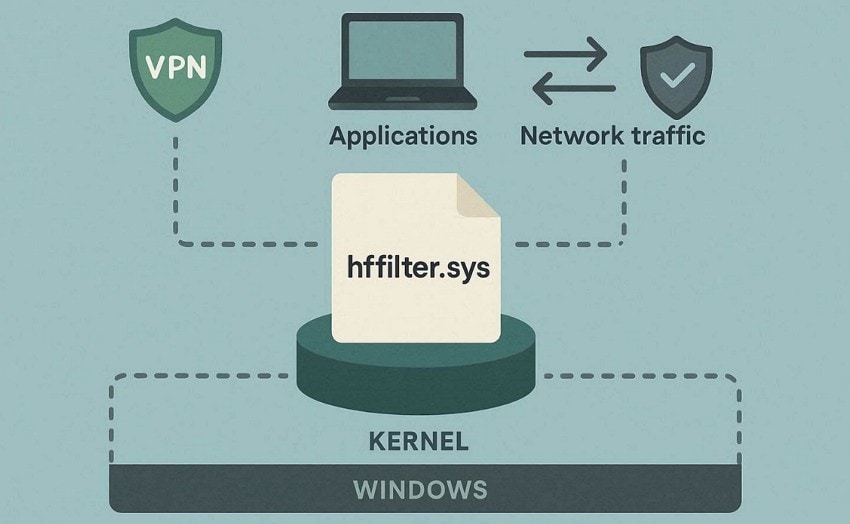
hfFilter.sys is a driver in the Windows folder, but Windows does not create or use it by default. A third-party program places it there, and it sits in the driver chain and changes how Windows handles some tasks, such as files or devices. No official record says who made it or what exact role it plays.
Most sites say it stays at C:\Windows\System32\drivers\hfFilter.sys when present. It does not count as a core Windows file and runs with high access inside the system. Since it runs in kernel mode, it holds high system power and direct access to hardware.
Why Windows Thinks It’s There But It Isn’t?
| Reason | Explanation |
| Registry List Stays | Windows trusts the driver list in the registry without checking folders first. |
| Service Entry Remains | VPN installations create hfFilter records that remain after the file is deleted. |
| Path Still Points | The entry still shows C:\Windows\System32\drivers\hfFilter.sys even when missing. |
| Boot Trusts Config | The system loads drivers based on registry data instead of real file presence. |
| Request Triggers Try | Game anti-cheat checks trigger Windows to load hfFilter, causing a search for the missing file. |
Part 2. 5 Common Scenarios Where This Error Pops Up
This error appears in specific situations, linked to removed software or games. So, knowing these spots helps you fix the “hfFilter.sys is loaded but its file is missing” issue fast:
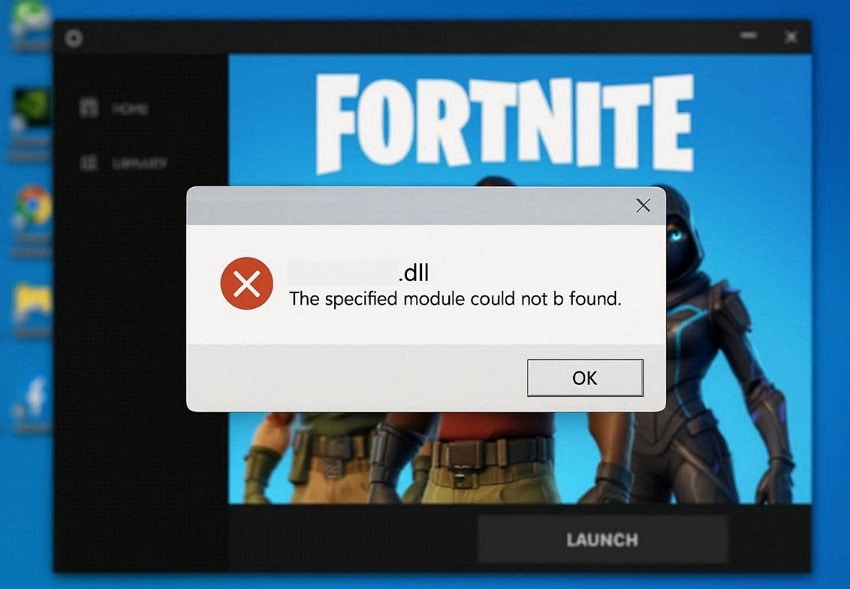
- Game Launch: The error appears during game launch because Windows attempts to load the registered hfFilter driver when anti-cheat or network components initialize.
- VPN Removal: Removing a VPN app also deletes files, but leaves driver records behind. Windows later tries loading the driver because it believes the software is still there.
- Firewall Uninstall: Removing a firewall or security application leaves system driver references inside Windows. The main file disappears, yet Windows still expects it during operations.
- System Scans: Running repair tools or scans can surface hidden driver issues during checks. These tools read registry data and report missing files to users.
- Startup Alerts: Some users notice pop-ups during startup mentioning missing drivers without blocking boot. The system loads, but logs show configuration problems in background tasks later.
Part 3. How to Fix the hfFilter.sys Missing Driver Error on Windows - Detailed Fixes
You now know why the “hfFilter.sys is loaded but its file is missing” error happens during boot or games. So, the following 7 solutions help remove ghost drivers and clean your system:
Way 1: Restart Windows to Unload the hfFilter Ghost Driver
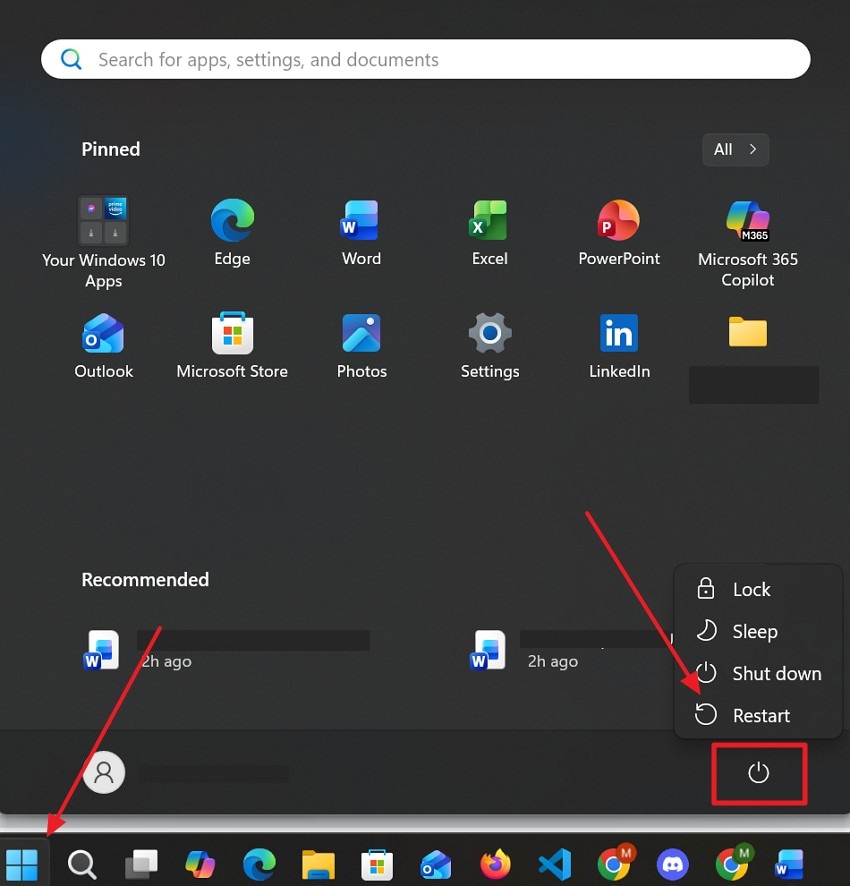
A simple restart unloads stuck driver memory from Windows active processes. It clears temporary holds on “hfFilter.sys is loaded but its file is missing” errors fast. The action stops Windows from reusing broken driver data stored during boot. Plus, this fix removes ghost references without changing files or settings. So, go through the instructions to help you restart your device:
Instructions. When you click the “Windows” icon, press the “Power” option and opt for “Restart.”
Way 2: Uninstall Applications That Installed the hfFilter Driver
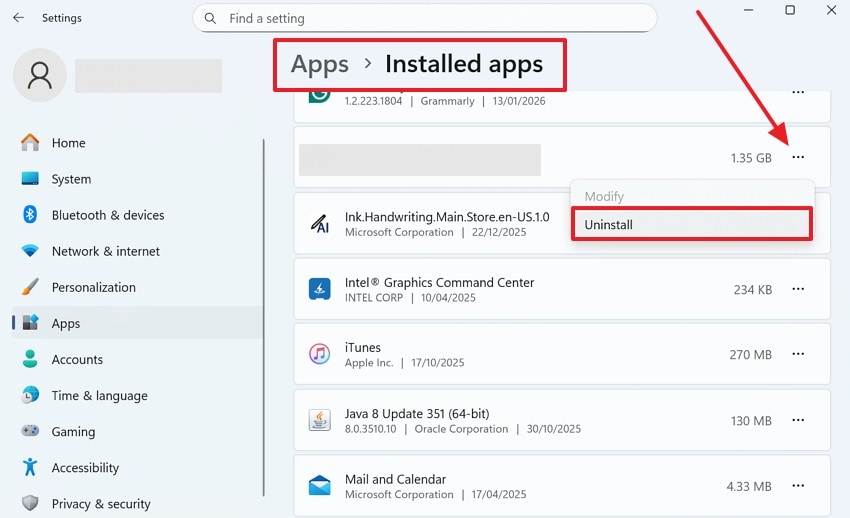
Proper uninstallation also removes apps that added the hfFilter driver to your system. It wipes linked files and notes, causing “hfFilter.sys is loaded but its file is missing” alerts. This method cleans root causes from VPN or security tools entirely. Besides, you can use the Settings app to find and delete suspects without CMD. Thus, adhere to the given steps to uninstall the app that causes this error:
Instructions. Upon heading to the “Apps” section from your device’s settings, access “Installed Apps.” Afterward, find any external firewall or security app to click the “Three Dots” icon and choose “Uninstall.”
Way 3: Delete the hfFilter Driver via Command Prompt
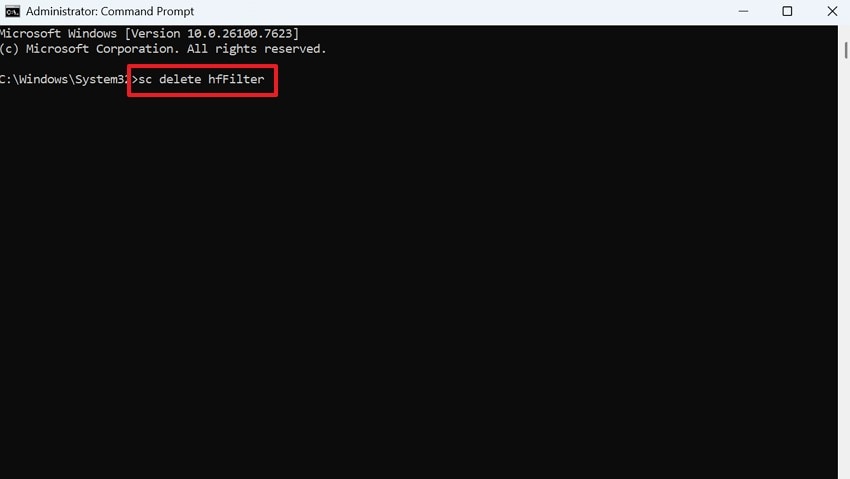
Command Prompt also deletes the hfFilter driver entry from the Windows system records. This method stops the system and games from searching for missing driver files. Yet, it works best after uninstalling the related VPN or security software first. The process then targets the registry ghost without altering other drivers or files. Hence, following the steps to fix "hfFilter.sys is loaded but its file is missing” via this way:
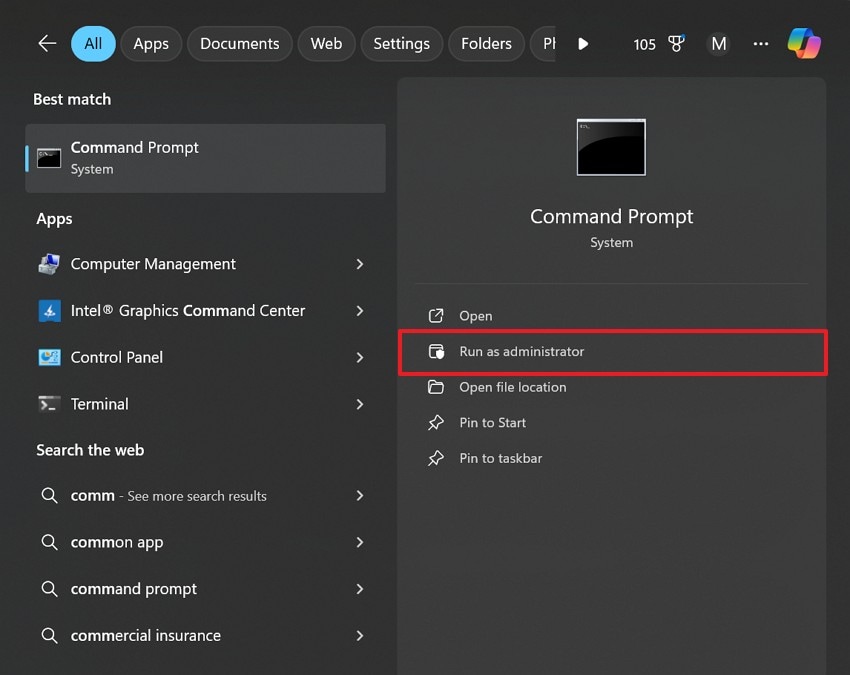
Step 1. To initiate, opt for “Run as Administrator” upon searching for “Command Prompt.”
Step 2. Here, input “sc delete hfFilter” and hit the “Enter” key to delete the driver.
Way 4: Repair Corrupted System Files Using SFC Scan
System File Checker (SFC) repairs damaged or missing Windows system files. The tool scans protected parts and restores the right copies from the system cache. Plus, running it restores stability after crashes or even driver confusion issues. System performance improves once damaged components are entirely replaced. So, let's find out how this works to resolve "hfFilter.sys is loaded but its file is missing:”
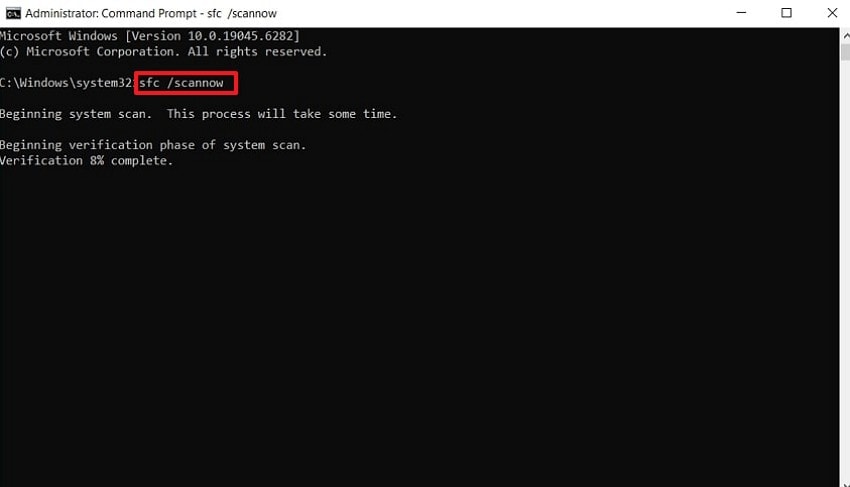
Instructions. Upon running the CMD as admin, type “sfc /scannow” and hit the “Enter” key. When the system scans and repairs damaged files, restart your PC to finish the task.
Way 5: Restore Windows Image Health Using DISM Tool
DISM tool repairs the deeper Windows image that supports all system file fixes. It helps when the “hfFilter.sys is loaded but its file is missing” error keeps returning. The command checks the health of the component store and restores clean files from trusted sources. This process also prepares SFC to work correctly and prevents missing repair files in future scans. So, you can review the steps to fix the issue via DISM:
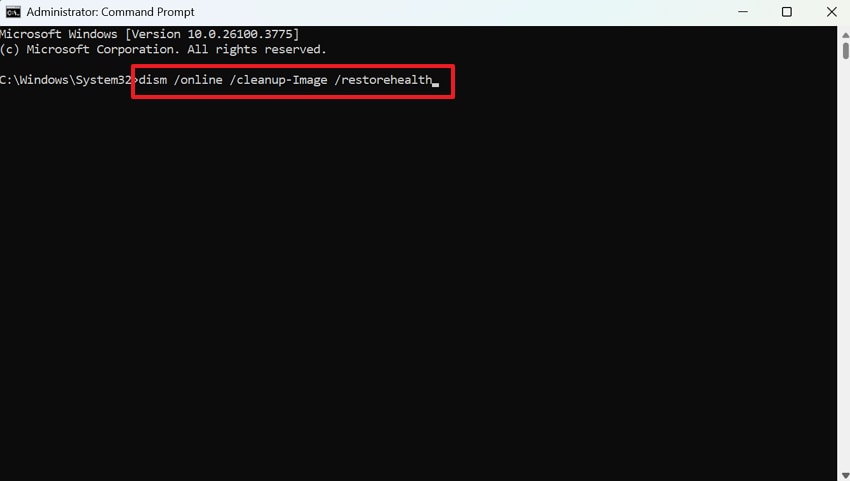
Instructions. Access the "CMD" as an administrator, type "dism /online /cleanup-Image /restorehealth." Now, press "Enter,” and the system initiates repairing your image files, causing the error.
Way 6: Carefully Remove hfFilter Registry Entries
Registry cleanup erases hidden hfFilter traces still confusing system boot processes. It solves leftover records, causing "hfFilter.sys is loaded but its file is missing” alerts. This fix works after file deletion, and uninstallation has already been done. As a result, editing keys removes ghost driver entries that Windows keeps loading each time it starts. Go through the following steps to remove such registry on your device:
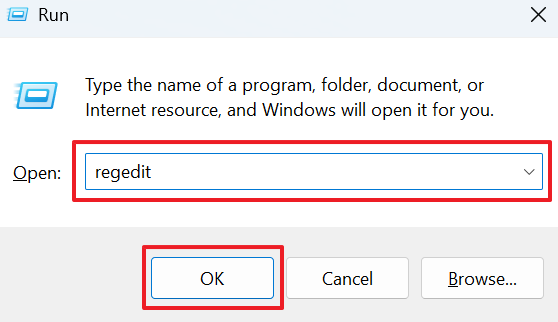
Step 1. Access the “Run” dialogue box by pressing “Windows + R” to type “regedit” and hit “OK.”
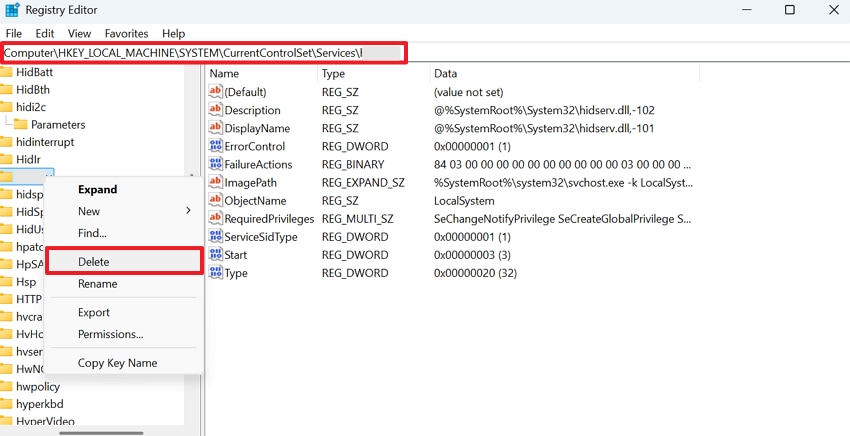
Step 2. Go to the “HKEY_LOCAL_MACHINE\SYSTEM\CurrentControlSet\Services” location. Afterward, locate and right-click the “hfFilter” registry and select the “Delete” option.
Way 7: Reinstall Required Applications That Depend on hfFilter
Another solution to fix “hfFilter.sys is loaded but its file is missing” is to reinstall related apps. This method recreates a valid hfFilter.sys files along with proper registry entries. It helps when VPN or firewall tools were incompletely uninstalled earlier. After reinstalling, a clean uninstall or keeping the app ensures the error does not return. So, fresh installs recreate correct hfFilter paths and ensure the system trusts new entries.
Pro Tip. When hfFilter.sys Breaks Files, Repairit Puts Them Back Together
Apart from the above, system crashes or driver errors can corrupt important files, leaving them unusable. Therefore, when “hfFilter.sys is loaded but its file is missing” appears, data loss may follow. To address it, Repairit provides an effortless way to restore damaged data after driver crashes. This advanced data recovery program offers a dedicated File Repair feature to fix 75+ file formats.
While repairing, it performs structure‑level rebuilds to restore file headers and internal element integrity. Repairit also imposes no size limitations, so large files can be recovered without issues.
Key Features

-
Recovery After hfFilter.sys Crashes: Repairit restores files that become corrupted when the hfFilter.sys error triggers blue screens or forced reboots. It focuses on data damaged during driver conflicts.
-
Rebuild from System Interruptions: This tool reconstructs documents affected by sudden shutdowns caused by missing hfFilter drivers. It repairs headers and internal elements broken during boot failures.
-
Targeted Fix for Driver-Related Damage: Repairit fixes files impacted specifically after registry edits or DISM and SFC operations used to fix hfFilter.sys issues.
Guide to Repair or Fix the Corrupted hfFilter.sys Files via Repairit
When you explore its core features, you might want to fix your damaged system files. So, the following guide helps you repair your files using this dedicated program:
Step 1. Access the File Repair Program
As you reach the “More Types Repair” tab, select “Document Repair” and click the “Start” button.

Step 2. Import Damaged System Files to Repair
After that, press “+Add” to import your damaged system files and then click the “Repair” button.
Step 3. Export the Fixed System Files
Once the files are repaired and show in the "Repaired Result” section, click the “Save All” button.

Repair Corrupted Files Now
 Security Verified. Over 7,302,189 people have downloaded it.
Conclusion
In conclusion, the “hfFilter.sys is loaded but its file is missing" error can disrupt everyday Windows use. This specific error helps prevent games or apps from running. Yet, following the 12 solutions above helps remove ghost drivers and restore system stability. Moreover, regular maintenance and system repairs reduce future errors. For users facing file corruption or data loss after this issue, Repairit is highly recommended to recover important files.
Frequently Asked Questions
-
1. Can I safely ignore the hfFilter error message?
Ignoring it risks blue screens during gaming or heavy network tasks. Plus, games with anti-cheat fail launches due to missing driver path conflicts. Therefore, fixing prevents data corruption from repeated crash cycles over time periods. -
2. Does the hfFilter error slow down my entire PC?
Driver conflicts can create lag spikes during boot and in network-heavy applications. The system also wastes CPU cycles through repeated attempts to load the missing file. Once registry cleanup removes the conflict source, overall responsiveness improves significantly. -
3. What should I do after “hfFilter.sys” causes file corruption?
Repairit restores 75+ damaged documents after driver-related crashes occur. Its structure-level analysis rebuilds headers and internal elements without losing original content. Moreover, batch mode allows fixing multiple corrupted files together, saving time during system recovery.




