
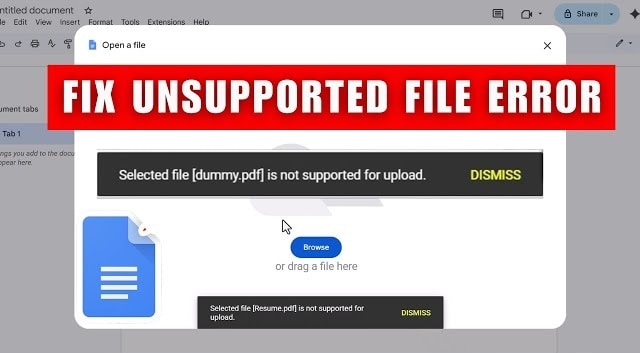
Have you ever uploaded a file to Google Drive, clicked it, and immediately saw "Unsupported file type"?
Here’s the key thing: this message doesn’t always mean your file is broken. In many cases, Google Drive can store the file, but can’t preview it in the browser/app—especially with RAW photos (like ARW), niche design files, or certain video encodings.
Don’t worry. Below is a safe, step-by-step guide to pinpoint the real cause (preview limitation vs upload issue vs corruption), fix it on desktop or iPhone, and prevent it from happening again.
Quick Answer: Why does Google Drive say "Unsupported file type"?
- Most common: Drive can upload the file, but it can’t preview that format in-app (common with RAW camera files on phones).
- Also common: The upload was incomplete (sync/network interruption).
- Less common but important: The file is damaged/corrupted, so Drive can’t read it reliably.
Decision Rules (If/Then Fix Selector)
- If the file downloads and opens fine in a correct app → it’s preview-only; use "Download + open with the right app" or convert a share-friendly copy.
- If the file won’t open anywhere (even locally) → treat it as corrupted; try a repair workflow.
- If it works on desktop but not on iPhone → it’s often mobile format support; re-export in a standard format.
- If the file shows 0 KB / fails mid-upload / won’t finish syncing → re-upload via a stable connection and verify completion.
Table of Contents
Part 1. Unsupported File Type Google Drive: Quick Diagnosis
When you see "Unsupported file type" in Google Drive, it typically falls into one of these buckets:
1. Google Drive Unsupported File Type When Previewing
The file uploads successfully, but Drive can’t display it in preview mode because preview supports only certain formats.
This is common for RAW photos (e.g., ARW), niche project files, or videos with uncommon codecs.
2. Unsupported File Type Google Drive on iPhone
iPhone apps can be stricter than desktop browsers for previews. A file that opens on desktop might still show "unsupported" on iPhone, especially with camera RAW files or certain exports.
3. Unsupported File Type Google Drive Caused by Corruption
If the file can’t open locally (even after downloading), corruption is likely. This can happen during transfer, interrupted upload, or storage issues.
Part 2. Why Unsupported File Type Google Drive Happens
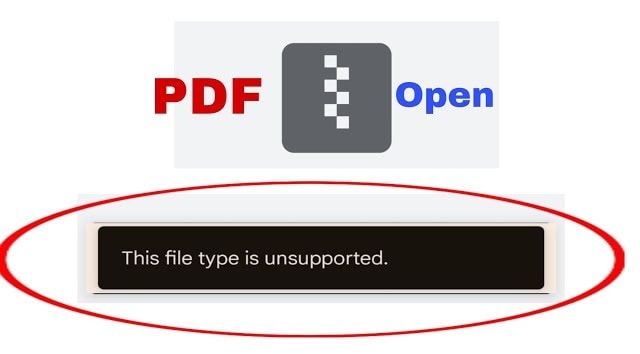
When Google Drive shows an "unsupported file type" error, it’s usually due to one of these reasons:
- File Not Supported for Preview
- Incomplete Upload or Sync Error
- iPhone Format Limitations
- Access, Encryption, or Permission Restrictions
Google Drive can store most files, but it can’t preview all formats (for example, common images, PDFs, Office files, and certain audio/video types).
If the upload didn’t fully finish, Drive may show the file entry but fail to open/preview it. This usually happens with unstable networks or background sync interruptions.
Mobile preview can fail even when desktop works. RAW photos are a frequent example: they’re valid files, but not always previewable in mobile Drive.
Password-protected, encrypted, or restricted files can be stored but may not preview if Drive can’t interpret them in-app.
Part 3. Unsupported File Type Google Drive: Quick Checks Before Fixing
Before diving into more complex fixes, it’s helpful to run a few quick checks. These steps can identify the problem and solve it immediately:
- Confirm Whether the Issue Is Preview-Only
- Try Another Browser or Google Drive App
- Re-Upload the File Manually
- Re-Export Files from iPhone in a Standard Format
Sometimes, Google Drive can store the file fine, but its preview feature can’t open it. Download the file and open it with a compatible app on your device. If it opens, the problem is just with the preview, not the file itself.
Browser or app glitches can sometimes trigger unsupported file type errors. Switch to a different browser on the desktop, or update/reinstall the Google Drive app on your iPhone to solve the issue.
If a file didn’t upload completely, it might show as unsupported. Delete the original upload and upload the file again to see if Google Drive can process it correctly.
iPhones use formats like HEIC for photos or MOV for videos, which may not be supported everywhere. Export or convert your files to common formats (like JPEG for images, MP4 for videos, or PDF for documents) before uploading to Google Drive.
Part 4. Best Fixes for Unsupported File Type Google Drive (Step-by-Step)
Tried the quick checks and still saw the error? You’re not stuck. Follow the proven methods below to resolve Google Drive unsupported file type errors on desktop and iPhone.
Convert the File to a Preview-Supported Format
Sometimes, the unsupported file type error happens because the file has the wrong or unsupported extension. Google Drive may store your file, but it can’t preview it if the format isn’t supported. Converting the file usually fixes this directly without downloading it. This is useful when sharing files with others.
But before we start the conversion, please take a look at whatfiles you can store in Google Drive.
For desktop and iPhone users, you can convert files online using OnlineConvertFree. OnlineConvertFree converts files quickly without installing software or creating an account. The platform supports 1,500+ conversion options across documents, images, audio, video, eBooks, and archives. OnlineConvertFree is available in 15 languages and is utilized by tens of thousands of users daily, making it one of the most versatile online conversion services.
Follow these steps to convert file formats online using OnlineConvertFree:
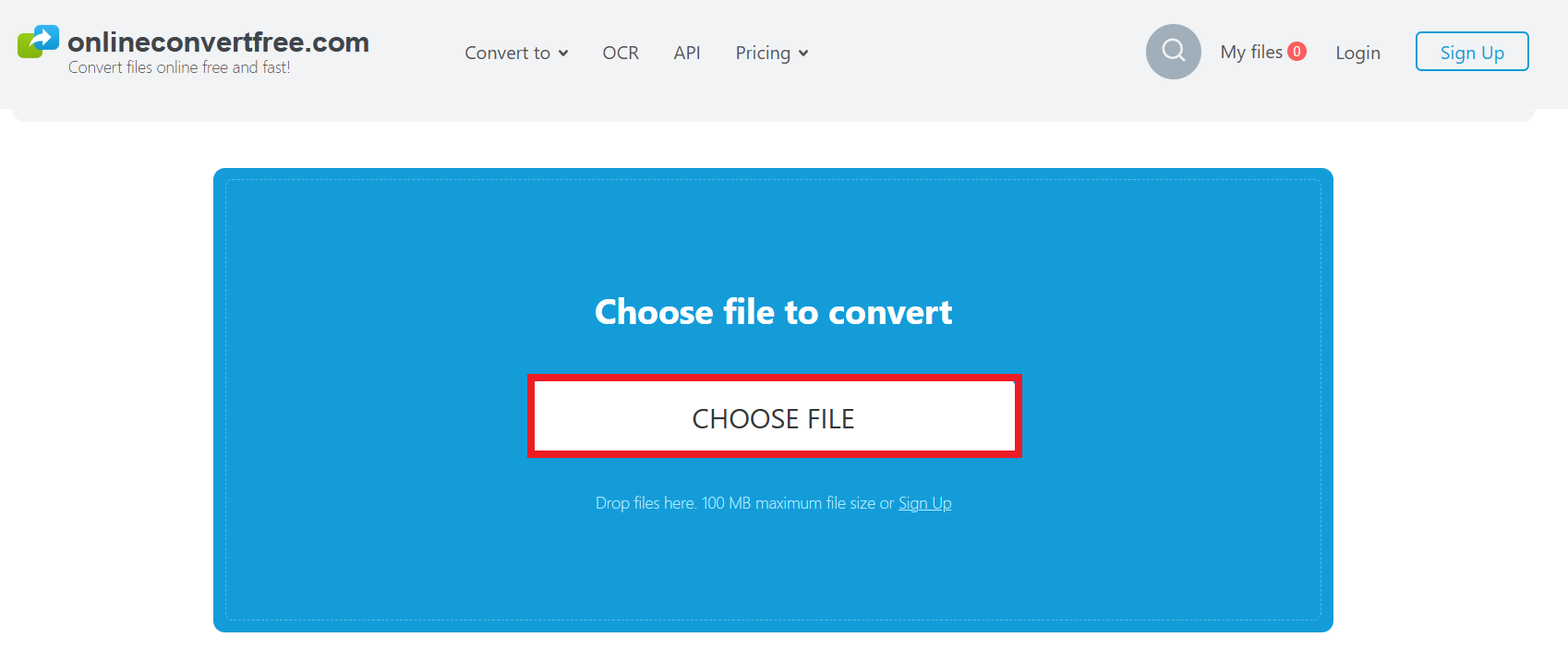
Step 1: Open OnlineConvertFree and click CHOOSE FILE to drop files (100 MB maximum file size).
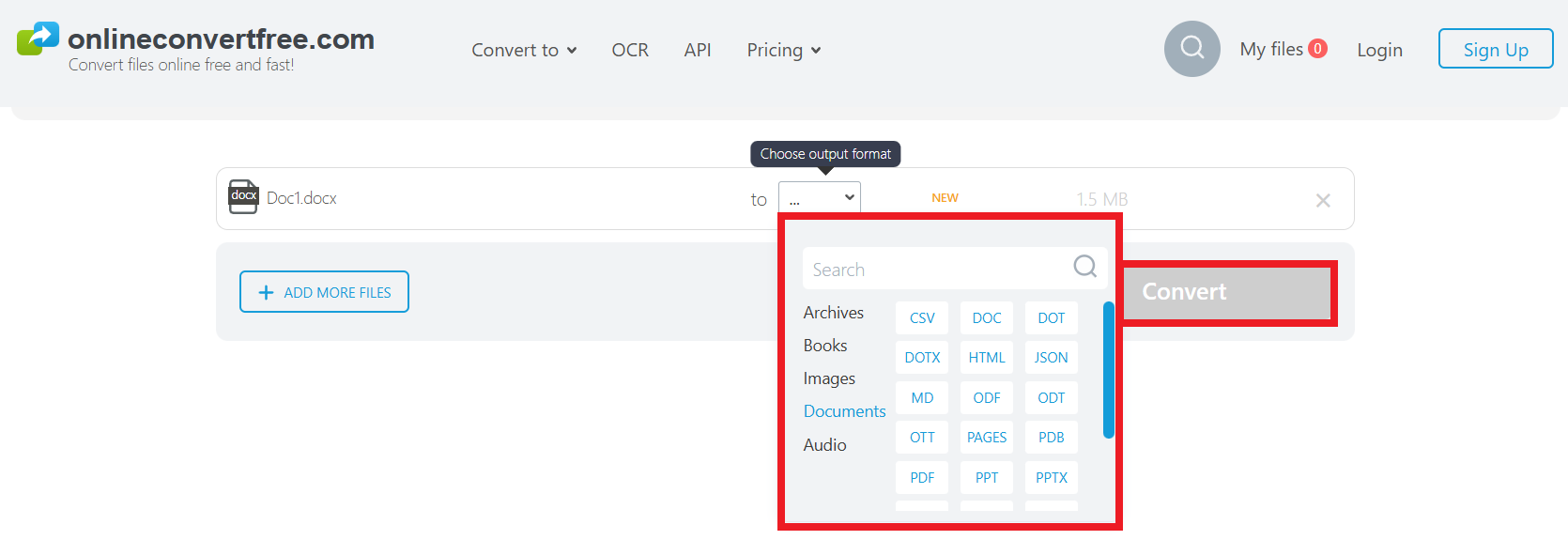
Step 2: Pick your desired Output Format among Archives, Books, Images, Documents and Audio. The file size can also be seen. Then, hit the Convert button.
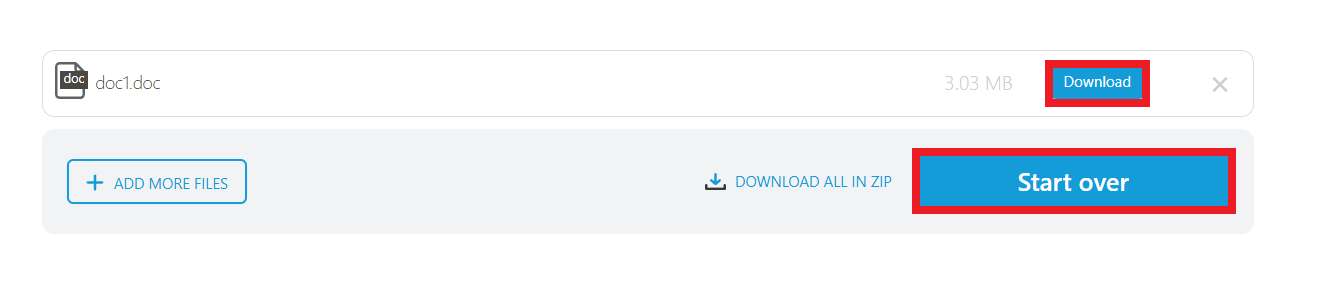
Step 3: Click Download to keep the converted file format. If you want to convert another file type, just click Start over.
Pro tip: Keep the original file until you’re sure the converted one works. Conversions can fail if the file is damaged.
Download the File and Open It With the Correct App
If Google Drive shows "unsupported file type," you can download the file and open it with an app that supports its format. This allows you to access your file immediately without changing it. Even if the file type remains unsupported in Drive, you can still view, edit, or share it using the right software. It’s a reliable workaround for files you can’t convert easily.
To do it:
Step 1: Open Google Drive and locate the file showing the unsupported file type error.
Step 2: Right-click the file (or tap the three-dot menu).
Step 3: Press Download and wait for the file to save to your device.
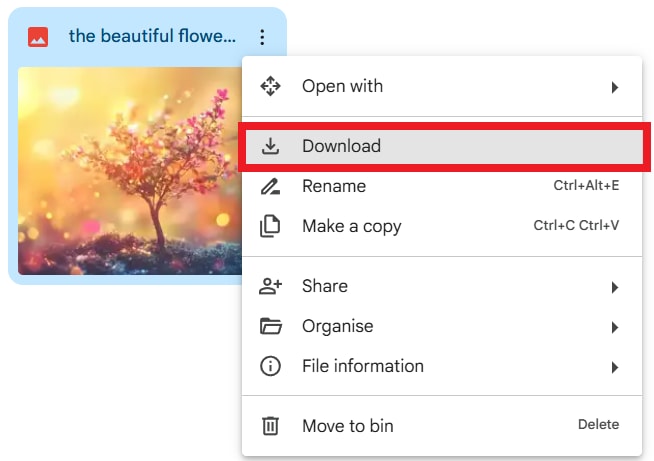
Step 4: Once downloaded, open the file using the correct app that supports its format. For example, open RAW photos with Photoshop.
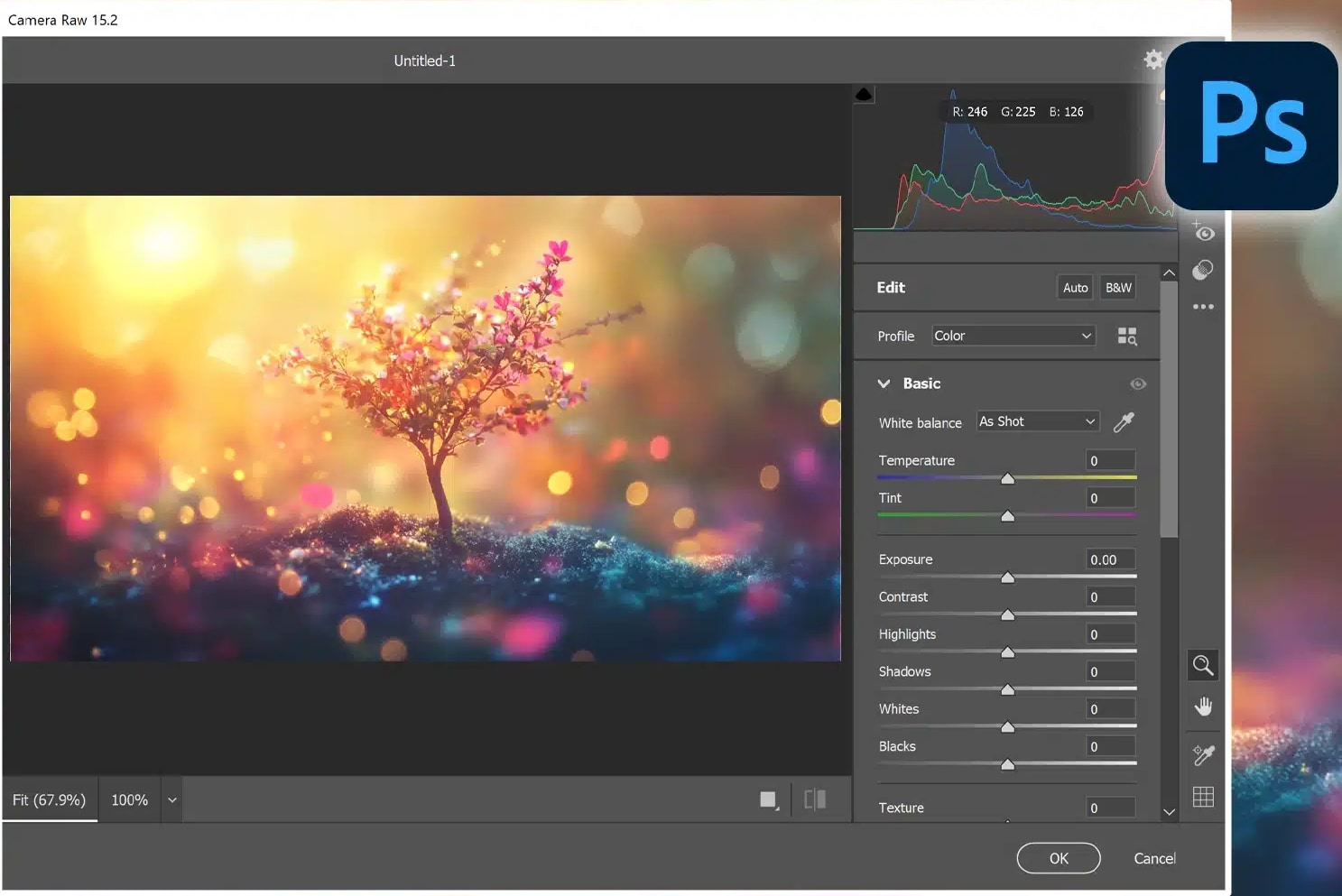
Step 5: View, edit, or share the file normally using that app.
Update Google Drive & Clear Cache
Sometimes, the problem isn’t the file, it’s the app. Updating Google Drive gives you the latest bug fixes, performance improvements, and better file support. An outdated version can cause issues with file uploads, previews, or syncing. Keeping Google Drive up to date helps prevent unsupported file type errors on both iPhone and desktop.
Google Drive on desktop updates automatically through your web browser. Just check if your Google Chrome is updated and restart your computer if prompted.
For iPhone:
Step 1: Find Google Drive in the App Store.
Step 2: Click Update next to it.
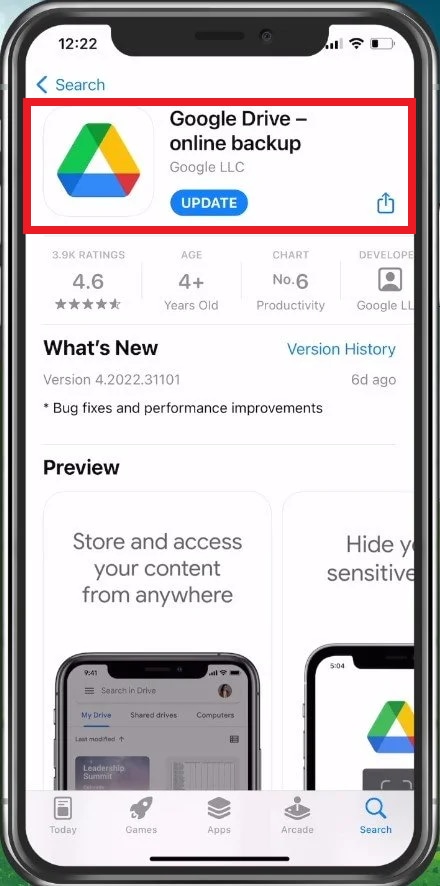
Meanwhile, cached data can interfere with how files load or are previewed. Thus, clearing the cache removes temporary files that may be corrupted or outdated, causing errors in Google Drive.
If you use Google Drive in a web browser, just refresh your Google Drive or clear the browser cache (Chrome):
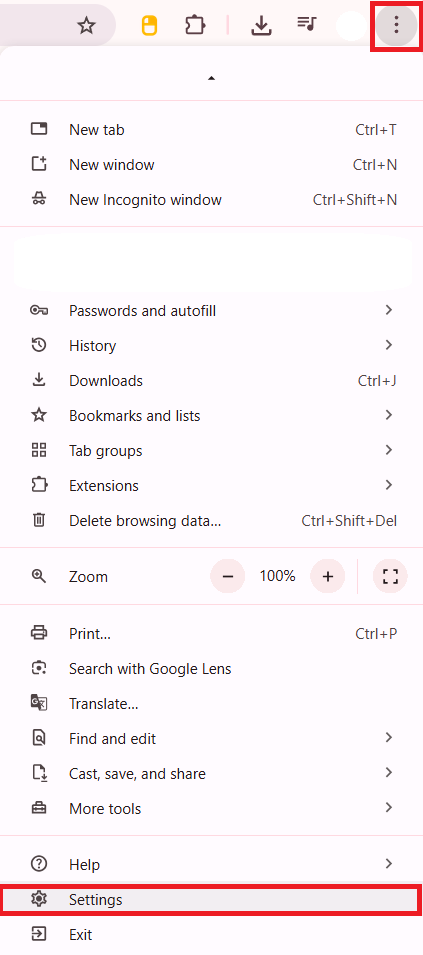
Step 1: Open Chrome, find the 3 dots near your profile icon and scroll down to Settings.
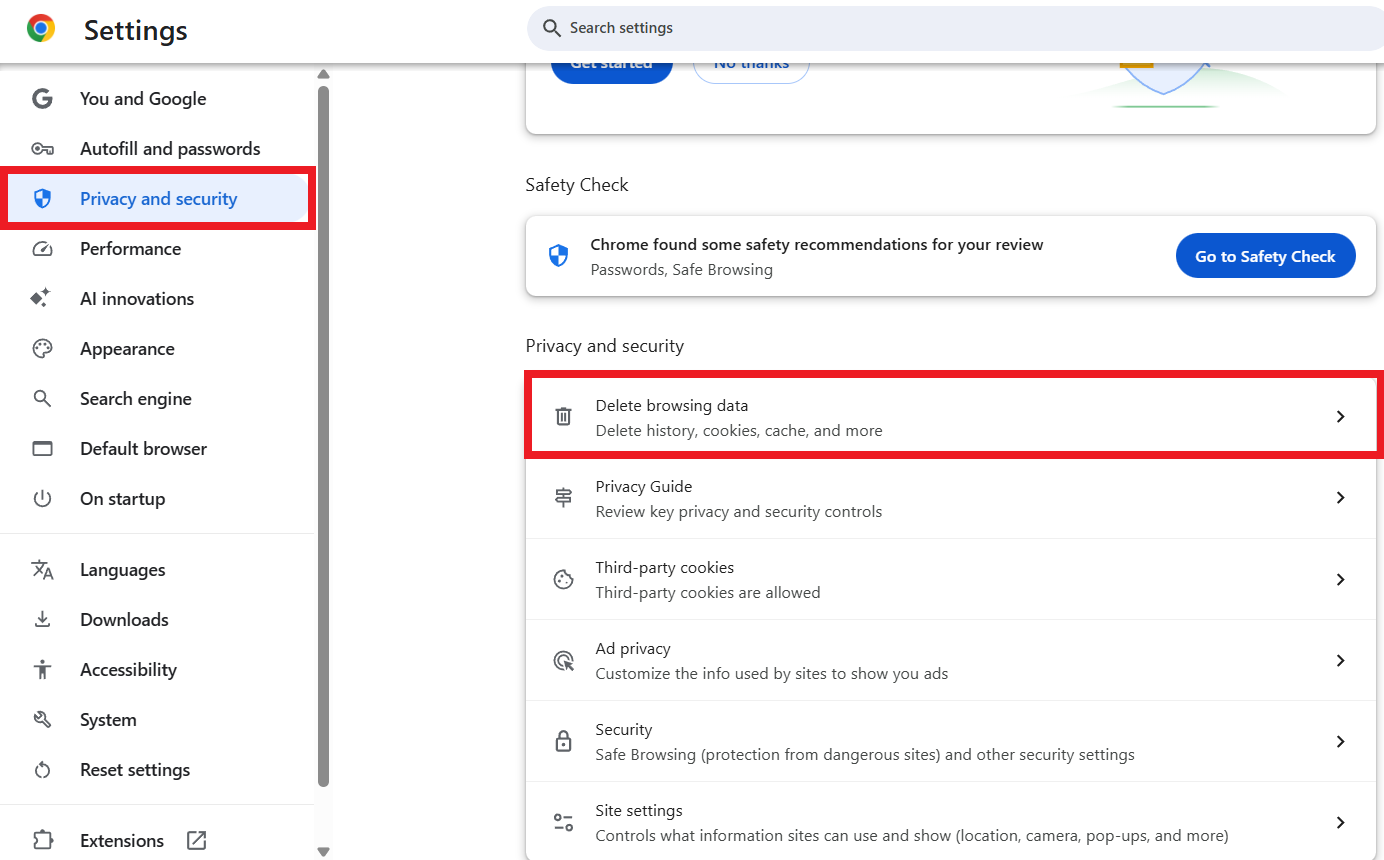
Step 2: Click Privacy and security and hit Delete browsing data.
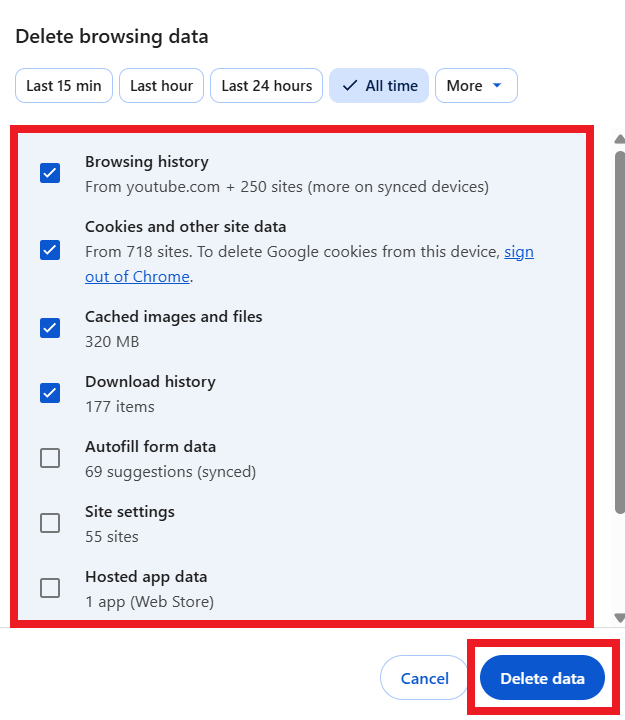
Step 3: Check all that you want to clear and tick Delete data.
Change How You Upload Files on iPhone
iPhones usually use formats like HEIC for images or MOV for videos, which may not be fully compatible with Google Drive. Re-exporting or converting your files to standard formats like JPEG, MP4, or PDF before uploading can prevent unsupported file type errors.
You can upload photos from your iPhone to Google Drive in two ways:
1. Upload Files to Google Drive Manually (iPhone)
Use this method if you only want to back up selected photos.
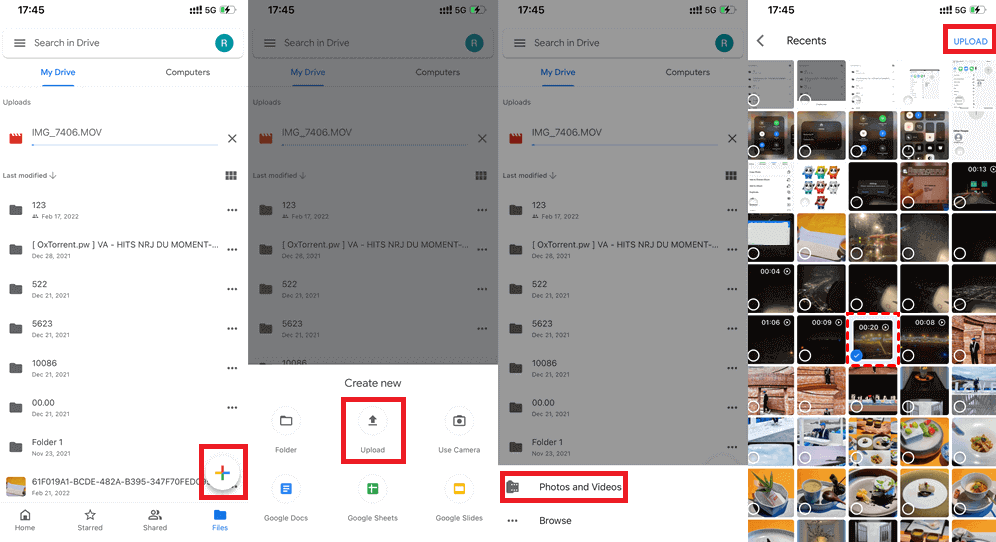
Step 1: Choose an existing folder or tap the Plus (+) icon to generate a new one. Tap the Plus (+) button again.
Step 2: Select Upload.
Step 3: Tap Photos and Videos.
Step 4: Pick the file types you want to upload (a checkmark will appear).
Step 5: Tap Upload to save them to Google Drive.
2. Automatically Upload iPhone Photos to Google Drive
This method syncs your photos so new images are backed up automatically.
Step 1: Go to Settings.
Step 2: Tap Backup and turn Backup to Google Photos ON. Click Start backup.
Step 3: Allow Google Drive to access your photos when prompted.
Step 4: Once enabled, new photos and videos will be uploaded automatically in the background.
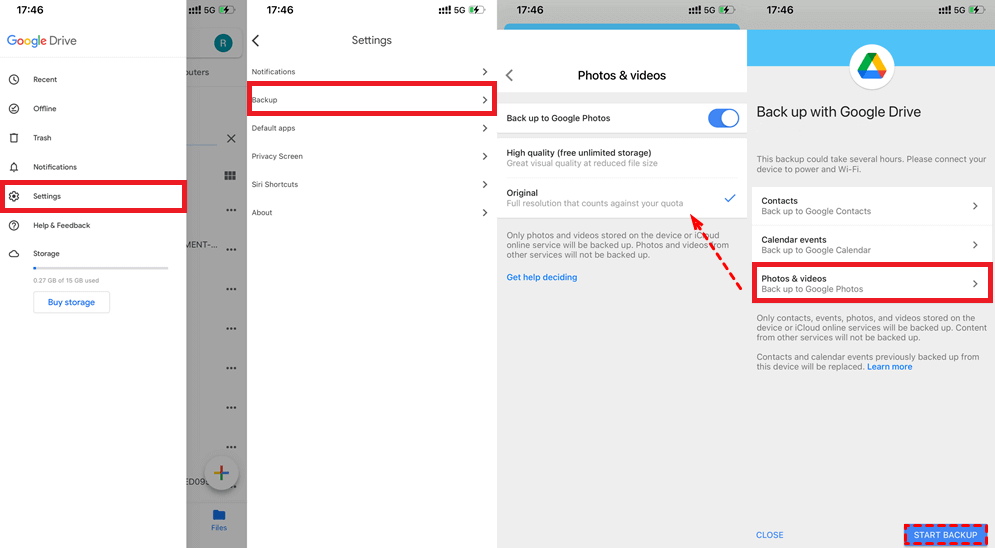
Note: You can change the upload size and backup account in Settings. To check if photos are backed up, open Google Drive and go to Photos.
Repair the File if Google Drive Still Says Unsupported
If Google Drive still shows an "unsupported file type" error, the file itself may be corrupted. Repairit File Repair is a reliable solution designed to fix damaged files so they can open, preview, and upload properly again.
Repairit accurately detects file corruption caused by system crashes, power outages, virus attacks, or failed transfers. It repairs files without changing their original content, making them readable and usable across apps, including Google Drive.
Key Features:
- Repairs many common file types (documents, archives, and more) within its supported formats.
- Batch repair supported; you can preview results before saving.
- Generates a repaired copy so your original file remains unchanged.
Step-by-Step Guide:
Step 1: Install and open Repairit. Go to More Types Repair, and File Repair. Click Add to upload your corrupted files. Select one or multiple files (Word, Excel, PDF, PPT, etc.).

Step 2: Hit Repair so Repairit will scan and fix the files automatically.

Step 3: Tick Preview to check the repaired file before saving. If the result looks good, click Save or Save All to export multiple files at once. Use a folder on your PC to store the files. Your repaired files will be saved and ready to open without errors.

Repair the File if Google Drive Still Says Unsupported
 Security Verified. Over 7,302,189 people have downloaded it.
Part 5. How to Prevent Unsupported File Type Errors in Google Drive
Preventing unsupported file type errors is easier than constantly fixing them. Handle your files carefully and follow these simple best practices:
- Prefer standard share formats: JPEG/PNG, PDF, DOCX, MP4 (H.264) for maximum compatibility.
- For camera RAW, upload the RAW for backup but also export a JPG for easy preview/sharing.
- Upload on stable Wi-Fi; incomplete uploads often lead to "can’t preview/open" issues.
- Keep Google Drive app and OS updated to reduce app-side preview glitches.
- Before sharing, test the file on one more device (desktop + phone) if it’s important.
Conclusion
Google Drive’s "unsupported file type" message usually means one of two things: preview limitation or file damage. Start by downloading and opening the file locally to confirm which case you’re in. If it’s preview-only, convert a share-friendly copy or open it with the correct app. If the file is genuinely corrupted, a repair workflow can help restore readability—then you can re-upload and share with less friction.
FAQs
-
Why does Google Drive say unsupported file type but still uploads the file?
Because Drive can store many files, but it can only preview certain formats in-app. Unsupported preview formats will upload but may not open in Drive preview. -
How do I fix the unsupported file type in Google Drive on iPhone?
Download and open it with a compatible app (fastest check).Re-export to standard formats (JPEG/MP4/PDF) before uploading.Update the Drive app and retry upload on stable Wi-Fi. -
What file types can Google Drive preview?
Google Drive can preview many common file types such as images, PDFs, Microsoft Office files, and certain audio/video formats—but not every format is supported for preview. -
Can a corrupted file trigger the Google Drive unsupported file type error?
Yes. If the file is damaged or incomplete, Drive may fail to parse it and show "unsupported file type" even if the extension looks correct. -
Should I convert the file or repair it first?
If the file opens fine locally → convert/export a compatible copy (it’s a preview issue).If the file won’t open anywhere → repair first; conversion usually won’t fix a broken file structure.




