

 TL;DR:
To apply a Harry Potter filter for Instagram photos, use the Repairit App's Text to Edit feature by importing an image, entering a descriptive wizard-themed prompt, and saving the AI-generated result.
● The Repairit App is compatible with both Android and iOS devices and supports processing six different photo formats, including PNG and HEIC.
● For the most realistic results, ensure the original photo utilizes bright natural lighting, centers the main subject, and features a clean background to prevent visual distractions.
● When using Instagram's native magical filters on video stories, keep the clips stable and under 15 seconds to ensure smooth animations.
Ask AI for a summary
 ChatGPT
 Perplexity
 Gemini
 Claude
 Grok
Grok
Since so many people love sharing creative videos, filters make them even better. The Harry Potter filter on Instagram adds a fun touch to your stories and reels. It brings the magic of Hogwarts into your photos just with a few simple taps. Many users enjoy using it to match their favorite Harry Potter characters.
When you want to surprise friends or make eye-catching clips, multiple tools and apps are available. This guide explains step-by-step how to apply the Harry Potter filter easily. In addition to that, we will share tips to get the most magical results every time.
Table of Contents
Part 1. How to Apply the Harry Potter Filter [Beginner Guide]
Many Instagram users want magical and creative ways to enhance and apply filters to their photos. The Harry Potter filter on Instagram adds wizard effects to selfies and videos. For those users, we highly recommend using the Repairit App to create quality images with AI tools. You can generate any photo style using text prompts or AI filters instantly. Repairit also adds magical or seasonal effects while keeping the image natural.
These creative options make your photos perfect for sharing and stand out in stories or reels. Moreover, this dedicated app works on Android and iOS, making it great for all users. In addition, it works with 6 different photo formats, like PNG and HEIC, for image creation. Apart from that, its AI portrait enhancer improves facial features and expressions effortlessly.
Key Features

Repairit Al Photo Enhancer
Edit Photos with Words, Create Magic with Al
 Text-to-Edit: Describe it, AI repairs, enhances & colorizes instantly.
-
Memory Revival: Restore old photos, fix scratches & blur, relive details.
-
Creative Freedom: Remove objects & turn ordinary shots into unique stories.
-
Universal Recovery: Rescue corrupted photos from 2,000+ devices & RAW formats, all securely processed.
Guide to Apply the Harry Potter Filter on Instagram via Repairit
When you want to use this innovative AI app, adhere to the given steps to apply your desired Harry Potter filter:
Step 1. Access the Text to Edit Tool to Create a Harry Potter Photo
Initially, choose the “Text to Edit” feature and import your desired photo. After importing, input a prompt to generate a Harry Potter image and press the “Start Enhancing” button.
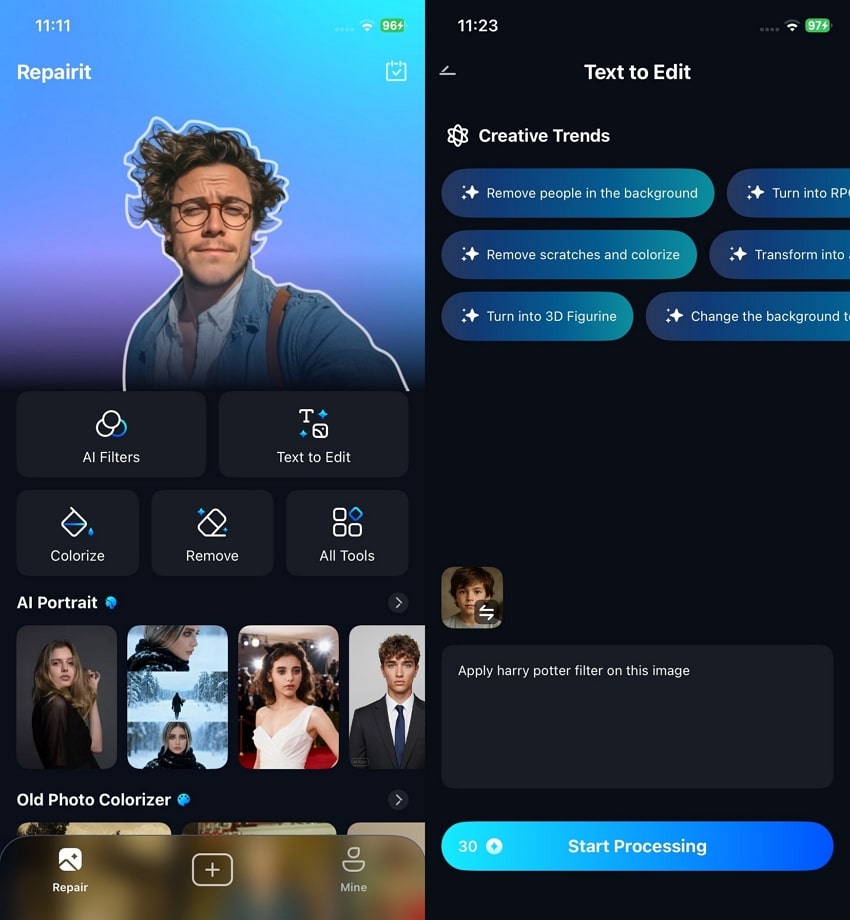
Step 2. Save the Harry Potter Filtered Image
After the conversion of your imported image, preview the output against the original photo. Subsequently, tap the "Save" button to download the filtered photo to your device.

Part 2. Best Tips to Get Magical Results with the Harry Potter Filter on Instagram
To make the most of the Harry Potter Instagram filter, careful planning helps. So, the following tips guide you to create magical and quality photos that really stand out:
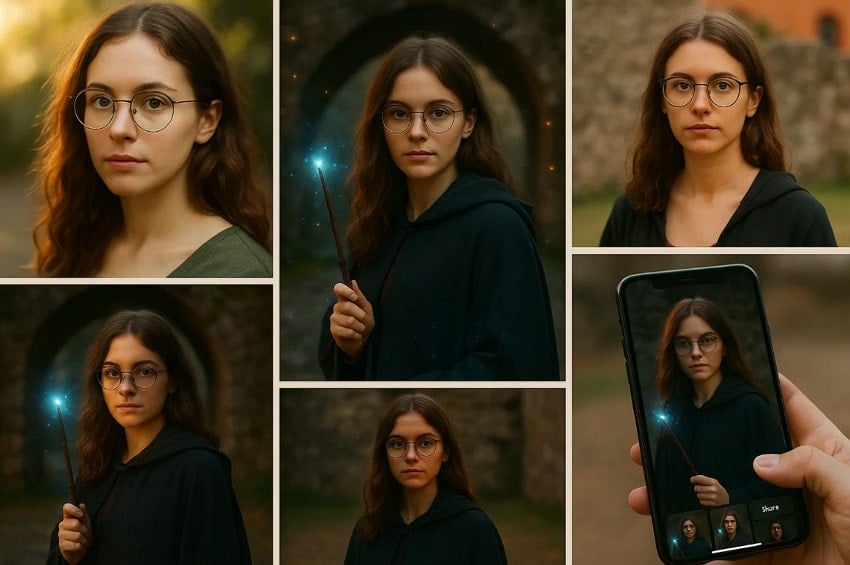
- Good Lighting: The natural or bright light should be used to bring out details in your photos. Optimize shadows and brightness, and then add effects to make your work sharper and brighter.
- Clean Background: Keep backgrounds simple to make your main subject pop visually. Remove clutter or distracting items using apps like Repairit for a polished look.
- Centered Subject: Position your face or main object in the photo’s center. This creates balance and makes your image appear more professional and appealing.
- Enhance Colors: You should also adjust brightness or saturation before applying any effect. Balanced tones make your photos look bright and catchy without additional editing.
- Multiple Tries: Save several versions to compare and pick the best outcome. Repetition ensures your photo looks perfect and ready for sharing online.
Conclusion
In conclusion, the Harry Potter filter on Instagram transforms your photos into peculiar and magical ones. It is incredibly easy and needs simple steps and tips to provide magic effects on your photos. Good lighting and centered subjects improve the overall photo quality. For easier editing and flawless images, the Repairit App is a helpful tool. It can convert your images and prepare them perfectly for applying the desired filter.
FAQs
-
Q1. Does the Harry Potter filter work on videos, too?
Instagram, yes, also allows using filters on videos and photos in the stories. Make sure the video is stable and precise to highlight magical effects. Short clips under 15 seconds usually produce the best results and smooth animations. Moreover, good lighting and centered subjects improve the visibility of wands and effects. -
Q2. How do I make the filter effects more realistic?
You should apply the proper lighting to make shadows and colors bright in the magical realism. Ensure your subject is centered and clear to highlight wizard features properly. Avoid cluttered backgrounds that can distract from effects like wands or floating sparks. Besides, adjust colors subtly; overly bright filters may appear artificial or less immersive magically. -
Q3. Can I edit the filtered photo after saving it?
Yes, saved photos can be edited using Instagram or external apps afterward. The Repairit App is helpful to refine brightness or even remove unwanted objects. Also, editing later allows better control over magical elements and overall aesthetic appearance. Moreover, final touches ensure the Harry Potter filter maintains a precise and professional look.





