

 TL;DR:
You can capture or create black and white photos on an iPhone by selecting the Mono, Silvertone, or Noir filters in the native Camera app prior to shooting, or by applying them to existing images via the Edit menu in the Photos app.
● Native iOS filters applied in the Photos app are non-destructive and maintain original image resolution, enabling you to revert pictures to color at any time or apply the exact same monochrome effects to video files.
● Because default iPhone tools strictly adjust color tones and contrast, removing unwanted objects from a photo requires a third-party application capable of reconstructing background textures.
● The Repairit App serves as an advanced alternative, utilizing an AI-powered Text To Edit feature to generate custom styles via text prompts, colorize monochrome images, and automatically remove unwanted elements.
Ask AI for a summary
 ChatGPT
 Perplexity
 Gemini
 Claude
 Grok
Grok
The iPhone camera captures daily moments with fantastic detail and color clarity. Sometimes, though, photos feel more expressive in simple shades of black and white. Moreover, iPhone's black and white filter helps you create classic images without any editing hassle. It highlights emotion and texture to make your pictures look like fine art pieces.
Alongside that, the method works inside the Photos app and takes only a few quick steps. So, this guide explains how to apply it easily using the default app on your iPhone. Apart from that, you will also explore an advanced AI-powered app for more creative filters and photo effects.
Table of Contents
Part 1. How to Apply the Black and White Filter on iPhone (Step-by-Step Guide)
iPhone offers easy filters that turn colorful photos into elegant black-and-white pictures. So, this section shows how to use native options so you can create clean and classic images quickly.
Using Camera App
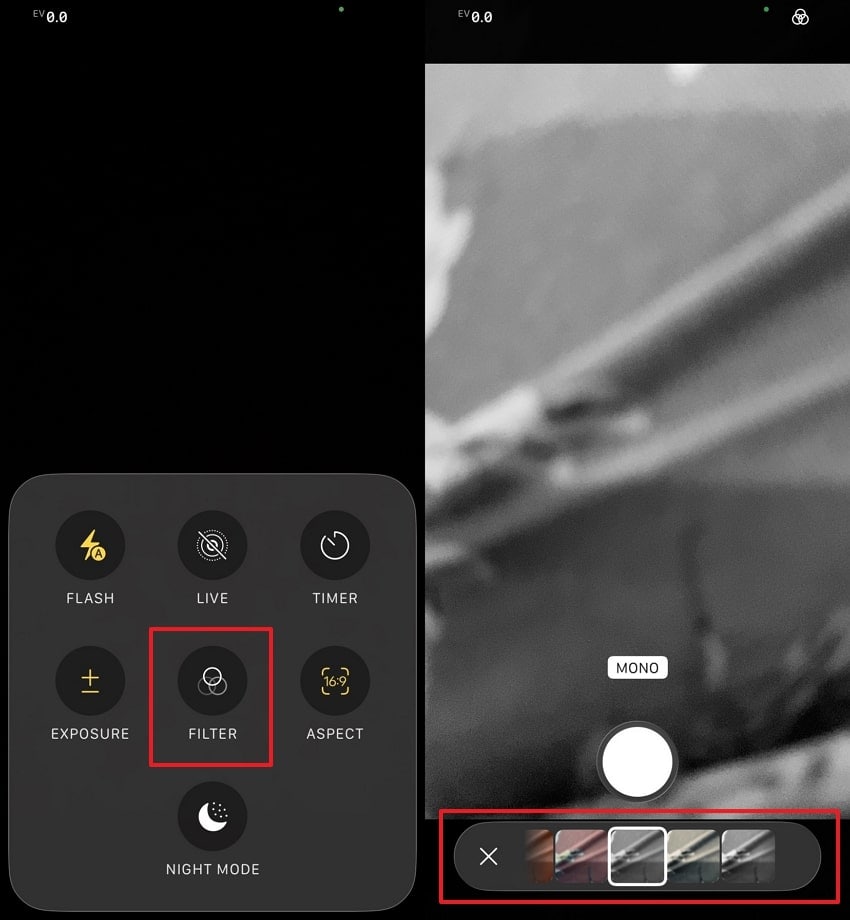
The iPhone's black and white filter is simple and effective for stylish photos. It includes 3 primary filters, such as Mono, Silvertone, and Noir. Each style gives your photo a calm and clean tone without extra effort. These native filters also help you adjust your picture and make your images look polished within seconds. So, take guidance from the following instructions to apply the black and while filter on your photos:
Instructions. Open the “Camera” app to access “Filters” by swiping up and opting for a “Mono” effect. Compose your shot carefully and tap the “Shutter” to save the selected black-and-white photo.
Using Photos App
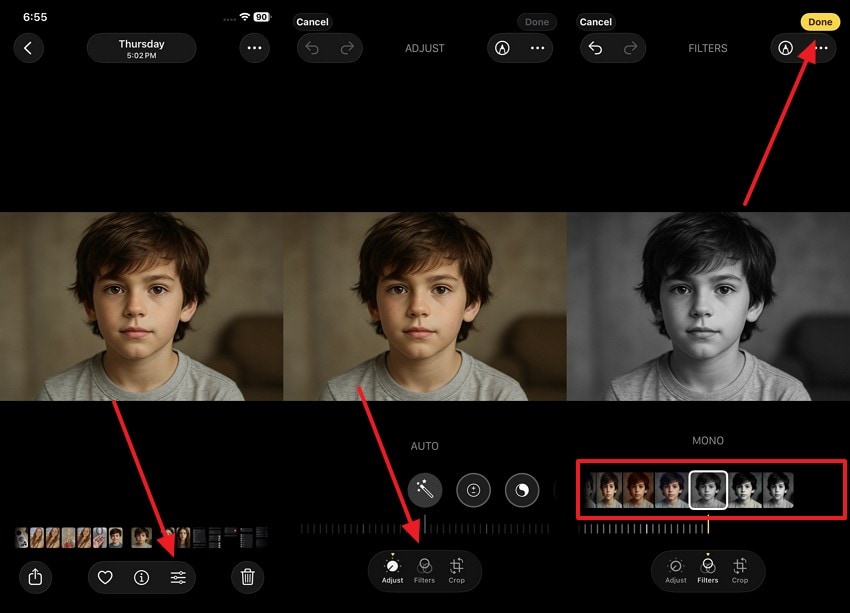
The Photos app also gives easy options to turn your already taken pictures into black and white. It lets you change tones smoothly to create calm and clear monochrome results. You can also control brightness and contrast to make every image look more balanced. Moreover, the app also keeps your original photo safe while testing different filter styles. So, review the given instructions below to transform your pictures:
Instruction. Access the picture in the app and tap the “Edit” icon to choose the “Filters" feature. Afterward, locate and select the "Mono” filter to convert your image into black-and-white and press “Done.”
Part 2. Explore the Most Innovative App to Apply Filters Like Black & White
Sometimes, the native iPhone black and white filter is not enough for creative photo editing. Users also look for tools that create unique results without learning complex editing skills. Repairit App solves these problems by offering innovative features that work with simple steps. It provides an innovative text-to-edit function where you type instructions for AI-powered changes. You can transform portraits into cartoons or even anime looks using one tap.
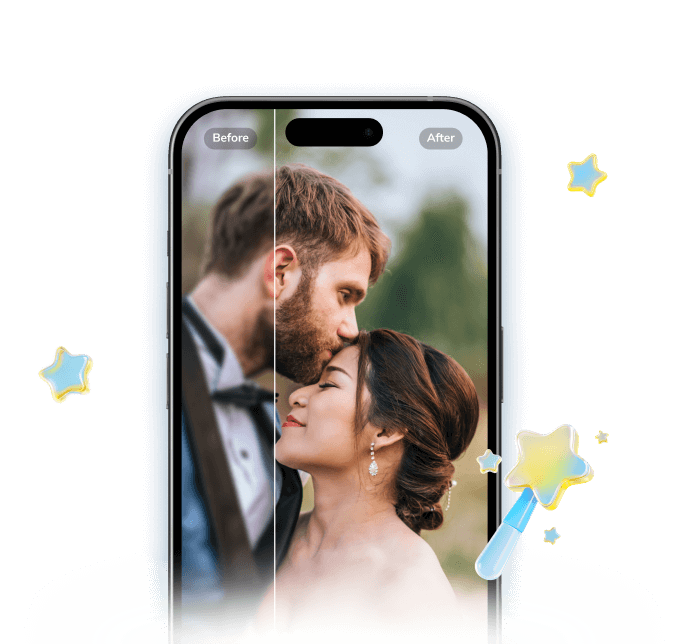
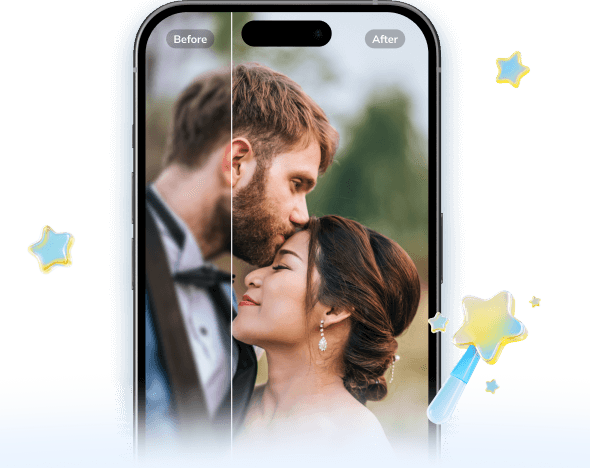
Moreover, seasonal AI Filters add winter snow or even playful Ghostface themes automatically. Each filter keeps natural details while giving your photos a clean and fun artistic style. Besides, Repairit's colorization tool can add realistic color to black and white images to enhance emotion. It also removes unwanted objects while preserving natural backgrounds.
Key Features

Repairit Al Photo Enhancer
Edit Photos with Words, Create Magic with Al
 Text-to-Edit: Describe it, AI repairs, enhances & colorizes instantly.
-
Memory Revival: Restore old photos, fix scratches & blur, relive details.
-
Creative Freedom: Remove objects & turn ordinary shots into unique stories.
Detailed Guide to Apply Filters Like Black & White via the Repairit App
After exploring this dedicated app, many users want to use it for black and white images. So, the following section will help you learn how to use the Repairit app:
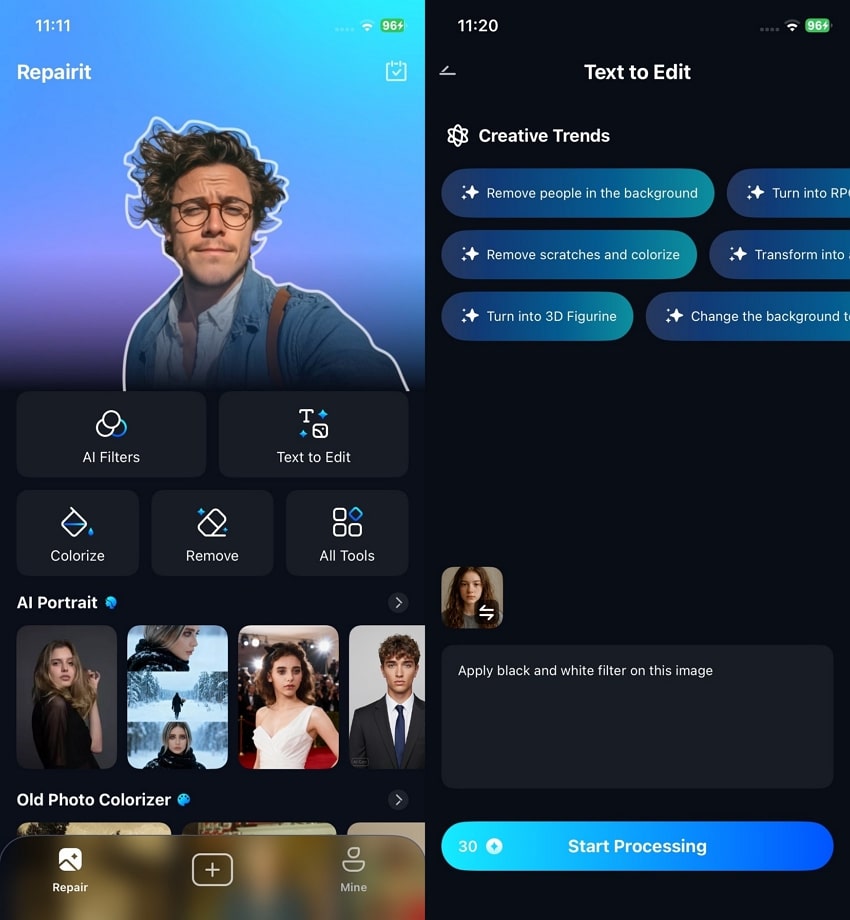
Step 1. Import the Picture to the App
Upon accessing the homepage of the app, opt for the “Text To Edit” option to begin editing. Import your picture to write a prompt and hit the “Start Processing” button.
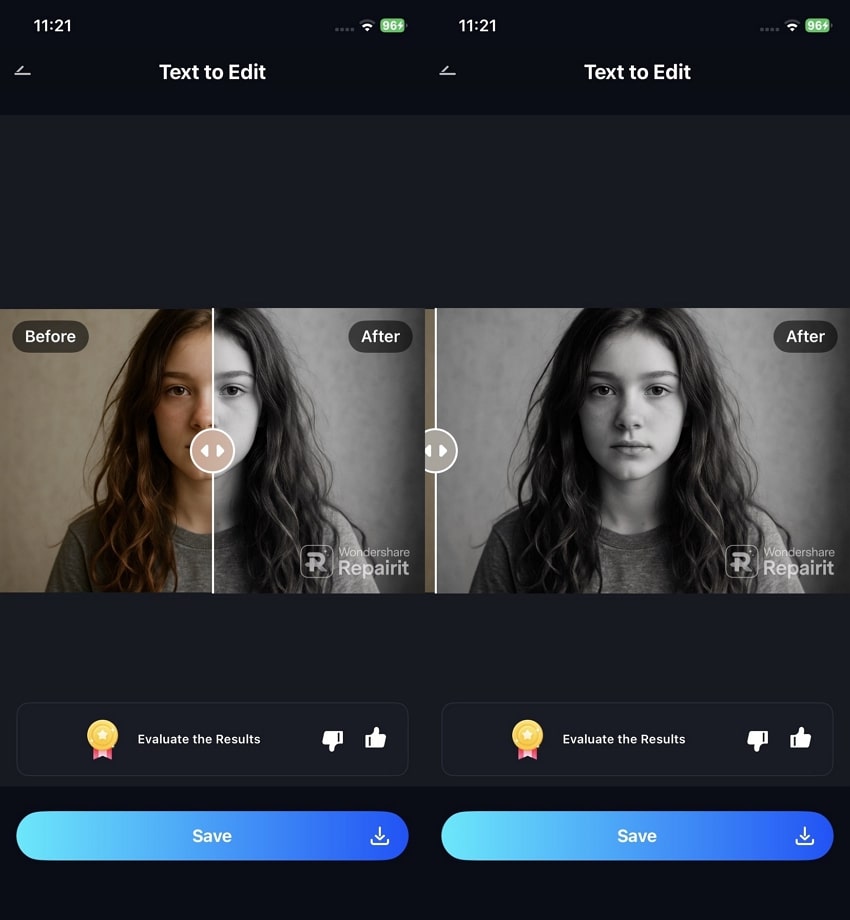
Step 2. Export the Generated Black and White Image
After processing finishes, view the created black and white image and compare it with the original. Press the “Save” button once satisfied to export and store your black and white image.
Conclusion
Finally, the black and white filter in the iPhone is a quick tip to make timeless and beautiful photos. It adds artistic style while highlighting textures and emotions. The native filters make it easy to transform your images without extra tools. However, for more creative options and advanced fixes, the Repairit App is highly recommended. It brings AI-powered editing to help you elevate your iPhone’s black and white filter effortlessly.
FAQs
-
Q1. Will applying black and white filters reduce photo quality?
No, native filters keep the original resolution and do not compress the image. Filters do not distort the pixel detail or clarity, changing color tones and contrast of light only. The Photos app will also let you always go back to the original photo if you need it. Yet, editing multiple times may slightly change the appearance, but the quality remains intact for sharing. -
Q2. Can I use black-and-white filters on videos as well?
Yes, iPhone lets you apply black-and-white filters to videos in the Photos app. Filters adjust visual tones without affecting the original video file or sound quality. You can also preview the effect in real time before saving the edited video. This feature is helpful for cinematic or dramatic visual storytelling purposes. -
Q3. Is it possible to remove unwanted objects in black and white photos?
Apps like Repairit make object removal effortless while preserving natural backgrounds. This cannot be done with native iPhone filters, which only change colors or contrast. Innovative tools detect objects and reconstruct textures to make edits invisible to viewers. The app also offers a one-tap object-removal feature for clean, polished images.





