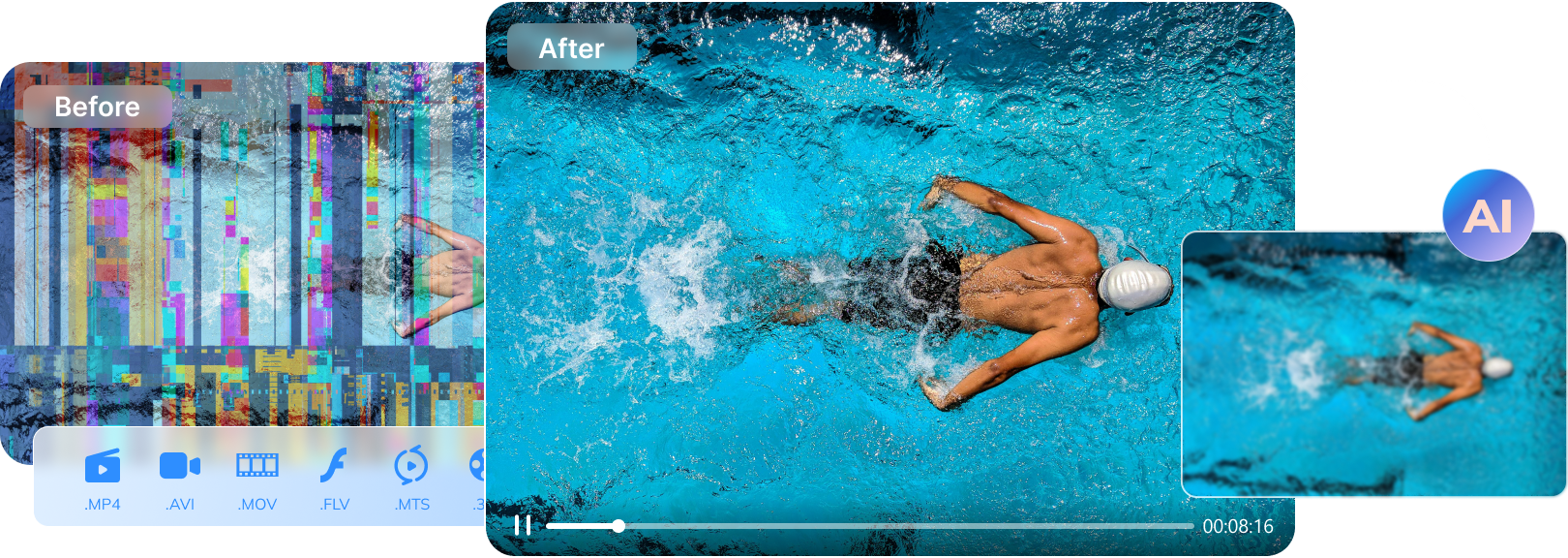

Yes. In many cases, corrupted MKV files can be fixed, especially when the right MKV file fixer or repair method is used.
An MKV file fixer is often the most effective solution when MKV videos stop playing, lose audio, freeze, or show a black screen. MKV files are popular for HD and 4K videos, but they can still become corrupted due to interrupted downloads, system crashes, or editing errors.
In this guide, you’ll learn how to fix corrupted MKV files step by step, including when a simple fix is enough and when using a dedicated MKV fixer is the best option.
Table of Contents
-
- Method 1: Redownload the MKV File From the Original Source
- Method 2: Install the Correct Media Codecs
- Method 3: Update Your Graphics and Display Drivers
- Method 4: Fix Corrupted MKV Files Using a Dedicated MKV File Fixer (Best Success Rate)
- Method 5: Scan Your Disk for Errors Using CHKDSK
- Method 6: Repair MKV Files by Converting the Video Format
Part 1. Identify Common MKV File Problems
Before choosing an MKV file fixer or repair method, it’s important to understand what kind of MKV problem you’re dealing with. Different symptoms often point to different causes—and different fixes.
Below are the most common MKV file problems users encounter:
- MKV File Not Playing: The MKV file won’t open or crashes the media player. This usually happens due to a damaged file header or an incomplete download.
- Audio and Video Out of Sync: The video plays, but audio is delayed or mismatched. This is often caused by corrupted timestamps or failed format conversions.
- MKV File Freezing or Stuttering: Playback pauses, skips, or lags due to damaged frames, missing data, or encoding errors.
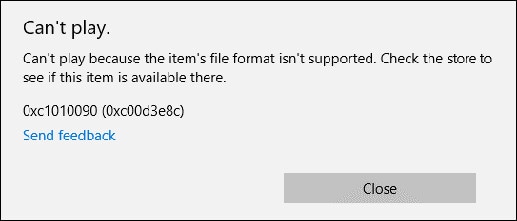
- Error Messages When Opening MKV Files: Messages such as "unsupported format" or "cannot render file" may appear when the file structure or metadata is broken.
- MKV File Not Importing Into Video Editors: Editing software fails to load the file because of corrupted streams or unsupported codecs.
Once you identify the problem, move on to the appropriate MKV fixer method below.
Part 2. Why MKV Files Get Corrupted
So what causes MKV files to break, freeze, or stop working? The most common reasons include:
- Interrupted downloads or transfers: Missing data can make an MKV file incomplete or unplayable.
- Application crashes or forced shutdowns: Recording or editing software crashes may save MKV files without proper video or audio data.
- System crashes or sudden power loss: Interruptions during file writing can damage the MKV file structure.
- Unsupported or missing codecs: Some media players or editors cannot read the codecs inside an MKV file, making it appear broken.
- Damaged storage devices: Faulty hard drives, USB drives, or SD cards can corrupt MKV files, leading to freezing, missing sound, or unreadable videos.
Understanding the cause helps you choose the most effective MKV file fixer or repair method.
Part 3. Step-by-Step Methods to Fix Corrupted MKV Files
To maximize success and avoid further damage, start with the lowest-risk fixes before moving on to advanced MKV fixer tools.
Method 1: Redownload the MKV File From the Original Source
Sometimes an MKV file isn’t actually corrupted—it’s simply incomplete due to an interrupted download or transfer.
This method works best if:
- The file size looks smaller than expected
- The download was interrupted
Step 1: Go to the original website or source.
Step 2: Download the MKV file again without interruptions.
Step 3: Save the file to a reliable storage location and test playback.
If the MKV file plays correctly after re-downloading, no MKV file fixer is needed.
Method 2: Install the Correct Media Codecs
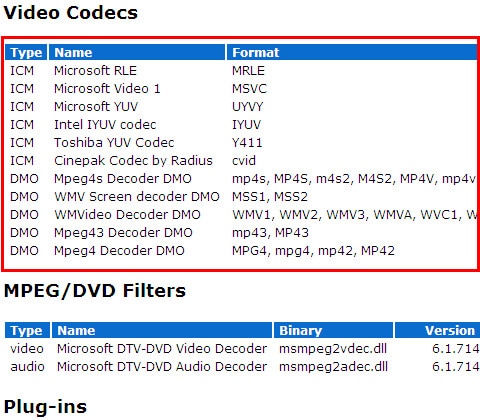
MKV files rely on specific codecs to decode video and audio streams. Missing or outdated codecs can cause playback issues even if the file itself is intact.
Here are the steps:
Step 1: Identify which video and audio codecs the MKV file uses.
Step 2: Download and install the required codecs.
Step 3: Restart your media player and play the MKV file again.
This method fixes decoding issues without modifying the MKV file.
Method 3: Update Your Graphics and Display Drivers
Outdated or incompatible graphics drivers can cause MKV playback issues such as freezing, stuttering, or black screens.
To update drivers:
Step 1: Access Device Manager and look for Display Adapters.
Step 2: Right-click and tick Update Driver.
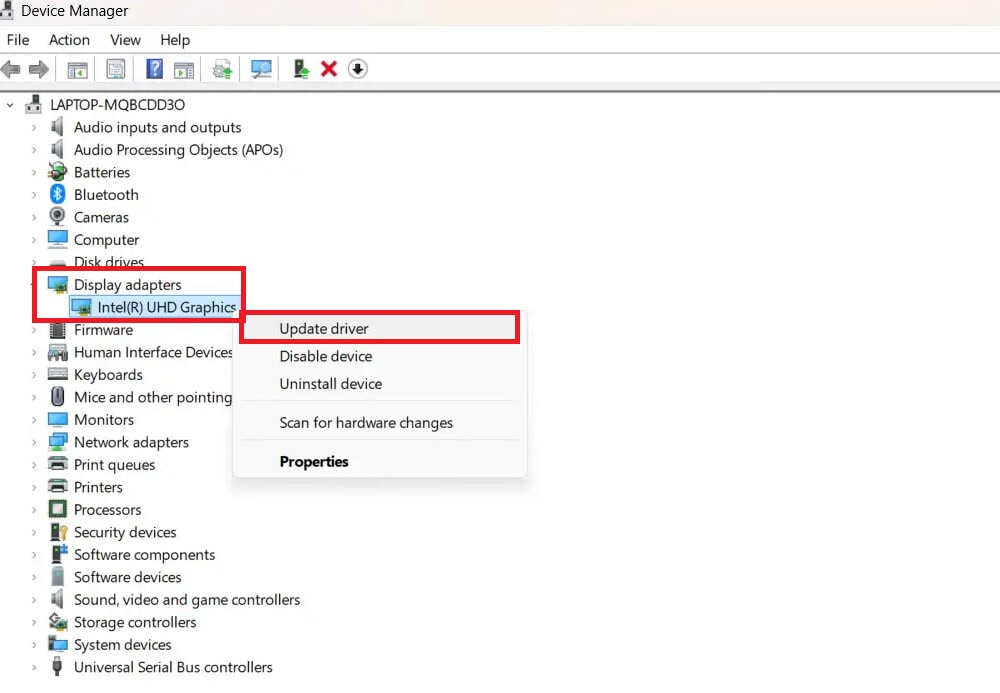
Step 3: Follow the instructions and restart your computer. Play the MKV file again to check if it works.
Faulty or incompatible video card drivers may also cause these issues. Rolling back to a previous version can help. Here are the steps:
Step 1: Open Device Manager.
Step 2: Expand Display Adapters, right-click your video card, and select Properties.
Step 3: Go to the Driver tab and select Roll Back Driver.
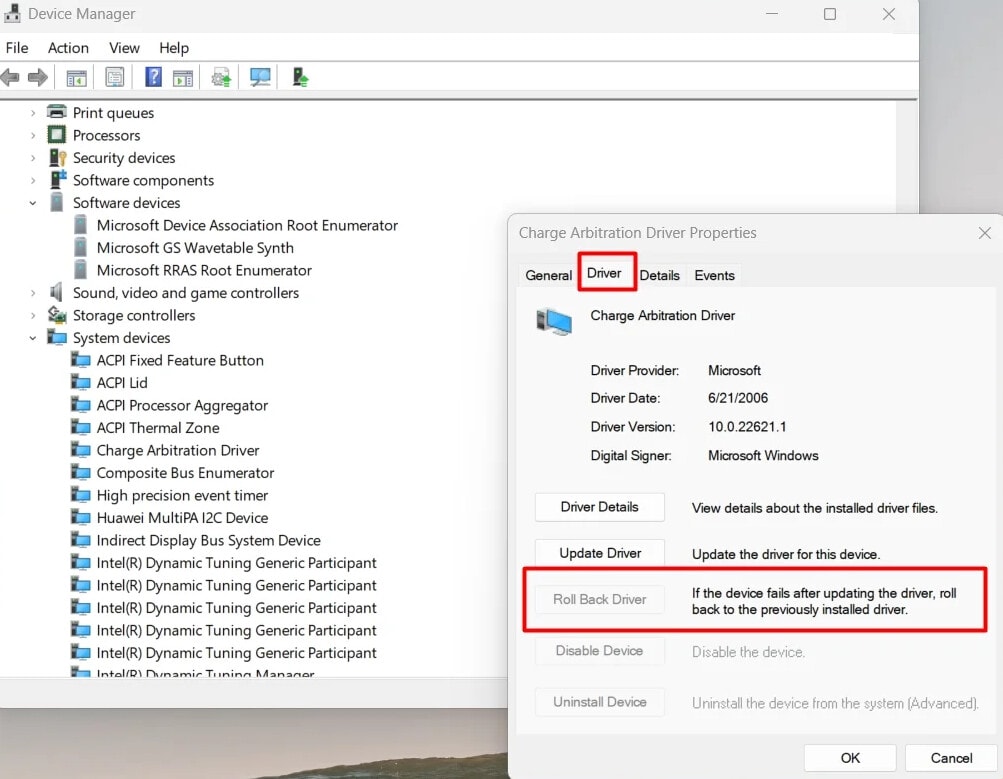
Step 4: Reboot your computer and access the MKV file again.
Method 4: Fix Corrupted MKV Files Using a Dedicated MKV File Fixer (Best Success Rate)
If the MKV file still won’t play, freezes repeatedly, or fails to import into editing software, the file is likely structurally corrupted. In these cases, manual fixes usually fail. A dedicated MKV file fixer is designed to repair damaged file structures without re-encoding or quality loss.
Repairit Video Repair is a professional, AI-powered MKV fixer that analyzes corrupted MKV file headers, frames, and indexes and restores smooth playback.
This MKV file fixer works best if your MKV file:
- Won’t open or play at all
- Shows a black screen or heavy stuttering
- Has missing or out-of-sync audio
- Fails to load in video editing software
Step-by-Step Guide:
Step 1: Open Repairit and add your corrupted MKV files. The MKV fixer also supports MP4, MOV, AVI, MTS, and more.

Step 2: Click Repair to start the MKV file fixing process. Preview the repaired video to check playback quality.

Step 3: If the preview looks good, click Save and choose a new location. Avoid saving the repaired MKV file to the original corrupted folder.

Fix Corrupted MKV Files Using a Dedicated MKV File Fixer
 Security Verified. Over 7,302,189 people have downloaded it.
Method 5: Scan Your Disk for Errors Using CHKDSK
If the MKV file is stored on a damaged hard drive, USB drive, or SD card, file system errors may be causing the corruption.
See the following instructions to scan your disk for errors:
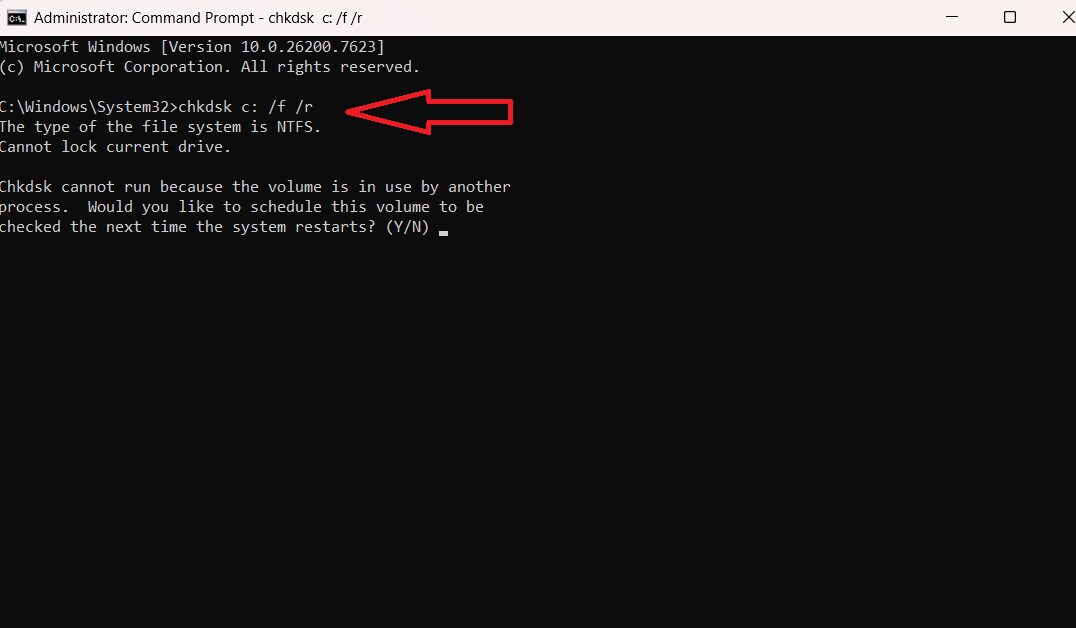
Step 1: Press Win + S, type cmd, then hit Run as administrator.
Step 2: Enter the syntax below:
chkdsk c: /f /r
Step 3: When prompted, type Y and restart your computer. The disk check will run automatically.
Method 6: Repair MKV Files by Converting the Video Format
In some cases, converting an MKV file to another format can rebuild minor structural issues. Here are the steps to convert MKV to MP4 in VLC:
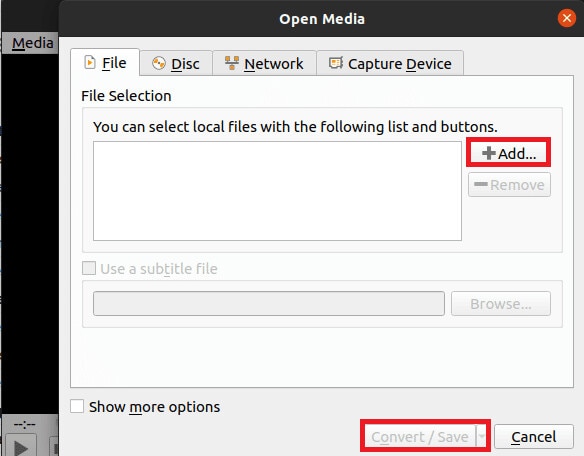
Step 1: Click Media and hit Convert/Save.
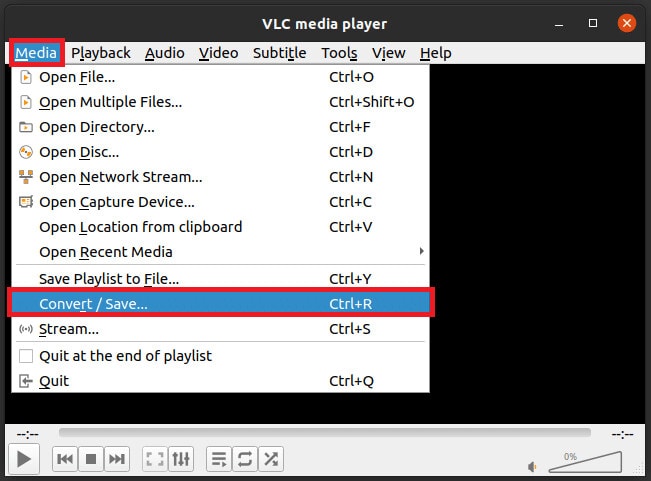
Step 2: Press Add and select your MKV file.
Step 3: Select Convert/Save at the bottom.
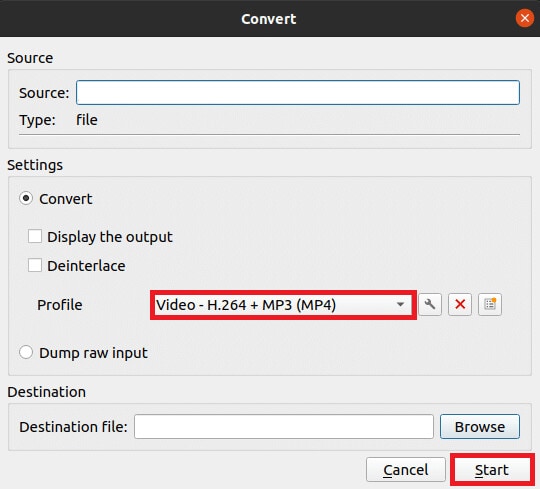
Step 4: Under Profile, select Video – H.264 + MP3 (MP4).
Step 5: Select the destination folder, rename the file if needed, and click Start. After a few seconds or minutes (depending on file size), your MP4 file will be ready in the chosen location.
Note: VLC re-encodes the video to convert MKV to MP4, which can take a long time for large or long files.
Part 4. Tips to Avoid MKV File Corruption
You can prevent most MKV file problems by following these best practices:
- Always let downloads finish completely.
- Safely remove USB drives and external storage devices.
- Use reliable and updated media players and editing software.
- Keep backup copies of original MKV files.
- Update your operating system, codecs, and drivers regularly.
- Avoid sudden shutdowns during recording, transferring, or editing
Conclusion
MKV files may suffer from playback errors, missing audio, or sync issues—but most of these problems are fixable. By identifying the cause and using the right MKV file fixer or repair method, you can restore smooth playback without quality loss. Combining proper repair tools with safe handling practices helps keep MKV files working properly in the long run.
FAQs
-
Can an MKV file fixer fix audio and video sync issues?
Yes. A reliable MKV file fixer can repair broken timestamps and damaged audio or video streams, which often cause sync problems. -
Can an MKV fixer repair large or 4K MKV files?
Yes. Most professional MKV fixers support large and 4K MKV files, provided the system has enough storage and processing power. -
Will an MKV fixer reduce video quality?
No. Good MKV file fixers repair file structure without re-encoding, preserving the original video quality.




