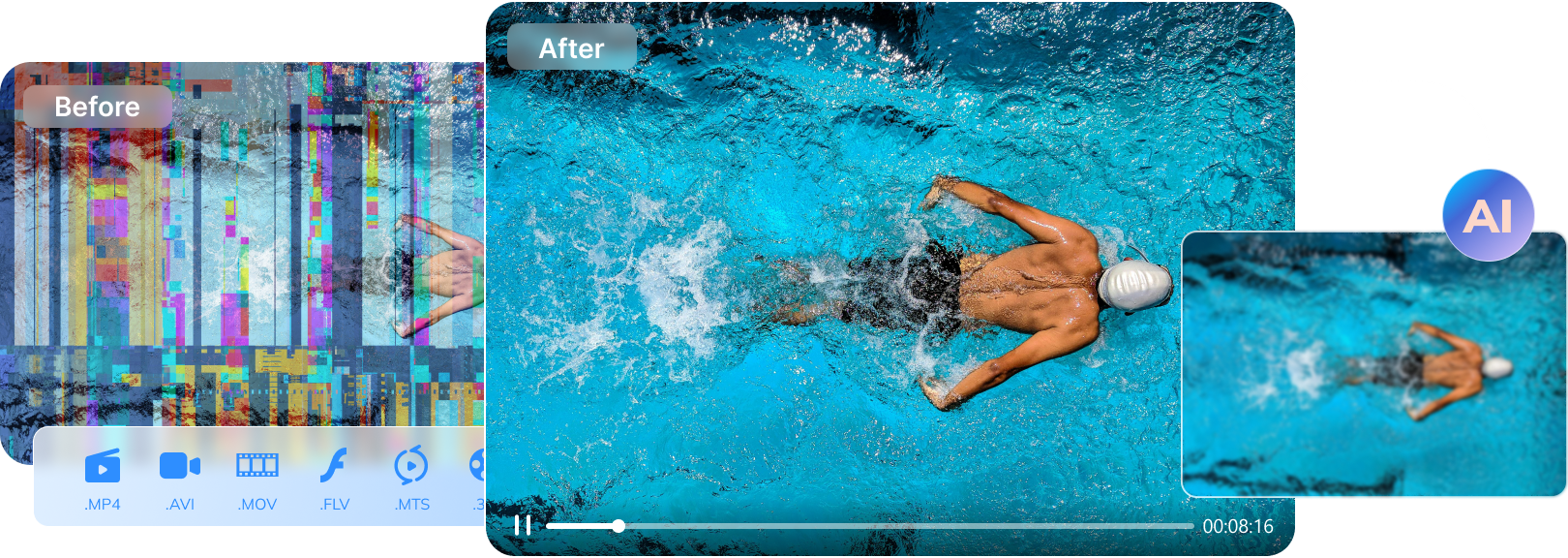

MP4 is the go-to video format for sharing, editing, and storing footage—but it’s not immune to corruption. A sudden shutdown, an interrupted transfer, or a partially finished download can break the MP4 container structure, leaving you with a video that won’t open, freezes, or shows a black screen.
This guide walks you through free online MP4 repair tools that can help restore playability quickly. You’ll also learn when online repair has limits (especially for large or severely damaged files), and what to try next if browser-based tools don’t work.
Quick Answer: What’s the Fastest Way to Fix a Broken MP4 Online?
If your MP4 won’t play due to a minor container issue (like a damaged header from an interrupted transfer), an online MP4 repair tool can often rebuild basic structure and restore playability—without installing software. Start with a tool that supports MP4, check its file-size limits, and avoid uploading sensitive footage unless the service clearly explains deletion and privacy handling. If the file is severely corrupted (large missing segments, heavy glitching, or upload timeouts), a desktop repair tool is usually a better next step.
Table of Contents
Part 1. Why MP4 Videos Become Unplayable
Understanding the cause helps you pick the right repair method (online vs desktop) and avoid wasting time.
- Sudden power or device shutdown: A crash while recording, saving, or exporting can leave the MP4 header/index incomplete.
- Interrupted download or transfer: Unplugging a drive or losing connection can produce a “full-size” file that’s structurally incomplete.
- Storage disk problems: Bad sectors on SD cards, USBs, or hard drives can corrupt video blocks.
- Unsafe removal / format handling issues: Removing storage without ejecting can interrupt write operations.
- Malware infection: Some malware can modify or damage container data, breaking playback.
Common MP4 Corruption Symptoms
Use these symptoms to judge severity:
- Video won’t open at all (“Cannot play video”)
- Black screen / freezing / stuttering, with or without audio
- Blocks, glitches, strange colors, or sudden visual distortion
- Audio missing or out of sync
- Only part of the video plays, then stops or degrades
Part 2. What Is an Online MP4 Repair Tool and How Does It Work?
An online MP4 repair tool is a browser-based service where you upload a broken MP4, let the server analyze the file structure, and then download a repaired version if the issue is fixable. In many cases, these tools attempt to rebuild missing container metadata (like headers) so the video becomes playable again.
Online repair is best for:
- short-to-medium clips
- mild corruption (header/index issues)
- situations where you can’t install software
Important note: Online tools require uploading your video to a third-party server. If the video is personal or confidential, choose services that clearly state how they store files and when uploads are deleted.
Smart Pick Guide: Choosing the Right MP4 Repair Tool
- Supported formats/devices: Confirm MP4 support and whether it handles your device type (phone/camera/drone).
- File-size limits: Check upload caps and daily limits before you start.
- Privacy policy: Prefer tools that state deletion timelines and security practices.
- Repair depth: Look for tools that address header/index + audio/sync issues.
- User feedback: Prioritize tools with consistent reviews for your exact corruption scenario.
Decision Rules: Pick the Right Option in 20 Seconds
- If your MP4 is small (100–300MB) and just won’t open
- If upload keeps failing or the file is huge
- If the MP4 is “unfinished” from recording
- If you see heavy glitches or missing segments
- If the video is sensitive
Part 3. Free Online MP4 Repair Tools (Tested & Compared)
To save you time, here are five popular options with “best for” use-cases and realistic limitations.
Top Picks Summary
- Best overall for balanced features: Repairit Online MP4 Repair
- Best for unfinished recordings (sample-based repair): CleverFiles Online Video Repair
- Best for preview-before-pay workflows: Fix.Video
- Best for very small clips: EaseUS Online Video Repair
- Best “try it first” free option: Tenorshare Online Free Video Repair
Tip: “Free” often means limits (file size, daily repairs, or preview-only exports). Always check caps before uploading.
1. Repairit Online MP4 Repair
Best For: Quick online repair for common MP4 playback issues and mixed device footage
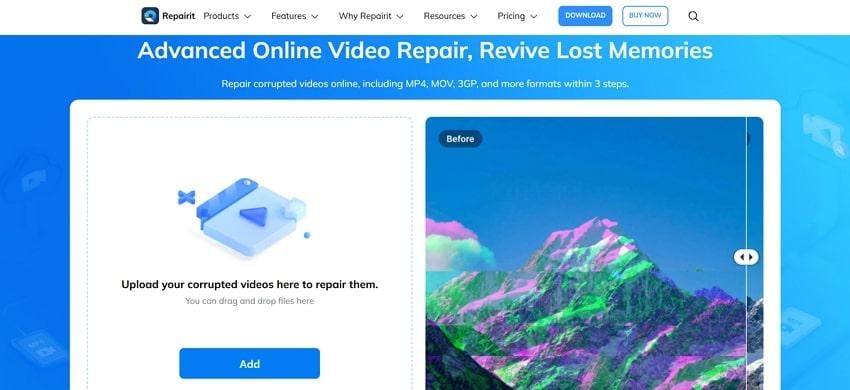
Repairit Online offers a straightforward upload → repair → download flow. It’s designed for users who want a simple web-based option when an MP4 won’t play, shows a black screen, freezes, or has visible corruption artifacts.
Key Features
- Supports MP4 and multiple other video formats
- Batch repair support (limits depend on plan)
- Targets common corruption types (unplayable, black screen, freezing, pixelation)
- Preview repaired results before saving (where available)
Why It Stands Out
- Handles many everyday MP4 corruption cases in a browser workflow
- Works without local installation, helpful on shared/locked computers
- Practical for users who want a fast attempt before moving to desktop repair
2. CleverFiles Online Video Repair
Best For: “Unfinished” MP4s—especially recordings that stopped mid-capture
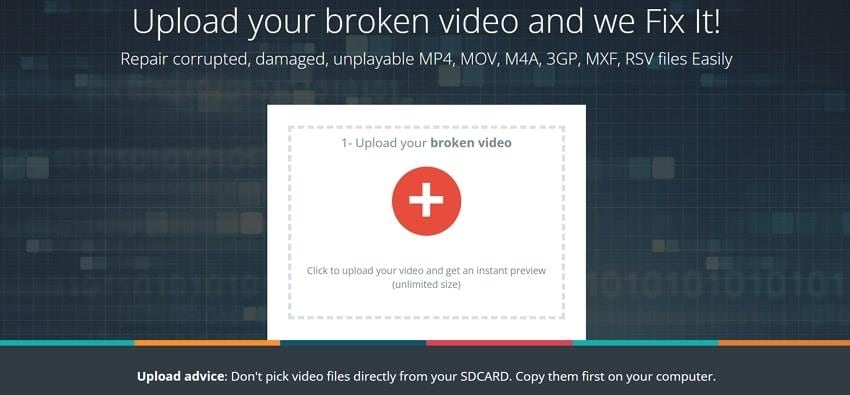
CleverFiles Online Video Repair focuses on MP4 files damaged during recording. In some cases, it can use a working sample video from the same device/settings to rebuild missing metadata more accurately.

3. Fix. Video
Best For: Users who want a preview first and optional help for harder cases
Fix.Video supports MP4 files from phones and cameras, and often provides a preview of repaired output before you decide to pay for the full export.
4. EaseUS Online Video Repair
Best For: Very small MP4 clips with mild corruption
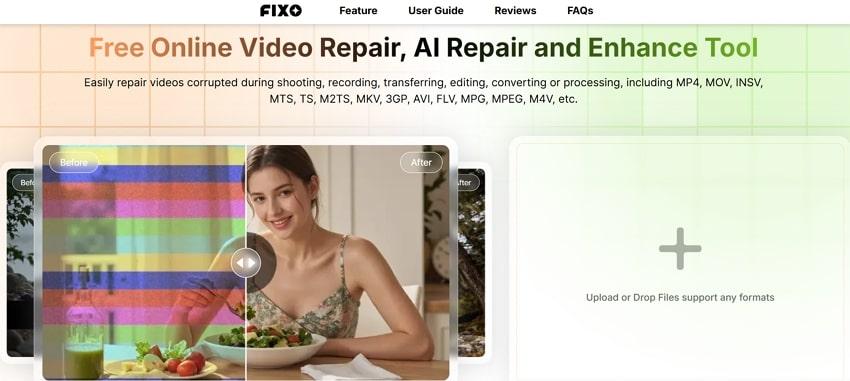
EaseUS is most practical for quick tests on smaller files, especially when you suspect light header/index issues.
5. Tenorshare Online Free Video Repair
Best For: A no-install, “try it first” option for basic MP4 problems
Tenorshare’s online tool is convenient for everyday MP4 issues on small files when you want a quick attempt without installing software.
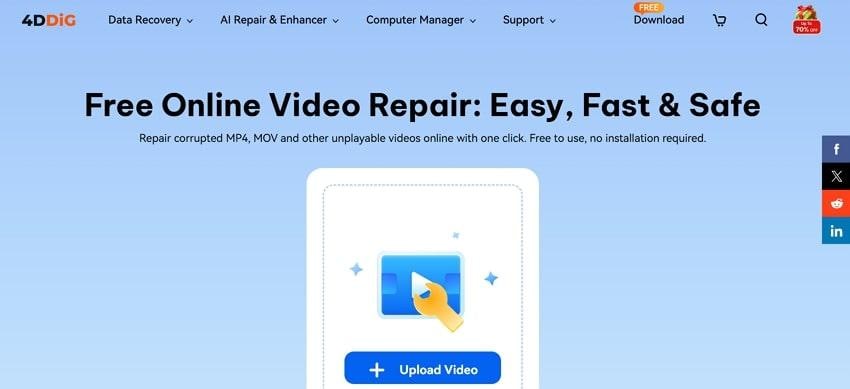
Part 4. Online MP4 Repair Didn’t Work? Try a Desktop Solution
Online tools are great for mild corruption, but they have real limitations:
- If the MP4 contains missing data, no tool can recreate video that was never recorded/saved
- Severe structural damage may require deeper repair algorithms
- High-bitrate or long videos often exceed upload/time-out limits
- Sample-based tools fail if the sample doesn’t match codec/settings
For more demanding cases—large files, heavy corruption, professional footage—a desktop repair solution like Repairit Video Repair can provide deeper repair modes and more stable processing.
Key Features
- Professional repair modes for complex corruption
- Preview repaired output before saving
- Batch repair for multiple files across formats
Follow the guided tutorial and increase the chances of restoring your videos to a playable state in minutes:
Step 1. Open “Video Repair” and click “Start.”

Step 2. Click “Repair” to begin.

Step 3. Preview the result, then save the repaired video.

Fix Corrupted MP4 Documents
 Security Verified. Over 7,302,189 people have downloaded it.
Conclusion
If your MP4 is unplayable due to minor corruption—especially after an interrupted download or transfer—an online MP4 video repair tool is often the fastest first step. For small clips and mild issues, free online options can quickly restore playability without installation. When repairs fail due to severe corruption, large file sizes, or professional footage complexity, a desktop repair tool is the more reliable next move.
Frequently Asked Questions
-
Q1. Why do online MP4 repair tools need a sample file?
They use a sample video from the same device/settings to identify the correct codec and container structure. This helps rebuild missing metadata (like headers) more accurately for “unfinished” recordings. -
Q2. Can severely corrupted MP4 files be repaired online?
Online tools can fix many common cases, but results are limited when a file has major missing segments, heavy glitches, or structural damage. For severe corruption, desktop repair tools generally offer deeper repair options. -
Q3. Should I use online or desktop MP4 repair?
Use online repair first for small-to-medium files with mild corruption and when you need speed and convenience. Use desktop repair for large files, repeated failures, professional footage, or cases where online upload limits/timeouts block repair.




