
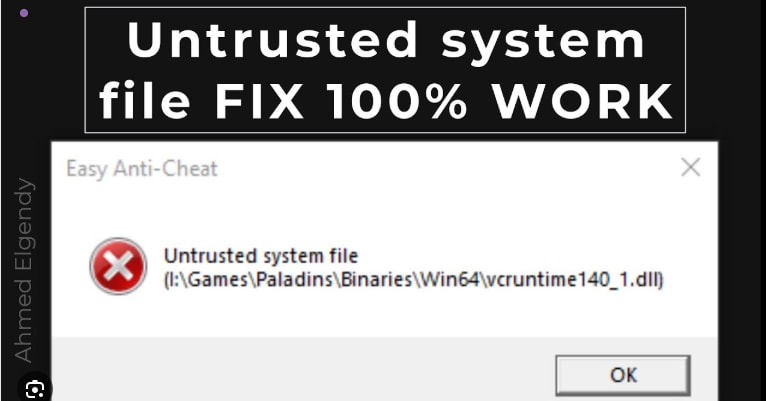
This guide explains what the Easy Anti-Cheat "Untrusted System File" error means, why it happens, and how to fix it safely. You’ll learn quick fixes, verified long-term solutions, and what to do when corrupted files prevent Easy Anti-Cheat from launching your game.
Getting blocked from a game by Easy Anti-Cheat can be extremely frustrating, especially when the error gives no clear explanation. The Easy Anti-Cheat (EAC) "Untrusted System File" error usually appears when the system detects files that do not match its expected integrity checks. For many players, this happens suddenly after updates, driver changes, or software conflicts.
This guide breaks down what the error actually means, the real technical reasons behind it, and step-by-step fixes you can apply safely. You’ll also learn what to do when standard system tools fail due to file corruption.
Quick Answer: What Causes the Easy Anti-Cheat "Untrusted System File" Error?
The Easy Anti-Cheat "Untrusted System File" error occurs when EAC detects modified, corrupted, or unsigned system or game files—most commonly DLL files. It is often triggered by corrupted Windows components, outdated or broken drivers, modified game libraries, or software that injects overlays into games. In most cases, restarting the system, verifying game files, or repairing Windows DLLs resolves the issue. If the same file is repeatedly flagged after all fixes, the file itself may be corrupted and require advanced restoration.
How to Choose the Right Fix (Decision Guide)
- If the error appeared after a Windows or driver update → Run SFC scan and fully update Windows
- If only one specific game shows the error → Verify game files or repair Easy Anti-Cheat
- If the same DLL keeps getting flagged → Repair or replace the corrupted file
- If overlays or monitoring tools are enabled → Disable overlays and background hooks
- If multiple EAC games fail on the same PC → Reinstall Easy Anti-Cheat and check system integrity
Table of Contents
Part 1. What "Untrusted System File" Means in Easy Anti-Cheat
The "Untrusted System File" error means Easy Anti-Cheat has detected a file that fails its integrity verification. EAC checks both game files and certain system libraries to confirm they match trusted versions. If a file is altered, corrupted, unsigned, or injected into memory, EAC blocks the game to prevent cheating or malicious behavior.
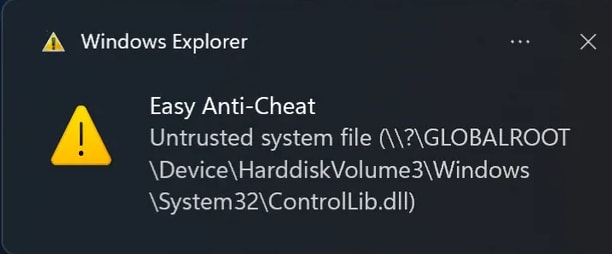
Why Easy Anti-Cheat Blocks System Files
- Signature Mismatch: Missing or broken digital signatures
- Corrupted DLLs: Damaged runtime or system libraries
- Modified Game Files: Replaced or injected modules
- Outdated Certificates: Prevent proper validation
- Disabled Security Protections: Causes EAC to fail trust checks
How Easy Anti-Cheat Integrity Checks Work
Easy Anti-Cheat scans executable code at a low level, comparing hashes of protected files against trusted references. It focuses on executable sections rather than writable data to reduce false positives. If even a small mismatch is detected, the file is flagged as untrusted and the game launch is blocked.
Games Where This Error Commonly Appears
This error is most frequently seen in famous multiplayer and online games:
| Game Name | Notes About the Occurrence of the Error |
| Apex Legends | Frequently appears after updates, often linked to files like ui.dll. |
| Fortnite | Known to trigger when system or game DLLs fail EAC checks. |
| Elden Ring | Reported by players when system files are corrupted or modified. |
| New World | Uses EAC, so integrity issues can surface as this exact error. |
| Dead by Daylight | Multiplayer focus makes EAC strict, leading to more error reports. |
| Lost Ark | An online-only design means any suspicious DLL often blocks launches. |
| Battlefield 2042 | Players report untrusted DLL messages like vcruntime140.dll on launch. |
| War Thunder | Community reports persistent "untrusted system file" despite reinstalls. |
| Various UE4 Games | Many Unreal Engine games using EAC can show this same message. |
Part 2. The Real Causes Behind Easy Anti-Cheat Untrusted System File
Despite the vague message, the error usually has a clear technical cause:
- Driver corruption: GPU drivers can damage their own DLLs
- Incomplete Windows updates: Leave system files in an invalid state
- Modified or injected DLLs: From mods, overlays, or hooks
- Disk errors: Bad sectors corrupt binaries randomly
- Overclock instability: Memory errors alter file data in runtime
Part 3. Fast Fixes to Try First (Low Risk, High Success)
Before moving on to deeper system changes, it’s best to start with a few low-risk fixes. These quick steps resolve a large percentage of Easy Anti-Cheat "Untrusted System File" errors without modifying system files or reinstalling anything.
Fix 1. Restart Your PC
Best for: Errors that appear after updates, crashes, or long uptime
A simple restart refreshes system services, reloads drivers, and restarts the Easy Anti-Cheat service itself. In many cases, the error occurs because a recent update or background service did not load correctly.
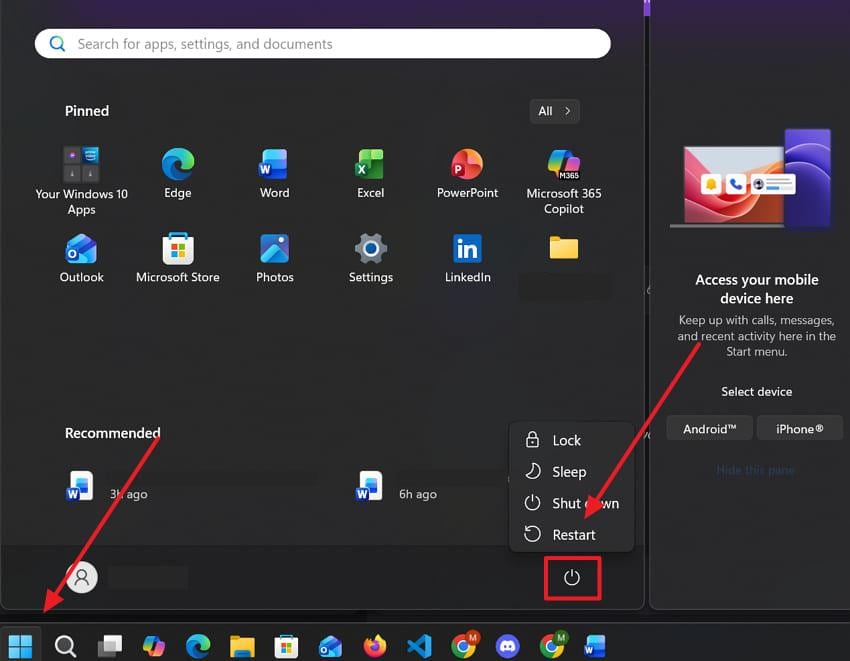
Instructions. Click the "Start" icon to press the "Power" option and opt for "Restart."
Fix 2. Run the Game as Administrator
Best for: Permission-related access issues during file verification
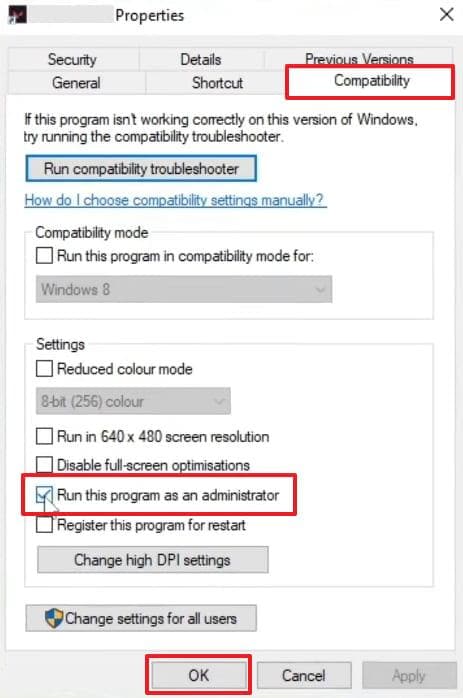
Easy Anti-Cheat needs sufficient permissions to scan game and system DLLs. Running the game as an administrator can prevent access-denied errors that trigger false integrity failures.
Instructions: Right-click the game shortcut → Properties → Compatibility → enable Run this program as an administrator → click OK.
Fix 3. Disable Overlays and Monitoring Tools
Best for: Errors caused by overlays, FPS counters, or system monitors
Overlays from Steam, NVIDIA, Discord, or similar tools hook into game processes. Easy Anti-Cheat may interpret these hooks as file tampering.
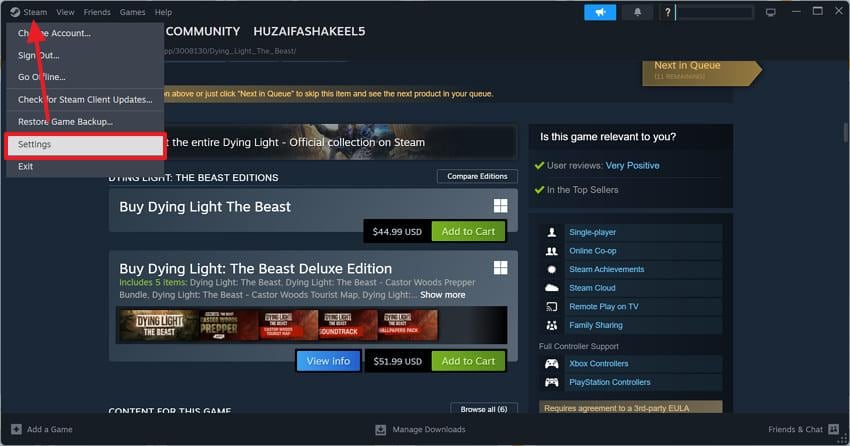
Step 1. To initiate, click the "Steam" tab and navigate to the "Settings" section.
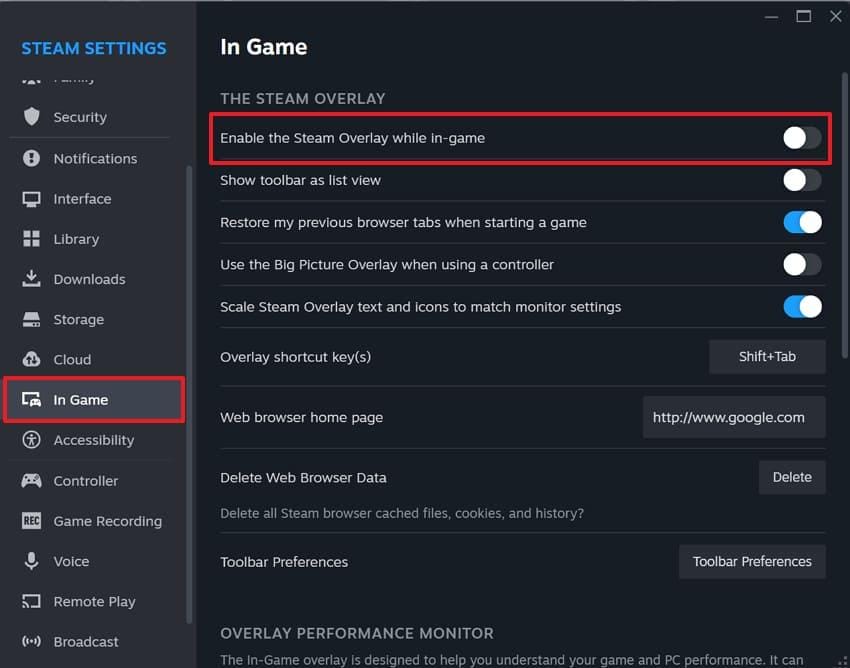
Step 2. Following this, access the "In Game" tab and disable "Enable the Steam Overlay While In-Game."
Part 4. Verified Fixes That Permanently Remove the Easy Anti-Cheat "Untrusted System File" Error
If the quick fixes don’t work and the error keeps returning, the problem is usually related to corrupted files or mismatched system components. The following fixes address those deeper causes.
Fix 1. Run the Easy Anti-Cheat Repair Tool
Best for: Damaged or incomplete Easy Anti-Cheat installations
The built-in repair tool restores missing or corrupted EAC components and re-registers trusted modules.
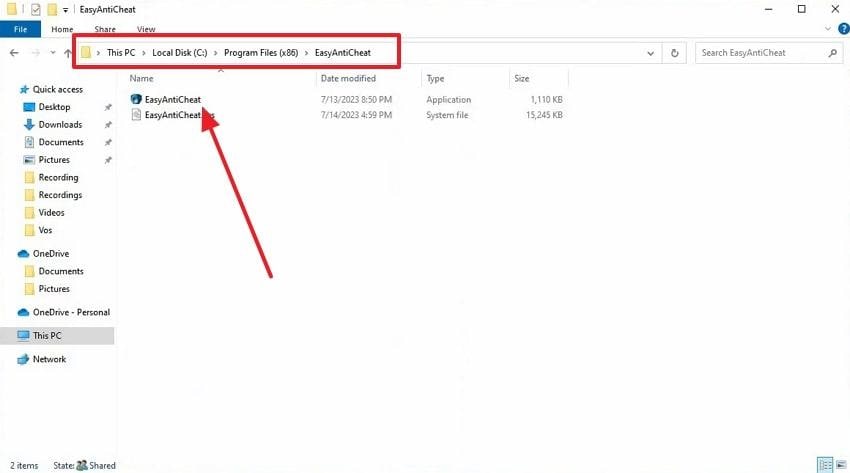
Step 1. Head to the "Program Files (x86)" section from your device’s "File Explorer." Then, access the "EasyAntiCheat" folder and click on its executable file.
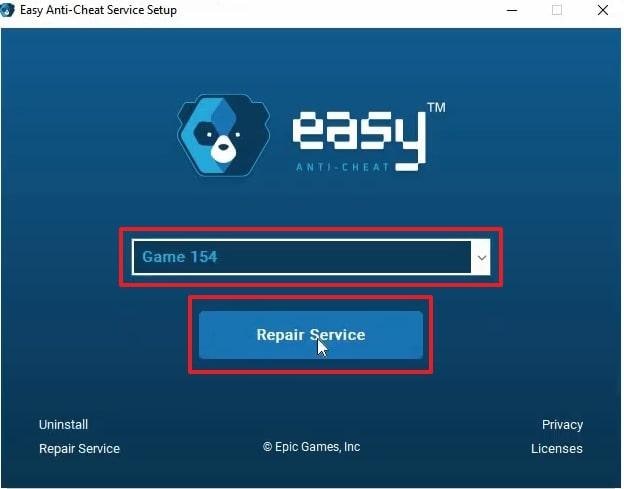
Step 2. Upon running, choose the file that shows "Untrusted System File" and press "Repair Service."
Fix 2. Verify Game Files (Steam / Epic / Ubisoft Connect)
Best for: Corrupted or modified game files
File verification compares installed files with official server versions and replaces anything missing or altered.
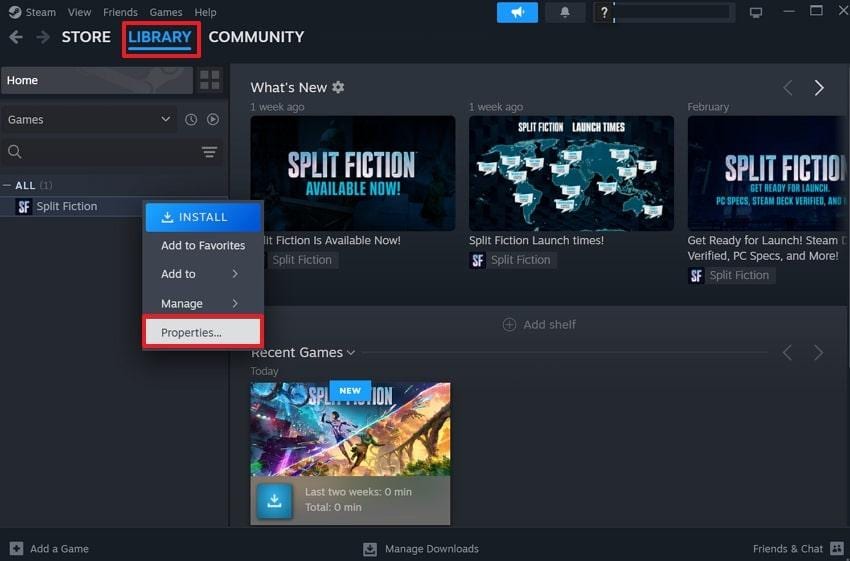
Step 1. Go to the "Library" tab of a game launcher like "Steam" and right-click the game. Upon seeing a new menu, opt for the "Properties" option for further tasks.
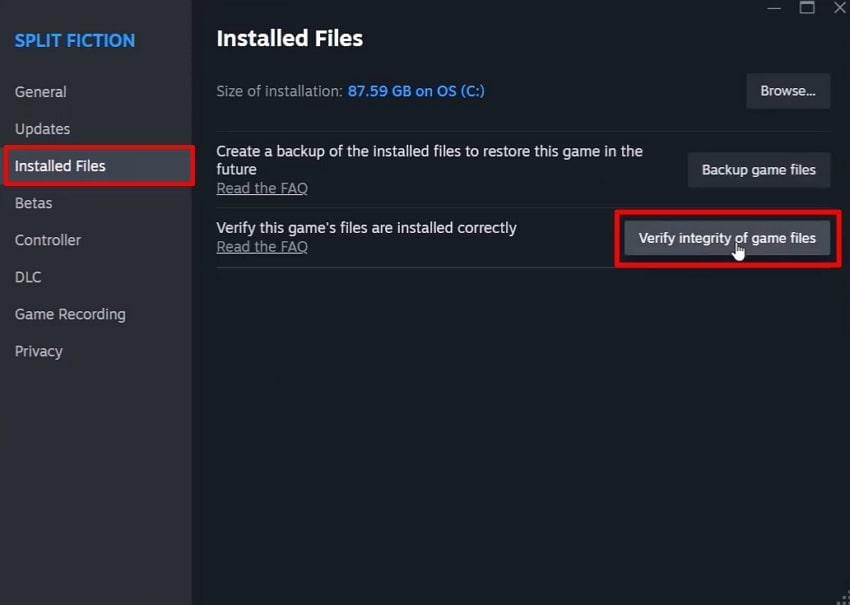
Step 2. Here, click "Verify Integrity of Game Files" from the "Installed Files" tab.
Fix 3. Run SFC Scan to Repair Windows System Files
Best for: Corrupted Windows system DLLs (e.g., vcruntime140.dll)
System File Checker repairs protected Windows components used during integrity checks.
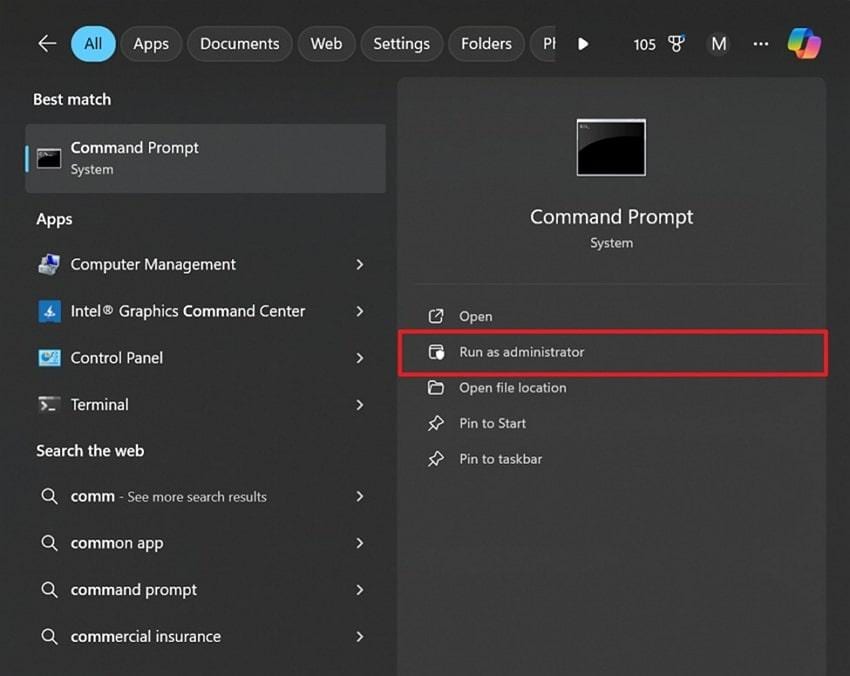
Step 1. As you search for the "Command Prompt," opt for "Run as Administrator."
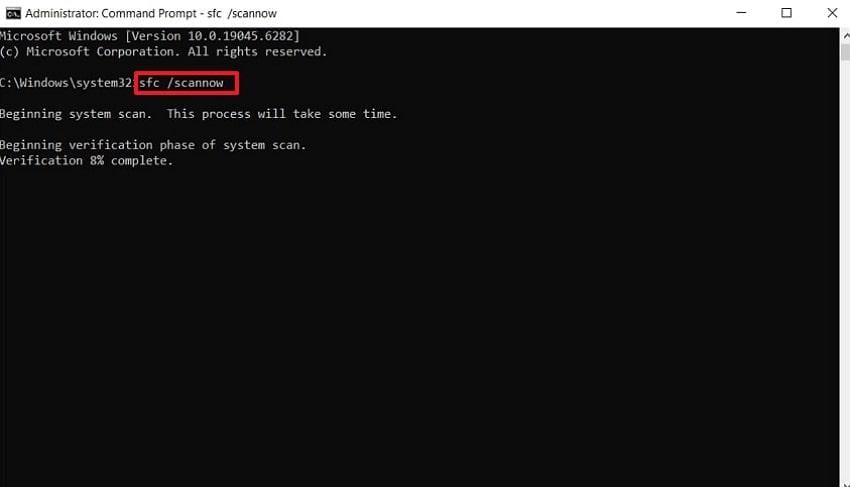
Step 2. Subsequently, type "sfc/scannow" and hit "Enter" to let the system scan and repair files.
Fix 4. Update Windows Fully
Best for: Errors caused by outdated system components
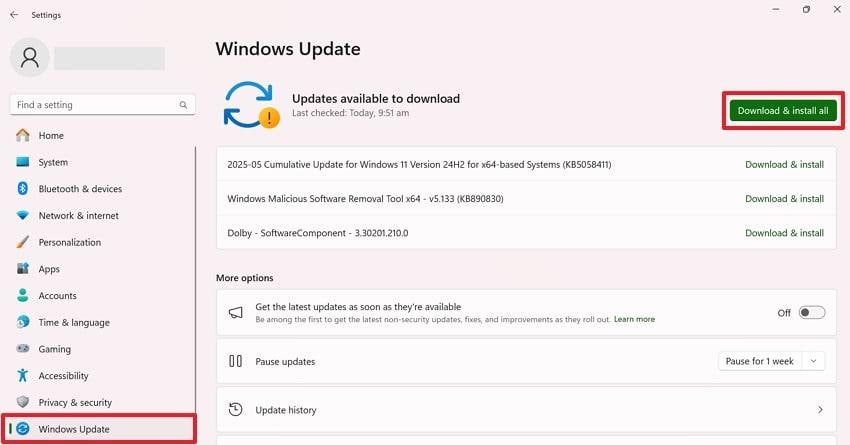
Incomplete or outdated Windows builds can fail Easy Anti-Cheat validation. Installing all updates ensures compatibility.
Instructions. Upon heading to the "Windows Update" tab on your device settings, press "Download & Install All."
Fix 5. Repair or Reinstall Visual C++ Redistributable
Best for: Runtime DLL integrity failures
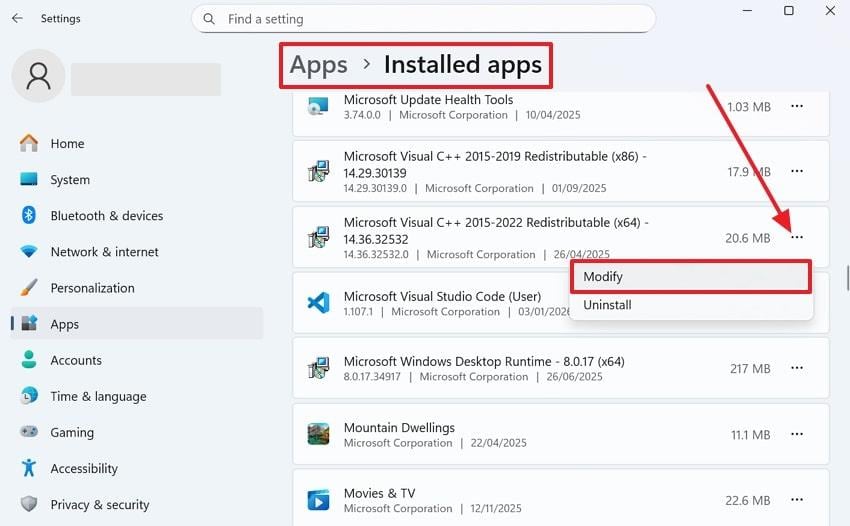
Visual C++ packages provide essential runtime libraries required by many games.
Step 1. Access the "Installed Apps" section from the "Apps" settings. Next, click the "Three Dots" icon next to "Visual C++ Redistributable" and opt for "Modify."
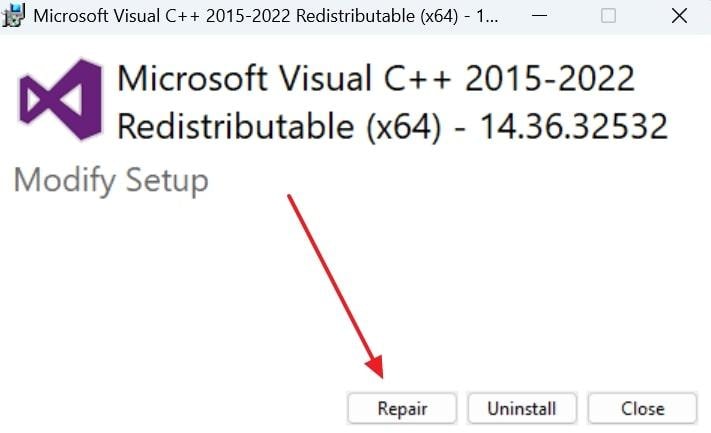
Step 2. Following this, press the "Repair" button to initiate the task.
Fix 6. Reinstall Easy Anti-Cheat Service
Best for: Persistent service-level corruption
Reinstalling EAC resets all its core files to a trusted state.
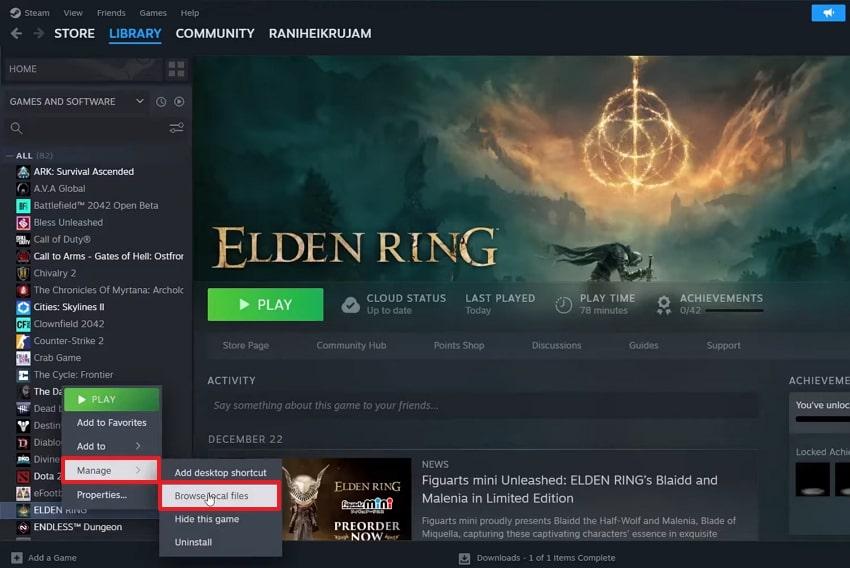
Step 1. On "Steam," right-click the game that shows an error to access "Manage" and choose "Browse Local Files."
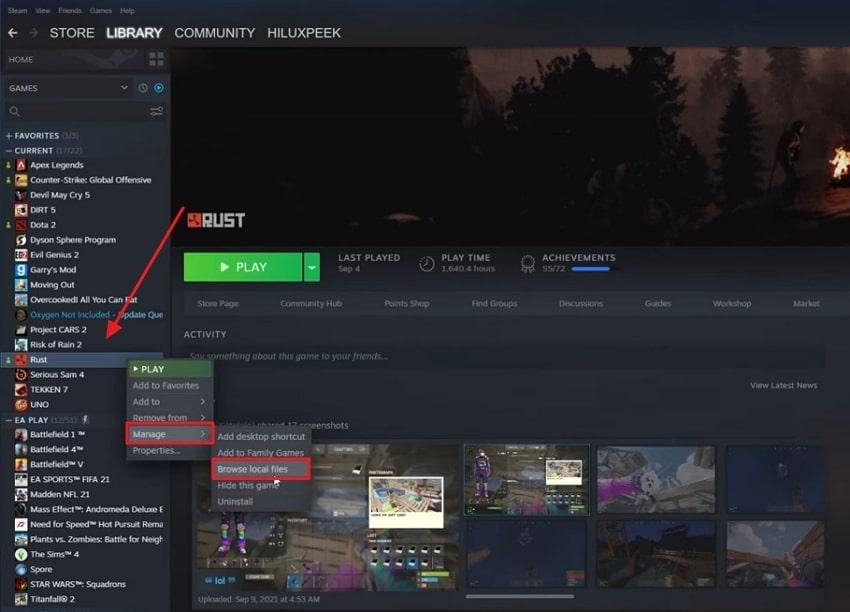
Step 2. Subsequently, navigate to the "Easy Anti-Cheat" folder and click the executable file.
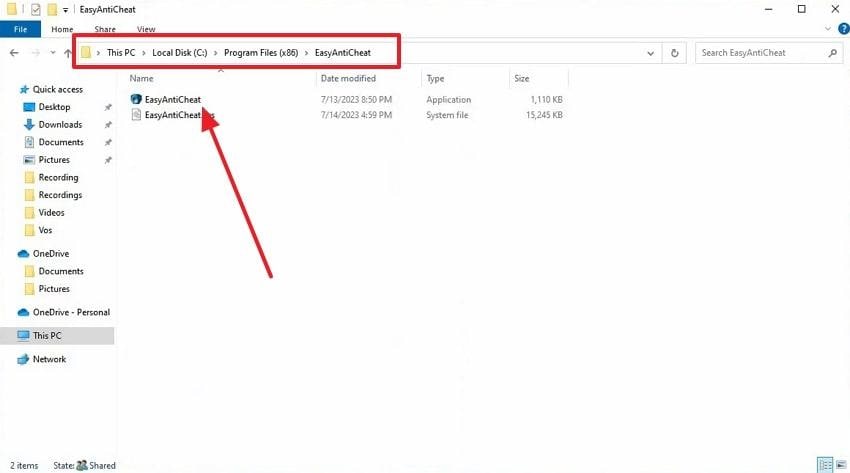
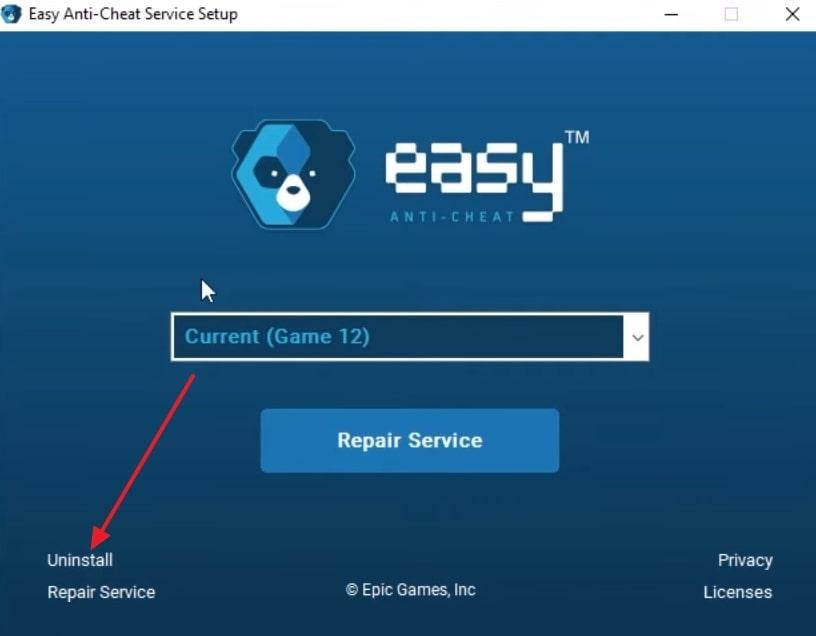
Step 3. Afterward, press the "Uninstall" option to delete it.
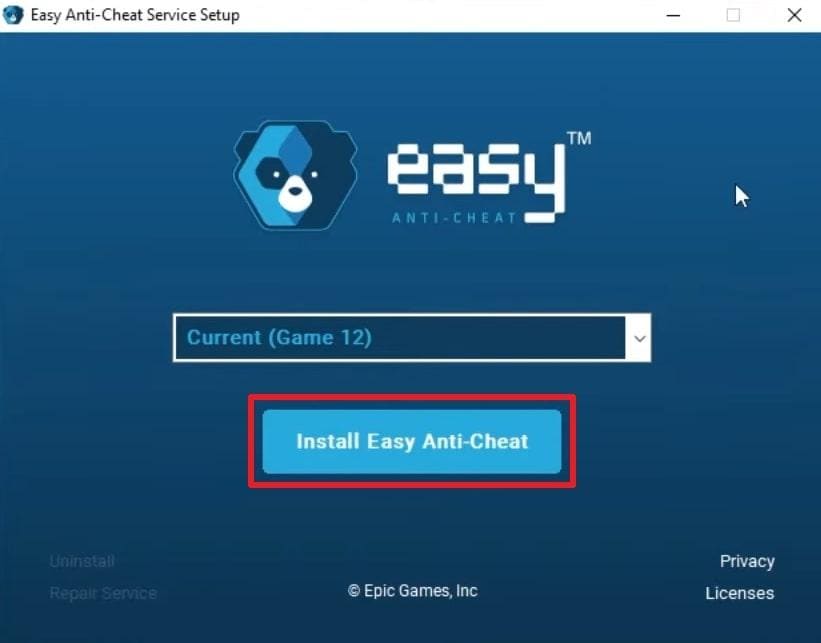
Step 4. Later, restart the "Easy AntiCheat" executable file and then press "Install Easy Anti-Cheat."
Fix 7. Remove or Reset Mods
Best for: Games using unofficial mods or injected DLLs
Mods that replace or hook into core DLLs often trigger integrity failures.
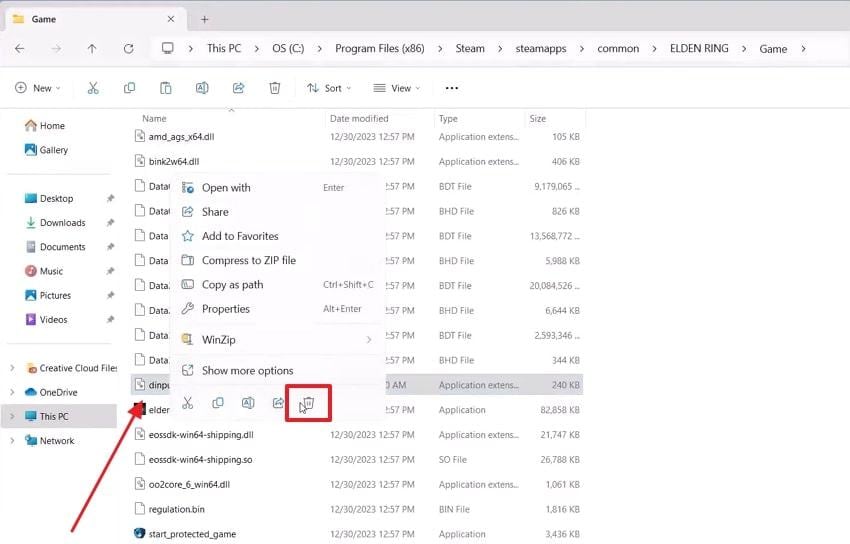
Step 1. Upon right-clicking the game on "Steam," choose "Manage" and head to "Browse Local Files."
Step 2. Locate and right-click the DDL files, like dinput8.dll, to choose "Delete."
Fix 8. Clear TEMP and Cache Files
Best for: Errors caused by leftover temporary data
Corrupted temporary files can interfere with verification processes.
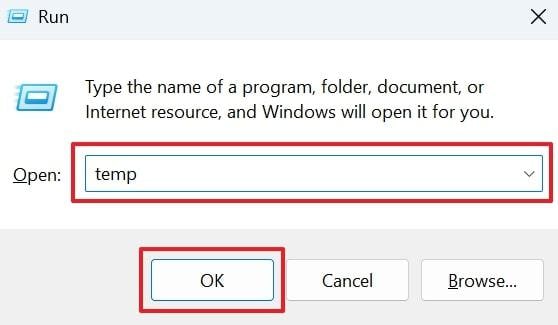
Step 1. To initiate, press "Windows + R" to type "TEMP" and hit the "OK" button.
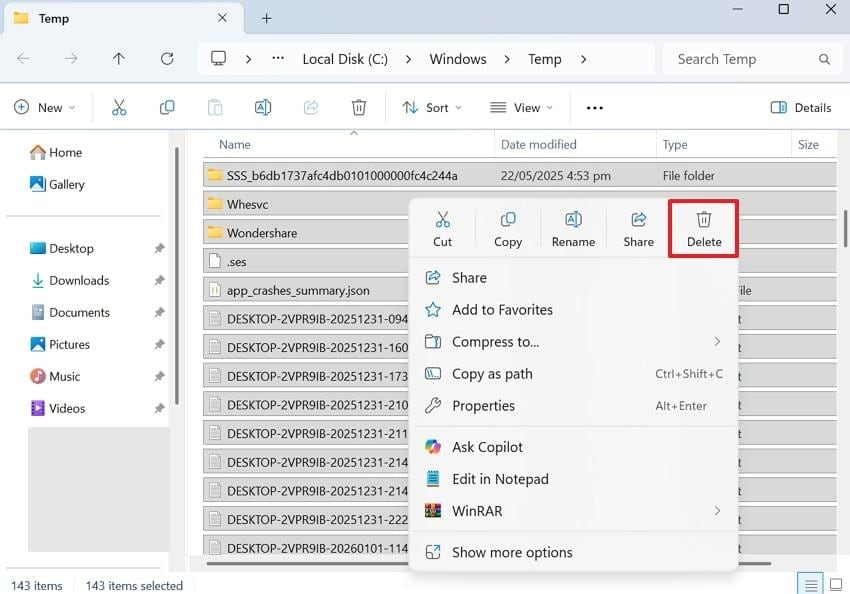
Step 2. Once you access the temp folder, select all the files, right-click on them, and opt for "Delete."
Fix 9. Reinstall the Game
Best for: Deep corruption that verification cannot fix
A clean reinstall restores all original files and removes hidden corruption while keeping cloud saves intact.
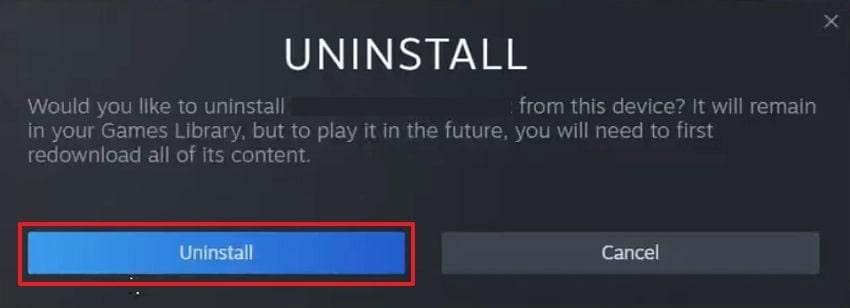
Step 1. Right-click your game from "Steam’s Library" and head to "Manage" to select "Uninstall."
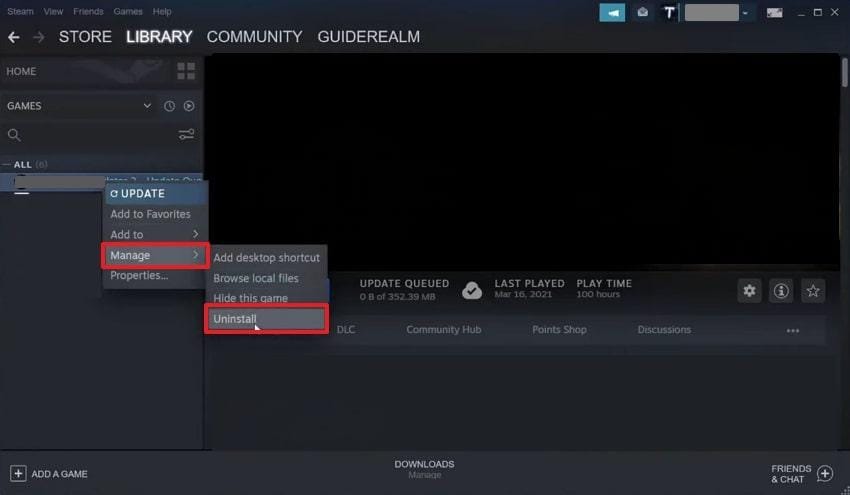
Step 2. As you see a small prompt, press the "Uninstall" button.
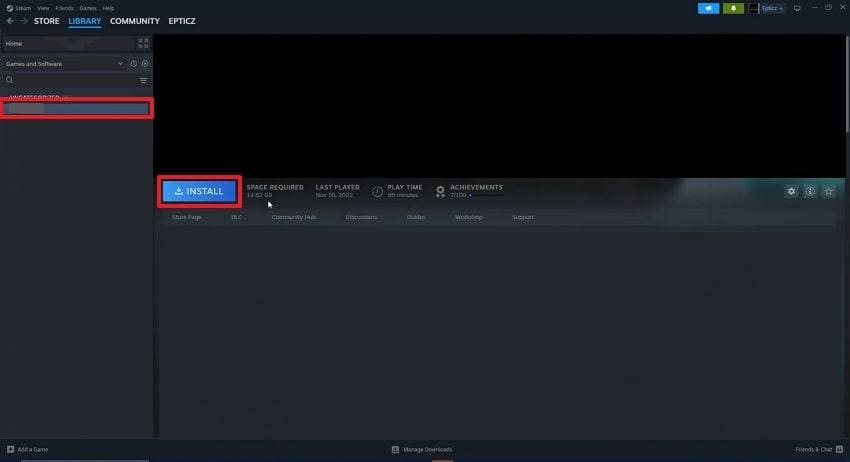
Step 3. Afterward, again access the "Library" section to choose your uninstalled game and click "Install."
Part 5. Still Getting "Untrusted System File"? The File May Be Corrupted
If the same file continues to be flagged after all repairs, it is often structurally corrupted. In these cases, Windows tools cannot reconstruct the file because internal data blocks are damaged.
A dedicated file repair solution can help rebuild damaged file structures without modifying the original source files. Repairit is designed for scenarios where files are unreadable, incomplete, or structurally broken, allowing users to restore functional copies for further verification and testing.

-
Repair damaged files with all levels of corruption, including blank files, files not opening, unrecognizable format, unreadable content, files layout changed, etc.
-
Support to repair all formats of PDF, Word, Excel, PowerPoint, Zip, and Adobe files.
-
Perfectly repair corrupted files with a very high success rate, without modifying the original file.
-
No limit to the number and size of the repairable files.
-
Support Windows 11/10/8/7/Vista, Windows Server 2003/2008/2012/2016/2019/2022, and macOS 10.12~macOS 14.
Part 6. Still Blocked? Contacting Easy Anti-Cheat Support
If the Easy Anti-Cheat "Untrusted System File" error continues after trying all local fixes, the issue may require manual review. At this stage, contacting official support is often the most effective option. Easy Anti-Cheat itself does not offer direct user support; instead, game publishers such as Epic Games or EA handle technical cases through their own help systems.
When submitting a support request, clearly explain what you have already tried, which file is being flagged, and when the issue started. This helps support teams avoid repeating basic steps and speeds up investigation. If the error is incorrectly associated with a security block, publishers can also guide you through the appeal process.
When You Should Escalate
You should contact support if one or more of the following situations apply:
- The same file keeps getting flagged even after running SFC, repairing Easy Anti-Cheat, and verifying game files
- Multiple Easy Anti-Cheat games fail with similar integrity errors on the same system
- The problem began after a major system change, such as a Windows upgrade or GPU driver update
- All local repairs completed successfully, but the exact untrusted file path still appears
- Different launchers show the same block, suggesting a system-wide compatibility issue
These signs usually indicate deeper compatibility or validation problems that require manual review.
What Information to Include in Your Support Ticket
Providing the right information upfront greatly improves your chances of a fast resolution. Include the following where possible:
- Game logs from the game’s Logs folder or Documents directory
- Launcher logs, such as gamelauncher.log (commonly requested by Epic Games)
- Easy Anti-Cheat service logs, if available
- Windows Event Viewer entries from the time the error occurred
- Screenshots of the error message, showing the full untrusted file path
The more complete your report, the less back-and-forth is required.
How to Reduce the Risk of False Flags in the Future
While Easy Anti-Cheat is strict by design, the following habits can reduce the chance of similar errors returning:
- Keep Windows fully updated to prevent outdated or incomplete system files
- Use clean GPU driver installations to avoid mismatched runtime libraries
- Remove cheat tools and trainers, even from unrelated games
- Stick to trusted, official mods that do not replace core DLL files
- Limit overlays and background hooks that inject code into game processes
These steps help maintain file integrity and reduce conflicts during Easy Anti-Cheat verification checks.
Conclusion
The Easy Anti-Cheat "Untrusted System File" error is not a ban, but a file integrity issue. In most cases, it can be resolved by repairing system components, verifying game files, or restoring trusted runtime libraries. When corruption prevents standard fixes from working, repairing the damaged file itself becomes necessary. With the right approach, you can restore system trust and return to smooth gameplay.
Frequently Asked Questions
-
Q1. What does Easy Anti-Cheat untrusted system file mean?
It means a system or game file failed integrity verification and was blocked by EAC. -
Q2. Is this an error or a ban?
No. It is a launch protection error, not an account ban. -
Q3. Can corrupted system files trigger Easy Anti-Cheat?
Yes. Corrupted DLLs often lose valid signatures required by EAC. -
Q4. Why does the SFC scan not always fix the error?
SFC only repairs protected Windows files, not game-specific or third-party DLLs.




