![[SOLVED] Failed to Load Snapchat Picture? Causes & Fixes on Android and iPhone](https://images.wondershare.com/repairit/article-trans-image/3126/snapchat-failed-to-load-picture-1.jpg)
Snapchat showing a "failed to load" picture message can be irritating, especially when everything seemed to work just moments ago. The issue isn’t limited to one device; it affects both Android and iPhone users and can appear anywhere from private chats to Memories.
What makes it frustrating is how unpredictable it is. In some cases, the problem clears up on its own and turns out to be nothing more than a connection issue or a brief app bug. In other cases, the photo itself is broken, leaving Snapchat unable to open it no matter how many times you try.
Table of Contents
Part 1. Why a Snapchat Picture Failed to Load
When Snapchat photos fail to load, the cause is usually one of two things: a temporary app or connection issue, or a problem with the image file itself. Knowing which one you’re dealing with can help you fix the problem faster.
- Network Issues: Snapchat needs a steady internet connection to load images properly. If your Wi-Fi signal is weak, mobile data is unstable, or the connection drops even briefly, photos may stop loading or fail altogether. In many cases, reconnecting to a stronger network fixes the issue right away.
- App Glitches or Outdated Versions: Snapchat uses cached data to improve performance, but that data can sometimes cause problems, especially after app updates or unexpected crashes. Using an older version of the app can also lead to loading issues due to unresolved bugs.
- Corrupted or Incomplete Images: If a photo download is interrupted by a low battery, app crash, or sudden connection loss, the file may not save correctly. These images often appear blurry, greyed out, or completely unreadable and won’t load properly inside Snapchat or in your phone’s gallery.
- Device Storage Limitations: Low storage space can prevent Snapchat from downloading or processing images correctly. In some cases, the photo appears to download but never fully loads because the app doesn’t have enough space to finish saving it.
- Snapchat Server Issues: At times, the problem isn’t on your device at all. If Snapchat’s servers are experiencing temporary issues, images may fail to load for many users at the same time. These situations are usually short-lived and resolve without any action on your part.
Part 2. Quick Fixes for Snapchat Pictures That Failed to Load (Android and iPhone)
Before assuming file corruption, start with these quick fixes. They usually resolve temporary issues like unstable connections, minor app glitches, or low storage and help you confirm whether the problem is with Snapchat, your device, or the image file.
1. Restart Snapchat or Your Device
Restarting Snapchat or your device refreshes the app and system processes. This clears temporary glitches or background conflicts that may interfere with image loading.
Android:
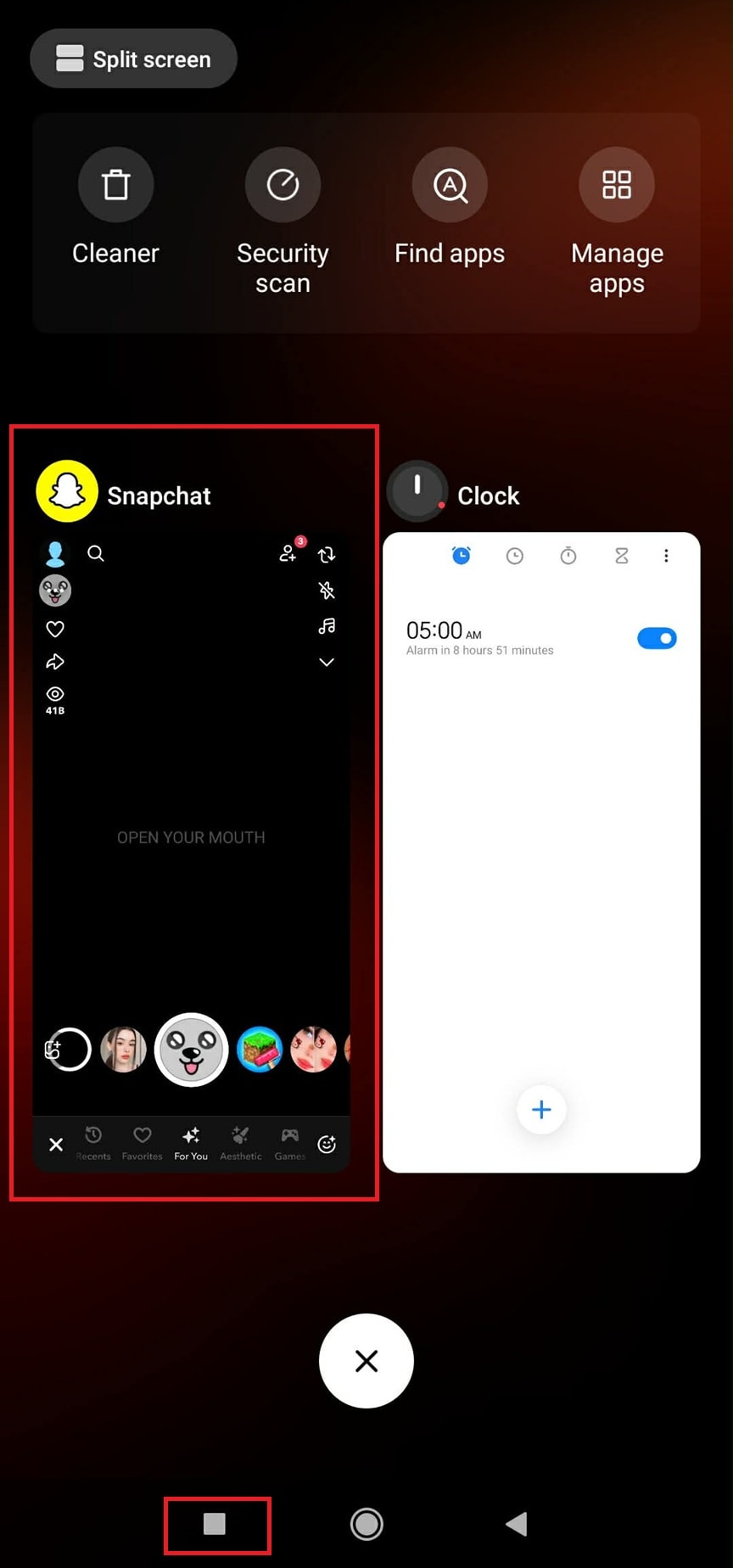
- Swipe up or press the multitask button to open recent apps. Find Snapchat and swipe it away to close it completely.
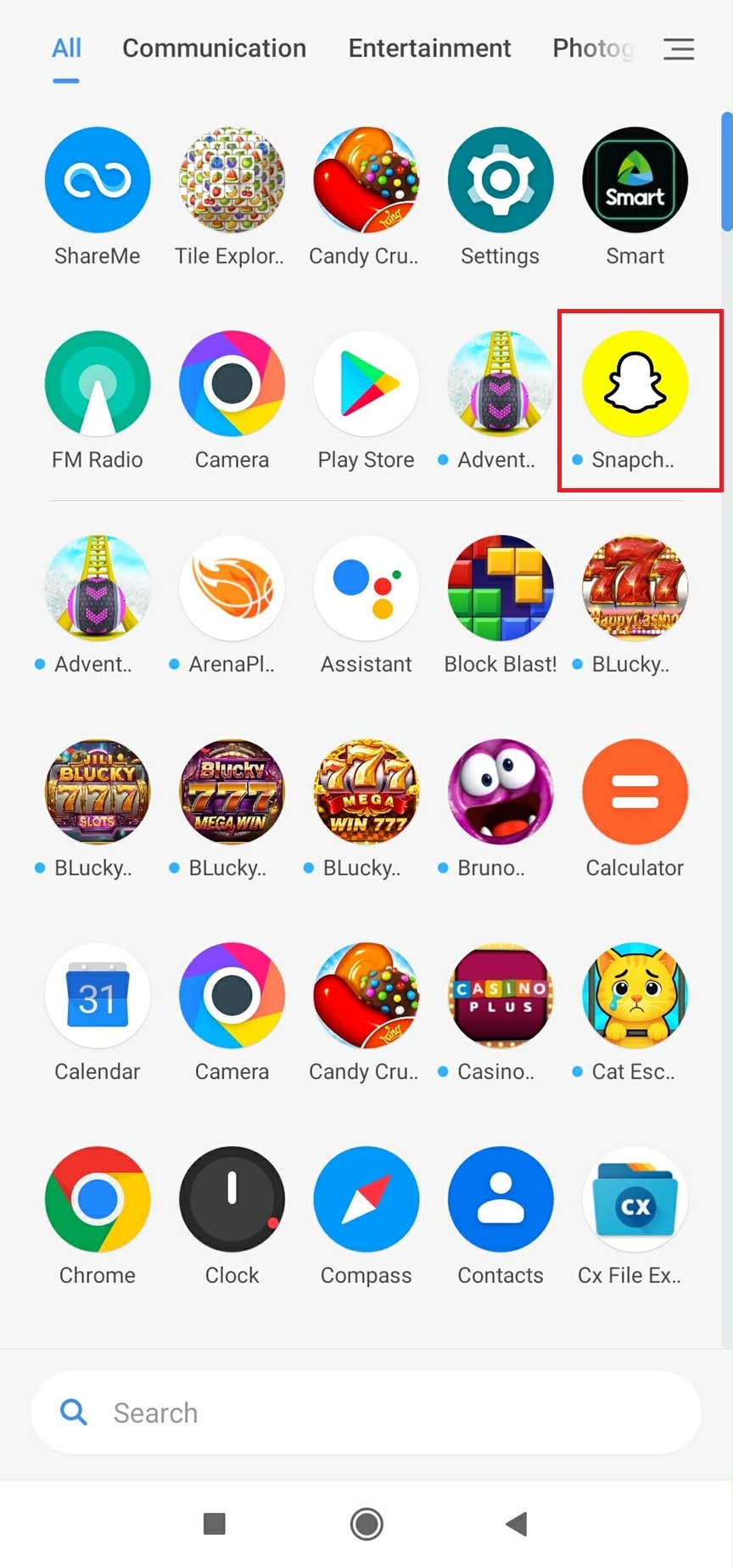
- Reopen Snapchat from the app drawer.
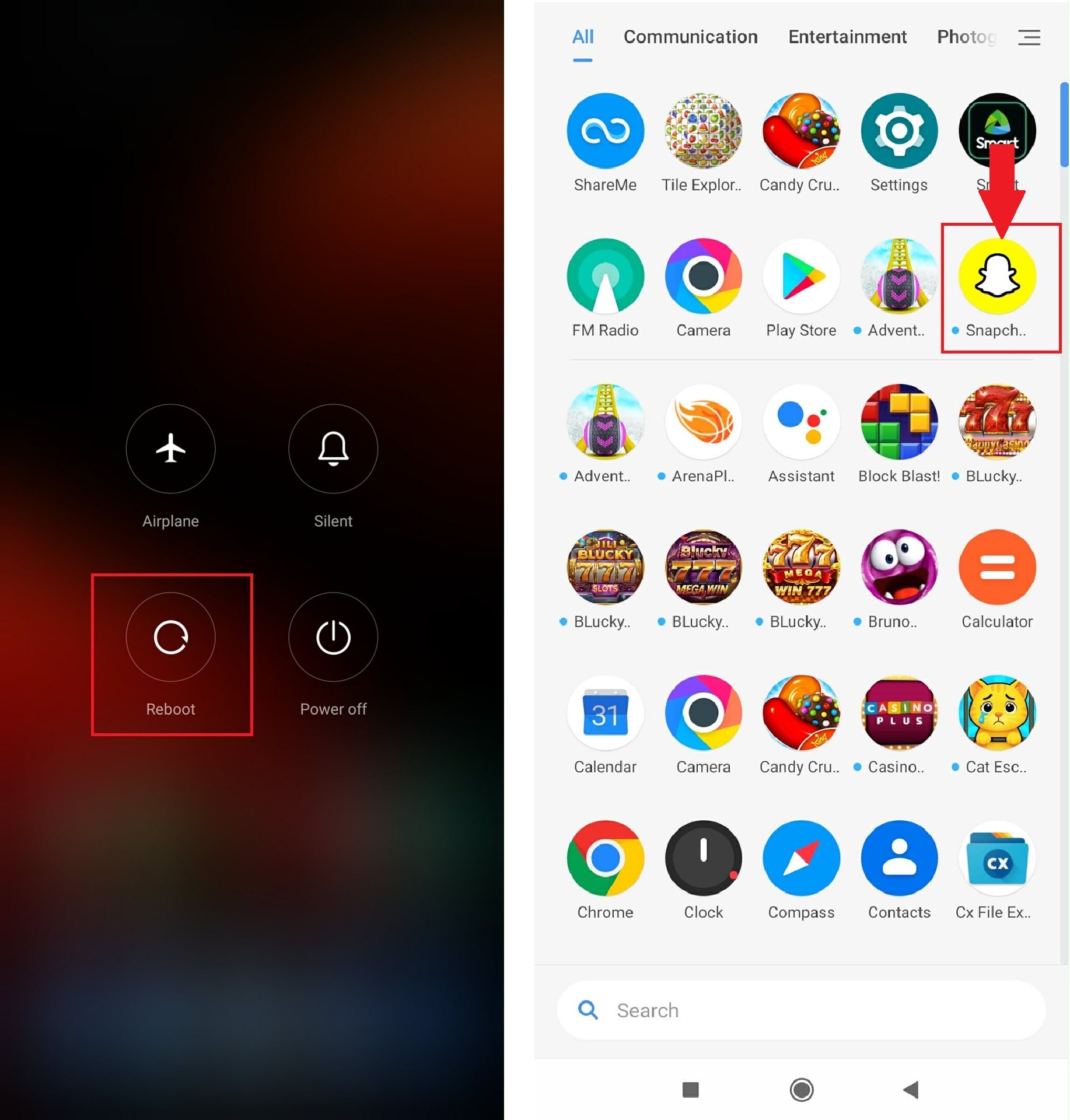
- If images still don’t load, press and hold the power button. Tap Restart / Reboot. Open Snapchat and check if images load.
iPhone:
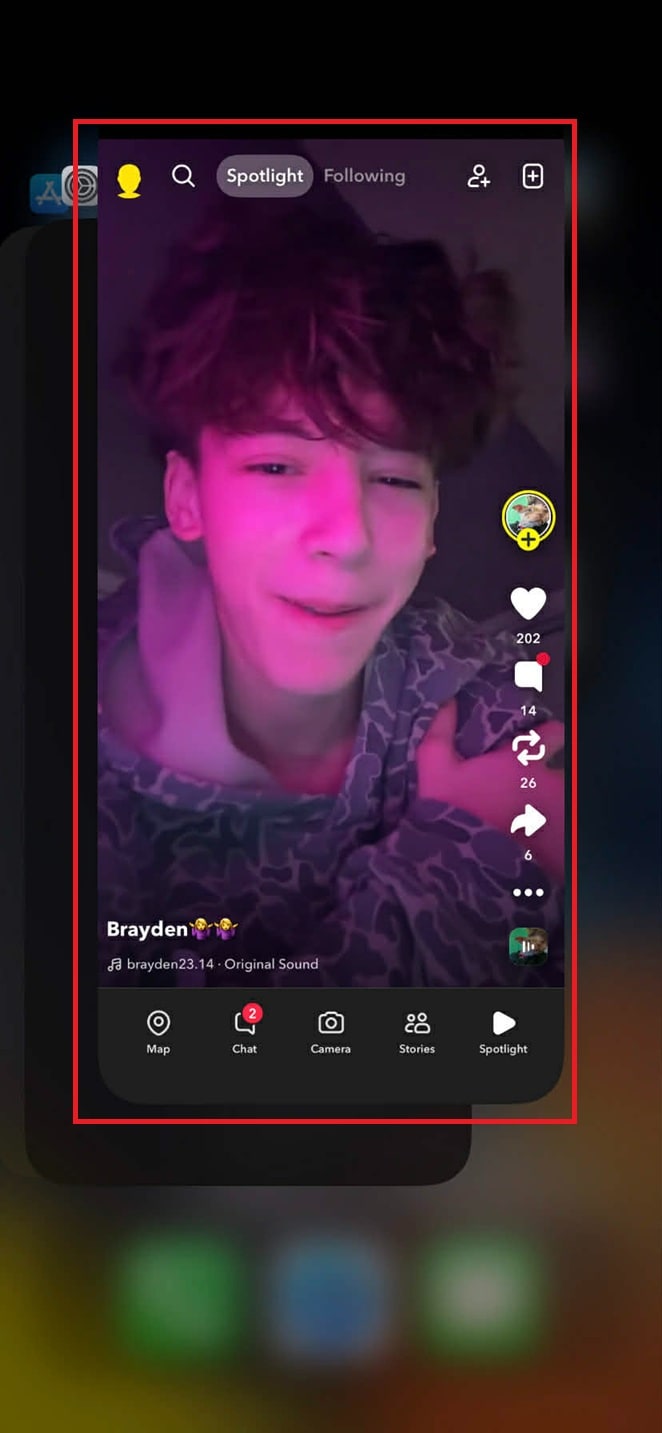
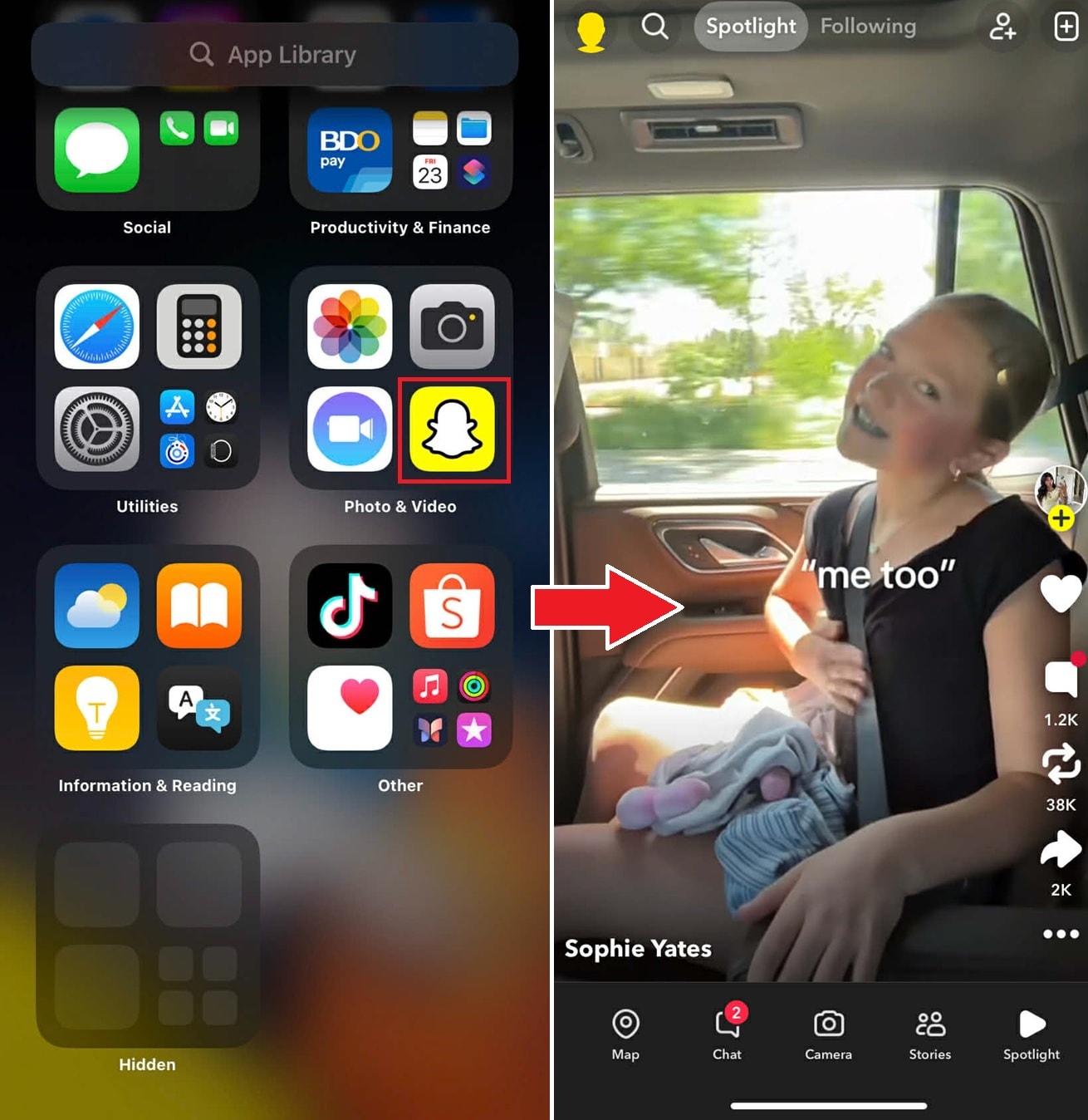
- Swipe up to open the app switcher, then swipe Snapchat up to close it. Reopen Snapchat from the Home Screen.
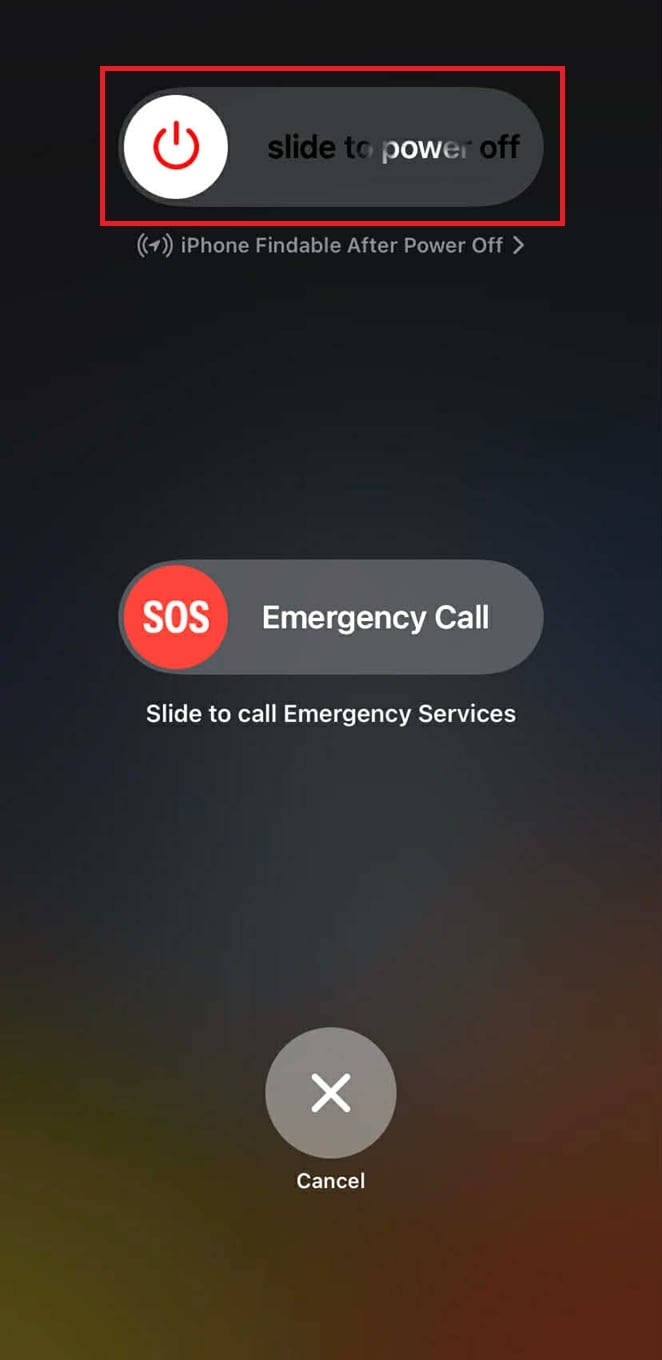
- iPhone X and later: Press and hold the Side button + either Volume button until "slide to power off" appears.
- iPhone SE (2nd/3rd gen), 8, 7, 6: Press and hold the Side button until "slide to power off" appears.
- If issues persist, press and hold the power and bottom side button. Slide to Power Off, then turn the phone back on.
- Launch Snapchat and try loading images.
If the issue continues, restart your iPhone:
2. Check Your Internet Connection
A weak or unstable internet connection can interrupt Snapchat’s ability to download images completely, causing them to fail to load. Ensuring a stable connection allows the app to retrieve image data without interruption.
Android:
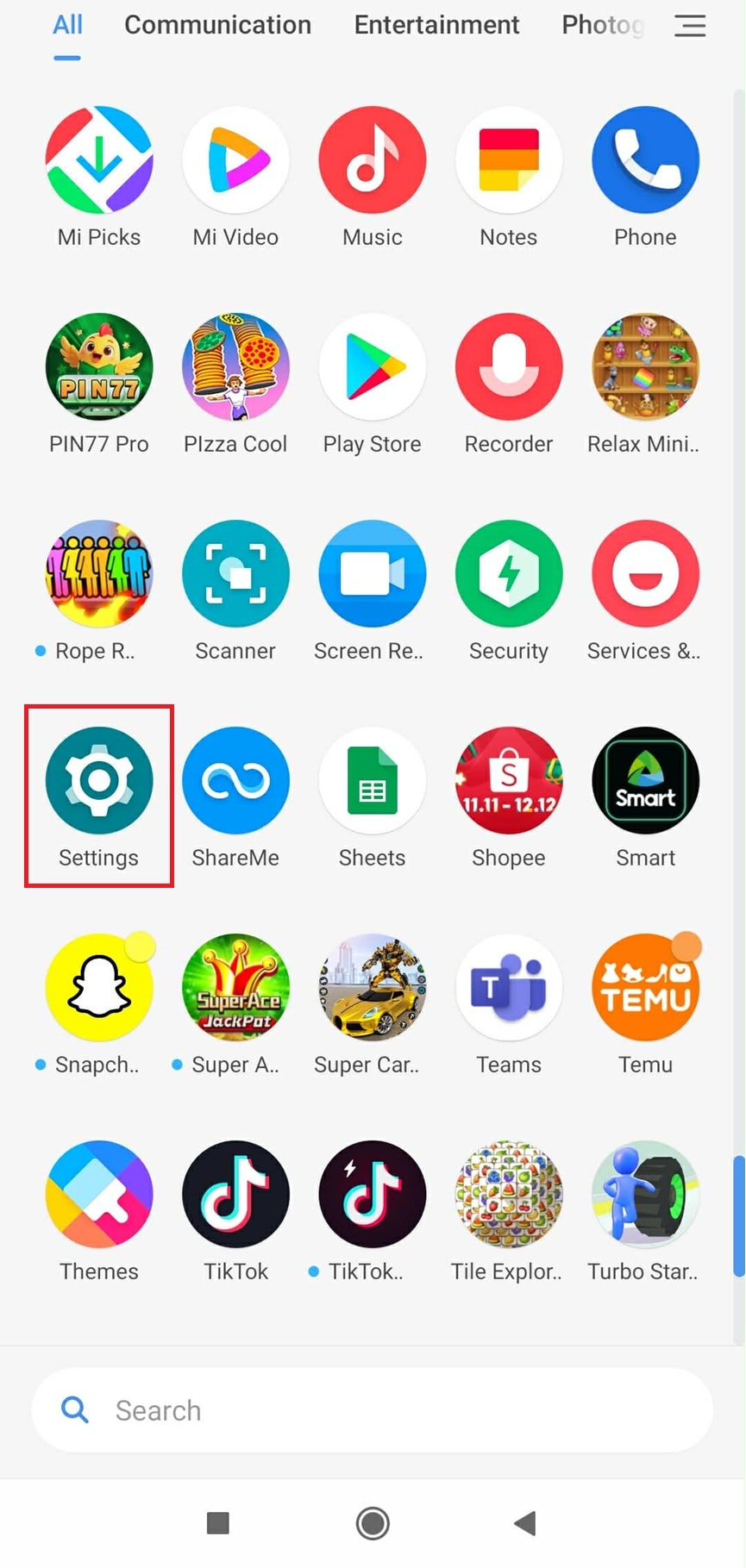
- Open Settings.
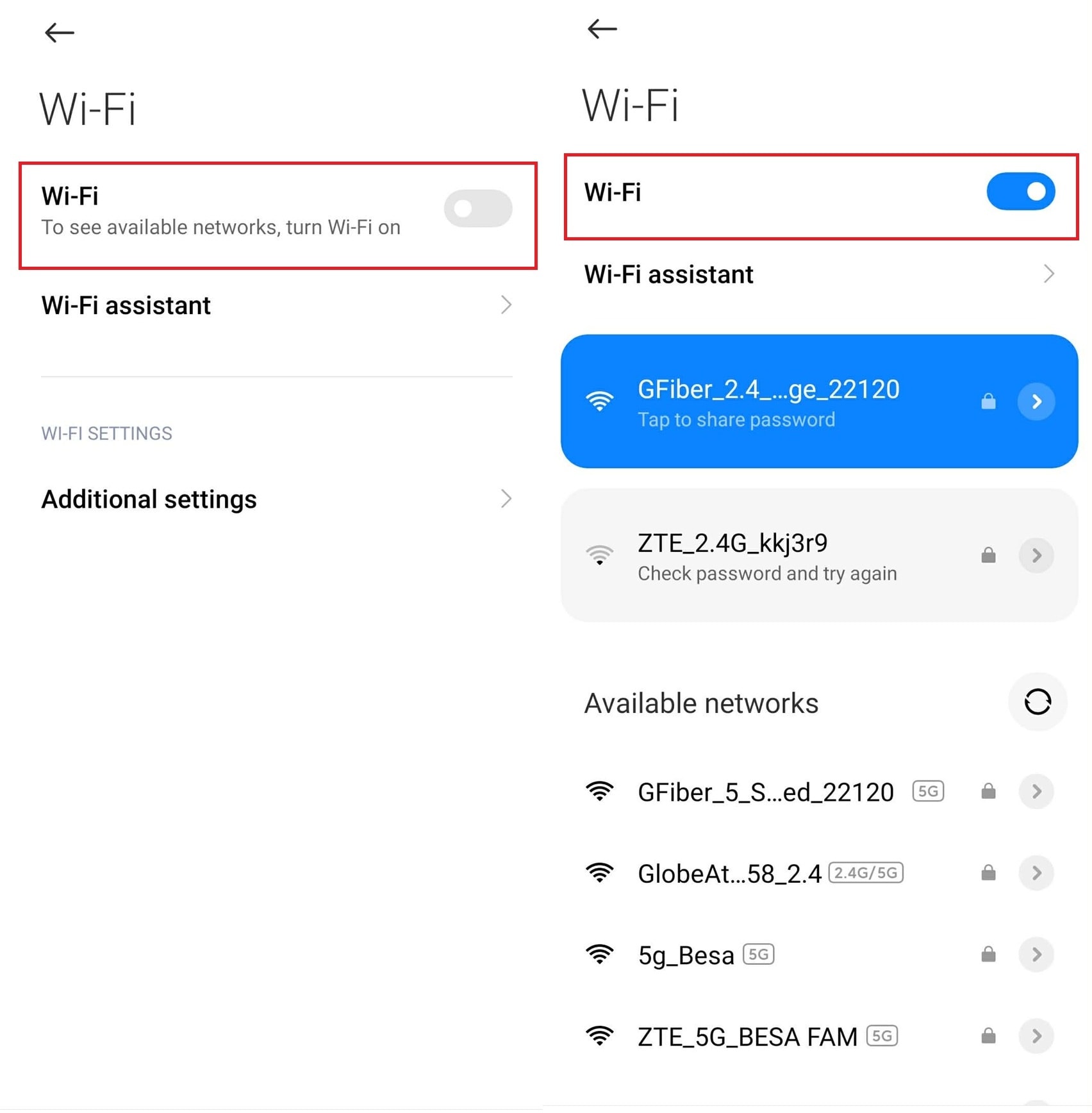
- Toggle Wi-Fi off and on. Switch to mobile data if Wi-Fi seems slow.
iPhone:
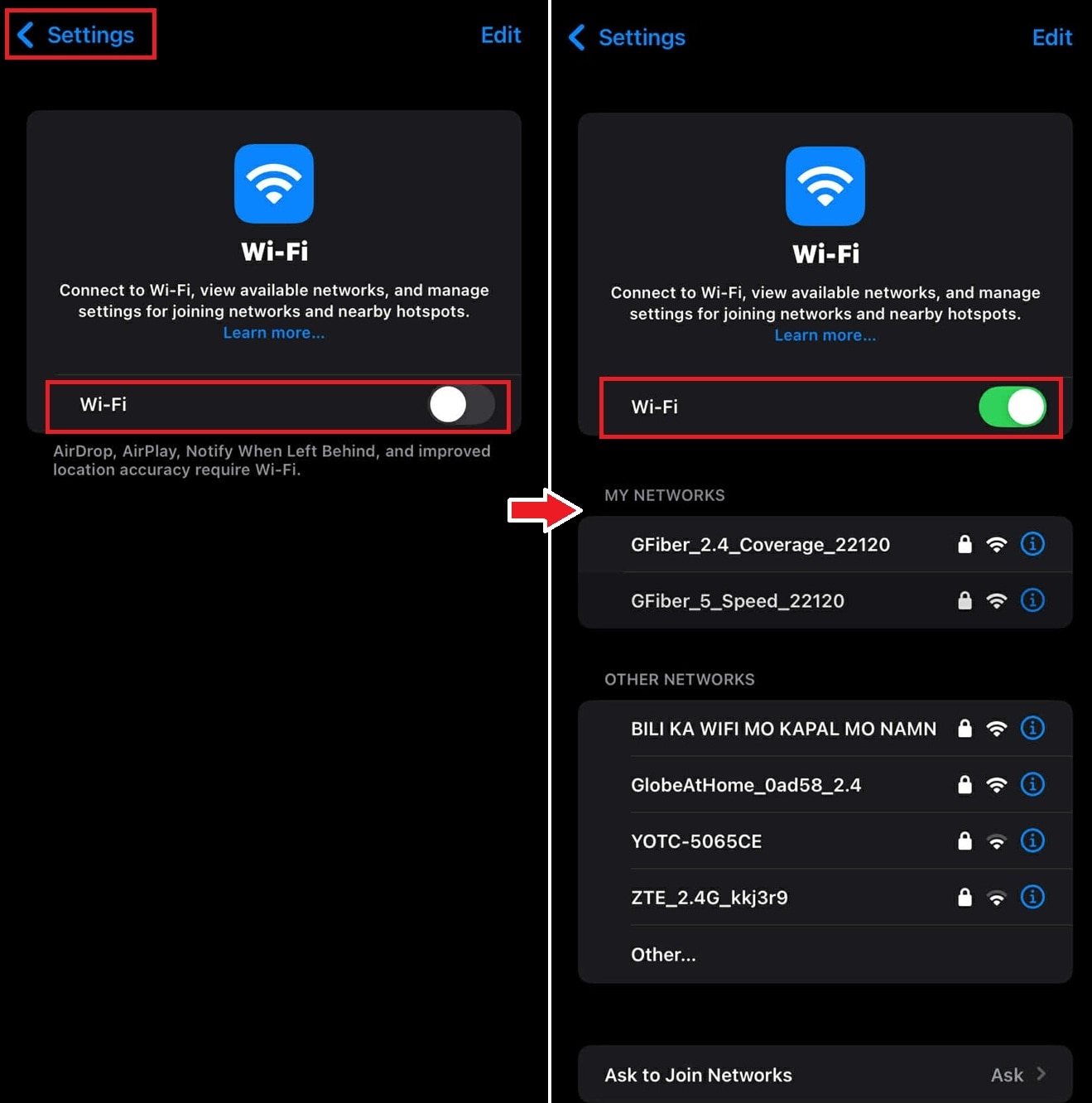
- Open Settings. Go to Wi-Fi. Toggle off and on, and try a different network if possible.
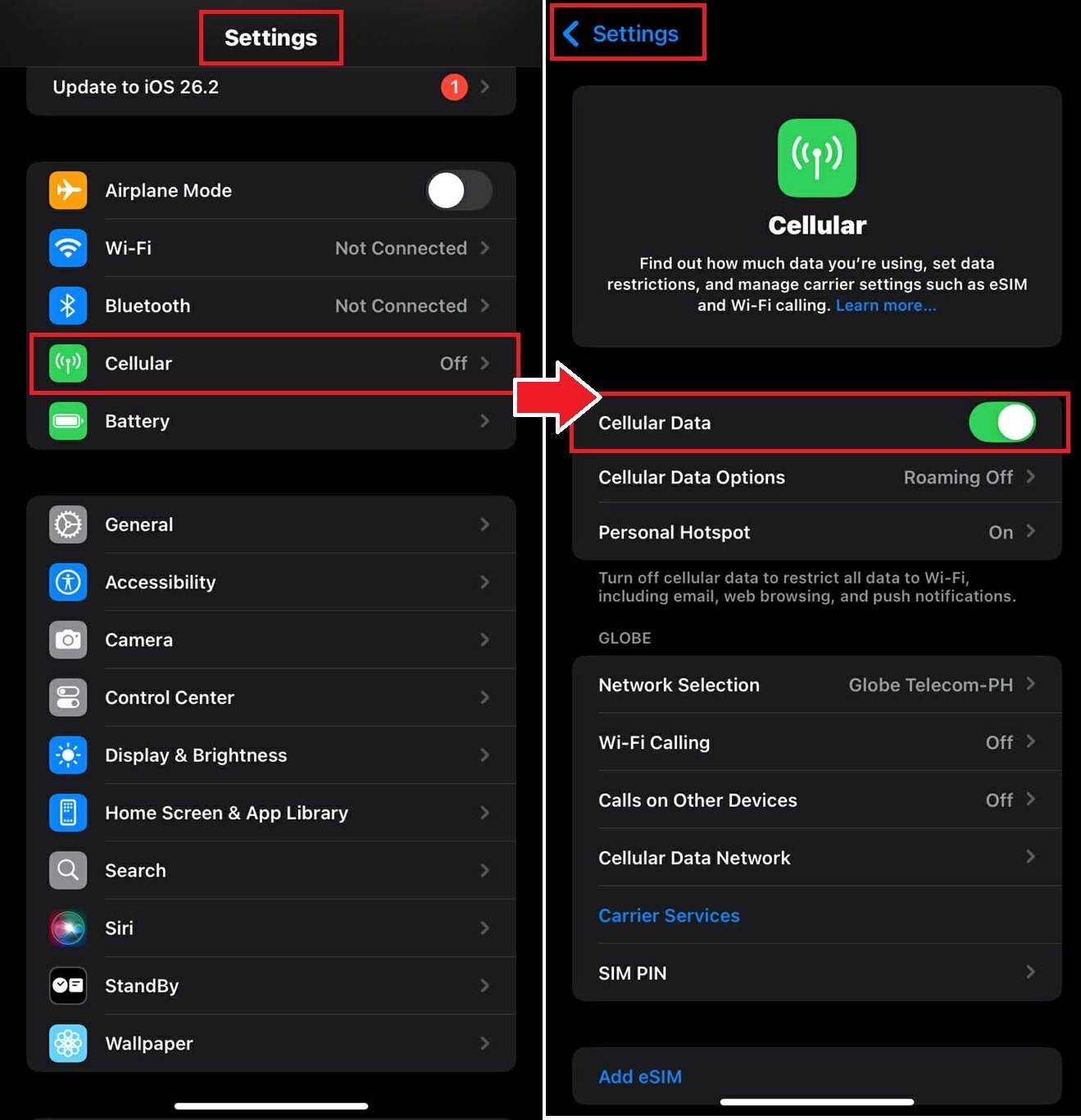
- If Wi-Fi is still low, switch to cellular data: Go to Settings. Tap Cellular and turn it ON.
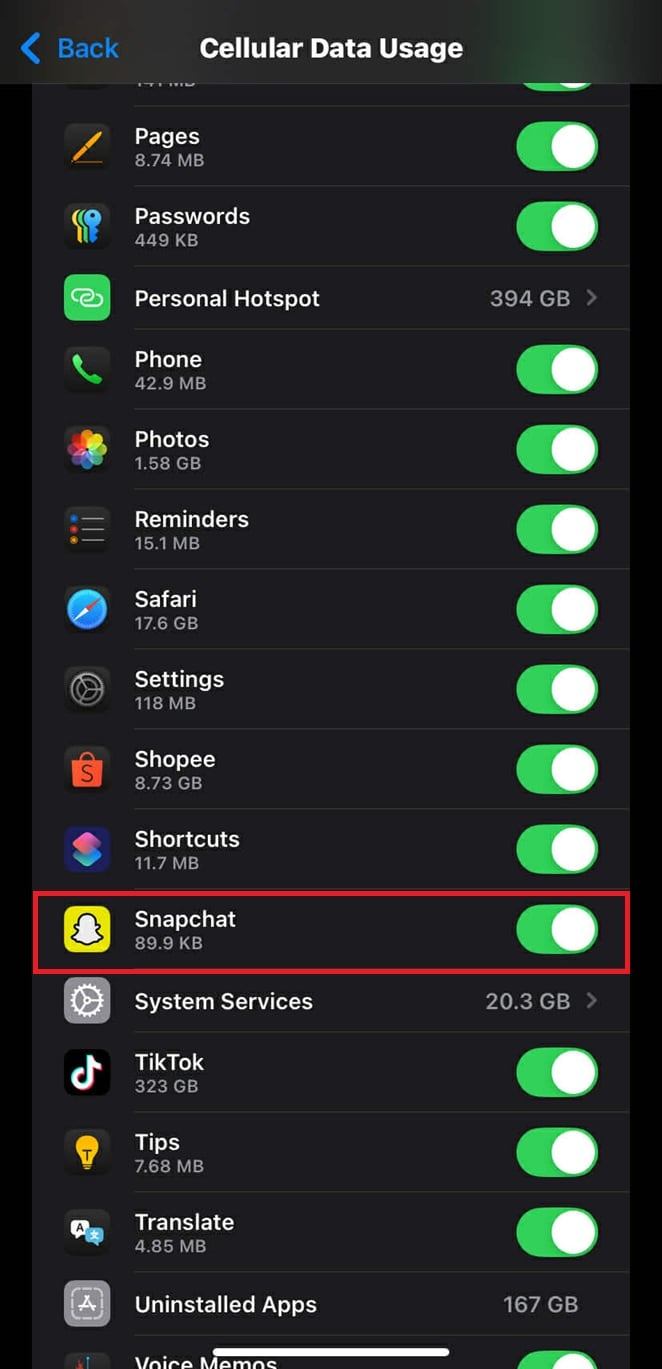
- Ensure Snapchat is allowed to use mobile data. Test connection speed using a speed test app. Open Snapchat and check if images load.
3. Clear Snapchat Cache
Corrupted or outdated temporary data can prevent images from loading properly. Clearing the Snapchat cache removes these files and forces the app to download fresh data.
Android:
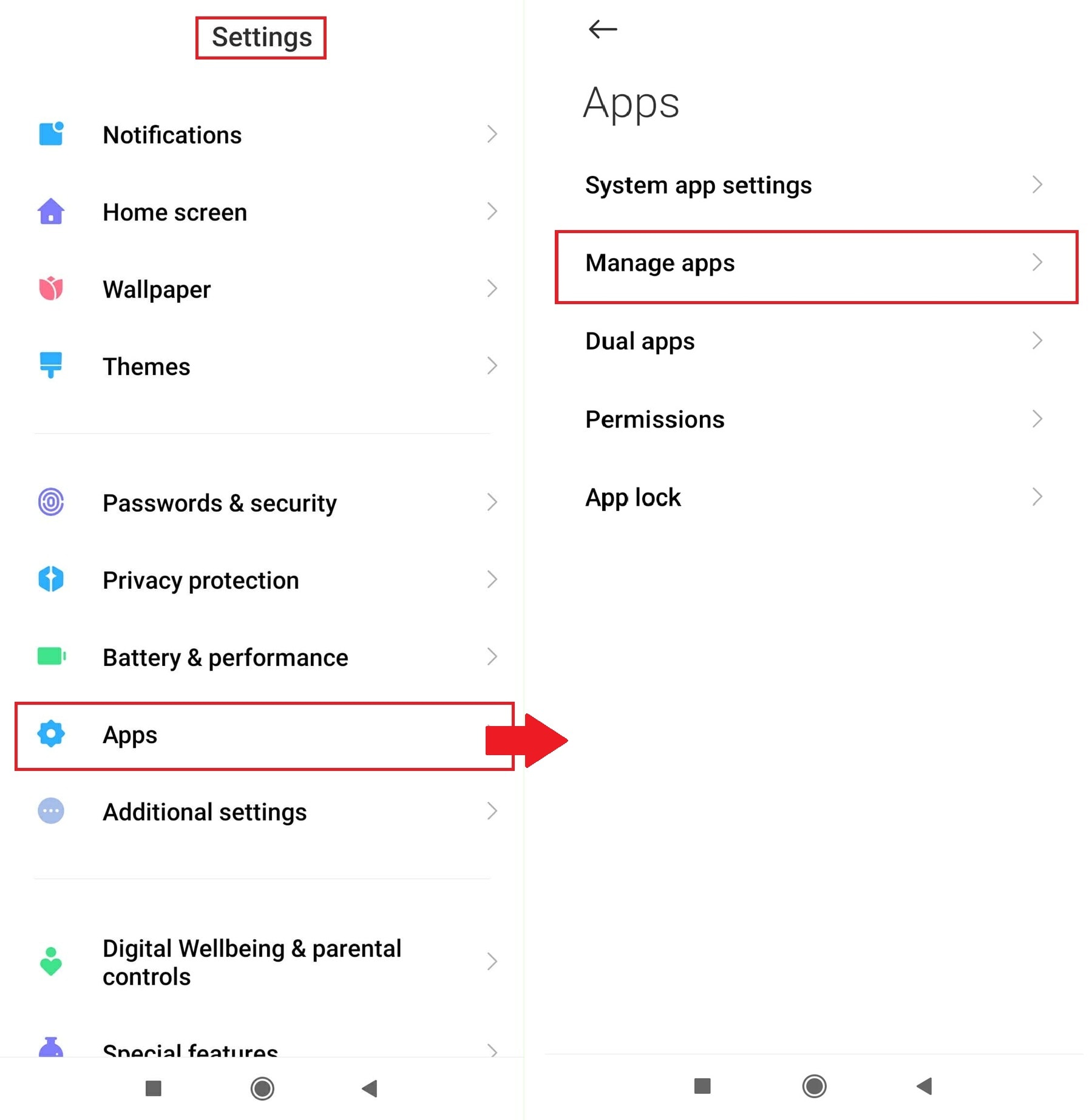
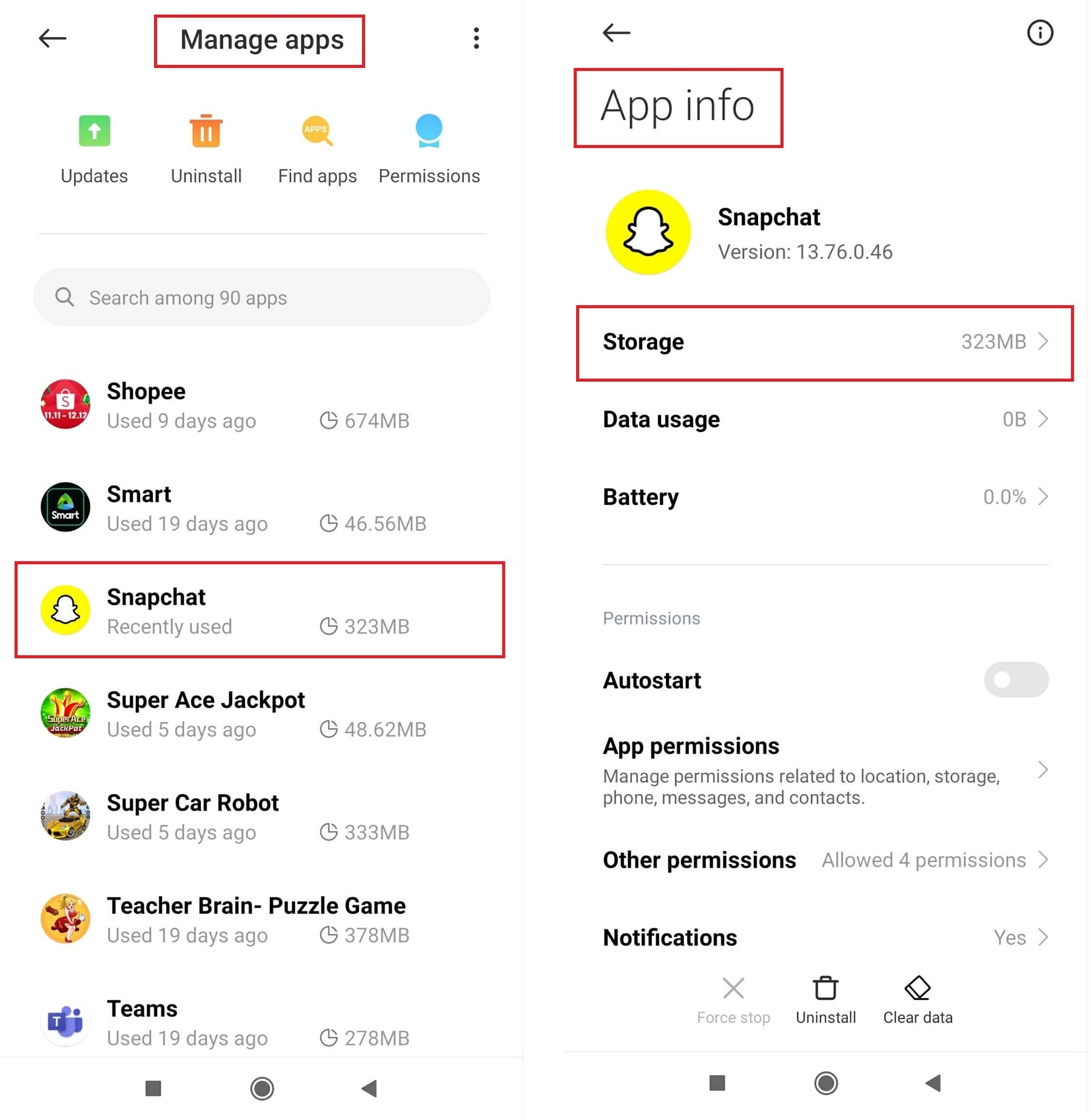
- Open Settings. Scroll down to Apps. Choose Manage apps.
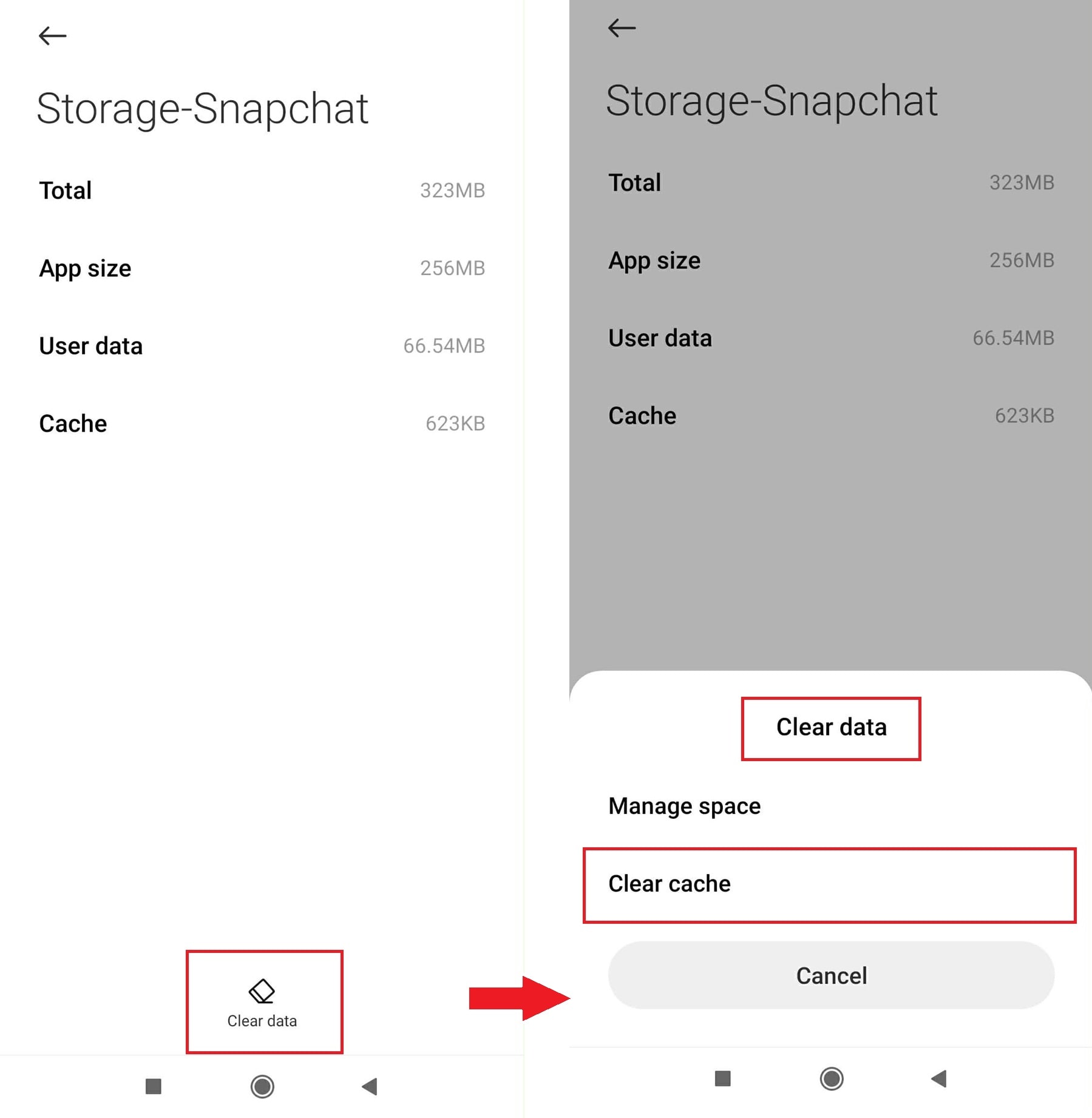
- Select Snapchat. Under App Info, tap Storage.
- Tap Clear cache (avoid "Clear storage/Clear data" unless you’re okay resetting the app).
iPhone:
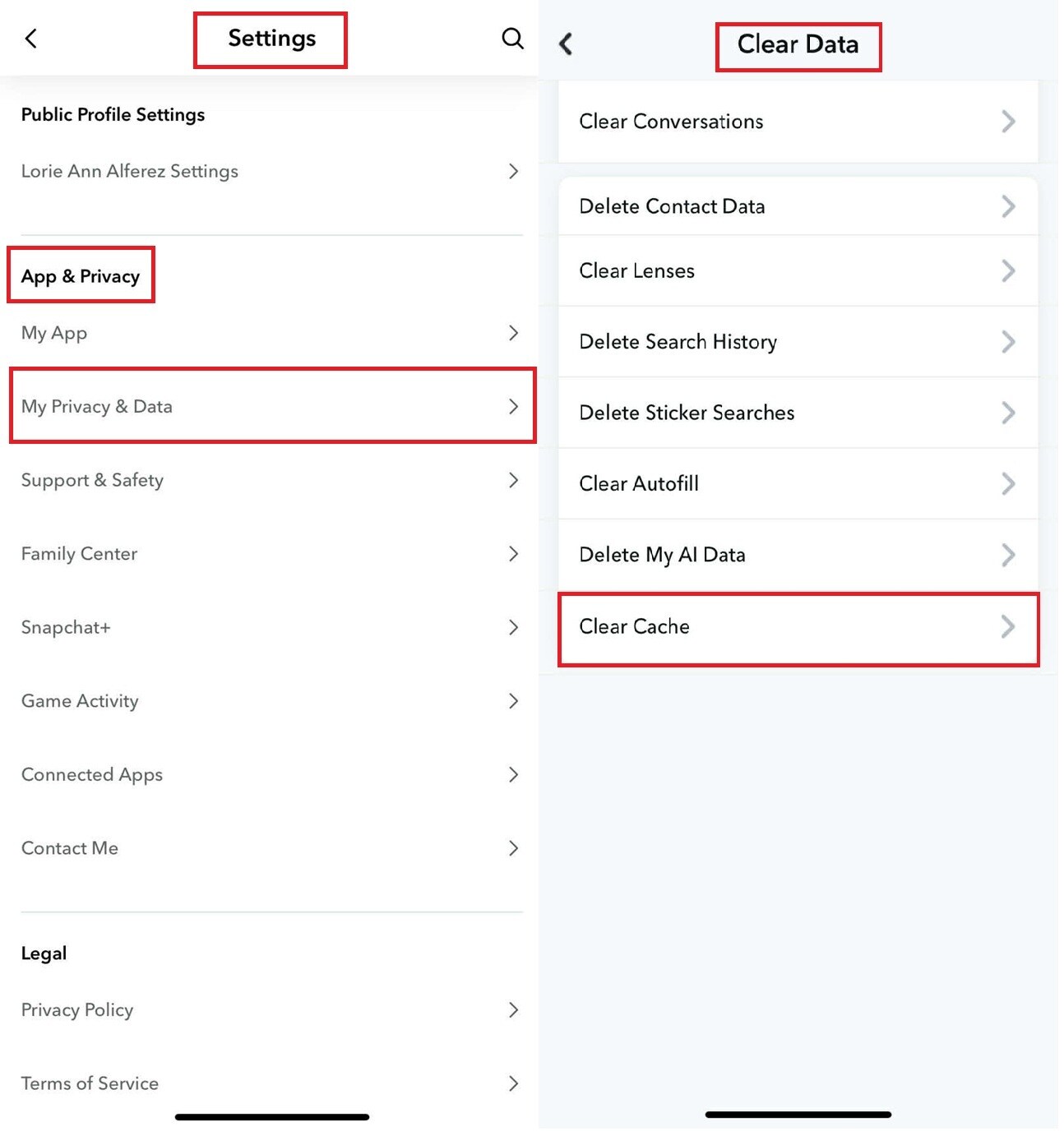
- Open Snapchat. Tap your profile. Go to Settings (gear icon).
- Scroll to App & Privacy. Choose My Privacy & Data. Tap on Clear Data.
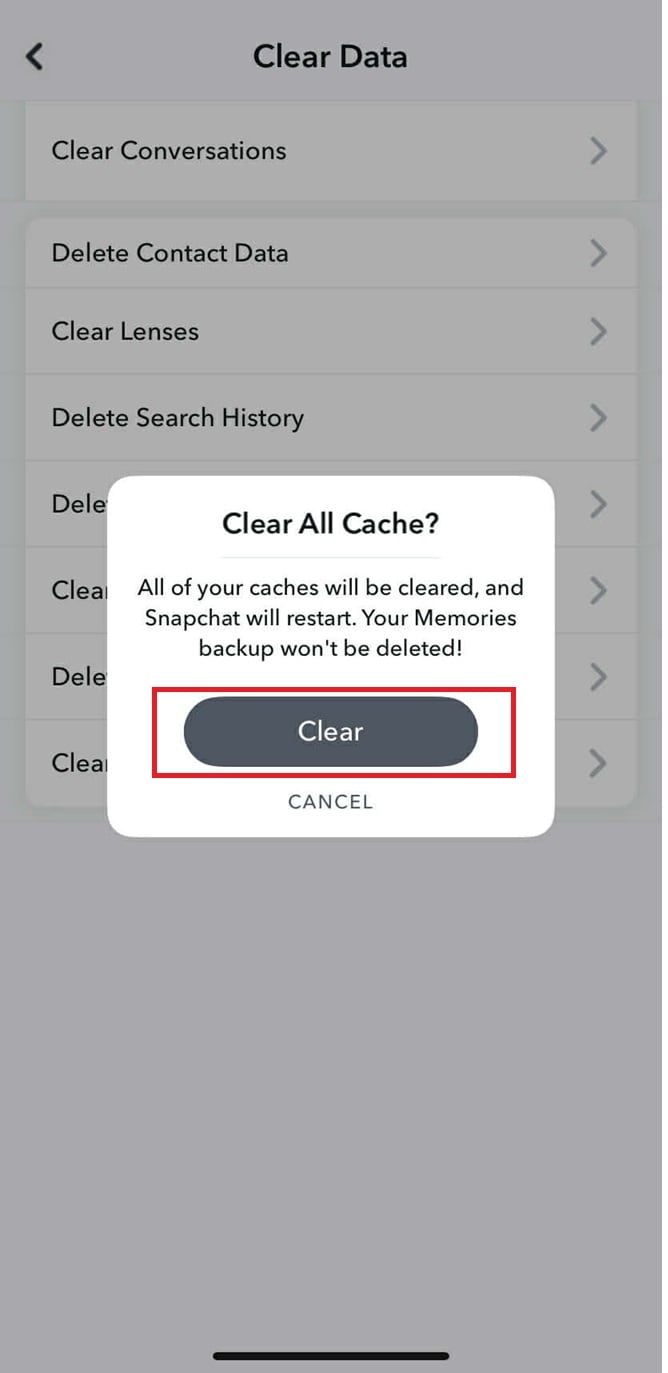
- Select Clear Cache. Confirm Clear All Cache.

4. Update Snapchat
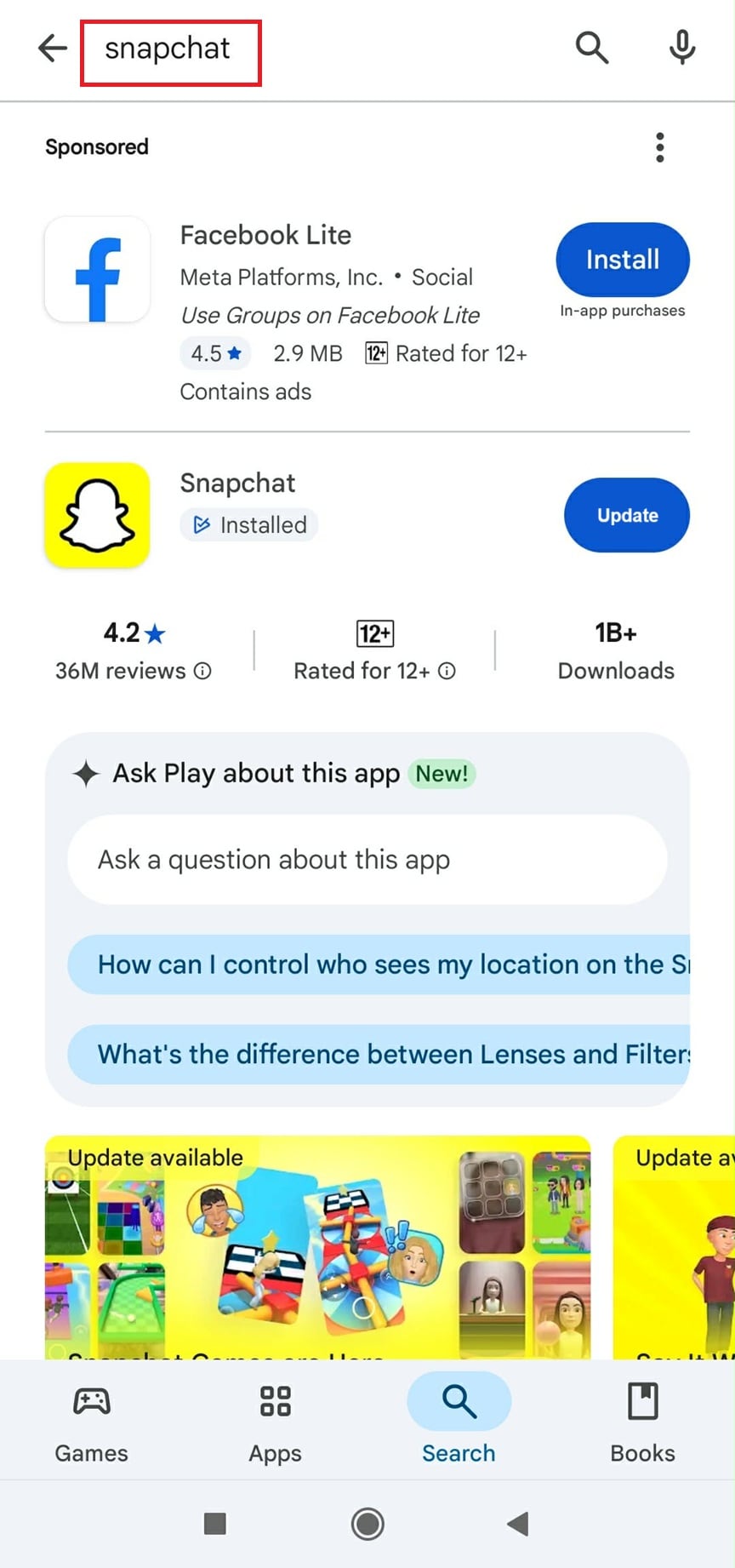
Outdated versions of Snapchat may contain bugs that affect image downloads. Updating the app installs fixes and improvements that help images load correctly.
Android:
- Open the Google Play Store. Search for Snapchat.
- Tap Update if available. Once updated, open Snapchat and check if images load.

iPhone:
- Open App Store. Search for Snapchat.
- Tap Update next to Snapchat. Open the app and try loading images again.


5. Free Up Device Storage
When device storage is full, Snapchat may be unable to download or cache images properly. Freeing up space allows the app to store and load images as intended.
Android:
- Open Settings → Storage → check available space.
- Delete unused apps, videos, or large files to free space.
- Restart Snapchat and try loading images.
iPhone:
- Open Settings → General → iPhone Storage.
- Review apps and offload or delete unnecessary files.
- Restart Snapchat and check if images load.
More related articles you can’t miss:
How to Improve Snapchat Camera Quality?
Snapchat Photos Not Opening [Solved]
Part 3. When Snapchat Pictures Are Corrupted and Won’t Load
When Snapchat photos fail to load even after resolving network, app, and device-related issues, the problem is often caused by file-level corruption.
Corrupted Snapchat images often appear to have downloaded successfully but refuse to open. They may show as blank, greyed out, partially rendered, or unreadable in both Snapchat and the device’s gallery. These issues usually indicate that the image data was damaged during saving or transfer.
In these cases, image repair tools are designed to reconstruct damaged image data rather than fix temporary software glitches. Repairit Photo Repair is one option that can be used for repairing corrupted image files stored locally on a device. Instead of applying visual edits, it analyzes the internal structure of damaged photos, such as missing headers, broken compression blocks, or unreadable data segments, and attempts to rebuild them so the image can be decoded correctly.
These tools may help when:
- The image file exists on the device but won’t open in Snapchat or the gallery
- The photo appears partially loaded, blurred, or distorted
- The same image fails across different image viewers
Limitations to keep in mind:
- Repair tools cannot recover snaps that were never saved locally or have already expired
- They do not fix Snapchat server issues, account restrictions, or permission problems
- Severely incomplete files with missing data may not be fully recoverable
Note: Whether a photo can be repaired depends on how much of the original image data remains intact.
How to Repair Corrupted Snapchat Pictures (If the File Is Saved Locally)
Before proceeding, make sure the affected Snapchat photos are already saved on your device. Repair tools work with existing image files and cannot access cloud-based or expired snaps. The steps below outline how to repair corrupted Snapchat pictures using Wondershare Repairit, from importing the files to safely saving restored images.
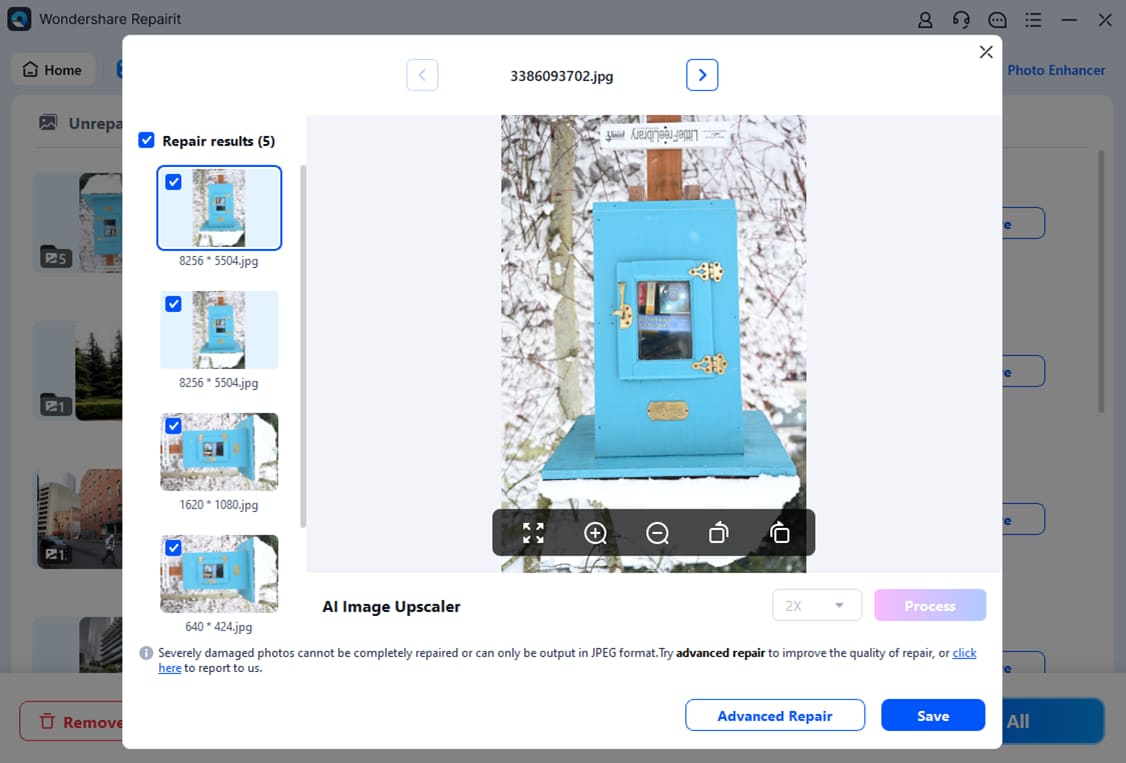
Step 1. Click the Add option or drag and drop the affected Snapchat photos into the program. You can upload multiple images at once for batch repair.

Step 2. Select Repair to begin. Repairit analyzes each photo, reconstructs damaged image data, and displays progress for every file being processed.

Step 3. Once the repair is complete, preview the restored images to confirm quality. Save them to a new folder to avoid overwriting the original corrupted files.
Fix Snapchat Pictures Are Corrupted and Won’t Load Issue
 Security Verified. Over 7,302,189 people have downloaded it.
Part 4. Tips to Prevent Snapchat Pictures from Failing to Load
Even after resolving immediate issues, taking preventive measures can help ensure Snapchat pictures load smoothly in the future. Following these tips reduces the risk of encountering failed downloads, greyed-out images, or unreadable snaps.
- Keep Enough Free Storage - Snapchat requires sufficient space to download and cache images properly. Devices with low storage may show images as partially loaded or fail to display them entirely. Regularly remove unused apps, large videos, old screenshots, or unnecessary files to maintain free space.
- Maintain a Stable Internet Connection - Snapchat relies on a consistent internet connection to fetch and display images. Weak Wi-Fi signals, unstable mobile data, or sudden network switches during downloads can cause pictures to fail. When possible, use a reliable Wi-Fi network, or ensure mobile data is strong and enabled for Snapchat in your device settings.
- Update Snapchat regularly - App updates often include bug fixes, performance improvements, and optimized caching mechanisms. Using an outdated version of Snapchat can lead to glitches that prevent images from loading. Regularly check the App Store or Google Play Store and install updates as they become available.
- Clear Cache Periodically - Cached data helps Snapchat load images faster, but over time, corrupted or outdated cache files can interfere with photo downloads. Clearing the cache every few weeks can prevent minor glitches and improve overall app performance. Both Android and iPhone offer simple ways to clear app data without affecting your account.
- Restart Your Device Occasionally - Temporary system or app processes running in the background can sometimes block Snapchat from loading images properly. Restarting your phone refreshes these processes, clears memory, and often resolves small conflicts that may not be fixed by simply restarting the app.
- Monitor Photo and App Permissions - Ensure Snapchat has the necessary permissions to access storage, media, and mobile data. Restricting these permissions can prevent images from being saved or displayed correctly. Check your device’s app permissions regularly to avoid interruptions.
Conclusion
Snapchat pictures may fail to load for a variety of reasons, including unstable internet connections, temporary app glitches, outdated software, limited storage space, or corrupted image files. In most cases, basic troubleshooting—such as restarting the app, clearing cache, updating Snapchat, or improving network stability—is enough to resolve the issue.
When photos continue to fail after these fixes and cannot be opened in other image viewers, the problem is more likely related to file-level corruption. In such situations, repairing the damaged image file may help restore access to the photo, depending on how much data remains intact.
Identifying whether the issue is temporary or file-related is key to choosing the appropriate solution and avoiding unnecessary steps.
FAQs
-
Why does Snapchat fail to load pictures?
Snapchat may fail to load pictures due to unstable internet connections, temporary app glitches, insufficient storage space, or damaged image files. The issue can originate from either the app environment or the image data itself. -
Can I recover a Snapchat picture that failed to load?
If the image file still exists on your device, image repair tools may be able to restore it. Expired snaps or photos that were permanently deleted from Snapchat servers cannot be recovered. -
What causes Snapchat images to become corrupted?
Image corruption often occurs when downloads are interrupted or the app crashes during saving. Low storage, sudden shutdowns, or power loss can also damage image data. -
Can I repair multiple Snapchat images at once?
Most professional image repair tools support batch processing, allowing multiple corrupted files to be repaired in one session. This is useful when several Snapchat images are affected at the same time. -
Is there a free way to repair corrupted Snapchat images?
Some tools provide free scans or repair previews to check recoverability. However, fully restoring severely damaged images typically requires a desktop repair solution.