

WhatsApp video calls are a helpful way to stay in touch with your family, friends, and co-workers. WhatsApp is great for quick, free, and convenient communication. But still, video calls sometimes fail at times. You may experience a frozen screen, distorted audio, or camera issues.
This article explains the most common causes of WhatsApp video call problems and provides simple solutions. These steps apply whether you use Android, iPhone, or a desktop.
Table of Contents
Part 1. Common WhatsApp Video Call Problems

When WhatsApp video calls don’t work, even small issues can interrupt important conversations. Understanding the specific problem helps you find the right fix.
- WhatsApp video call not connecting: A WhatsApp video call may not connect when the app cannot create a stable link. You might see long loading times or calls that end immediately.
- Video call not working on WhatsApp: Sometimes the call starts but stops working quickly. You might hear the person, but their video doesn’t show, or an error appears. This means something in the app or device is blocking the video feature.
- Camera not working during a WhatsApp video call: If your camera does not turn on, the other person will see a black screen. This can happen if another app uses the camera, camera permissions are off, or your device is not detecting the camera properly.
- My WhatsApp video call is not working on Android: Android versions and brands can affect call performance. Low device memory or resources can also make delays, disconnections, or black screens worse.
- Poor video or audio quality: If the video is blurry or the audio cuts out, usually the internet is unstable, or the device cannot keep up with the call.
Part 2. Why do WhatsApp Video Calls Stop Working?
When you know why WhatsApp video calls are not working, it becomes easier to fix the problem. Below are common reasons that may block your video calls:
- Network connection issues: A poor or laggy internet connection is the most common cause. If the signal drops, the call may freeze, disconnect, or lose quality.
- App permission errors: WhatsApp needs access to the camera, microphone, and notifications. If these permissions are turned off, the video may not work even if the call connects.
- Outdated version of WhatsApp: Using an old WhatsApp version can cause bugs that affect video calls. Updating WhatsApp often fixes issues found in older versions.
- Device software conflicts: If your device’s system is outdated or unstable, it may conflict with WhatsApp. This can cause errors with features that need the camera and audio.
- Corrupted app cache or files: Over time, cache files may get corrupted. When this happens, WhatsApp might have trouble loading video call features or accessing the camera properly.
Part 3. Quick Fixes for WhatsApp Video Call Not Working
Now that you know the problems and their causes, it’s time to try the fixes. Here are the quick fixes for WhatsApp video calls not working on Android, iPhone, and desktop:
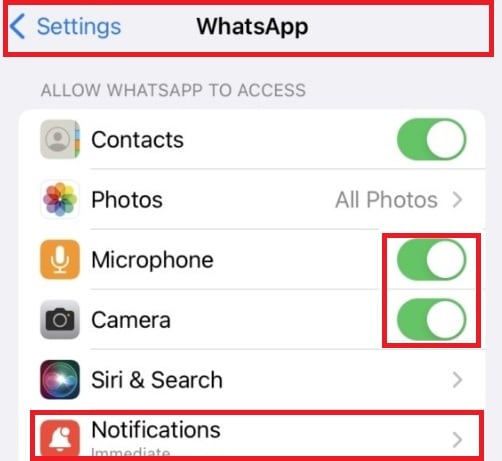
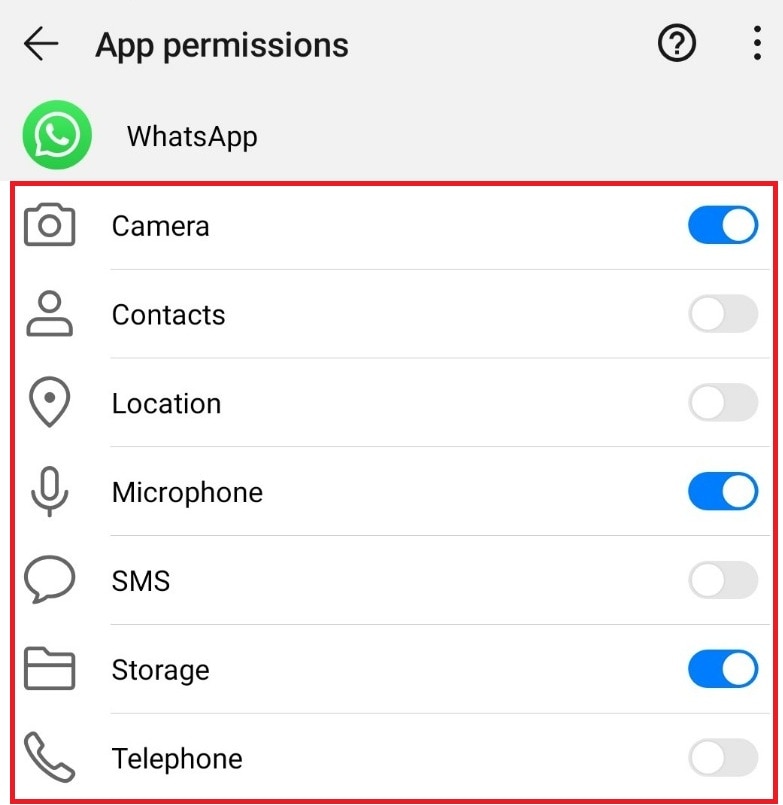
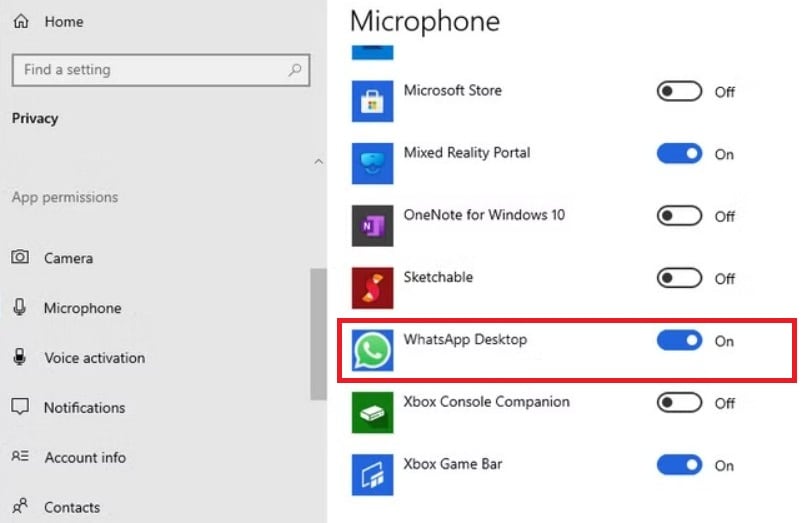
1. Enable WhatsApp Notifications and Permissions
Giving WhatsApp full access allows the app to use essential tools like your camera, microphone, and alerts without restrictions. Moreover, when the app has proper permission, it can open the video feed instantly and maintain a stable connection during the call. This prevents delays, blank screens, or missing audio caused by limited access.
iPhone
Step 1: Open Settings.
Step 2: Scroll down and tap WhatsApp.
Step 3: Turn on Camera, Microphone, and Notifications. Tap Notifications and allow Alerts.
Android
Step 1: Open Settings on your phone.
Step 2: Tap Apps or App Management.
Step 3: Select WhatsApp.
Step 4: Tap Permissions and allow Camera and Microphone.
Desktop (Windows/Mac)
Step 1: Open your desktop’s settings.
Step 2: Go to Privacy. Click Microphone and find WhatsApp, then toggle on the button. Do the same thing for the Camera settings.
2. Turn Off Silent Mode or Disable Do Not Disturb
Even though these modes seem harmless, they can quietly block important call signals. They may also stop the device from waking the screen when a video call arrives. Consequently, you might think the video call feature is failing when your device is simply silencing the request. Keeping these modes off during active use helps WhatsApp deliver calls properly.
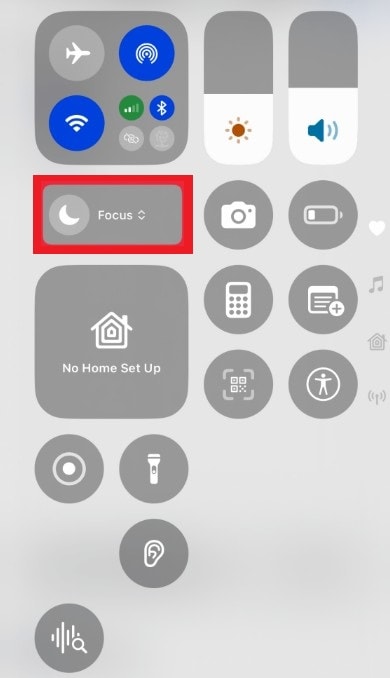
iPhone
Step 1: Flip the side switch to disable Silent Mode.
Step 2: Open Control Center.
Step 3: Turn off Do Not Disturb or Focus mode.
Android
Step 1: Press the volume up button to exit Silent Mode.
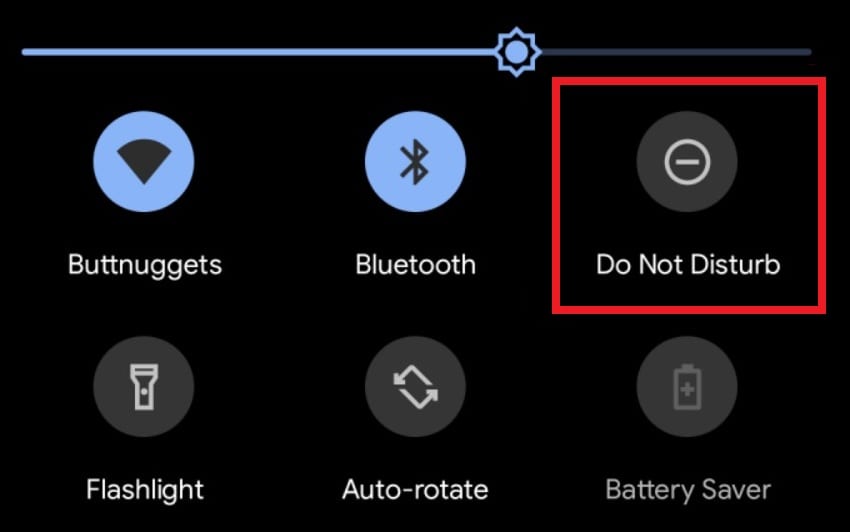
Step 2: Swipe down the screen and turn off Do Not Disturb.
Desktop
Step 1: Open the action center (Windows) or Control Center (Mac).
Step 2: Turn off the moon icon. Then, make sure the system volume is not muted.

3. Restart Your Phone
Restarting refreshes the system and clears temporary conflicts that affect WhatsApp’s video functions. For instance, another app may be holding your camera or microphone in the background without you noticing. Additionally, restarting frees memory and resets system processes, which gives WhatsApp a clean environment to handle video calls smoothly.
iPhone
Step 1: Hold the power button or power and volume up at the same time.
Step 2: Slide to power off.
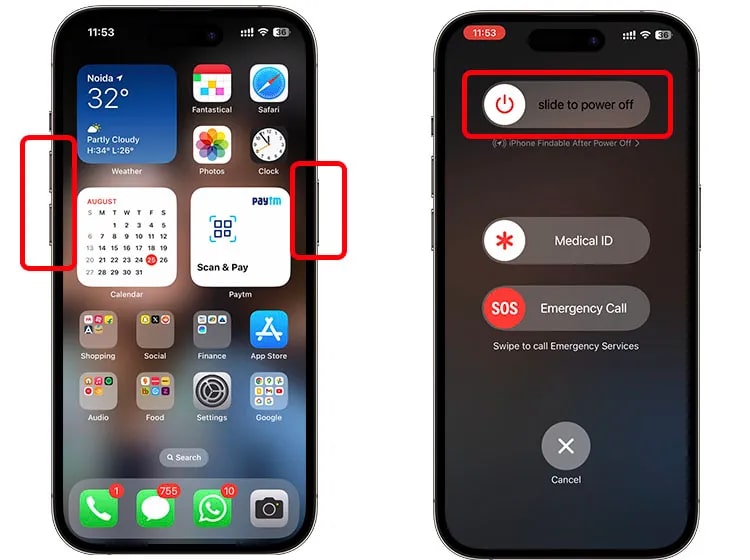
Step 3: Turn the phone back on.
Android
Step 1: Hold the power button.
Step 2: Tap Restart or Power Off.
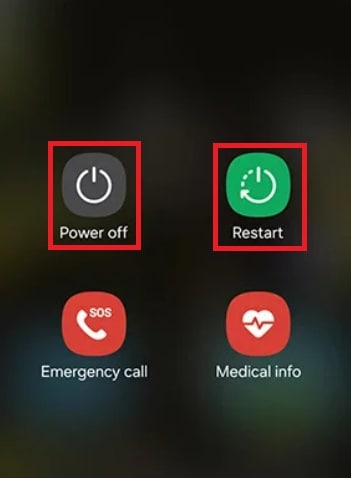
Step 3: Turn on the phone again.
Desktop
Step 1: On Windows, go to the Start Menu and click the power button. Then, choose Restart.
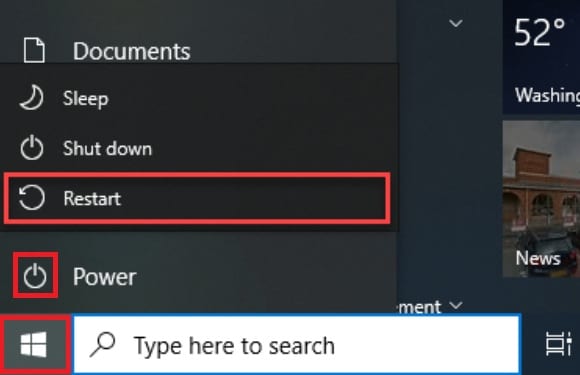
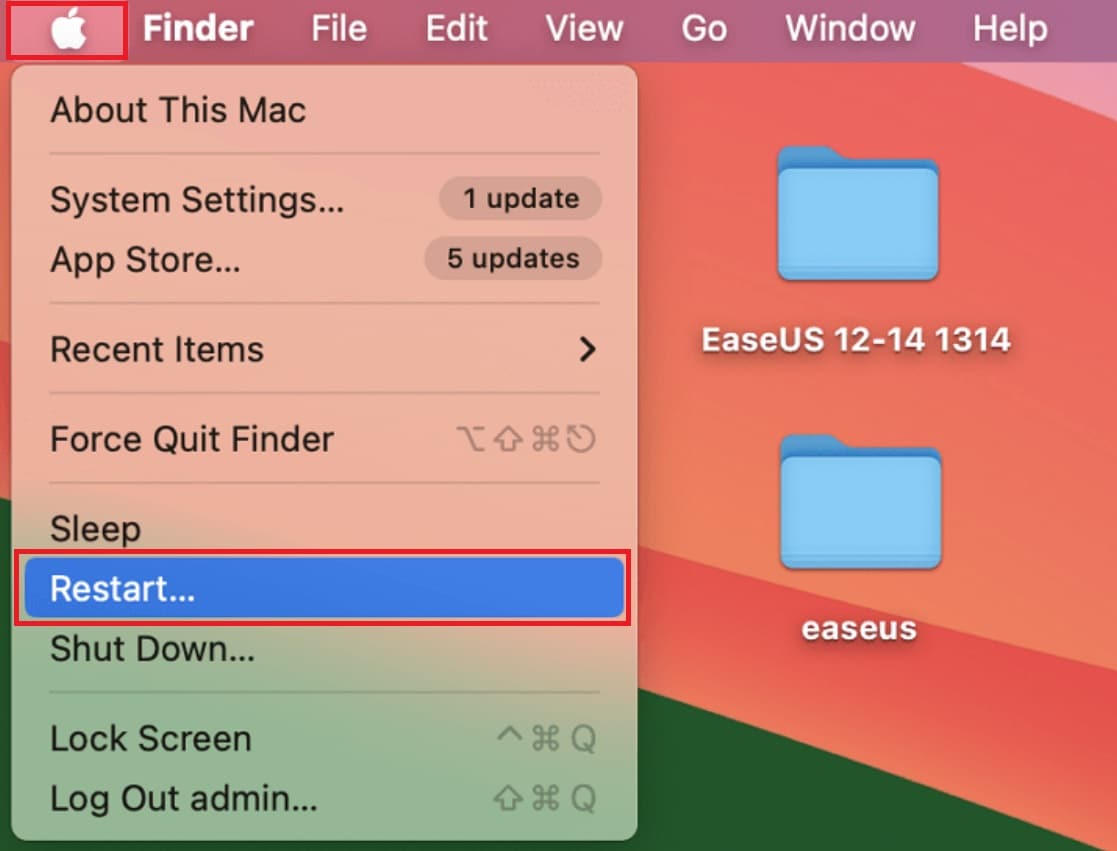
Step 2: On Mac, go to the Apple menu and click Restart.
4. Update WhatsApp
App updates often fix camera bugs, audio glitches, and connection problems that affect video calls. Furthermore, new versions improve compatibility with the latest device software. This means WhatsApp can work better with your phone’s camera system, network features, and background processes. Using an updated version reduces the chance of sudden call failures or frozen video.
iPhone
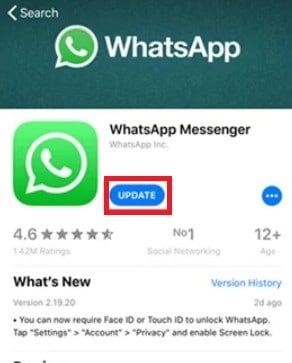
Step 1: Open the App Store.
Step 2: Tap your profile icon.
Step 3: Look for WhatsApp and tap Update.
Android
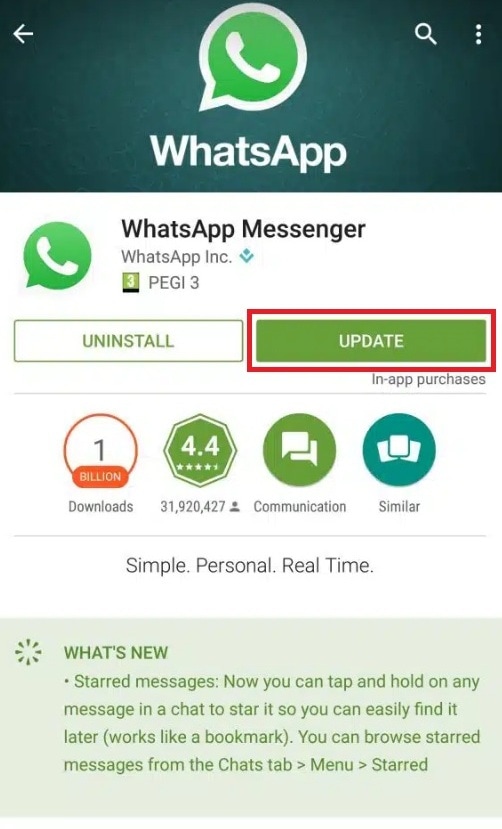
Step 1: Open the Google Play Store.
Step 2: Tap your profile icon and go to Manage apps & device.
Step 3: Find WhatsApp and tap Update.
Desktop
Step 1: For the installed app, updates happen automatically. If not, download the latest version from the WhatsApp website.
Step 2: For WhatsApp Web, simply refresh the browser.
5. Clear WhatsApp Cache and Data
Cache helps apps load faster, but old or corrupted cache can slow WhatsApp down. During a video call, the app needs to process live video and audio quickly. Excessive cache can make it struggle with these tasks. Additionally, clearing unnecessary data helps remove small errors that can interrupt the video feed or cause poor performance.
iPhone
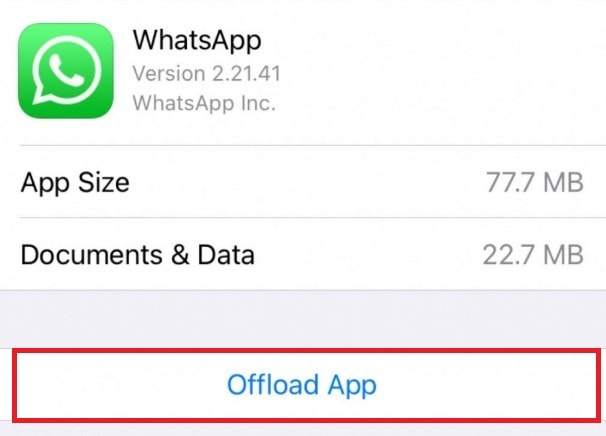
Note: iPhones do not allow clearing app cache directly.
Step 1: Open Settings. Go to General and select iPhone Storage.
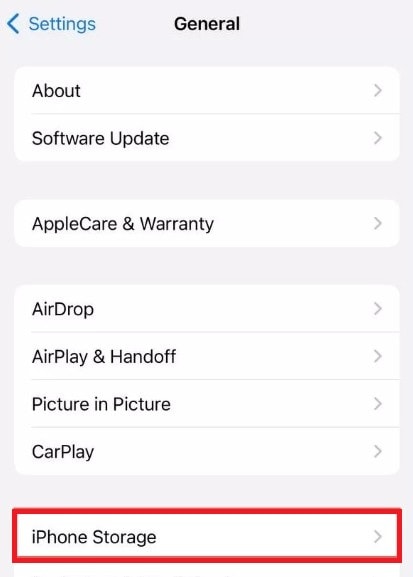
Step 2: Tap WhatsApp. Choose Offload App to remove temporary data while keeping your chats.
Android
Step 1: Open Settings.
Step 2: Go to Apps and find WhatsApp.
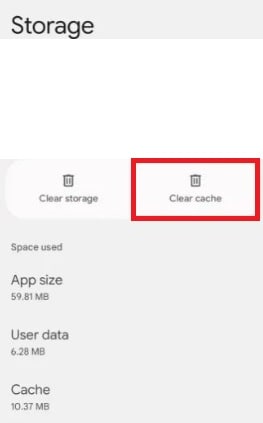
Step 3: Tap Storage & cache.

Step 4: Hit the Clear cache button.
6. Reinstall WhatsApp
Reinstalling removes hidden issues that regular fixes cannot reach. Sometimes, deeper file corruption or misconfigured settings cause video features to stop working. A fresh installation replaces all damaged components with clean ones. Consequently, WhatsApp can access the camera and microphone more reliably and handle video calls with fewer interruptions.
iPhone
Step 1: Hold the WhatsApp icon until it shakes.
Step 2: Tap Remove App.

Step 3: Go to the App Store and reinstall WhatsApp.

Step 4: Log in again and restore your backup if needed.
Android
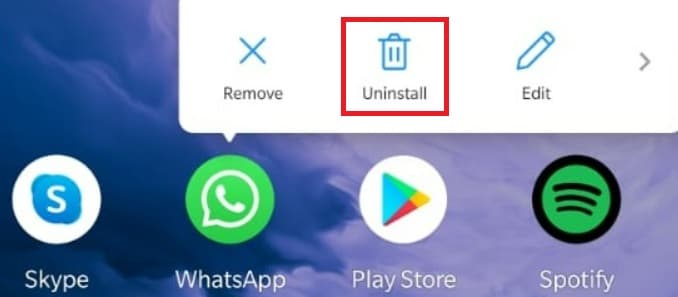
Step 1: Hold the WhatsApp icon and tap Uninstall.
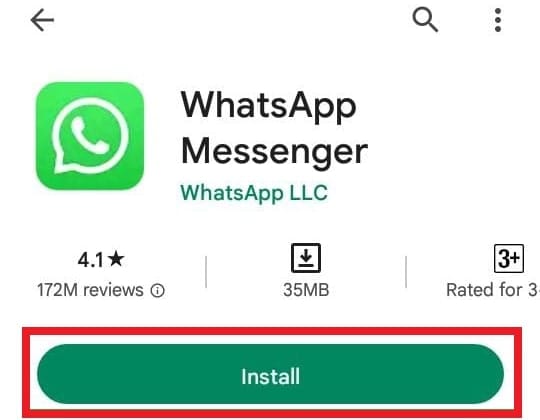
Step 2: Open the Google Play Store and reinstall it.
Step 3: Log back in and restore your backup.
Desktop
Step 1: On Windows, open Settings. Go to Apps, then uninstall WhatsApp.
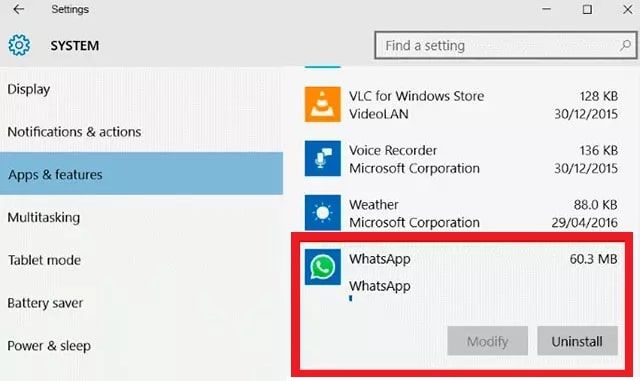
Step 2: On Mac, drag WhatsApp to the Trash.

Step 3: Download the latest version from the WhatsApp official website and reinstall it.
Part 4. Advanced Solution: Fix Corrupted WhatsApp Video Files
Sometimes the video call works, but the recorded video file becomes corrupted. This happens when the call gets interrupted or when the storage has errors. In such cases, fixing the call won’t recover the damaged file. However, you can repair the file itself.
Repairit Video Repair is a reliable tool designed to fix corrupted WhatsApp video files. It works by scanning the damaged file and restoring missing or broken data, allowing you to view the video again. It’s especially helpful when important video moments get damaged due to crashes or system errors.
Key features:

-
Support WhatsApp video formats, so your repaired videos stay compatible with the app.
-
Smart video analysis, which identifies and fixes distortions, black screens, audio loss, and freeze frames.
-
Quick repair and advanced repair modes, giving you flexibility depending on how damaged the file is.
-
High recovery success rates, which makes it a top choice among other competitors.
-
Safe and non-destructive recovery, ensuring your original file remains untouched during repair.
Step-by-step guide:
Step 1. Run Repairit Video Repair. Upload your corrupted WhatsApp video files and start repairing.

Step 2. After uploading, press Repair to start the process.

Step 3. Press Preview to check if Repairit fixed the corrupted WhatsApp video files properly. If yes, click Save and store it in your chosen folder.
Fix Corrupted WhatsApp Video Files
 Security Verified. Over 7,302,189 people have downloaded it.
Part 5. How to Prevent Future Video Call Problems in WhatsApp
Experiencing a video call problem in WhatsApp can be frustrating, especially during important conversations. The good news is that a few simple habits can significantly reduce the chances of interruptions. Below are practical, user-friendly tips to help keep your future WhatsApp video calls clear and stable:
- Keep WhatsApp Updated. Regularly updating the app ensures you have the latest bug fixes and performance improvements. New versions often address known video calling issues, making your calls run more smoothly.
- Maintain Adequate Battery Levels. A low battery can slow down your device and negatively affect video call quality. Keeping your phone charged helps maintain stable performance throughout your call.
- Close Unnecessary Background Apps. Running too many apps at once consumes your phone’s memory and processing power. Closing unused apps frees up resources, helping WhatsApp run more efficiently during video calls.
- Restart Your Phone Periodically. Restarting helps clear temporary glitches and refresh system processes. Consider it a quick reboot for smoother overall performance.
- Check WhatsApp Camera and Microphone Permissions. Ensure WhatsApp has permission to access your camera and microphone. Without proper permissions, video or audio may not function correctly.
- Clear WhatsApp Cache Occasionally. Temporary files accumulate over time and can impact app speed. Clearing the WhatsApp cache periodically helps keep the app light and responsive.
Conclusion
Video call problems in WhatsApp happen for many reasons, but most can be fixed quickly with the right approach. However, if you understand the problems, their causes, and try the solutions provided, you can restore smooth video calling across Android, iPhone, and desktop. Furthermore, if any video files become corrupted along the way, tools like Repairit Video Repair can save those moments.
FAQs
-
How do I fix WhatsApp video calls not switching between front and back camera?
This usually happens when another app is using your camera or when WhatsApp doesn’t have proper permission. Closing background apps and allowing full camera access often restores the switch feature. -
How do I fix WhatsApp video call echo or audio delay?
Echo and delay often come from weak audio processing or slow network response. Using a stable connection and keeping the microphone free from blockages usually helps reduce these issues. -
Can phone settings like Do Not Disturb affect WhatsApp video calls?
Yes, Do Not Disturb can block alerts and silence call sounds. Turning it off makes sure your calls come through normally and prevents missed notifications.




