
Many Windows users face frustrating issues when programs suddenly stop working. This happens because of a message saying the procedure entry point could not be located. It may appear when system files are missing or corrupted. Yet, you can address it with a few simple methods that restore files. Thus, this guide explains the causes and provides simple solutions to get your programs running again.
Table of Contents
-
- Fix 1: Restart Windows to Refresh System Libraries
- Fix 2: Reinstall the Problematic Application or Game
- Fix 3: Install Official Microsoft Visual C++ Redistributable Packages
- Fix 4: Update or Repair Microsoft .NET Framework Runtime
- Fix 5: Repair Corrupted System Files Using SFC Scan
- Fix 6: Restore Windows Image Health Using DISM Tool
- Fix 7: Scan and Remove Malware Affecting System DLL Files
- Fix 8: Reset or Reinstall Windows Operating System (Last-Resort Fix)
Part 1. What Does “Procedure Entry Point Not Found” Really Mean?
This error happens when a program asks Windows to run a specific task inside a DLL file. Windows searches for the required DLL but fails to locate that exact function. A DLL stores shared code that many apps rely on to operate. Therefore, an entry point is the precise address where the program expects execution.
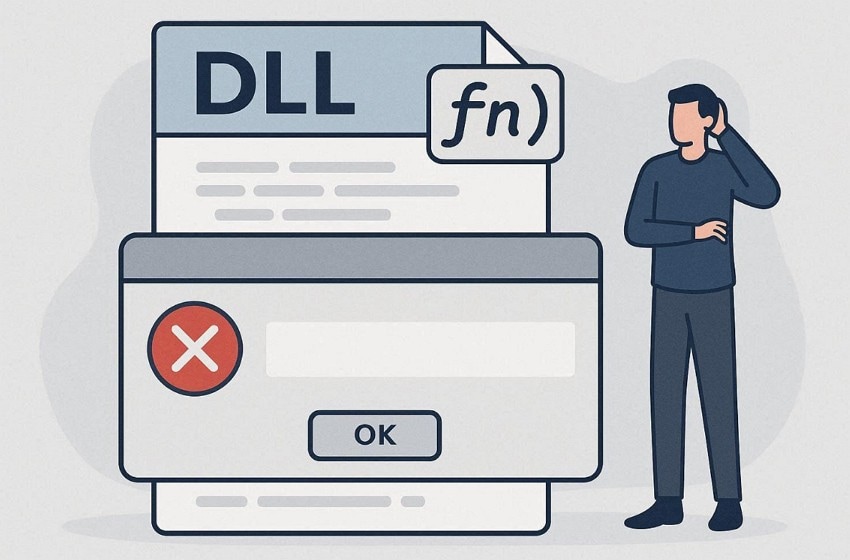
If the function name or structure differs, Windows blocks the program. You may see “the procedure entry point could not be found” during program startup or updates. It usually happens before the app opens, so nothing else can load. As a result, Windows then stops the program to avoid crashes.
Why Programs Depend on Entry Points
Programs rely on entry points, so Windows knows exactly where execution should begin. Below are a few key points to show its importance:
- EXE Startup Point: Windows jumps to the main entry for program launch and setup.
- Load Function: DllMain runs first when the library loads for initialization tasks.
- Shared Libraries: Apps call DLL functions using entry points with defined addresses only.
- Name Resolution: Windows matches import names to exact DLL entry points.
- Direct Jumps: Calls go straight to the function code after address resolution.
When You’re Most Likely to See This Message
This error pops up during key moments when Windows checks DLL functions. Yet, the given table shows a clear idea of seeing this specific error:
| Situation | When the Error Commonly Appears | Why It Happens |
| App Launch | Opening a program or game after installation or file transfer | Required DLL functions do not match the program expectations |
| System Startup | Windows is booting while background tools or drivers load | Startup utilities depend on outdated or replaced DLL files |
| Windows Update | After installing major Windows or driver updates | Updated DLL versions break compatibility with older applications |
| Software Changes | Installing or removing programs that share DLL files | Shared libraries are overwritten or removed unintentionally |
| File Damage | Running apps after antivirus actions or disk errors | Essential DLL files become deleted, blocked, or corrupted |
Part 2. Ultimate Fixes & Common Reasons Behind the Entry Point Error
Most entry point errors appear after file changes or improper software handling. In this section, you will find some common causes and help users avoid confusion:
- Missing DLLs: The required library file is deleted or never installed on the system. Programs then fail to load the functions Windows expects during the startup execution phase.
- Wrong Versions: An incompatible DLL version lacks expected function names or signatures. This happens after partial updates or software overwrites shared libraries.
- Corrupt Files: Existing DLL files become damaged, causing Windows to misread exported functions. Power loss or disk errors commonly trigger this corruption issue on systems.
- System Changes: Windows updates sometimes replace DLLs while older programs expect previous versions. This mismatch triggers the procedure entry point could not be located error.
- Malware Damage: Malware may alter or quarantine DLLs required by legitimate software. When apps load later, Windows cannot find the expected function addresses correctly.
As you discover some common causes, below are the top 8 fixes to resolve this issue:
Fix 1: Restart Windows to Refresh System Libraries
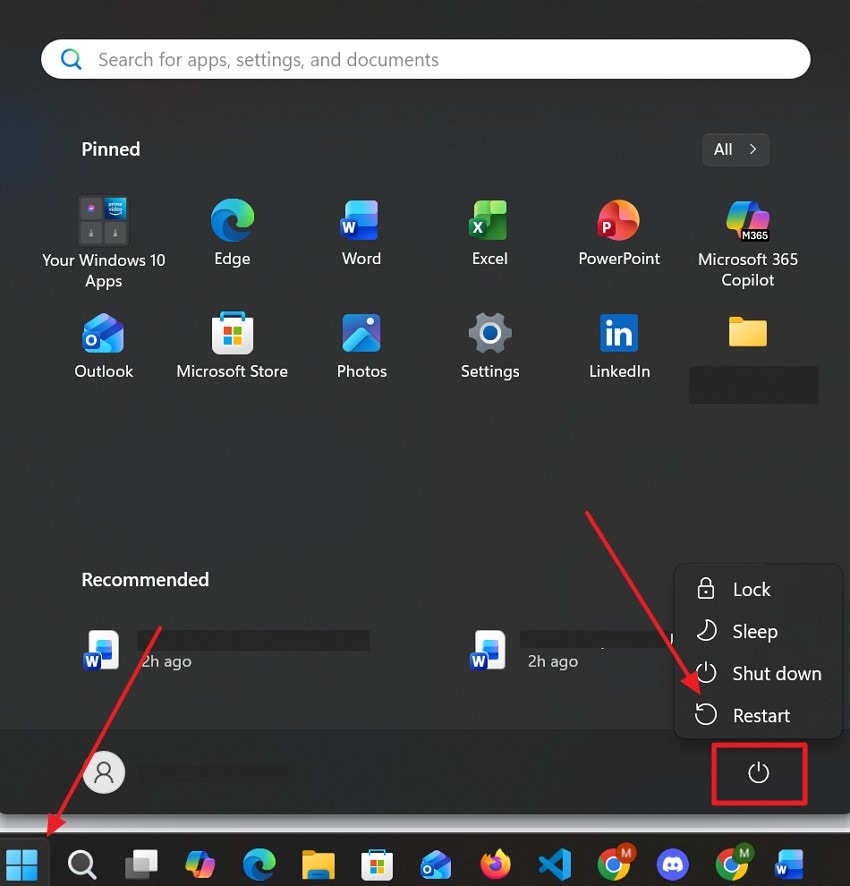
You should first reboot your device to help it refresh system libraries. It clears temporary memory and reloads essential DLL files correctly during startup. This allows Windows rebuild file links that may have failed earlier. Plus, libraries refresh without manual tweaks in most cases. After updates or crashes, a restart often restores missing connections. So, follow the guide to resolve the procedure entry point could not be found via restart:
Instructions. Click the "Windows” icon to select “Power” and choose “Restart” to reboot your system.
Fix 2: Reinstall the Problematic Application or Game
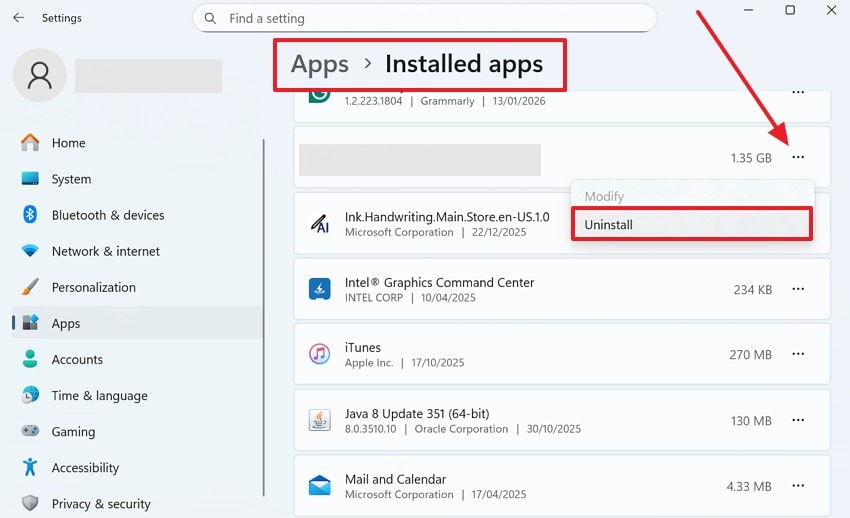
A reinstall of the app replaces missing files and restores correct library versions. This fix targets “the procedure entry point could not be located” from damaged installs. It also overwrites any damaged or mismatched components without hassle. Affected programs then connect seamlessly to the correct entry points. Thus, go through the following guide to reinstall any problematic app to resolve this issue:
Instructions. Go to “Settings” to access the “Installed Apps” section from the “Apps” tab. Locate the problematic app to click the “Three Dots” icon and select “Uninstall.” Afterward, navigate to the official website of the app and download it again.
Fix 3: Install Official Microsoft Visual C++ Redistributable Packages
It provides essential runtime libraries required by many Windows programs. These packages supply core DLL files, like vcruntime and msvcp, used during execution. Many games and programs depend on these for core functions. Therefore, installation adds or repairs outdated versions instantly from Microsoft sources. As a result, Windows then locates entry points without issues. Hence, let’s learn how to fix “the procedure entry point could not be located” using this solution:
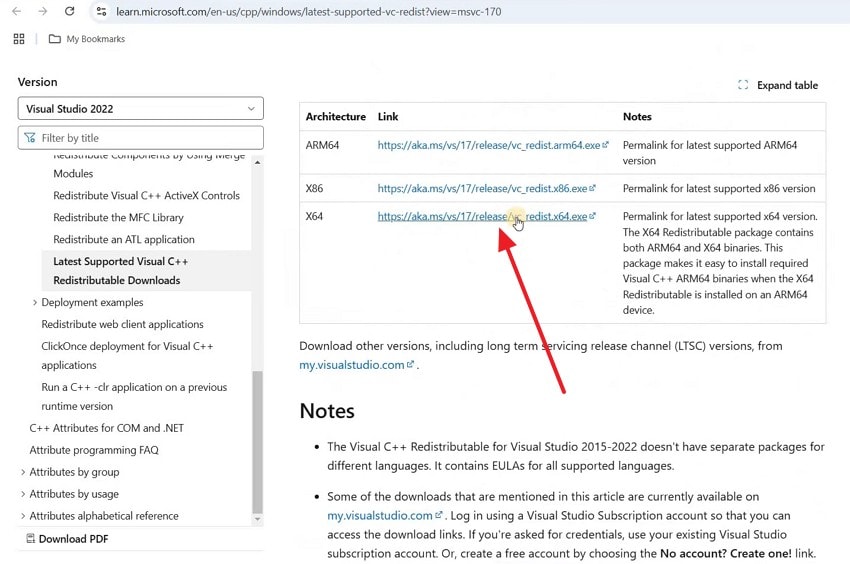
Step 1. Access the official website for downloading “Visual C++ Redistributable.” Scroll down and click the link next to “X64.”
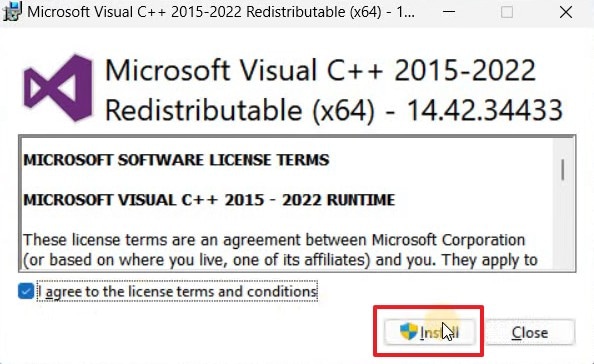
Step 2. Upon installing, open the .exe file to check “I Agree To License Terms and Conditions” and press “Install.”
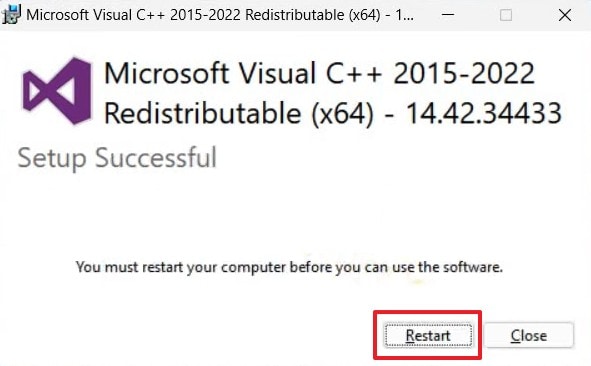
Step 3. Once you follow the displayed guide, press “Restart” to complete the task.
Fix 4: Update or Repair Microsoft .NET Framework Runtime
You can also either update or repair the .NET Framework to restore required runtime components. Many desktop tools depend on specific .NET versions to access internal functions. Yet, corrupted framework files or registry entries break these application dependencies. Therefore, this fix replaces damaged files and corrects configuration issues. To fix the "the procedure entry point could not be located” error from appearing, adhere to the steps below:
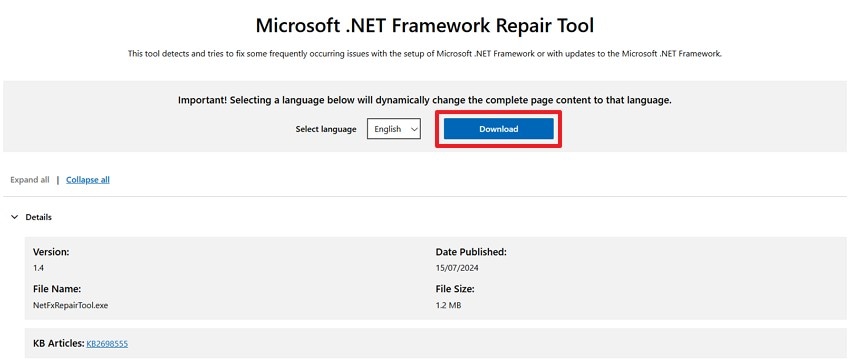
Step 1. When you access the “.NET Framework Repair Tool” site, press the “Download” button.
Step 2. Here, open the .exe file to accept the terms and conditions and hit the “Next” button
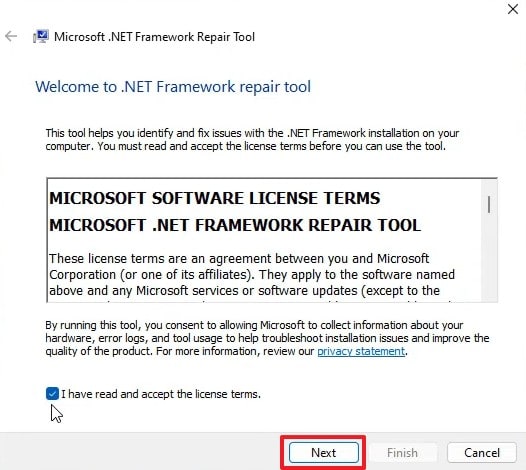
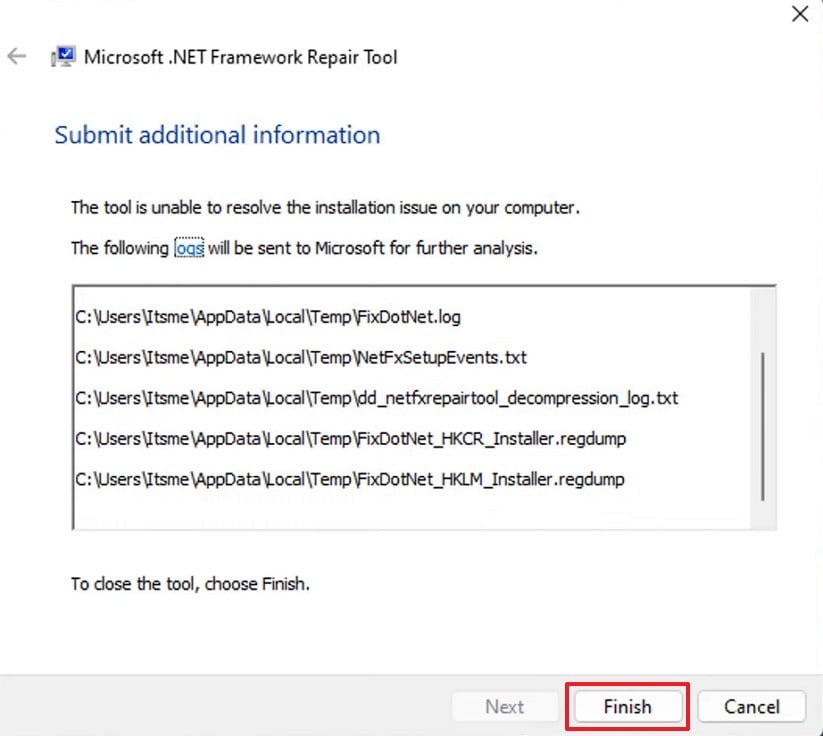
Step 3. Upon navigating to the given prompts, press “Finish” to complete the procedure.
Fix 5: Repair Corrupted System Files Using SFC Scan
This command-line solution verifies and repairs corrupted Windows system files. While scanning, it replaces incorrect versions with cached clean copies from system storage. This process restores missing DLL functions required during application startup execution phases. Hence, SFC execution helps resolve the procedure entry point could not be located error. You need to review the given steps to fix the issue in this way:
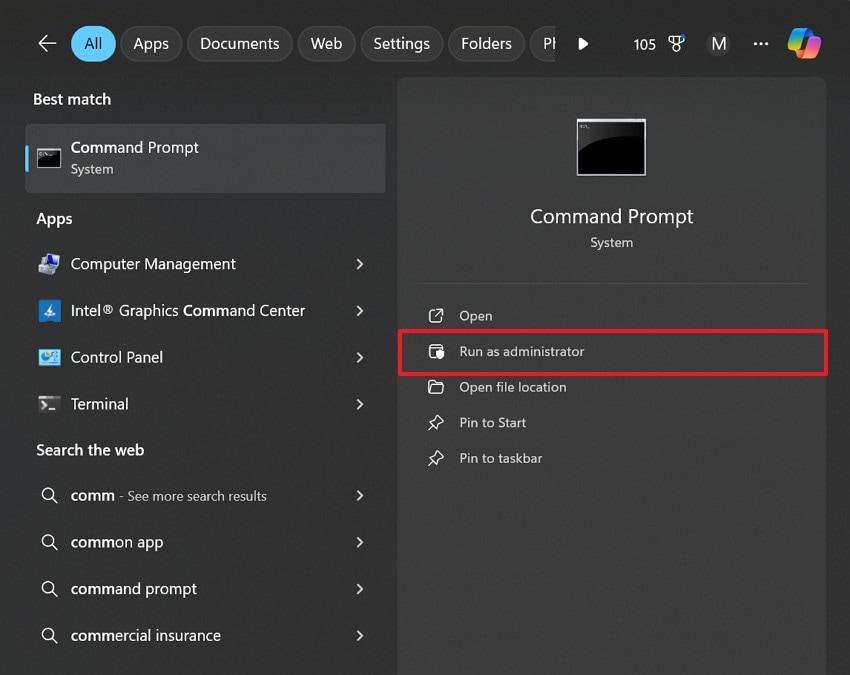
Step 1. To commence, choose “Run as Administrator” upon searching for “Command Prompt.”
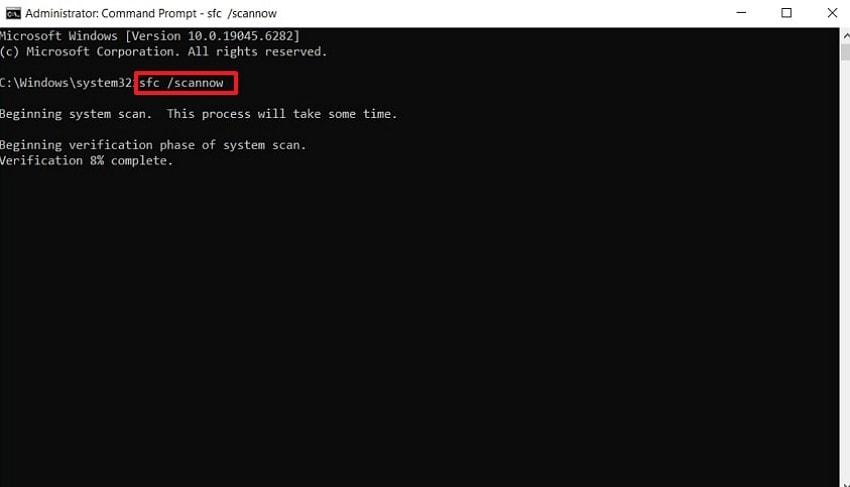
Step 2. After that, type “sfc /scannow” and press “Enter” to let the PC start the process.
Fix 6: Restore Windows Image Health Using DISM Tool
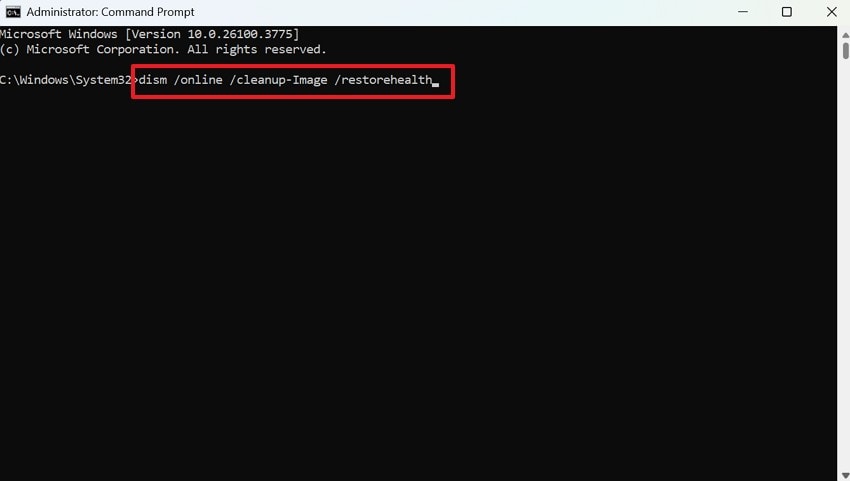
DISM Tool repairs the Windows image and restores system component health. It fixes deeper corruption issues that SFC alone cannot correct or replace. DISM downloads clean files from Windows sources and integrates them into the system. As a result, it ensures reliable restoration of all essential libraries and runtime components. So, let’s find out how to fix the procedure entry point could not be found error:
Instruction. On “CMD,” enter “dism /online /cleanup-image /restorehealth” and press “Enter” to repair system image files.
Fix 7: Scan and Remove Malware Affecting System DLL Files
Malware scans detect viruses that alter system DLLs precisely. This security fix resolves "the procedure entry point could not be located” in infected libraries. Tools like Windows Defender detect infected files and restore or quarantine them. It ensures programs can access required functions without interference during startup or execution. Anyhow, adhere to the following steps to run a scan on your device:
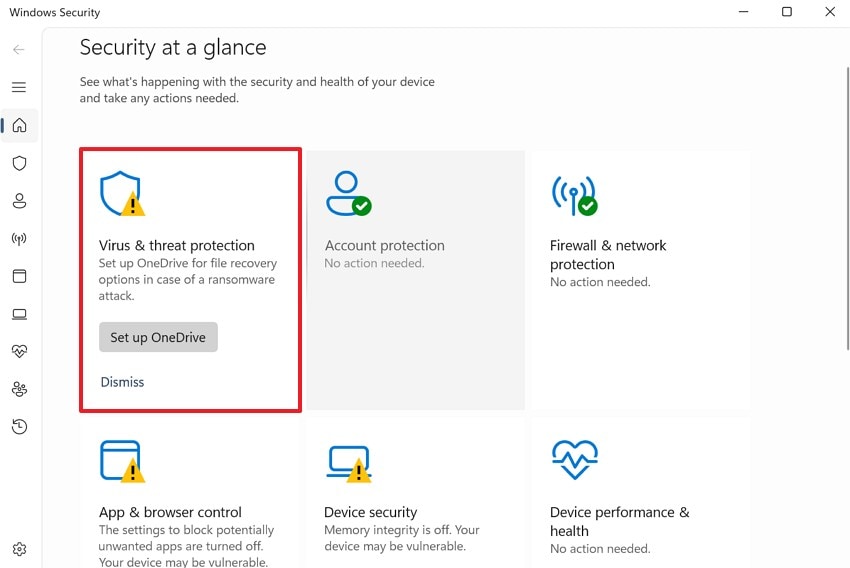
Step 1. Initially, opt for the “Virus & Threat Protection” section upon running “Windows Security."
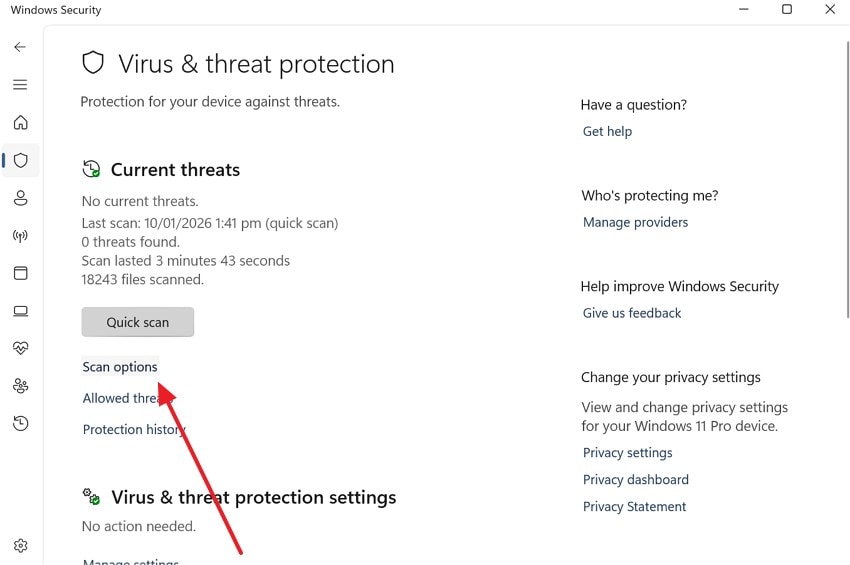
Step 2. Upon seeing the next screen, click the “Scan Options” option.
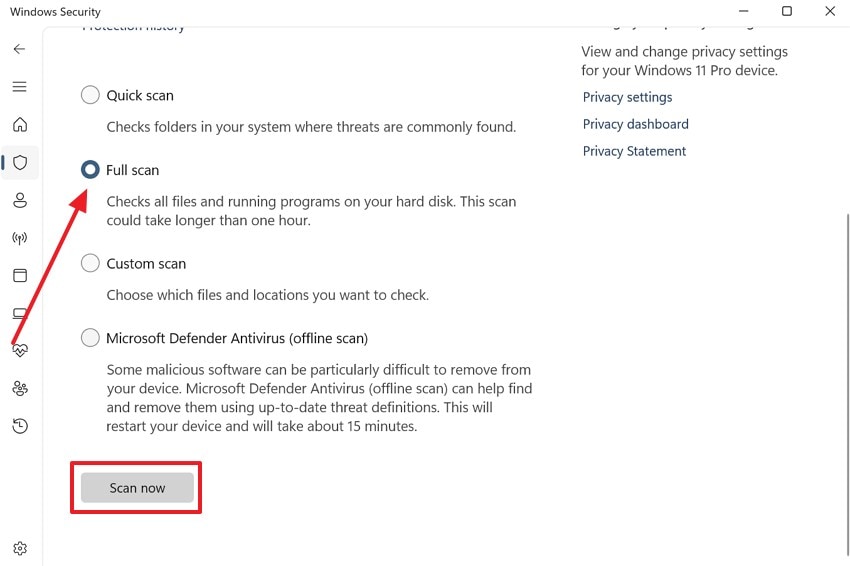
Step 3. Going ahead, opt for “Full Scan” and then click the “Scan Now” button.
Fix 8: Reset or Reinstall Windows Operating System (Last-Resort Fix)
When the discussed ways can’t resolve the issue, you should now reset your PC. This process removes corrupted libraries, broken registry entries, and incompatible components. It ensures every DLL and runtime is properly installed for all applications. Besides, a fresh installation provides a clean and stable space to prevent repeated errors and software conflicts. Go through this guide to reset your PC to resolve this issue:
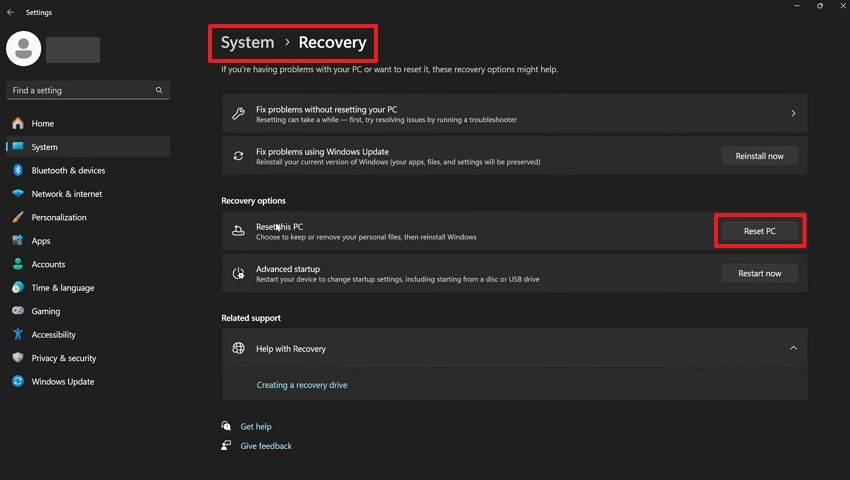
Step 1. Navigate to the “System” settings on your PC and access the “Recovery” section. Moving forward, press the “Reset PC” button to start the process.
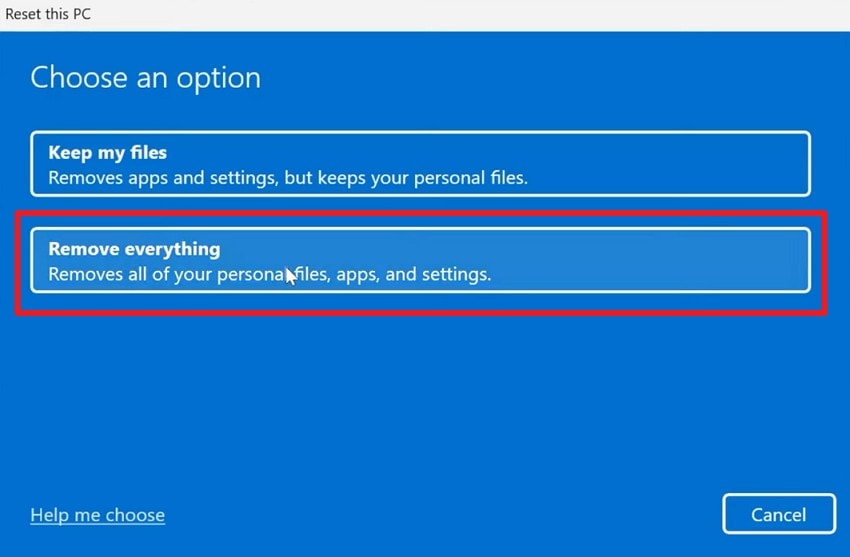
Step 2. As you move to the following screen, opt for the “Remove Everything” option.
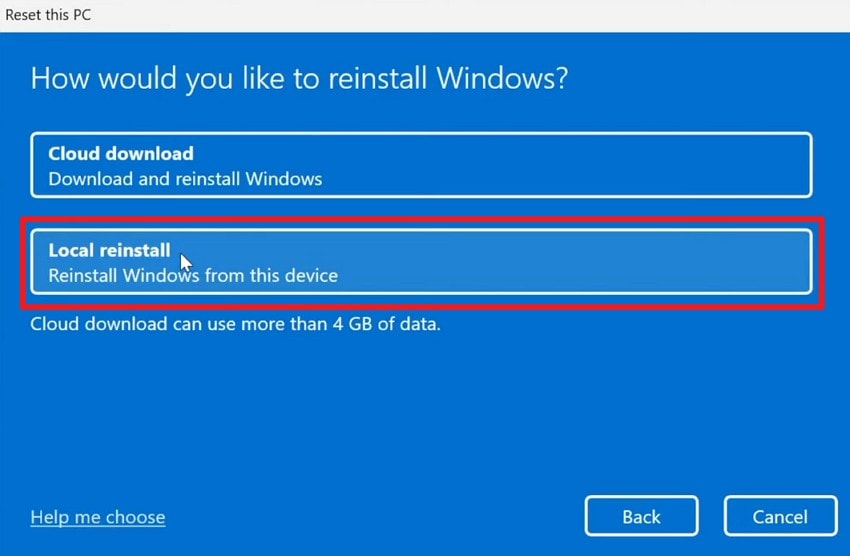
Step 3. Upon seeing the new display, choose the “Local Reinstall” option.
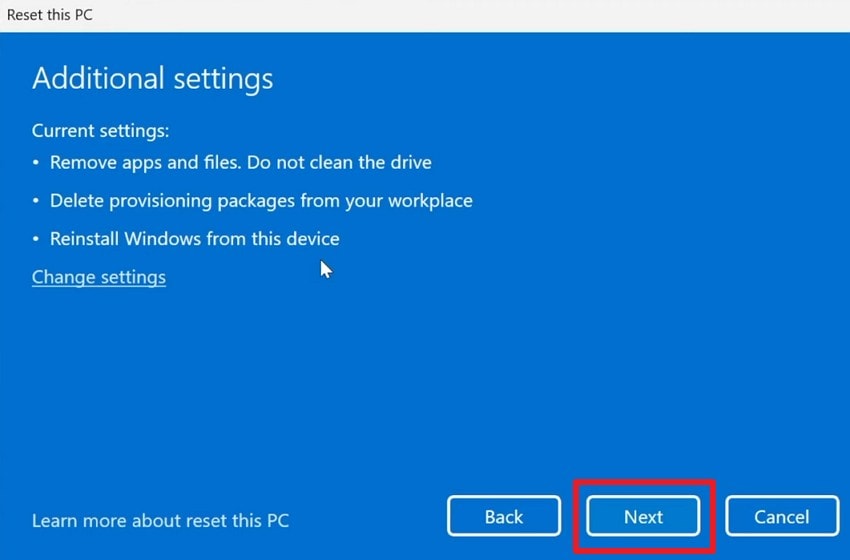
Step 4. As you view the “Additional Settings” screen, opt for the “Next” button.
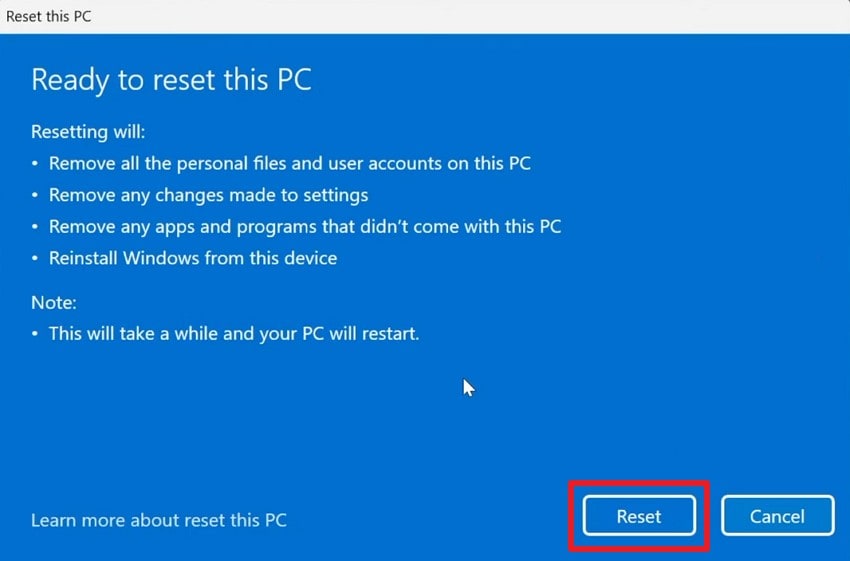
Step 5. Following this, click the “Reset” button to initiate the resetting process.
Pro Tip. Repairit: Your Tool to Solve Entry Point Errors Caused by System File Corruption
In addition to the above, system file corruption sometimes causes “the procedure entry point could not be found” errors that frustrate users daily. When repairs fail, damaged documents remain unusable, causing delays and repeated productivity losses. In such a case, Repairit offers a smarter way with its powerful File Repair feature. This tool fixes 75+ corrupted documents and even engineering files across many formats reliably.
While repairing, its fast processing boosts productivity by restoring files even after unexpected corruption. You will also be able to fix multiple corrupted or damaged files together without any limitations.
Key Features

-
System File Friendly Repair: It restores corrupted program-related files that trigger entry point errors and block application startup.
-
DLL Linked Document Recovery: This tool fixes documents damaged after DLL conflicts and keeps the original structure without data loss.
-
Batch Safe Restoration: Repairit repairs multiple affected files together when the system crashes, creating repeated entry point failures.
Detailed Guide to Fix Damaged System Files Using Repairit
You need to navigate to the following steps to learn how you can repair corrupted system files efficiently via Repairit:
Step 1. Open the Document Repair Tool
As you head to the “More Types Repair” section, locate “Document Repair” and select “Start.”

Step 2. Add & Fix Corrupted System Files
Subsequently, click “+Add” to import the damaged system files and press “Repair” to begin fixing them.

Step 3. Save the Repaired System Files
After the repair completes, preview the fixed system files and click “Save All” to export the restored files.

Solve Entry Point Errors Caused by System File Corruption
 Security Verified. Over 7,302,189 people have downloaded it.
Conclusion
To sum up, entry point errors can stop apps, but knowing the causes makes fixing them easier. You now understand how to fix the procedure entry point could not be located error. Besides, you should keep your PC updated to avoid future problems. Besides that, if file corruption remains after system fixes, lost work can still block productivity. So, Repairit becomes essential to repair damaged files while preserving quality and format.
FAQs
-
1. Can entry point errors damage my hard drive permanently?
No, these errors occur from software mismatches, not hardware faults directly. Moreover, they signal missing functions rather than disk failure itself. Therefore, regular scans keep your drive healthy, alongside fixing errors. -
2. Can antivirus software cause entry point errors on Windows?
Yes, antivirus tools may quarantine DLL files, removing required functions during scans. Programs then fail because Windows cannot load the expected entry points from isolated file locations. So, restoring files from quarantine or adding exclusions usually resolves the problem. -
3. What if documents become unreadable after repeated entry point crashes?
In such cases, Repairit helps restore corrupted documents without changing the original content. Its file repair engine analyzes data structures carefully to rebuild damaged file sections. This approach saves work files even when system fixes alone cannot recover them.




