
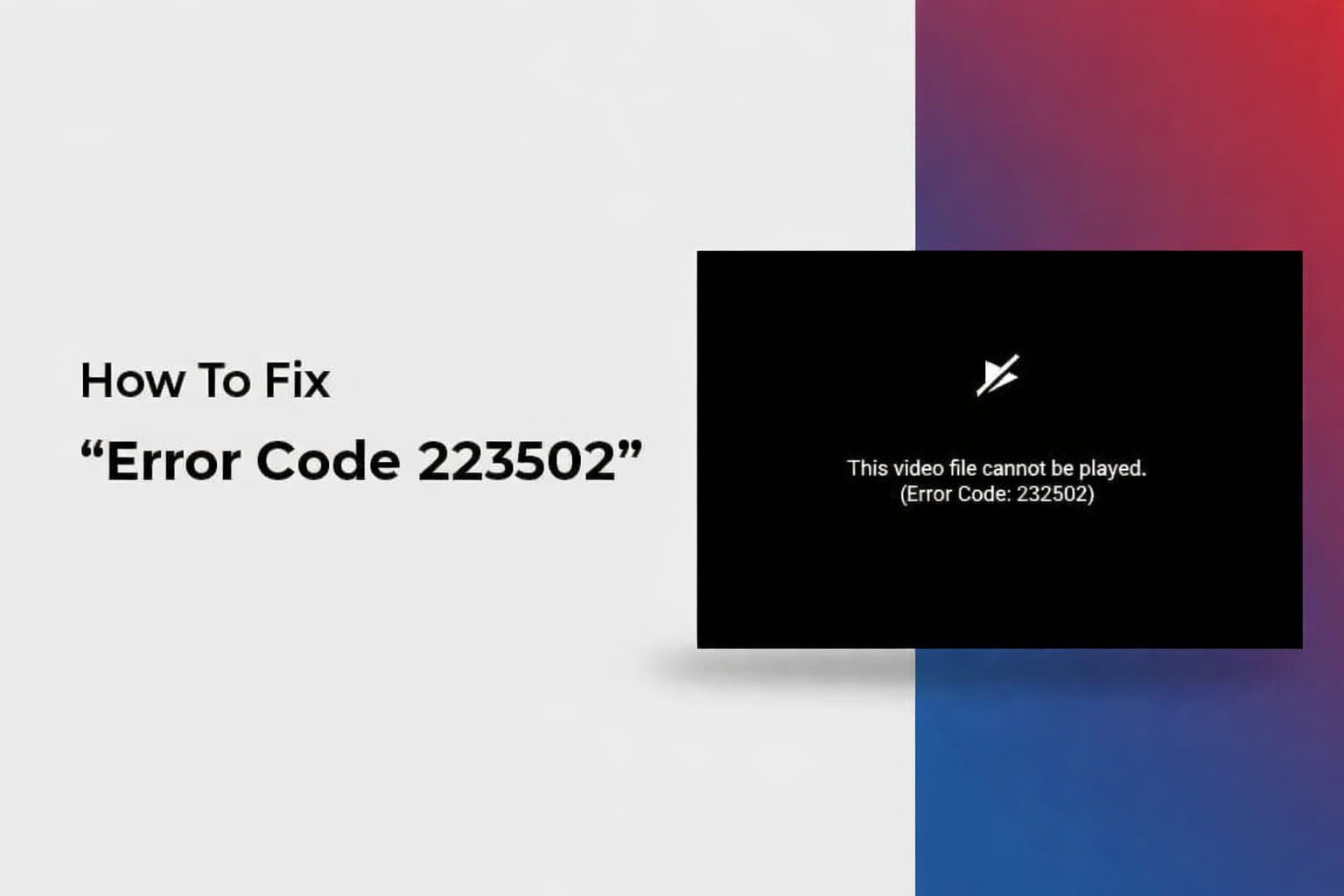
Encountering the message "This video file cannot be played. Error code 232502" can be frustrating, especially since the code itself does not clearly explain what went wrong. In many cases, the issue is not caused by the video file at all, but by playback settings, browser limitations, or format compatibility problems.
In other situations, the error may point to a deeper issue, such as an incomplete download, interrupted file transfer, or hidden file corruption. Because error code 232502 can stem from multiple sources, identifying what triggered it is the first step toward choosing the right solution and avoiding unnecessary fixes.
Key Takeaways
- Error code 232502 indicates a video playback failure, not a specific diagnosis
- The error can be caused by player issues, incomplete downloads, or file corruption
- Basic playback and compatibility fixes should be tried before assuming file damage
Table of Contents
Part 1. What Is Error Code 232502?

Error code 232502 is a generic video playback error that appears when a media player or browser fails to decode a video correctly. The message may pop up in media players on a computer desk, web browsers, or embedded media players in a web page. It is expected to read:
- "This video file cannot be played. Error code 232502"
- "Video cannot be opened due to error 232502"
Part 2. Common Causes of Error Code 232502
Error code 232502 does not point to a single failure; instead, it signals that the video player cannot process the video data correctly that it gets. It's crucial to understand why this happens because different causes have different fixes. Here are some of the most common reasons users see this error.
1. Browser or Media Player Issues
A very common reason for the error code 232502 is the failure of decoding in the browser or media player. The video files of the modern generation have various decoding mechanisms, which fail in many cases.
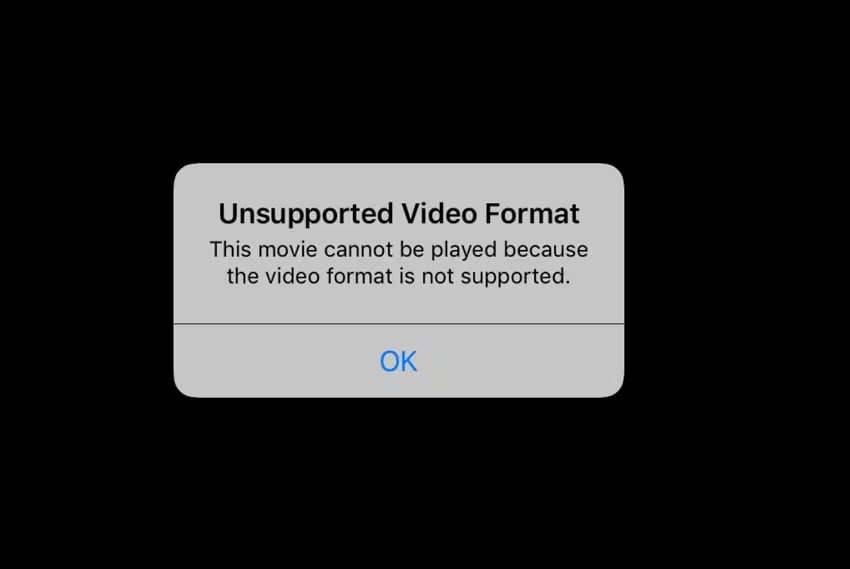
Common triggers include:
- Outdated browsers or media player versions
- Missing or unsupported video codecs
- Conflicts caused by hardware acceleration settings
- Temporary cache or rendering errors
Typical symptoms:
- The video fails to play in one browser or player but works in another
- Online videos display the error while locally stored videos play normally
- Restarting the browser or switching players temporarily resolves the issue
In these cases, the video file itself is usually intact, and the problem lies in how the software attempts to decode it.
2. Incomplete or Interrupted Downloads
Error code 232502 can also be encountered in the event of a video file failing to download completely. Even when the file seems to be there in the device, the lack of certain data, especially the header information of the file, can lead to issues in playing the video.
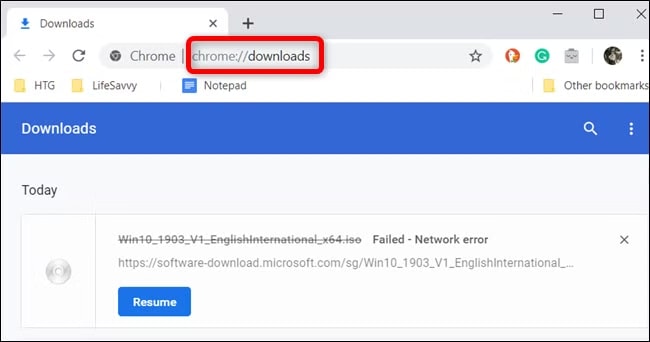
Common causes include:
- Network interruptions during download
- Browser crashes or forced shutdowns
- Paused or canceled downloads resumed incorrectly
Typical symptoms:
- The video duration displays as 0:00 or an unusually short length
- Playback stops immediately or does not start at all
- The file size is significantly smaller than expected
Because these files are incomplete rather than corrupted, re-downloading the video often resolves the issue.
3. Format or Codec Compatibility Problems
Not all video players support all encoding schemes, even if a common extension is used (for example, MP4 or MOV). Even if a video is encoded with an unsupported codec, it can give a 232502 error code when it is unerringly incorrect.
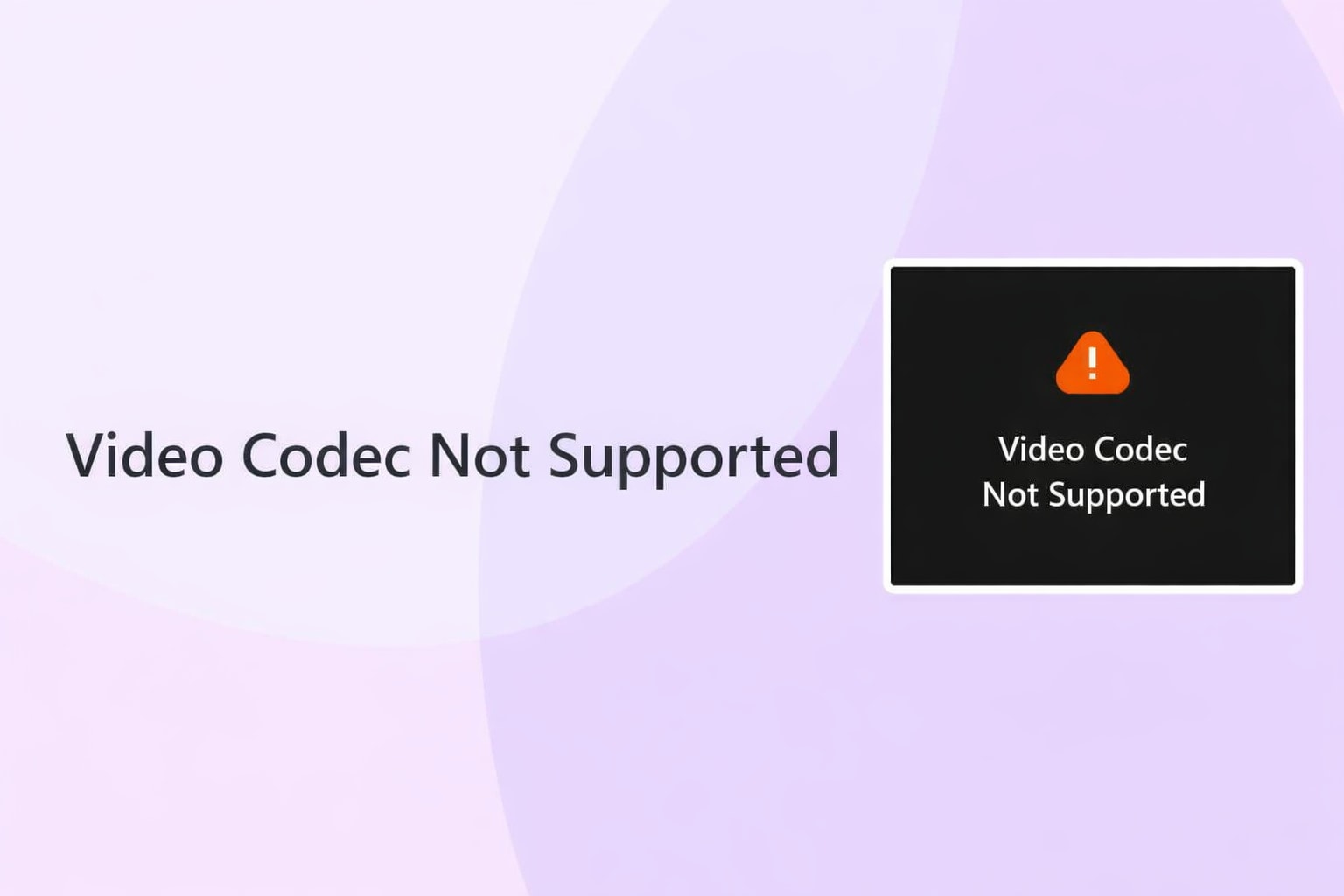
Common scenarios:
- Videos recorded on newer devices using advanced codecs
- Files exported with uncommon encoding settings
- Playback attempted on older systems or lightweight media players
Typical symptoms:
- The video plays correctly on one device but not on another
- Converting the video to a different format resolves the issue
- The error appears consistently in a specific player only
In this case, the issue is related to compatibility rather than file integrity.
4. Video File Corruption
If none of the above apply, the faulty 232502 code might also result from the corruption of actual video file data. This happens if critical structural elements like headers, frames, and so on are missing or corrupted.

Common causes of corruption include:
- Recording interruptions due to battery loss or app crashes
- File transfer errors from storage devices or cameras
- Software crashes during video editing or exporting
- Bad sectors on storage media
Typical symptoms:
- The video fails to play in all media players and browsers
- Re-downloading or converting the file does not fix the issue
- The same error persists across different devices and operating systems
This is the scenario where basic playback fixes are no longer effective and file-level repair may be required.
Part 3. How to Fix Error Code 232502 Based on the Cause
Since there may be numerous reasons that lead to the occurrence of an error code 232502, it's not possible to provide a general solution that may be applied to any circumstance. The best way to handle it would be to begin with basic problem-solving techniques before proceeding to advance problem-solving skills.
Quick Self-Check: Identify the Likely Cause (Before You Fix Anything)
Before proceeding, use the checklist below to narrow down the cause:
- The video plays in another browser or device → Likely a player or compatibility issue
- The video duration shows 0:00 or file size is unusually small → Likely an incomplete download
- The video fails to play everywhere, even after conversion → Possible file corruption
This quick check helps you avoid unnecessary steps and choose the most effective fix.
Method 1: Try Basic Playback Fixes First
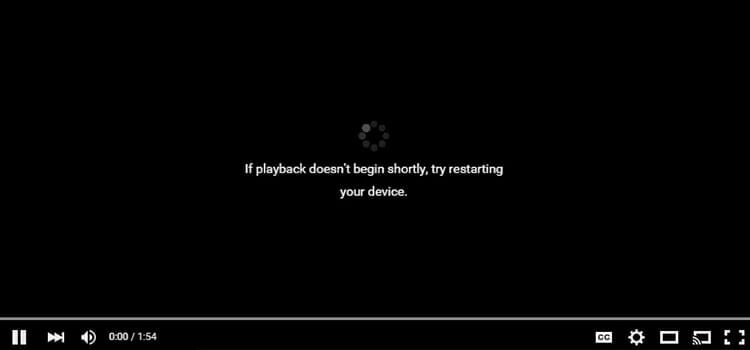
In many cases, error code 232502 is caused by temporary playback issues, software limitations, or compatibility conflicts rather than file damage. The following steps often resolve the problem without altering the video file itself:
- Update your browser or media player to ensure it supports the video’s codec and encoding
- Disable hardware acceleration in player or browser settings, which can sometimes interfere with video decoding
- Try a different media player, such as VLC or your operating system’s default player
- Re-download the video file to rule out incomplete or interrupted downloads
- Convert the video to another format that is widely supported
If the video plays normally after these steps, no further action is required.
Method 2: Check Playback Across Devices and Platforms
Before assuming the file is corrupted, test the video on:
- Another computer or mobile device
- A different operating system
- Both offline players and browser-based players
If playback works correctly on another device, the issue is environment-related rather than file damage.
Method 3: Determine Whether the File Is Corrupted
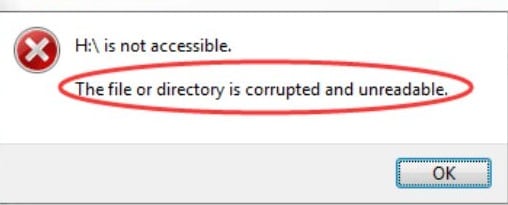
If the video continues to display "this video file cannot be played error code 232502" across multiple players, formats, and devices, the file itself may be damaged. This typically indicates structural issues within the video that standard playback fixes cannot resolve.
At this stage, file-level repair becomes a consideration, especially for important or irreplaceable videos.
More solutions to video error code:
How to Fix 0xc10100be Video Error?
Video Error Code 224002: This Video Cannot Be Played [Fixed]
6 Proven Ways to Fix the 0xc00d36cb Video Error Code
Part 4. When Video Repair May Be Appropriate (File-Level Damage Only)
If basic playback fixes, compatibility checks, and re-downloading do not resolve error code 232502, the issue may be caused by structural damage within the video file itself.
In this situation, standard media players are unable to read missing or damaged internal data, such as file headers or frame information, so the video fails to play regardless of the device or software used.
At this stage, a video repair tool may be considered. Unlike playback fixes, video repair tools focus on restoring the internal structure of a damaged file, not on adjusting player settings or codecs.
When Wondershare Repairit May Be Appropriate

-
Repair damaged videos with all levels of corruption, such as video not playing, video no sound, out-of-sync video or audio, playback errors, header corruption, flickering video, missing video codec, etc.
-
Repair full HD, 4K, and 8K videos and support 20+ popular formats, including MOV, MP4, M2TS, MDT, RSV, WMV, MPEG, DAT, etc.
-
Repair damaged or corrupted videos caused by video compression, system crash, video format change, etc.
-
Repair critically damaged or corrupted RAW/Log/HDR videos from professional cameras such as Blackmagic Design, RED Digital, and ARRI, etc.
-
Repairit has a quick and advanced scanning mode. You can use either depending on the level of corruption the video file has undergone.
-
No limit to the number and size of the repairable videos.
-
Repaired videos are more compatible with professional editing software such as DaVinci, Composer, Final Cut Pro, and Premiere Pro.
-
Support Windows 11/10/8/7/Vista, Windows Server 2003/2008/2012/2016/2019/2022, and macOS 10.13~macOS 15.
Using a video repair tool is typically recommended only after the following conditions are met:
- The video fails to play in multiple media players
- The error persists across different devices or operating systems
- Re-downloading or converting the file does not resolve the issue
These signs strongly suggest that the problem lies within the video file itself rather than the playback environment.
Important Limitations to Consider
Video repair is not a guaranteed solution. Repair results depend heavily on the extent and type of damage present in the file.
Before proceeding, keep the following limitations in mind:
- Repair success varies based on how much data is missing or corrupted
- Severely truncated or incomplete files may not be recoverable
- DRM-protected or encrypted videos are generally not supported
- Repair tools address file structure, not playback configuration issues
For this reason, video repair should be treated as a conditional solution, used only after simpler troubleshooting steps have been exhausted.
Step-by-Step: Repairing a Video with Wondershare Repairit
If file-level damage has been confirmed, video repair software such as Wondershare Repairit can help restore playback by repairing damaged internal components. Only follow these steps if previous troubleshooting methods did not resolve the issue.
Step 1: Click +Add and select the video you want to repair. You can also drag and drop the file into the program window.

Step 2: Click Repair to let the software analyze and attempt to fix the damaged video.

Step 3: After the repair finishes, click the Play icon next to your file to check if it plays correctly. If the preview is satisfactory, click the Download icon and select a location on your PC to save the file.

Fix The Error Code 232502
 Security Verified. Over 7,302,189 people have downloaded it.
Part 5. How to Prevent Error Code 232502 in the Future
While not all playback errors can be completely avoided, many cases of error code 232502 are triggered by preventable issues related to downloads, storage handling, and software compatibility. Applying the practices below can significantly reduce the chances of encountering this error again.
Tip 1. Ensure Video Downloads and Transfers Complete Fully
Incomplete or interrupted downloads are one of the most common reasons behind "this video file cannot be played error code 232502".
To reduce this risk:
- Always allow video downloads to finish before opening or sharing the file
- Avoid pausing, canceling, or resuming large downloads midway
- Use a stable internet connection, especially for high-resolution videos
A partially downloaded file may appear complete but still lack critical data required for playback.
Tip 2. Safely Handle Storage Devices
Improper handling of storage devices can lead to file-level damage that triggers error code 232502.
Best practices include:
- Always eject USB drives, SD cards, and external hard drives safely
- Never remove storage devices while files are being copied or transferred
Unexpected disconnections may corrupt internal file data, even if the file name and size appear normal.
Tip 3. Avoid Interruptions During Recording and Exporting
Videos that are interrupted during recording, exporting, or rendering are more likely to develop structural issues that result in playback errors.
To minimize this risk:
- Ensure sufficient battery power or a stable power supply during recording
- Allow video exports to complete without force-closing software or shutting down the system
Incomplete write operations often leave video files unplayable across devices.
Tip 4. Keep Software and Media Players Updated
Outdated browsers, media players, or operating systems may not support newer video codecs or encoding methods, leading to compatibility-related playback failures.
Recommended actions:
- Regularly update browsers and media players
- Install system updates that improve media compatibility
Keeping software up to date helps prevent decoding failures that may otherwise be mistaken for file corruption.
Tip 5. Use Compatible Formats and Reliable Tools
Choosing widely supported formats reduces the likelihood of playback errors across different platforms.
Helpful tips:
- Export videos in commonly supported formats such as MP4 with standard codecs
- Test videos on multiple devices if they will be shared or archived
- Keep backup copies of important video files
Backups provide a fallback option if playback issues cannot be resolved.
Conclusion
Error code 232502 is a playback-related warning that does not point to a single root cause. In many cases, it results from browser limitations, codec incompatibility, or incomplete downloads rather than actual video file corruption.
Most users can resolve this error by following a structured troubleshooting approach—starting with basic playback checks, testing the video across devices, and ruling out compatibility issues. Only when these steps fail and file-level damage is confirmed should video repair tools be considered.
Understanding what triggers error code 232502 helps ensure that the correct solution is applied without unnecessary steps or assumptions. A systematic approach saves time, avoids further file damage, and increases the chances of restoring playback successfully.
FAQs
-
Q1: Is error code 232502 always caused by video file corruption?
No, the error can also result from browser issues, unsupported codecs, or outdated media players. If the video plays on another device or player, the problem is likely environment-related. -
Q2: When should player or browser fixes be tried instead of file repair?
Player or environment fixes should be tried first if the video works elsewhere or fails only in one app or browser. Issues like cache errors, extensions, or outdated software often trigger this error. -
Q3: What does it mean if a video won’t open on any device or player?
If a video fails everywhere, the file itself may be corrupted. In these cases, a video repair tool such as Repairit may be considered, depending on the damage level. -
Q4: Is video repair guaranteed to fully restore a damaged file?
No repair method can guarantee full recovery in every situation. Success depends on how much usable video data remains. -
Q5: Which video formats are commonly supported by repair tools?
Most tools support popular formats like MP4, MOV, AVI, MKV, and M4V. Actual repair success varies by format and corruption type.




