
The Netflix black screen on a Samsung TV can ruin your streaming time. Many users face sudden black screens with audio or no sound at all. This issue can appear on different Samsung TV models and often confuses viewers. Therefore, when you understand why it happens, you will fix it fast.
In this guide, we will explain common causes and share clear solutions to help Netflix return to normal. If you also play local movies or seasons, Repairit can repair them, so they play smoothly on your Samsung TV without black screens.
Table of Contents
Part 1. Netflix Black Screen on Samsung TV: How to Identify the Real Cause
For the Netflix black screen on a Samsung TV to be fixed, you need to know what causes it. The problem may come from the app, your TV system, or a poor internet connection. Some users face a black screen with audio, while others lose both sound and picture. Plus, Netflix crashes after launching or shows a dark screen only on specific titles. Thus, identifying the right cause saves time and ensures the right solution.
Is the Problem from Netflix, Samsung TV, or the Network?
Black screens may be due to various things, but one should check whether the app itself is experiencing some problems. The issue might not be the TV if other applications are functioning well. Slow or unstable internet can also interrupt Netflix streaming and cause errors. In addition, try testing the Wi‑Fi speed or opening Netflix on another device. This helps confirm if the fault lies with Netflix or your network connection.
Different Black Screen Scenarios Explained
Various Netflix black screen scenarios can indicate very different underlying issues. Below is a clear table explaining each scenario and how to confirm the problem on your device:
| Scenario | Description | Likely Causes | How to Confirm |
| Black Screen With Audio | Video goes black, but sound continues during playback | HDMI handshake issues, TV video output resolution conflicts | Other apps display video normally; Netflix menus load fine; the screen goes black only during playback |
| Black Screen Without Audio | No picture or sound when launching Netflix or playing a title | Device or power supply issues, deeper firmware system faults | The Netflix app or home screen is blank and silent; checking cables or power cycling may temporarily fix it |
| Netflix Crashes After Launch | Netflix opens briefly, then freezes or returns to the home screen. | A corrupted app cache or an outdated Netflix version is conflicting with the installed TV OS. | Other streaming apps work fine; reinstalling Netflix or clearing the cache may temporarily resolve it |
| Screen Goes Black Only on Specific Titles | Some shows or movies show a black screen, while others play normally | HDR format mismatch, title-specific encoding compatibility issues | Lower-quality videos play normally, while specific HDR or Dolby Vision titles trigger a black screen |
Part 2. Why Netflix Black Screen on Samsung TV Happens
Many hidden factors can cause the Netflix on Samsung TV black screen issue. Here, you will find some key reasons that help you solve it faster:
- App Glitch: The Netflix app may have a corrupted cache or bugs, causing playback failure. So, outdated app versions trigger crashes or black screens.
- TV Firmware: Outdated Samsung TV firmware can conflict with Netflix streaming features. Incompatible firmware versions may prevent proper video decoding or app functionality.
- DRM Problem: Digital rights management issues affect protected content like 4K or HDR titles. Incompatible HDCP or TV limitations may block video display entirely.
- Server Outage: If Netflix servers face temporary downtime, your TV cannot fetch video data. The error appears locally as a black screen, even though your internet works fine.
- HDMI Error: Many times, faulty or loose HDMI connections can stop video signals from reaching the display. Signal handshake failures also result in a black screen while sound continues.
Part 3. How to Fix Netflix Black Screen on Samsung TV (Step-by-Step)
When you face a Samsung TV Netflix black screen, simple steps can fix it without hassle. So, this section explains 8 fixes in a simple way so every user can apply them:
1. Properly Restart Your Samsung TV
You should first restart your TV to fix the Netflix black screen on Samsung TV issue. It allows clearing your system of minor glitches to get your streaming app working again. For that, hold the TV's remote Power button for about 10 seconds until the logo appears. This soft restart clears system memory and resolves temporary crashes to make Netflix appear. Thus, it's a quick and effective troubleshooting method for everyone.
2. Sign Out and Sign Back Into Netflix
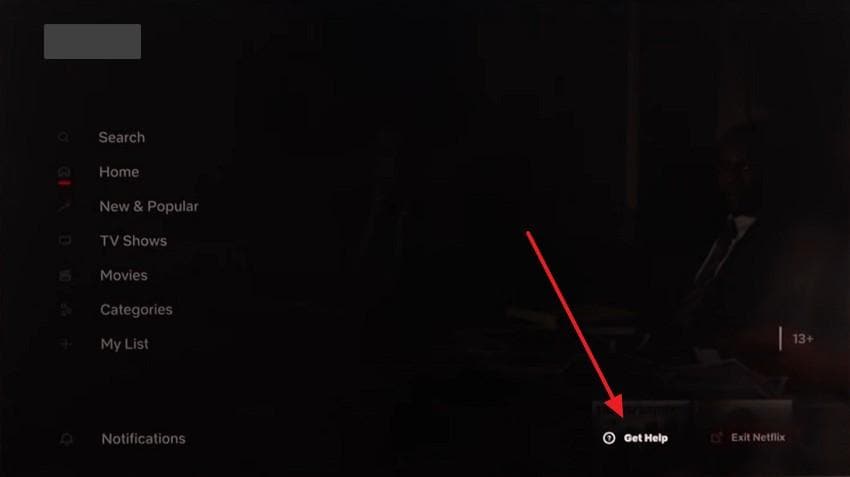
This simple action refreshes your login session and removes minor errors. It helps reset app authorization and reconnects your TV to Netflix servers again. By doing this, corrupt session data or expired credentials are replaced with new ones. In addition, this fix even restores smooth playback without adjusting deeper settings. So, you can follow the given steps to resolve the Netflix black screen Samsung TV problem:
Step 1. When you open the app, navigate to the “Get Help” option from the TV’s menu.
Step 2. Following this, you need to scroll down and opt for the “Sign Out” option.
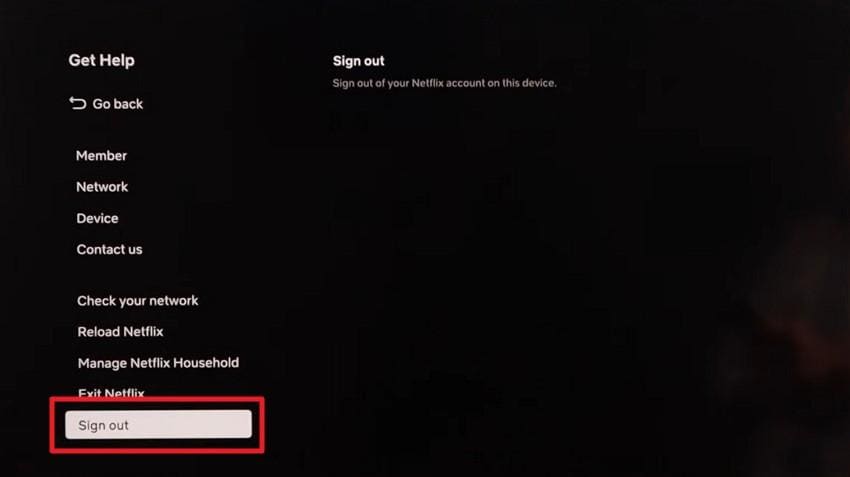
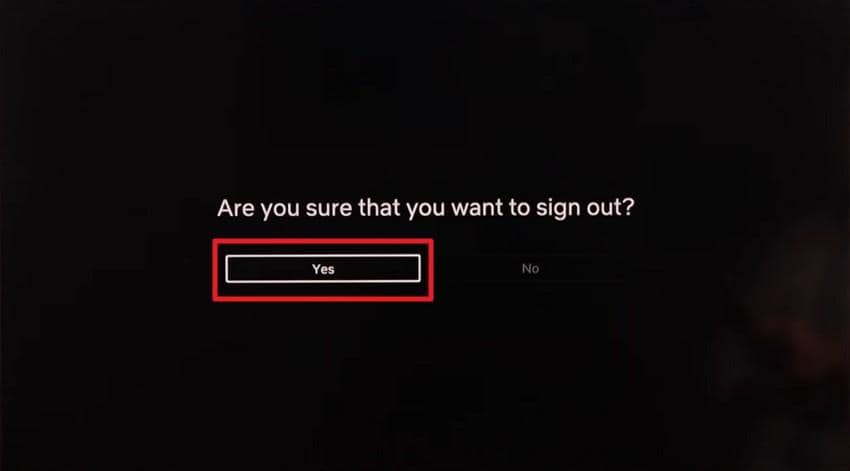
Step 3. Afterward, press the “Yes” button to sign out of your account.
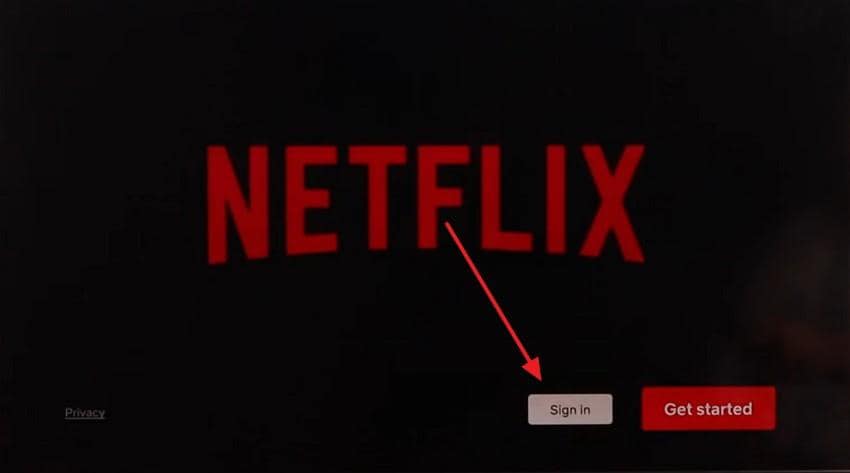
Step 4. After a while, click the “Sign In” button and enter your correct account credentials.
3. Update Netflix App and Samsung TV Software
It is also recommended to update both the app and software to solve the Netflix on Samsung TV black screen issue. New updates fix old bugs to improve stability and enhance compatibility between Netflix and your TV. Besides, they ensure the latest streaming technology works without random crashes or blank screens. It also strengthens performance and reduces future playback issues. Hence, take guidance from the steps below to update them:
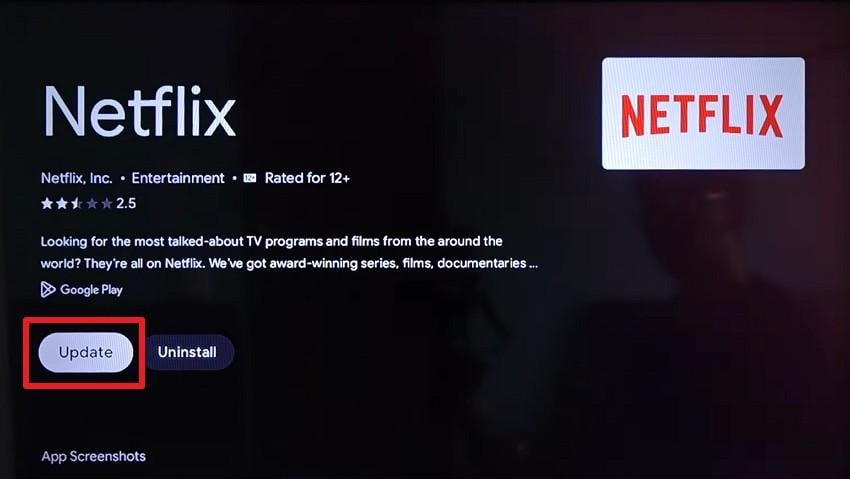
Update Netflix App
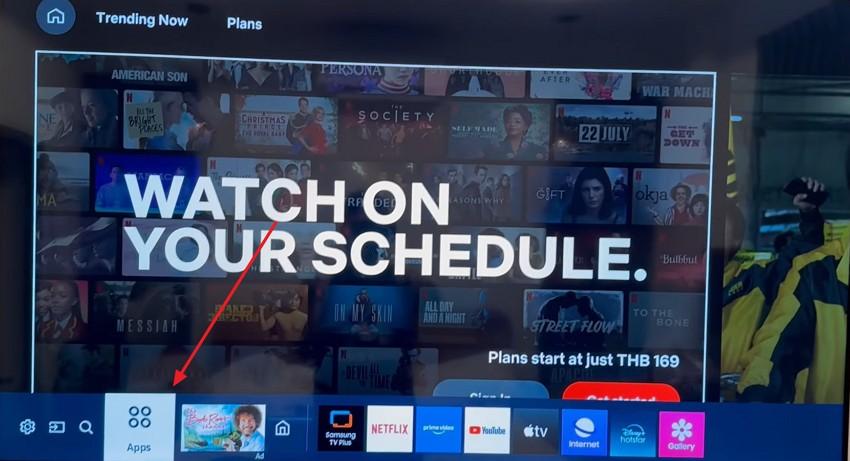
Step 1. You need to go to the “Apps” section from the TV’s main screen.
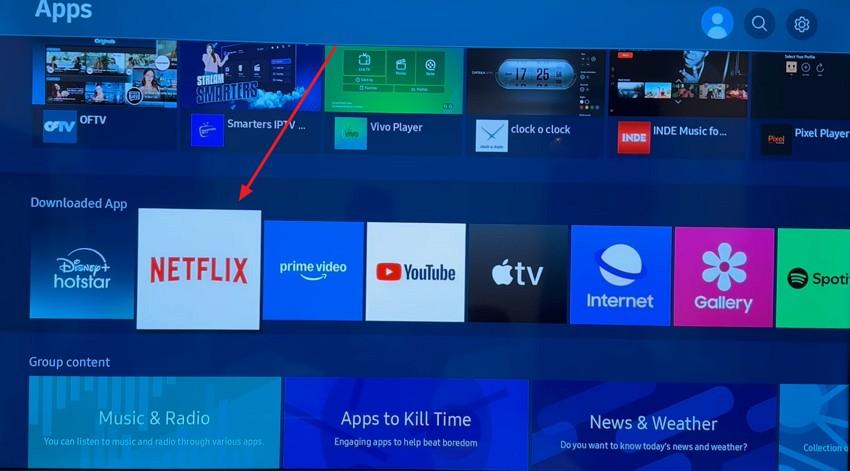
Step 2. Moving forward, find and select the “Netflix” app under the “Downloaded App” section.
Step 3. When you see the new display, press the “Update” button.
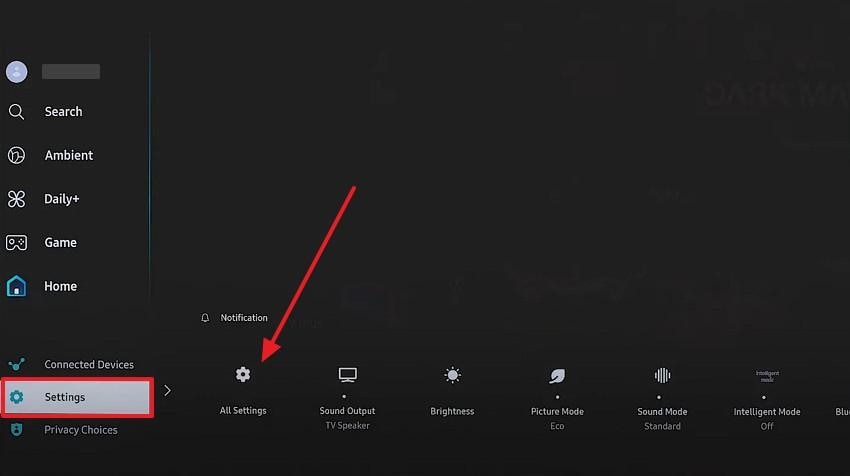
Update Samsung TV Software
Step 1. As you head to the “Settings,” opt for the “All Settings” option.
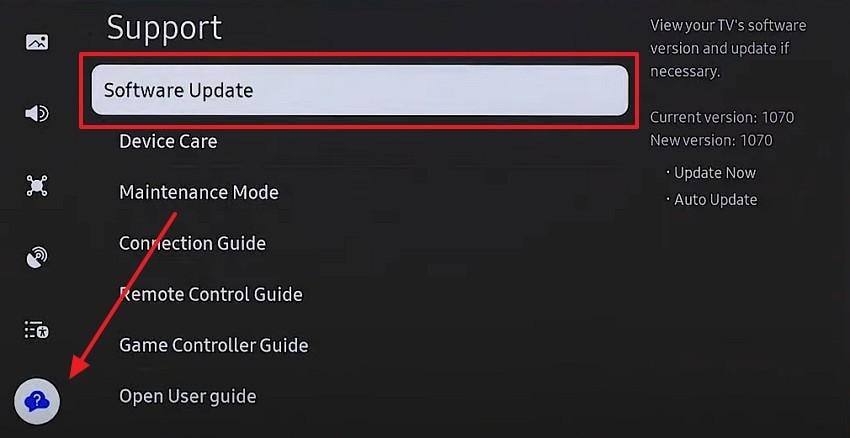
Step 2. Subsequently, access the “Support” tab and choose the “Software Update” option.
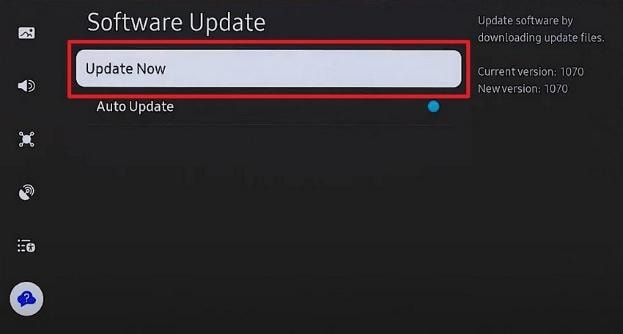
Step 3. Here, click the “Update Now” option to upgrade your TV’s software.
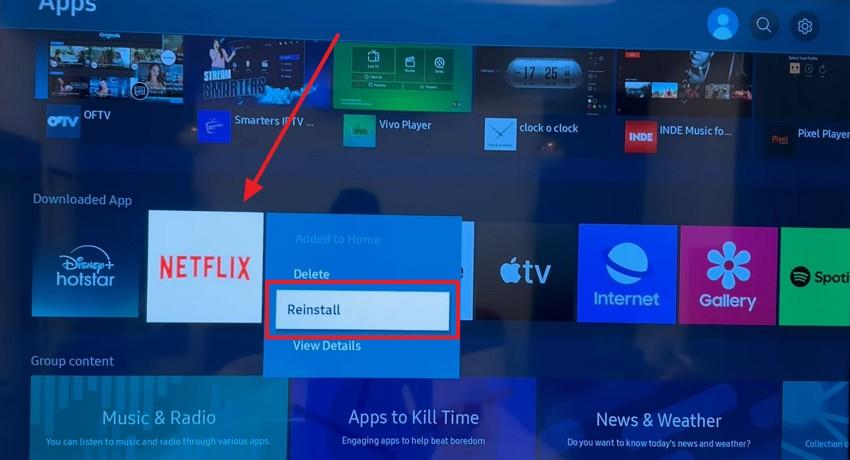
4. Reinstall Netflix on Samsung TV
A fresh installation of the app can also fix the Samsung TV Netflix black screen problem. It removes corrupted app data and replaces it with an updated version. This will restore default settings and eliminate hidden glitches that may block video playback. It also restores smooth streaming and reliable Netflix access on Samsung TVs. Hence, review the following to reinstall your streaming app on your TV:
Instructions. When you find this streaming app in the “Apps” section, long-press the “OK” button. Upon seeing a menu, click the “Reinstall” option to finish the process.
5. Reset Network Settings
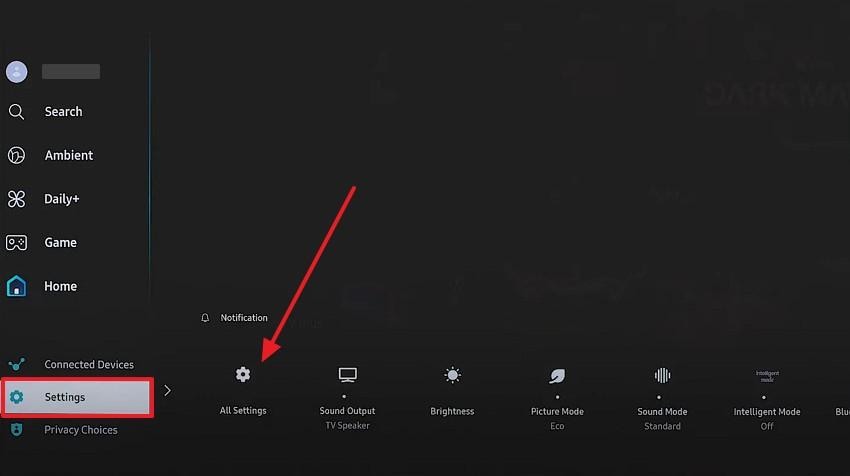
Apart from the above, you can also try to reset the network settings that interrupt Netflix streaming. It helps restore stable data flow between your Samsung TV and Netflix servers. This action clears temporary network conflicts and refreshes the IP address for reliable performance. Plus, a stable internet link ensures proper video buffering and prevents sudden black screen issues. Thus, adhere to these steps to reset network settings:
Step 1. Initiate by accessing the “All Settings” option from your TV’s “Settings.”
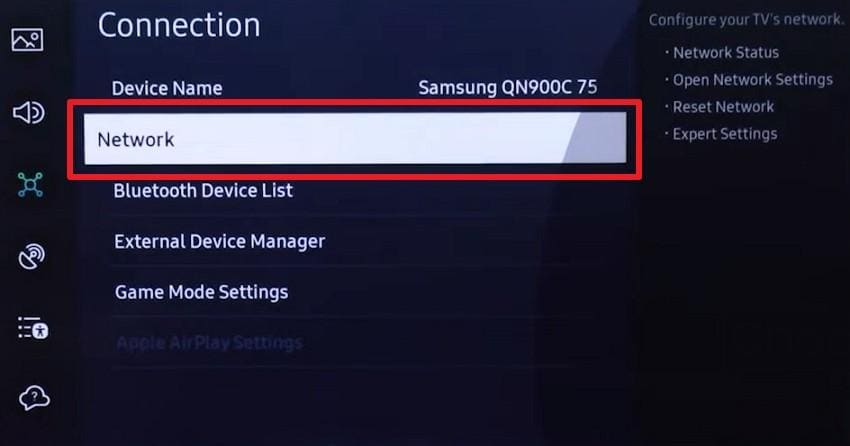
Step 2. When you access it, go to the “Connection” tab and opt for “Network.”
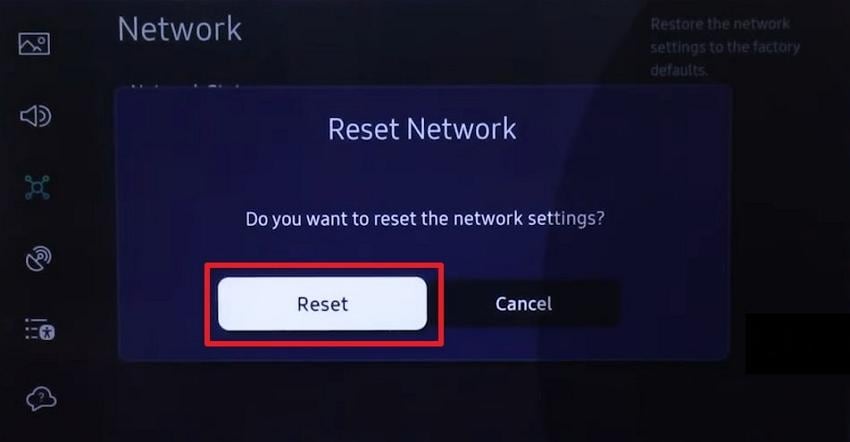
Step 3. Afterward, you need to select the “Reset Network” settings.
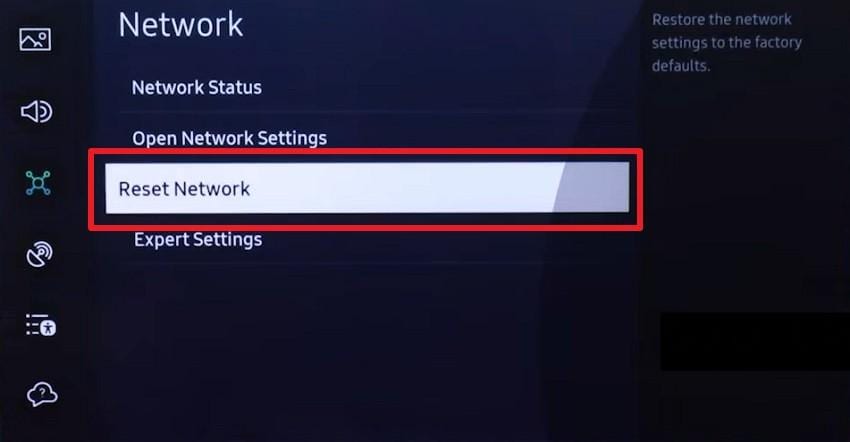
Step 4. As you see a small prompt, press the “Reset” button.
6. Clear Smart Hub Cache
A cleared Smart Hub cache can also resolve the Netflix black screen on Samsung TV problem. This step deletes junk data that slows apps and disrupts Netflix playback performance. It even refreshes your TV’s background processes to improve overall responsiveness. Moreover, this maintenance step enhances stability to help your TV run smoothly without interruptions. Anyway, let’s find out how you can clear the smart hub cache:
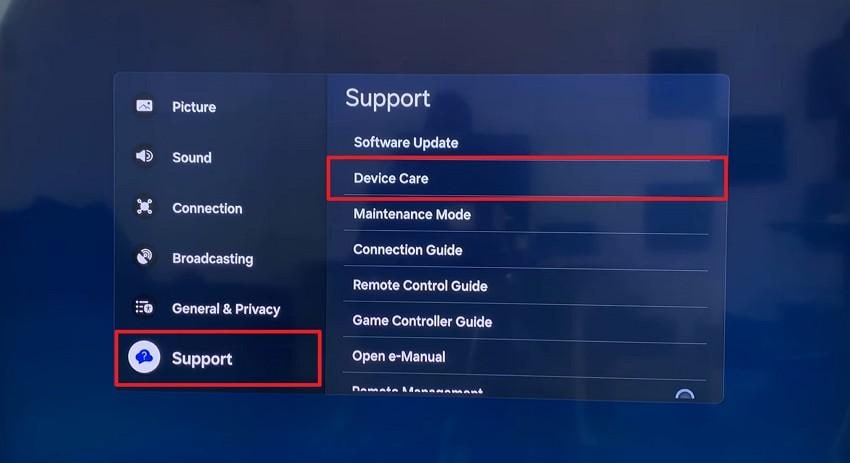
Step 1. When you reach the “All Settings” section, access the “Support” tab to choose “Device Care.”
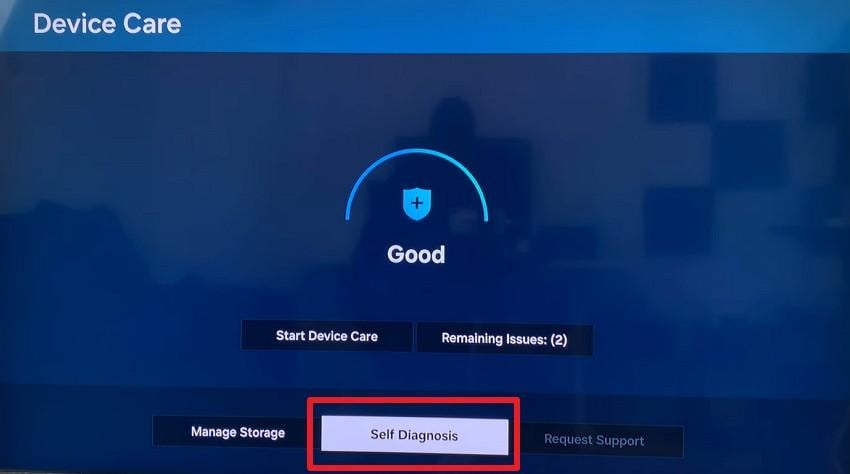
Step 2. Here, press the “Self Diagnosis” option to choose “Reset Smart Hub.” Afterward, you need to enter your “PIN” to confirm your selection.
7. Check Picture & Display Settings
Proper picture and display settings can also help eliminate the Netflix black screen Samsung TV issue. Incompatible video output settings cause the screen to go black during playback. Therefore, you should check the resolution and display modes to ensure the TV shows video correctly. It helps optimize the TV’s display output to match Netflix content requirements. Thus, go through the given steps to learn how to check pictures and display settings:
Step 1. As you access the “All Settings” section, navigate to the “Picture” tab. Here, you will find the set “Picture Mode” and “Picture Size Settings.”
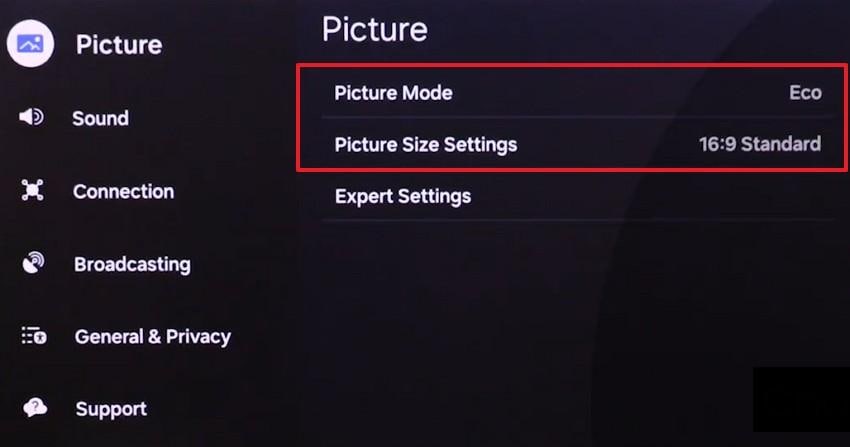
Step 2. Afterward, you need to go to the “Expert Settings” section.
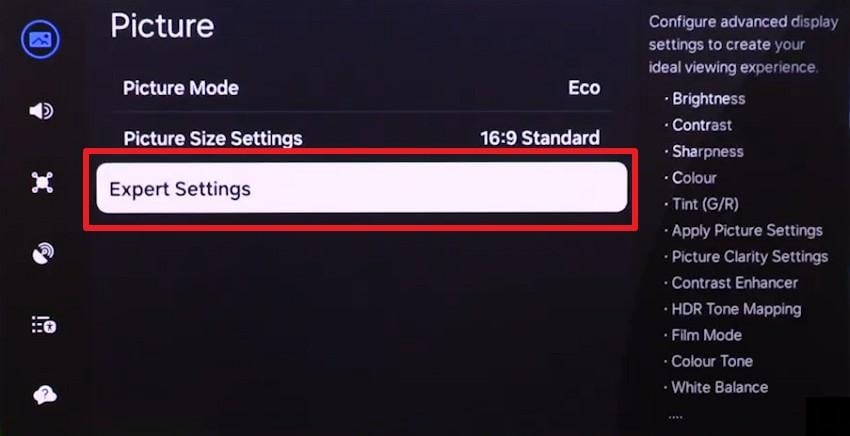
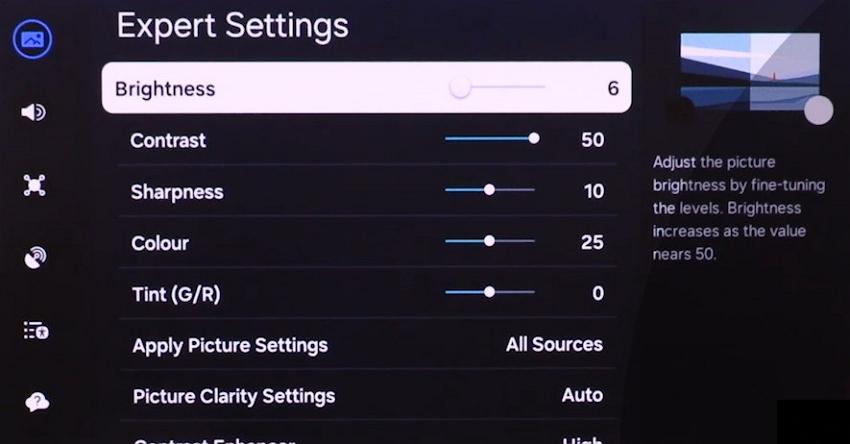
Step 3. Upon accessing it, you will find various display settings, including “Brightness” and “Contrast.”
8. Factory Reset Samsung TV
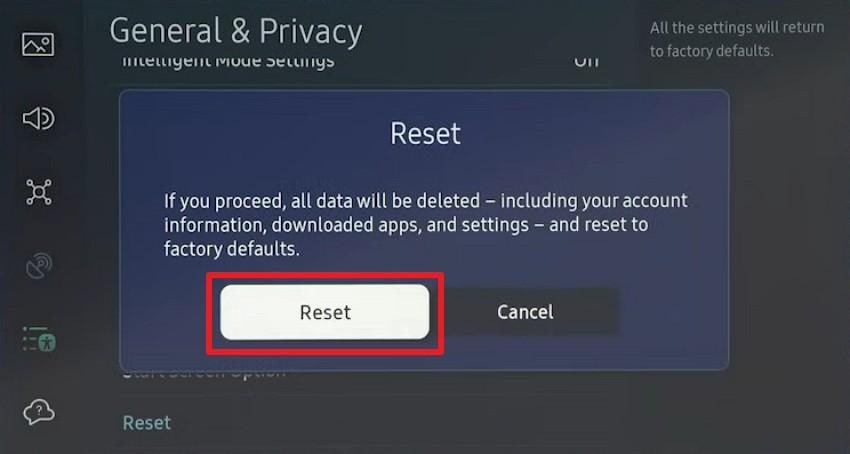
A factory reset can also fully resolve persistent Samsung TV Netflix black screen issues. This feature restores the TV to its original settings, removing all system glitches and corrupted data. It also refreshes apps, network connections, and display configurations. Yet, remember that this solution removes all the saved settings and accounts from your TV. So, you can follow this guide to factory reset your TV:
Step 1. From the TV’s “All Settings” section, access the “General & Privacy” tab and opt for “Reset.”
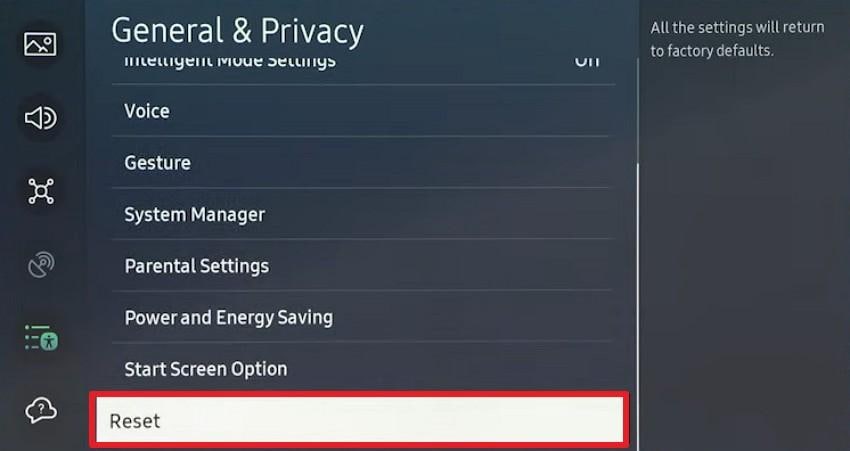
Step 2. As you choose “Reset,” you need to input your correct “PIN” and press “Done.”
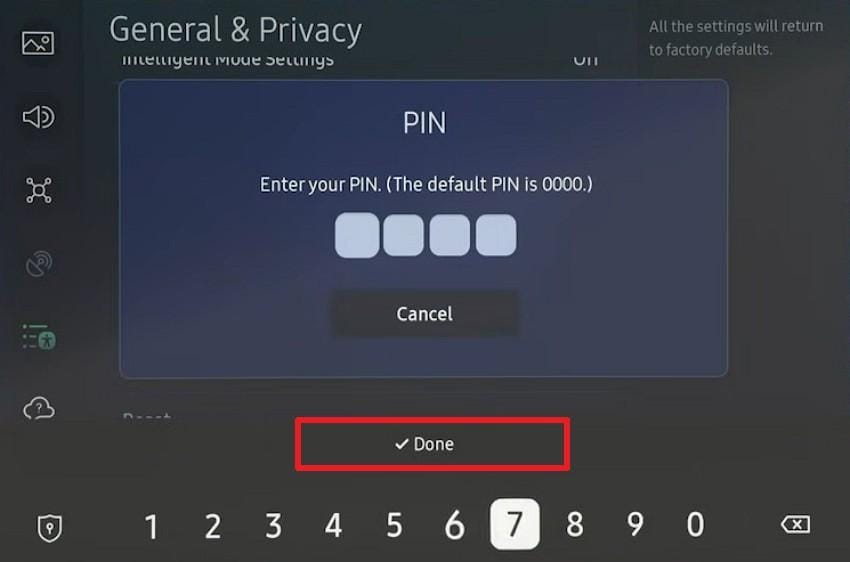
Step 3. Following this, click the “Reset” button from the upcoming prompt.
Part 4. Netflix Black Screen Only on Certain Shows or Movies?
Apart from the above, many users also notice that some downloaded third-party Netflix shows or movie shows show a black screen while playing. It mostly happens when you download a specific movie or show using an external downloader. These tools may lead to file corruption or incomplete data. Thus, to resolve the Netflix black screen on Samsung TV for downloaded shows, use Repairit Video Repair.
Repairit uses AI-powered video repair technology to analyze corrupted video data and rebuild damaged streams so they can play normally again on Samsung TVs and other devices.
Why Repairit is effective for Netflix black screen issues
- Fixes videos where audio plays but the screen stays black
- Repairs damaged MP4, MKV, and MOV video files
- Restores playback integrity without re-encoding quality loss
This makes Repairit particularly useful when only certain Netflix shows or movies fail to play, while everything else works fine.
You need to go through the following guide to fix your corrupted Netflix shows downloaded from third-party sources:
Step 1. Once you access the “Video Repair” tab, press the “Start” and “+Add” buttons to import the corrupted Netflix videos.

Step 2. As they are imported into the “Unrepaired Videos” tab, check and click the “Repair” button.

Step 3. Upon fixing the corrupted Netflix shows, either press “Preview” to check the result or hit “Save All” to export them.

Fix Netflix Black Screen Only on Certain Shows or Movies
 Security Verified. Over 7,302,189 people have downloaded it.
Part 5. When to Contact Samsung or Netflix Support
You should contact Samsung support when the issue affects TV hardware or firmware functions. If other apps also crash or show black screens, Samsung assistance becomes necessary. So, access the Samsung Support to add report details after providing the TV model and software version. Besides, when Netflix errors appear on several devices and networks, contact Netflix support. For that, use Netflix Help Center chat or call options for account-specific issues.
Part 6. How to Prevent Netflix Black Screen on Samsung TV in the Future
Preventing issues is easier than fixing the Netflix black screen Samsung TV problem. Thus, this section helps you avoid future playback problems by following simple care habits:
- Regular Updates: Keep your TV software and app updated to avoid bugs affecting streaming. It also improves compatibility and prevents sudden playback errors during Netflix use.
- Stable Internet: Ensure your internet connection remains strong for smooth video loading. A stable network prevents buffering problems and black screen interruptions.
- Smart Hub: Run basic Smart Hub maintenance to clear junk data slowing apps and menus. Healthy Smart Hub performance keeps Netflix starting cleanly every session.
- Display Settings: Correct display options also prevent screen conflicts during video playback. Therefore, use recommended picture settings to match standard video output needs.
- Connection Checks: Bad physical connections also lead to random image loss or inconsistent streaming. So, inspect HDMI and network cables regularly for loose or damaged connectors.
Conclusion
To conclude, the Netflix black screen on Samsung TV issue can be solved with simple checks. Plus, understanding whether the problem comes from the app, TV, or network saves time. However, if downloaded shows turn black because the files are damaged, you still need help. In such cases, using Repairit to repair corrupted Netflix videos becomes extremely useful.
Frequently Asked Questions
-
Q1. Why is Netflix showing a black screen, but audio works on the Samsung TV?
This issue appears when video settings conflict, while audio streams usually do not. In addition, app glitches or HDMI signal problems can even block images, but only sometimes. You should check the display settings and connections to restore proper video playback. -
Q2. Why does Netflix work on my phone but not on my Samsung TV?
It may work on your phone because the TV app is outdated or no longer supported. Many times, the TV firmware conflicts with newer Netflix requirements, causing crashes. In other cases, TV‑specific network or display settings block Netflix while phones stream. -
Q3. How do I reset Netflix on a Samsung Smart TV?
You can reset Netflix by signing out, then restarting your TV. This process refreshes app data and fixes minor playback or loading issues. In case problems remain, try to reinstall Netflix to restore the default settings fully again. -
Q4. Can corrupted videos cause Netflix black screen issues?
Yes, corrupted video files can interrupt playback and trigger black screen issues sometimes. This usually happens when third-party downloads are incomplete or altered by third-party tools. Yet, you can repair such video files using an advanced tool, known as Repairit.




