
An unexpected occurrence of Netflix not working on Roku represents a practical challenge for users who expect uninterrupted access. In contrast, Roku devices are widely adopted for their reliability; any failures in launching or streaming Netflix can cause notable confusion. Either the application fails to respond, or it displays a playback error; the result is a disruption to overall user satisfaction.
A clear understanding of the issue enables users to apply appropriate corrective measures promptly, minimizing downtime. Accordingly, the guide below provides a comprehensive overview of all tested workarounds for this issue.
Table of Contents
-
- Fix 1. Restart Roku, TV, & Network (Proper Power Cycle)
- Fix 2. Check Netflix Server Status
- Fix 3. Update the Netflix App on Roku
- Fix 4. Reinstall Netflix on Roku
- Fix 5. Check Internet Speed & Stability
- Fix 6. Verify Netflix Account & Subscription
- Fix 7. Update Roku OS
- Fix 8. Clear Roku Cache & System Memory
- Fix 9. Fix Netflix Not Working on Roku TV Specifically
- Fix 10. Test Netflix on Another Device
Part 1. Why Is Netflix Not Working on Roku?
To handle Netflix issues on Roku, explore the breakdown of the most common reasons behind this recurrent interruption:
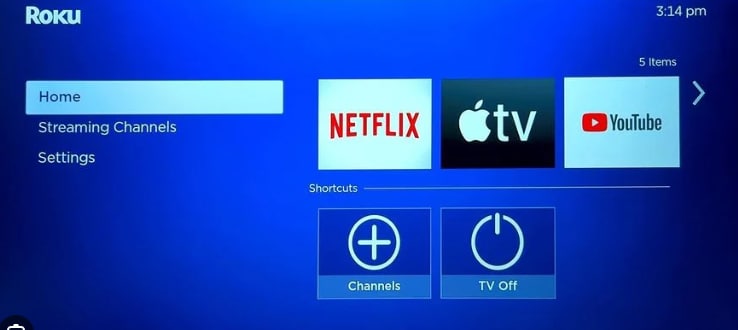
- Wi-Fi or Internet instability: Weak or intermittent Wi-Fi causes buffering or error messages when you try to open Netflix on Roku.
- Due to a Netflix or Roku Glitch: The Netflix channel or Roku OS can freeze and needs a restart or app reload in the end.
- Older Version of Netflix App or Roku Software: With an app’s older version or Roku firmware, black screens or login problems are evident until you update both.
- Device Storage or System Errors: Low storage or deeper Roku OS faults may prevent Netflix from launching or loading videos.
- HDMI/TV Connection Problems: Loose HDMI cables, incorrect TV input, or an HDCP handshake issue may cause a black screen with or without sound.
Roku vs Roku TV: Why the Fixes Can Be Different
Before getting into device-specific solutions, review the structural differences between Roku and Roku TV for the Netflix problem on Roku:
| Aspects | Roku Streaming Device (Stick/Box) | Roku TV (Built‑in Roku OS) |
| Hardware Setup | Separate HDMI device; TV and HDMI cable can both cause Netflix issues | Built-in Roku; most Netflix issues are app/OS or TV firmware. |
| Power/Restart | Unplug Roku or its USB power, or change the HDMI port. | Power‑cycle the whole TV to restart the Roku OS and the panel together. |
| HDMI Role | HDMI/HDCP errors often cause a black screen or no signal with Netflix. | HDMI mainly affects external devices; Netflix is usually not HDMI-dependent. |
| About Updates | Update Roku OS on the device; you can move it to another TV if needed. | Firmware updates are tied to the TV model; Roku + TV both matter for stability. |
| Factory Reset Impact | Resets only the streamer; TV settings remain unchanged. | Complete TV reset; so, it is a bigger last‑resort step. |
Part 2. Netflix Issues on Roku: How to Identify the Real Problem
Now, carefully observe how the problem appears and when it occurs to distinguish between Roku and Netflix issues:
Signs the Issue is Roku-Related
- Other streaming apps (YouTube or Prime Video) also freeze or buffer on the same Roku device.
- The Roku home screen is slow, or it randomly restarts and shows system errors.
- Netflix closes and returns you to the Roku home screen without a Netflix-style error code.
Signs the Issue is Netflix-Related
- Netflix displays its own error codes, while other Roku apps on the TV stream without issues.
- You can open the Netflix app, but it is stuck loading or gets frozen on the logo.
- It asks you to sign up even though you already have an account, saying the account is paused.
Signs the Issue is Video-Specific
- One movie or episode shows a black screen or stutter, but other titles on Netflix play normally.
- Quality problems appear only on a specific series, while the Netflix app looks fine.
- After switching to another video, playback is smooth, but the distortion persists on the original.
Part 3. Netflix Problems on Roku: Step-by-Step Fixes
Following a clear set of steps ensures that each potential cause is addressed effectively while troubleshooting Netflix on Roku. For your guidance, the section below covers all workable solutions to increase the chances of restoring smooth streaming:
Fix 1. Restart Roku, TV, & Network (Proper Power Cycle)
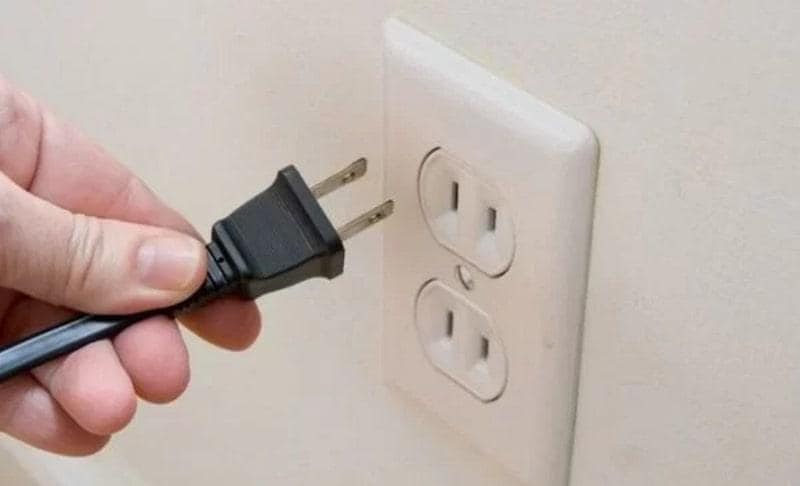
A proper power cycle refreshes the entire system by clearing temporary glitches and releasing stuck processes. This not only enables smoother playback but also improves the overall responsiveness of Roku and the TV. To ensure smoother Netflix playback, simply turn off your Roku device and TV, then unplug them for about 1 minute. Unplug your router as well, then plug it back in along with Roku and TV to check Netflix later.
Fix 2. Check Netflix Server Status
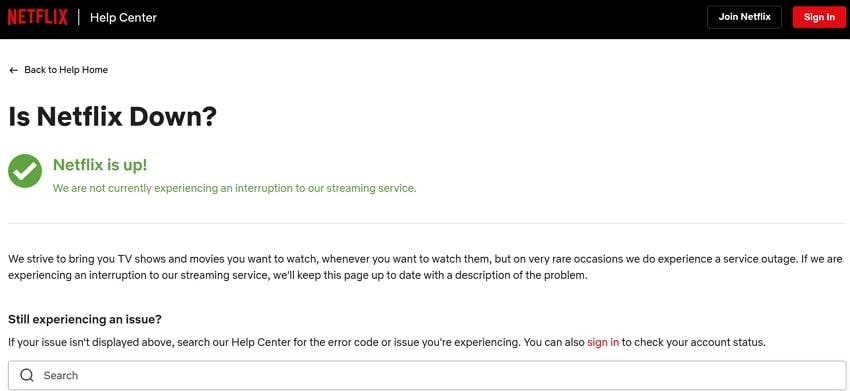
You can check the Netflix server status to determine whether Netflix issues on Roku are due to external factors. This confirmation of server outages, maintenance, and connectivity issues on Netflix can help avoid unnecessary troubleshooting. To do so, visit the Netflix Help Centre page or check social media updates for any reports of service outage.
Fix 3. Update the Netflix App on Roku
With an updated Netflix app, you ensure that all the latest features and compatibility improvements are applied to your Roku device. Not only does this reduce loading failures and playback errors, but it also optimizes the app’s performance with smoother navigation. For Netflix issues on Roku, follow the provided step-by-step guidelines and experience uninterrupted streaming:
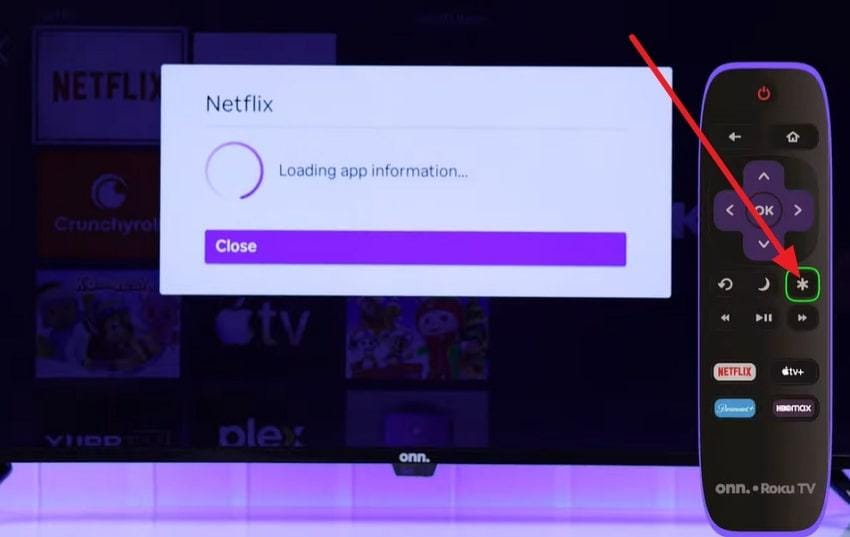
Step 1. From the home screen, select the “Netflix” app and press the “Star” button on the Roku remote.
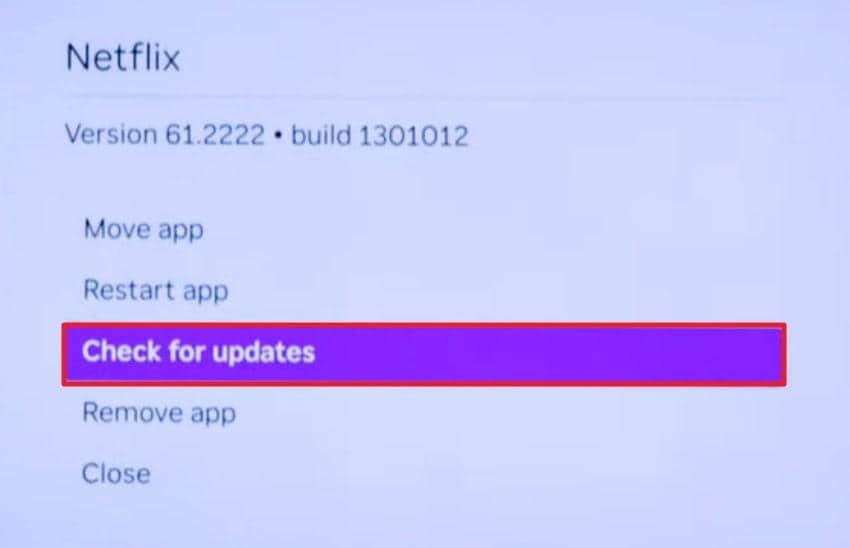
Step 2. Here, select the “Check for Updates” option to look for any available updates for your Netflix app.
Fix 4. Reinstall Netflix on Roku
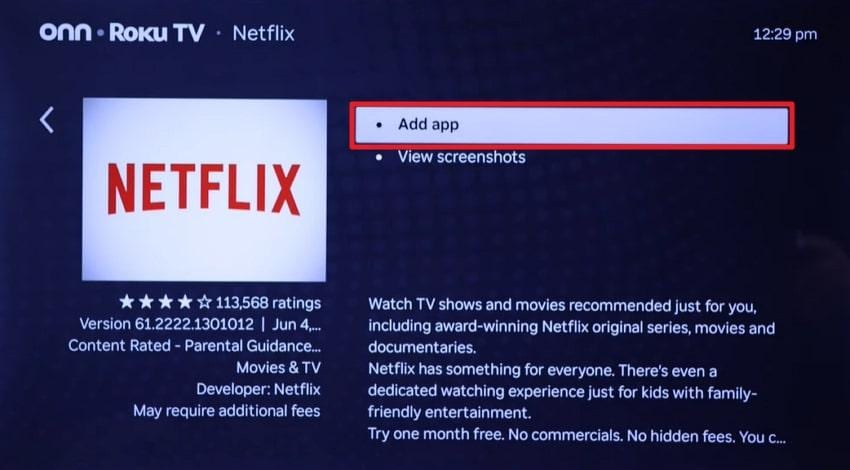
Once you reinstall Netflix, it clears corrupted files, refreshes the app, and restores optimal performance. This solution can eliminate persistent errors that updates alone might not fix, including Netflix not working on Roku. Adhere to the tutorial and reset the app to a clean state, improving reliability and working overall:
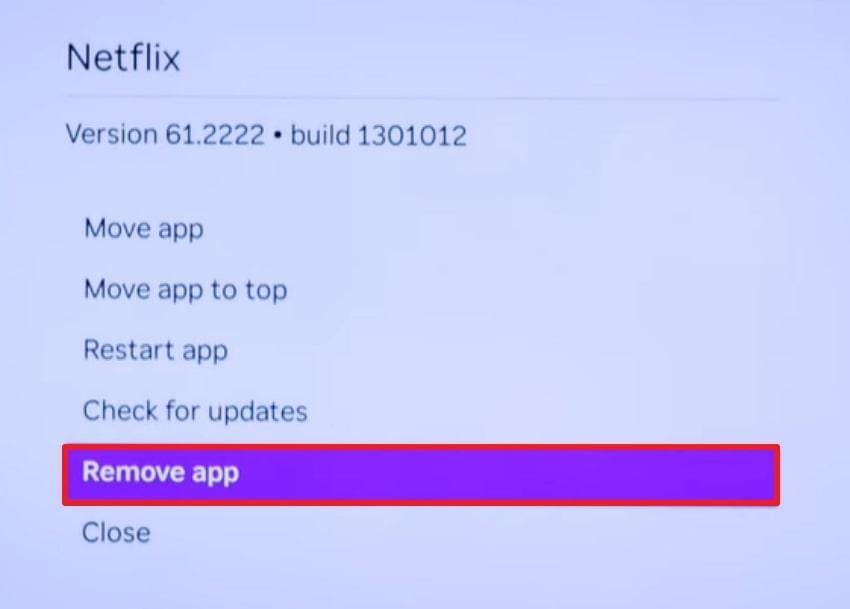
Step 1. Locate Netflix from your Roku’s home screen > Press the “Star" button on the Roku remote > Choose Remove App.
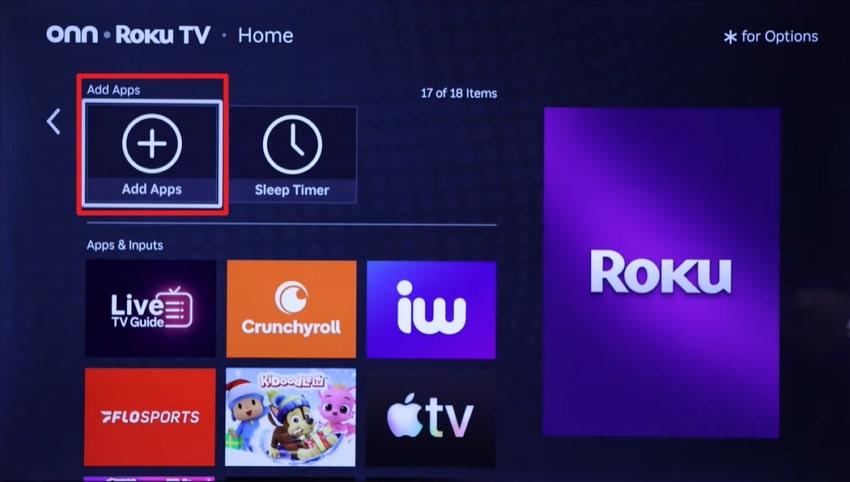
Step 2. Look for the “Add Apps” option from the home screen and search for the Netflix app.
Step 3. Once found, press the “Add App” option to reinstall Netflix on your Roku TV.
Fix 5. Check Internet Speed & Stability
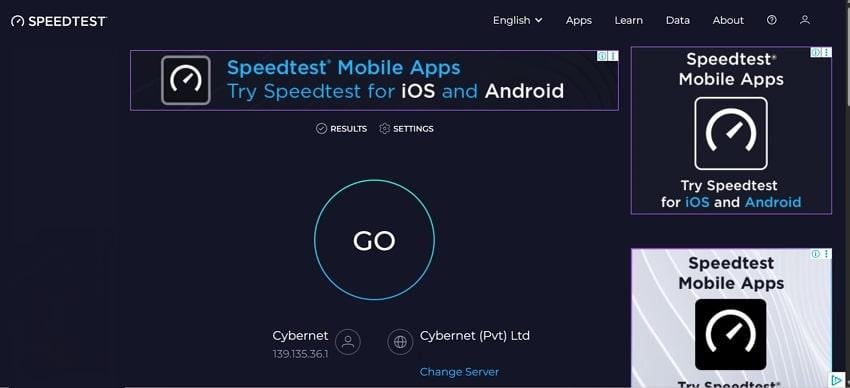
Make sure you’re connected to a stable and sufficiently fast internet connection to reduce buffering and playback interruptions. A reliable connection allows Netflix to stream content smoothly at higher resolution and minimizes lag or app freezes. Use a service like Speedtest.net on your phone or PC and compare your results with Netflix’s recommended speed.
Fix 6. Verify Netflix Account & Subscription
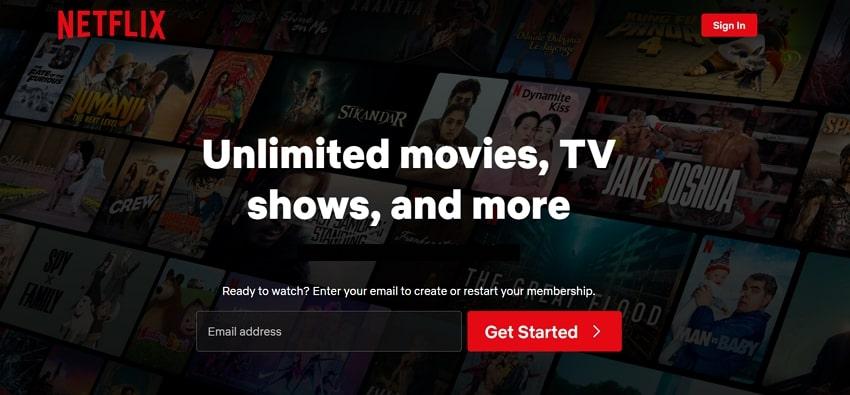
Confirm your Netflix account’s validity and refresh your login credentials to resolve any problems with Roku and Netflix. This way, you can address issues caused by expired subscriptions, account conflicts, or login errors, preventing Netflix from loading. Simply visit the official Netflix website and sign in to confirm your plan is active or update your payment information.
Fix 7. Update Roku OS
When you update Roku OS, it ultimately improves overall device stability and maintains app compatibility. Besides this, you can reduce the chances of recurring Netflix problems on Roku and prevent app crashes. Dive into the manual and update the Roku operating system to improve device responsiveness and other app-related issues:
Step 1. First, press the “Home” button on your Roku remote and locate the “Settings” option.
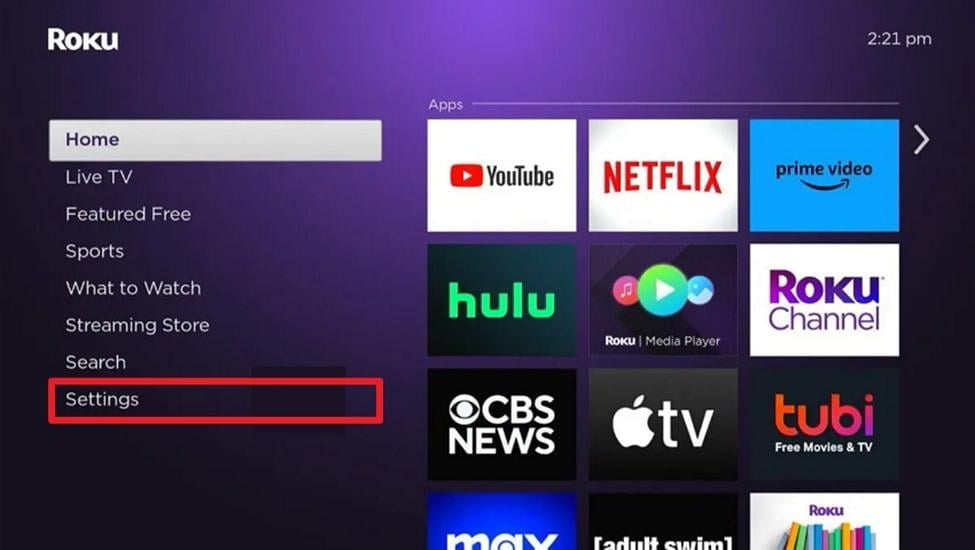
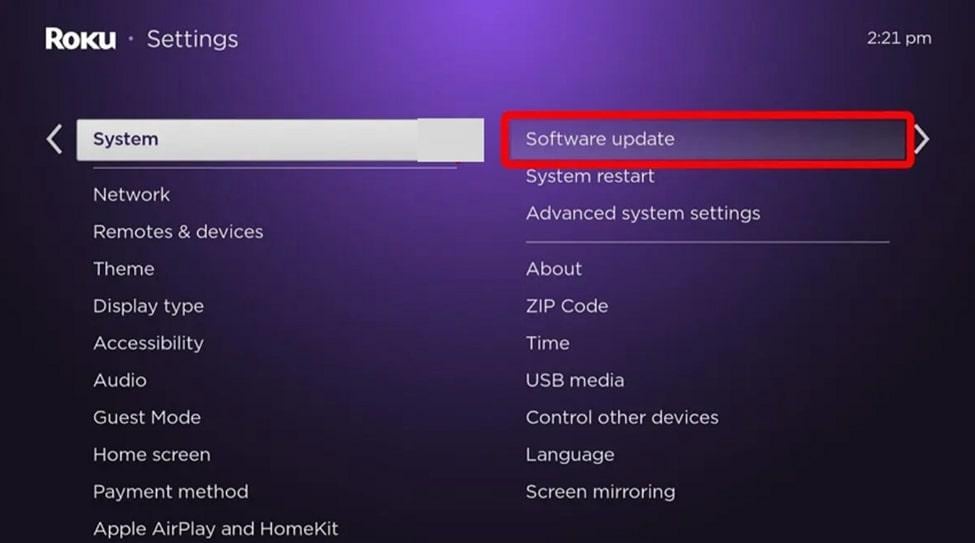
Step 2. Next, choose the “System” option from the Settings menu for the software update.
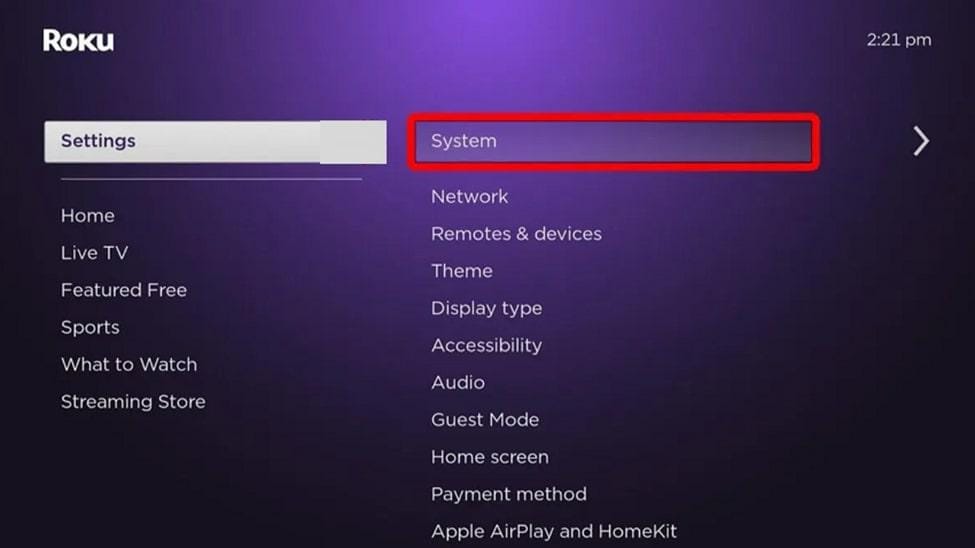
Step 3. Access “Software Update" > Check for updates > Install the latest updates > Restart your device > Reassess the Netflix app.
Fix 8. Clear Roku Cache & System Memory
Clearing the Roku cache and system memory removes stored temporary data, freeing up corrupted resources. This solution resolves issues such as slow navigation, unexpected crashes, and Netflix issues on Roku. Follow the tutorial and optimize memory usage for a better streaming experience on not only Netflix but all channels:
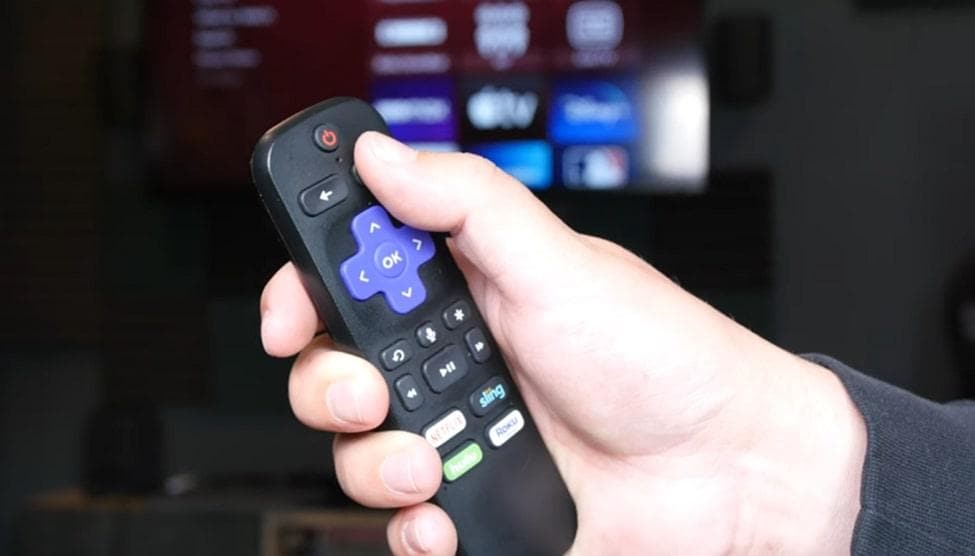
Instructions: On your Roku remote, press the following sequence: Home button (5 times), then Up button (1 time). After this, tap the Rewind button (2 times) and Fast Forward button (2 times) to let Roku restart automatically. Wait until it reboots completely, clearing all cache, then try re-opening the Netflix app.
Fix 9. Fix Netflix Not Working on Roku TV Specifically
Roku TVs integrate the streaming system directly with the television hardware, which can cause device-specific glitches. Addressing these issues through tailored restart or reset procedures ensures Netflix functions correctly without impacting other channels. You can follow the above steps, and if the problem persists, consider performing a factory reset from Settings.
Fix 10. Test Netflix on Another Device
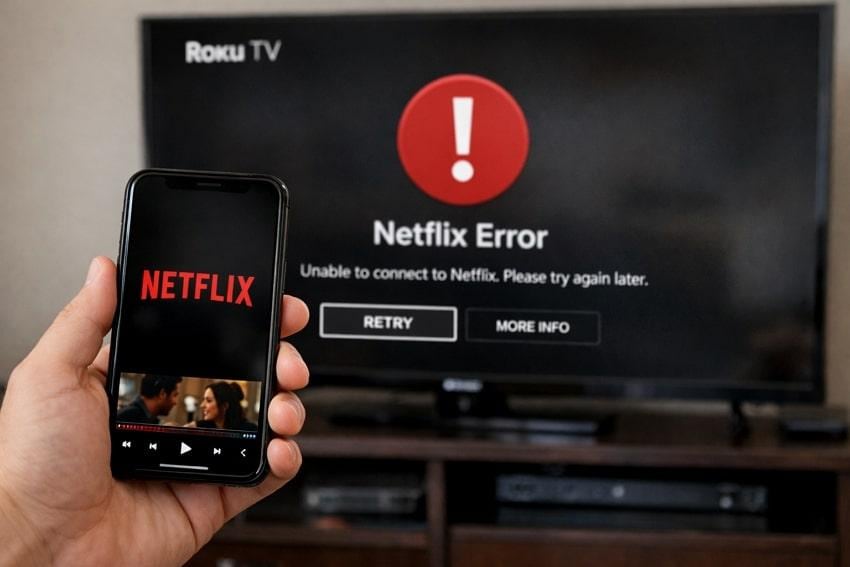
Netflix users can test it on other devices, such as smartphones, to determine whether the issue is isolated to your Roku device. This approach narrows the problem source, allowing you to focus troubleshooting on the correct device. Most importantly, it prevents unnecessary steps on devices that are functioning correctly, saving time.
Part 4. Netflix Videos Won’t Play on Roku? Check for Corrupted Video Issues
In cases where third-party downloaded Netflix seasons or movies not working on Roku TV affect only certain videos, it often points to playback-level problems. Anyway, a complete understanding of this scenario is essential because it doesn’t always mean the entire app is broken:
- Third-party Netflix season or movie files may be incomplete or missing audio and video streams, causing playback failure on Roku TV.
- Unofficial Netflix downloads can become incompatible after Roku firmware or codec updates.
- Broken frame indexes or damaged audio tracks can cause freezing or stuttering.
- Corrupted headers or invalid metadata can trigger title not available errors.
- Interrupted downloads or improper format conversions can corrupt Netflix season or movie files.
Once it's clear that Roku and Netflix issues are linked to corrupted video stream after download, then Repairit Video Repair offers an effective solution. Repairit is designed to analyze and rebuild damaged video streams, restoring proper structure so files can play smoothly again on Roku and other devices.
Why Repairit works for Roku Netflix playback issues:
- Repairs corrupted or unplayable video files
- Supports MP4, MKV, MOV, and many other formats
- Ideal when Netflix content is downloaded but fails to play only on Roku
- Handles HD and 4K videos from any source or device
After repair, you can preview the restored video before saving, ensuring the playback issue is fully resolved. For troubleshooting video errors on Roku, follow the tutorial provided below and prevent recurring interruptions during streaming:
Step 1. Initially, choose the “Video Repair” tool from the left sidebar and press the “Start” button to add a corrupted Netflix movie or season.

Step 2. After adding the damaged Netflix movie or season, click the “Repair” button and initiate the video repair process immediately.

Step 3. Once the repair action is complete, press the “Preview” button to review, then save the Netflix video afterwards.

Fix Netflix Videos Won’t Play on Roku
 Security Verified. Over 7,302,189 people have downloaded it.
Part 5. When to Contact Roku or Netflix Support
Contact Roku or Netflix support once you have tried the basic fixes, and the problem only affects Netflix on your Roku. You can contact Roku support if other apps also misbehave, Roku keeps freezing or rebooting, or Netflix works fine elsewhere. When Netflix doesn’t work on any profile on your Roku, this suggests a device or Roku operating system issue.
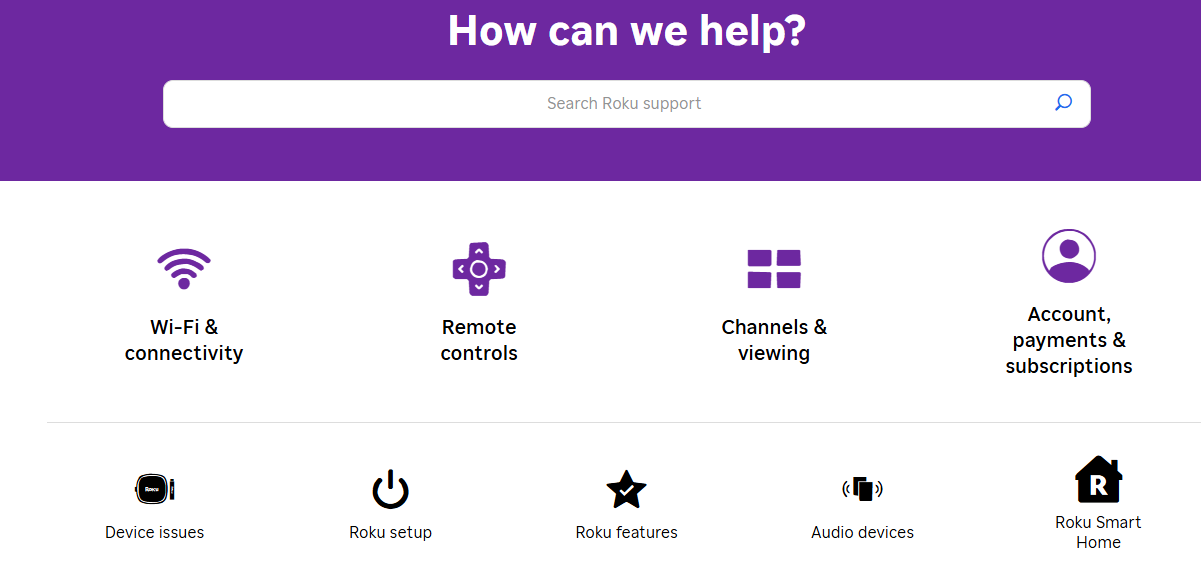
Netflix support is needed when you see repeated error codes, billing issues, or account warnings. Even if the same profile and title fail across multiple devices, this indicates a service-side issue rather than Roku hardware.
Conclusion
In conclusion, we’ve seen that Netflix not working on Roku can emerge from multiple issues, such as device glitches and network instability. A brief knowledge of whether the problem is related to Roku, Netflix, or a specific video helps apply the correct fix quickly. Whenever standard fixes fail, and video corruption is the only possible reason predicted, Repairit can be used ultimately.
Frequently Asked Questions
-
Q1. Why is Netflix not working on Roku, but it works on my phone?
This usually indicates that the issue is specific to your Roku device rather than your Netflix account. Common causes include outdated Roku OS versions, Netflix app versions, or any device-specific glitches. Since your phone uses a different operating system and network handling, Netflix may work there while failing on Roku. -
Q2. Why does Netflix keep crashing on Roku TV?
Netflix may keep crashing on Roku TV due to insufficient system memory, pending Roku OS updates, or corrupted app data. Roku TVs integrate streaming software directly with TV hardware, so power-related glitches or background processes can affect app stability. -
Q3. How do I fix Netflix buffering on Roku?
You can address Netflix buffering on Roku by improving Wi-Fi signal strength, restarting your router, or closing background apps. Additionally, updating the Netflix app and the Roku operating system can improve buffering by enhancing compatibility. -
Q4. Can corrupted videos cause Netflix playback issues?
Indeed, corruption or improperly processed video data can prevent certain titles from playing, causing Netflix issues on Roku. This can result in frozen screens, error messages, or videos that fail to load. In such a case, consider a dedicated video repair solution like Repairit, which can help you fix any level of corruption.




