
A message like “something went wrong Netflix” often appears without any clear explanation but leaves viewers in confusion. Either you’re in the middle of an intense episode or just about to start streaming, this unexpected interruption can be inconvenient. The lack of specific details makes the situation even more annoying, leaving you uncertain about the troubleshooting measures.
Once you pinpoint the problem, you can easily restore smooth streaming and dive back into your favorite shows. However, it isn’t as easy as it seems and requires a detailed understanding of the issue with solutions, as outlined below.
Table of Contents
-
- Check Netflix Service Status
- Restart the Netflix App and Your Device
- Restart Internet Connection
- Sign Out and Sign Back into Netflix
- Clear Netflix App Cache & Data
- Update Netflix App and Device Software
- Disable VPN, Proxy, or DNS Services
- Verify Netflix Subscription Status
- Try Netflix on Another Device
Part 1. What Does “Something Went Wrong” on Netflix Mean?
“Sorry, something went wrong Netflix” is a general message that appears when Netflix cannot complete what you just tried to do. It may appear on the website, in the app, or on a TV/streaming device. When the issue is with the device's stored data, your payment method, or your internet connection, the service tells you to try again.
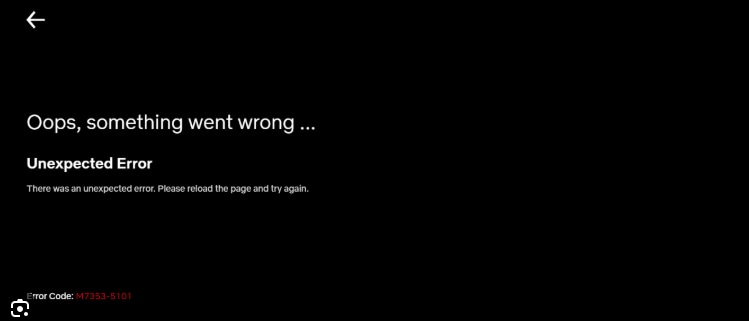
Netflix uses this kind of generic message because many different small issues can cause very similar failures. The app often hides the technical explanation behind “something went wrong” and only returns a specific error code. This indicates that the information is needed to support or to look up a targeted fix in the Help Centre.
Part 2. Common Causes Behind “Sorry, Something Went Wrong” Netflix Error
This “Netflix Sorry, something went wrong. Please try again later.” message appears due to plenty of different factors. All the causes require a different approach to resolve, and thus, a precise understanding helps you troubleshoot effectively:
App-Level Causes
- App cache or stored data is corrupted, so Netflix cannot load properly until it's refreshed.
- The Netflix app or device software is outdated and no longer fully compatible.
- Device’s date/time, storage, or OS settings are wrong, confusing the app and triggering this error.
Network-Level Causes
- Your internet connection is slow, unstable, or briefly disconnected while Netflix is loading.
- When the Wi-Fi router or ISP blocks Netflix traffic, it prevents the app from reaching the server.
- A VPN, or custom DNS, changes your apparent location or breaks Netflix’s secure connection checks.
Account-Level Causes
- Payment failed, or the subscription expired, so Netflix cannot fully activate your account.
- Wrong password, locked account, or sign‑in glitch stops Netflix from confirming who you are.
- Device or stream limit is reached (many people use the same account), causing playback to be blocked.
Video-Level Causes
- Any Specific movie or episode has a temporary server or file issue on Netflix’s side.
- Title is no longer licensed in your region, even though it still appears in lists or search.
- The video’s required quality or DRM/HDCP level does not match your device or HDMI setup.
Part 3. How to Fix Netflix “Something Went Wrong” Error (Step-by-Step)
Address this “something went wrong Netflix” message with simple, proven solutions as directed below for all the compatible devices:
1. Check Netflix Service Status
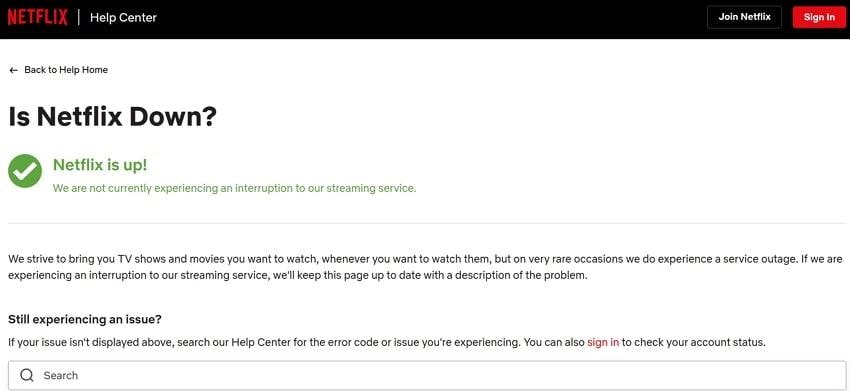
Before directly troubleshooting your device or network, first check whether the problem is on Netflix’s side. This confirmation indicates whether there’s a temporary server outage or a widespread issue affecting multiple users. For this, open the Netflix Help Centre page in a browser on any device and check for service updates.
2. Restart the Netflix App and Your Device
Another simple fix is to restart your app and device to clear temporary system glitches, memory overload, and app freezes. It's a quick solution that can restore normal functionality without requiring complex troubleshooting measures. To refresh the app’s connection with Netflix servers, follow the provided tutorial for the device you own:
For Android
Step 1. Swipe up the Netflix app from the recent apps preview and reassess it.
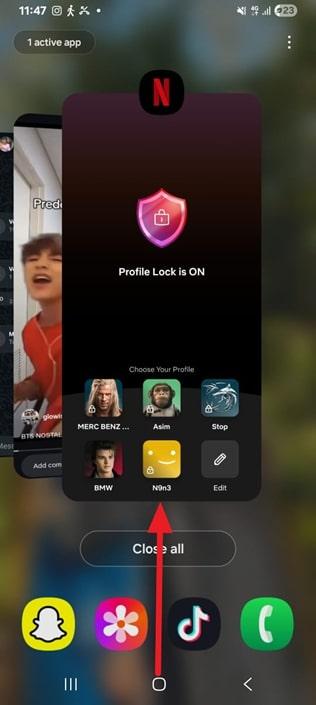
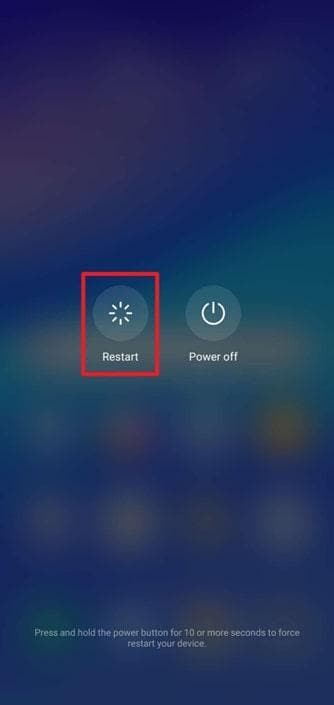
Step 2. To restart your Android, press the “Power” button and choose the “Restart” option.
For iPhone
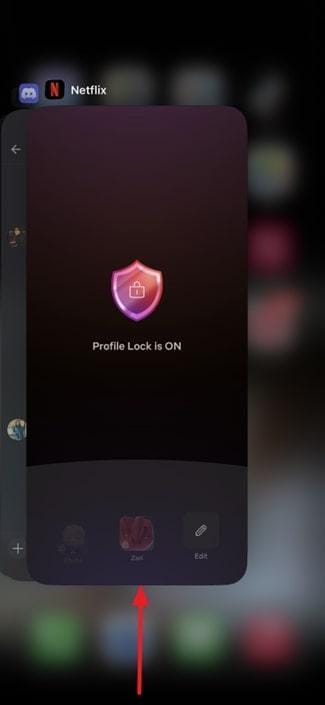
Step 1. Slide the app up in the App Switcher and tap the “Netflix” icon to reopen.
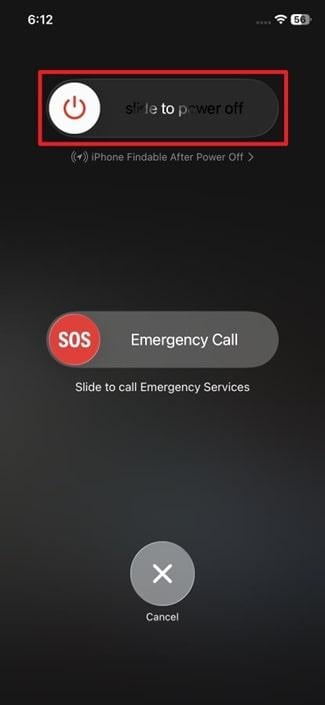
Step 2. Press and hold the “Power” button > slide the “Slide to Power Off” slider > Restart the phone.
For PC
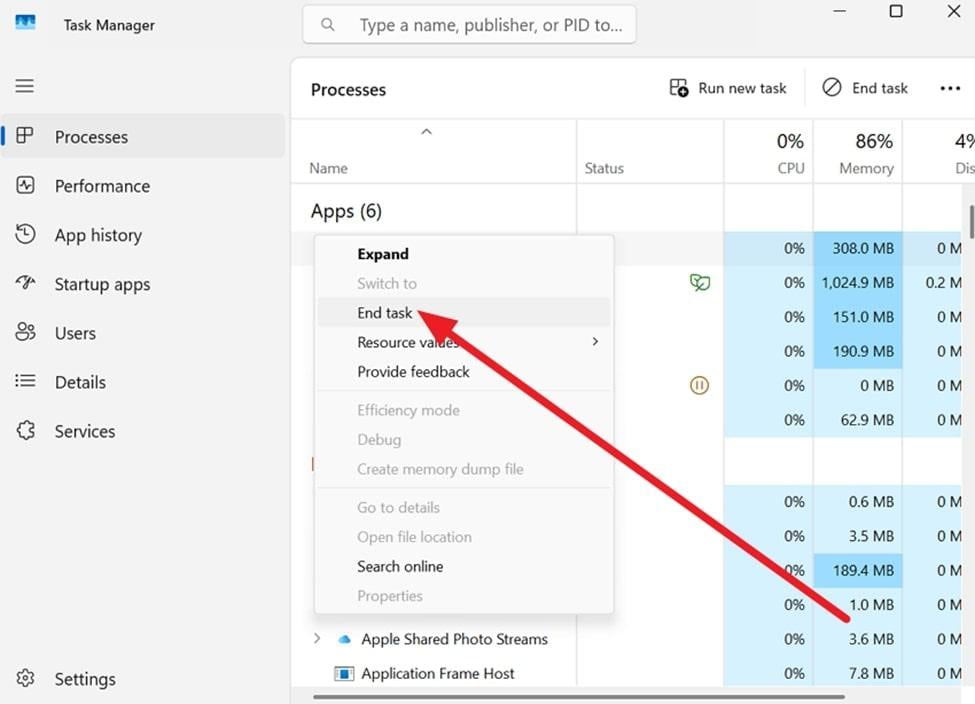
Step 1. Enter Task Manager > Locate “Netflix” > Right-click it > Choose “End Task” > Open Netflix again.
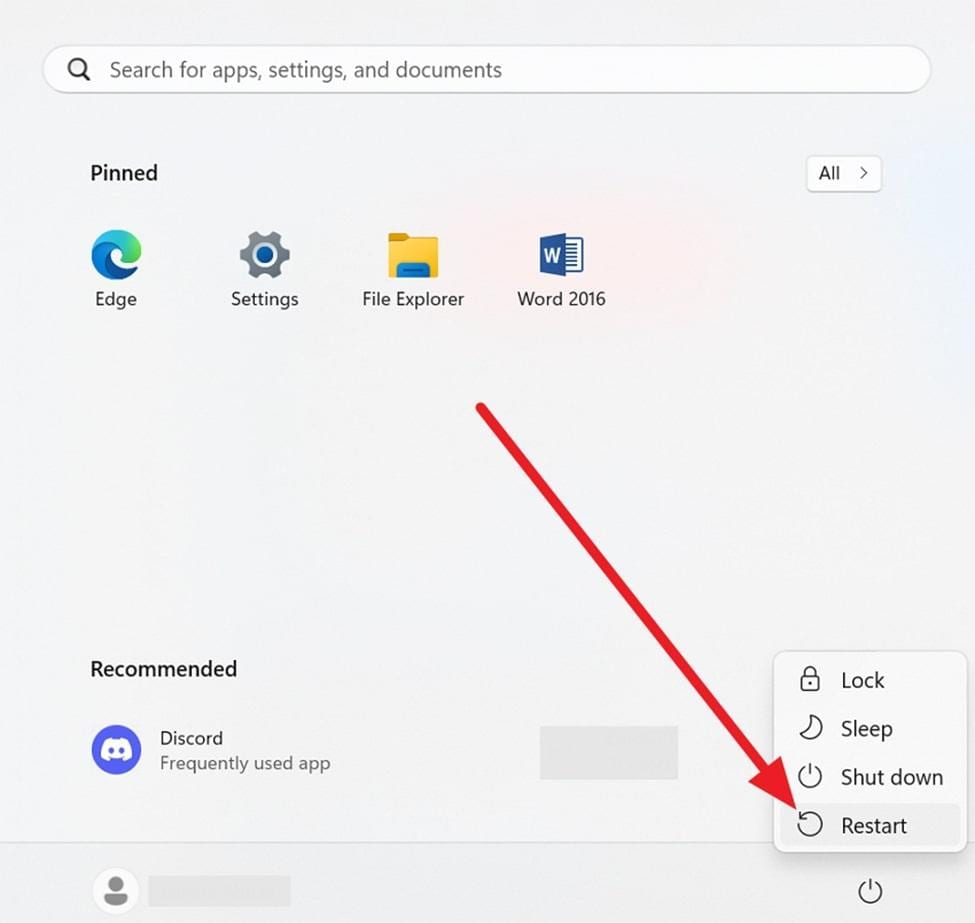
Step 2. Access the Start menu > Press the “Power” button > Choose the “Restart” option.
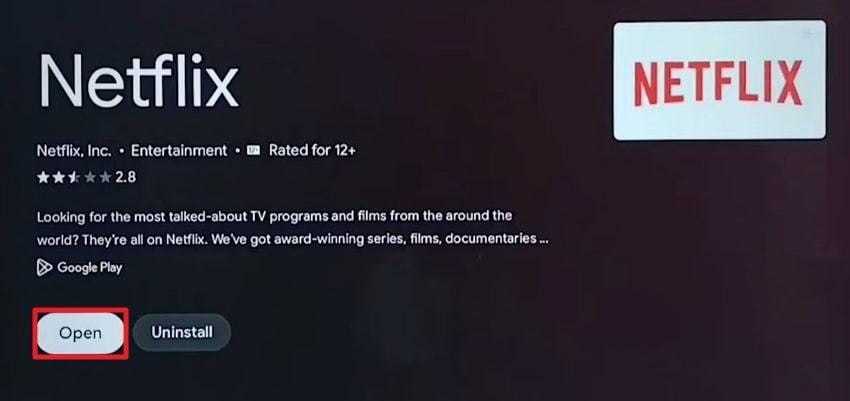
For TV: Exit Netflix > Unplug your TV from the power for 1 min > Plug it back in > Locate the Netflix app > Press "Open”.
3. Restart Internet Connection
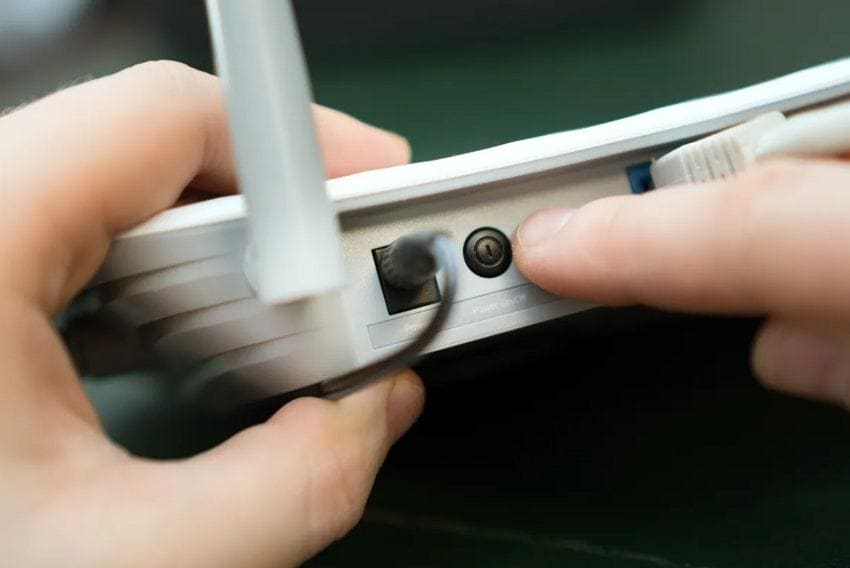
Many times, the “sorry something went wrong Netflix” message arises from unstable or slow internet connections. Given this, you can restart your modem or router to re-establish a fresh connection and resolve temporary network errors. Simply turn off your modem/router, wait about 30 seconds, then turn it back on. Now, reconnect your devices to the network and verify that your internet speed meets the requirements for Netflix.
4. Sign Out and Sign Back into Netflix
Logging out and back in refreshes your account session and re-authenticates your credentials with Netflix servers. This can resolve account-related errors, such as session timeouts or restrictions from simultaneous device usage. Follow the guidelines for this simple way to reset errors, like “something went wrong, Netflix”:
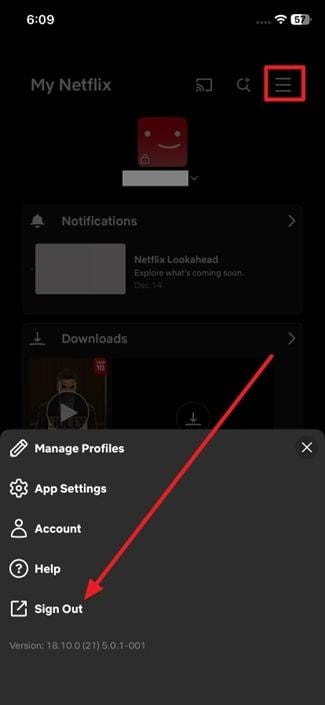
On Android/iOS: Open your profile on Netflix > Press the "Hamburger” icon > Choose “Sign Out” > Sign in through the same credentials.
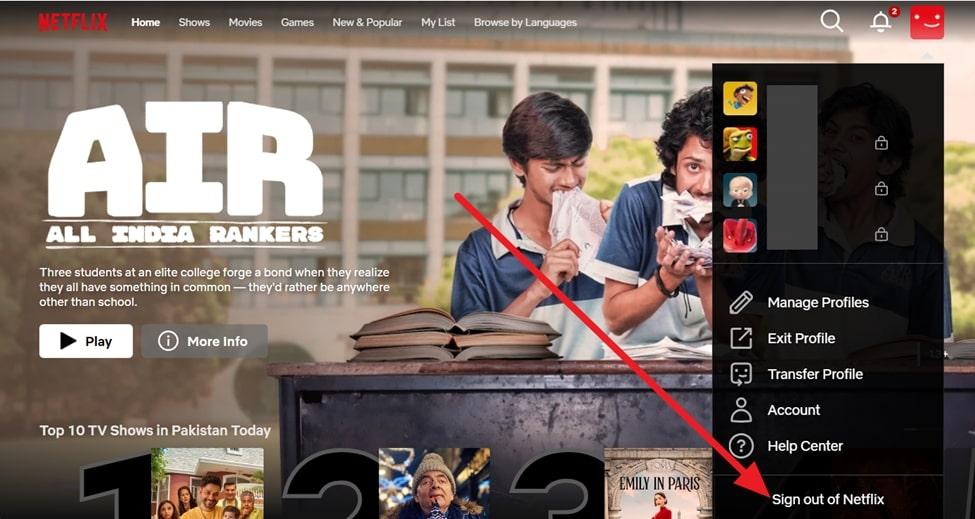
On PC: Access the “Profile” icon > Choose “Sign Out of Netflix” option > Enter your credentials again > Sign in.
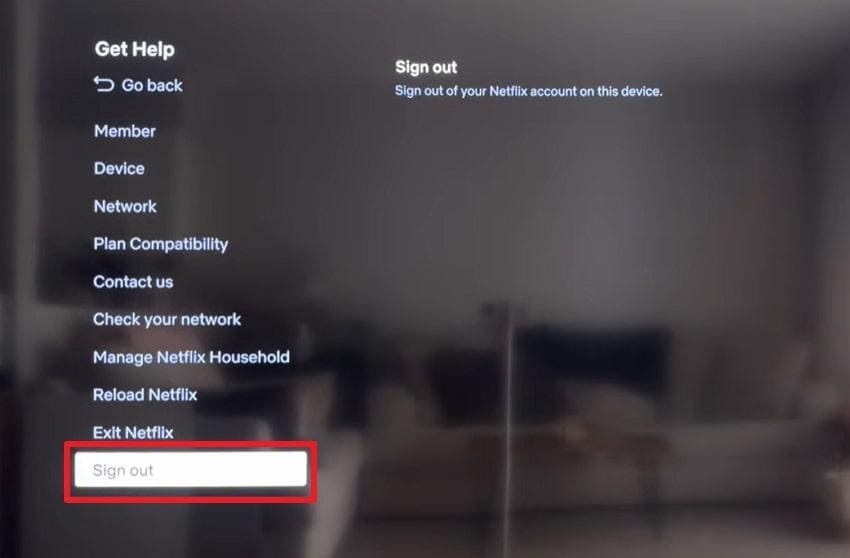
On TV: Enter Netflix on your TV > Access the “Get Help" menu > Press the "Sign Out” option > Sign in back again.
5. Clear Netflix App Cache & Data
Over time, the Netflix app stores temporary files and cache that can become corrupted, causing playback errors. When you clear all this stored cache or data, the app can have a fresh start and run more smoothly. To improve app responsiveness and address "Sorry, something went wrong, please try again later Netflix,” follow the guidelines:
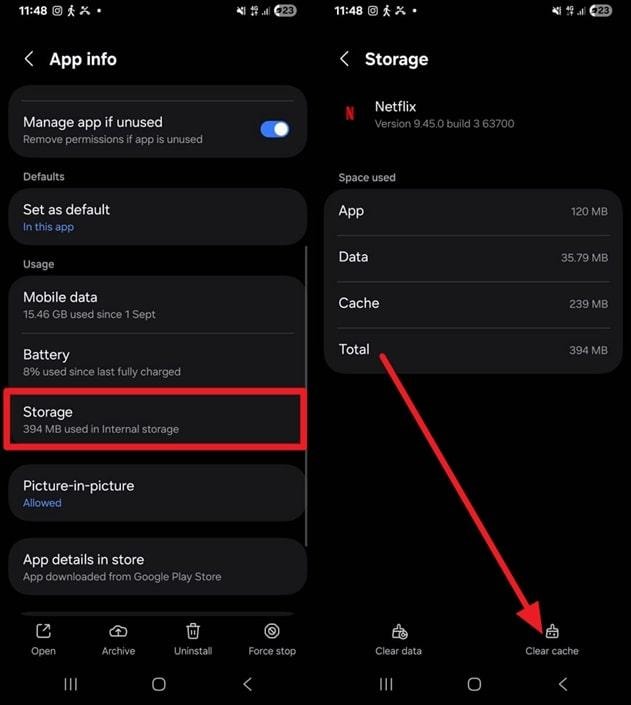
For Android: Go to Android “Settings” > “Apps” option > Choose “Netflix” app > “Storage” > Press “Clear Cache” option.
For PC (Browser Cookies)
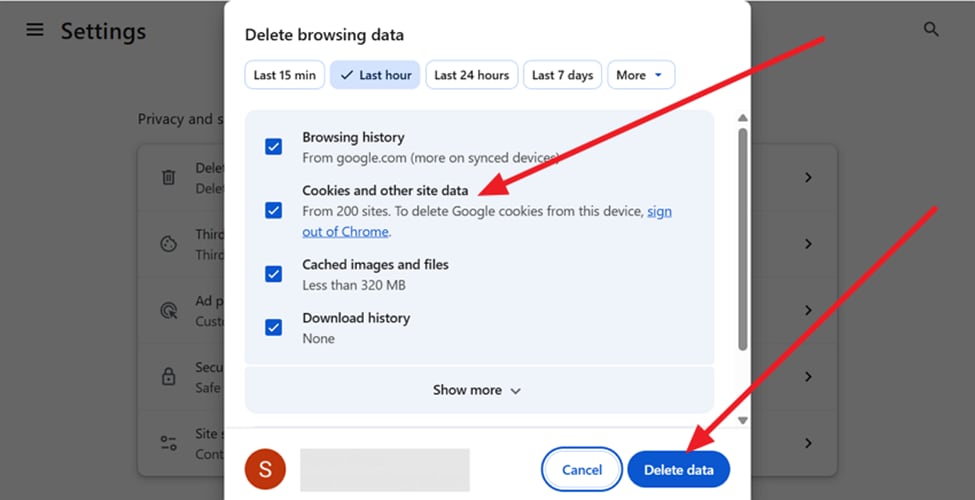
Step 1. From your browser, “Settings” > Select Privacy/Security option > Click on “Delete Browsing Data” option.
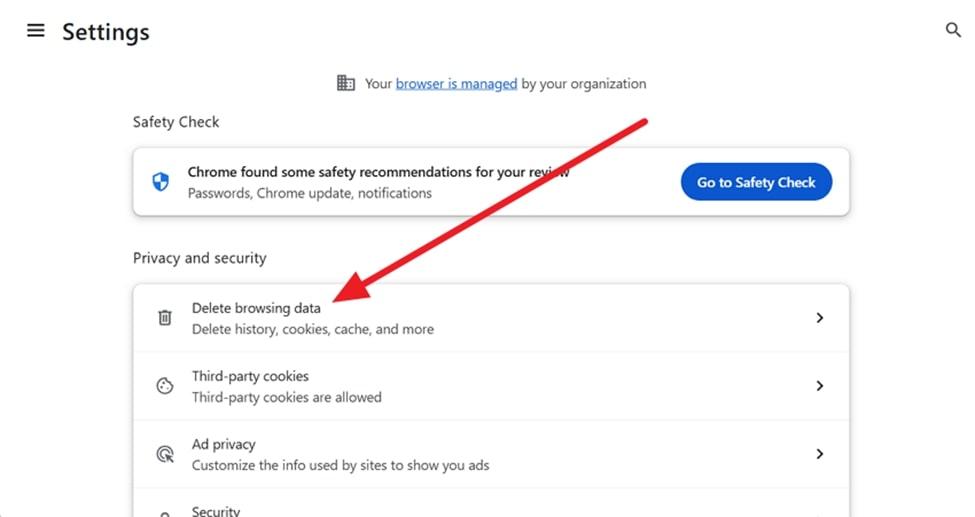
Step 2. Specify the time range > Tick “Cookies and Other Site Data” box > Click “Clear Data” button.
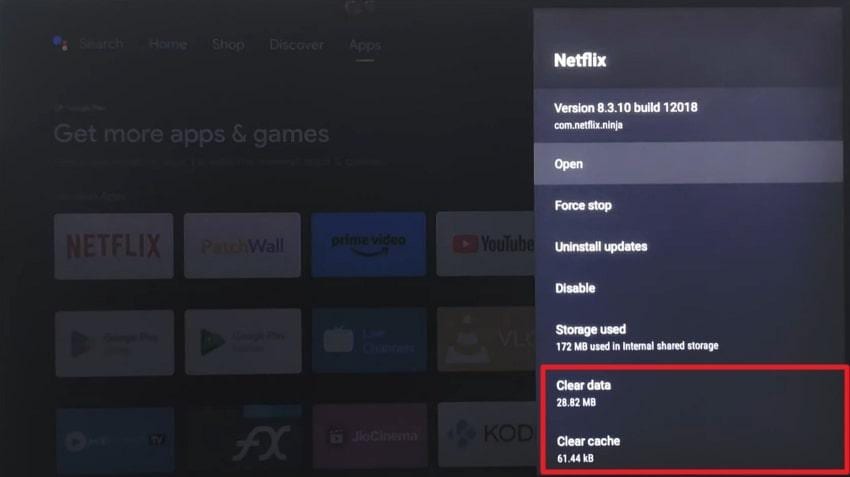
For TV: Smart TV “Settings” > “Apps” > “See All Apps” > Choose “Netflix” > “Clear Cache” and “Clear Data” option.
6. Update Netflix App and Device Software
An updated app version ensures you have the latest bug fixes, security patches, and performance improvements. Even Netflix regularly updates its app to align with backend server changes and introduce performance optimizations. To reduce crashes or recurring “something went wrong Netflix” error, follow the tutorial and get sorted:
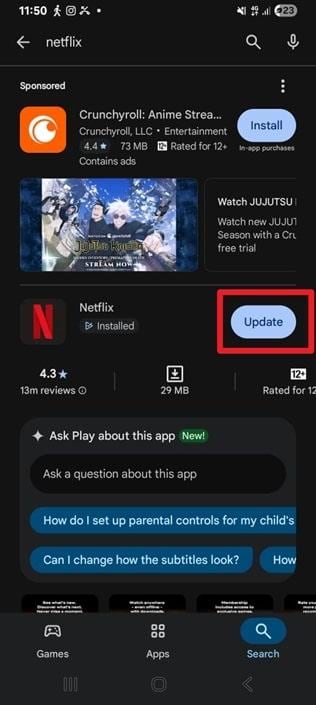
On Android: Look for Netflix on the Play Store and tap on the “Update” button beside it.
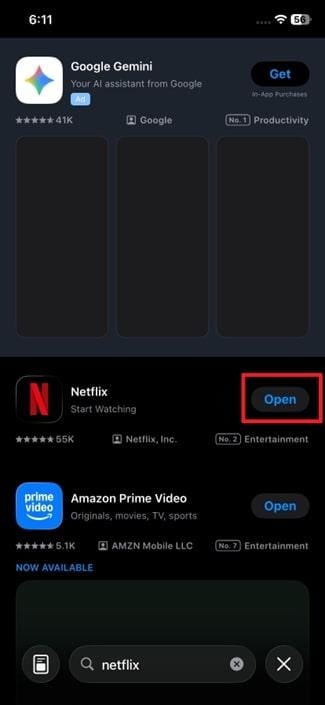
On iPhone: Press the “Update” when you search for the Netflix app on the App Store.
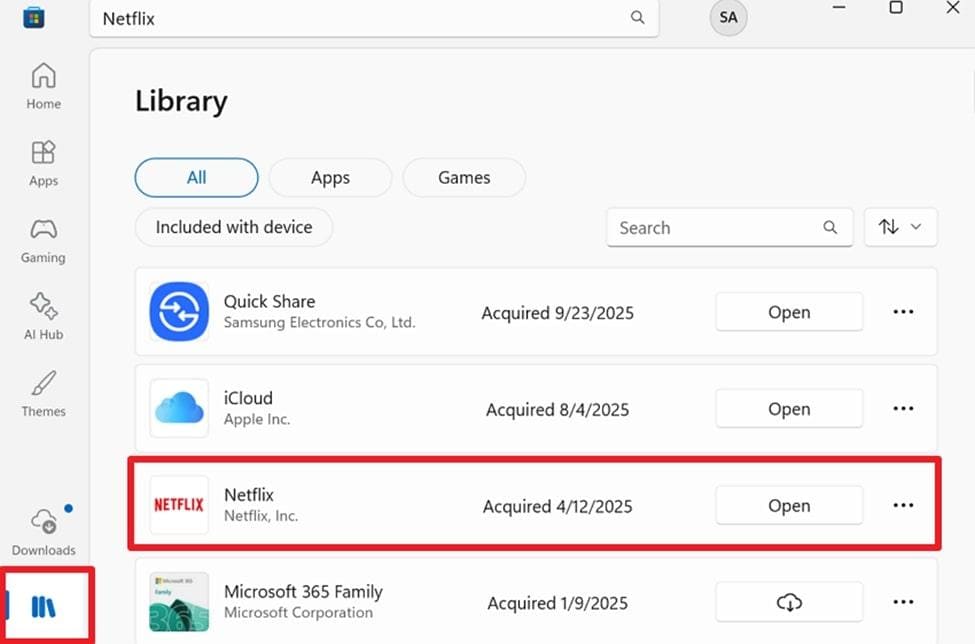
On PC: Reveal the “Library” section on the Microsoft Store and click the “Update” button for Netflix.
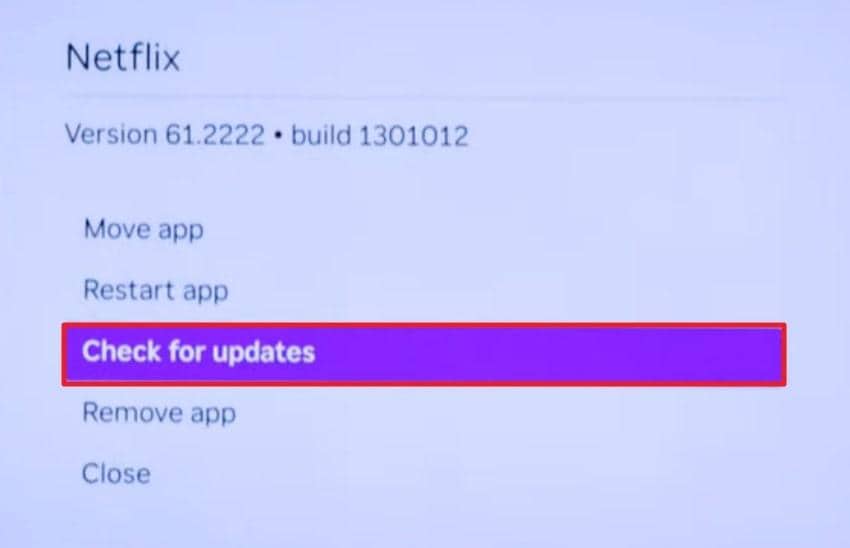
On TV: Highlight the Netflix app > Press the "Star" button on the remote > Choose the "Check for Updates” option.
7. Disable VPN, Proxy, or DNS Services
While VPNs and custom DNS services are often used for privacy or faster browsing, they can interfere with Netflix's content delivery. This mismatch can frequently result in playback failures or repeated error prompts during streaming. Therefore, disabling them is recommended, as it allows Netflix to communicate directly with its servers, improving connection stability. For better understanding, explore the manual and overcome the Netflix error by deactivating proxy services:
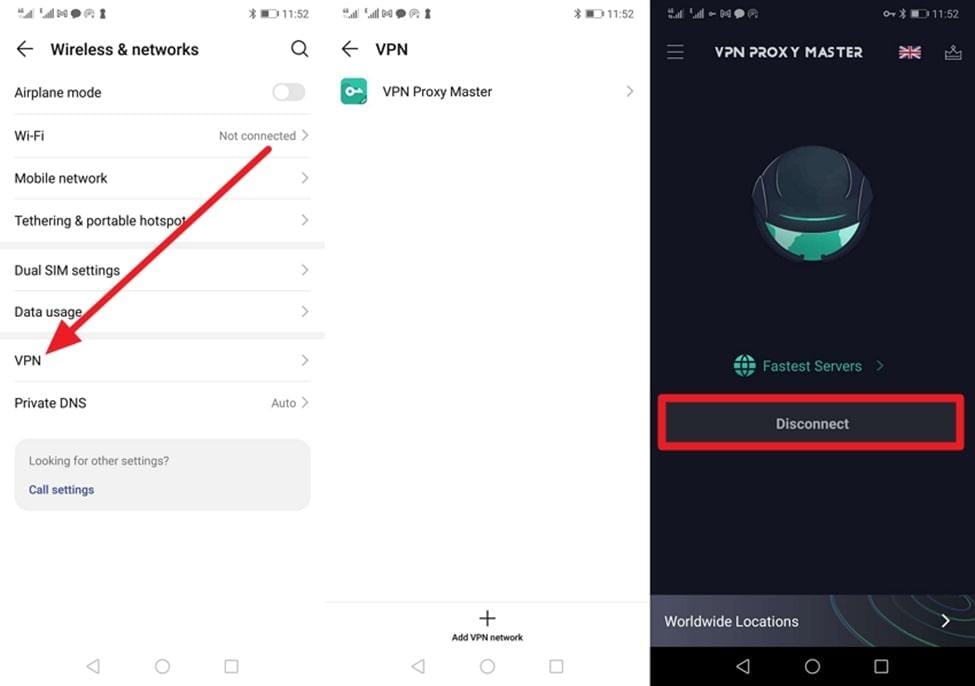
On Android: Choose the “Wireless Network” option > “VPN” option > Access your VPN app > Press the “Disconnect” button.
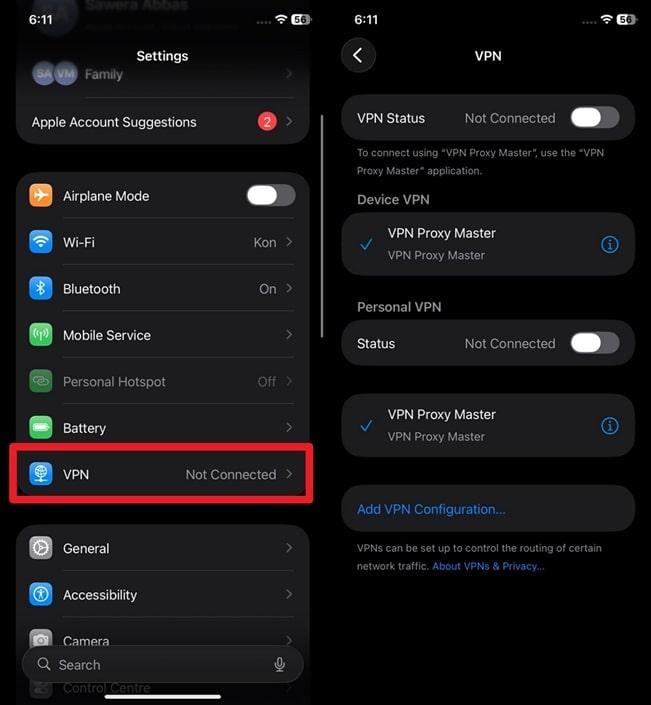
On iPhone: Select the “VPN” option from iOS Settings and toggle off the following VPN options.
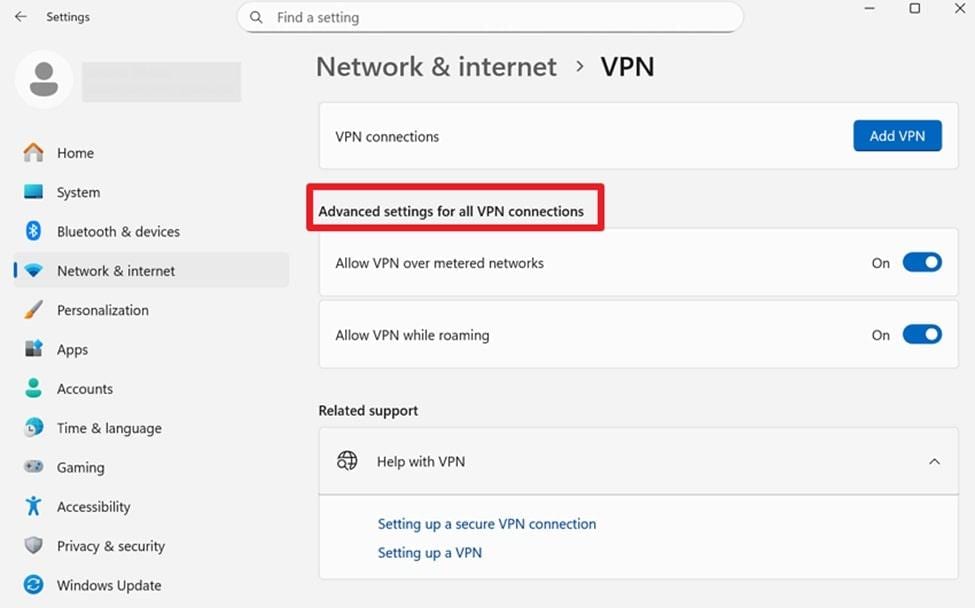
On PC: Navigate to “Settings” > “Network & Internet” > Disable options for “Advanced Settings for All VPN Connections.”
On TV
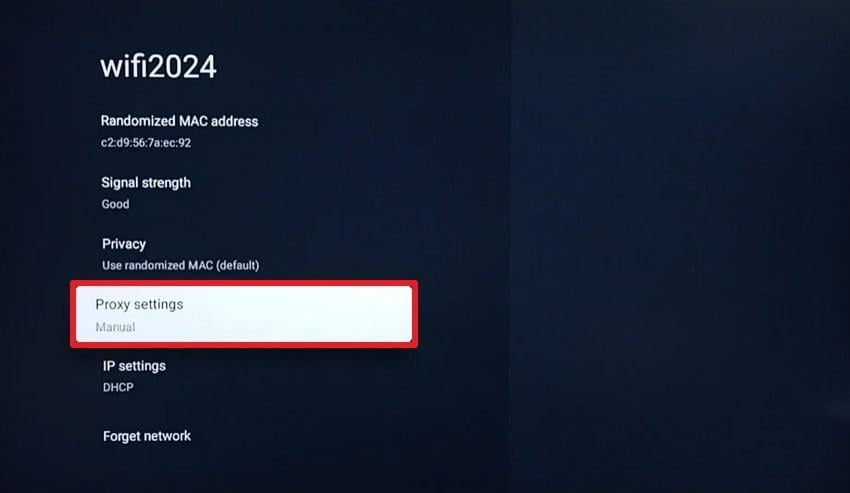
Step 1. Enter “Settings” > Choose “Network & Internet” > Select your WiFi connection > Press the “Proxy Settings” option.
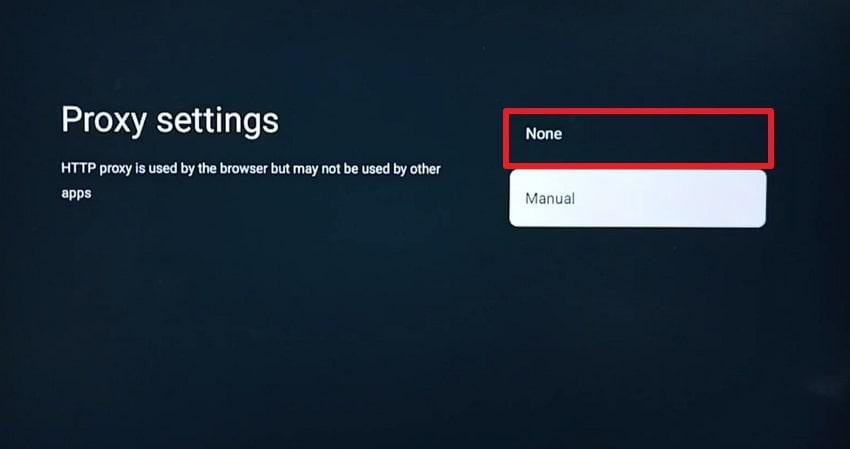
Step 2. Afterward, select the “None” option to remove the proxy server settings.
8. Verify Netflix Subscription Status
Playback problems are not always caused by technical glitches; the issue might lie within the account itself. A Netflix subscription is paused, expired, or facing a billing problem, which can activate a "something went wrong Netflix” error. This is why verifying your subscription status helps rule out account-related limitations and ensure you are authorized to stream content. Visit the official Netflix website and sign in to confirm whether your plan is active.
9. Try Netflix on Another Device
If you think nothing is workable, testing Netflix on a different device is a simple yet highly effective diagnostic step. This approach helps isolate whether the problem is caused by a specific device, an app installation, or system settings. Once it works smoothly on a different device, you can confidently focus on fixing the original device.
Part 4. Error Happens Only on Certain Movies or Episodes?
Whenever “sorry something went wrong Netflix” shows up for a specific title, it often points to content-related problems. Now, despite troubleshooting streaming failures, explore the provided reasons and focus on the real cause behind the error:
- The internet may have dropped, causing the video to partially download, which Netflix can’t read.
- An app or system update can break Netflix’s cached information for that one download.
- Low storage or a storage error can corrupt any of your downloaded Netflix series.
- If the downloaded series was saved to a damaged SD card, it may become unreadable.
In situations where Netflix videos become unplayable due to file-related issues, Repairit Video Repair can be used to repair damaged video files before playback or re-import. Repairit Video Repair is designed to handle a wide range of video corruption scenarios. It supports many commonly used video formats and allows users to repair multiple damaged files in a single session, which can be helpful when dealing with repeated Netflix playback failures.

-
Repair damaged videos with all levels of corruption, such as video not playing, video no sound, out-of-sync video or audio, playback errors, header corruption, flickering video, missing video codec, etc.
-
Repair full HD, 4K, and 8K videos and support 20+ popular formats, including MOV, MP4, M2TS, MDT, RSV, WMV, MPEG, DAT, etc.
-
Repair damaged or corrupted videos caused by video compression, system crash, video format change, etc.
-
Repair critically damaged or corrupted RAW/Log/HDR videos from professional cameras such as Blackmagic Design, RED Digital, and ARRI, etc.
-
Repairit has a quick and advanced scanning mode. You can use either depending on the level of corruption the video file has undergone.
-
No limit to the number and size of the repairable videos.
-
Repaired videos are more compatible with professional editing software such as DaVinci, Composer, Final Cut Pro, and Premiere Pro.
-
Support Windows 11/10/8/7/Vista, Windows Server 2003/2008/2012/2016/2019/2022, and macOS 10.12~macOS 15.
Follow the guidelines and focus on the "sorry something went wrong, please try again later Netflix" error again, caused by corrupted videos:
Step 1. To begin, access the “Video Repair” module and press the “Start" button to insert the corrupted Netflix series.

Step 2. Once you've added the broken Netflix videos, press the “Repair” button to have them repaired instantly.

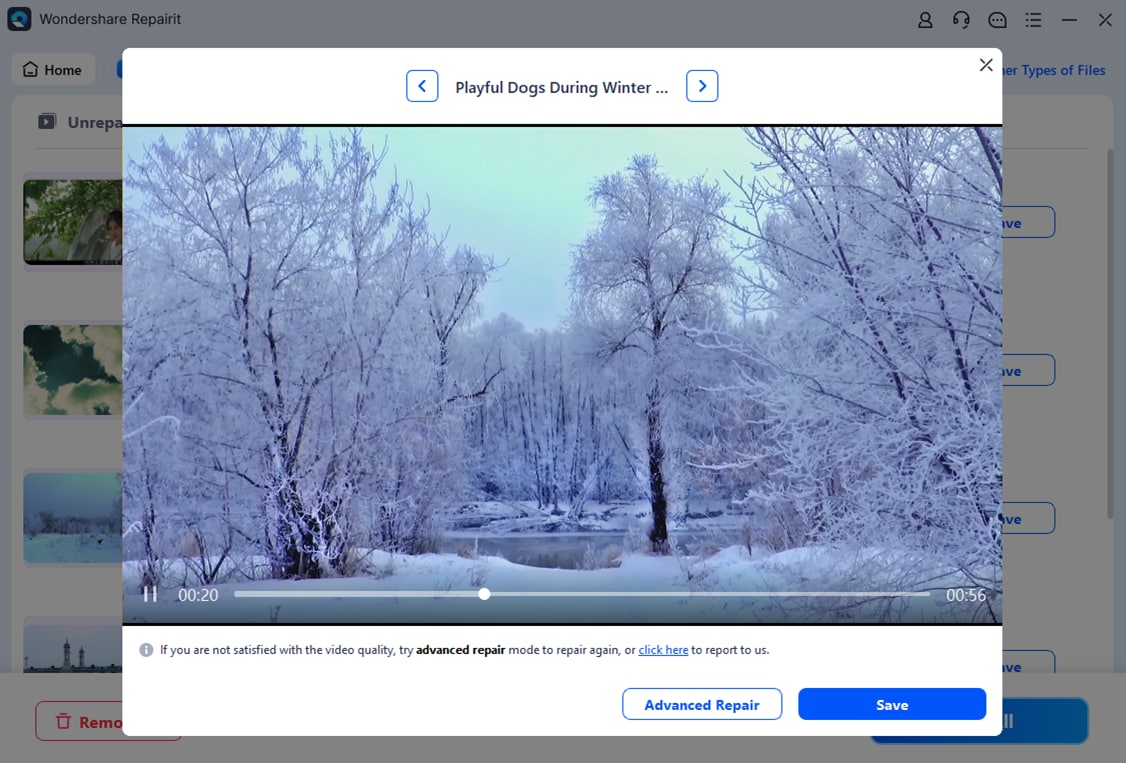
Step 3. Here, preview your repaired movie or seasons and save them on your device for seamless viewing.
Fix Netflix Playback Failures Issues
 Security Verified. Over 7,302,189 people have downloaded it.
Part 5. When to Contact Netflix Support
It's time to contact Netflix support when you think you've tested every possible workaround for this error. Also, if you keep seeing the same error code or have a problem specific to your account or billing. Afterward, a support agent can check your account on their end and escalate service-of-title issues. You can reach them anytime via the Netflix Help Centre's live chat in the app.
Conclusion
In summary, the “something went wrong Netflix” error is not always complicated, but it can be disruptive when it keeps interrupting. Better recognition of issue-related instances enables you to apply the appropriate fix immediately, rather than repeating trial-and-error. For situations involving a damaged or unplayable downloaded Netflix video, consider Repairit as your personal, professional assistant.
Frequently Asked Questions
-
Q1. Why does Netflix keep saying something went wrong?
Netflix might display the "sorry something went wrong, Netflix" message for several reasons, including temporary app glitches. It can also appear when specific content is unavailable due to regional restrictions or server-side issues. Anyway, identifying the root cause, whether it's your device or Netflix itself, is the key to resolving the error. -
Q2. Why does Netflix work on one device but not another?
If Netflix functions on one device but not another, the issue is likely device-specific. Factors such as outdated apps, corrupted cache, or network settings can prevent playback on the problematic device. You can test Netflix on multiple devices because it helps pinpoint whether the error is tied to your account or device. -
Q3. Can corrupted videos cause Netflix errors?
Yes, corrupted or damaged video files, especially downloaded Netflix content, can trigger playback errors and freezing. These issues are typically isolated to specific episodes or movies rather than the entire app. Consider using a video repair program like Repairit to help restore corrupted files, ensuring smooth playback without repeated interruptions. -
Q4. How long does it take for Netflix errors to resolve?
The time usually depends on the cause, like temporary server outages or app glitches, which can be fixed within minutes. Whereas device-specific or network-related issues might require manual troubleshooting, which could take longer.




