
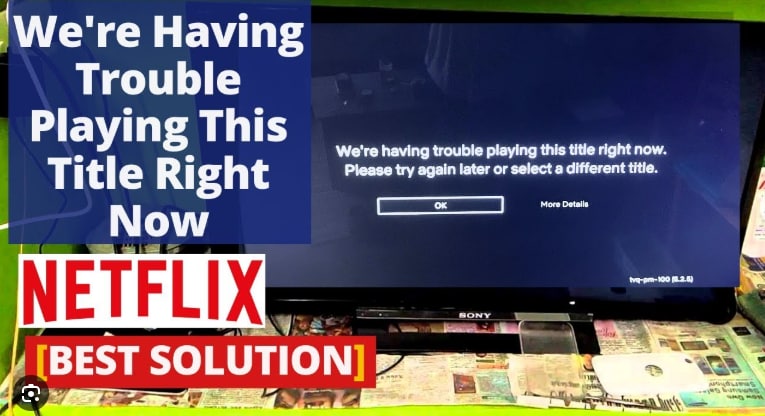
What if you planned a movie night, open Netflix, and an unexpected error, “Netflix We’re Having Trouble Playing This Title” appears and ruins the fun. Frustration sets in at once; the screen stays still, and the mood drops.
Note that this problem can occur on phones, TVs, or laptops without warning, and the cause may be linked to the internet, app faults, or device limits. Regardless of the reason, simple and guided steps can resolve this issue quickly, as outlined in this guide.
Table of Contents
-
- Network Issues That Trigger “We’re Having Trouble Playing This Title on Netflix”
- App, Browser, or Device Problems Behind Netflix Playback Errors
- Account, Region, or VPN Conflicts Causing Netflix: We’re Having Trouble Playing This Title
- Corrupted Netflix Downloads Causing “We’re Having Trouble Playing This Title Right Now, Netflix”
-
- Restart the Netflix App or Browser
- Check Your Internet Connection
- Sign Out and Sign Back In
- Try Streaming on a Different Device
- Clear Netflix App Cache or Browser Cookies
- Update the Netflix App or Browser
- Disable VPN or Proxy Services
- Restart Your Device (Phone, Tablet, or TV)
- Reduce Network Traffic on Your Connection
- Switch to a Different Wi-Fi Network
Part 1. Understanding the Netflix “We’re Having Trouble Playing This Title” Error
Before you know the solutions, get to know what the “We’re having trouble playing this title on Netflix” error means via the listed details in this section:
What “Netflix We’re Having Trouble Playing This Title” Actually Means
The error “Netflix, We're having trouble playing this title right now” implies that your device cannot get the show or movie right now. This message does not indicate that your account is experiencing an issue or that the show is gone forever. It only shows a brief connection or app issue that can be resolved with a simple fix.
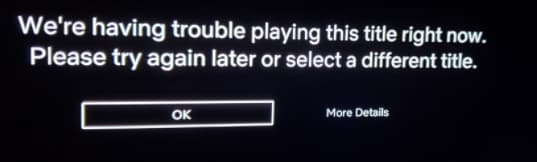
When the “We’re Having Trouble Playing This Title Right Now Netflix” Error Appears
To know the “We’re having trouble playing this title right now, Netflix” issue appears, review the given table for clarity:
| When It Appears | What It Means |
| On One Device Only | App/device glitch or local network issue; other devices can still play Netflix. |
| On All Devices On The Same Network | Internet connection problem (router, modem, ISP). |
| Only With One Specific Show/Movie | Temporary issue with that title or the device’s ability to stream it. |
| After Changing The Wi-Fi/Network | Device lost stable connection; Netflix can’t reach its servers. |
| When Using a VPN / Proxy | Netflix can’t verify your connection; it often blocks streaming. |
| After a Long Time Paused/Idle | Session timed out; connection dropped while paused. |
| After a Router Restart/Power Loss | The device hasn’t fully reconnected; Netflix can’t stream yet. |
| Only On One App (E.G., TV App, Phone App) | That app has a bug, needs an update, or the cache needs clearing. |
Part 2. Why Netflix Shows “We’re Having Trouble Playing This Title”
If one asks why the “Netflix We’re Having Trouble Playing This Title” issue appears, the following reasons might be the reasons:
Network Issues That Trigger “We’re Having Trouble Playing This Title on Netflix”
The Netflix message appears when your network cannot properly send or receive data. Weak Wi-Fi, slow internet, or many devices using the internet can stop the video. Additionally, issues with the router, modem, or DNS also block Netflix. Also, when your internet provider has short outages, or a VPN/proxy slows the connection.
App, Browser, or Device Problems Behind Netflix Playback Errors
Other than the network, here are some app, browser, and device problems that may block Netflix playback:
| Problem Type | What Happens | Common Cause |
| App Issues | Netflix opens, but cannot play the video | Corrupted cache, outdated app, or minor bugs |
| App Connection | The error shows repeatedly | The app cannot refresh the connection to Netflix servers |
| Browser Issues | Video fails on the web | Outdated browser, disabled cookies, or extensions |
| Device Memory | Playback stops or lags | Low storage or too many apps running |
| Device Software | Netflix crashes | Old OS version or pending updates |
Account, Region, or VPN Conflicts Causing Netflix: We’re Having Trouble Playing This Title
Another reason for the “We’re having trouble playing this title right now, Netflix” is account, region, or VPN conflicts, even if it appears to be a network or app problem. Account issues happen when multiple devices use one account, or old logins cause limits. However, region or VPN conflicts appear when a title is blocked in your location, or the connection is unstable.
Corrupted Netflix Downloads Causing “We’re Having Trouble Playing This Title Right Now, Netflix”
Sometimes Netflix downloads get corrupted, so the app cannot play the title. Even if the video looks saved, broken files stop playback and show the error. This usually happens due to interrupted downloads or storage issues on the device.
Part 3. 10 Fast Ways to Fix “Netflix We’re Having Trouble Playing This Title” Immediately
To fix the “We’re having trouble playing this title on Netflix” error, review the given solutions:
1. Restart the Netflix App or Browser
This solution will clear temporary glitches, reset the connection to Netflix servers, and refresh the login session. It also ensures smoother streaming and reduces the chances of playback errors. Additionally, it will restore playback, reset the session, and solve conflicts with other apps, once performed via the given steps:
For Android: Swipe up the app from the recent apps view and reopen it.
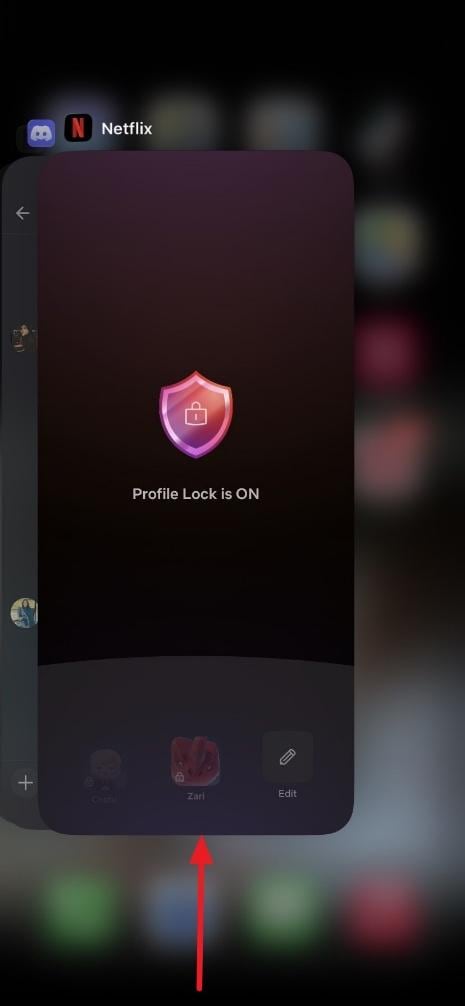
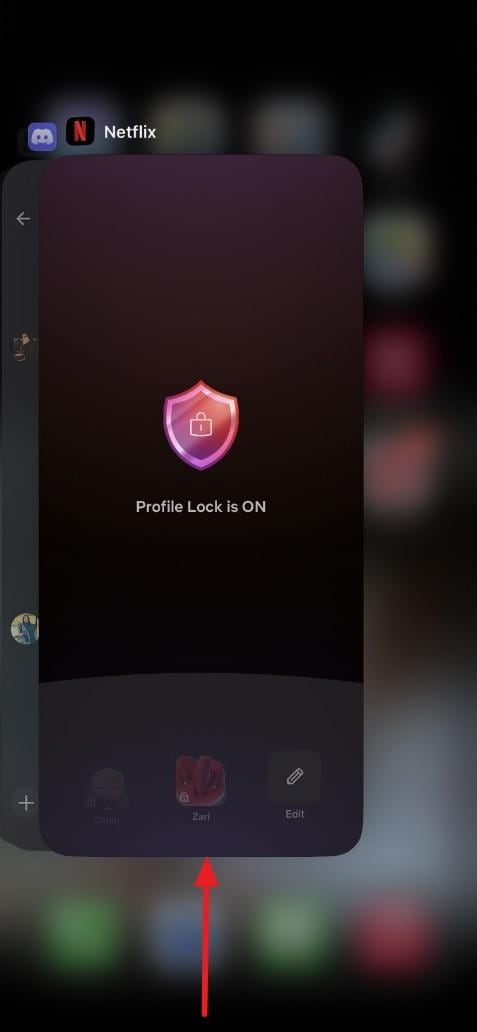
For iOS: Slide upwards on the App Switcher to close it and press the Netflix icon to reopen.
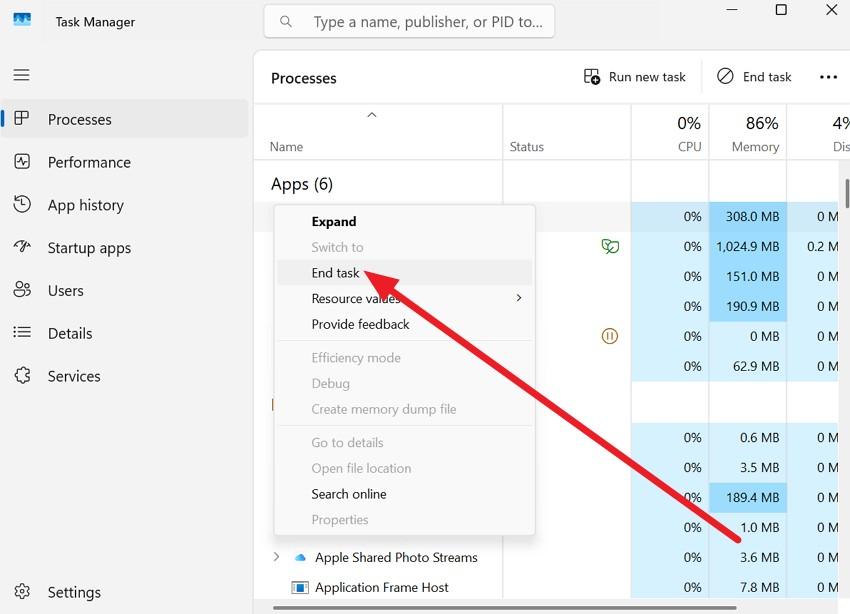
For PC: Right-click on Netflix within Task Manager and choose "End Task.”
2. Check Your Internet Connection
To resolve the “Netflix We’re Having Trouble Playing This Title” issue, restart the router or switch networks to quickly restore playback. It also helps identify buffering, congestion, or Netflix server issues safely without affecting downloads or account data.
3. Sign Out and Sign Back In
This solution clears corrupted login data, refreshes your session, and the app reconnects to Netflix servers. It also helps restore access to recently added or updated titles. Plus, it's safe, and resolves account, device, or region issues when one performs through the given guidelines:
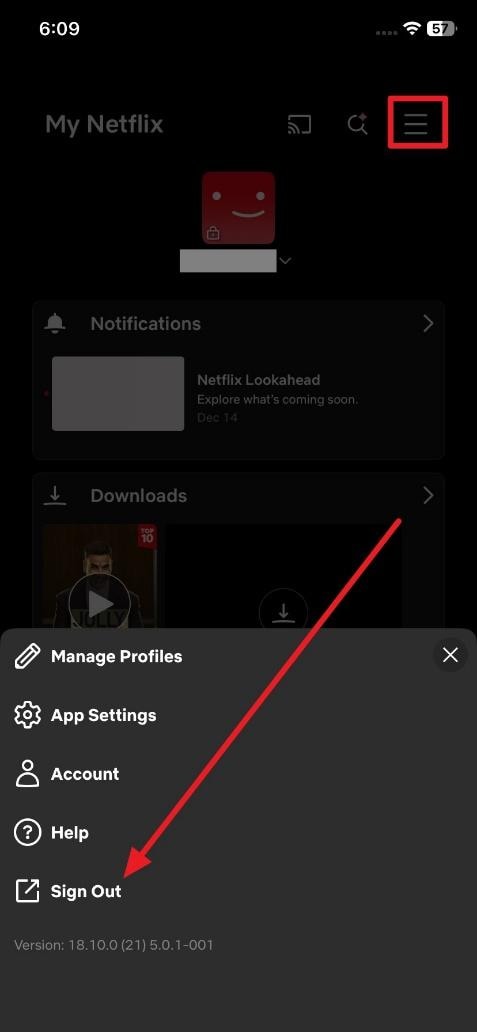
For iOS/Android: On the profile, press the “Hamburger” icon and choose “Sign Out.” After a few seconds, you can log back in to your account.
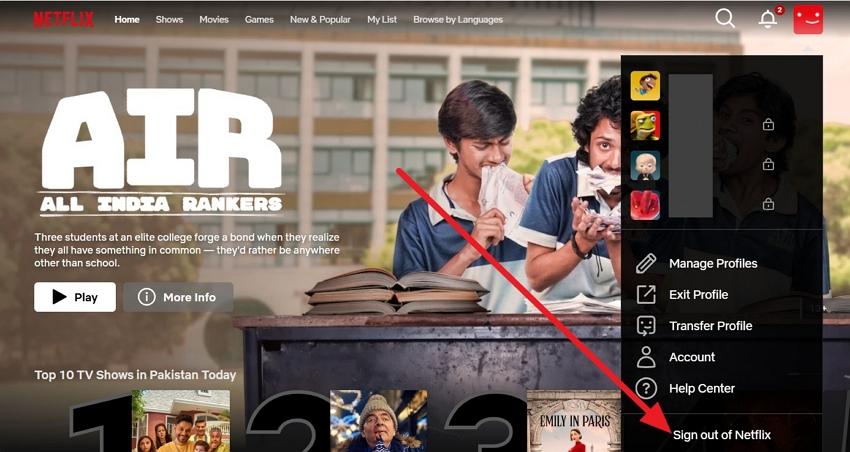
For PC: Hover over the “Profile” icon and choose “Sign Out of Netflix.” Then, wait for a few seconds and log back in.
4. Try Streaming on a Different Device
If the “We’re having trouble playing this title right now, Netflix” issue persists, try Netflix on a different device. This saves time, avoids useless fixes, and helps decide if an app update or device reset is needed. It also helps confirm whether the issue affects only one device or all devices.
5. Clear Netflix App Cache or Browser Cookies
This solution removes corrupted files, resets the connection to Netflix servers, and solves login or region issues. It also helps the app load fresh data and run smoothly. Additionally, it does not delete downloads or watch history, and is easy to perform, as guided:
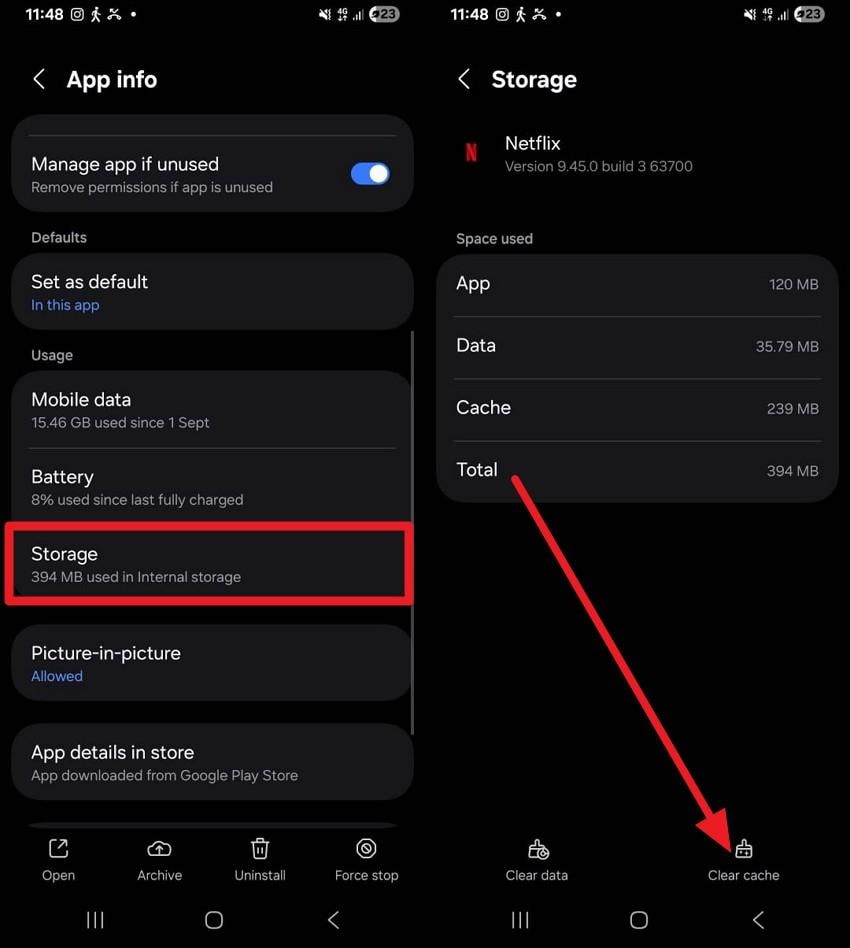
For Android (Clear Netflix App Cache): Go to Settings > Apps > Netflix > Storage > Clear Cache on Android settings.
For PC (Browser Cookies)
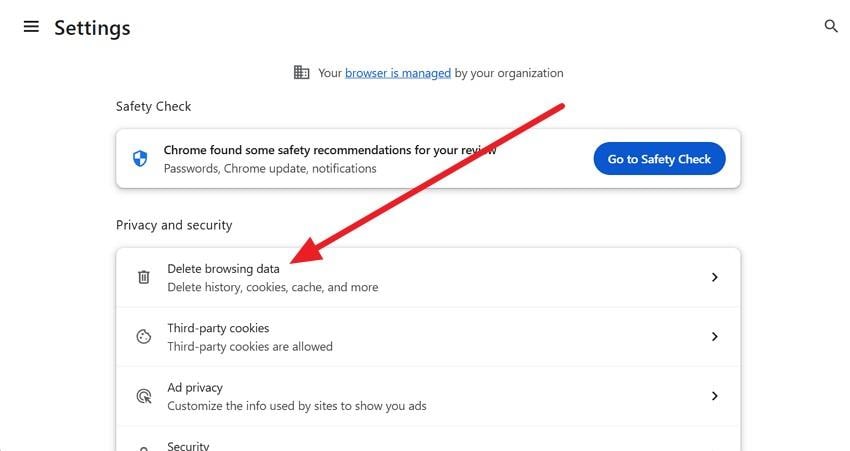
Step 1. Go to your browser's Settings > Privacy/Security > Delete Browsing Data.
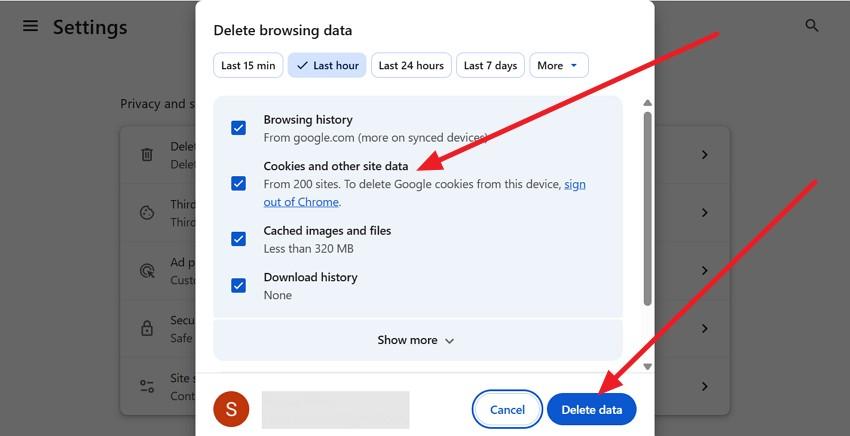
Step 2. Select a time range, check the “Cookies and Other Site Data” box, and click “Clear Data.”
6. Update the Netflix App or Browser
You can also try to update the app to resolve the “We’re having trouble playing this title on Netflix” error via the listed guide. It replaces old or buggy versions with the latest one, fixes playback bugs, and ensures compatibility. This update also improves app security, fixes bugs, and adds useful new features.
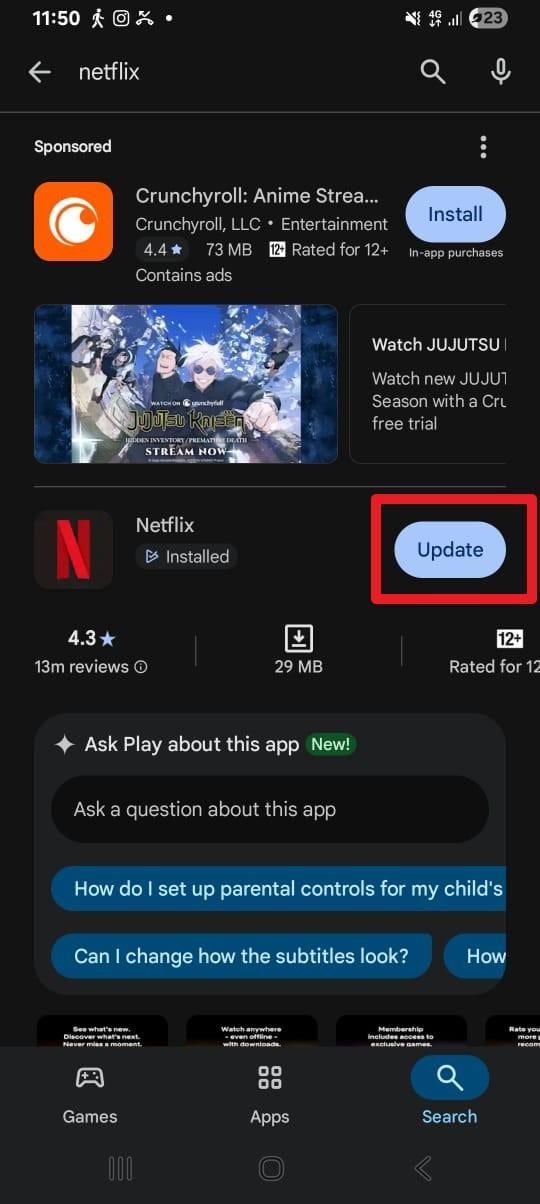
For Android: Search for Netflix on the Play Store and press the "Update” button next to it.
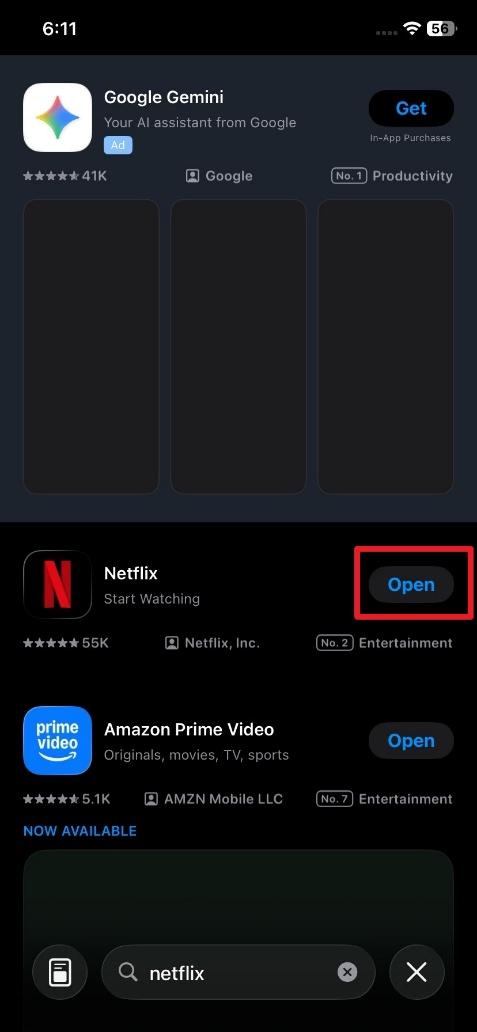
For iOS: Pick the “Update” button as you search for Netflix on the App Store.
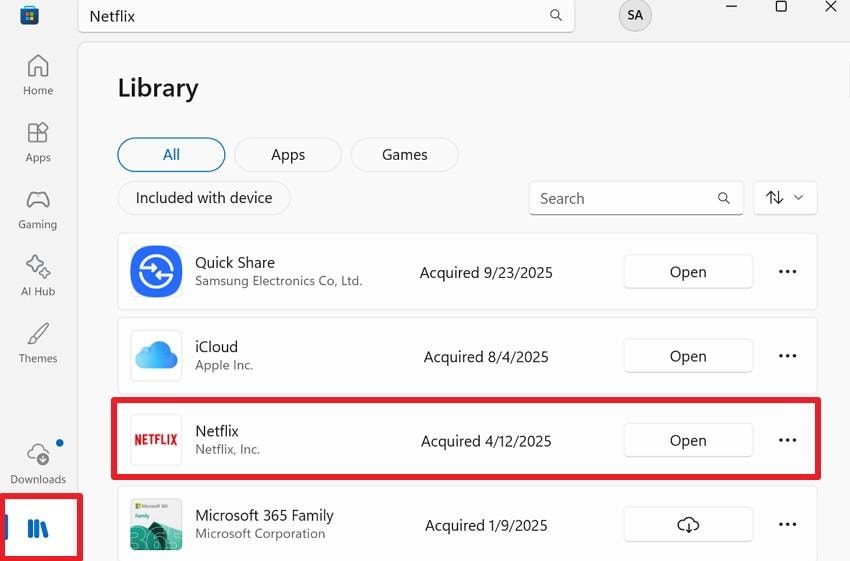
For PC: Head to the “Library” section on Microsoft Store and press “Update” next to Netflix.
7. Disable VPN or Proxy Services
After this fix, Netflix can then detect your real location, allow playback, and remove slow connections or blocks. Additionally, it ensures smoother streaming and prevents unexpected errors. It also helps restore access to titles blocked only by VPN or proxy use, as guided below:
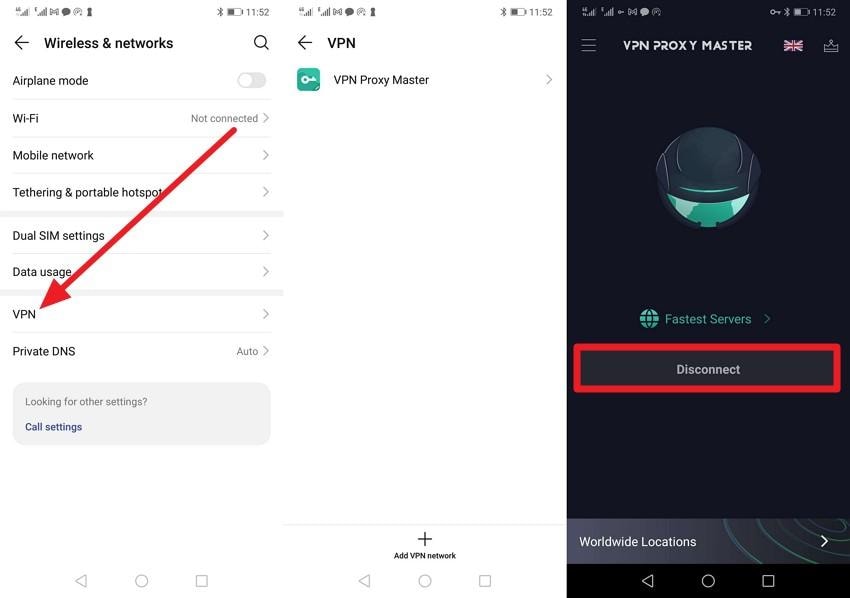
For Android: Go to Wireless Network > VPN > open your VPN app and tap “Disconnect.”
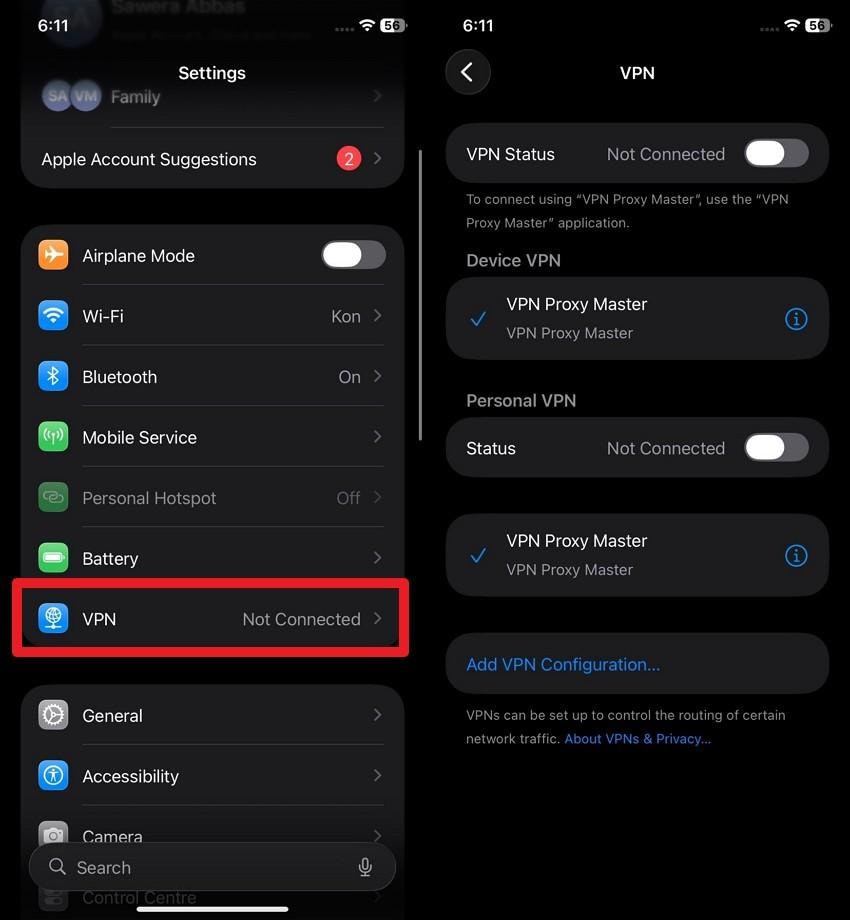
For iOS: Choose the “VPN” option in settings and toggle off the given VPN options.
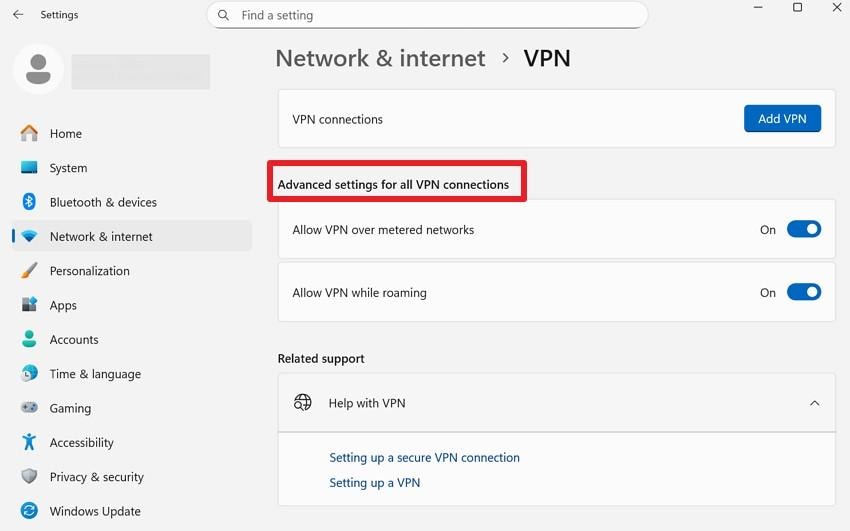
For PC: Go to Settings > Network & Internet > VPN > disable “Advanced Settings for All VPN Connections.”
8. Restart Your Device (Phone, Tablet, or TV)
For the “We’re having trouble playing this title on Netflix” error, this solution clears system glitches and resets the network connection. It also reloads the Netflix app and often restores playback immediately, once performed via the listed steps. Also, this can improve overall device performance and speed.
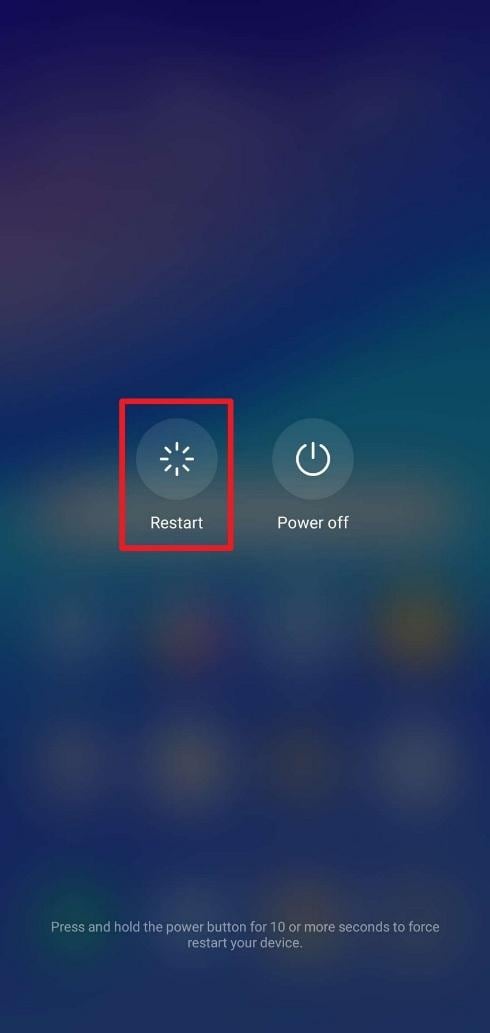
For Android
Instructions: Press the “Power” button and choose the “Restart” option.
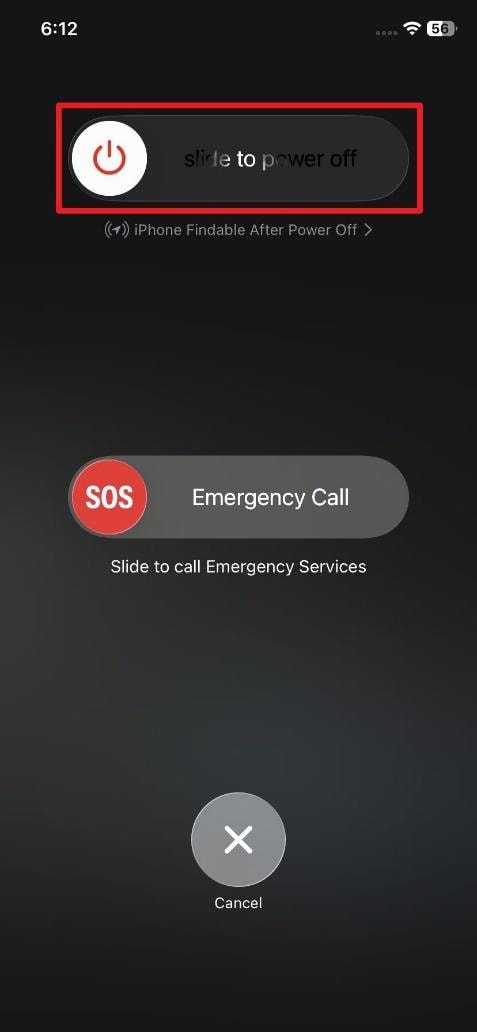
For iOS: Press and hold the “Power” button and slide the “Slide to Power Off” slider as it appears. Keep your iPhone turned off for a few seconds, then turn it on.
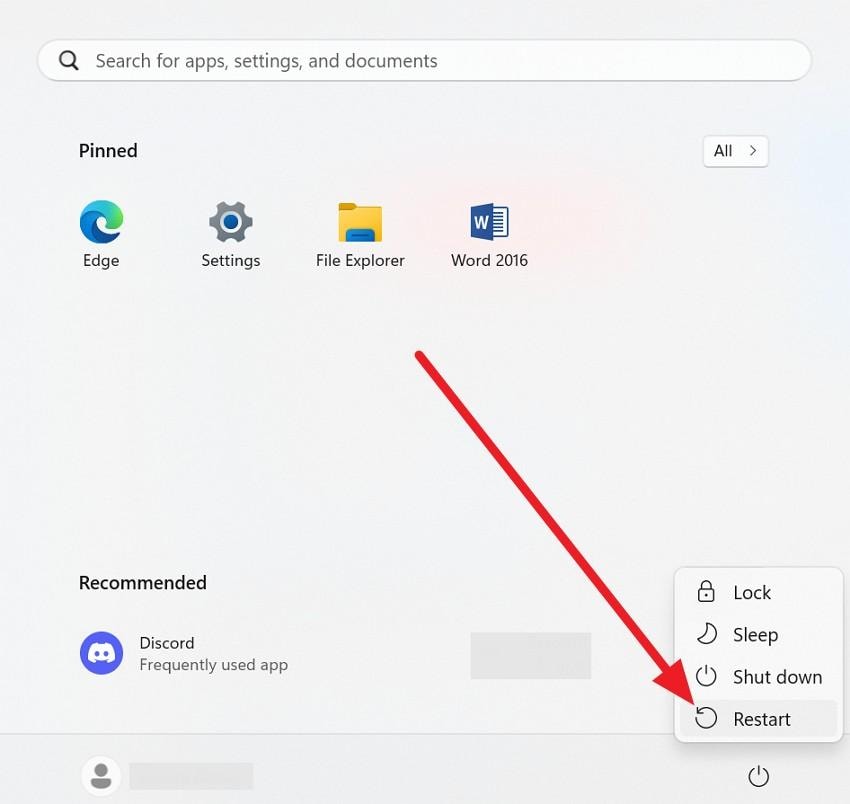
For PC: Use the Start Menu, click “Start” > “Power” > “Restart”, or keyboard shortcuts like “Win + X, then U, then R.”
9. Reduce Network Traffic on Your Connection
Freeing up bandwidth lets Netflix stream smoothly, prevents buffering, and avoids playback failures. Plus, this improves video quality, works on all connections, and resolves the error quickly. It also ensures other devices on the network do not slow down streaming.
10. Switch to a Different Wi-Fi Network
This fix bypasses router issues, ISP outages, and network congestion. Moreover, it often restores playback immediately, works on all devices, and is safe since you can switch back to your main network afterward. It also helps test if the original network causes the Netflix error.
Part 4. When “Netflix We’re Having Trouble Playing This Title” Keeps Appearing
If the “Netflix We’re Having Trouble Playing This Title” issue persists, try the given solutions:
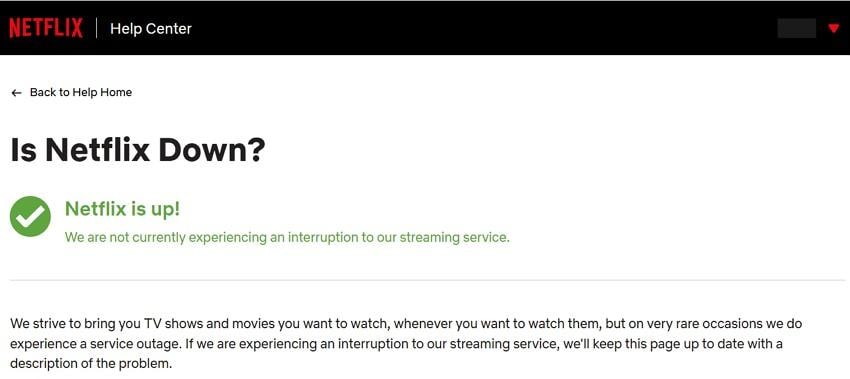
How to Check Netflix Server Status When Playback Errors Persist?
Once you check the Netflix server status from this site, it can help confirm if the error is due to Netflix or your device. This page will explicitly state “Netflix is up!” or provide a description of any ongoing service interruptions.
When & How to Contact Netflix Support for Persistent Playback Errors
When basic fixes don't resolve the “We’re having trouble playing this title on Netflix” error, and the problem persists, contact support.
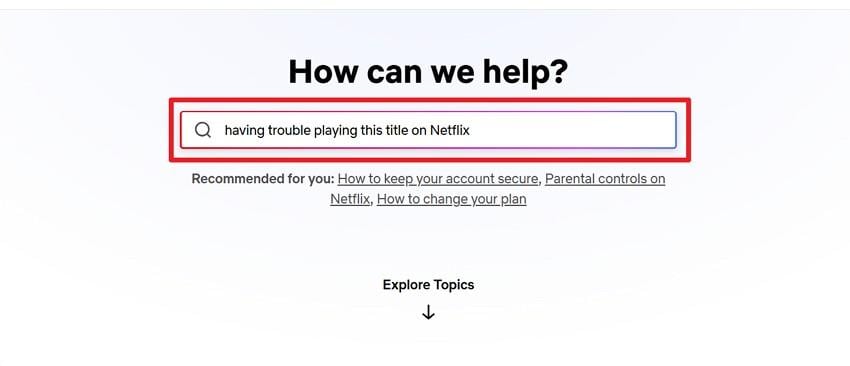
Method 1: Via Netflix Help Center
On the Help Page, type the problem in the given text box and read the given articles to fix the issue.
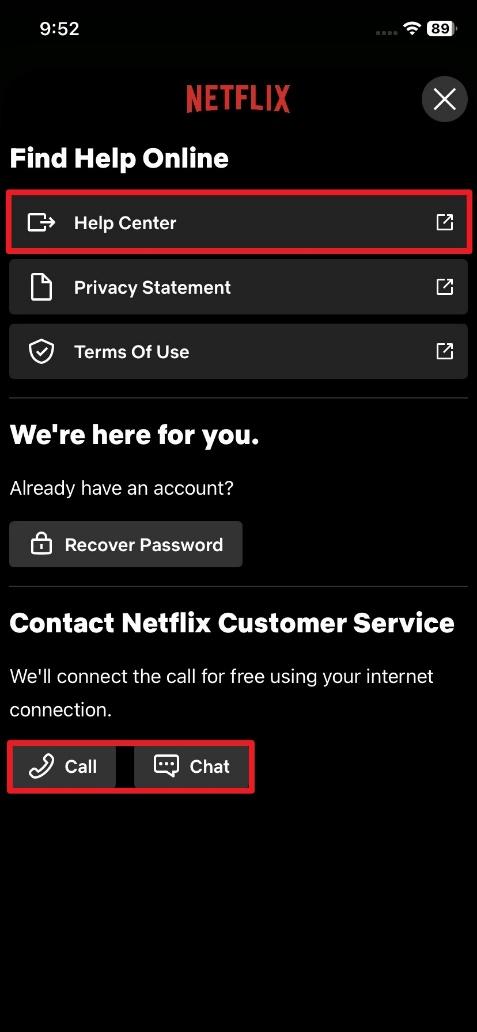
Method 2: Via the Netflix App
Press the “Hamburger” icon on the profile and choose the “Help” option. Pick the “Call” or “Chat” option for direct help or locate the “Help Center” option.
Pro Tip. Fix Corrupted Netflix Downloads That Cause Playback Errors
While dealing with the “Netflix We’re Having Trouble Playing This Title" issue, you might have downloaded any season from a third-party app. Upon playing, you get to know the videos are corrupted, which can be fixed via the given details:
How Corrupted Netflix Downloads Trigger “We’re Having Trouble Playing This Title Netflix”
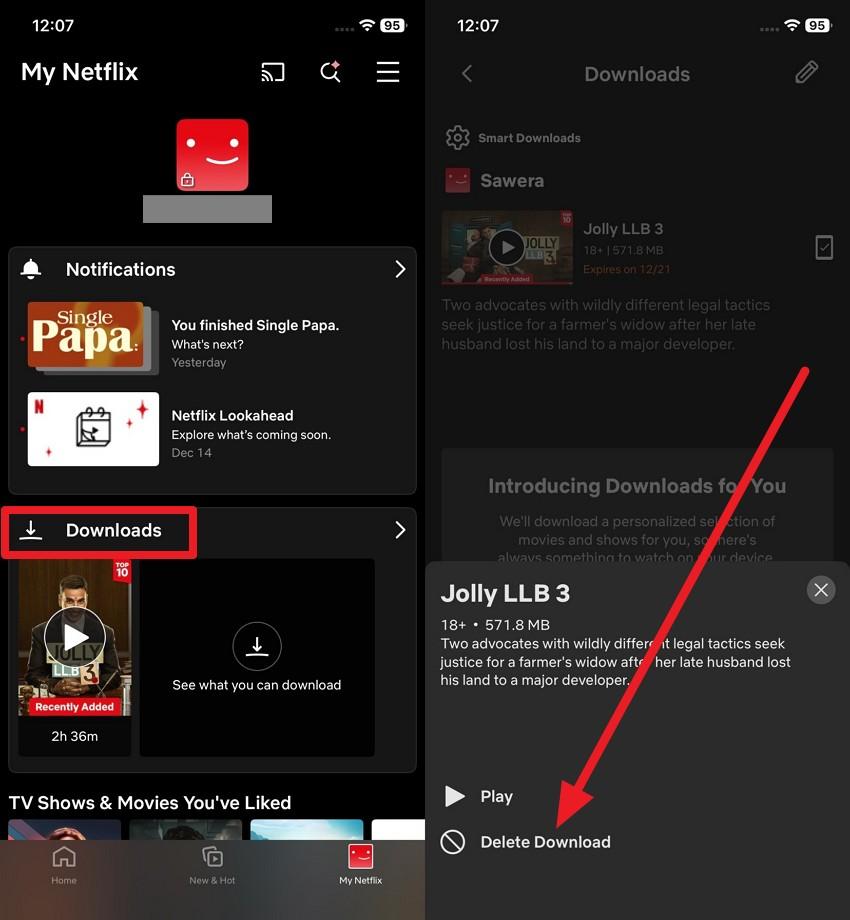
What if your video isn't corrupted, but incomplete Netflix downloads can cause the app to mark the file as unplayable? This can occur as a “We’re having trouble playing this title on Netflix” error, and the fix is almost always to delete the broken download.
Open Netflix, go to “Downloads,” tap the icon next to the title, and choose “Delete Download.”
Here are some reasons that show how corrupted downloads happen and cause playing errors:
- Downloads stop due to a weak Wi-Fi connection, and crashes during download leave files incomplete.
- Low storage capacity interrupts the download process, and damaged video or DRM data prevents offline playback.
Repair Corrupted Netflix Downloaded Videos to Fix Playback Errors
When Netflix shows downloaded from third-party sites throw an annoying error, the experience can quickly ruin your offline viewing plan. Hence, while dealing with the “Netflix we’re having trouble playing this title” issue, you can use tools like Repairit for instant video repair to repair corrupted downloaded videos. The program supports numerous corruption scenarios, including recording issues, storage failures, or editing errors.
Essentially, users can review their repaired footage to analyze the difference and save it for later use. This video repair platform allows repairing videos anytime on any device, whether Windows, Mac, or directly online.
Once your Netflix videos are corrupted, the next step is to follow the guidelines as directed and get sorted:
Step 1. Initially, access the “Video Repair” module and press the “Start” button to insert your damaged downloaded Netflix season.
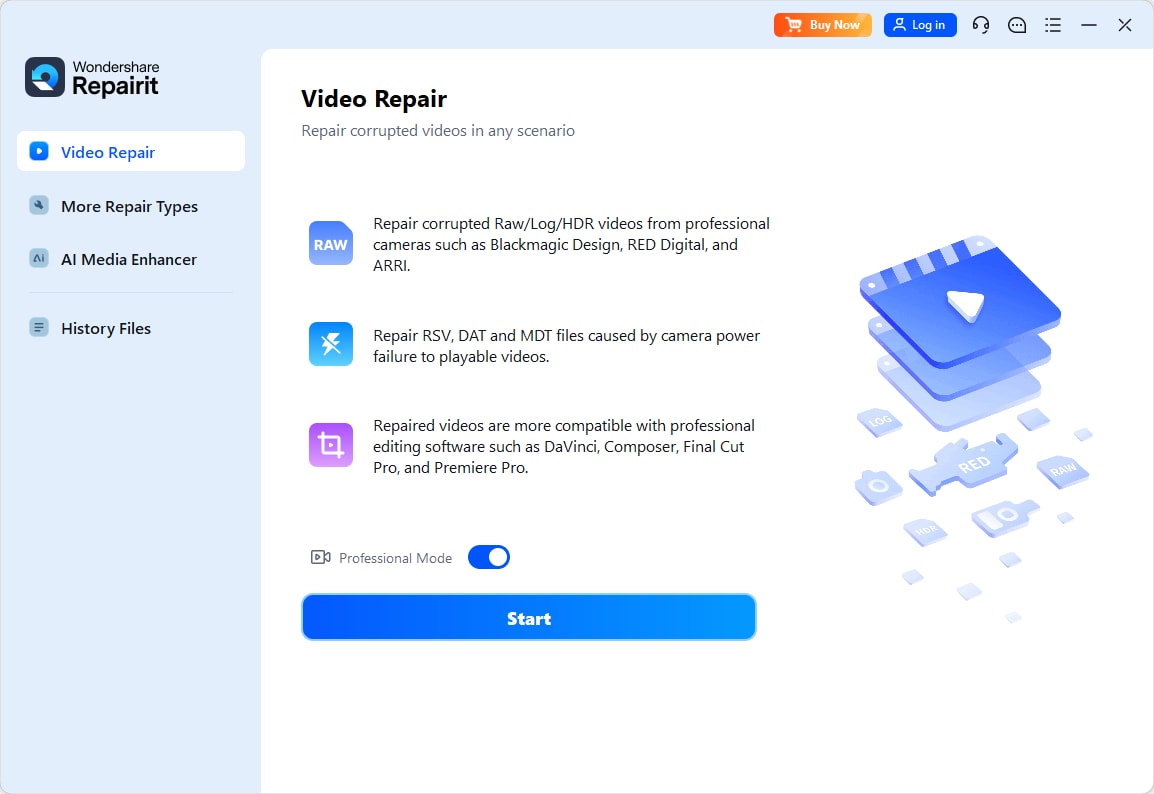
Step 2. After adding the broken series, click the “Repair” button to begin the repair process immediately. Soon, when the process finishes, press the “Preview” button in the prompt window to review and save videos.

Repair Corrupted Netflix Downloaded Videos to Fix Playback Errors
 Security Verified. Over 7,302,189 people have downloaded it.
Conclusion
To sum up, this guide has explained why you face the “Netflix We’re Having Trouble Playing This Title" error and how to fix it. Review the provided guidelines and learn why Repairit is the recommended choice when installed and corrupted seasons from third-party sites ruin the day.
Frequently Asked Questions
-
Q1. Why does Netflix say “we’re having trouble playing this title”?
Netflix mostly displays this dreaded message when it can’t properly read or play the video file. It might happen due to corrupted downloaded videos, temporary app glitches, and even an unstable internet connection. -
Q2. Why does Netflix say we’re having trouble playing this title right now on my TV?
On a TV, errors such as “we’re having trouble playing this title Netflix” are often caused by device-specific issues. Common possibilities might include a weak or fluctuating internet connection, outdated TV firmware, or an old Netflix version. -
Q3. Does clearing the cache fix Netflix playback errors?
Indeed, clearing the cache can often fix Netflix playback errors because it refreshes the app’s temporary data. It further resolves minor glitches caused by cached data that becomes corrupted over time.




