
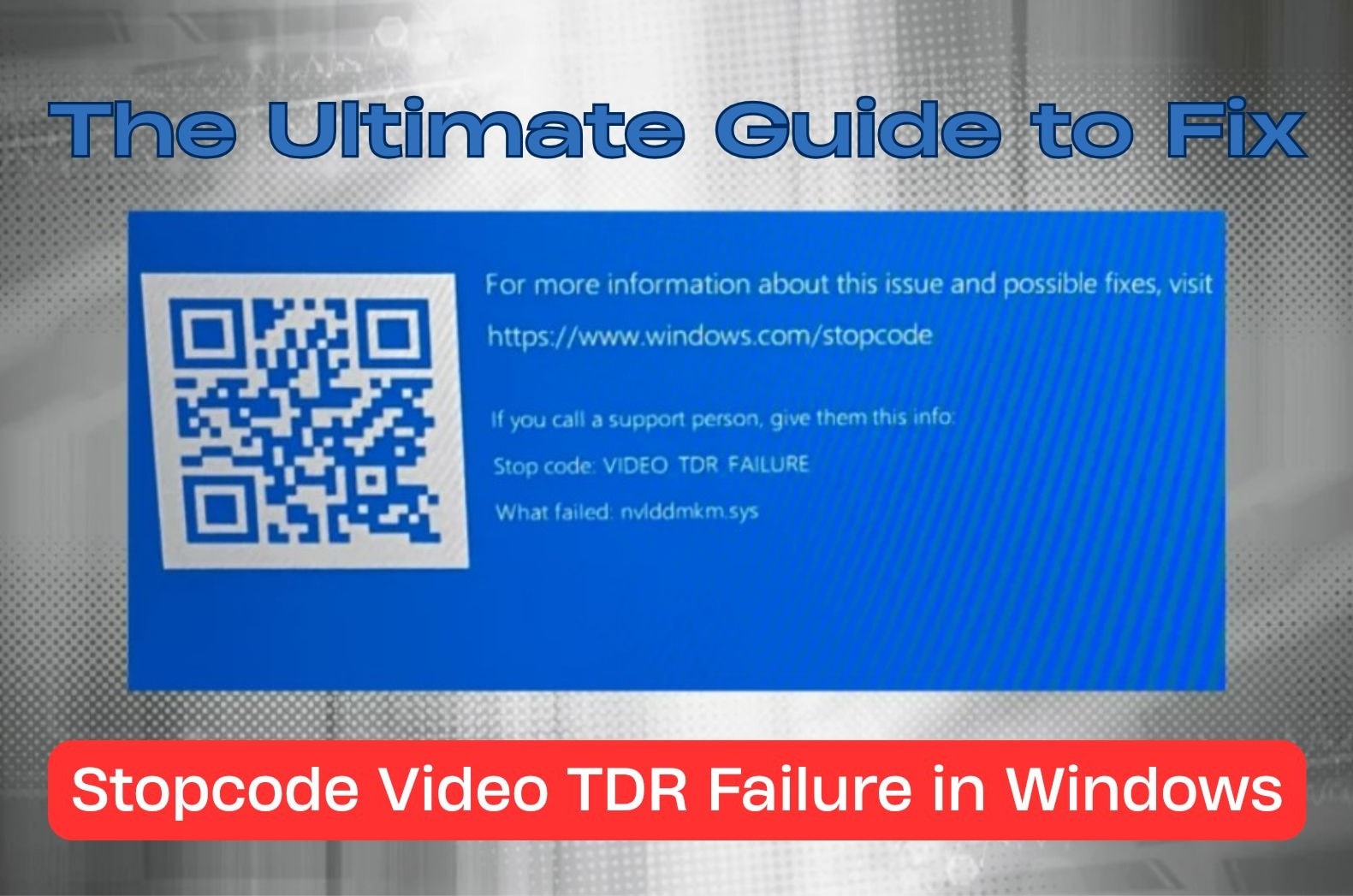
Have you seen a blue screen that mentions VIDEO TDR FAILURE and a file name you do not recognize? It can feel worrying, especially when your screen suddenly goes black or one monitor stops working. This article will guide you through stopcode video TDR failure in windows causes and 7 best ways to fix it.
Table of Contents
-
- Fix 1: Update or Reinstall GPU Drivers to Resolve Video TDR Failure
- Fix 2: Return GPU and CPU to Default Clock Settings
- Fix 3: Improve GPU Cooling to Prevent Video TDR Failure
- Fix 4: Check for Windows Update Conflicts or Corrupted System Files
- Fix 5: Test RAM Stability if Video TDR Failure Still Occurs
- Fix 6: Adjust TDR Registry Values (Advanced Fix)
- Fix 7: Test GPU Hardware for Physical Failure
Part 1: Understanding Windows Stopcode Video TDR Failure
Before thinking about how to fix Windows stopcode video TDR failure, it helps to to understand what the issue is all about first. This error is not random. It is Windows reacting to a graphics process that takes too long to respond.
What Is Video TDR Failure in Windows?
Video TDR Failure refers to a crash caused by Timeout Detection and Recovery (TDR). TDR is a Windows safety feature. It watches your GPU and checks whether it responds within a limited time. When the graphics card does not answer fast enough, Windows assumes something went wrong. Instead of letting the system freeze completely, it resets the GPU driver. If that reset fails, Windows shows the windows stop code video TDR failure.
In simple terms, Windows waited for your GPU, did not get a response, and stopped the system to prevent further damage.
Common Causes of Windows Stop Code Video TDR Failure
Several issues can interrupt GPU communication. Each cause affects performance in a slightly different way.
- Outdated or unstable GPU drivers. Drivers act as translators between Windows and your graphics card. If they are buggy, corrupted, or incompatible with a Windows update, communication breaks down easily.
- GPU or CPU overclocking. Overclocking pushes hardware beyond safe limits. While performance may improve at first, stability often suffers, especially under heavy graphics load. Even mild overclocking can reduce how much time the GPU has to respond. When response timing becomes inconsistent, Windows may see it as a failure instead of a delay.
- Overheating graphics card. When temperatures rise too high, the GPU may throttle or temporarily stop responding. Windows detects this delay and triggers the TDR mechanism. High heat also affects power delivery inside the GPU. This can cause brief signal drops that are long enough to trigger a stop code.
- Corrupted Windows system files. System files control how drivers load and communicate. If these files are damaged, even a healthy GPU can fail to respond correctly.
- Faulty or unstable RAM. Graphics data often passes through system memory. If RAM behaves unpredictably, GPU tasks may stall. Memory issues may only appear under load, which makes them hard to notice early. When errors occur, the GPU may receive incomplete or incorrect data.
- Failing GPU hardware. Physical damage or aging components can cause repeated timeouts that software fixes cannot resolve. This usually shows up as crashes that become more frequent over time. At this stage, software changes may reduce symptoms but cannot fully stop the error.
Devices and Error Names Connected to Video TDR Failure
This stop code often appears with specific driver names or hardware references. Seeing these names can give useful clues.
Part 2: How to Fix Stopcode Video TDR Failure in Windows (Step-by-Step)
Once you understand the cause, the fixes begin to make sense. Here are the fixes for stopcode video TDR failure in Windows that target a different layer of the system:
Fix 1: Update or Reinstall GPU Drivers to Resolve Video TDR Failure
Since drivers control GPU communication, they are often the first place where problems start. A clean and stable driver helps Windows manage graphics tasks without delay. However, even the latest driver can cause trouble if it was installed incorrectly or conflicts with system files.
Moreover, stable drivers improve how Windows resets the GPU after a delay. This reduces the chance that a temporary slowdown turns into a full system crash.
Step 1. Open Device Manager from the Start menu.
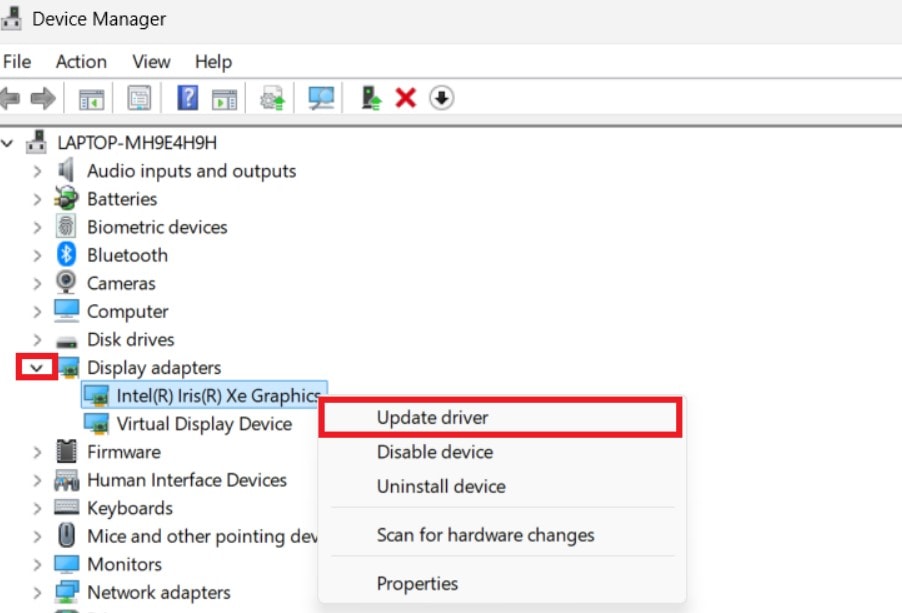
Step 2. Expand Display adapters and right-click your GPU. Then, select Update driver.
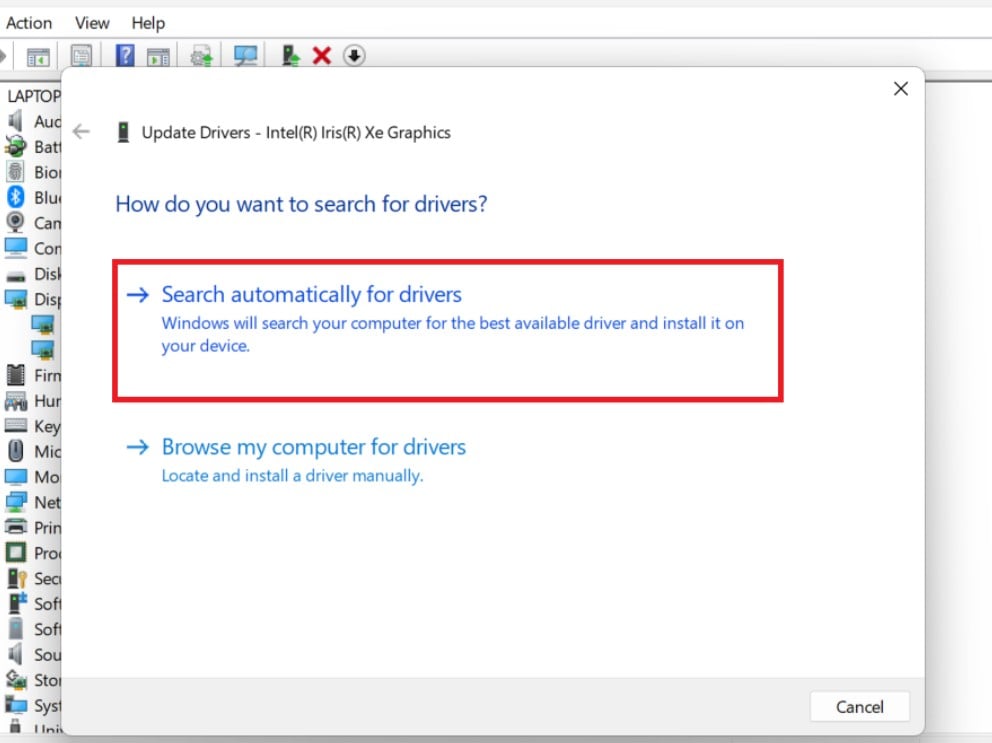
Step 3. Choose Search automatically for drivers.
Step 4. If the automatic update doesn’t work, go to your GPU manufacturer’s website (NVIDIA, AMD, or Intel) and download the latest driver.
Step 5. Install the driver on you PC and restart it afterward.
Step 6. If the problem persists, consider uninstalling the GPU driver first and then reinstalling a fresh copy.
Fix 2: Return GPU and CPU to Default Clock Settings
If drivers are not the issue, system performance settings deserve attention. Overclocking can silently destabilize your system. Returning clocks to default values reduces stress on both the GPU and CPU. This often restores predictable response times, which TDR depends on. As a result, the system can maintain steady performance during sudden workload changes. This consistency helps Windows judge response time more accurately.
Step 1. Open your GPU control panel.
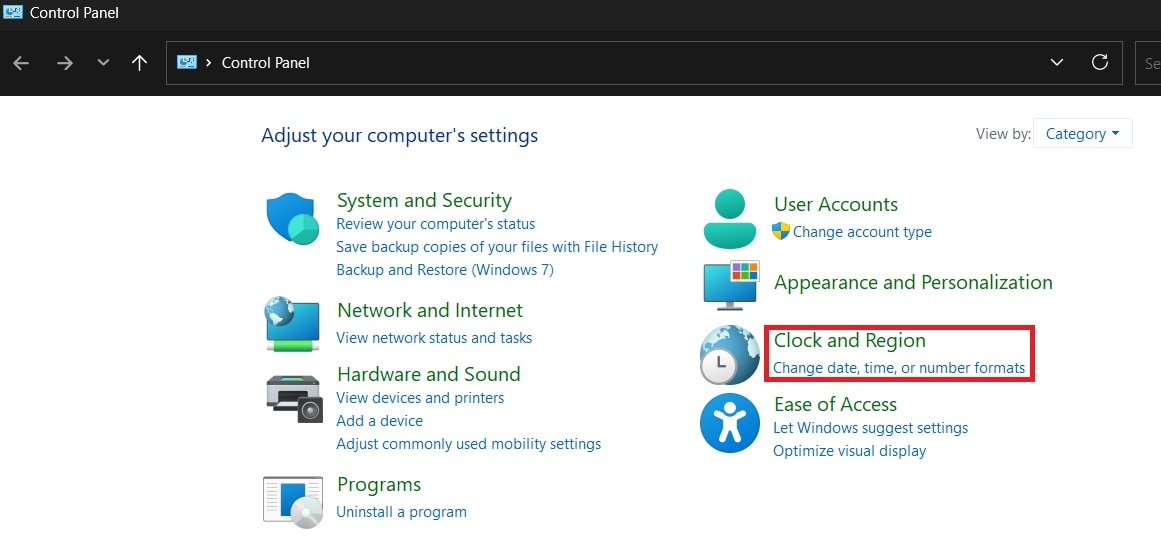
Step 2. Click Change date, time, or number formats under Clock and Region.
Step 3. Go to Additional settings.
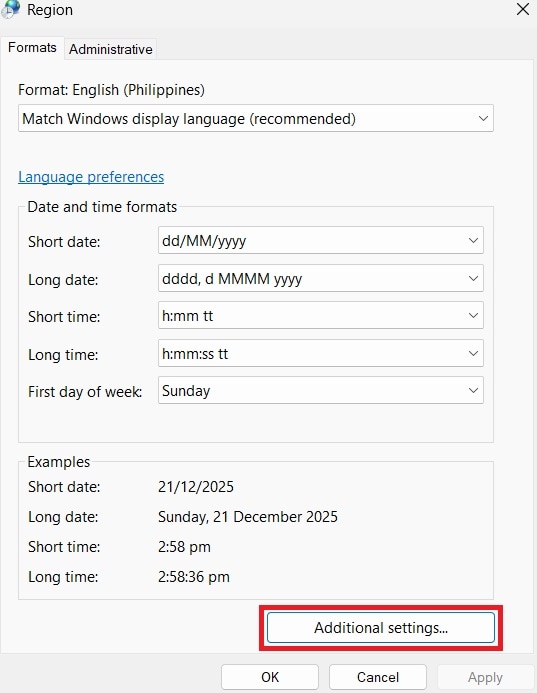
Step 4. Click Reset.
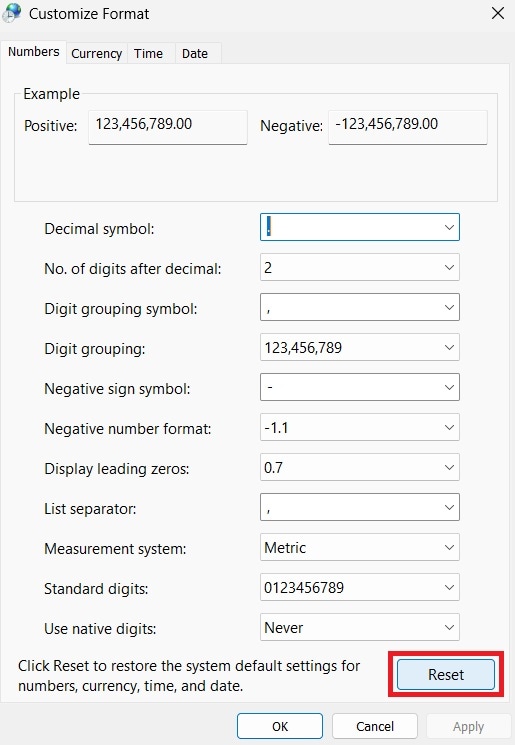
Fix 3: Improve GPU Cooling to Prevent Video TDR Failure
Even stable clock speeds fail when heat builds up. Poor airflow, dust, or dried thermal paste can cause temperature spikes. When the GPU overheats, it may pause operations briefly. From Windows’ perspective, that pause looks like a failure to respond. Consequently, lower temperatures help the GPU sustain long tasks without interruption. This makes recovery events less frequent during demanding sessions.
Step 1. Turn off your PC and unplug it.
Step 2. Open the case and check for dust on fans, heatsinks, and vents.
Step 3. Clean components carefully with compressed air.
Step 4. Check the GPU temperature using software like HWMonitor, during normal usage.
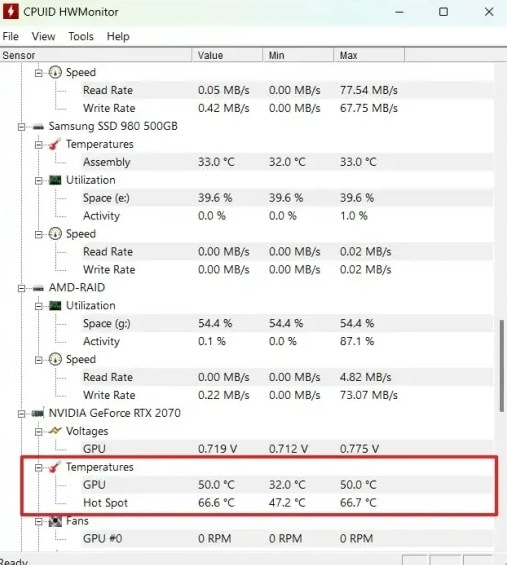
Step 5. Ensure your GPU fan curve is set correctly, or replace thermal paste if it’s old.
Step 6. Make sure your case has good airflow and that fans are working properly.
Fix 4: Check for Windows Update Conflicts or Corrupted System Files
If cooling is not the problem, system integrity comes next. Windows updates occasionally introduce driver conflicts. Corrupted system files can also interfere with how TDR works. A healthy Windows environment allows GPU drivers to load and recover correctly. Likewise, a clean system state allows Windows to apply recovery rules correctly. This improves overall stability during graphics driver resets.
Step 1. Press Windows + I and go to Windows Update.
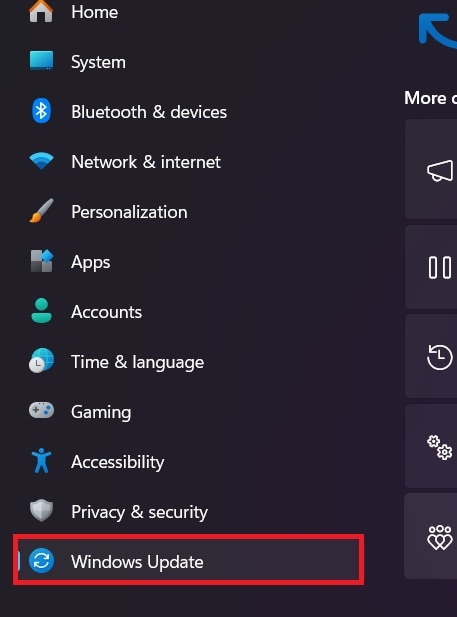
Step 2. Check for updates and install them.
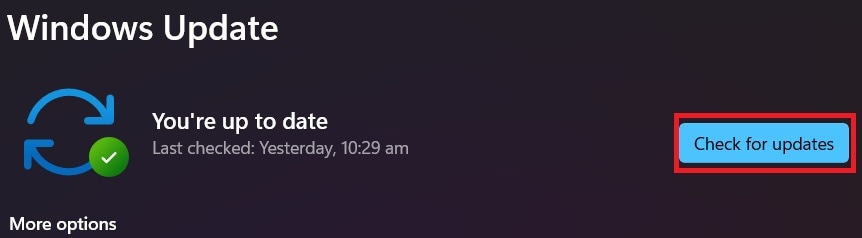
Step 3. Open Command Prompt as Administrator.
Step 4. Run sfc/scannow to check and repair corrupted system files.
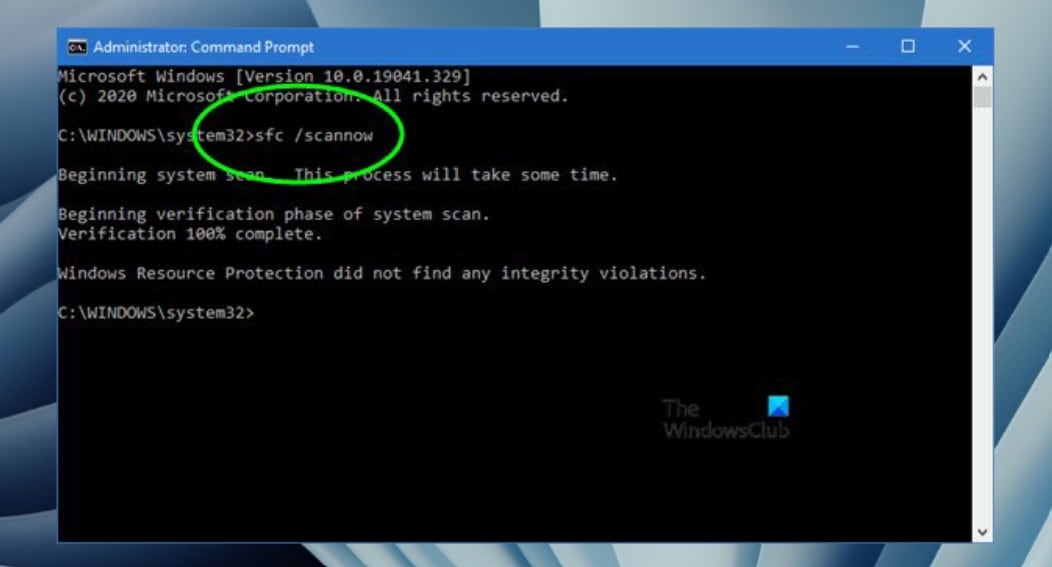
Step 5. After that completes, run DISM /Online /Cleanup-Image / RestoreHealthto fix deeper system issues.
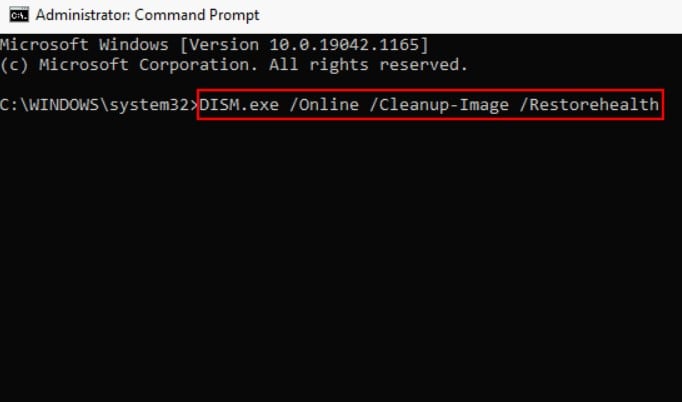
Step 6. Restart your PC and check if the stop code still appears.
Fix 5: Test RAM Stability if Video TDR Failure Still Occurs
At this point, memory stability becomes a concern. Graphics tasks rely on fast and accurate data transfers. Unstable RAM may corrupt this data, causing the GPU to stall while processing instructions. Even small memory errors can trigger repeated TDR failures. Therefore, stable memory ensures that graphic data remains intact throughout processing. This supports smooth task completion without unexpected delays.
Step 1. Press Windows + R, type mdsched.exe, and press OK.
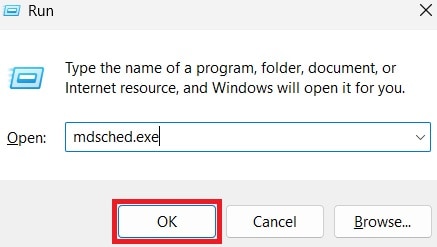
Step 2. Choose Restart now and check for problems.
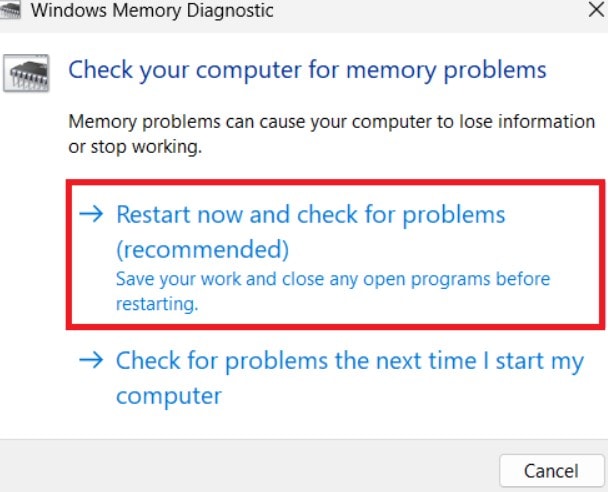
Step 3. Let Windows run the memory test. Your PC will restart automatically after testing.
Step 4. Review the results once logged back in. Any errors indicate RAM issues.
Step 5. If errors are found, consider reseating the RAM or replacing faulty sticks.
Fix 6: Adjust TDR Registry Values (Advanced Fix)
TDR timing is controlled by Windows registry values. In some systems, the default timeout is too strict for heavy workloads. Extending this delay gives the GPU more time to recover before Windows forces a crash. This option should be handled carefully, as it only masks delays rather than fixing weak hardware. However, this approach works best as a fine-tuning measure rather than a primary solution. It should support system stability, not replace it.
Step 1. Press Windows + R, type regedit, and press OK to open the Registry Editor.
Step 2. Navigate to: HKEY_LOCAL_MACHINE\SYSTEM\CurrentControlSet\Control\GraphicsDrivers. Right-click New and choose DWORD (32-bit) Value. Name it TdrDelay.
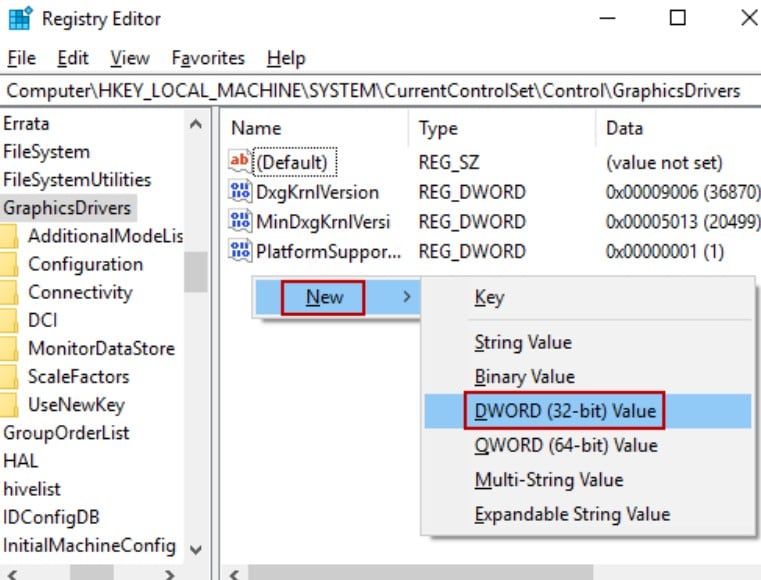
Step 3. Double-click it and set the Value data to 10 (this gives the GPU 10 seconds to respond).
Step 4. Close the Registry Editor and restart your PC.
Step 5. Only change this value if you’re comfortable with system settings, as incorrect changes can cause other issues.
Fix 7: Test GPU Hardware for Physical Failure
If all software-related fixes fail, hardware testing becomes unavoidable. A GPU with damaged memory chips or power delivery issues may repeatedly time out under load. In such cases, replacement or professional repair is often the only long-term solution. Ultimately, confirming hardware condition helps avoid repeated troubleshooting loops. It also provides clarity when software fixes no longer improve stability.
Step 1. Turn off your PC and disconnect power.
Step 2. Remove the GPU and inspect it for physical damage or dust.
Step 3. If possible, test the GPU in another computer to see if crashes persist.
Step 4. Use benchmarking or stress-testing software like FurMark to monitor GPU stability.
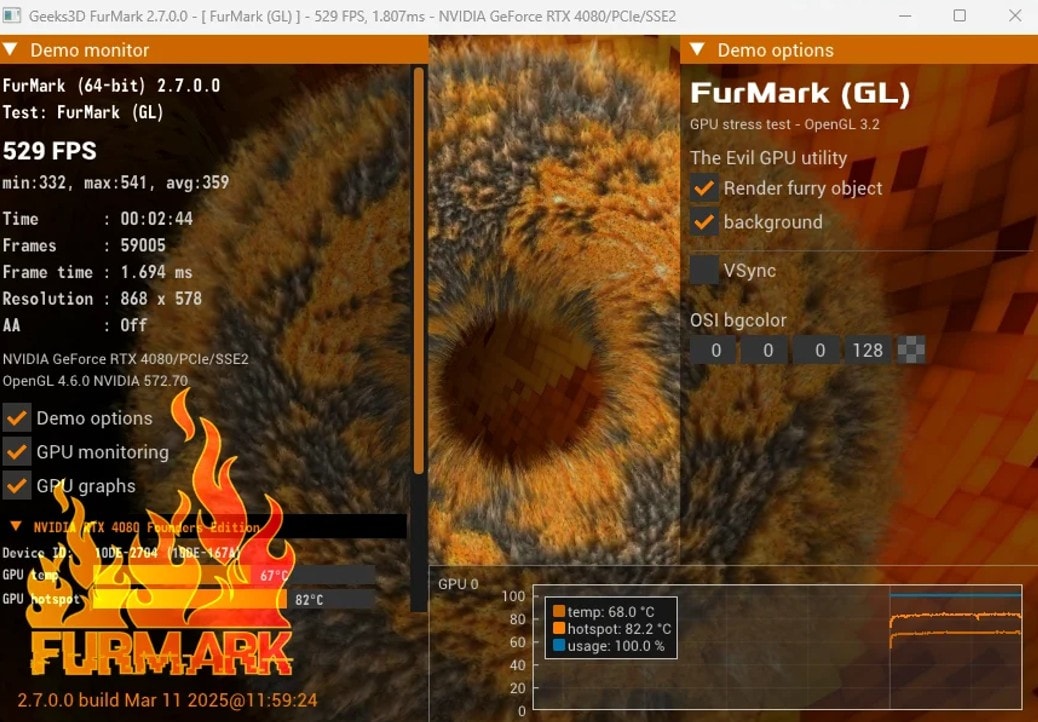
Step 5. If crashes or artifacts appear consistently, the GPU may need repair or replacement. Consult a professional repair service if you’re unsure about hardware replacement.
Part 3: Using Repairit When Video TDR Failure Corrupts Video Files
Video TDR Failure does more than crash your system. It often interrupts video recording, editing, or playback. As a result, you may end up with corrupted video files that no longer open or play smoothly.
Repairit Video Repair is one of the useful tools you need. While it does not fix the stop code itself, it addresses one of the most common consequences, which is damaged video data.
What really is Repairit Video Repair? This is a powerful yet beginner-friendly software designed to rebuild corrupted video files caused by system crashes, GPU failures, or sudden shutdowns. When a TDR failure interrupts video processing, file headers, indexes, or frames may break. Repairit analyzes these structures and reconstructs them using reliable reference patterns.
Key features of Repairit Video Repair
🎬Support for common formats affected by crashes, such as MP4, MOV, MKV, and AVI.
🛠️Ability to repair videos corrupted during recording, rendering, or playback.
⚡Advanced repair mode for severely damaged files caused by repeated system crashes.
🎞️Preservation of original resolution, frame rate, and audio sync.
💾Stable performance even when repairing large or high-resolution video files.
Step 1. Open the Repairit software and start the Video Repair. Then, upload your videos that were damaged during the TDR crash.

Step 2. Hit the Repair button to start fixing your video files.

Step 3. Once repaired, Preview the repaired video files and Save them to your chosen destination.

Using Repairit When Video TDR Failure Corrupts Video Files
 Security Verified. Over 7,302,189 people have downloaded it.
Part 4: Essential Dos and Don’ts for Preventing Windows Stopcode Video TDR Failure
Prevention matters just as much as repair. Once your system is stable, small habits can reduce the risk of future crashes. Here’s what you need to do and what you shouldn’t.
What You Should Do
✅Keep graphics drivers stable and compatible: Stability matters more than having the newest version available. This helps Windows apply recovery actions without confusion. It also reduces sudden changes in GPU behavior after updates.
✅Maintain proper airflow and cooling: Clean fans and steady temperatures help your GPU respond on time. Good cooling supports steady performance during long workloads. It also helps the GPU maintain consistent response timing.
✅Monitor system performance under load: Early signs like screen flickering or brief freezes often appear before a full stop code. Watching these signs allows you to act before crashes return. Small warnings often appear long before serious failures.
✅Use trusted software for GPU management: Reliable tools reduce the risk of accidental misconfiguration. Well-tested tools follow safe system limits. This lowers the chance of hidden settings affecting stability.
What You Should Avoid
❌Pushing hardware beyond safe limits: Overclocking increases the chance of response delays. Short-term gains often lead to long-term instability. This makes recovery events harder for Windows to manage.
❌Ignoring repeated blue screen warnings: Frequent crashes usually signal deeper issues. These warnings often become more frequent if left unchecked. Addressing them early helps prevent deeper system damage.
❌Running heavy graphics tasks on unstable systems: Stressing a weak setup often triggers TDR failures again. High load amplifies small system weaknesses. This increases the risk of sudden response failures.
❌Mixing incompatible drivers and Windows versions: Driver conflicts can silently build over time. Small conflicts may not show right away. Over time, they can disrupt how Windows handles graphics recovery.
Conclusion
The windows stop code video TDR failure is not just a driver error. It is a warning that Windows could not safely recover your graphics system in time. By understanding how TDR works, you can connect the dots between drivers, temperatures, memory, and hardware health. Each fix in this article builds on the last, creating a clear path from basic stability to deeper diagnosis.
And when crashes damage your video files, tools like Repairit Video Repair help you recover what matters while you restore system reliability.
FAQs
-
1. Can Video TDR Failure happen without heavy gaming or editing?
Yes. It can happen during normal tasks if drivers, system files, or hardware are unstable. Even browsing the web, streaming videos, or running multiple apps at once can trigger it. Laptops or desktops with older GPUs are more likely to show this error under light workloads. -
2. Does increasing TDR delay permanently solve the problem?
Not always. It may reduce crashes, but underlying issues like overheating or failing hardware can still exist. Increasing the delay only gives the GPU more time to respond. If the root cause is a damaged graphics card, outdated driver, or unstable memory, the stop code may return later. -
3. Can Video TDR Failure damage files permanently?
It can corrupt files during active use, especially videos. However, many of these files are recoverable with proper repair tools. Using tools like Repairit Video Repair often restores videos without losing quality. For important files, it’s best to stop using the system until repair is complete to avoid further corruption.




