
The blue screen deliberately appears with the message "Driver_Power_State_Failure" when Windows is constantly trying to sleep or shut down. Users have to look into random crashes and long device hangs, which can cause frustration.
When encountering this error on your Windows device, the article brings a clear insight into what the "Driver Power State Failure BSOD" is and why it usually occurs. Following this, we've also listed some efficient methods explaining how to fix this BSOD issue.
Table of Contents
Part 1. Driver Power State Failure BSOD: What It Means and Why It Occurs?
The "Driver_Power_State_Failure" is a Windows Blue Screen of Death (BSOD) error that displays the error code "0x0000009F." This error appears when the device driver is not handling power-state changes properly. In this error, Windows tries, but the related driver does not respond appropriately. Let's explore why this "blue screen power failure" issue occurs most of the time:
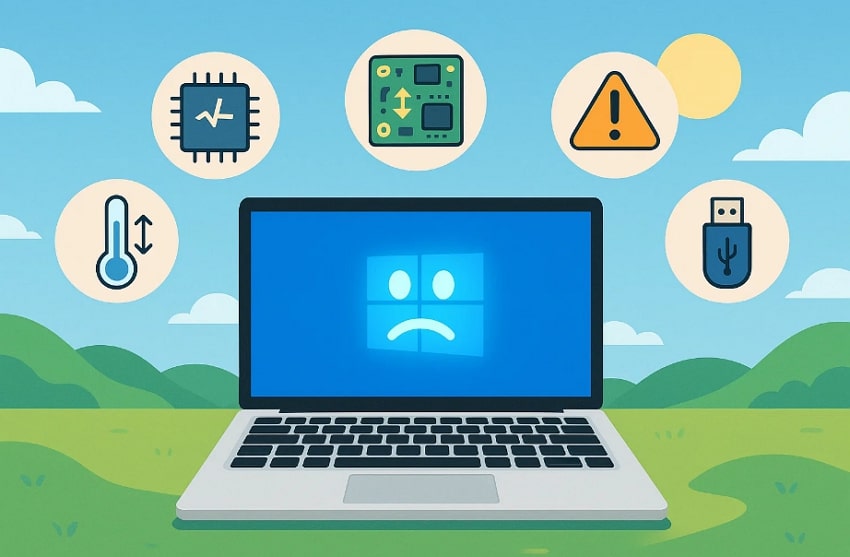
- Outdated or Corrupted Drivers: When a driver is too old or poorly written, it may not understand how newer versions of Windows manage power states.
- Misleading Power Settings: Windows and device power options look harmless, but actually make drivers unstable. With updated or changed Windows, it is essential to check the power settings.
- Recent Hardware Changes: When hardware changes are made, new drivers are required, and power requirements need to be updated to ensure a smooth workflow.
- Problematic Driver Updates: Sometimes, Windows downloads a faulty or conflicting driver update that conflicts with existing software and causes BSOD errors.
- USB or External Peripherals: External devices, such as USB drives, must also switch power states cleanly when the system sleeps or wakes.
Part 2. Blue Screen Power State Failure: Step-by-Step Fixes
With the root causes covered, here are the most effective solutions to resolve the "blue screen driver power state failure" error:
1. Disconnect External Devices
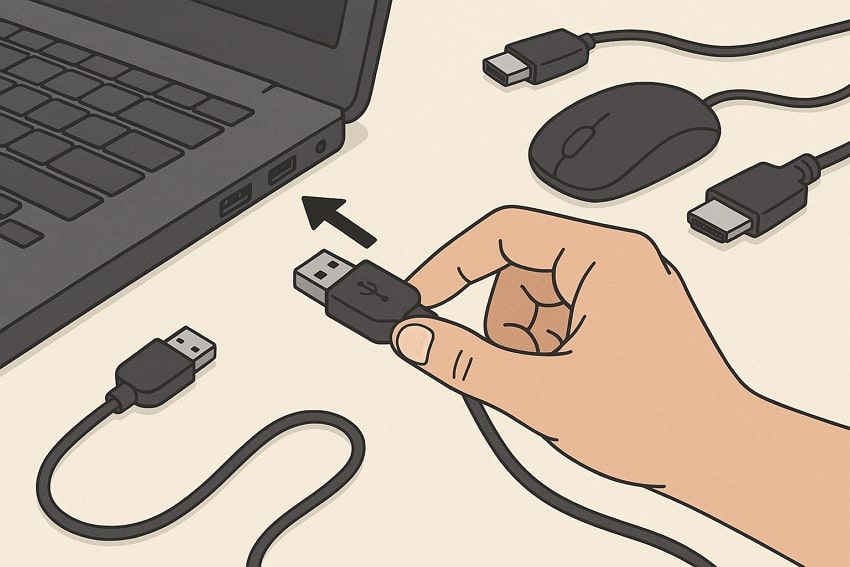
One should start with this method, as incorrectly inserted USB or peripheral devices are one of the most common reasons. In this method, you simply unplug the peripheral device from the system. Remove each device one by one so you can easily diagnose which peripheral device or device port is causing the main issue.
2. Update or Roll Back Drivers (GPU, Wi‑Fi, Chipset First)
As recognized above, outdated drivers can be a direct cause of the "Driver_Power_State_Failure BSOD" error. Updating or rolling back to a previous version of the GPU, Wi-Fi, and chipset drivers directly influences the device's power management. It helps control how the system handles sleep and performance, thus showing how important it is to update drivers as provided below:
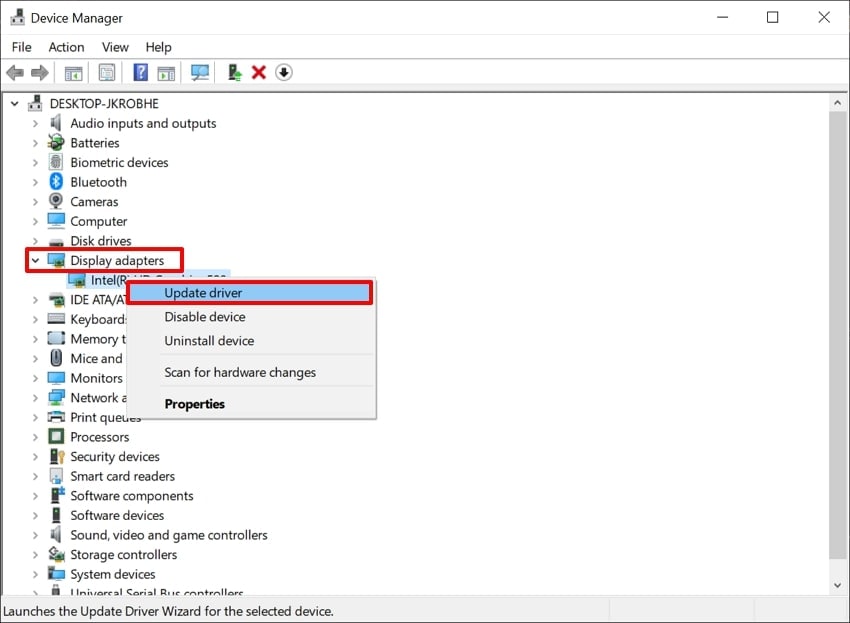
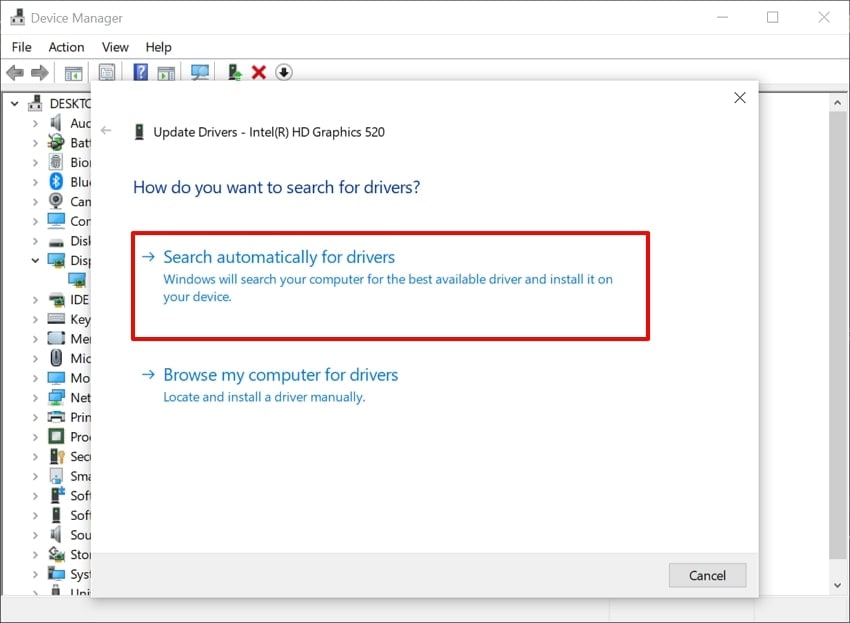
Step 1. Using the "Windows + X" combination, access a pop-up menu and open the "Device Manager" window. Click on the "Display adapters," right-click, and choose "Update driver" to start updating the GPU drivers.
Step 2. Use the "Search Automatically for Drivers" option to search and update the selected drivers. You can also perform similar actions for "Network adapters" and "System devices" drivers for updating the Wi-Fi and chipset drivers.
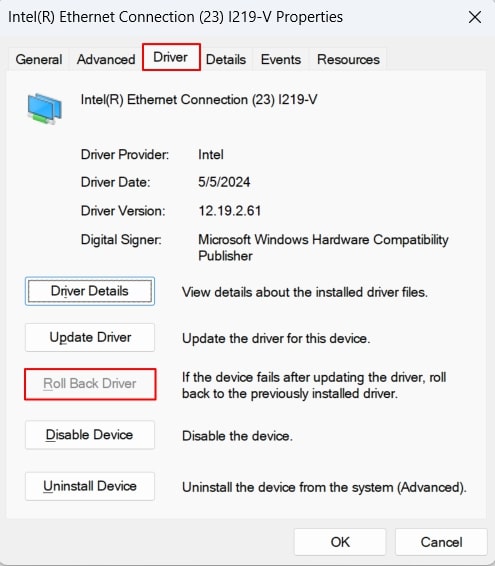
Step 3. Conversely, to roll back a driver, right-click on your desired driver and navigate to "Properties." On the following window, lead into the "Driver" section and look for the "Roll Back Driver" option to execute the process.
3. Change Power Settings for Problem Devices and The System
It is believed that power-related issues directly lead to "Blue Screen Driver Power Failure" within Windows devices. Instead of replacing hardware parts, you should consider looking into your device's power settings. With a few configurational changes, you can adjust the power settings and resolve the BSOD error, which can be observed as follows:
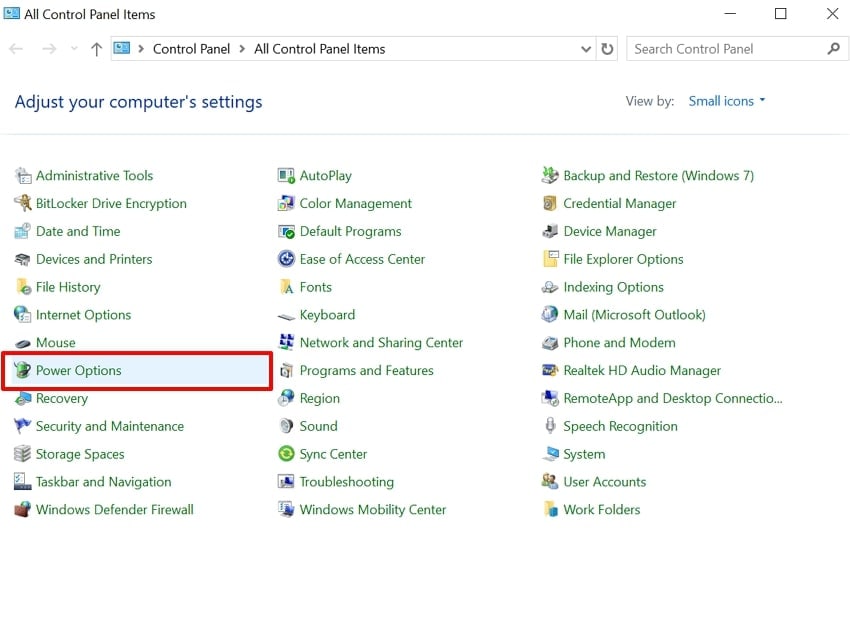
Step 1. Start by opening the "Control Panel" window on your device and looking for the "Power Options" to continue further.
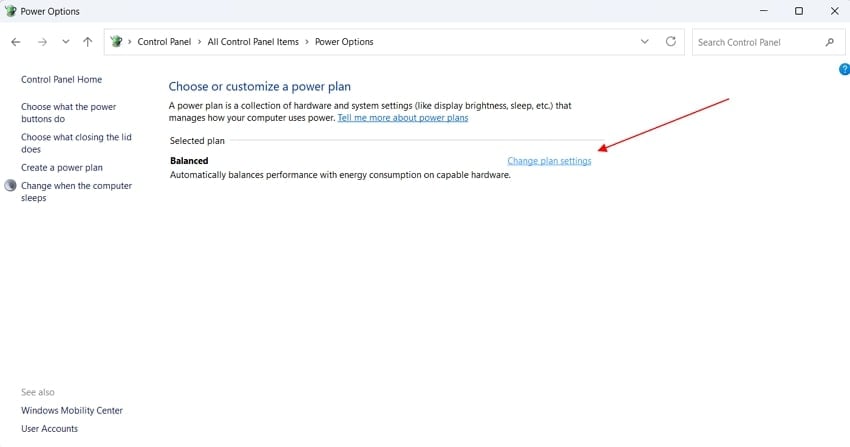
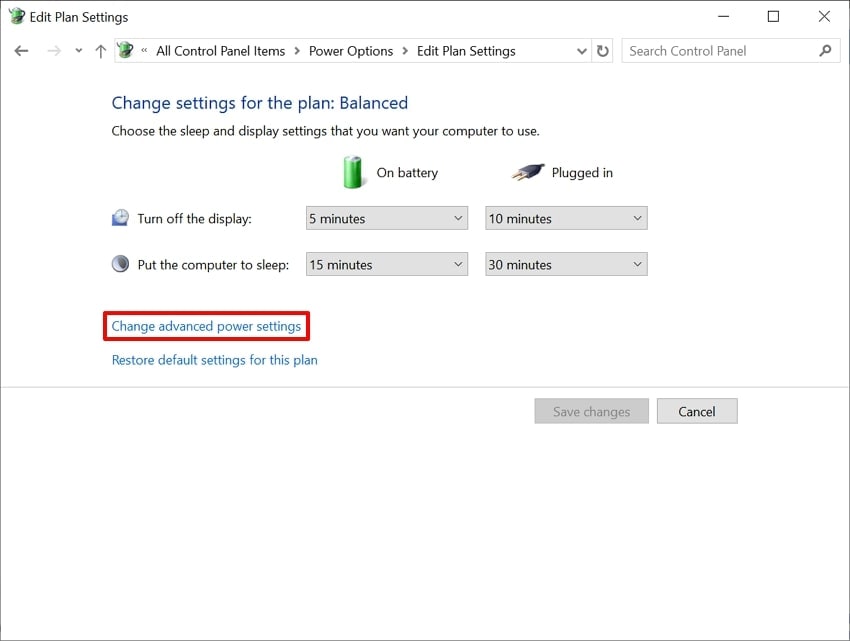
Step 2. Within the "Balanced" section in the available power plans, select "Change plan settings" to proceed to the next window.
Step 3. As this navigates you into the battery plan settings, look for the "Change advanced power settings" option for more advanced settings.
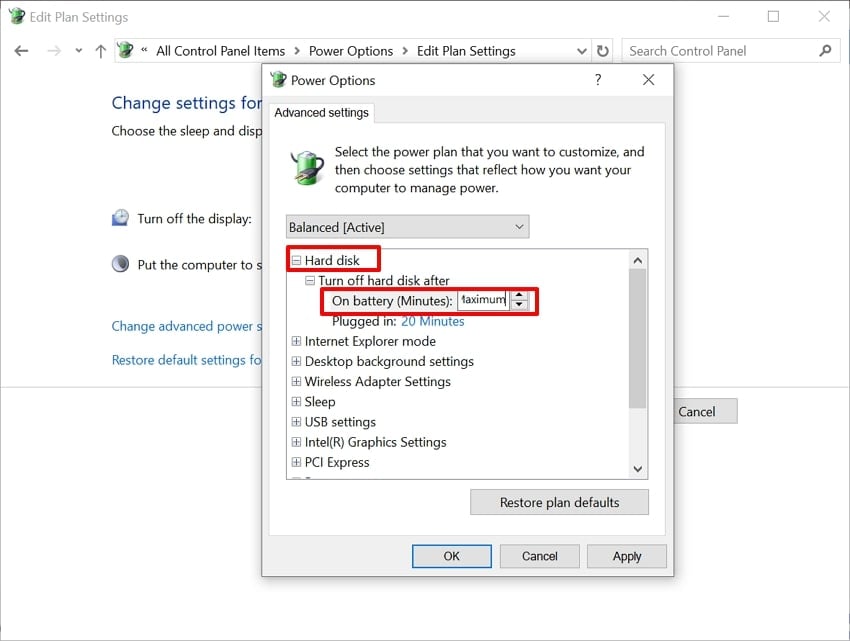
Step 4. Extend the "Hard Disk" option in the next window and verify if the "On Battery (Minutes)" option is set to "Maximum."
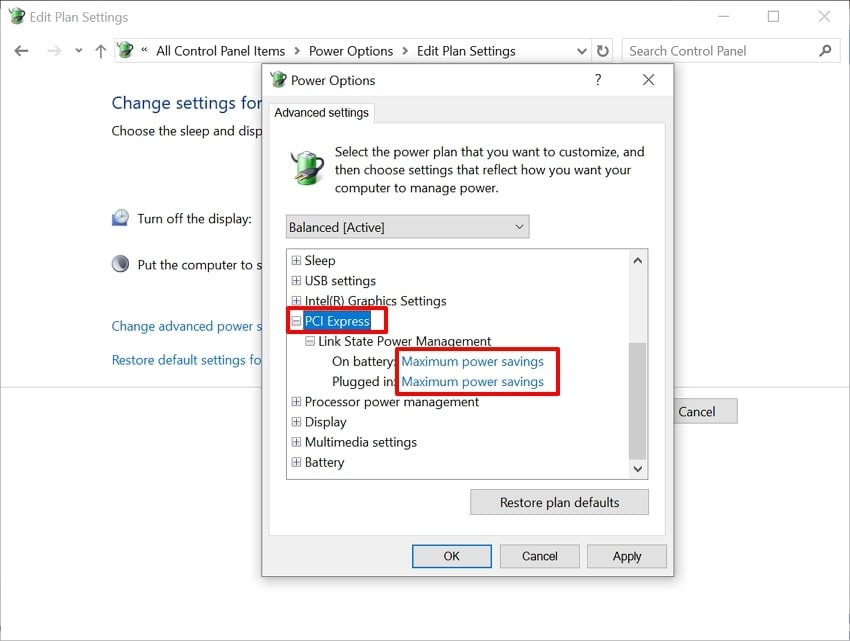
Step 5. Following this, navigate to the "PCI Express" option on the same pop-up. Here, set the "On Battery" and "Plugged In" options to "Maximum Power Savings." Consequently, hit the "Apply" button to let the PC follow these power settings and conclude the process with the "OK" button.
4. Update Windows and Run System Repairs
Outdated Windows can be a direct cause of BSOD errors, making it necessary for you to update it to the latest version. Furthermore, if it is updated, you might have to run system repair commands through CMD to detect and fix system errors. Thus, if you are also frustrated with the "blue screen power state failure" error, read the following guide:
Update Windows
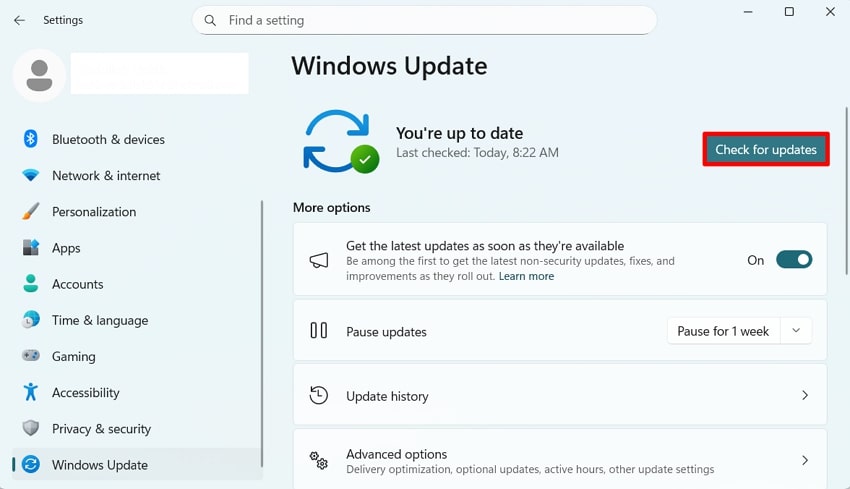
Step 1. Launch the "Settings" window from the search bar and navigate to the "Windows Update" section from the left pane.
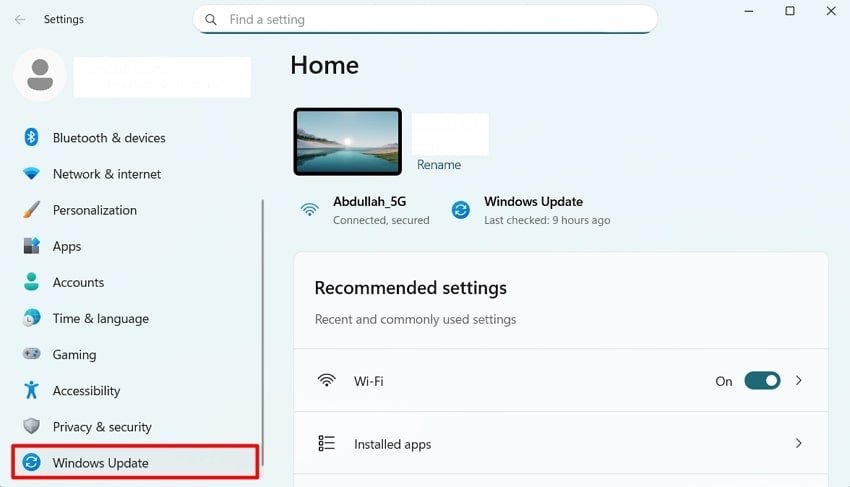
Step 2. As the Windows update window opens up, select the "Check for updates" option to check if there are any pending updates. If there are updates pending on your device, click the "Download and install" button adjacent to it for initiation.
Running System Repair Commands
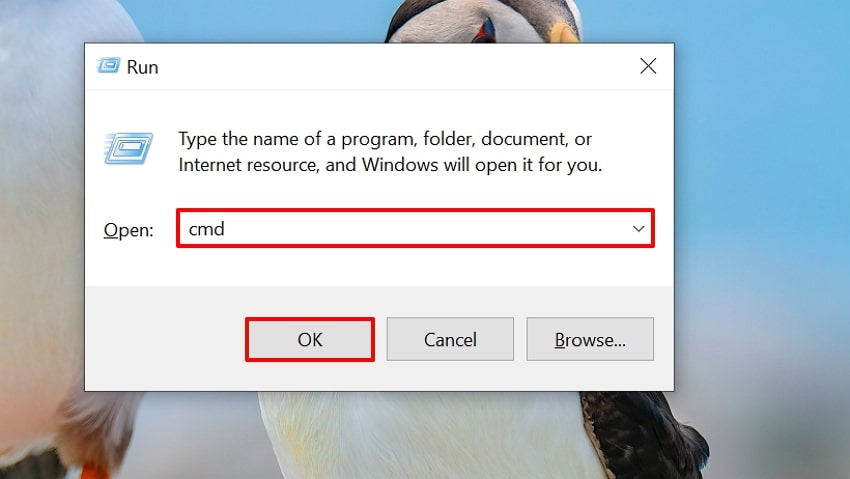
Step 1. Launch the Run program using the "Windows + R" shortcut keys and type "cmd" to launch the Command Prompt window.
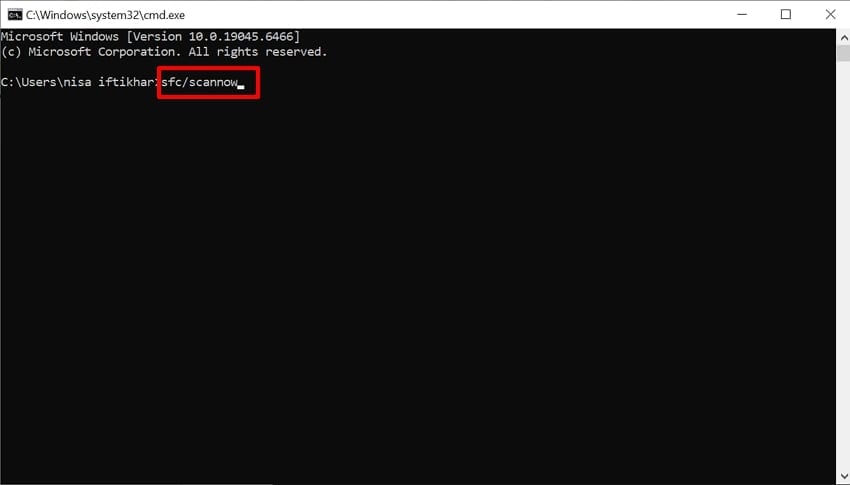
Step 2. Upon launching the CMD window, enter the "sfc /scannow" command and press "Enter" to start the system scanning. Wait for a while to let it complete the procedure, and once it shows some positive results, restart the PC successfully.
5. Boot Into Safe Mode and Remove Recent Drivers or Software
Booting into Safe Mode and uninstalling any recent driver update or software is a direct way to fix the "Driver_Power_State_Failure blue screen" error. As the Safe Mode starts Windows with only core drivers and services, it helps you verify and remove the element causing the power-state crash. Following is a simple guide showing how to boot into Safe Mode and easily remove the responsible elements:
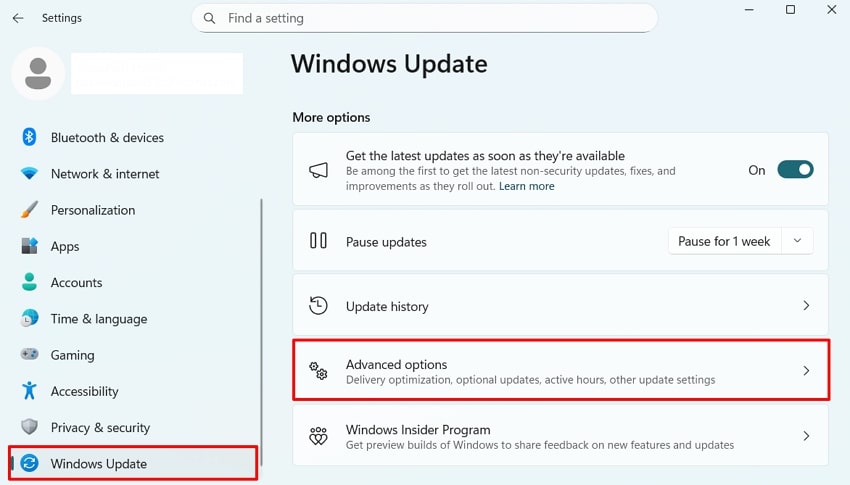
Step 1. Open the "Settings" window and navigate to the "Windows Update" section to select the "Advanced options" button.
Step 2. Continue further into the "Recovery" settings and look for the "Advanced Startup" option. On clicking "Restart now," you will be led into the startup settings of your Windows device.
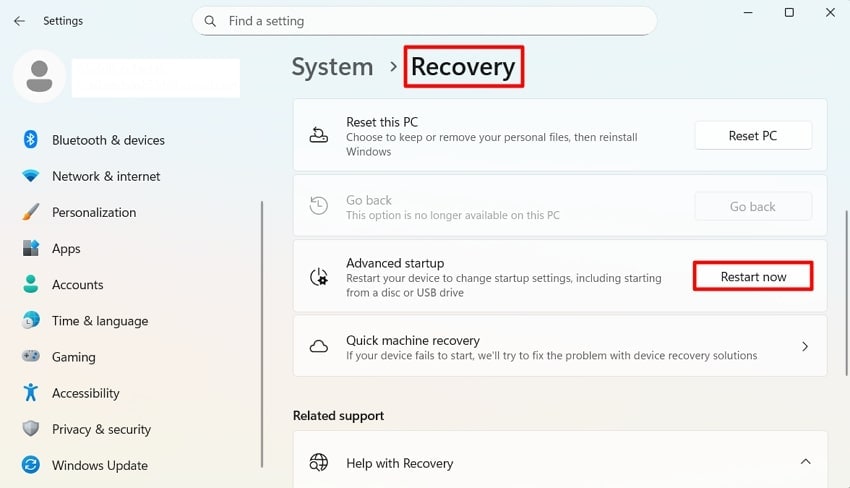
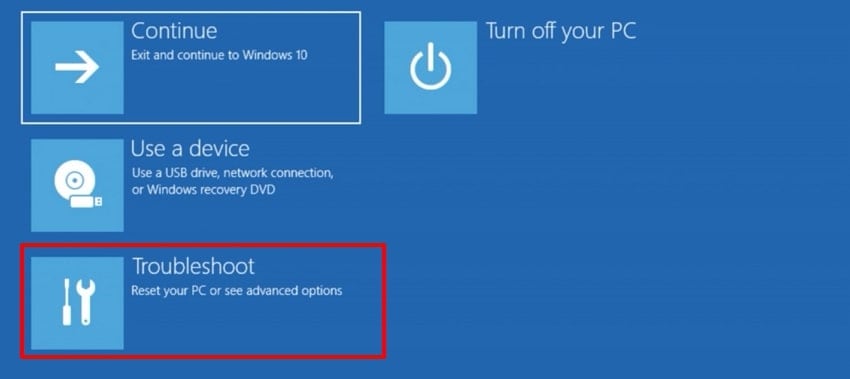
Step 3. On the next screen, click on the "Troubleshoot" option to proceed to the next interface.
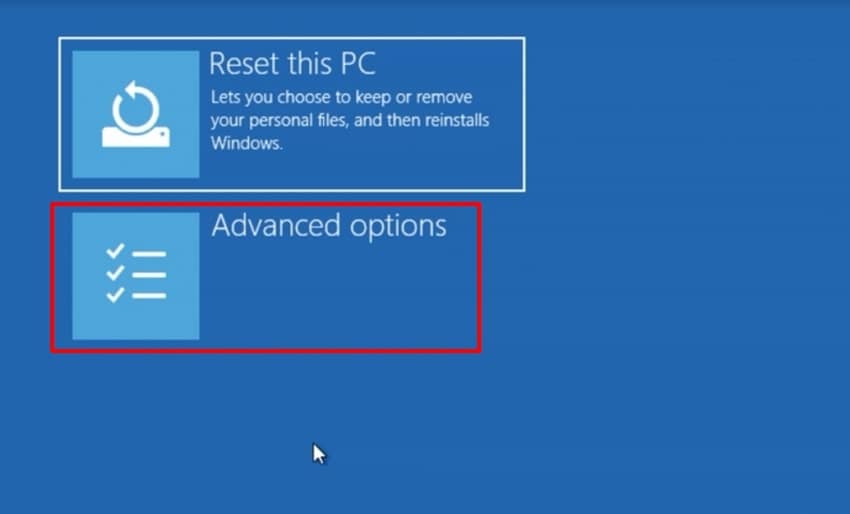
Step 4. Now, choose "Advanced Options" to access the advanced startup settings instantly.
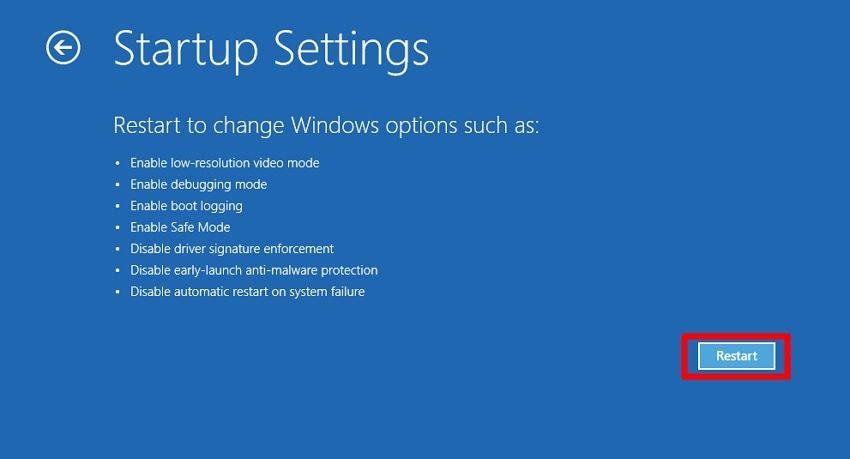
Step 5. Here, select the "Startup Settings" option to define changes in the Windows startup behavior.
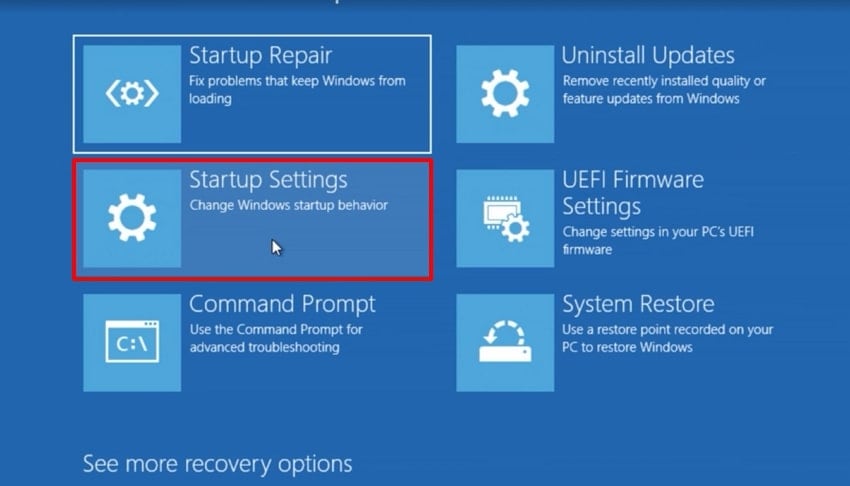
Step 6. Select the "Restart" button appearing on the next window to start Windows in Safe Mode. Do not forget to press the "4" button to define your Safe Mode option.
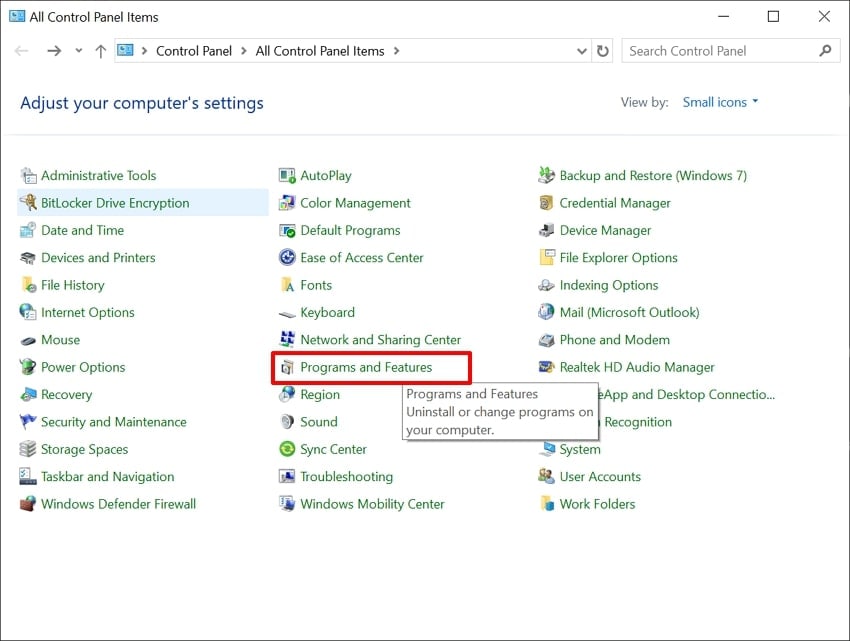
Step 7. Once the device is in Safe Mode, access the "Control Panel" and select the "Programs and Features" option to look for the conflicting app.
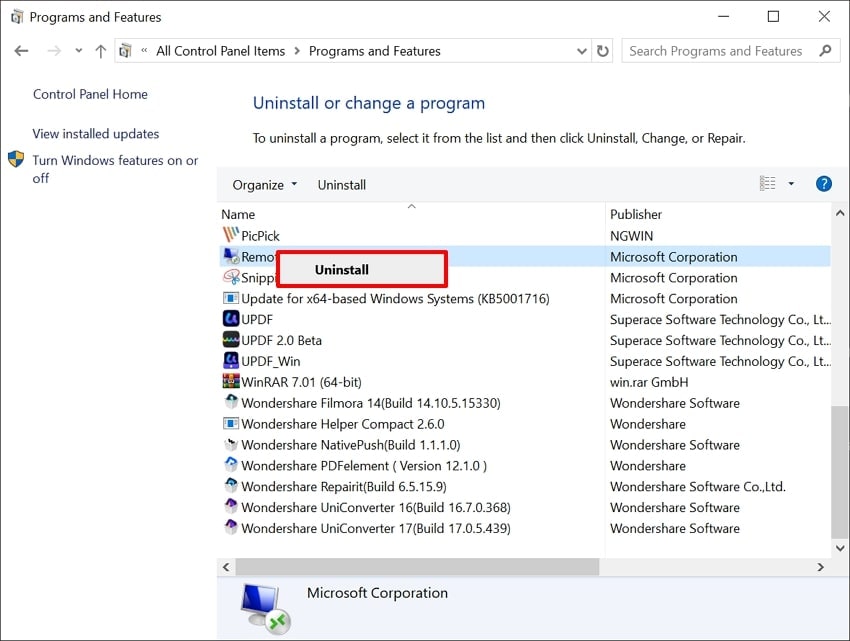
Step 8. Find the problematic software, right-click, and select "Uninstall" to remove it from the device and fix the BSOD error.
6. Adjust Startup and Check for Conflicts
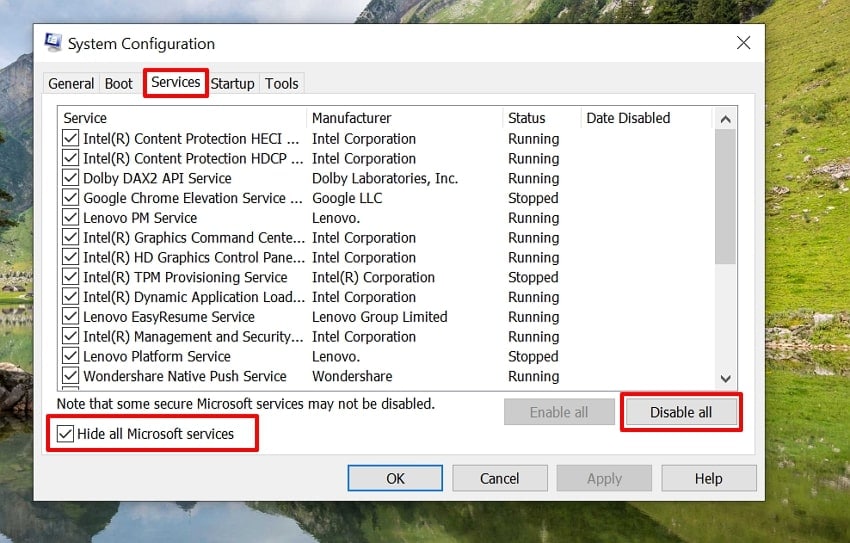
The "Driver Power State Failure BSOD" error can be directly triggered due to a third-party background application. While Windows runs only with the essential services in Clean Boot, it gets easier for you to detect the reason for crashes. After disabling all unnecessary services, you can re-enable and discover the startup app that is causing the BSOD error, as shown below:
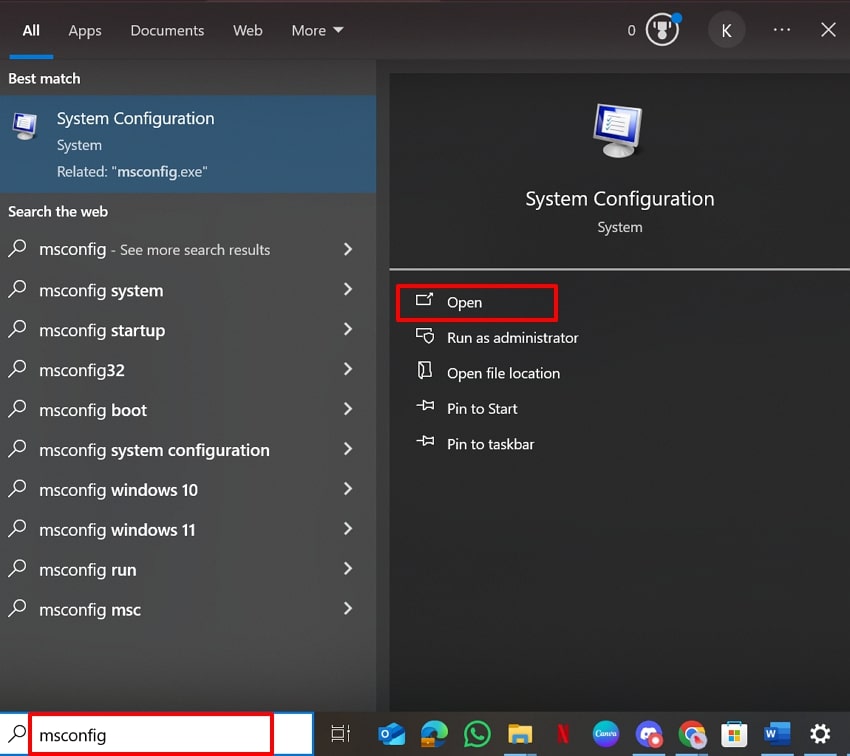
Step 1. Start by typing "msconfig" in the search bar and hitting the "Open" button to access the System Configuration window.
Step 2. Lead into the "Services" tab and disable the "Hide All Microsoft Services" option. Afterwards, hit the "Disable All" button to disable all unnecessary startup services.
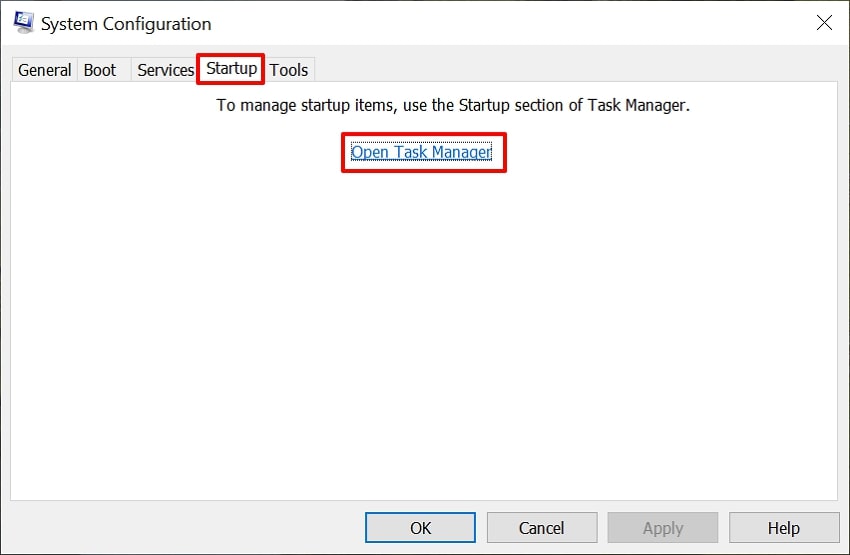
Step 3. From the same interface, click on the "Startup" tab and hit the "Open Task Manager" option.
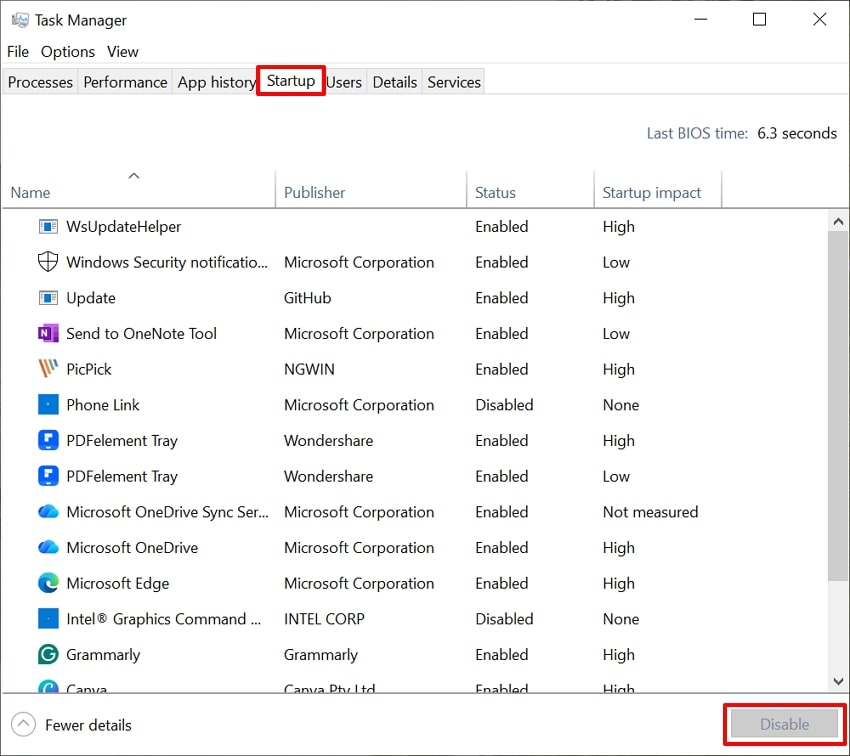
Step 4. Here, choose each app separately and click the "Disable" button to turn off the apps. Afterwards, examine if your PC works properly and start enabling the disabled services to find out which app causes the issue.
Pro Tip: Driver Power State Failure? Repair Corrupted Files Fast with Repairit
The game developer worked overnight and shut down the system after completing the project. The next day, upon powering up the PC, it displayed a "Driver Power State Failure blue screen" error. Although he managed to resolve the issue through basic troubleshooting, some critical files became corrupted in the process. In such situations, a tool like Repairit can help restore damaged documents and repair them quickly, depending on the corruption level.
This tool uses patented AI algorithms to analyze corruption and rebuild files with high accuracy. Users simply add their corrupted files, and it instantly repairs the files. Its ability to deal with diversified file formats makes it a practical option for efficient file repair.
Key Features

-
Repair damaged files with all levels of corruption, including blank files, files not opening, unrecognizable format, unreadable content, files layout changed, etc.
-
Support to repair all formats of PDF, Word, Excel, PowerPoint, Zip, and Adobe files.
-
Perfectly repair corrupted files with a very high success rate, without modifying the original file.
-
No limit to the number and size of the repairable files.
-
Support Windows 11/10/8/7/Vista, Windows Server 2003/2008/2012/2016/2019/2022, and macOS 10.13~macOS 15.
Detailed Expert Guide to Repair Corrupted Files with Repairit
Upon hearing the key features of this repairing tool, let's explore its detailed guide below to fix corrupted files with ease:
Step 1. Choose More Type Repair and click Desired Repair System
As you enter Repairit, choose the "More Type Repair" option from the left tab and hit the "Document Repair" option.

Step 2. Choose the Right Option to Initiate Corrupt File Repair
Upon entering the desired corrupted files, click on the "Repair" button to get the repair procedure started.

Step 3. Render the Repaired Outcome to the Desired Folder
Once file repair concludes, Repairit will notify by displaying a prompt. Choose the "Preview" button to examine the results and hit the "Save" button to render the file for further usage.

Repair Corrupted Files
 Security Verified. Over 7,302,189 people have downloaded it.
Conclusion
Summing up in this article, we have narrowed down all the proven and efficient methods to fix the "blue screen power state failure" error. While fixing the BSOD error across your device, if any system or device file gets corrupted, we recommend using Repairit for easy restoration. It provides efficient features to repair the file with full accuracy, while offering support for multiple file formats.
Frequently Asked Questions
-
1. Why does the crash mention NTOSKRNL.EXE?
NTOSKRNL.EXE is the Windows kernel, so many BSODs list it as the crashing module. However, in most cases, the kernel only reacts to a faulty driver that failed to complete a power request in time. -
2. Is this error caused by hardware or software?
In most cases, the software-related driver bugs are software-related. Although, faulty components or a bad mainboard issues related to hardware are rarely involved in this specific error. -
3. When should drivers be rolled back instead of updated?
If the Driver Power State Failure error started right after a specific driver update, then rolling back that driver is beneficial. This is helpful when the newest driver introduces a regression that only a future update can fix. -
4. What if updating drivers and changing power settings do not help?
If basic fixes fail, the next steps include checking disks and system files or checking for conflicting apps. However, if the error is stubborn, try repairing it with an efficient tool like Repairit, which provides multiple advanced features.




