
Some people suddenly see their computer screen shaking, blinking, or turning strangely bright. This problem can disturb work and cause significant eye strain, making tasks difficult to complete. Many users search for how to stop computer screen from flickering. In this guide, we first explain simple reasons behind the issue and then provide clear fixes.
Table of Contents
Part 1. What Screen Flickering Is And Why It Happens
Screen flickering occurs when the screen brightness changes very swiftly and goes erratic. Plus, this unstable brightness usually appears as quick blinking or sudden dimming flashes. It occurs when the display receives uneven signals or refreshes at irregular intervals. Older CRT displays show flicker because low refresh rates cause rapid brightness fading.
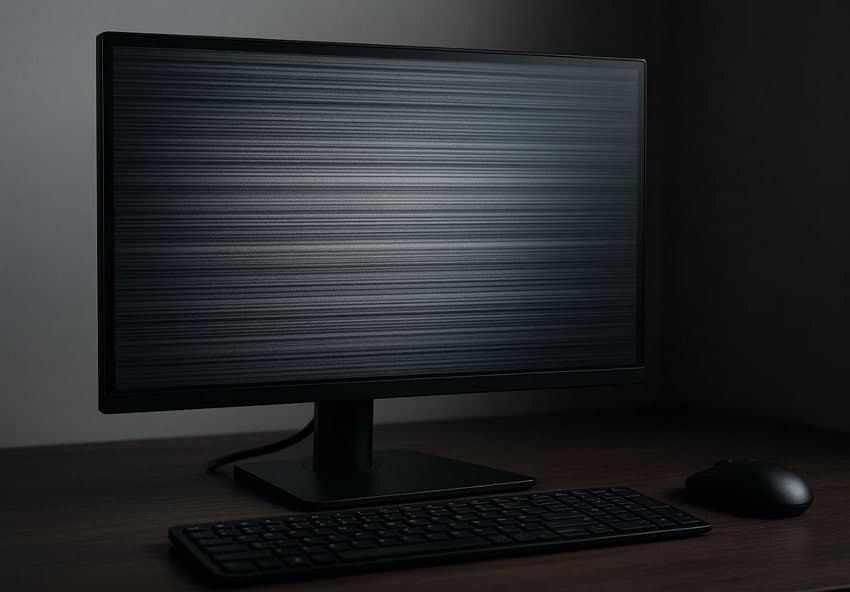
This fading occurs before each refresh cycle, producing noticeable pulsing across the screen. Modern screens flicker due to faulty tuning, weak connection, or unstable backlight control. Sudden changes in how images load can also interrupt smooth brightness across frames. Understanding these causes helps you identify early signs and learn how to fix screen flickering.
Common Signs and Symptoms of Flickering Screen
- Rapid Blinking: The screen often flashes on and off repeatedly, distracting one all the time.
- Wavy Image: Parts of the screen are distorted, or they become waves, frequently.
- Flicker Lines: Horizontal or vertical lines appear and move over the screen.
- Brightness Shifts: Display brightness changes, making parts of the screen appear lit.
- Temporary Blackouts: The screen goes black for seconds before returning, disrupting workflow regularly.
Part 2. Ultimate Fix for Computer Screen and Monitor Flickering
Screen flickering can be annoying when you are doing essential tasks. Below, you'll learn how to stop flickering screen by checking hardware and system settings:
Method 1. Check the Monitor Cable
It is important to check the monitor cable because loose connections can cause the screen to flicker. A damaged or worn cable can interrupt the signal and create blinking or unstable images. Make sure the cable is firmly inserted into both the screen and the computer ports.
Gently tilting the cable can help you detect internal faults that may trigger flickering. Using a high-quality HDMI or DisplayPort cable also helps reduce signal loss and improve overall display stability.
Method 2. Update or Reinstall Display Drivers
Update or reinstall display drivers to resolve flickering by restoring stable image signals. Display drivers manage the communication between the GPU and the screen, so stable performance depends on them working correctly. Corrupted or outdated drivers can disrupt timing, resolution, or refresh rates, which often leads to flickering. Understanding how to fix screen flickering usually begins with keeping your display drivers updated, which is featured in the steps below:
Step 1. Look for the "Device Manager" through the Search menu from the taskbar.
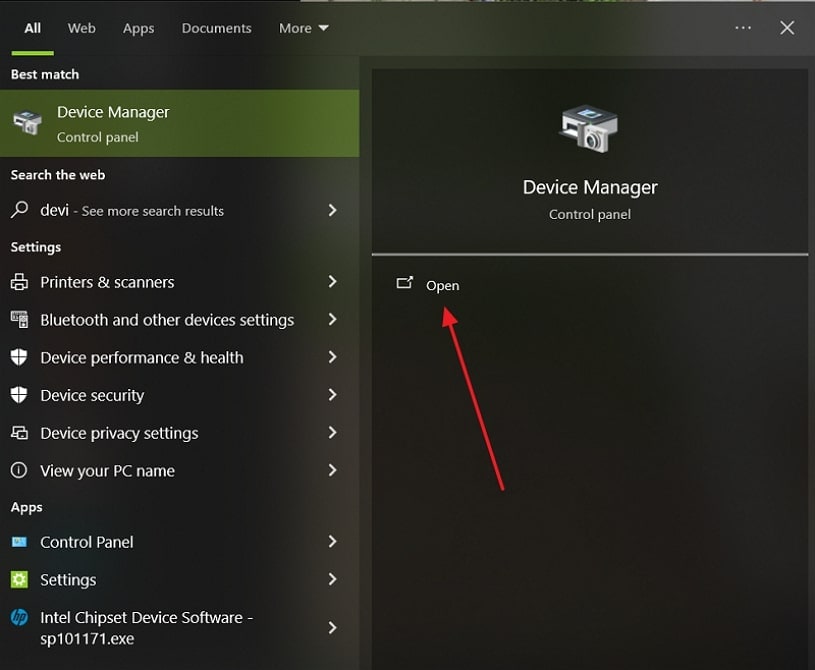
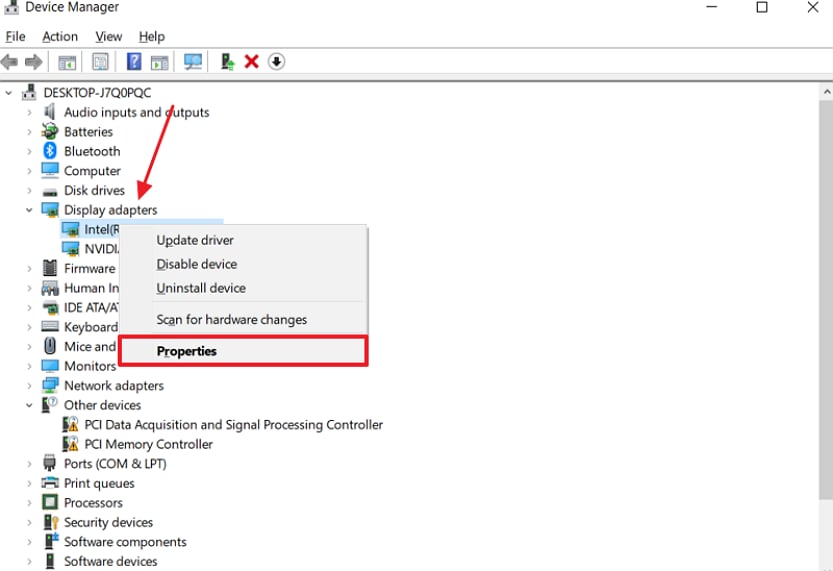
Step 2. To initiate, click the downward arrow beside "Display adapters" to right-click on your desired driver and opt for the "Update Driver" option.
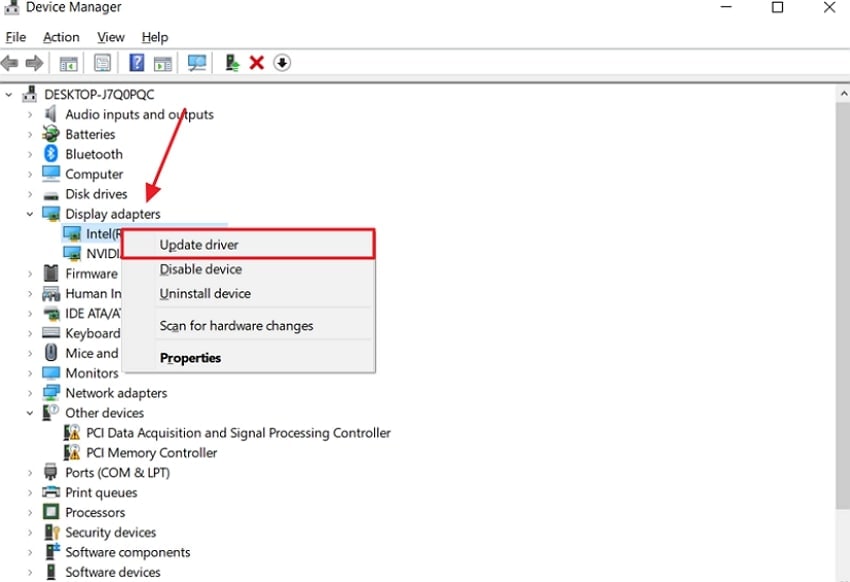
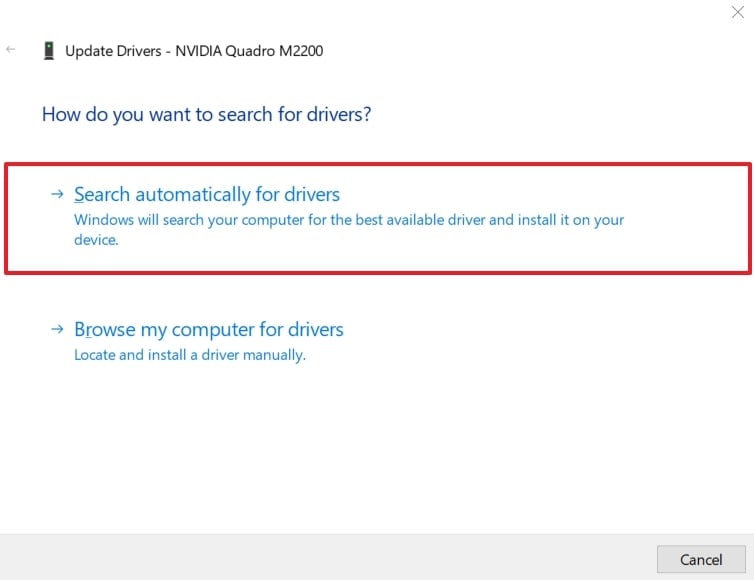
Step 3. Next, choose "Search Automatically For Drivers," and Windows will find the updates automatically. Restart your PC after the update installs so the changes take effect.
Method 3. Roll Back Your Display Driver
If your screen flickers after a recent update, rolling back the display driver may help. This restores a stable driver version and fixes a signal that causes black flashes. Flickers also often appear due to bugs in new drivers, allowing you to address the "how to stop monitor flickering" issue. Go through the guide below to learn how to roll back your display driver:
Step 1. Initiate by opening "Device Manager" and expanding the "Display adapters" section. Right-click on your graphics card and select "Properties" from the menu.
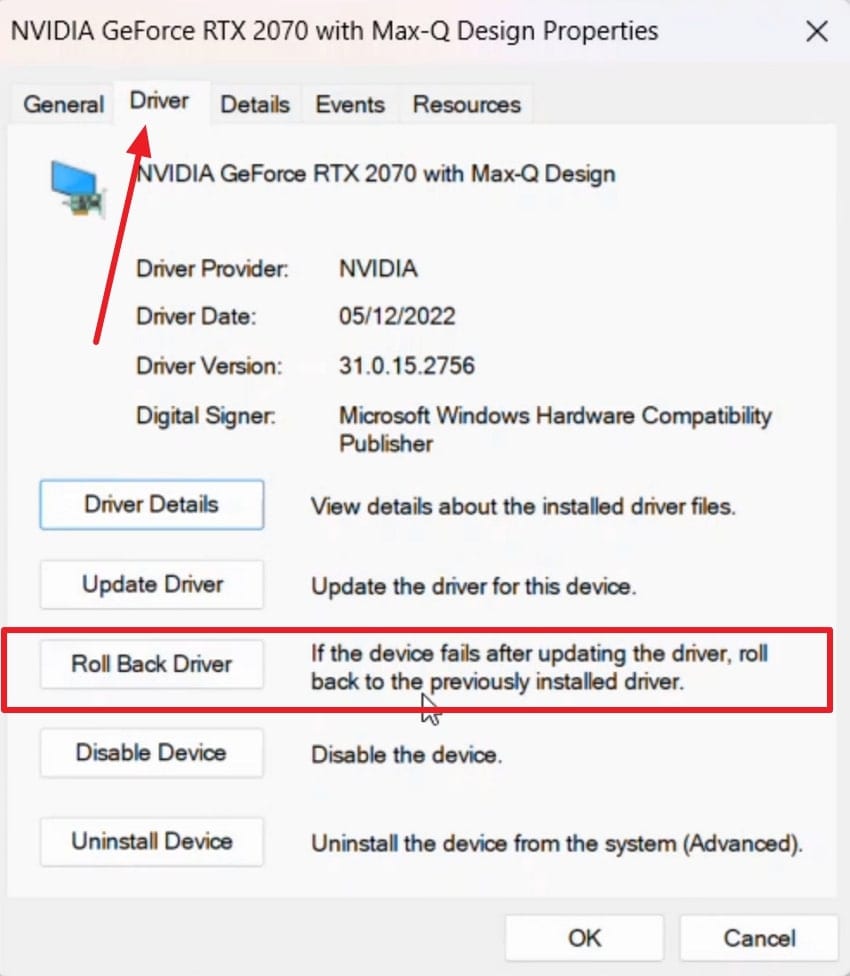
Step 2. Navigate to the "Driver" section and choose the "Roll Back Driver" button.
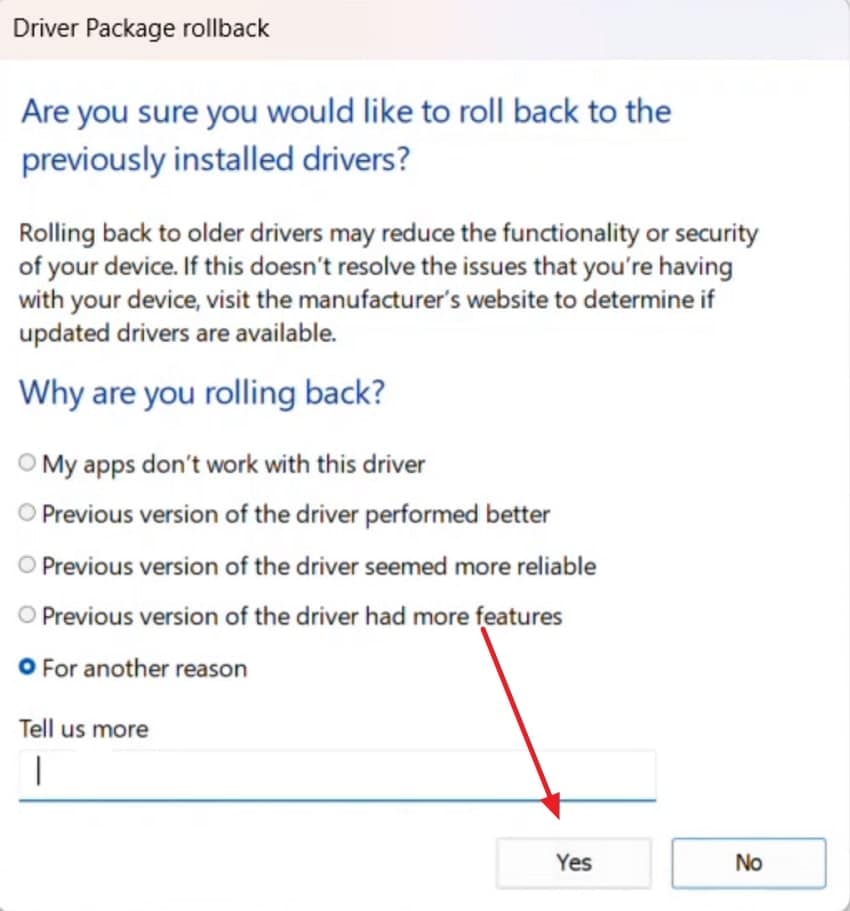
Step 3. Choose a reason for rolling back, then press "Yes" to continue. Finally, restart your computer to apply the changed settings and check if the screen stops flickering.
Method 4. Adjust Screen Refresh Rate
You can also adjust the screen refresh rate to stabilize images by changing how many frames appear each second. A low or unsupported rate can cause visible flicker and overall display instability. Choosing a supported option such as 60 Hz or 144 Hz reduces strain and improves clarity. This adjustment is an essential step in understanding how to fix screen flickering. Follow the guide below to change your refresh rate:
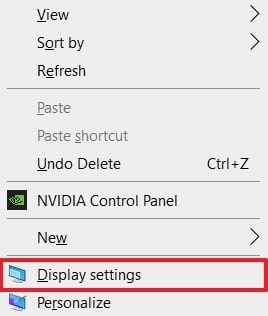
Step 1. Head to the "Display settings" by right-clicking within an empty desktop area.
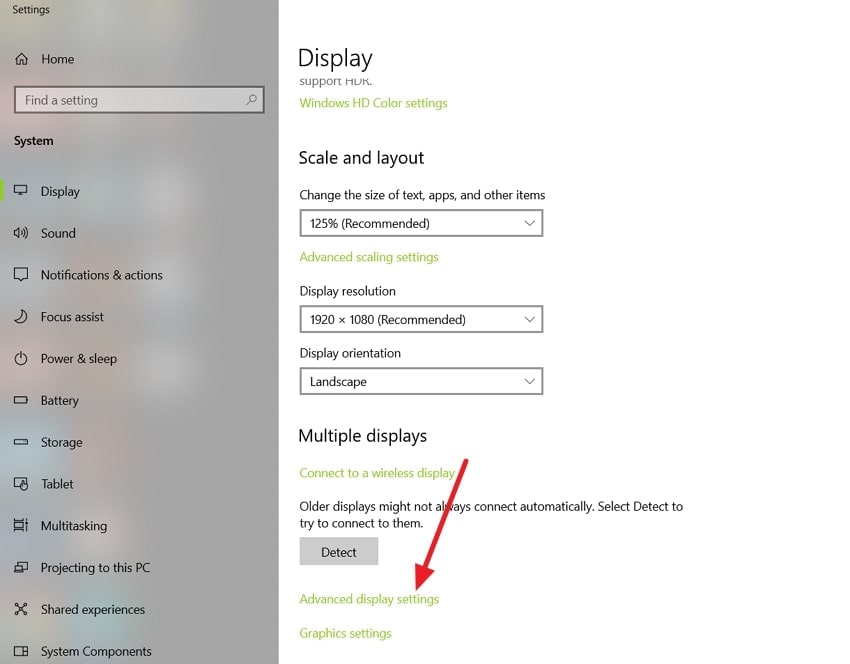
Step 2. Upon accessing it, locate and click the "Advanced Display Settings" option.
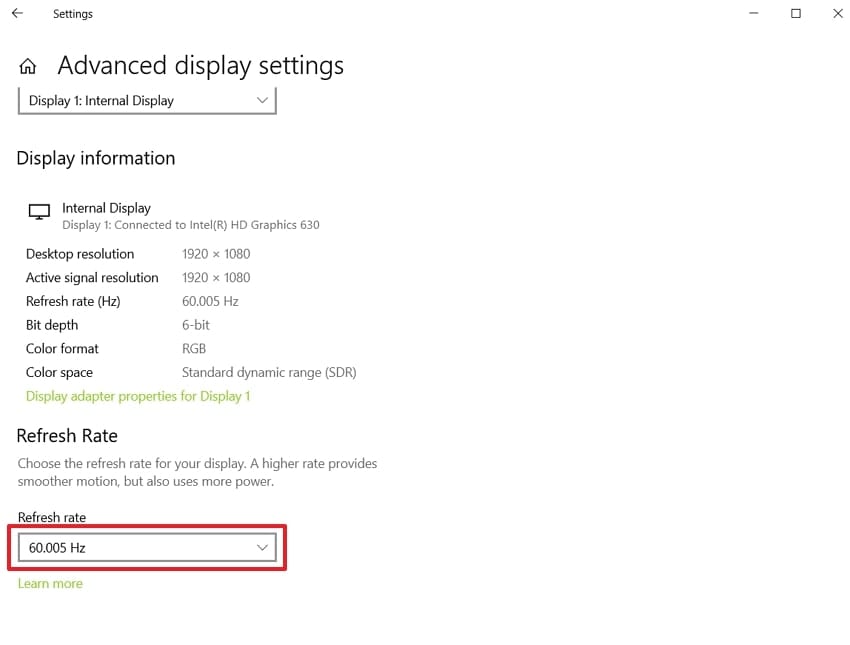
Step 3. Look for the section labelled "Refresh Rate" where you need to choose a higher value from the available options.
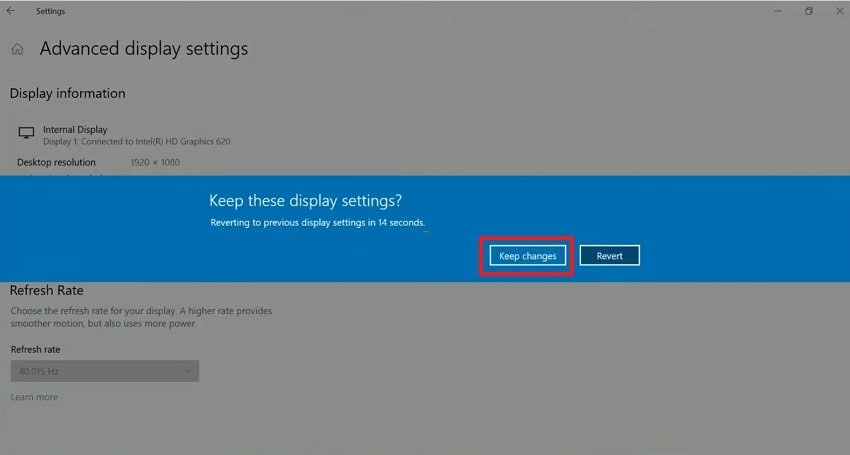
Step 4. After selecting the new rate, a pop-up will appear, where you need to click "Keep Changes" to confirm.
Method 5. Malware Scanning
Malware scanning removes harmful software that interferes with display settings and the graphical process. Harmful programs can change system configurations, overload the CPU or GPU, and trigger repeated screen redraws. They may also corrupt drivers and force constant reloads that create flickering effects. This step becomes essential when learning how to stop a computer screen from flickering, especially when other fixes do not work, as follows:
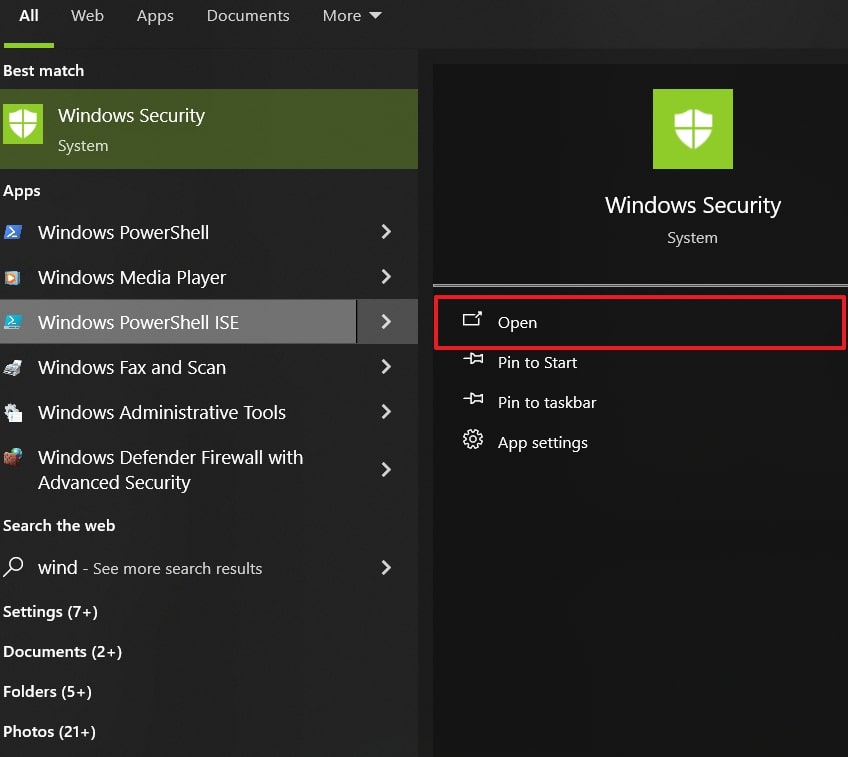
Step 1. Launch "Windows Security" or your installed antivirus program from the Start menu.
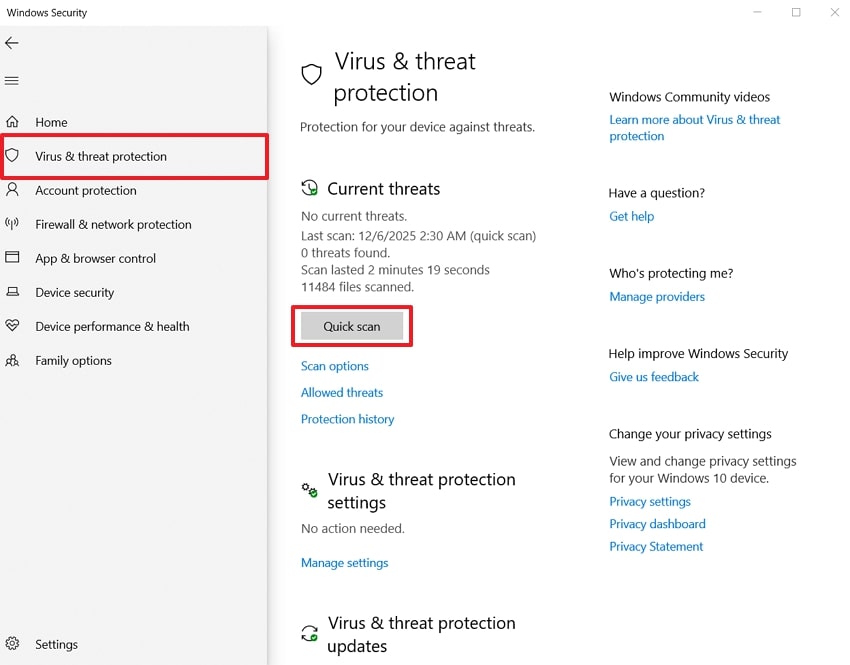
Step 2. Afterward, press the "Quick Scan" button as you navigate to the "Virus & Threat Protection" section. Next, restart your PC to refresh system processes and fix screen flickering problems.
Pro Tip. Fix System Files: Heal Your Display to Stabilize Screen
Many users are looking for how to stop the computer screen from flickering for better workflow. When searching for the causes, a flickering screen problem may also occur due to system file issues. You should consider using Repairit to repair your damaged or corrupted files to fix this issue. This advanced tool fixes corrupted files caused by hardware failures or system crashes.
Moreover, you can repair multiple files at once, even larger than 1GB. While repairing files, all your metadata is preserved safely, with no changes to the data. Plus, the tool supports 30+ file formats, including DOC and ZIP. You can also preview the result before final download after repairing the damaged file.
Key Features

-
Deep File Scanning: This tool scans files in a deep manner to locate unhealthy areas and fix them while maintaining their original structure.
-
Adobe Compatibility: Offers full support for all Adobe project files, including PSD and PSB.
-
iWork Repair: Repairit allows Mac users to restore accessibility to damaged iWork files, including Pages, Numbers, and Keynote files.
Complete Step-by-Step Guide to Repair System Files To Prevent Flickering
This section explains how to repair damaged or broken system files while keeping them safe with Repairit:
Step 1. Import Damaged Files Across Repairit
Upon launching Repairit, access the "More Types Repair" section, pick "Document Repair," and click the "Start" button.

Step 2. Select and Import Corrupted Files
On the next screen, press "+Add" to import your damaged system files, then click "Repair" to start fixing them.

Step 3. Export Repaired Files From Repairit
After the repair is finished, choose "Save All" to prepare your restored files. Then click "Save" to download the repaired system files to your computer.

Repair Corrupted Files To Prevent Windows ScreenFlickering
 Security Verified. Over 7,302,189 people have downloaded it.
Conclusion
To conclude, many users feel stressed when their screen starts shaking or blinking. This issue interrupts important tasks and creates discomfort during prolonged computer use. Besides, people often search for how to stop computer screen from flickering. When damaged files contribute to the problem, a reliable repair tool becomes essential. In such cases, try Repairit to restore corrupted files with accuracy.
FAQs
-
Q1. Does screen flickering mean my monitor is failing?
Not always, because software conflicts often create flicker resembling actual hardware failure signs. Testing the monitor on another device helps identify whether the panel behaves inconsistently. If the issue persists, the monitor may require repair or computer replacement soon. -
Q2. Why does my laptop flicker only when moving the lid?
Laptop hinges sometimes press internal display cables, causing unstable signals during lid movement. Repeated stress can loosen connectors and create flashing whenever the screen position changes. Repairing or securing cable placement helps restore consistent brightness across all viewing angles. -
Q3. Can damaged documents or media files trigger display flicker?
Corrupted media sometimes forces repeated processing attempts that affect screen behaviour during playback. These errors cause stalled frames, blinking visuals, or inconsistent brightness while viewing content. Yet, Repairit can restore damaged documents and reduce processing interruptions, creating a visible flicker.




